Generating an Accounts Receivable Projected Income Report
Generating an Accounts Receivable Projected Income Report
1. Log into PraxiSchool
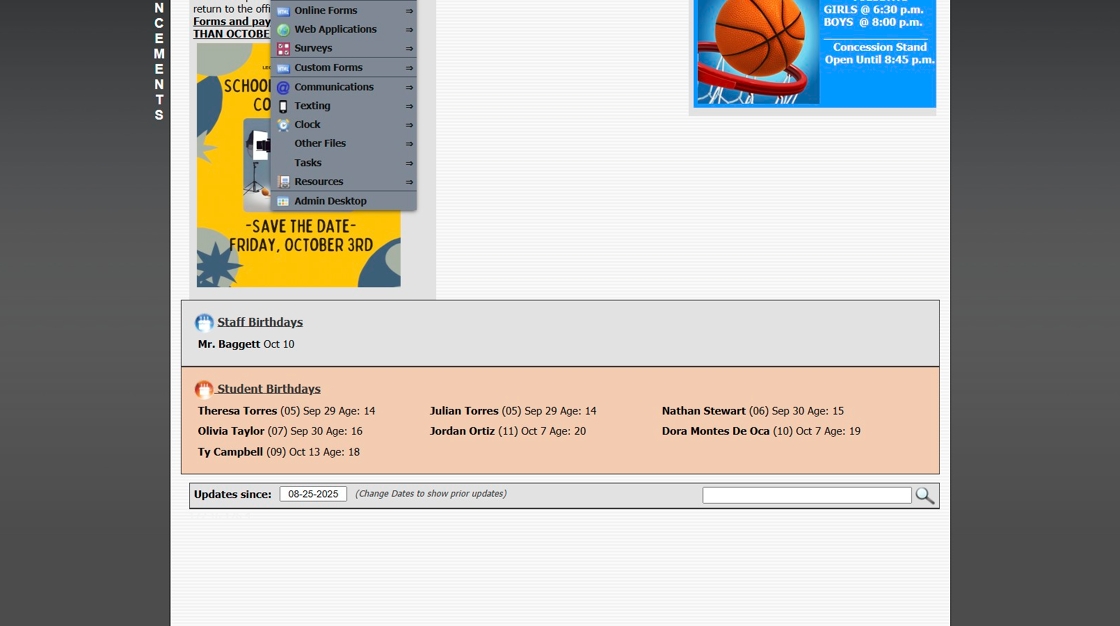
2. Click "Admin"
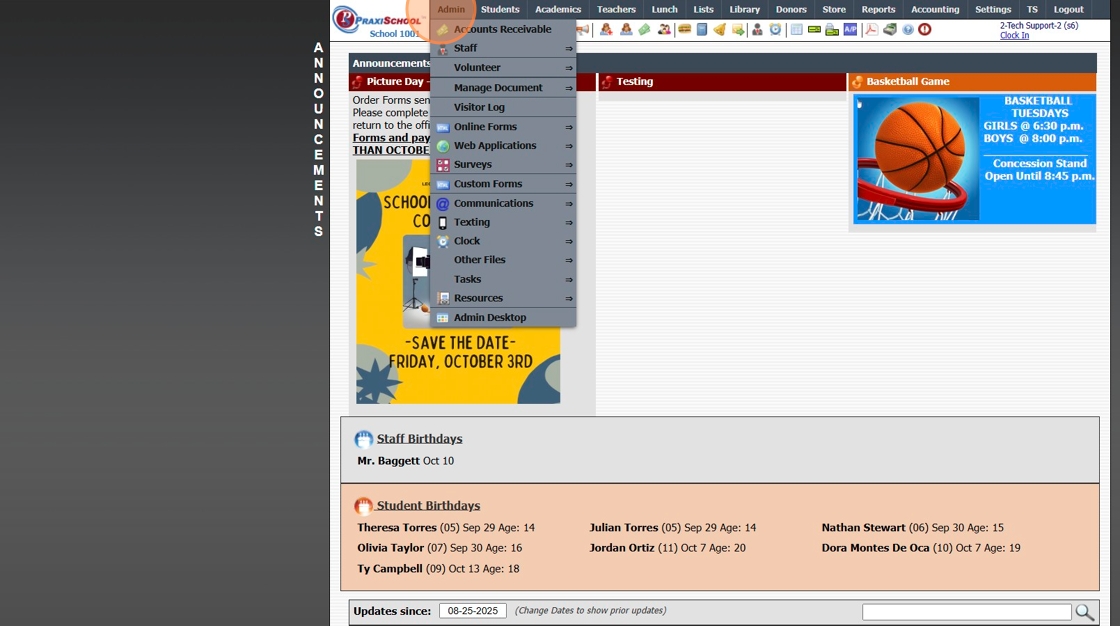
3. Click "Accounts Receivable"
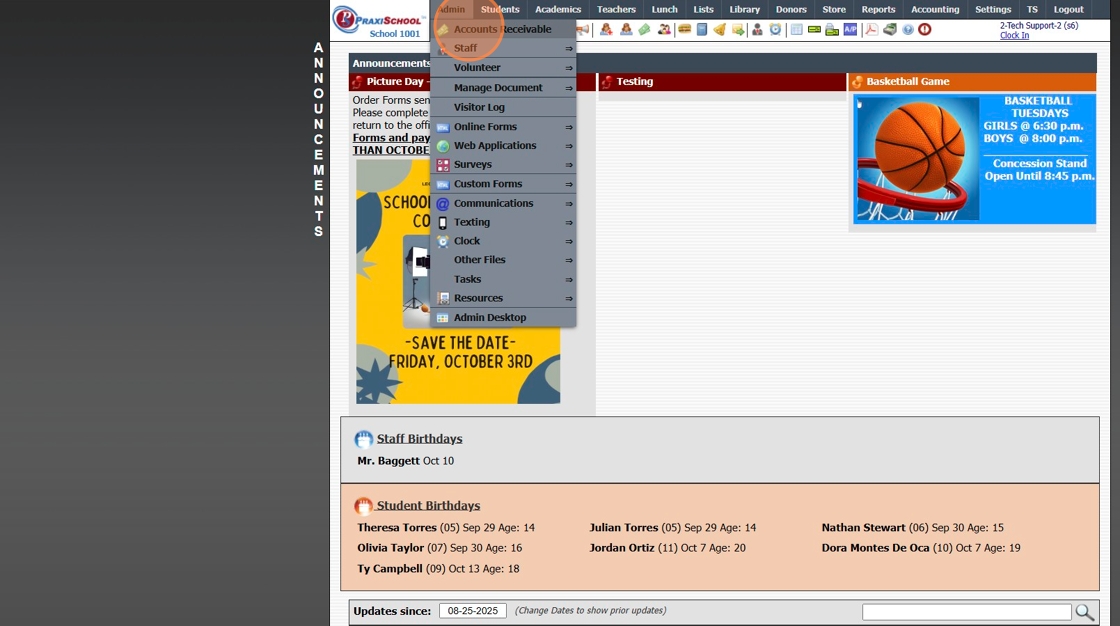
4. Click "Actions"
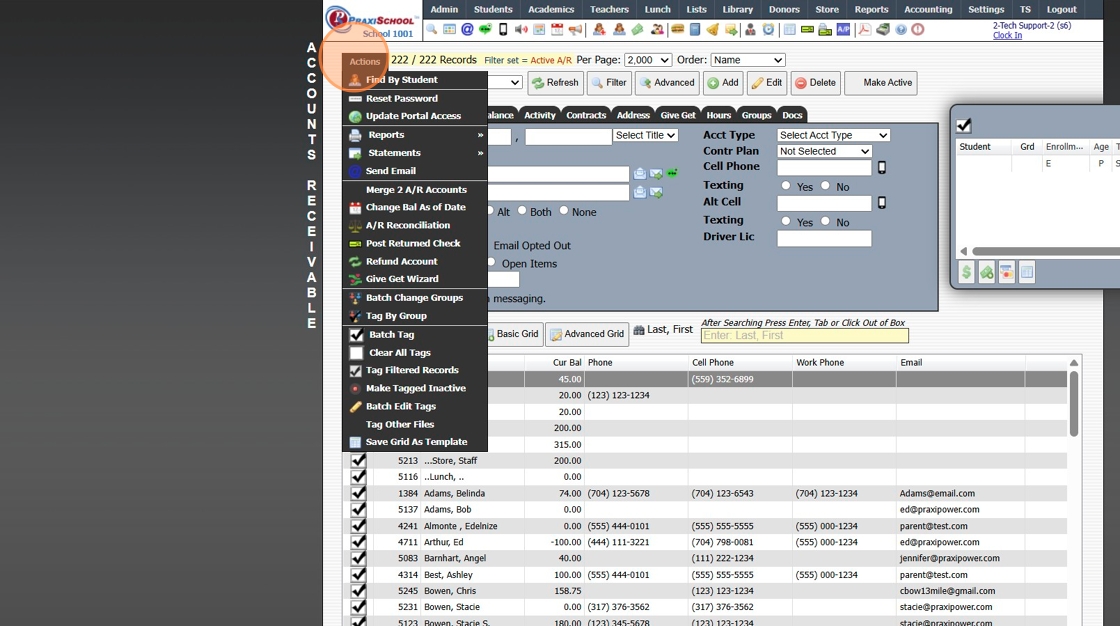
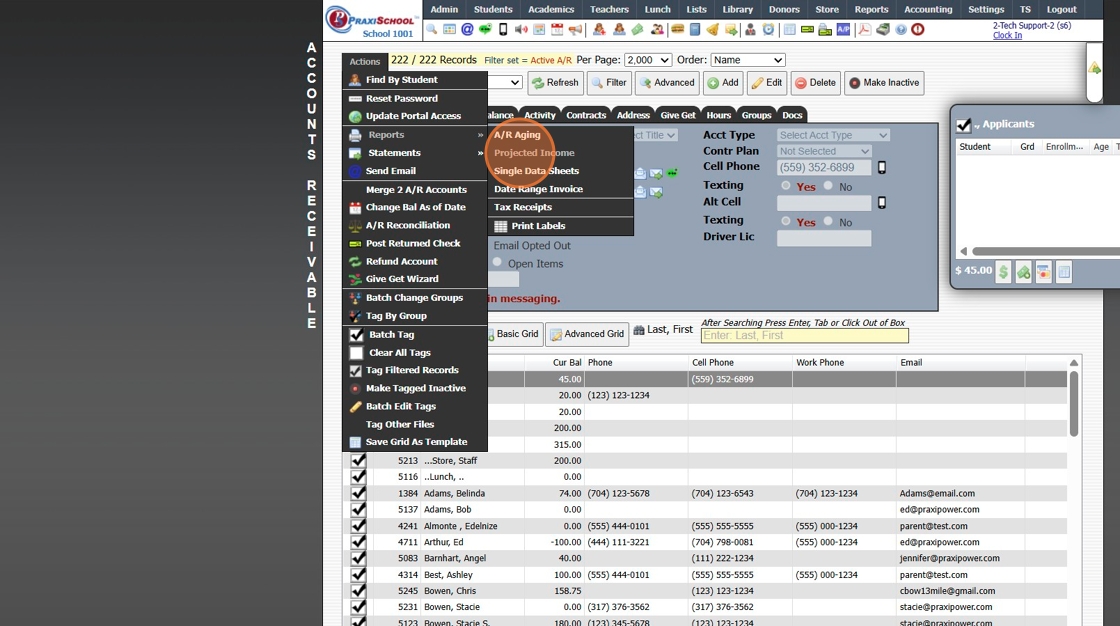
5. Click "Reports"
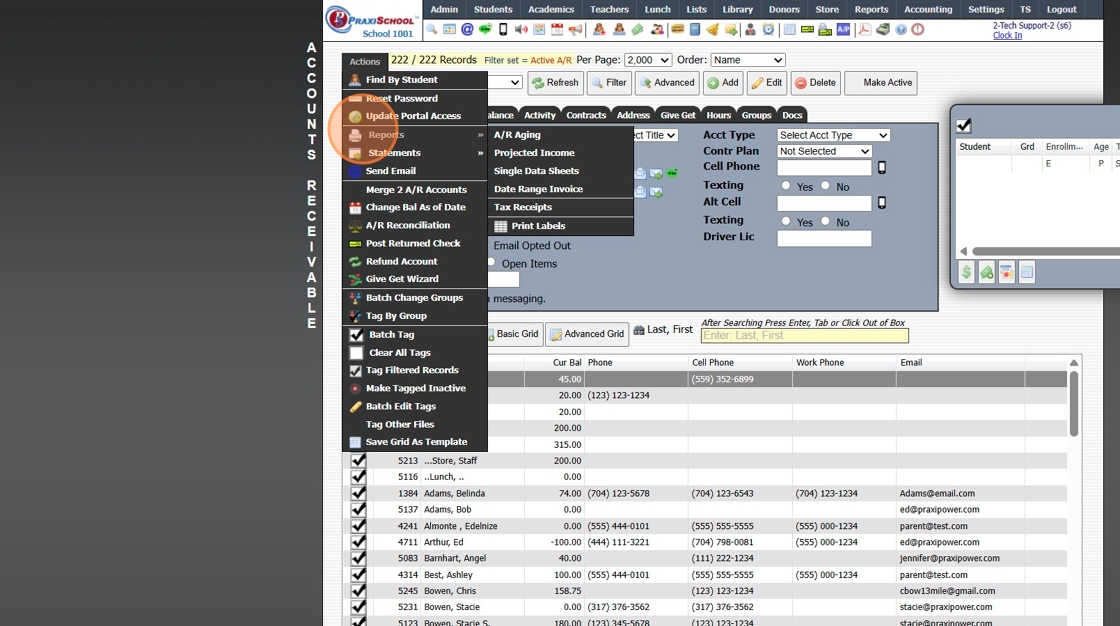
6. Click "Projected Income"
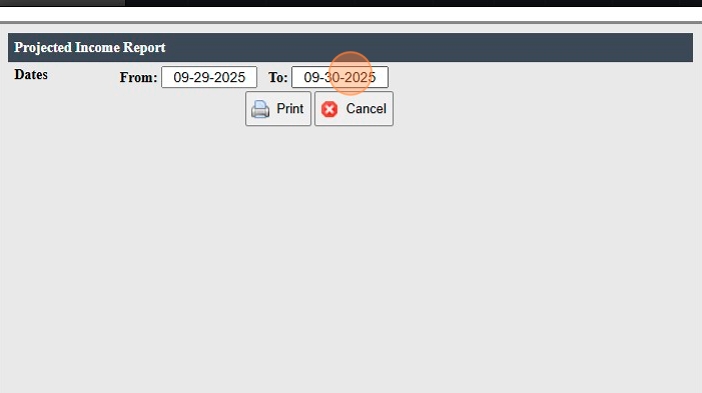
7. Set Dates "From" and "To"
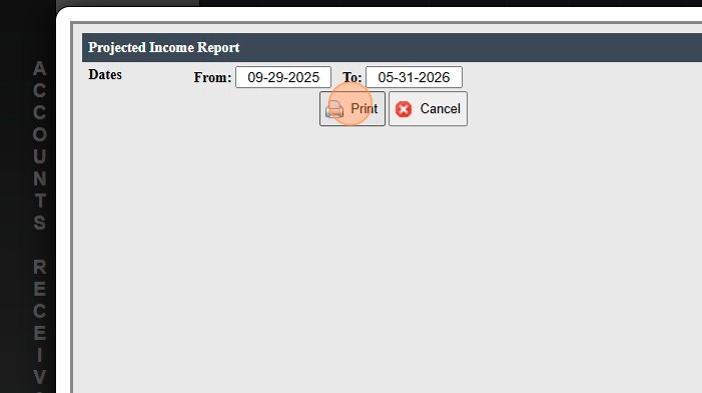
8. Click "Print"
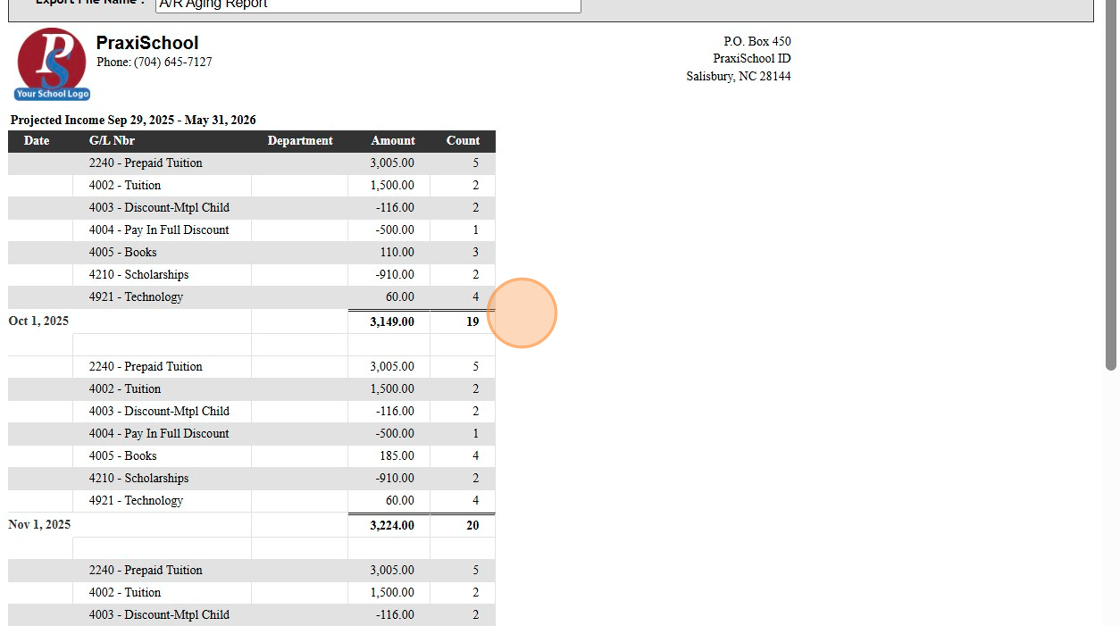
9. The Report will Generate Monthly Amounts and Counts By General Ledger Number and Monthly Totals
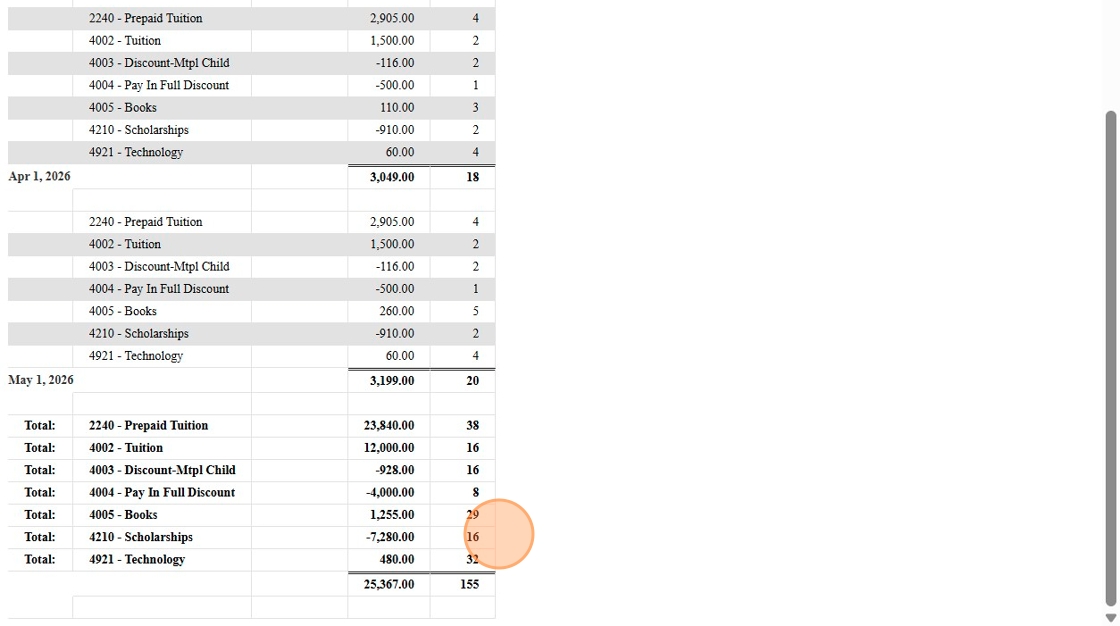
10. The bottom of the Report will Generate Annual Amounts and Counts By General Ledger Number and Annual Totals
1000.1.10
Related Articles
Generating an Accounts Receivable Aging Report
Generating an Accounts Receivable Aging Report 1. Log into PraxiSchool 2. Click "Admin" 3. Click "Account Receivable" 4. Click "Actions" 5. Click "Reports" 6. Click "A/R Aging" 7. Select Based On Option 8. Select Desired Options 9. Select desired ...Icon Toolbar - Accounts Receivable
Icon Toolbar - Accounts Receivable Click on the Accounts Receivable Icon for Quick Access to the Accounts Receivable Database 7500.1.12Print, Email, Export or Generate a PDF General Ledger Report (Income Accounts)
1. Click "Accounting" 2. Click "Reports" 3. Click "General Ledger" 4. Select "Income Accounts" from Dropdown Menu 5. Set Date Range 6. Click "Print" 7. Select Print, Email, Export or PDF (If Selecting Email, Verify the Email Address) 6000.10.14Creating Accounts Receivable Accounts
Creating Accounts Receivable Accounts 1. Log into PraxiSchool 2. Typically Student AR Accounts are Created in the Student Wizard (T) 3. After Creating the Student File, the Primary AR Account is Created from the A/R Account Toggle 4. A Secondary AR ...Generating Incomplete Grades Report
Generating Incomplete Grades Report Incomplete Grades - Grade Book Grades have been marked Incomplete. 1. Click "Teachers" 2. Click "Classroom" 3. Click "Reports" 4. Click "Incomplete Grades" 5. Select "All My Classes" (Default) or "Current Class" 6. ...