Editing an AR Transaction
These Edits can be made prior to the AR Deposit being processed.
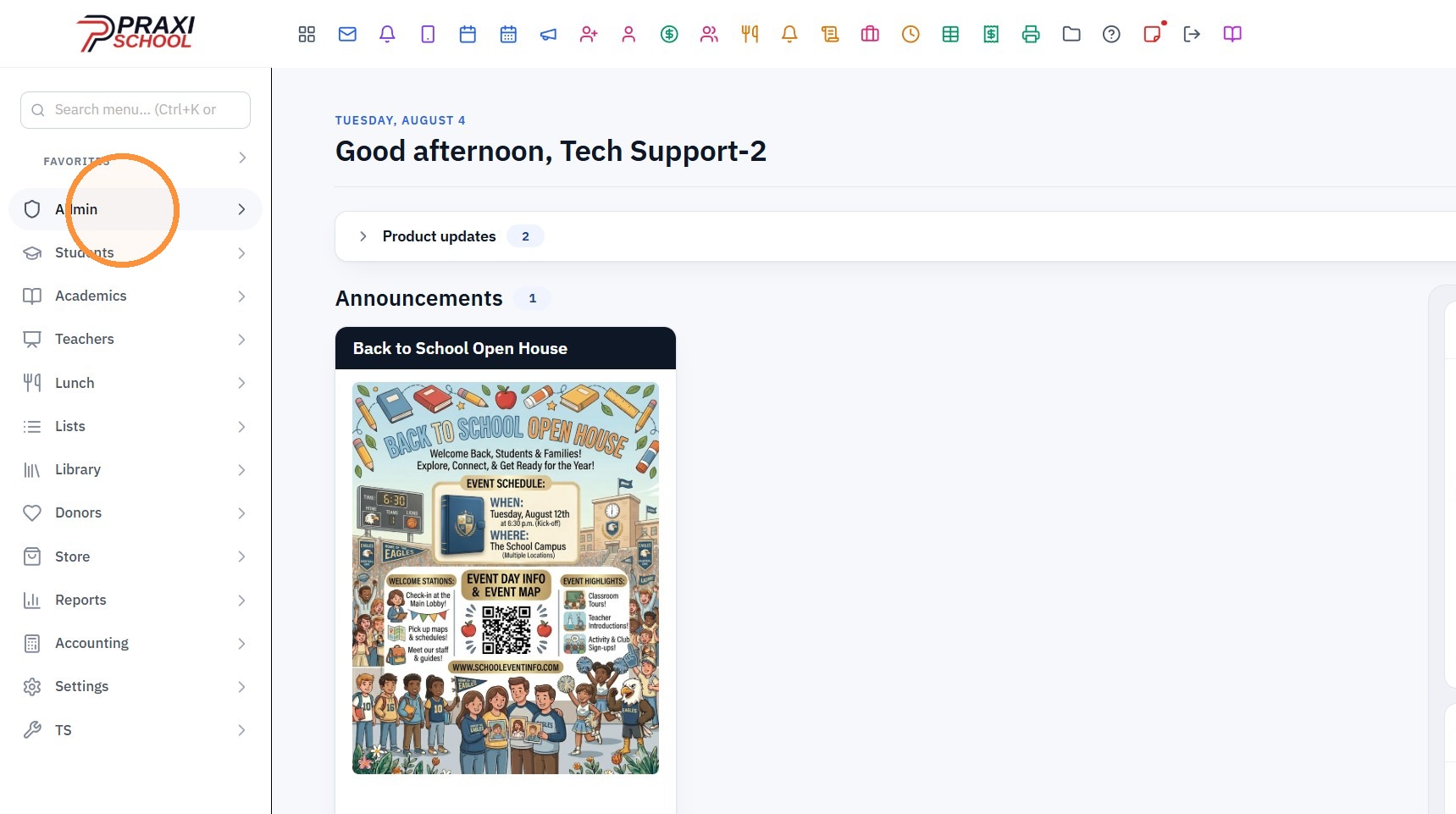
1. Click "Admin"
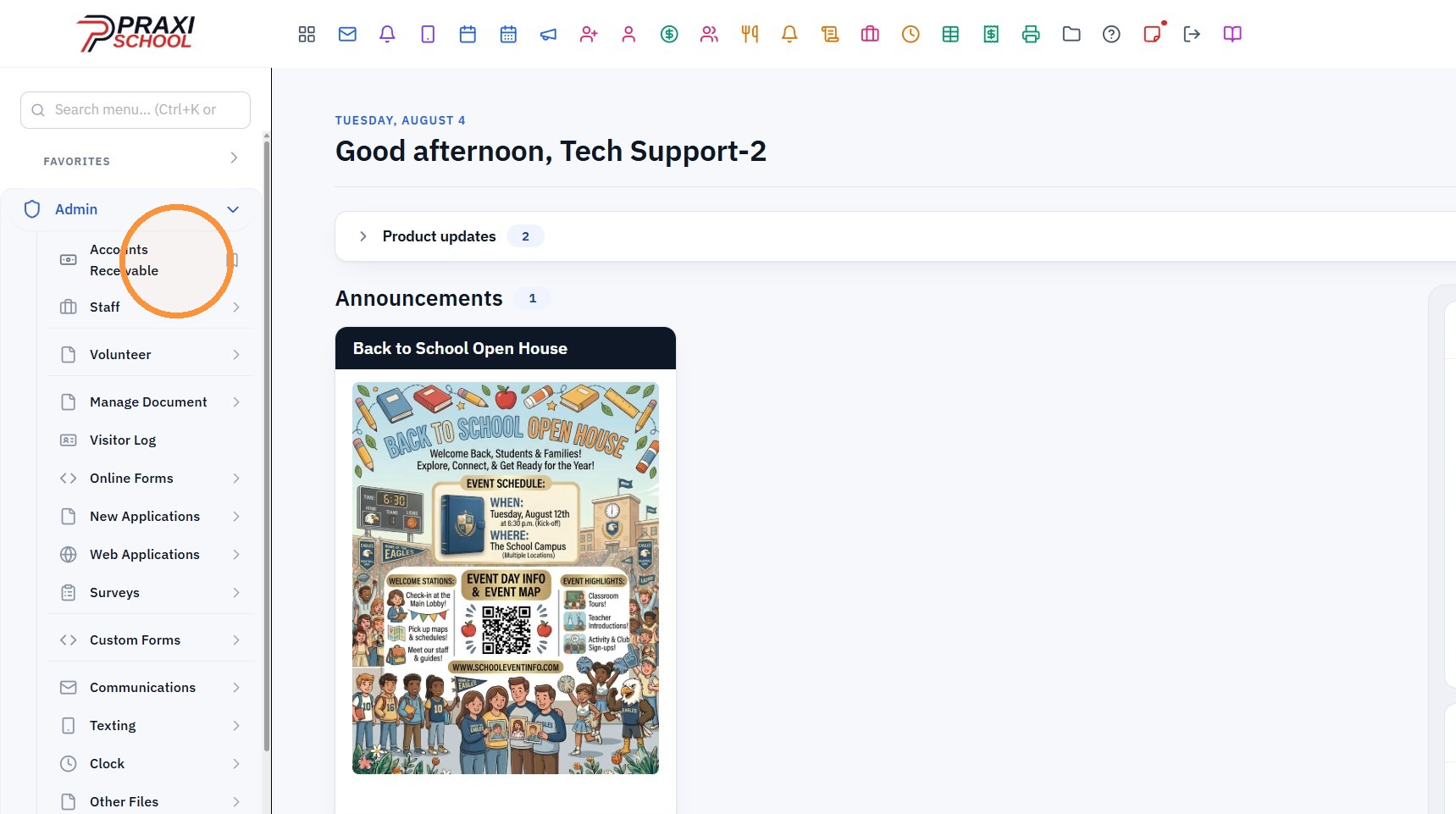
2. Click "Accounts Receivable"
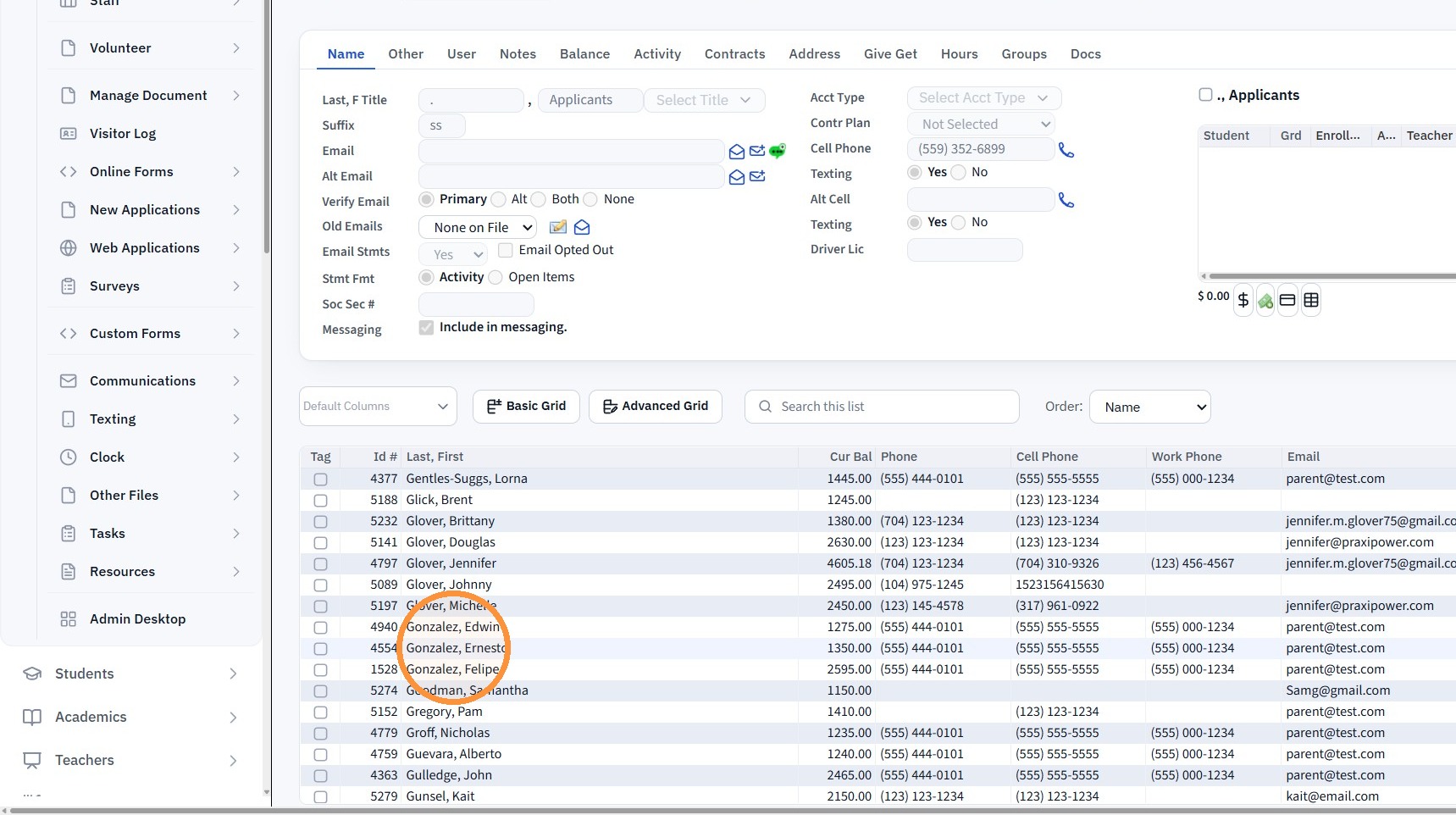
3. Select the AR Account
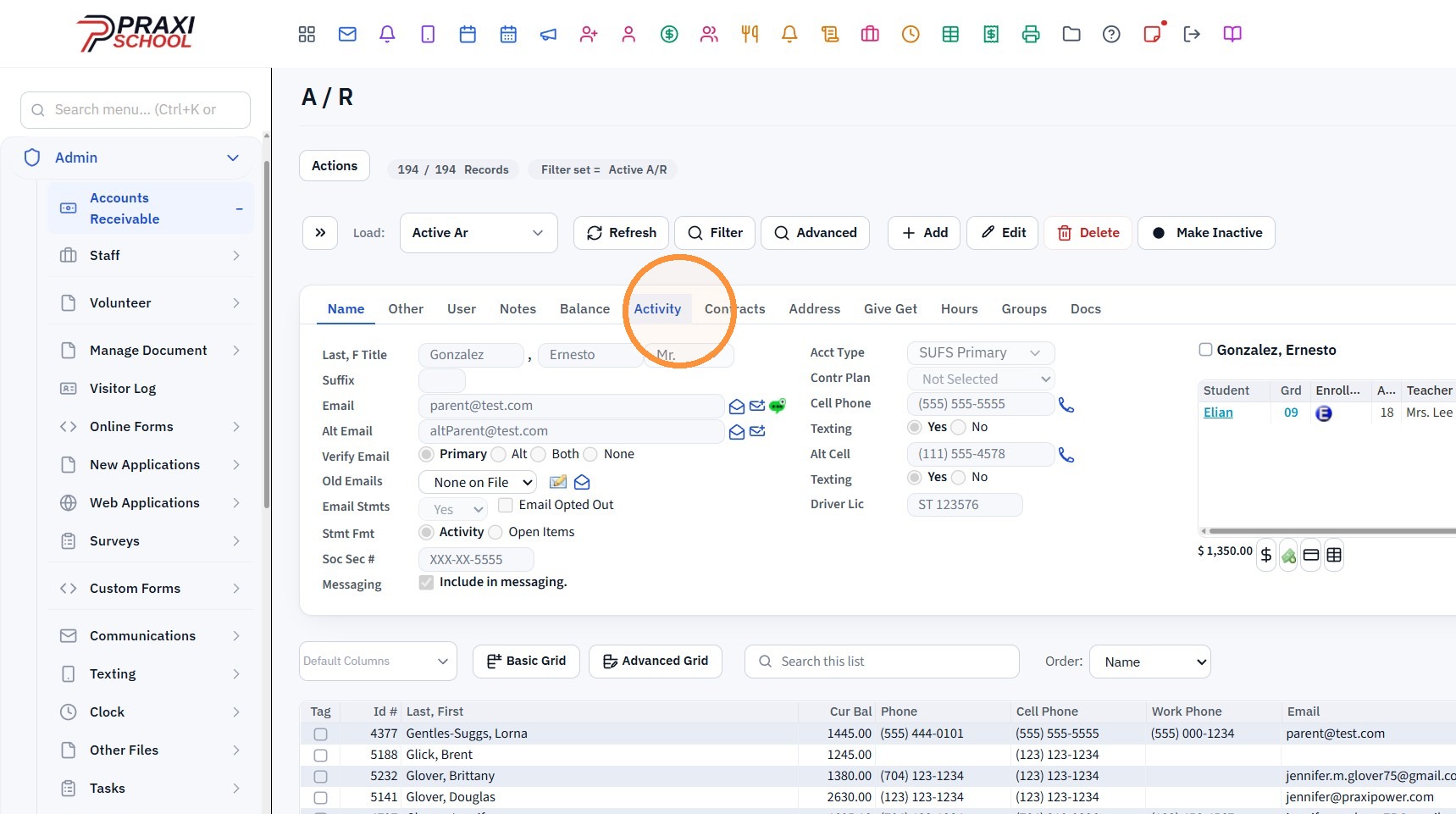
4. Click "Activity"
5. Click "Expand"
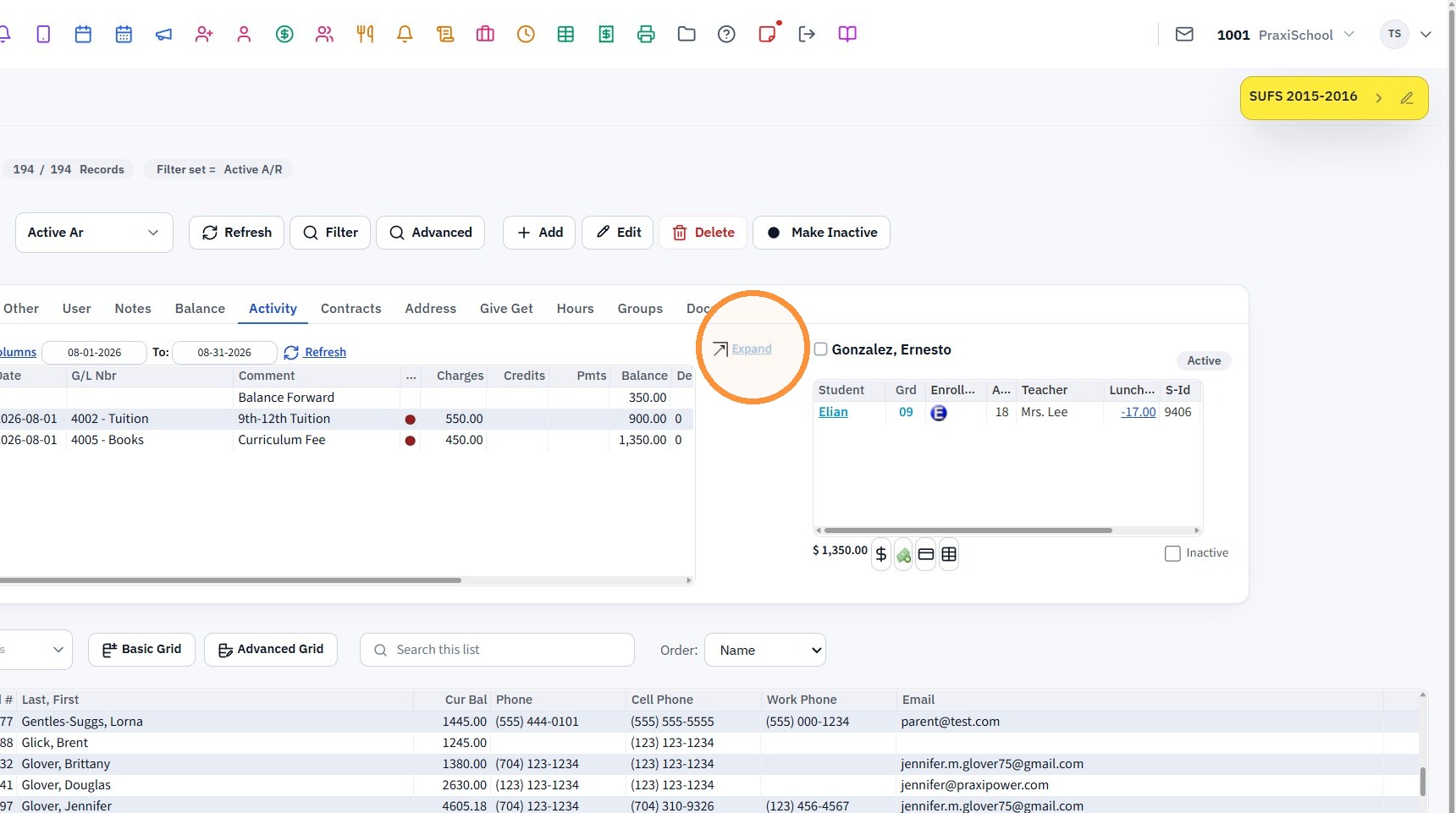
6. Select the Item to Edit
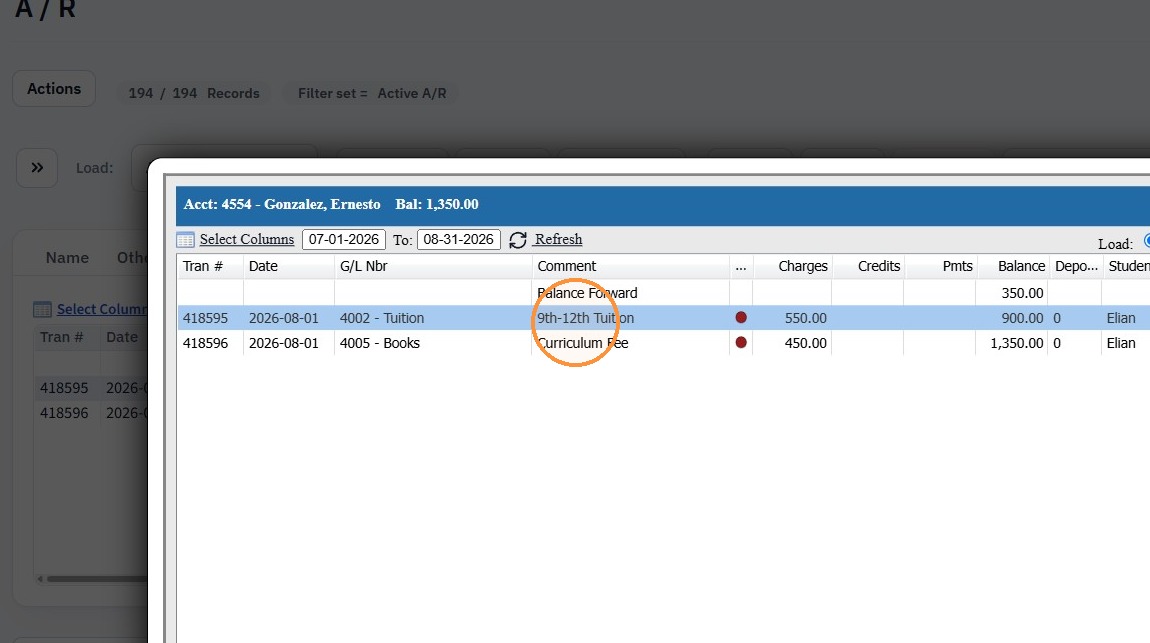
7. Click "Edit"
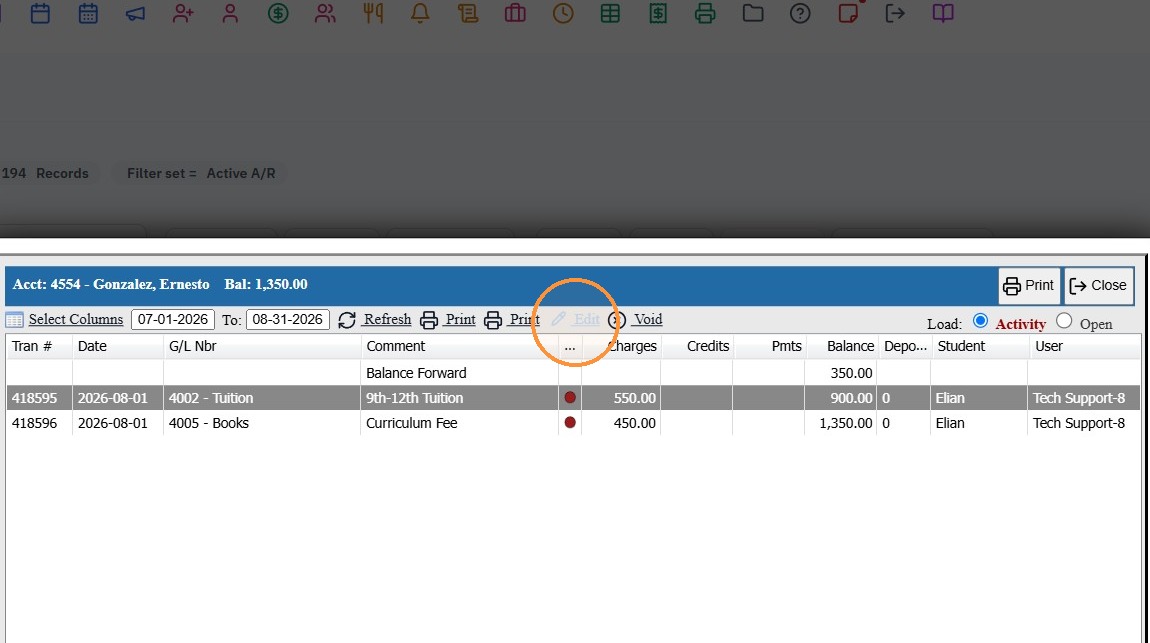
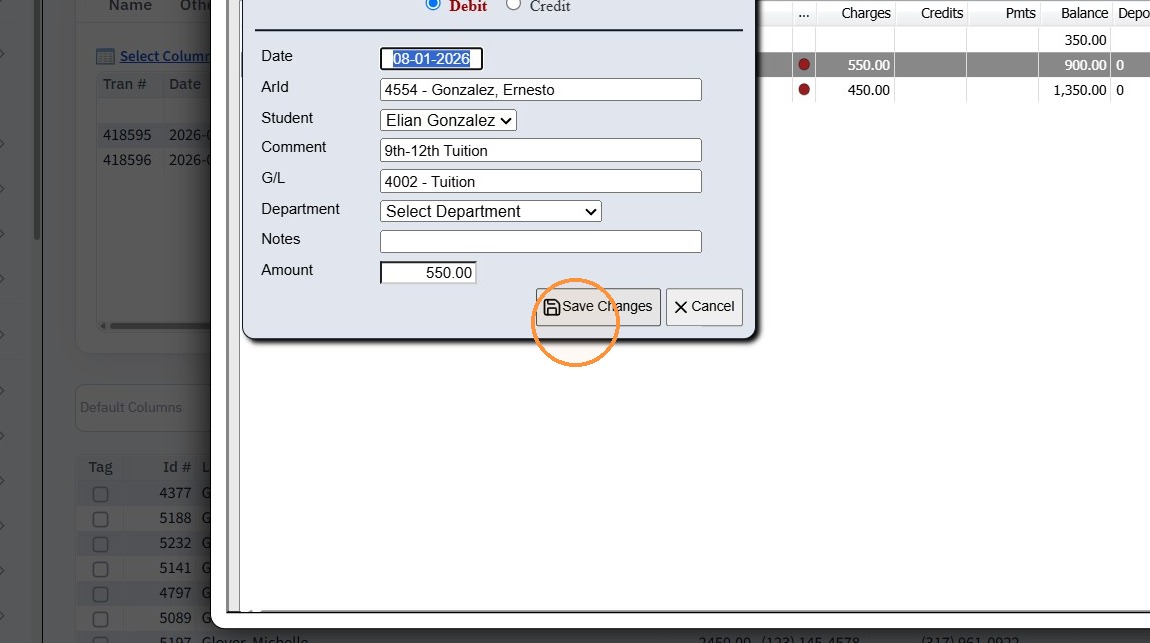
8. Update the Incorrect Data
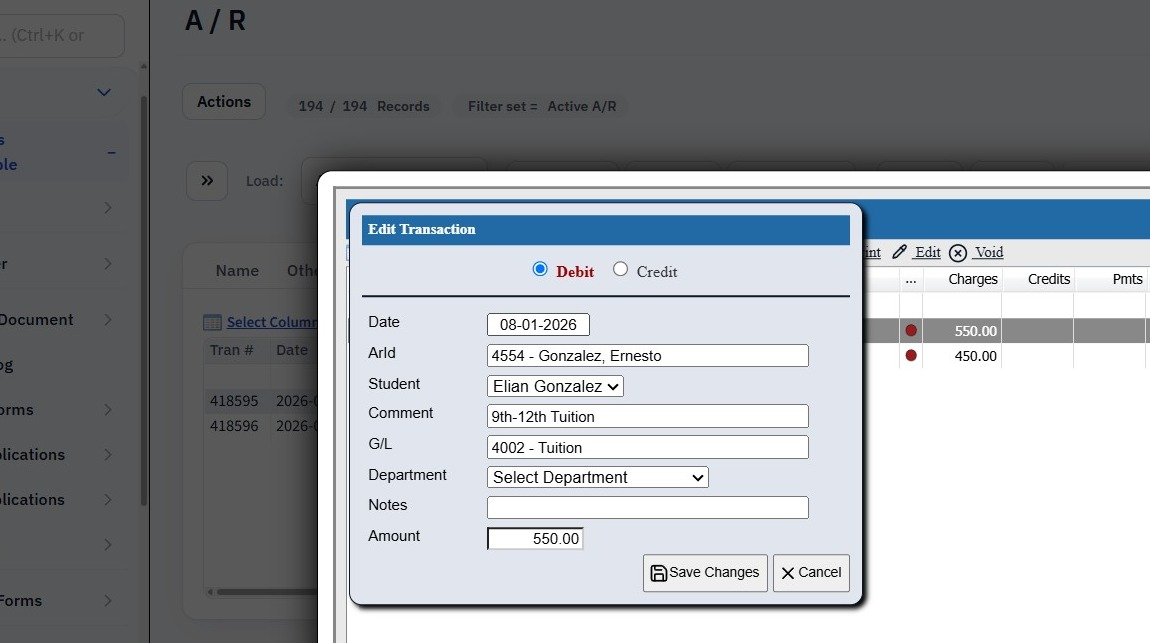
9. Click "Save Changes"
Related Articles
Adding a Transaction Item to a Student's AR Account
Adding a Transaction Item to a Student's AR Account Adding a Transaction Item to a Student's AR Account from Defined Items or Manually 1. Log into PraxiSchool 2. Click "Admin" 3. Click "Accounts Receivable" 4. Select Billing Account 5. Click $ to Add ...I posted a Transaction to the wrong AR Account. How do I fix this?
As long as the AR Deposit has not been made with the Transaction, the Transaction can be moved to the Correct AR Accounting using the Steps Below. 1. Click "Admin" 2. Click "Accounts Receivable" 3. Select AR Account Transaction was Posted To 4. Click ...Batch Tagging AR Record from a Selected Filter & Batch Editing Hold on Grades Option
Batch Tagging AR Record from a Selected Filter & Batch Editing Hold on Grades Option 1. Click "Admin" 2. Click "Accounts Receivable" 3. Select Current Balance Filter 4. Click "Actions" 5. Click "Clear All Tags" 6. Click "Actions" 7. Click "Tag ...Editing Donation Transaction Campaign Allocations
1. Click "Donors" 2. Click "Donation Trans" 3. Set Date Range 4. Click "Refresh" 5. Select Transactions 6. Click "Edit" 7. Update Donation Allocation Amount 8. Click "Save" 9. Select Next Donation Allocation 10. Click "Edit" 11. Update Donation ...AR Account Balance Write-Off
1. Click "Admin" 2. Click "Accounts Receivable" Tip: If a Balance Write-Off Transaction Item has not already been Created, Click on this Link: Creating a Balance Write-Off Transaction Item Posting the Balance Write-Off 3. Select AR Account 4. Click ...