I posted a Transaction to the wrong AR Account. How do I fix this?
As long as the AR Deposit has not been made with the Transaction, the Transaction can be moved to the Correct AR Accounting using the Steps Below.
1. Click "Admin"
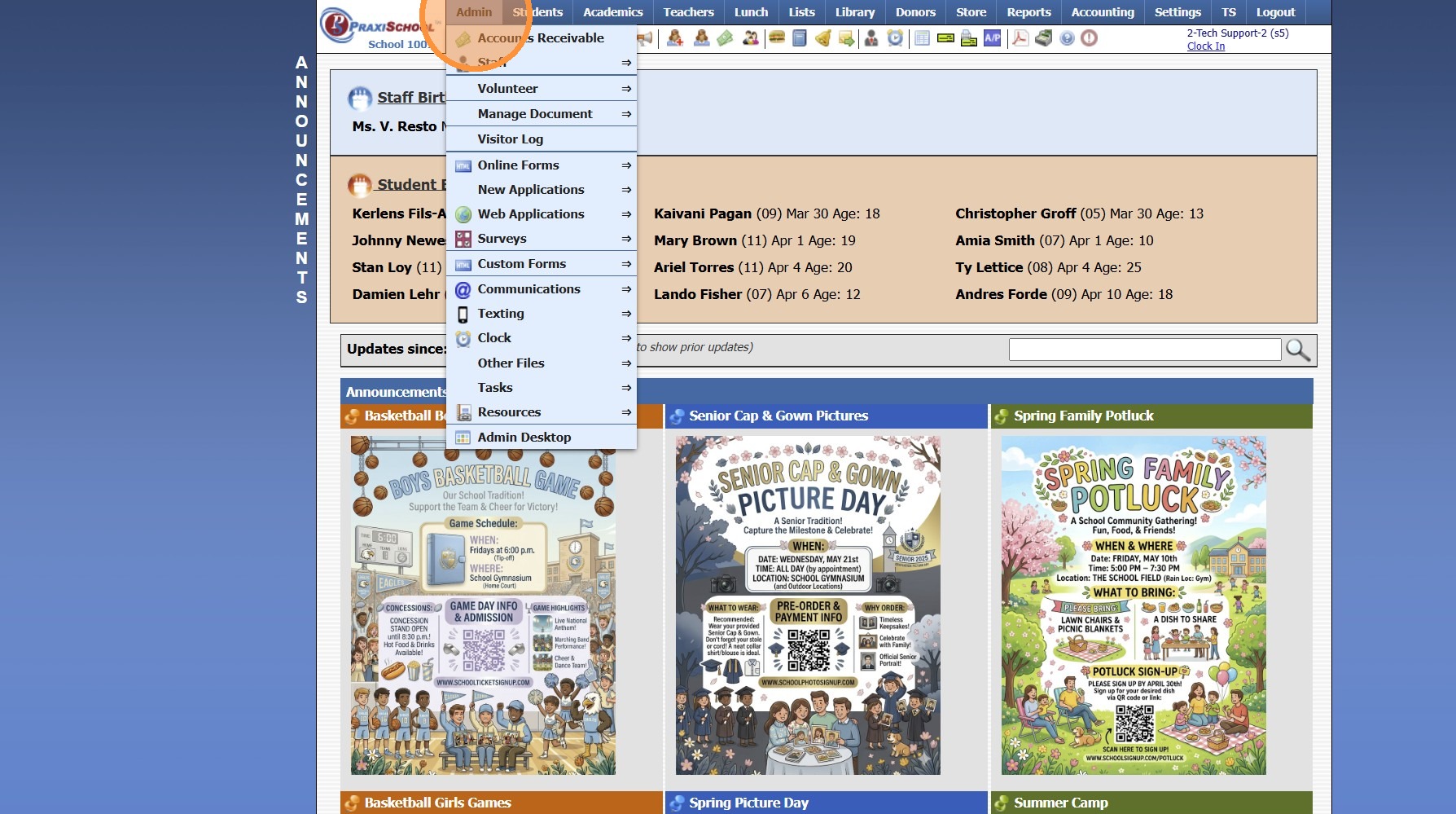
2. Click "Accounts Receivable"
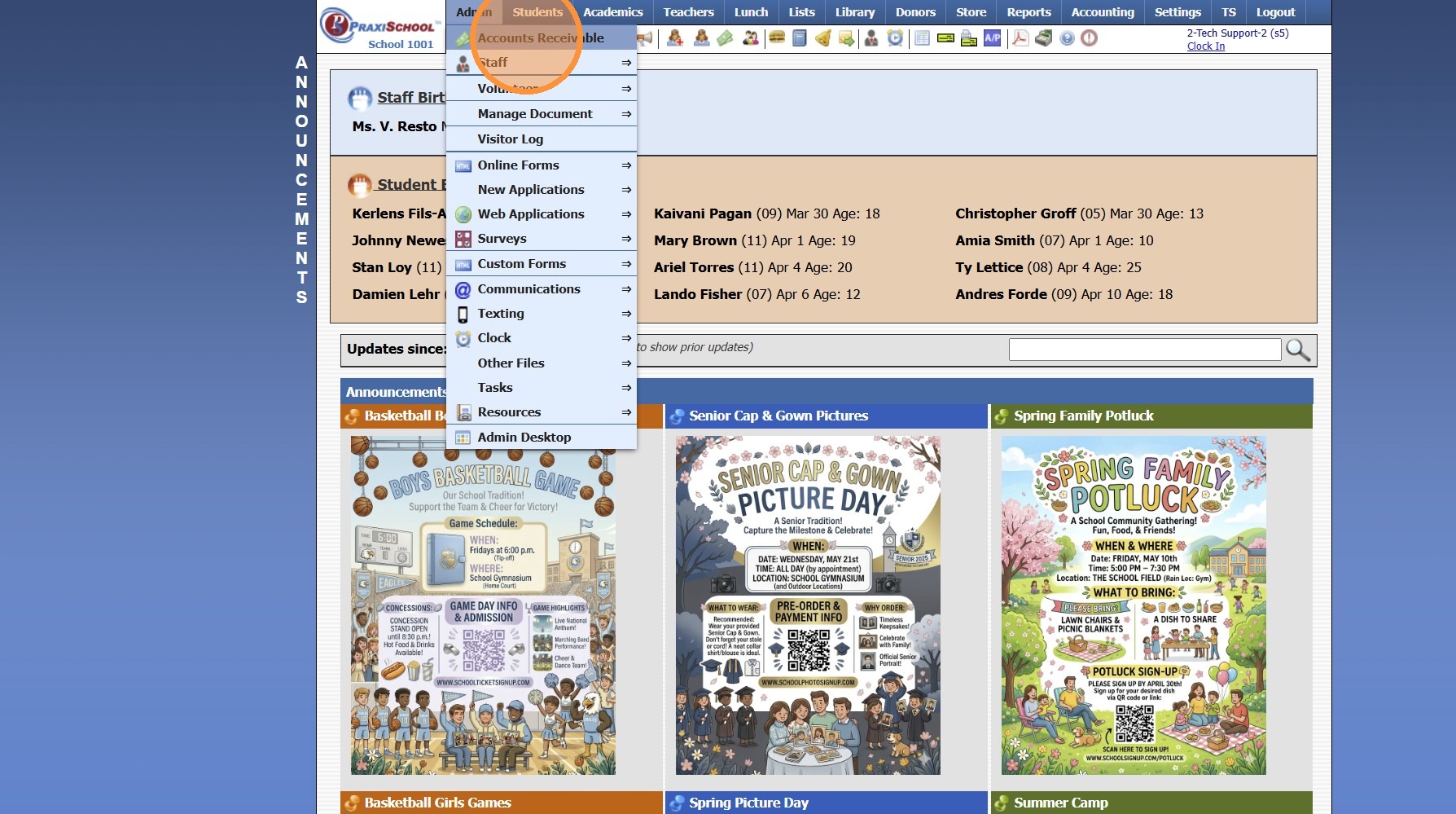
3. Select AR Account Transaction was Posted To
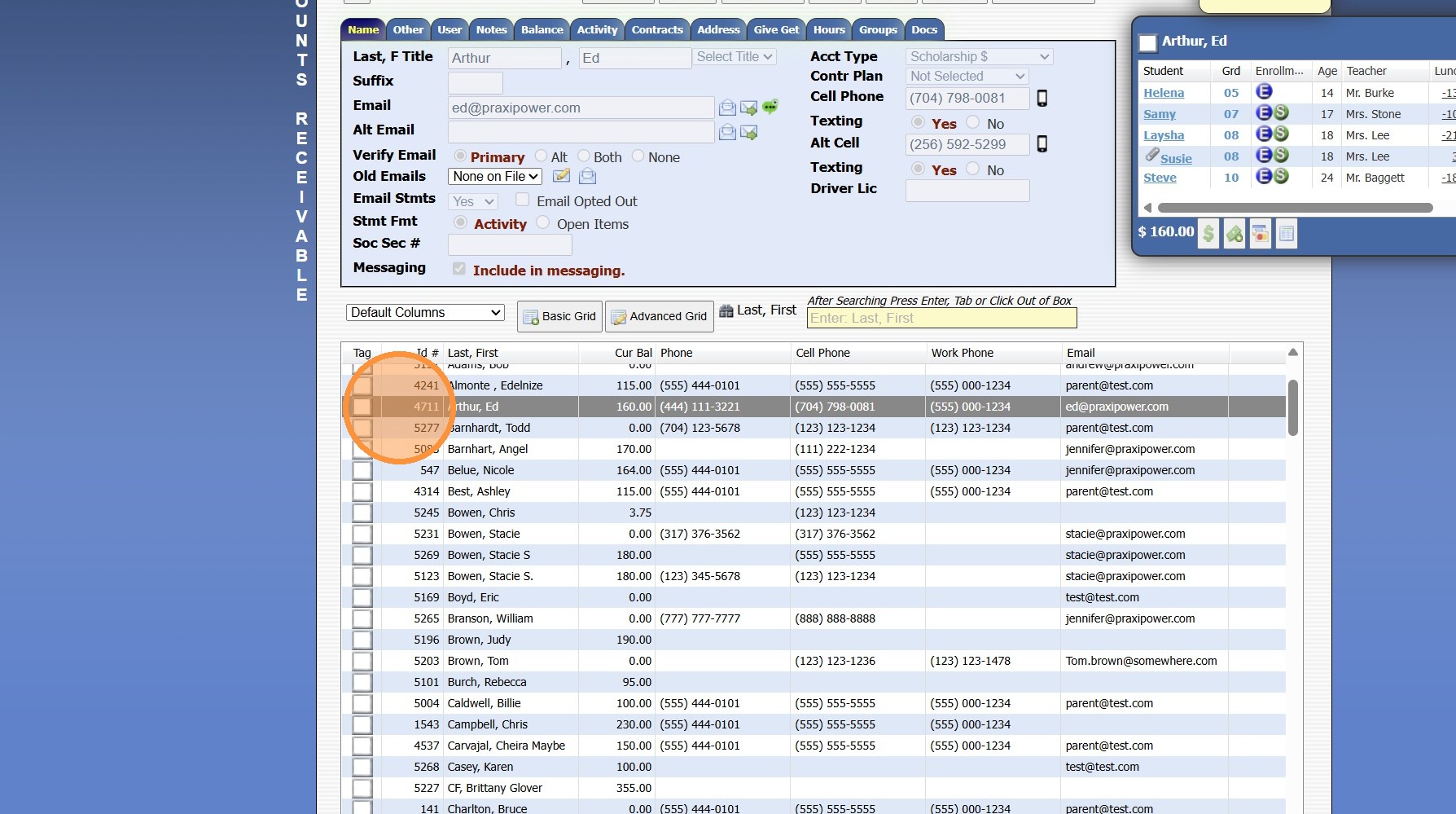
4. Click the "Activity" Tab
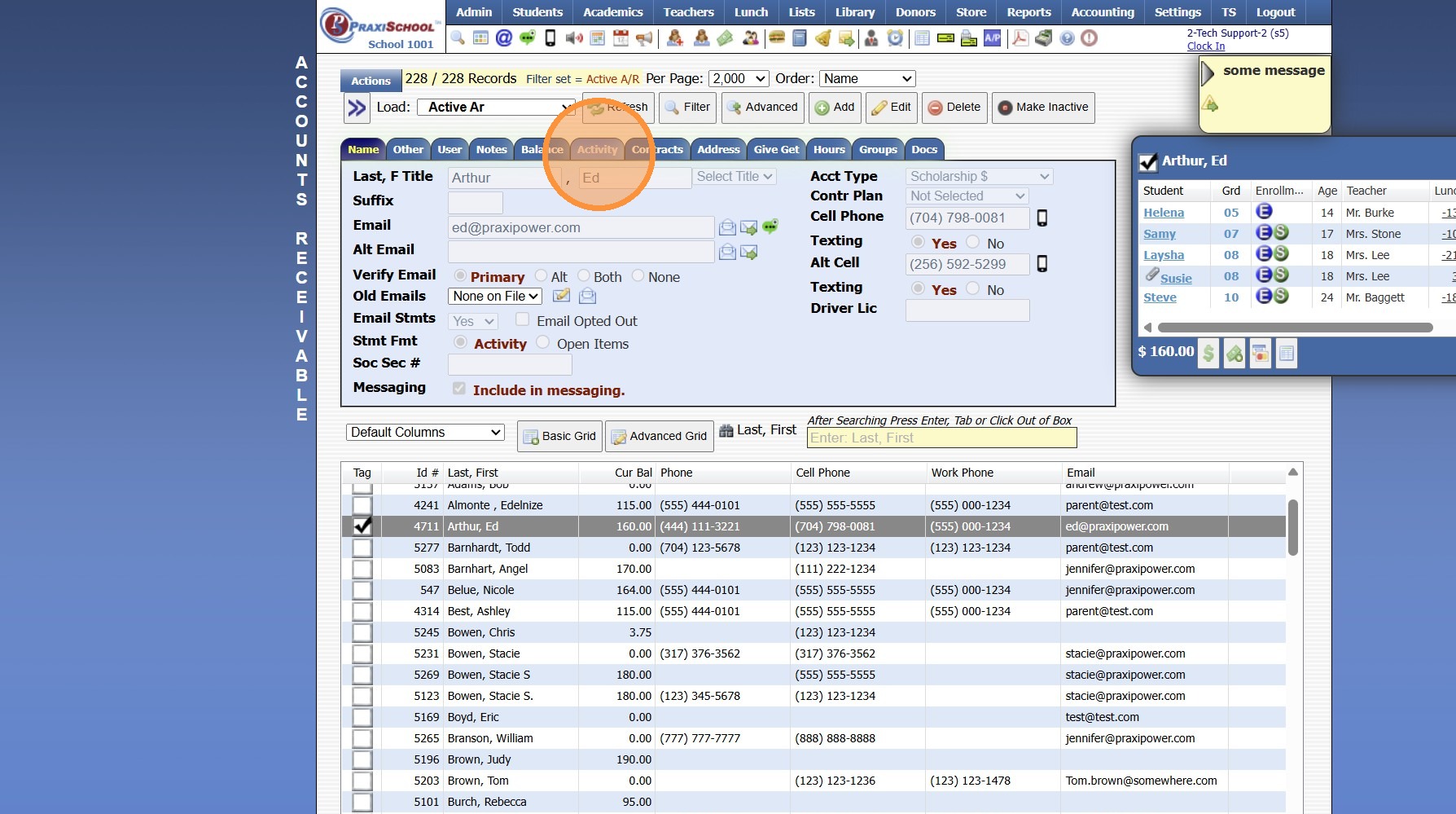
5. Click "Expand"
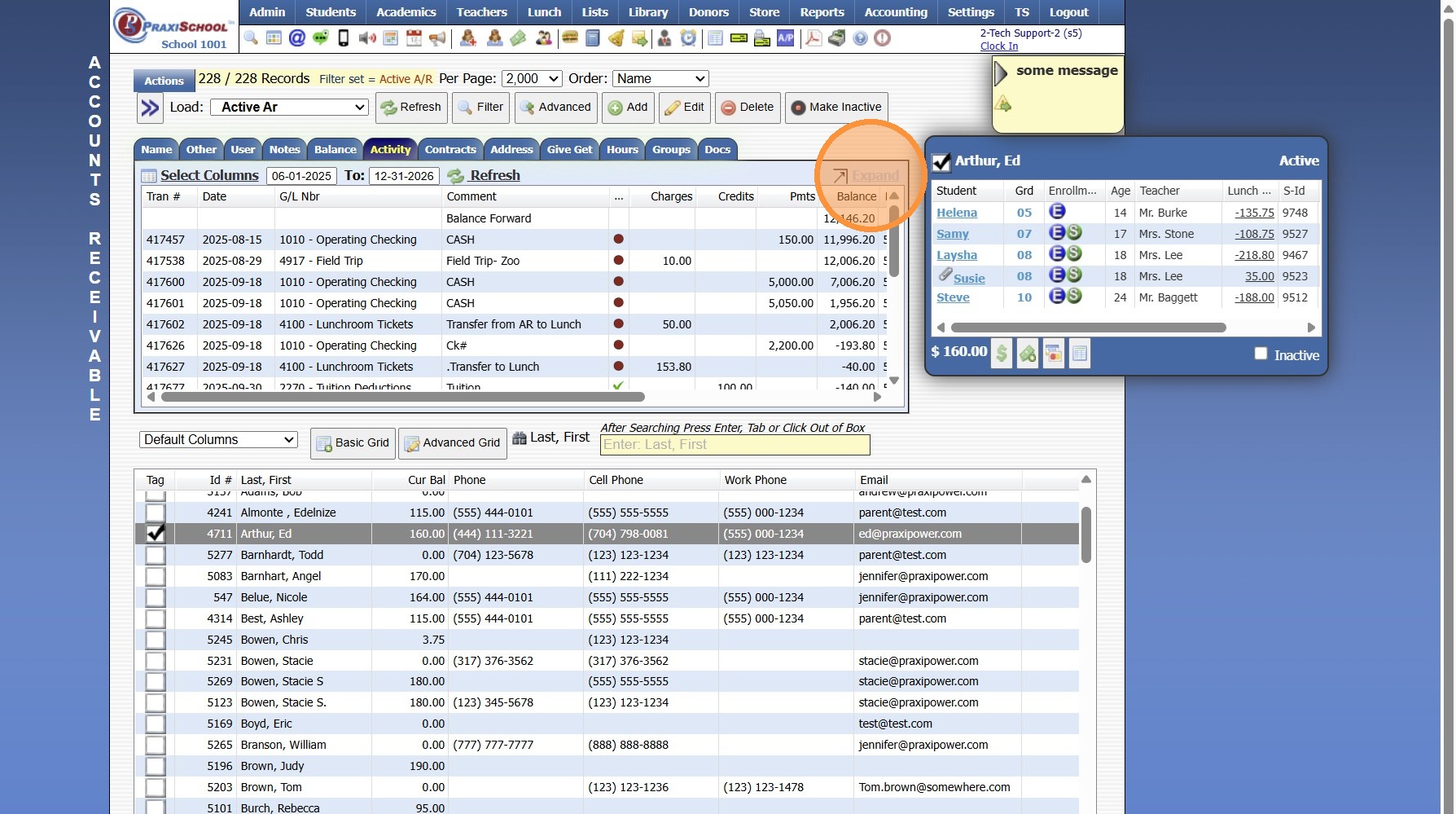
6. Select the Transactions
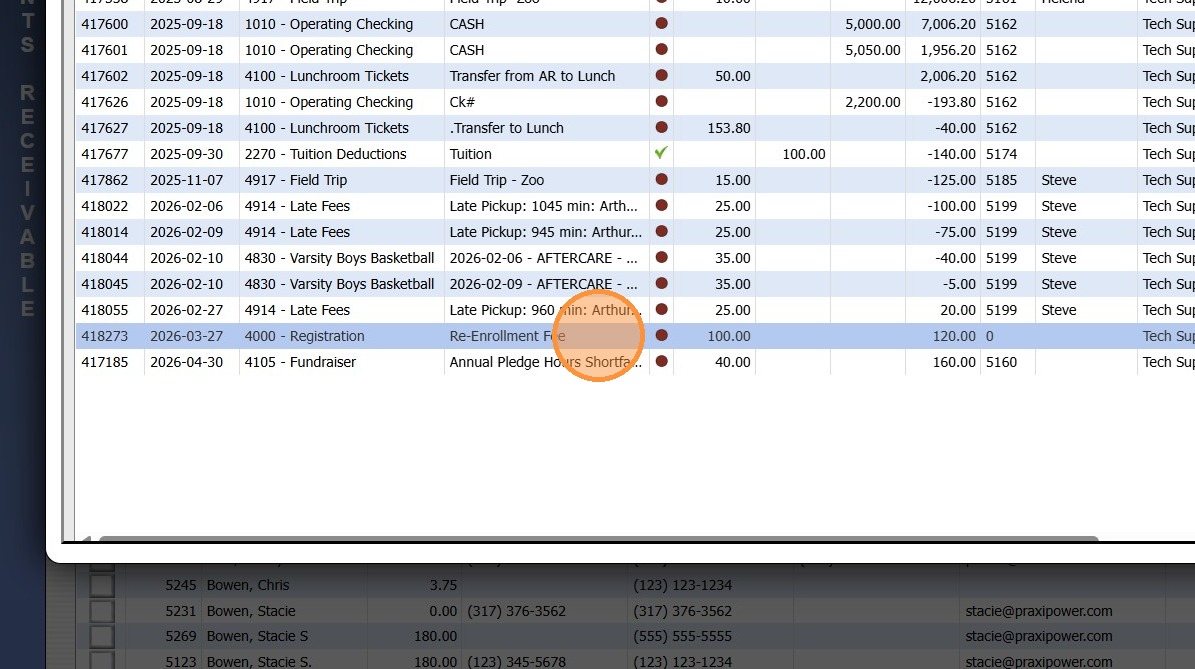
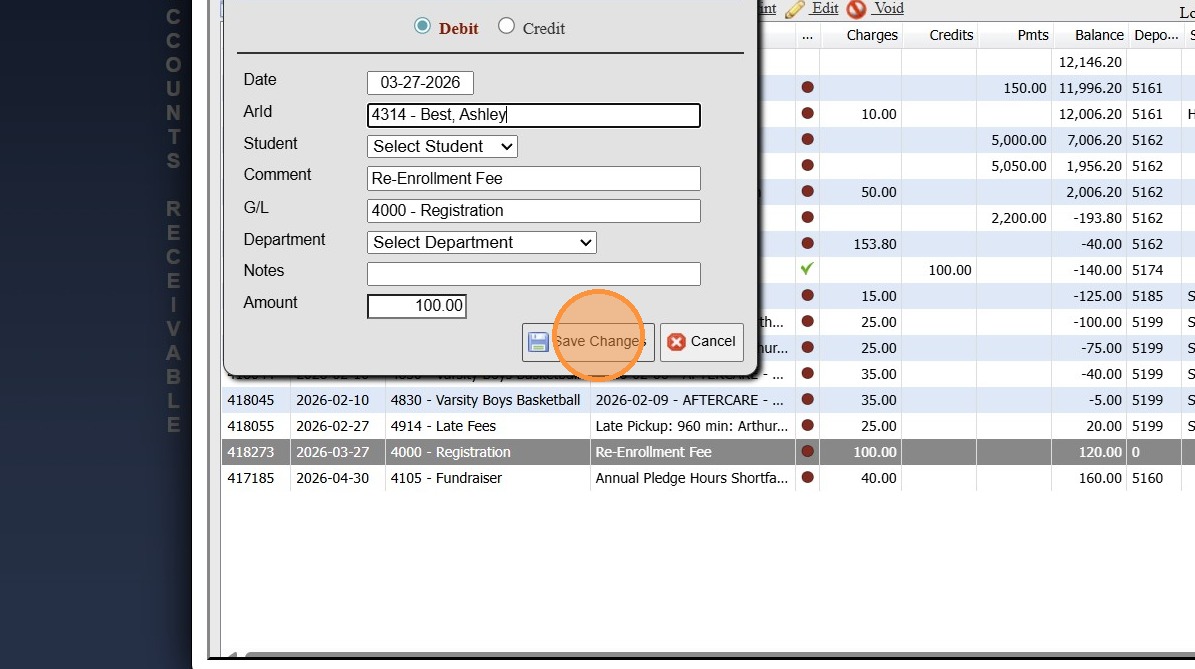
7. Click "Edit"
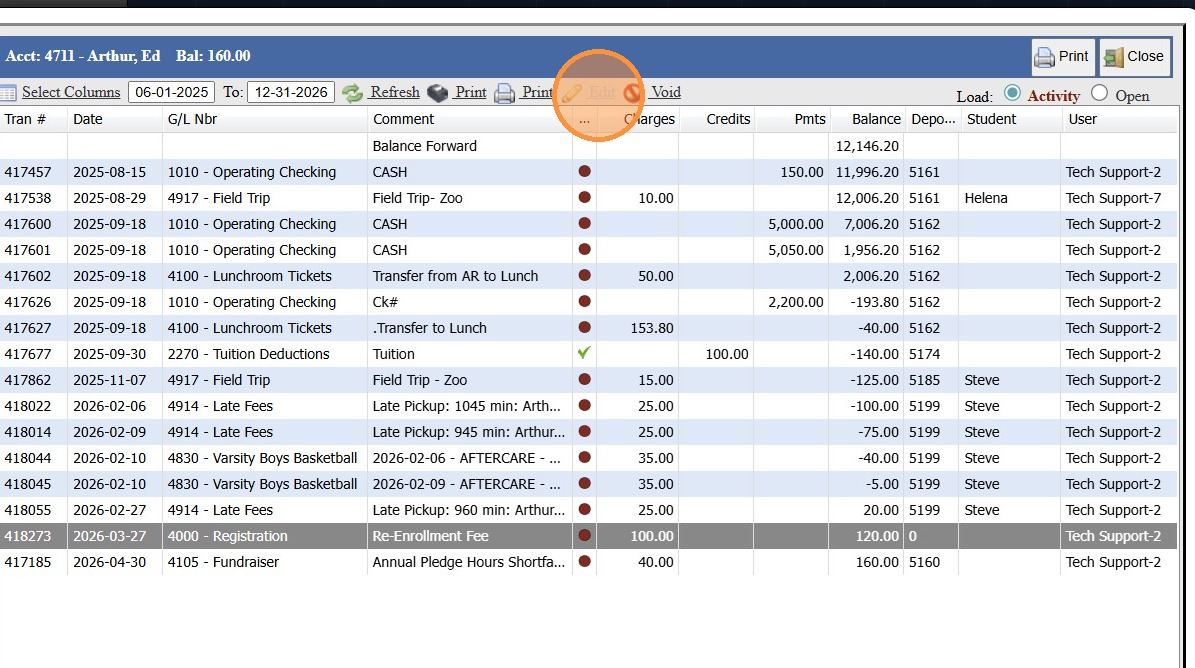
8. Select the Correct AR Account
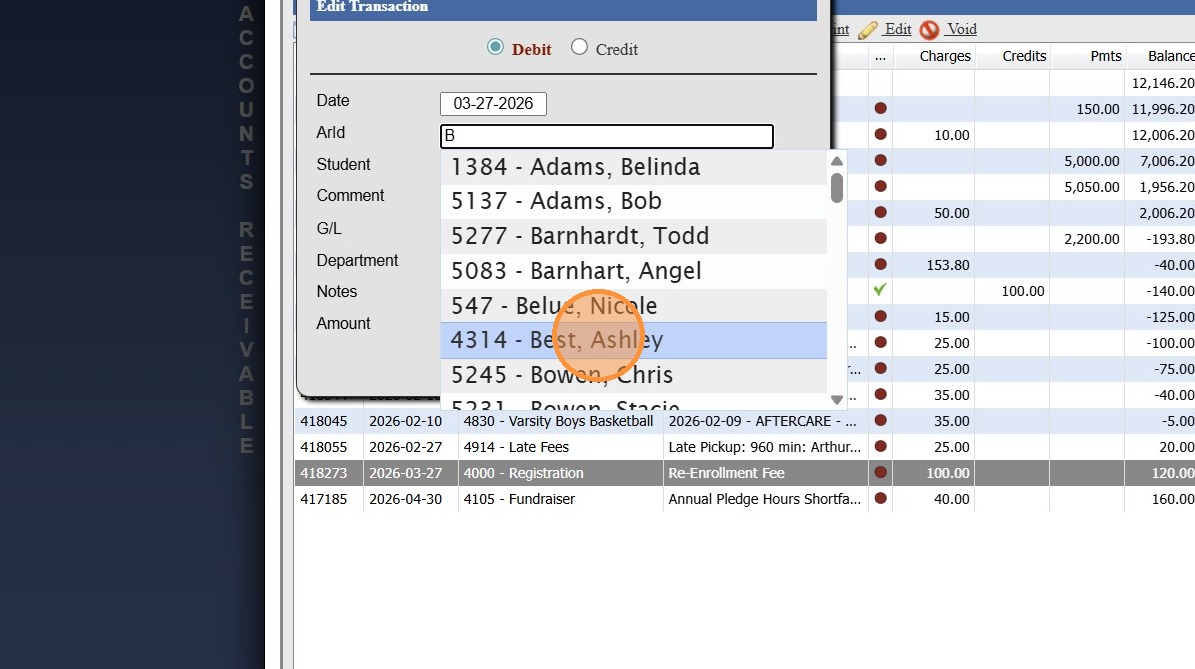
9. Click "Save Changes"
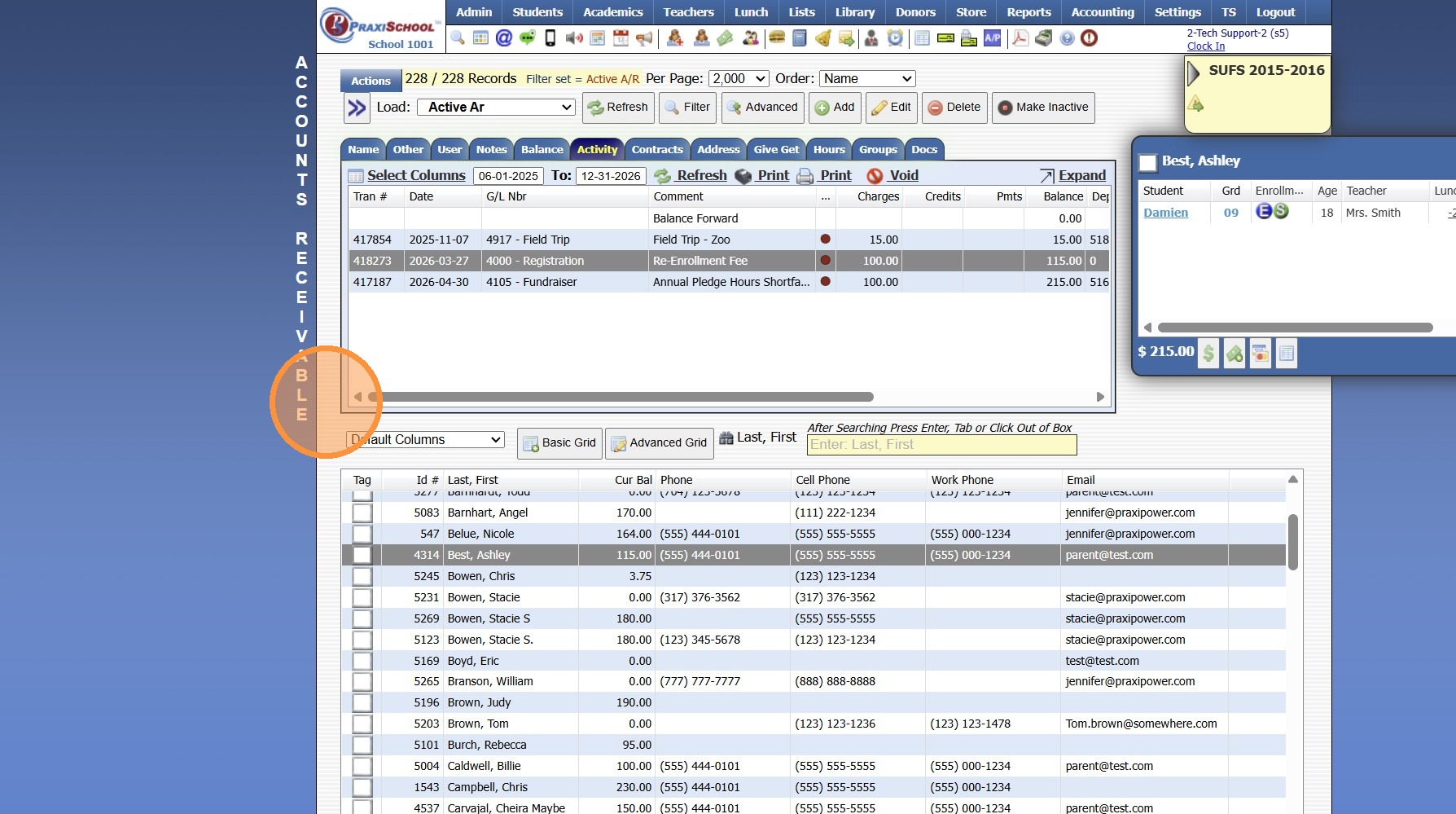
10. The Transaction will be Moved to the Correct AR Account
8000.28
Related Articles
Adding a Transaction Item to a Student's AR Account
Adding a Transaction Item to a Student's AR Account Adding a Transaction Item to a Student's AR Account from Defined Items or Manually 1. Log into PraxiSchool 2. Click "Admin" 3. Click "Accounts Receivable" 4. Select Billing Account 5. Click $ to Add ...Editing an AR Transaction
These Edits can be made prior to the AR Deposit being processed. 1. Click "Admin" 2. Click "Accounts Receivable" 3. Select the AR Account 4. Click "Activity" 5. Click "Expand" 6. Select the Item to Edit 7. Click "Edit" 8. Update the Incorrect Data 9. ...AR Account Balance Write-Off
1. Click "Admin" 2. Click "Accounts Receivable" Tip: If a Balance Write-Off Transaction Item has not already been Created, Click on this Link: Creating a Balance Write-Off Transaction Item Posting the Balance Write-Off 3. Select AR Account 4. Click ...Adding Billing Contracts to a Student's AR Account
Adding Billing Contracts to a Student's AR Account 1. Log into PraxiSchool 2. Click "Admin" 3. Click "Accounts Receivable" 4. Select the Billing Account 5. Click the "Contracts" tab 6. Click "New" 7. Click "Add Template Group" 8. Select Student (only ...Posting a Refund to an AR Account
Posting a Refund to an AR Account 1. Go to Accounts Receivable 2. Select Student Account 3. Click "$" in the Blue Box 4. Select the "Account Refund" option from the Defined Item Dropdown Menu 5. Verify Date and Update Amount (if necessary) 6. Enter ...