Creating Printed A/R Contracts
Creating Printed A/R Contracts
1. Click "Admin"

2. Click "Accounts Receivable"

3. Select A/R Account

4. Click "Actions"

5. Click "Statements"

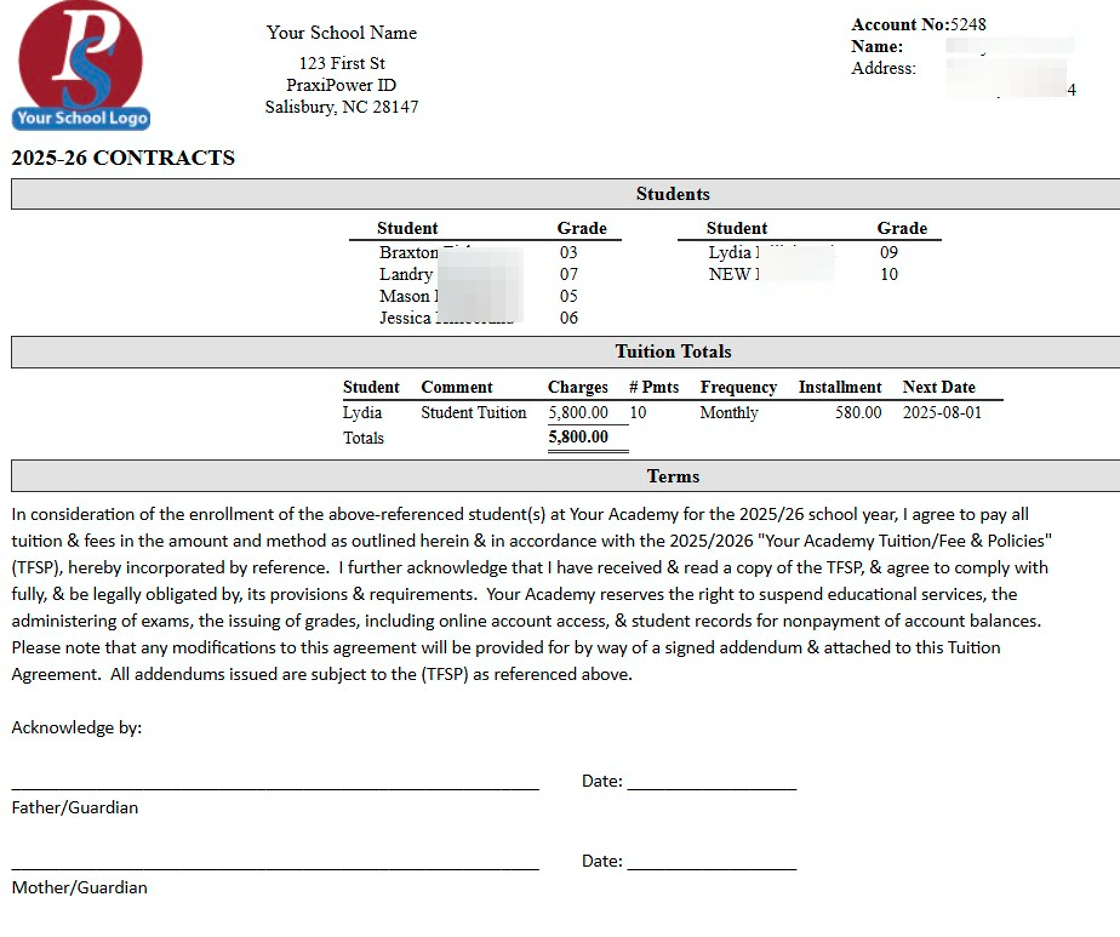
6. Click "Create Printed Contracts"

7. Add Contract Terms or Select Previously Created Contract Terms

8. Click "Edit Terms"
(Click Edit Terms to Edit or Add New Contract Terms)

9. Click "Save"

10. Select School Year & Session

11. Enter Title & Headers

12. Select Columns to be Visible

13. Click "Process"

14. Printed Contracts can be Printed, Emailed or Saved to a PDF
1000.1.17
Related Articles
Students: Viewing Billing Contracts
Students: Viewing Billing Contracts 1. Click "Students" 2. Click "Students" 3. Select Student 4. Click "A/R" tab 5. Summary - Default View View Contract Amounts by Billing Frequency 6. Detail View View Contract Details (Comment, General Ledger ...Adding Batch Contracts to Student Billing Accounts
Adding Batch Contracts to Student Billing Accounts Tip: Tip! All Contract Templates must be set up prior to Batch Adding. Only contracts that have a set dollar amount can be added in the batch process. The NOW financing option in Contract Templates ...Printing Student Parent Contact (A/R) Report
Printing Student Parent Contact (A/R) Report 1. Click "Reports" 2. Click "Parent Contacts (A/R)" 3. Select to Print by Homeroom Teacher, Grade Level or Class 4. Select All to Print for All Homeroom Teacher, Grade Level or Class 5. Report can be ...Replicating AR Contracts into the New School Year
1. Click "Lists" 2. Click "A/R Accounting" 3. Click "Contract Templates" 4. Click "Actions" 5. Click "Replicate Templates" 6. Select the School Year to Replicate the Contract Template Into 7. Set the Next Date for the Contracts to Start Billing (If a ...Session Close Tasks - Accounting: Replicating AR Contracts into the New School Year
1. Click "Lists" 2. Click "A/R Accounting" 3. Click "Contract Templates" 4. Click "Actions" 5. Click "Replicate Templates" 6. Select the School Year to Replicate the Contract Template Into 7. Set the Next Date for the Contracts to Start Billing (If a ...