Creating Awards
NOTE: The Grade Analysis must be processed before Awards can be Created.
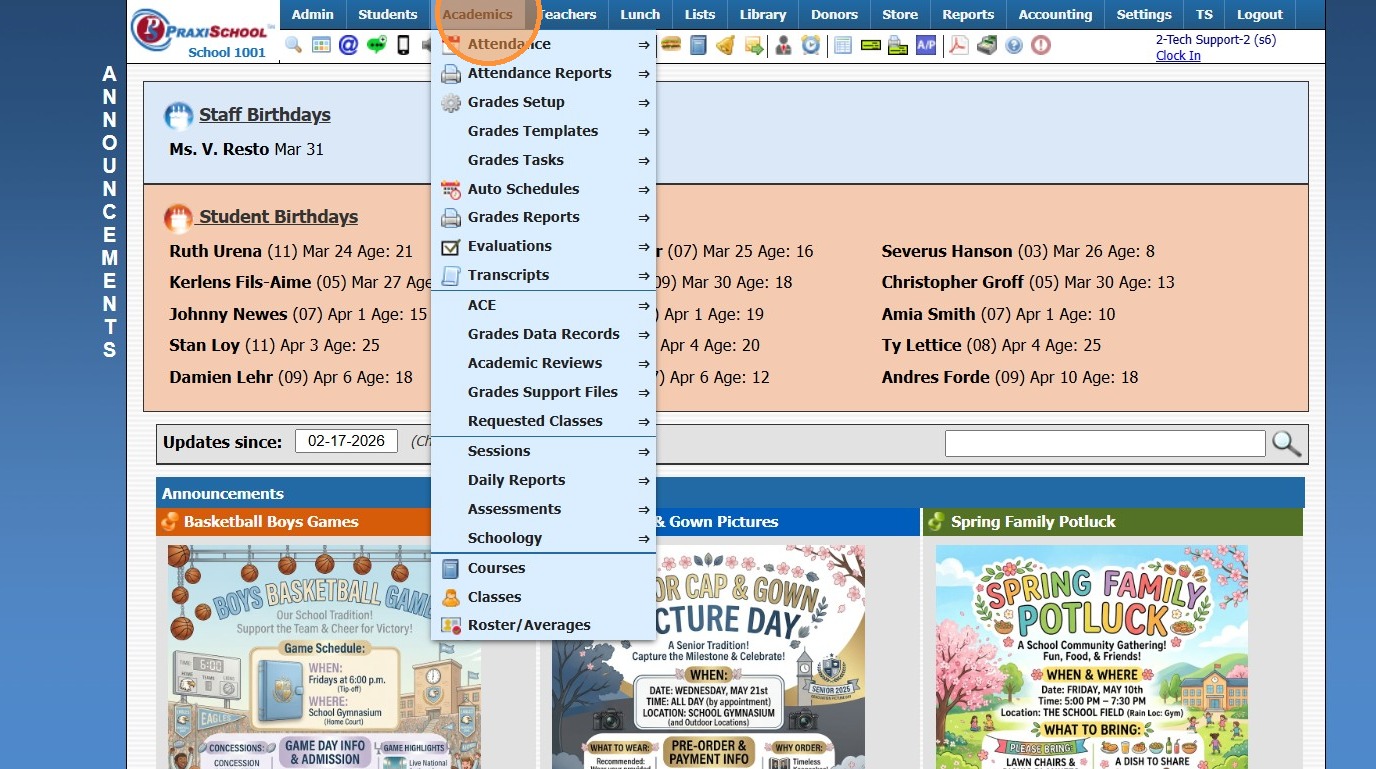
1. Click "Academics"
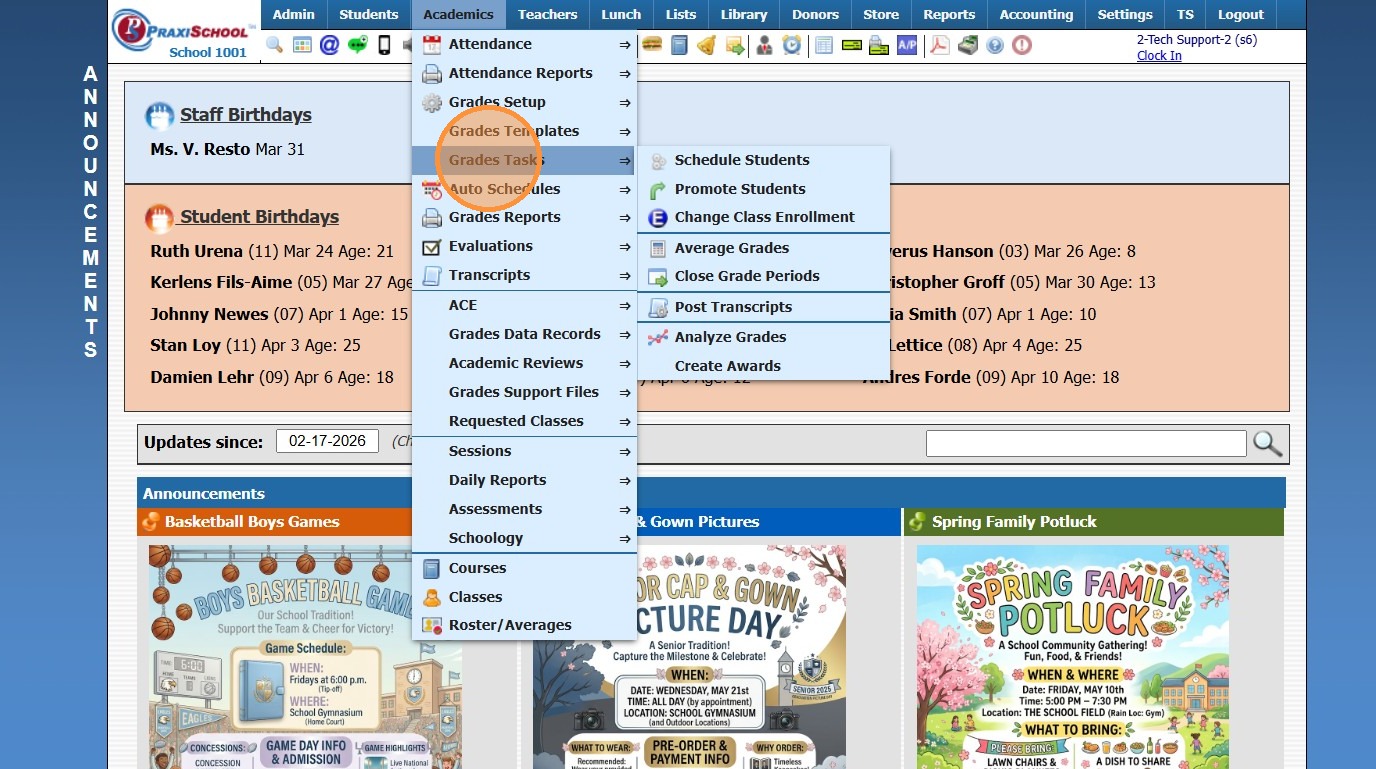
2. Click "Grades Tasks"
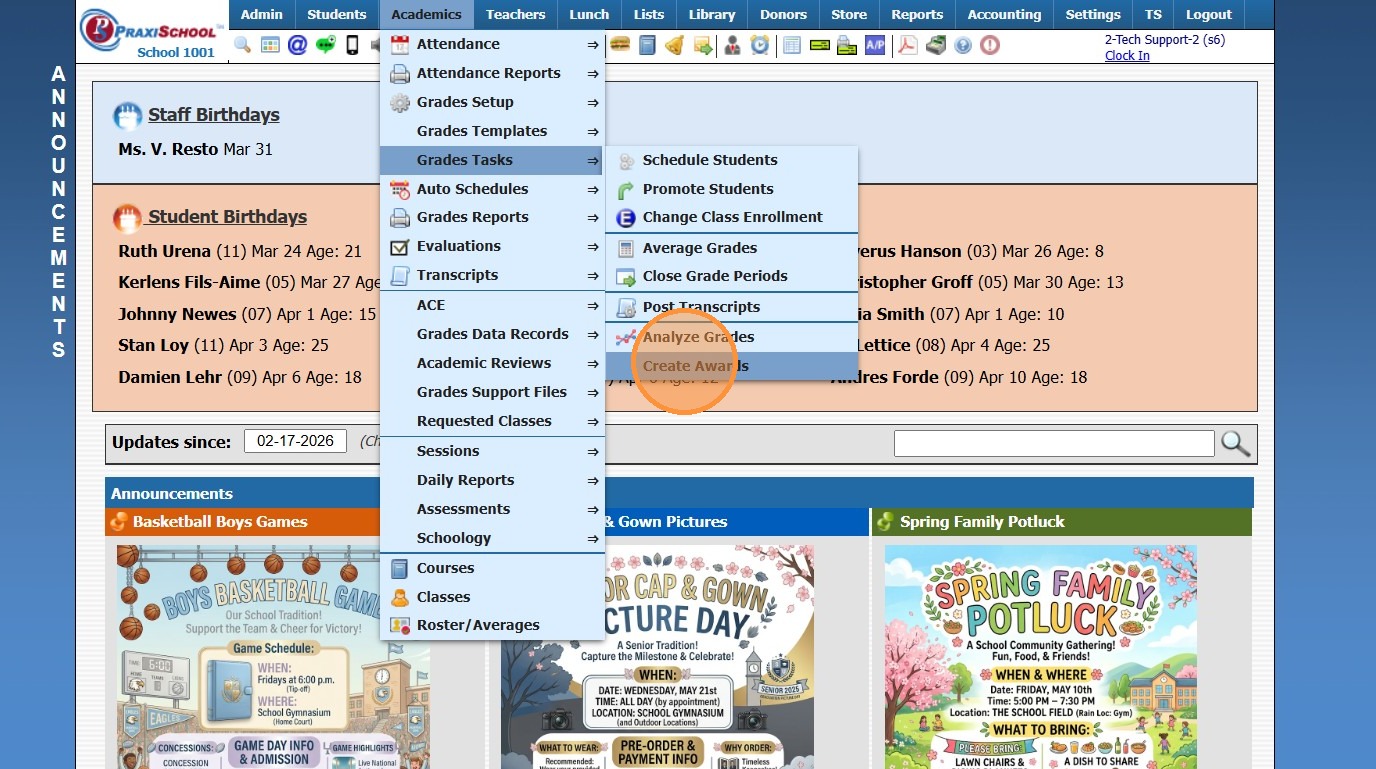
3. Click "Create Awards"
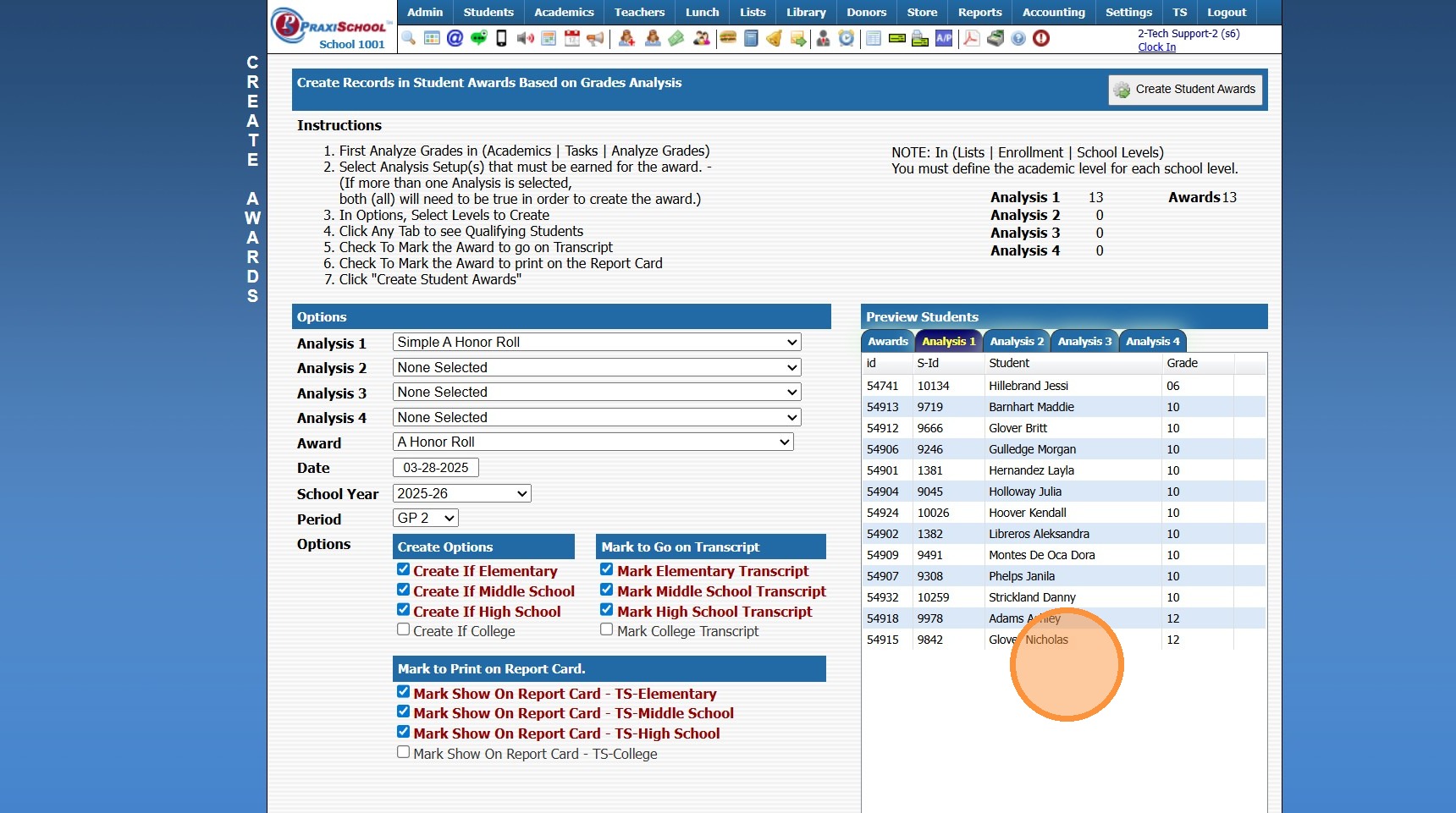
4. Select the Grade Analysis for Analysis 1 (Analysis 2-4 can be Selected if Analyzing using Different Criteria for the Same Award)
(i.e. Honor Roll for Elementary/Middle Classes set to one Grade Scale & High School Classes set to a different Grade Scale)
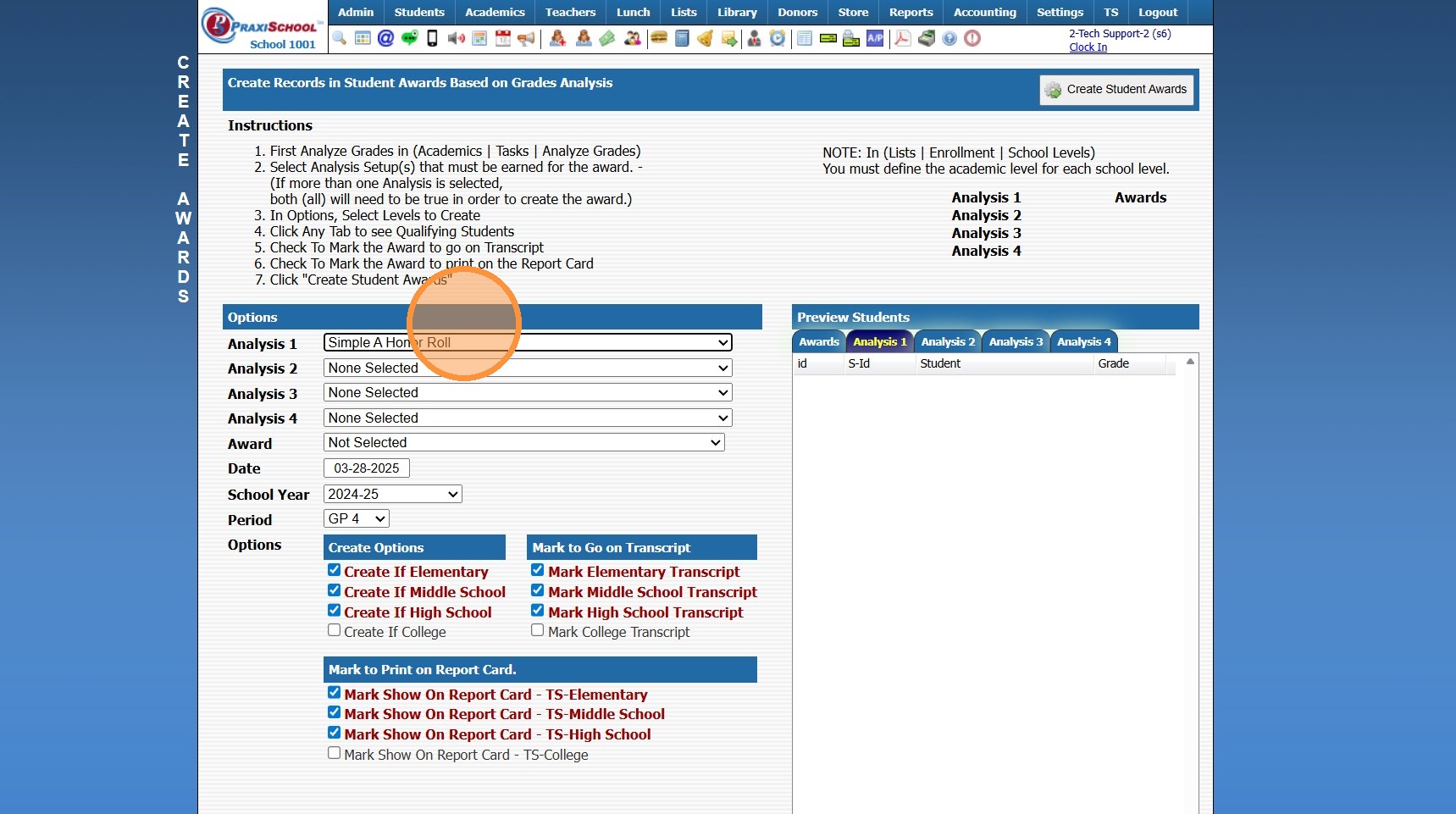
5. Select the School Year
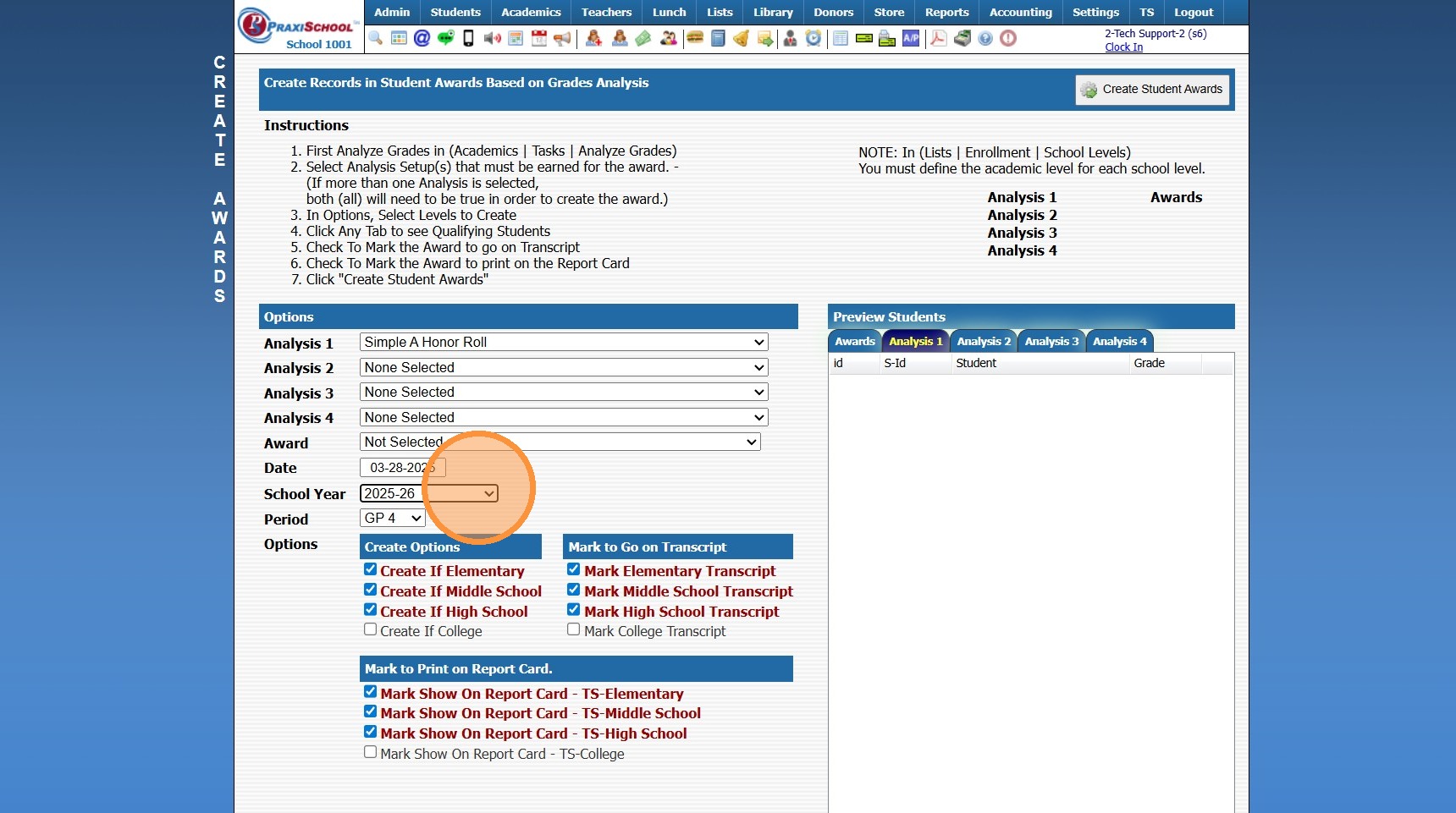
6. Select the Award Type
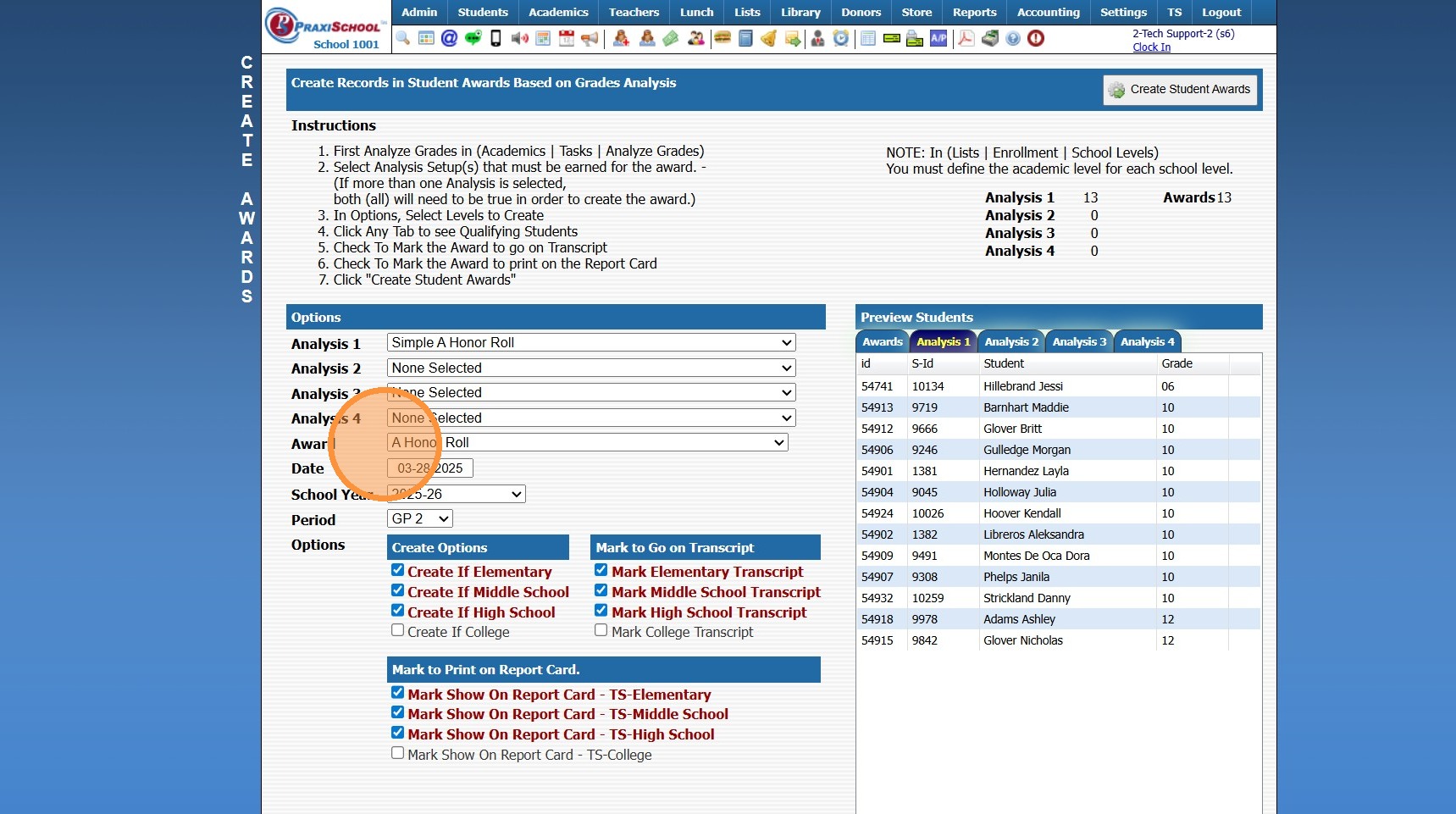
7. Select the Grade Period
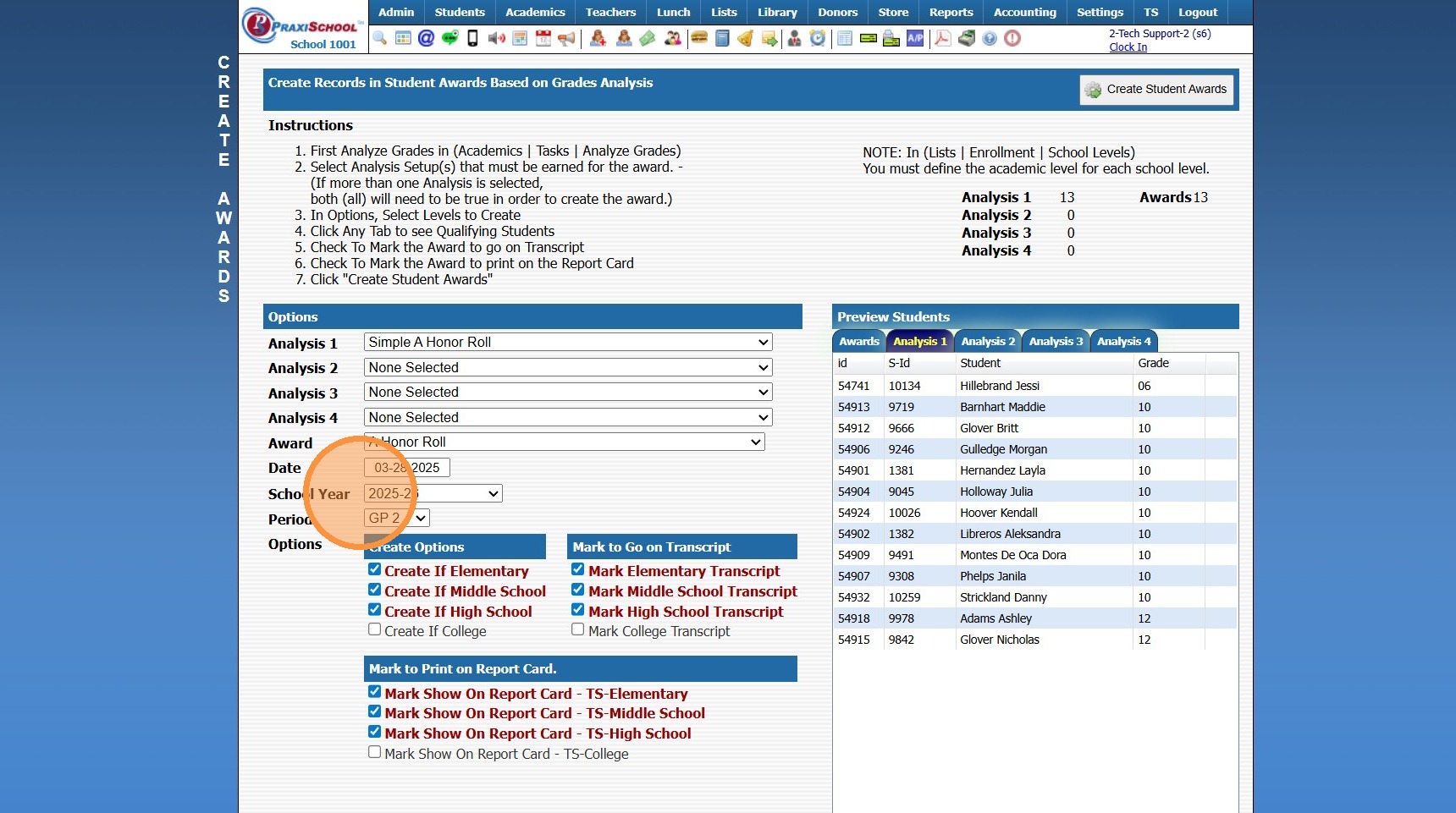
8. Select the Options for Creating the Awards
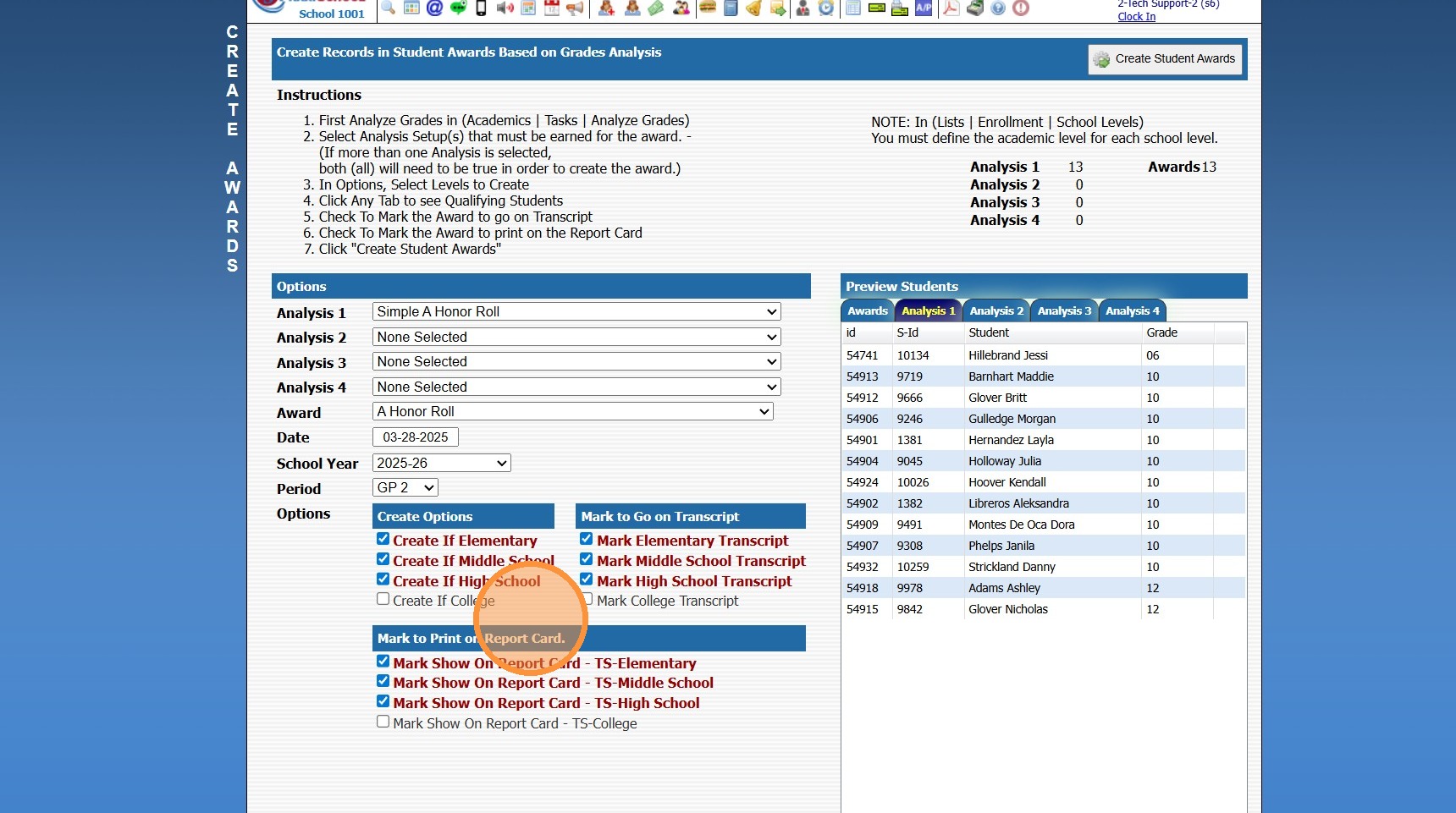
9. Students Receiving the Award will Populate
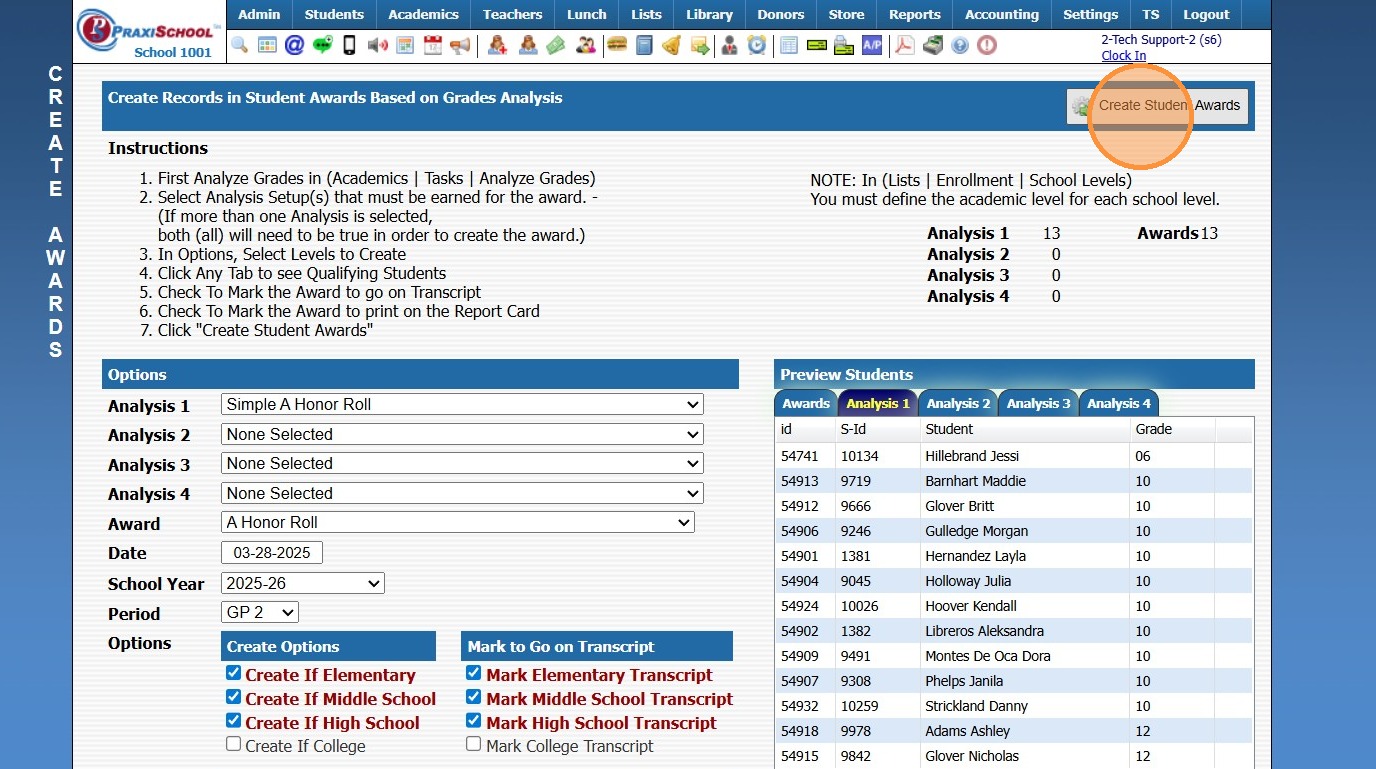
10. Click "Create Student Awards"
2000.4.9
Related Articles
Manually Adding Student Awards
1. Click "Academics" 2. Click "Transcripts" 3. Click "Student Awards" 4. Click "Add" 5. Select Student 6. Select Award Type 7. Select School Year & Date 8. Select Student's Grade Level 9. Select Grade Period (Student Awards can be added to the ...Creating Groups
Creating Groups 1. Click "Lists" 2. Click "Misc Lists" 3. Click "Groups" 4. Click "Add" 5. Enter an Order Number (Optional) 6. Select Category from Dropdown Menu * Tip: * You can click the Blue Bar to add a Category 7. Enter the Group Description 8. ...Creating Components
Creating Components 1. Log into PraxiSchool 2. Click "Teachers" 3. Click "Classroom" 4. Select Class 5. Click "Assignments" 6. Click "Add" 7. Enter 1 Letter Identifier (Ex. T - Test, H - Homework, C- Classwork, Q - Quiz) Enter Order (Optional) 8. ...Batch Adding Awards, Activities or Endorsements to Student Transcripts from the Student File
Batch Adding Awards, Activities or Endorsements to Student Transcripts from the Student File Made by Jennifer Glover with Scribe 1. Click "Students" 2. Click "Students" 3. Tag Students to Assign Award, Activity or Endorsement 4. Click "Actions" 5. ...Creating Document Security Levels
Creating Document Security Levels 1. Click "Settings" 2. Click "Security Settings" 3. Click "Doc Security Levels" 4. Click "Add" 5. Enter a description and select the databases that will hold this document. 6. Click "Save" 6500.3.5