Creating Application Levels
1. Click "Lists"
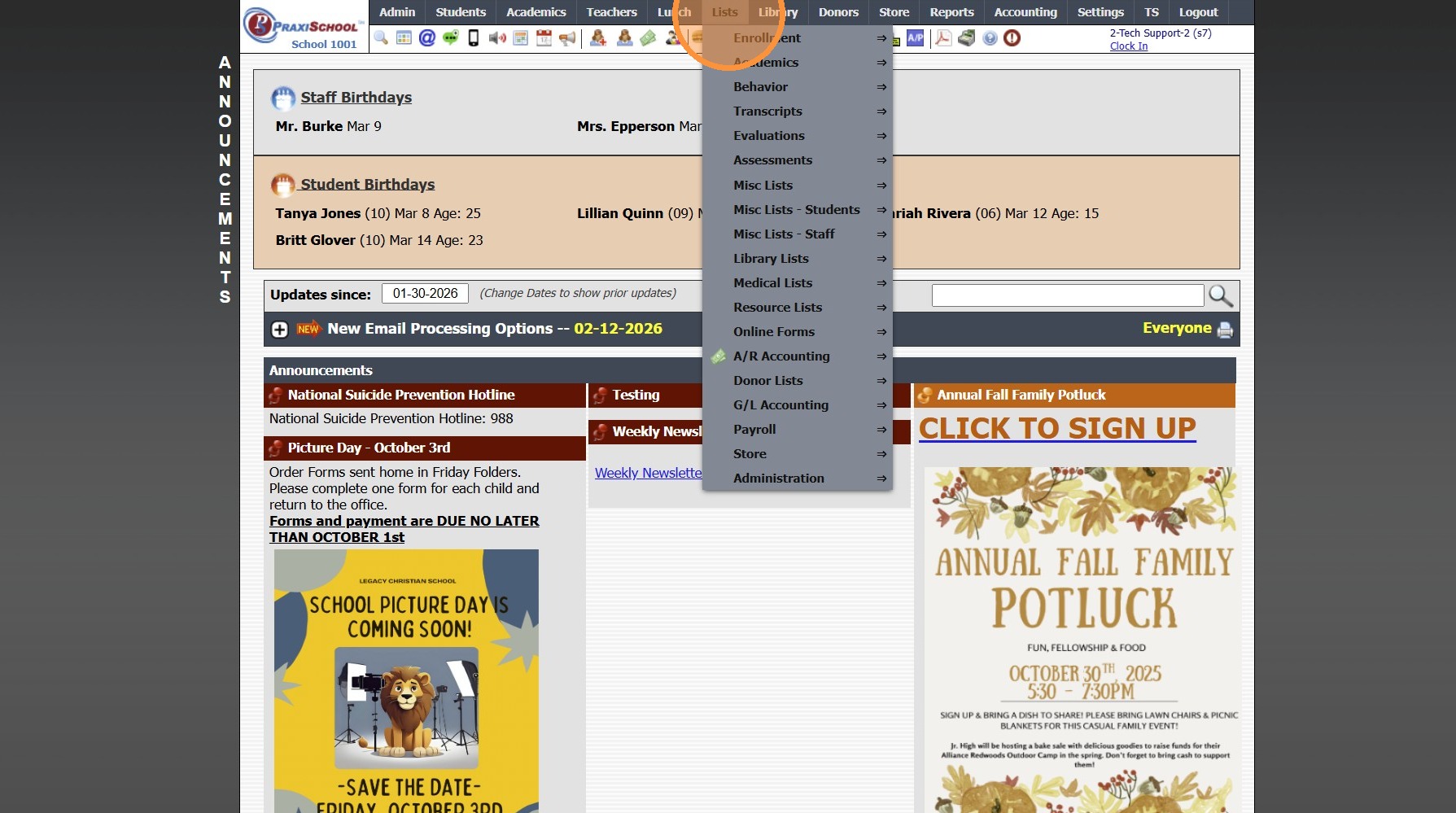
2. Click "Online Forms"
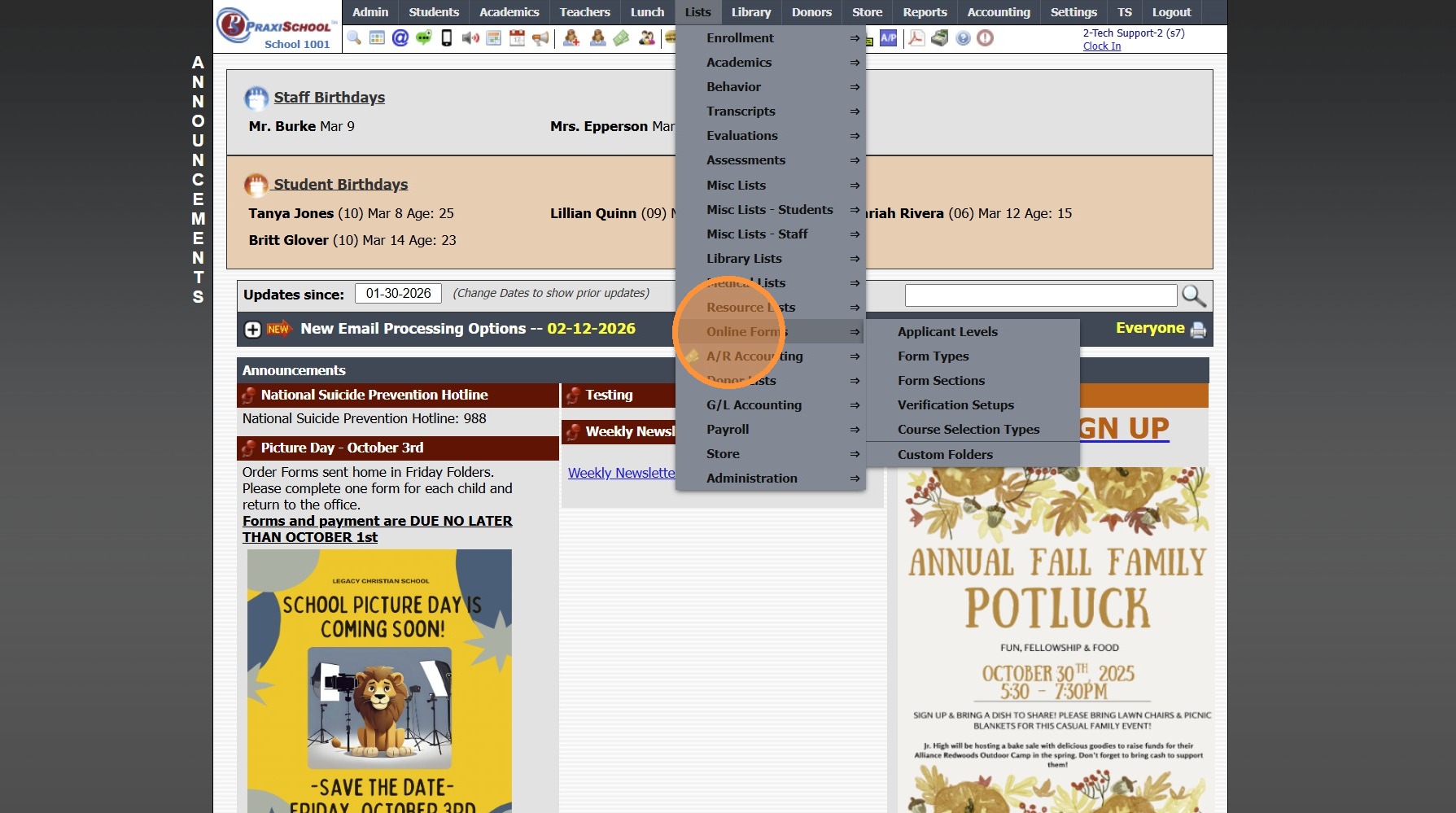
3. Click "Applicant Levels"
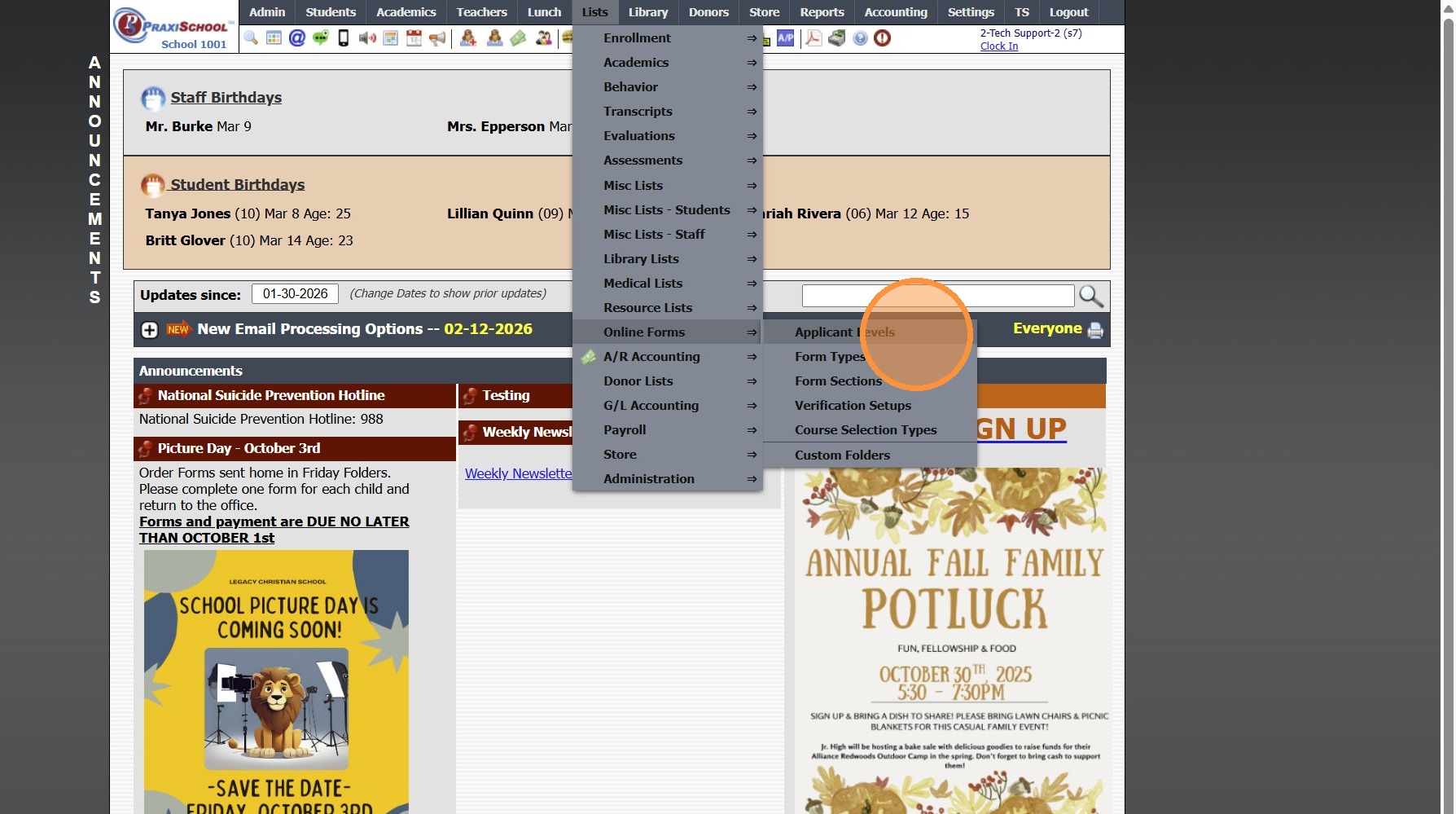
4. Click "Add"
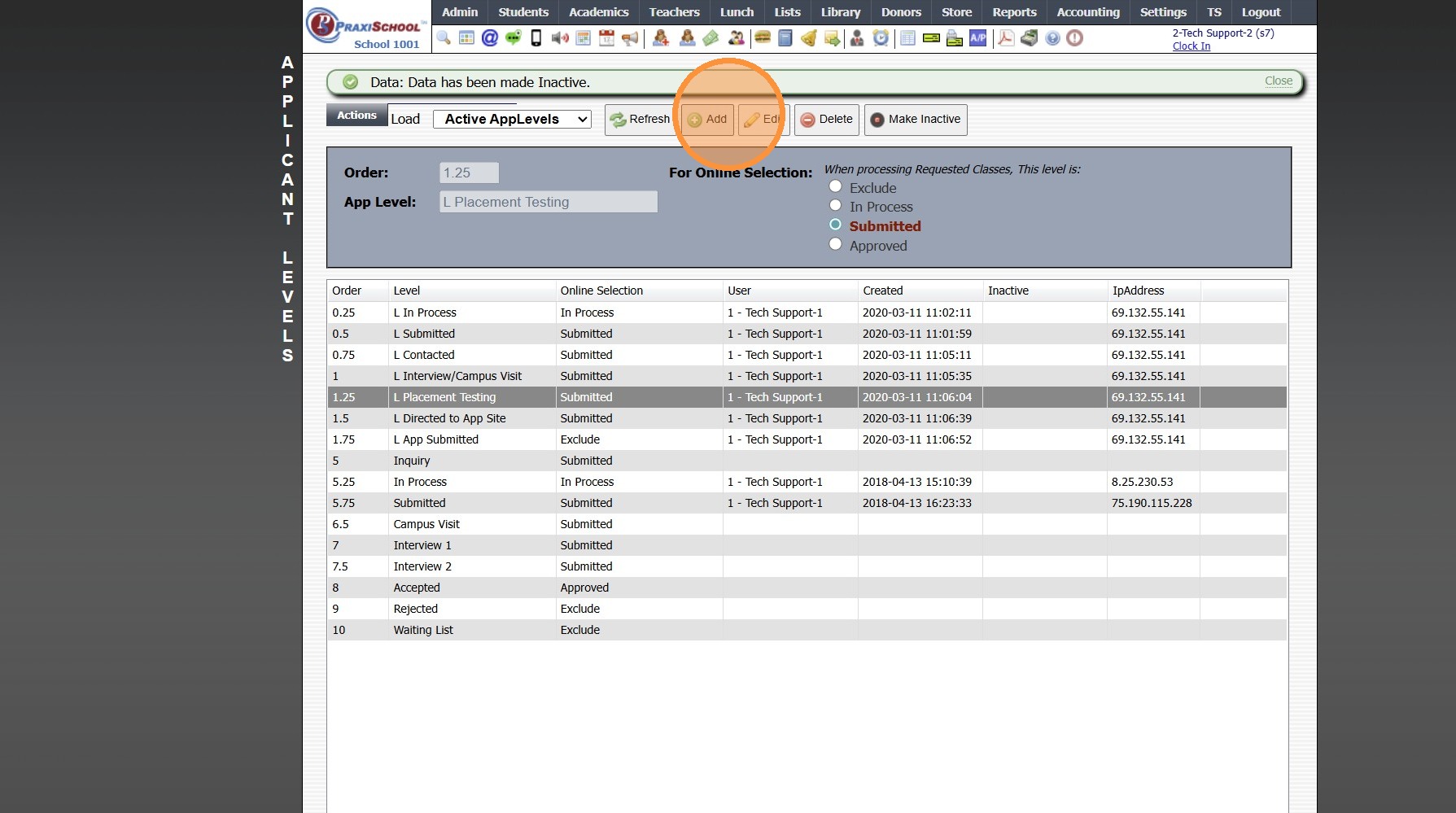
5. Enter Order & App Level Description
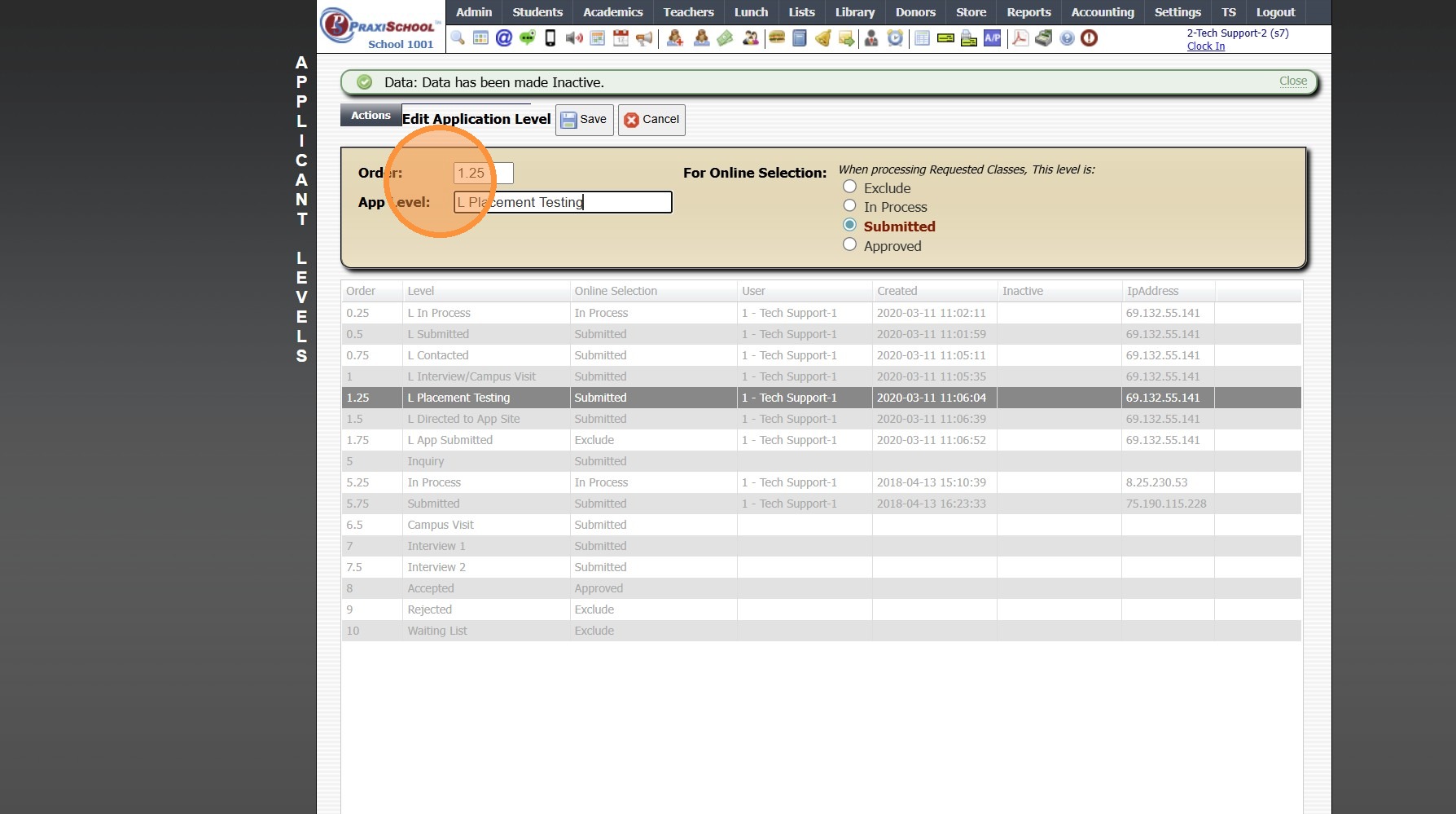
6. Select App Level
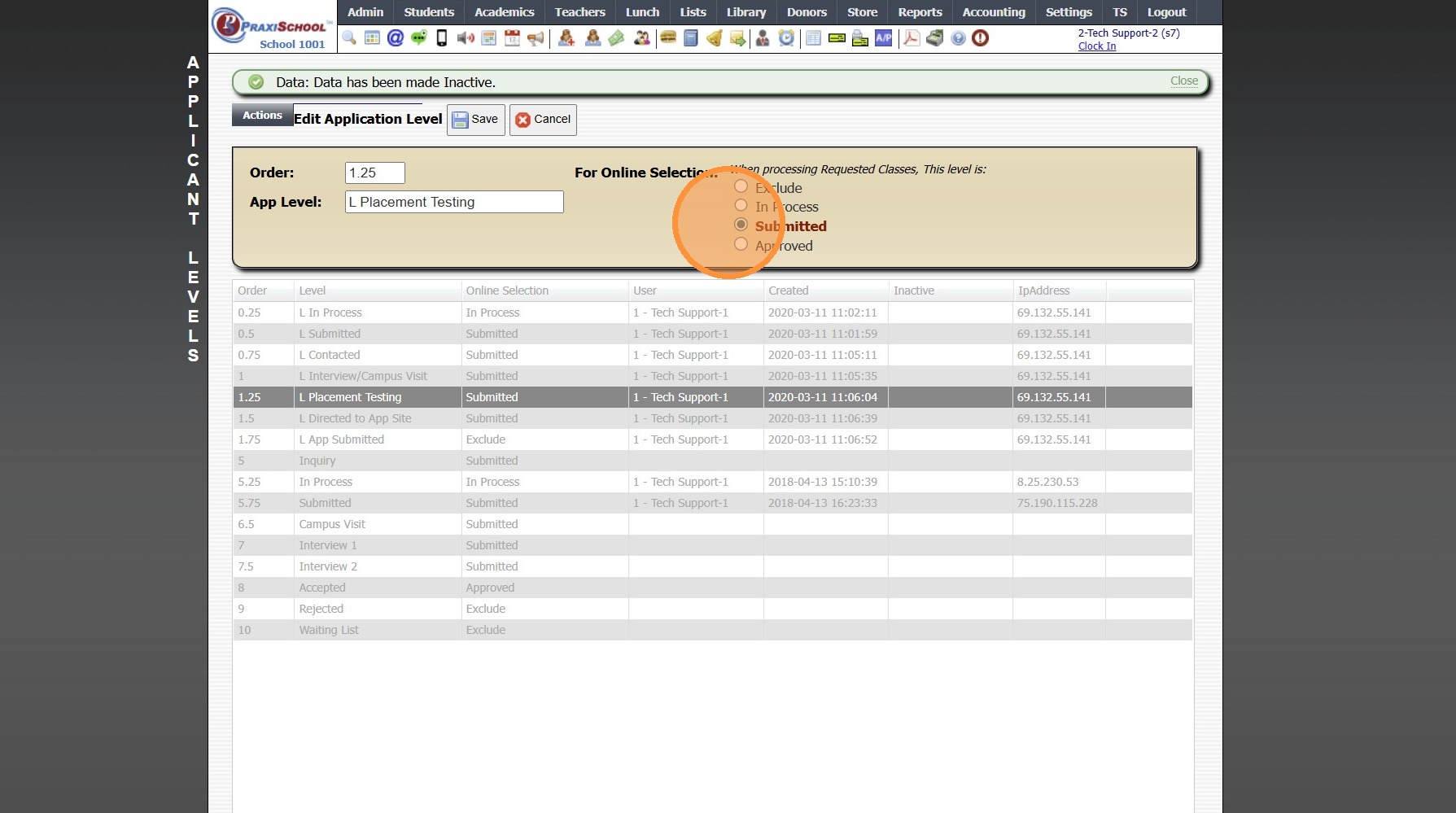
Tip: App Level Information:
- Exclude: All App Levels created for Applications that will not be Approved/Accepted. (Ex: Wait List)
- In Process: All App Level created for Applications that have not been submitted. (Ex. Completing)
- Submitted: All App Levels created for Applications that have been Submitted, by are not ready to be Approved/Accepted would be. (Ex: Interview)
- Accepted: All App Levels created for Applications that are being Accepted/Approved. (Ex: Accepted- PreRegistered)
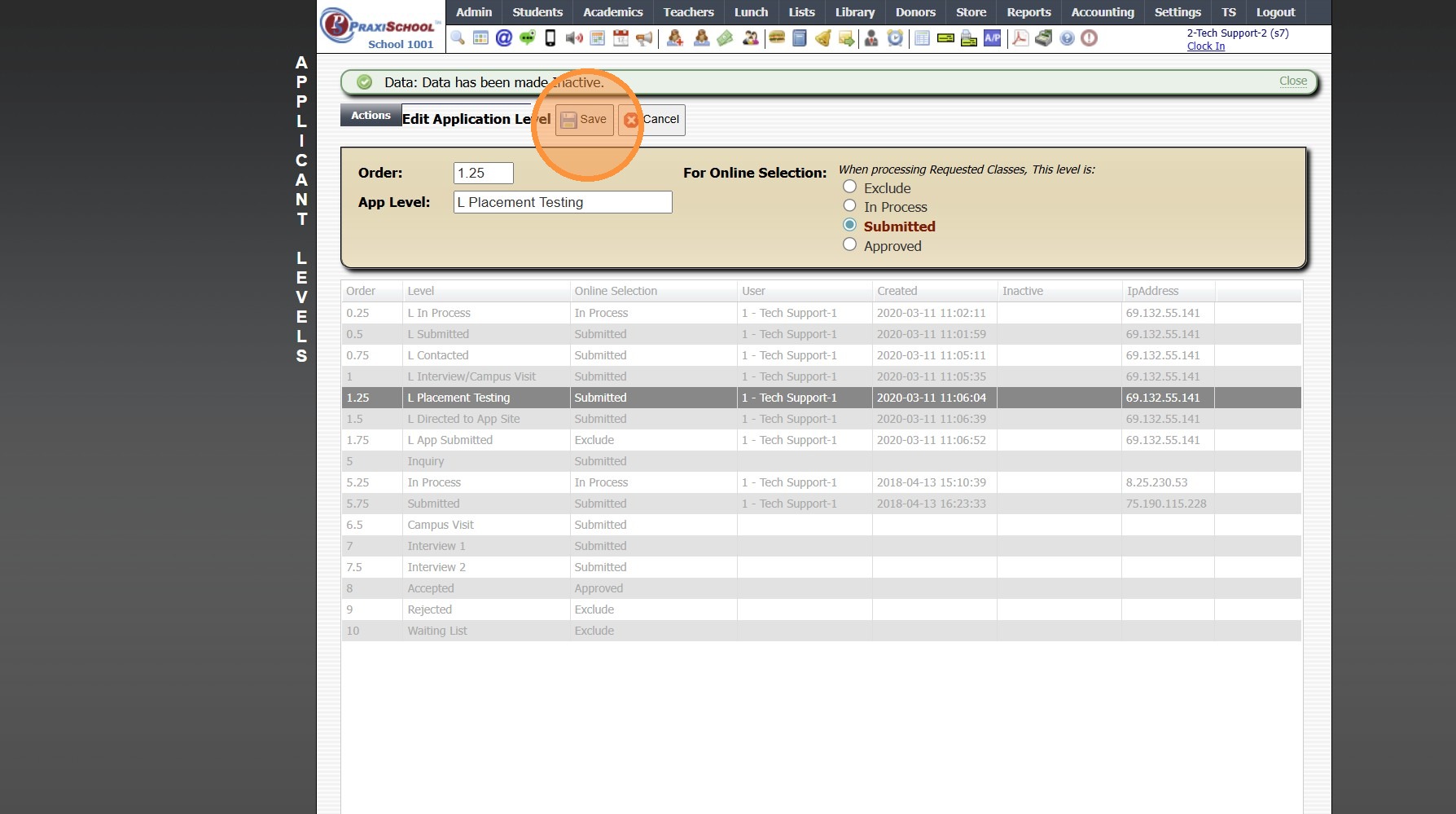
7. Click "Save"
3500.10.1
Related Articles
Creating Document Security Levels
Creating Document Security Levels 1. Click "Settings" 2. Click "Security Settings" 3. Click "Doc Security Levels" 4. Click "Add" 5. Enter a description and select the databases that will hold this document. 6. Click "Save" 6500.3.5Creating Grade Levels
1. Click "Lists" 2. Click "Enrollment" 3. Click "Grade Levels" 4. Click "Add" 5. Enter Grade Level & Grade Level Description 6. Select Grade Level & Grade Scale 7. Select "Promote To" Grade Level (Optional) 8. Click "Save" 3500.1.3Creating School Levels
1. Click "Lists" 2. Click "Enrollment" 3. Click "School Levels" 4. Click "Add" 5. Enter School Level Description, Select Discipline Level & Conduct Level & Select Average Info 6. Select Schedule Print Type 7. Select Attendance 8. Click "Save" ...Creating Report Cards
Creating Report Cards 1. Log into PraxiSchool 2. Click "Academics" 3. Click "Grades Reports" 4. Click "Print Report Cards" 5. Select Grade Levels 6. Select Report Card Template 7. Click "Create Report Cards" 2000.6.7Creating School Calendar Items
Creating School Calendar Items 1. Log into PraxiSchool 2. Click "Admin" 3. Click "Resources" 4. Click "School Calendar" 5. Click "Add" 6. Enter the Calendar Item Description 7. Select Type (Public, No School, Make-Up, Staff) Public, No School and ...