Creating a Memorized Transaction
1. Click "Accounting"
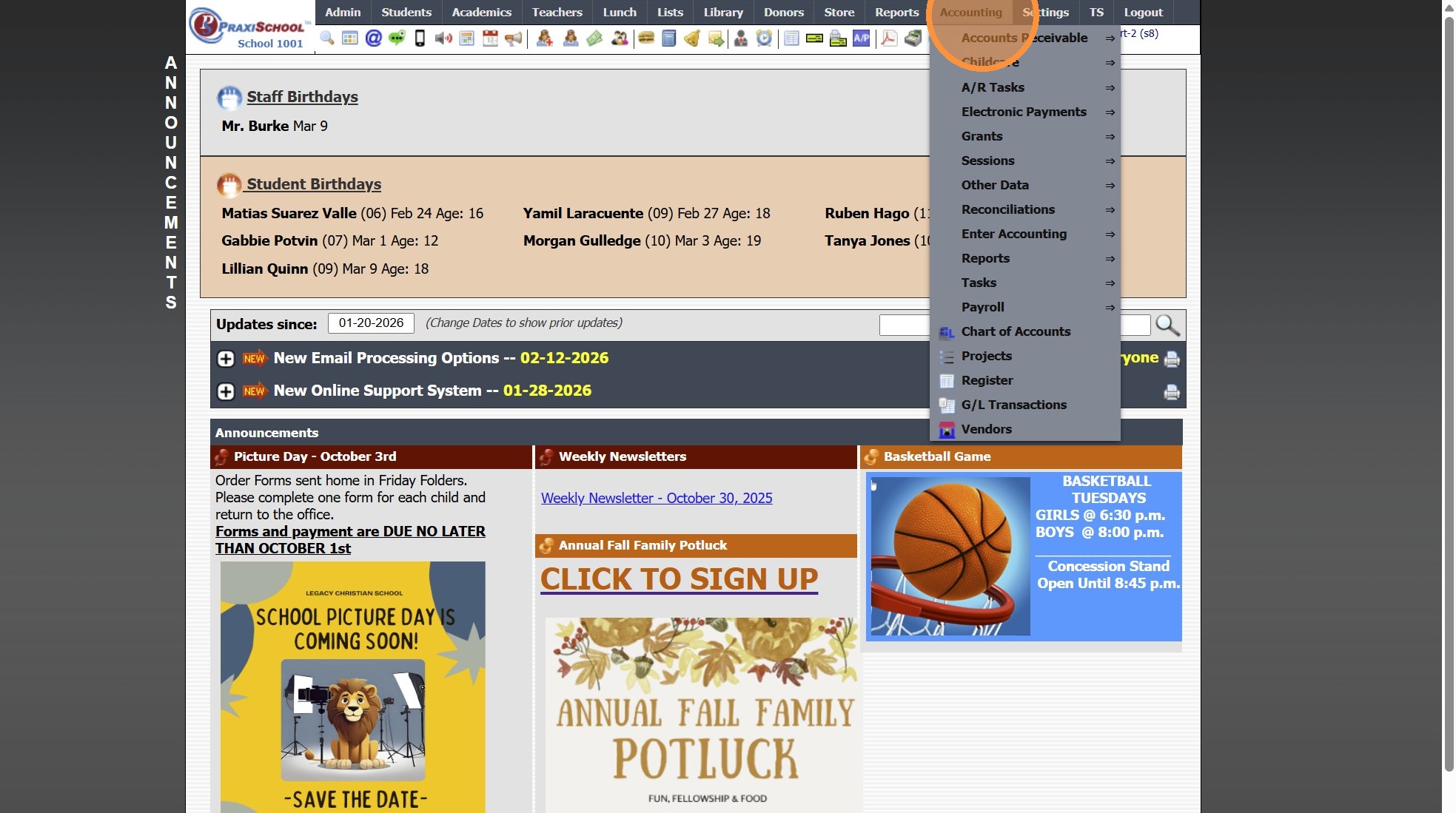
2. Click "Enter Accounting"
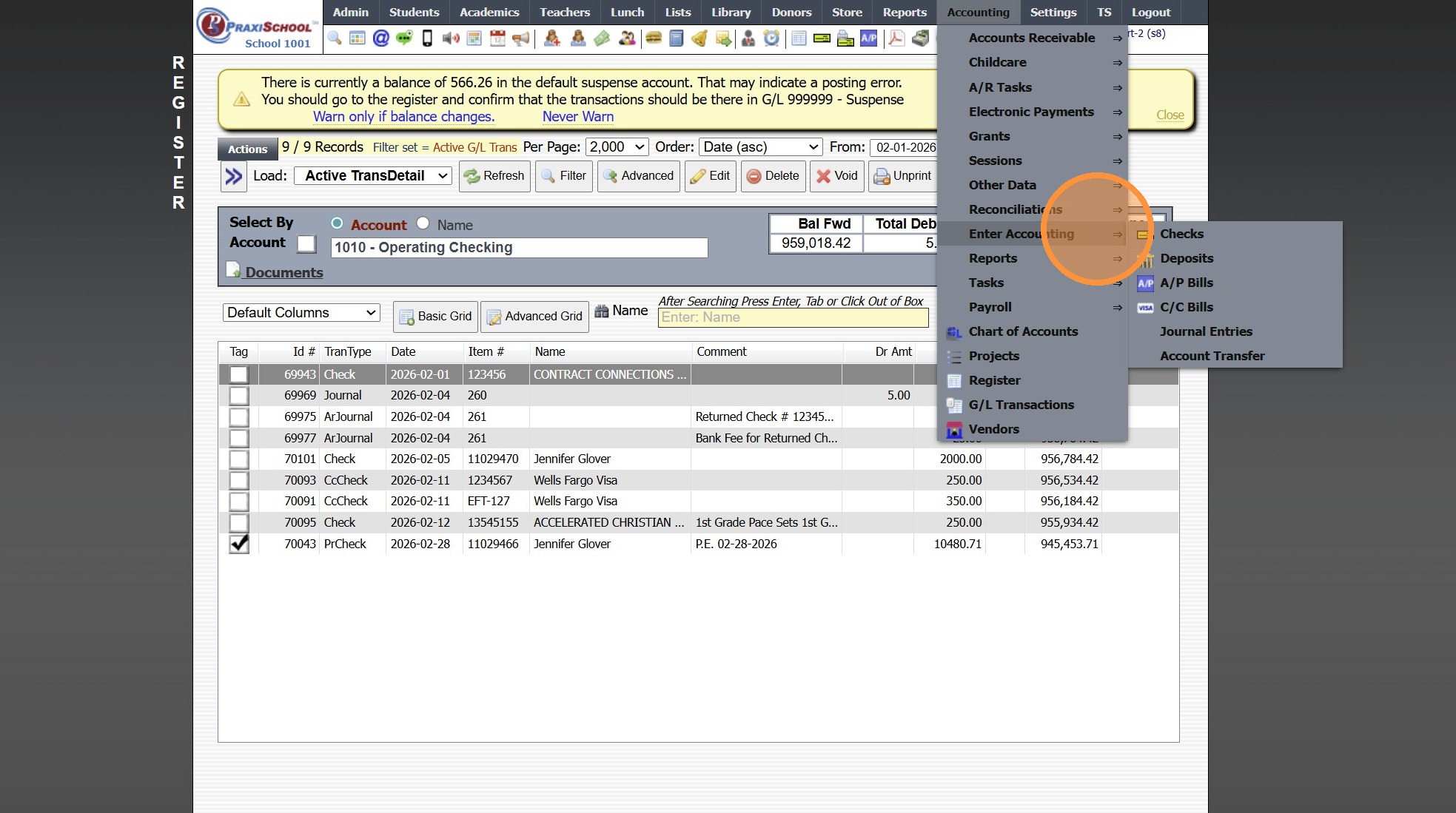
3. Click "Checks"
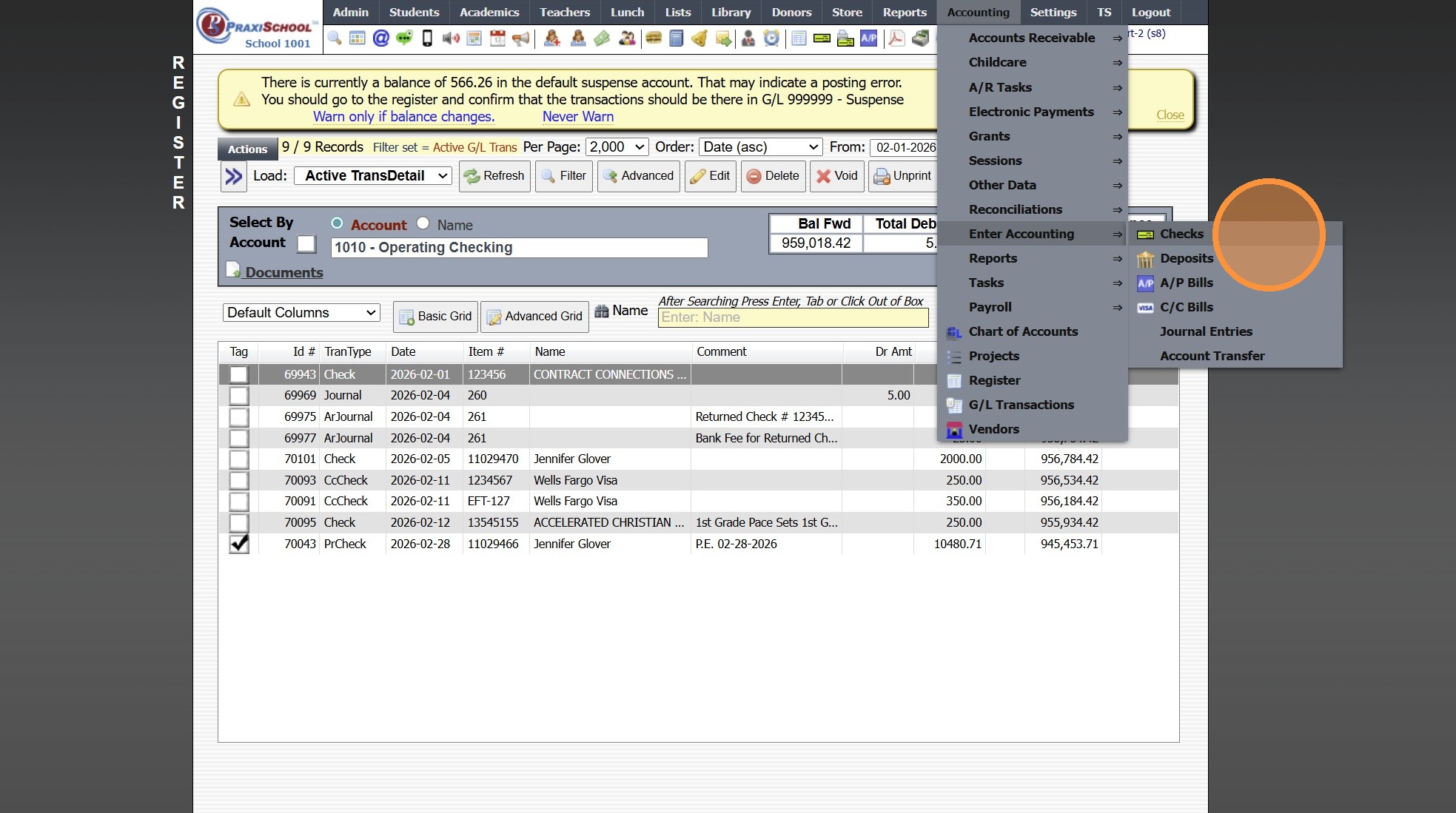
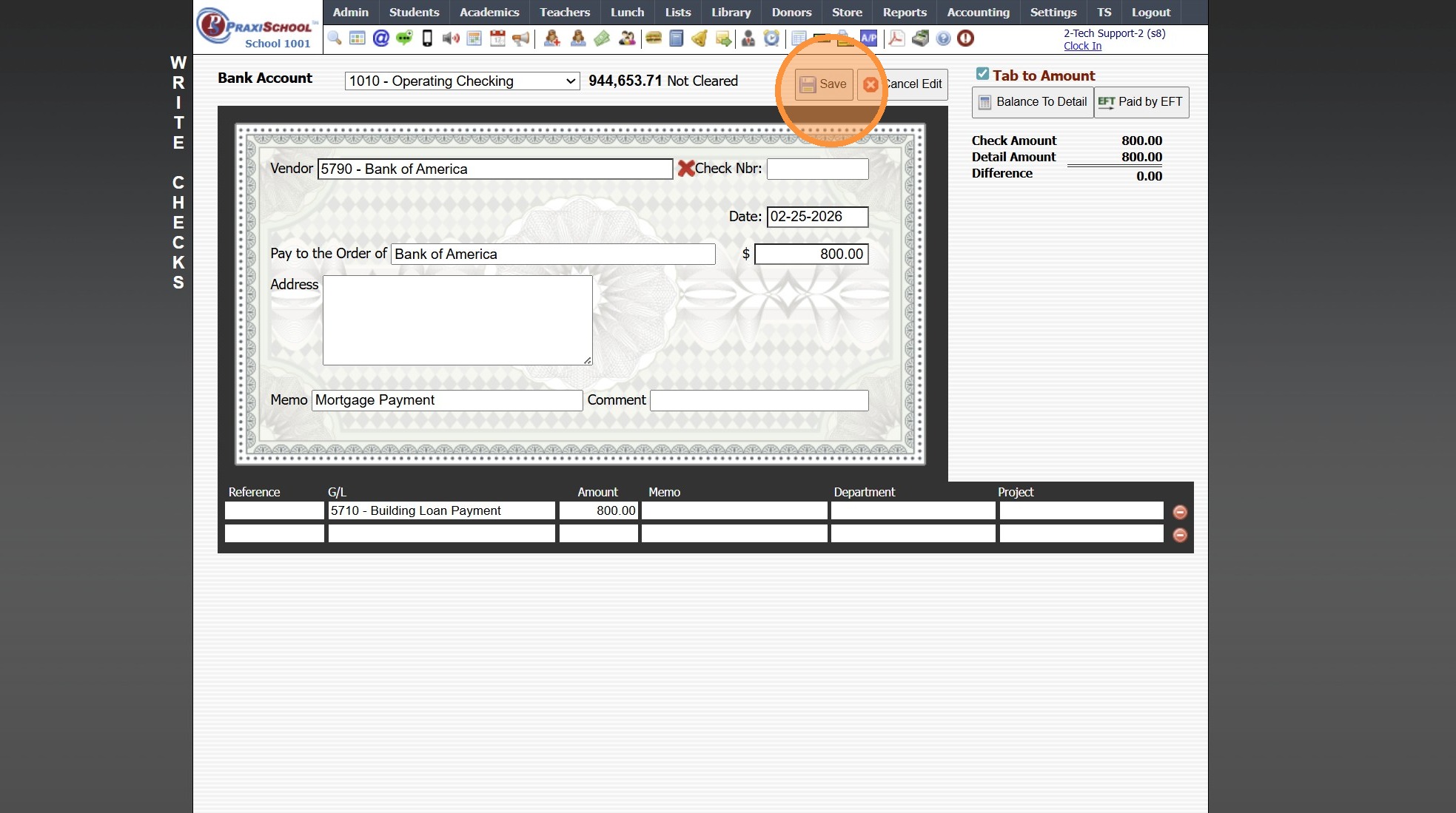
4. Create Payment Entry
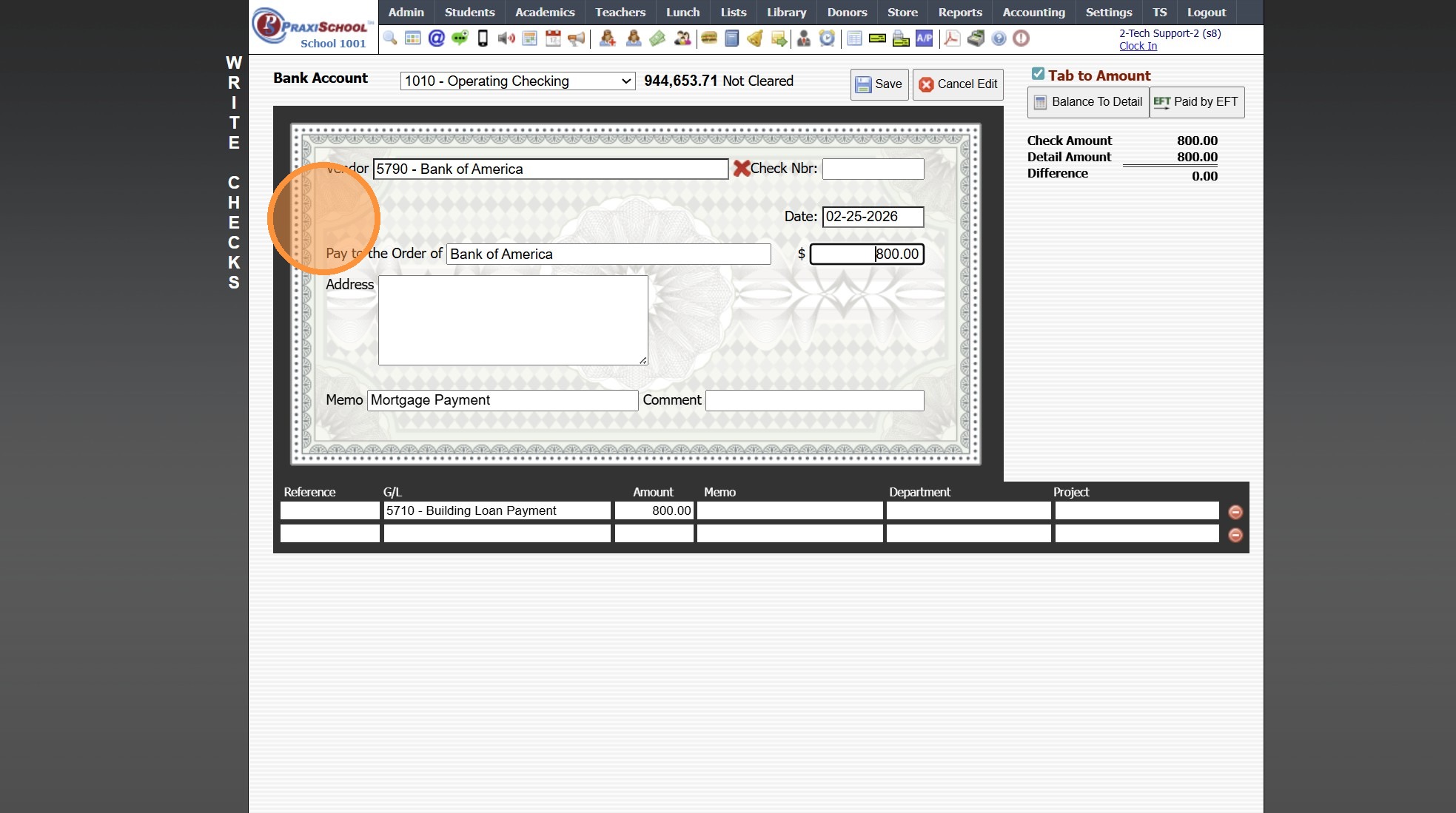
5. Click "Save"
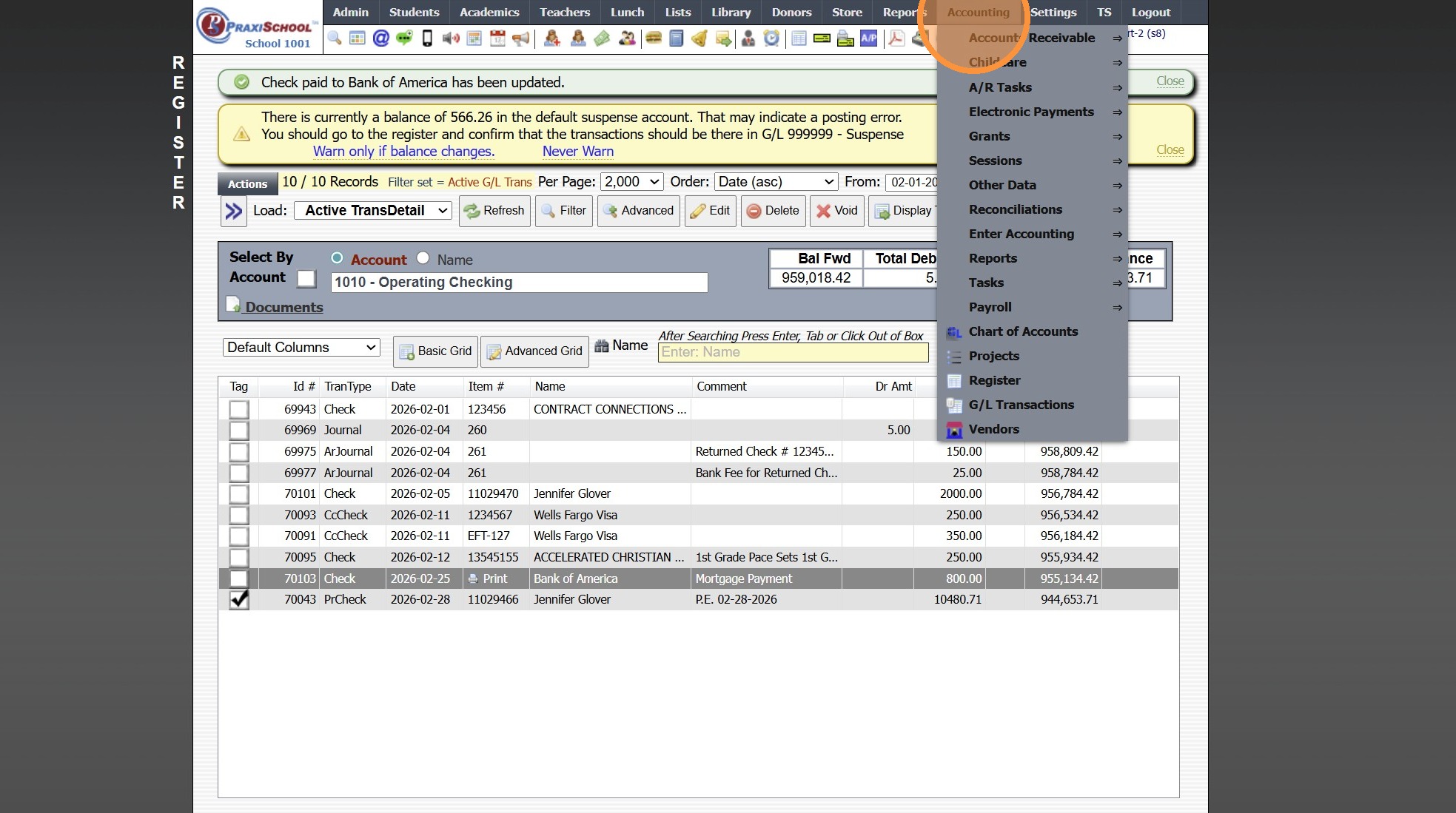
6. Click "Accounting"
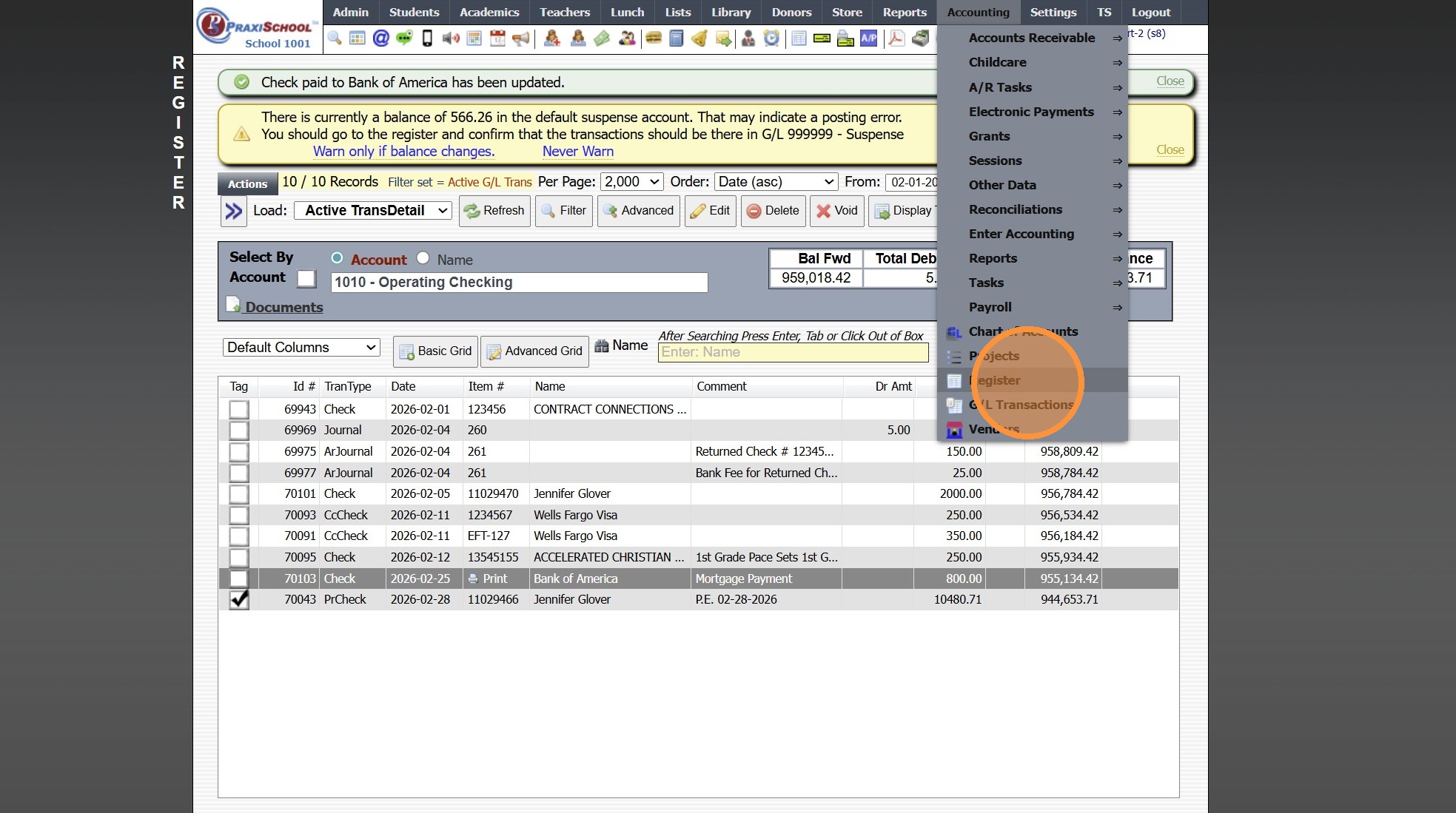
7. Click "Register"
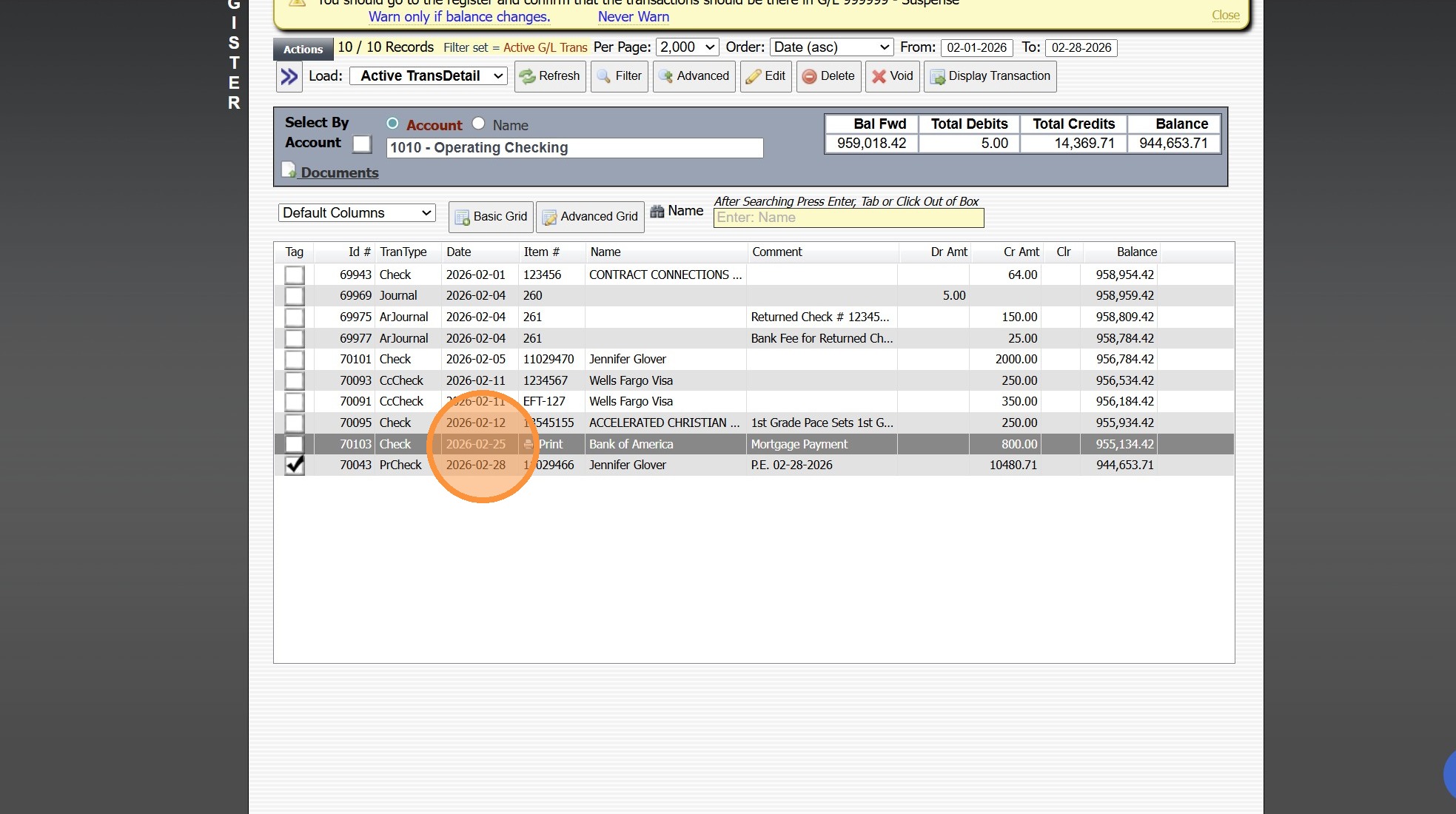
8. Select Payment Entry
9. Click "Actions"
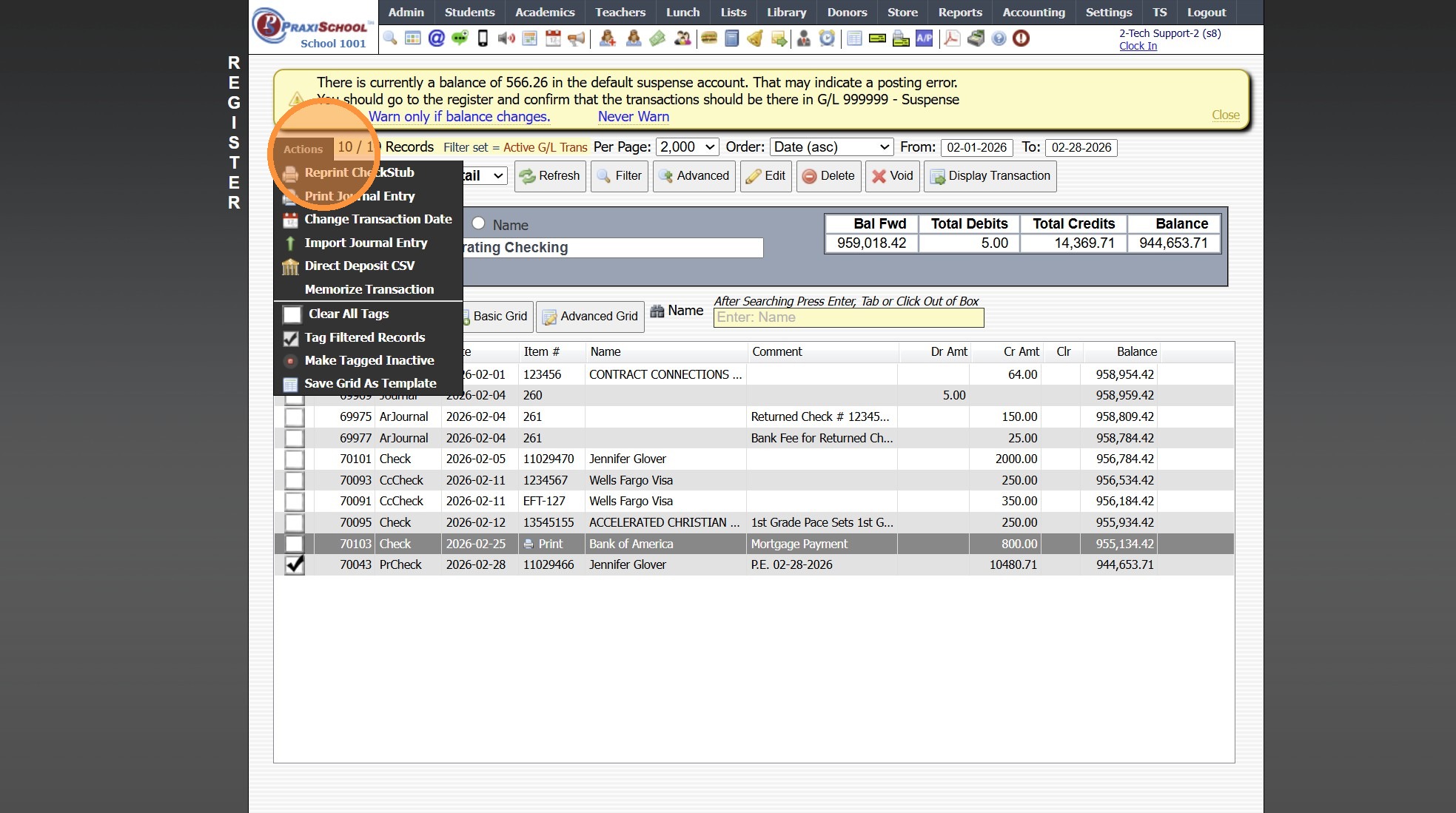
10. Click "Memorize Transaction"
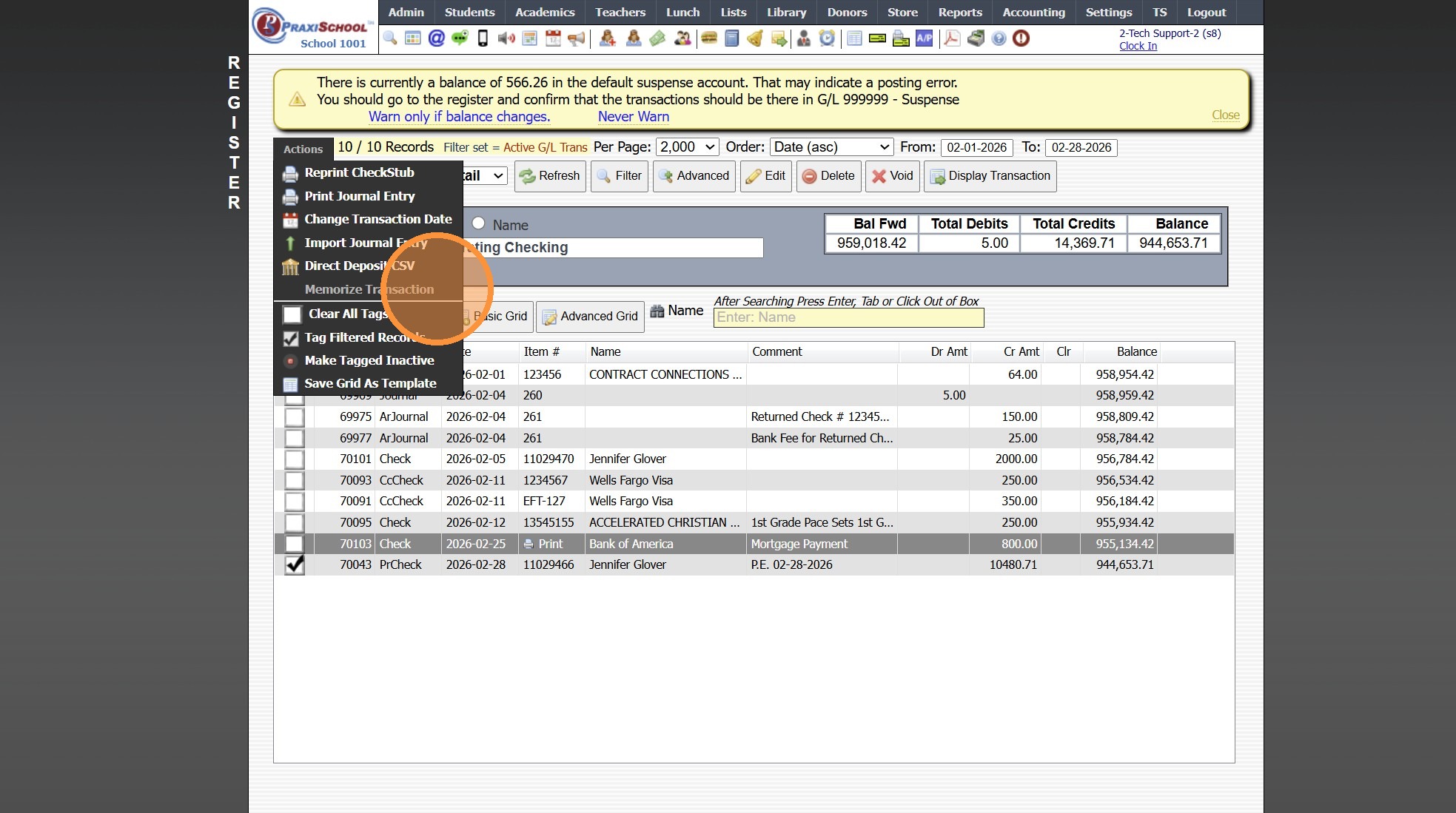
11. Enter Recurring Transaction Data
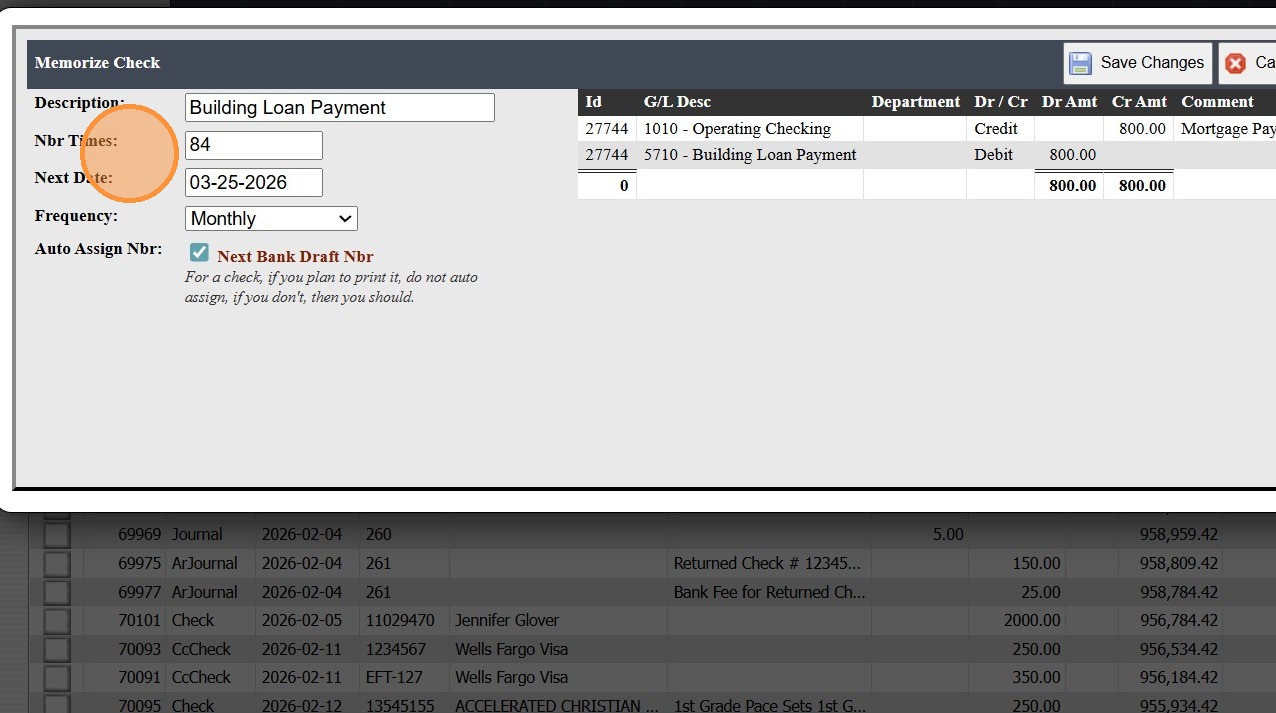
12. Click "Save Changes"
6000.9.8
Related Articles
Creating a Basic Transaction Item (Defined Items)
Creating a Basic Transaction Item (Defined Items) 1. Log into PraxiSchool 2. Click "Lists" 3. Click "A/R Accounting" 4. Click "Transaction Items" 5. Click "Add" 6. Enter Description & Comment (typically these are the same) Add Notes (Optional) 7. ...Creating a Transaction Group & Adding Transaction Items to the Transaction Group
1. Click "Lists" 2. Click "A/R Accounting" 3. Click "Transaction Groups" 4. Click "Add" 5. Enter Transaction Group Description 6. Click "Save" 7. Select Transaction Group & Click "Add/Edit/Delete" 8. Select Applicable Transaction Item 9. Click "Add" ...Creating a New Transaction Group for Online Forms
1. Click "Lists" 2. Click "A/R Accounting" 3. Click "Transaction Groups" 4. Click "Add" 5. Name Transaction Group 6. Click "Save" 7. Click "Add/Edit/Delete" 8. Select Transaction Item & Click Add (Repeat to Add Additional Transaction Items to Same ...Creating a Balance Write-Off Transaction Item
1. Click "Lists" 2. Click "A/R Accounting" 3. Click "Transaction Items" 4. Click "Add" 5. Enter the Description & Comment for the Balance Write-Off 6. Click "Credit" 7. Select the Write-Off General Ledger Number 8. Click "Save" 3500.11.5.1Download Heartland Transaction Report
Download Heartland Transaction Report 1. Click "Accounting" 2. Click "Electronic Payments" 3. Click "Download Heartland Trans" 4. Set Date Range 5. Click "Download Transactions" 6. Report will Download for Review 6000.4.11