Creating a Basic Check
Creating a Basic Check
1. Click "Accounting"
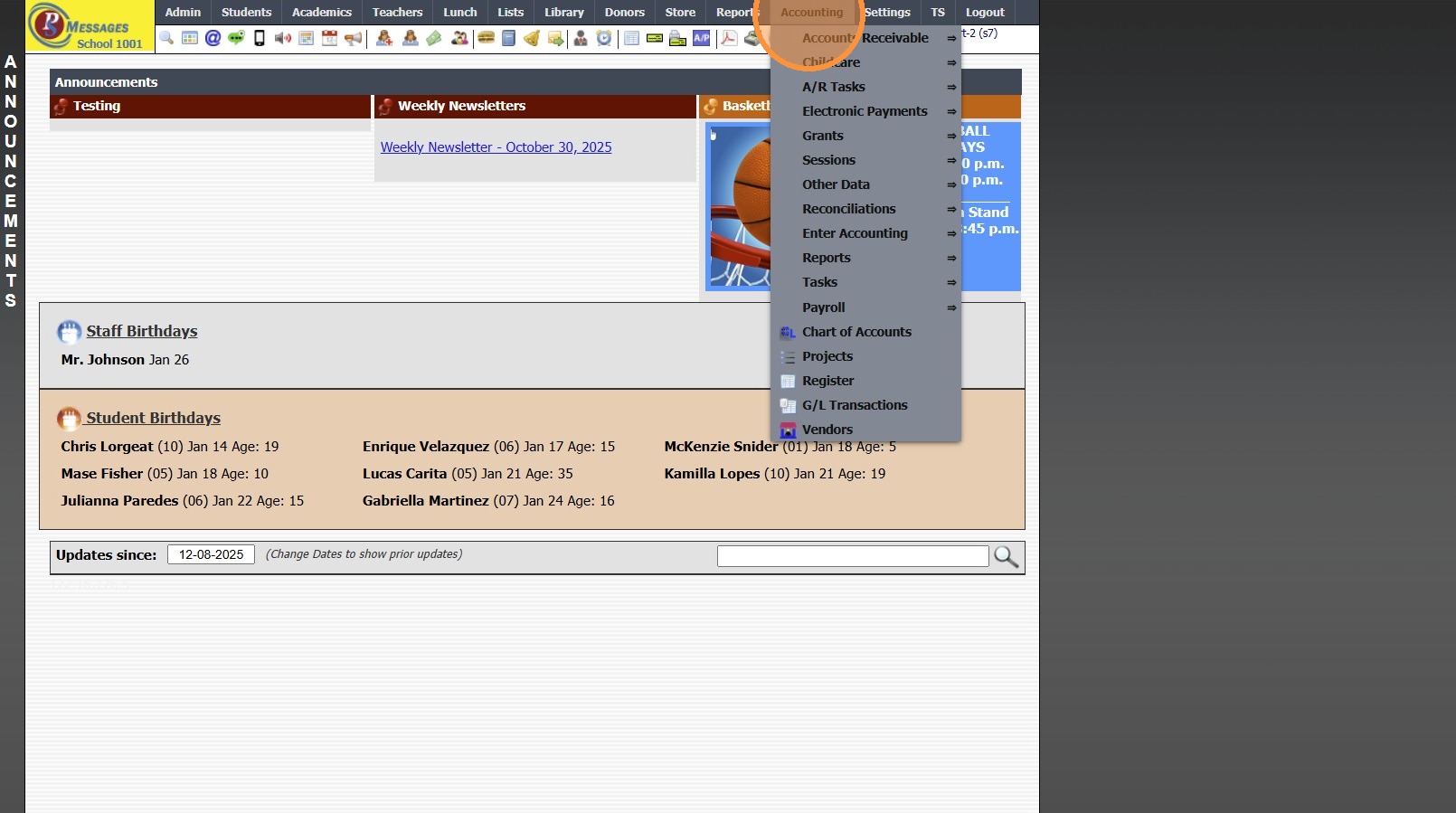
2. Click "Enter Accounting"
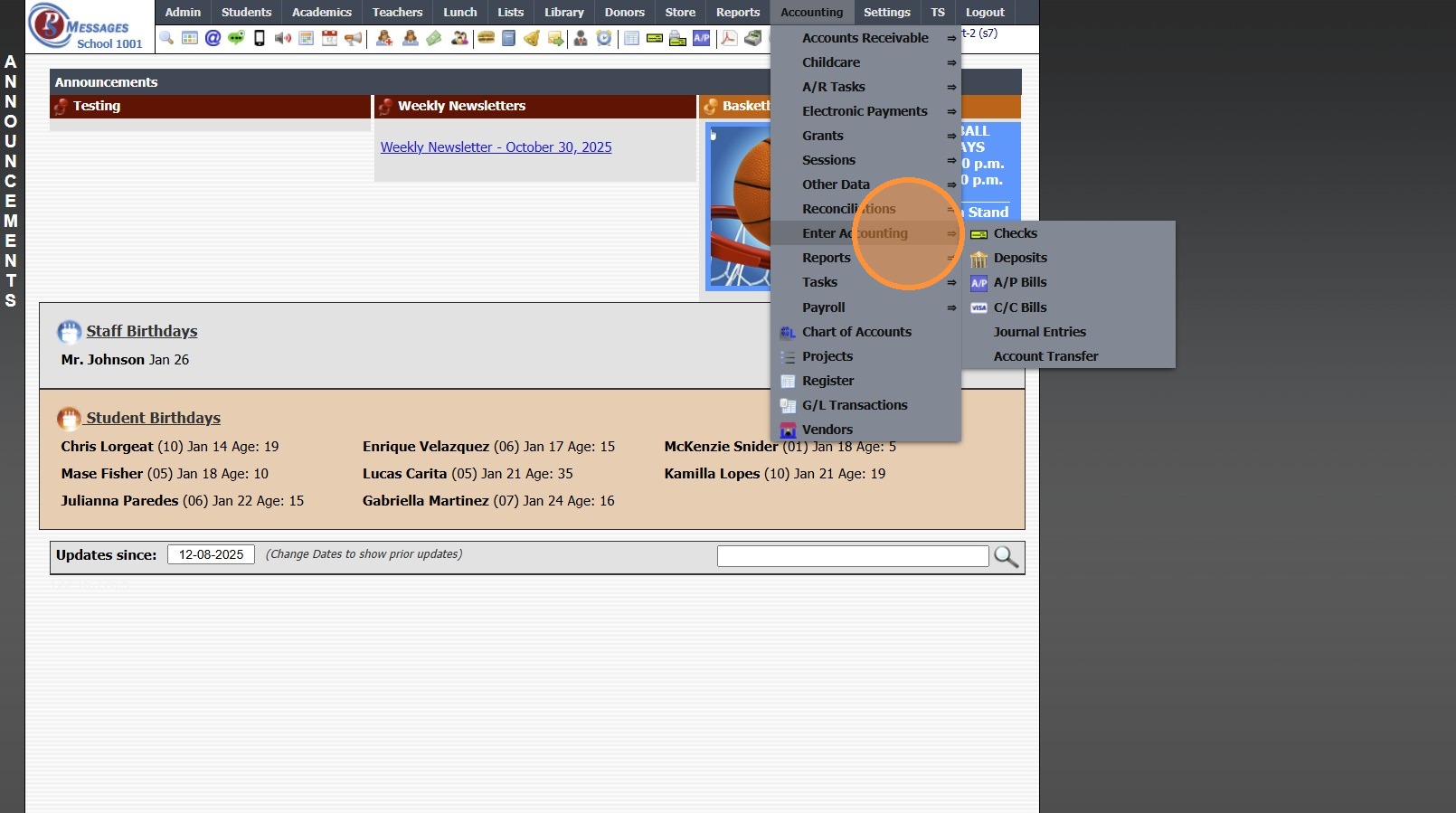
3. Click "Checks"
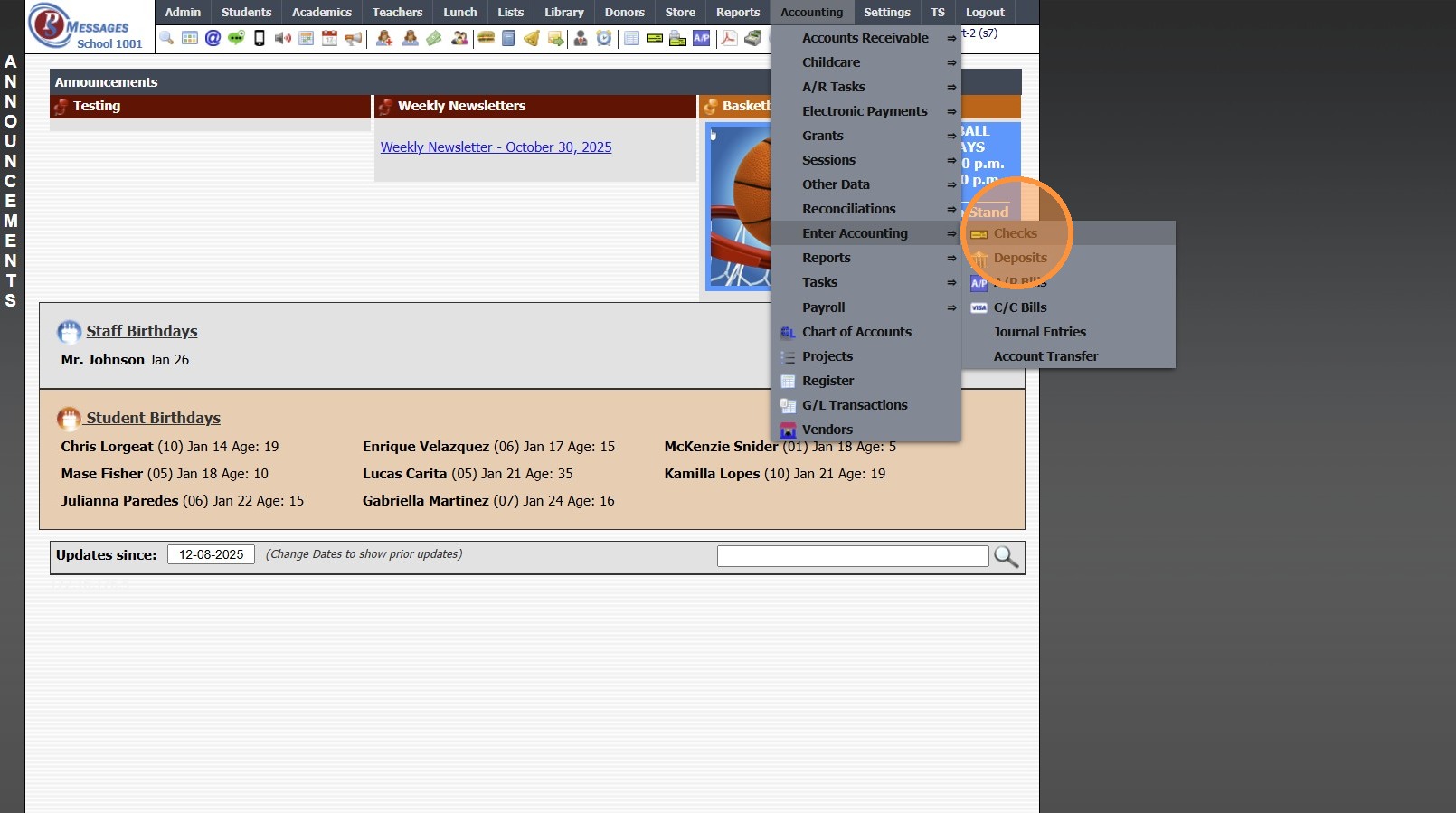
4. Enter New Vendor or Select Existing Vendor
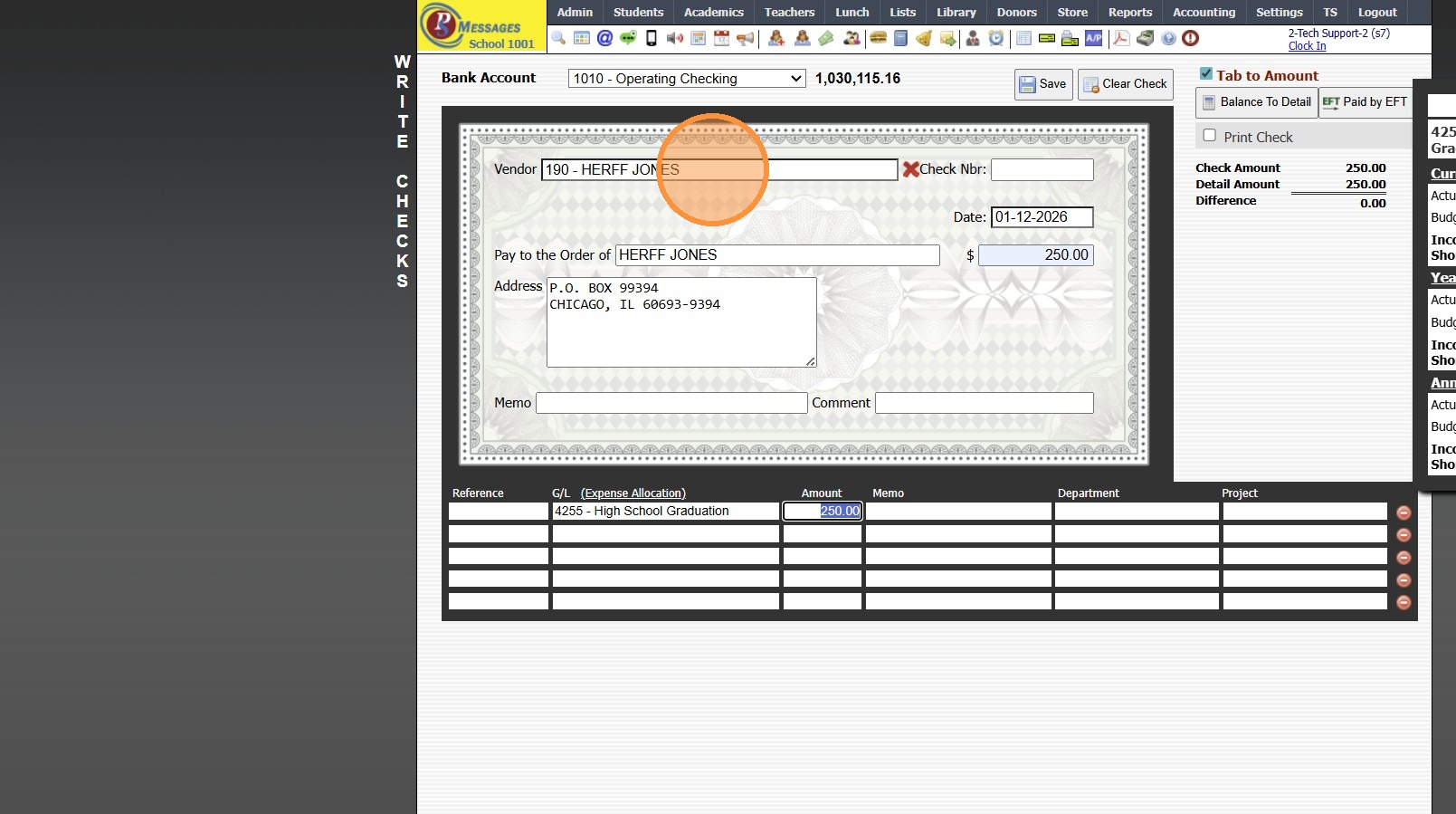
5. Current Date will Automatically Populate, Change if Needed
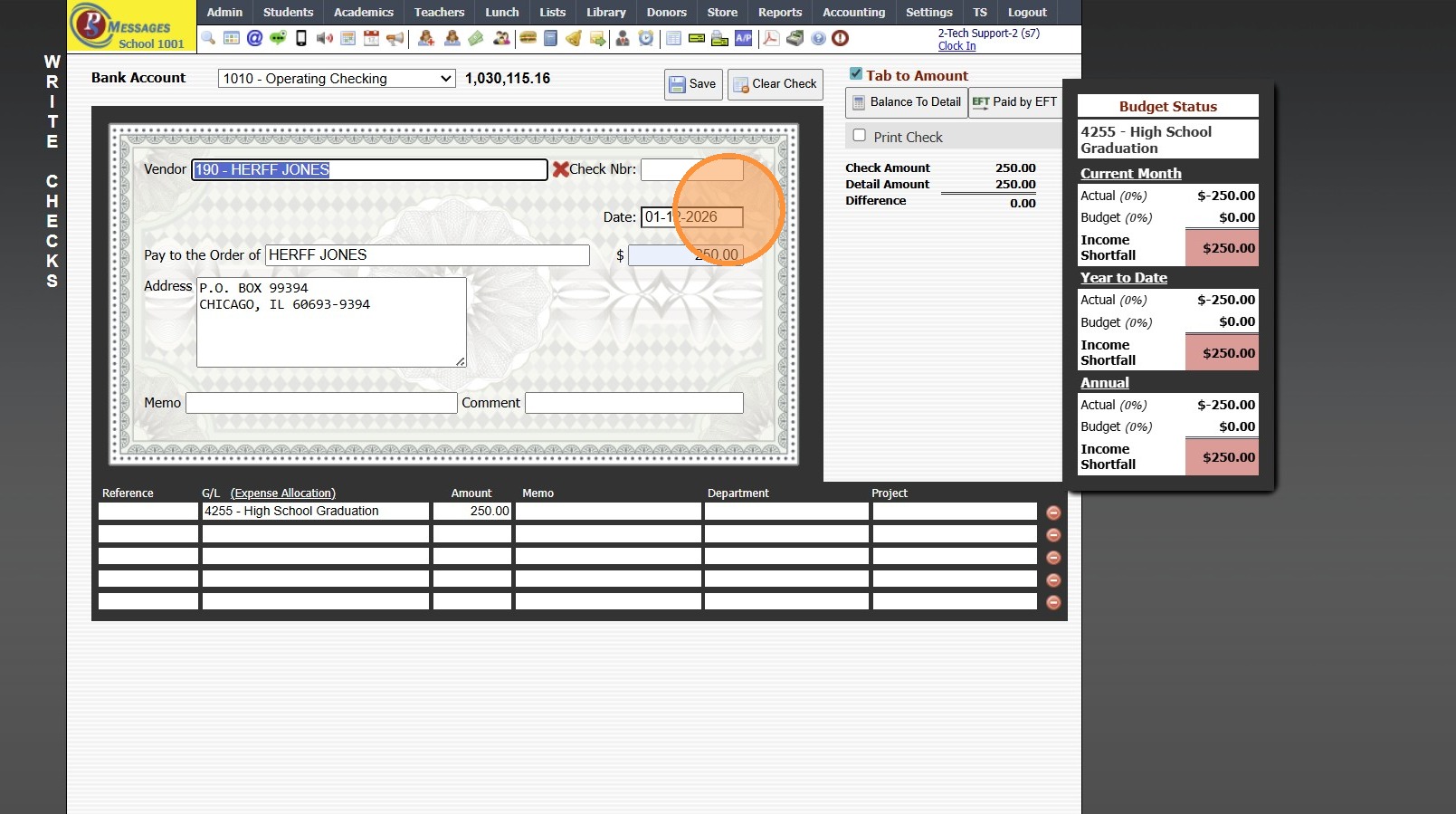
6. Enter Amount of Check
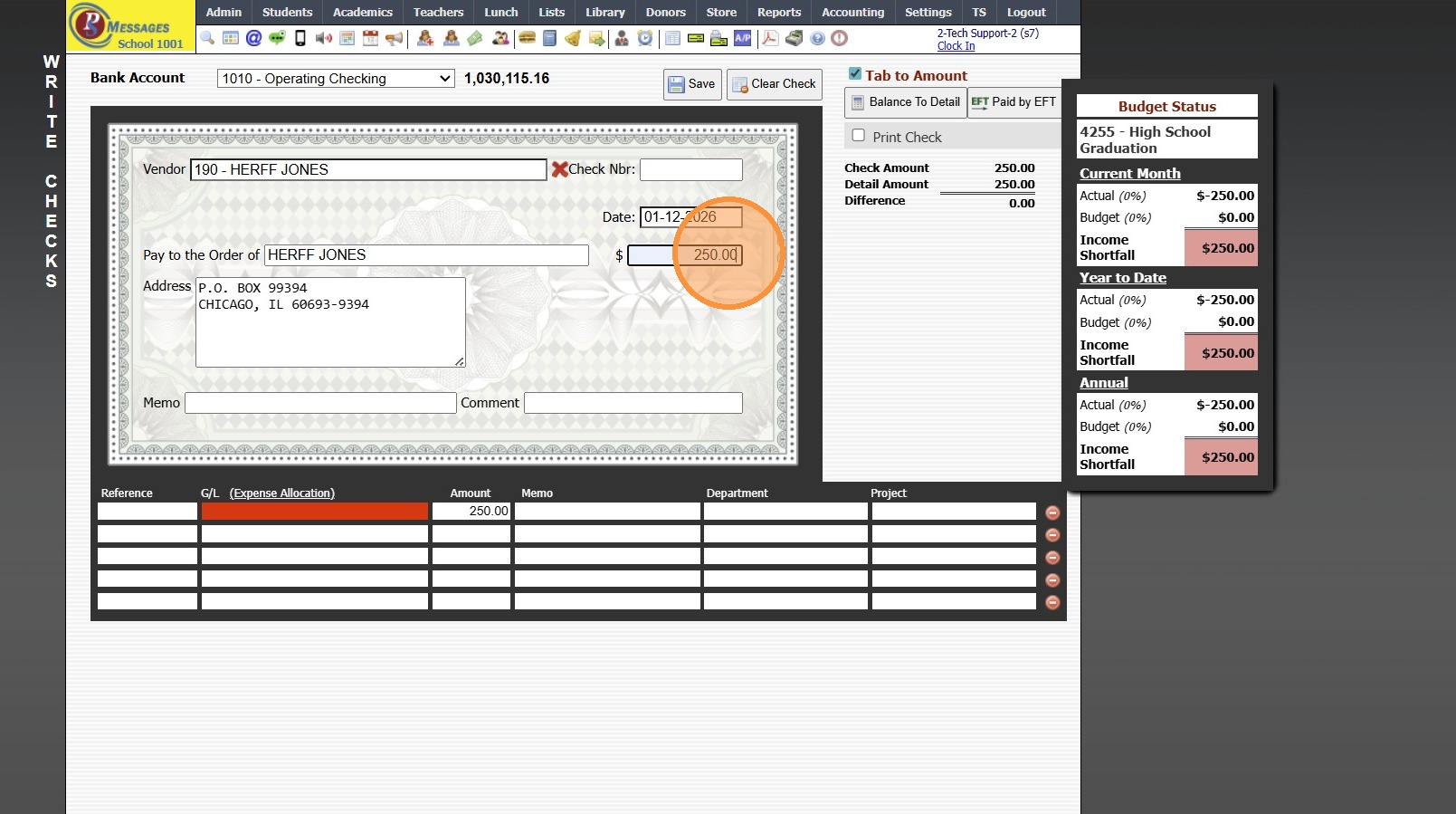
7. Enter Check Memo
Enter Check Comment (Optional)
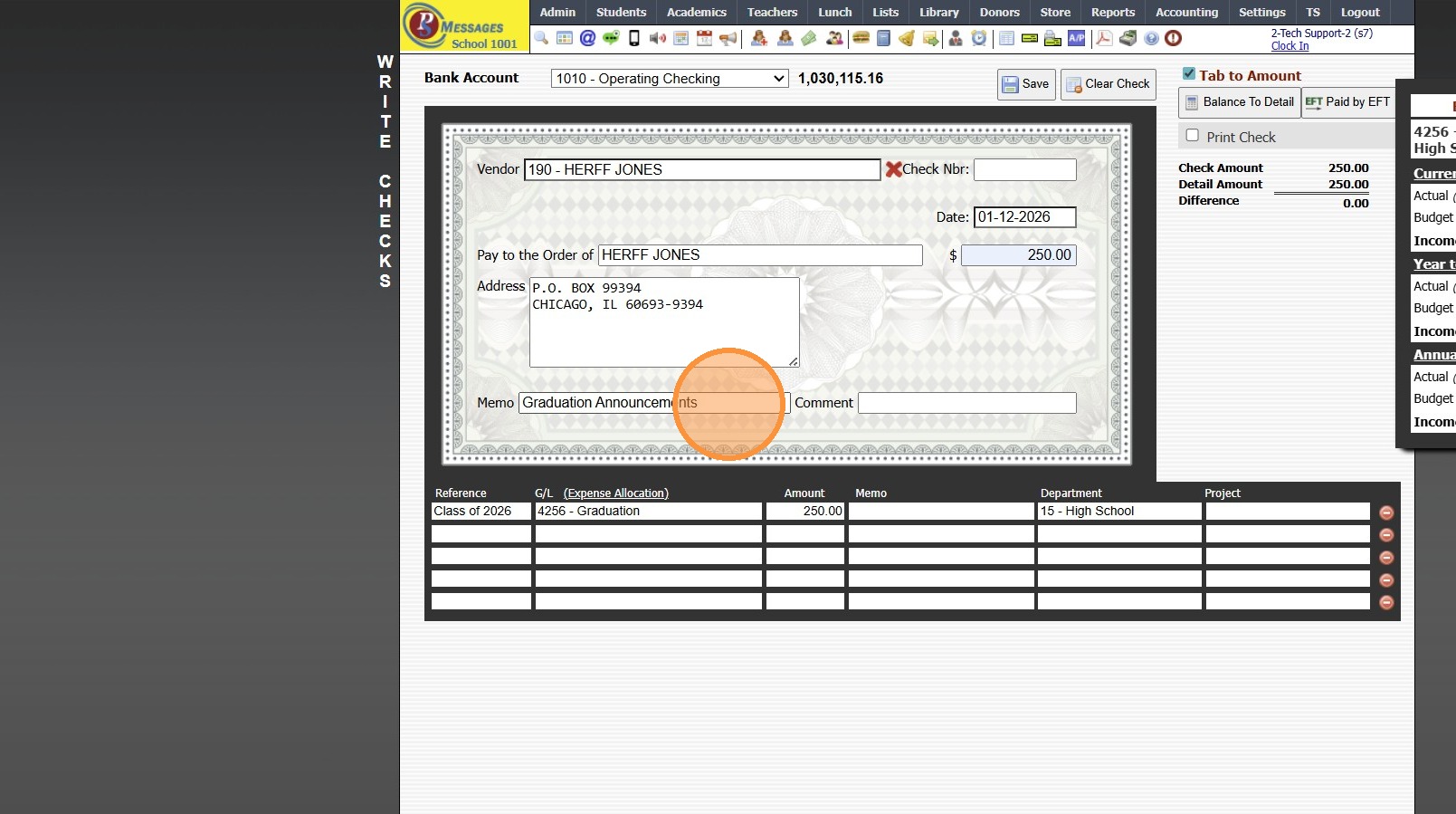
8. Enter a Reference (Optional)
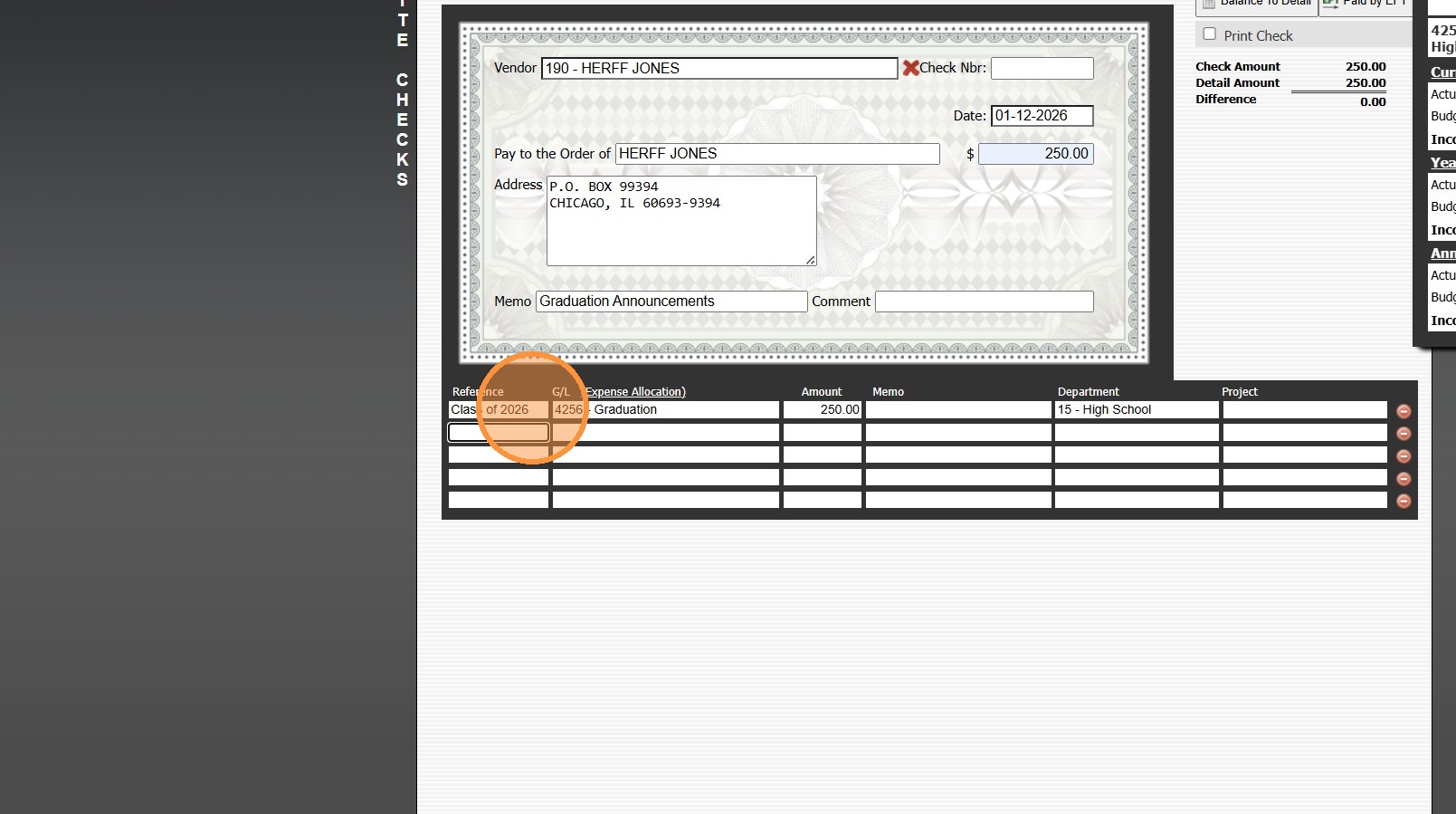
9. Select Appropriate General Ledger Number
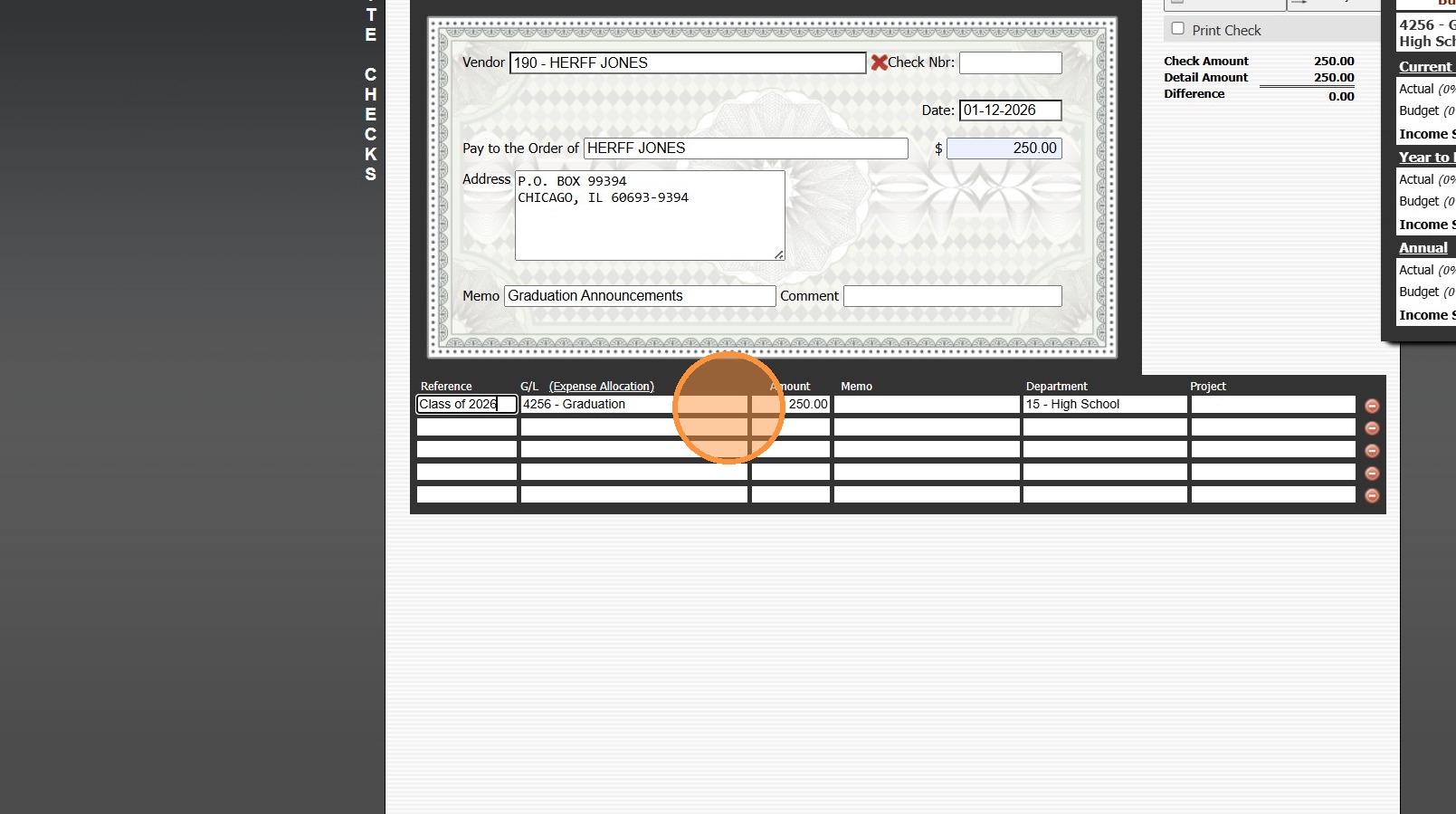
10. Amount will Automatically Populate based on Check Amount

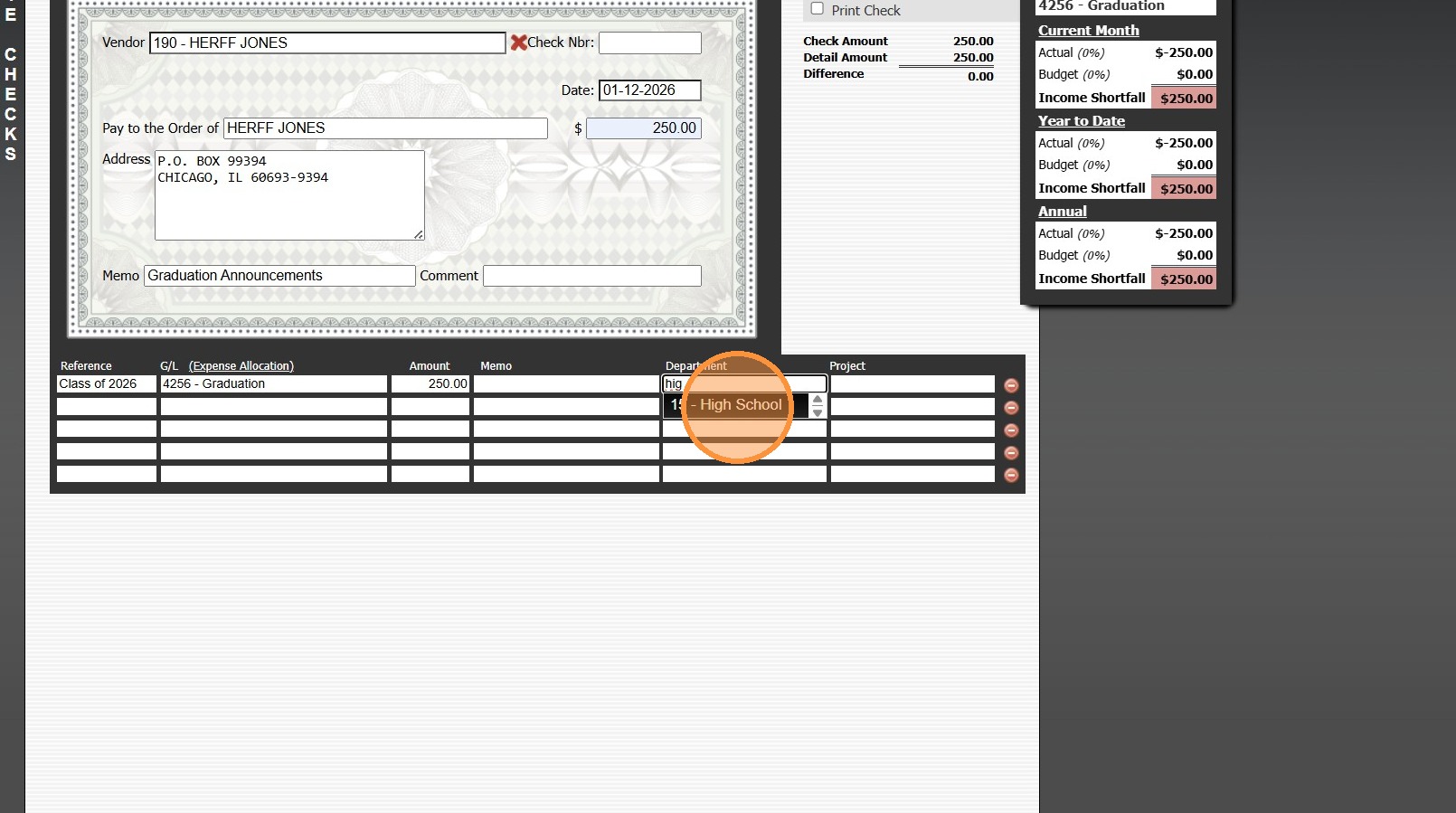
11. Select Department (Optional)
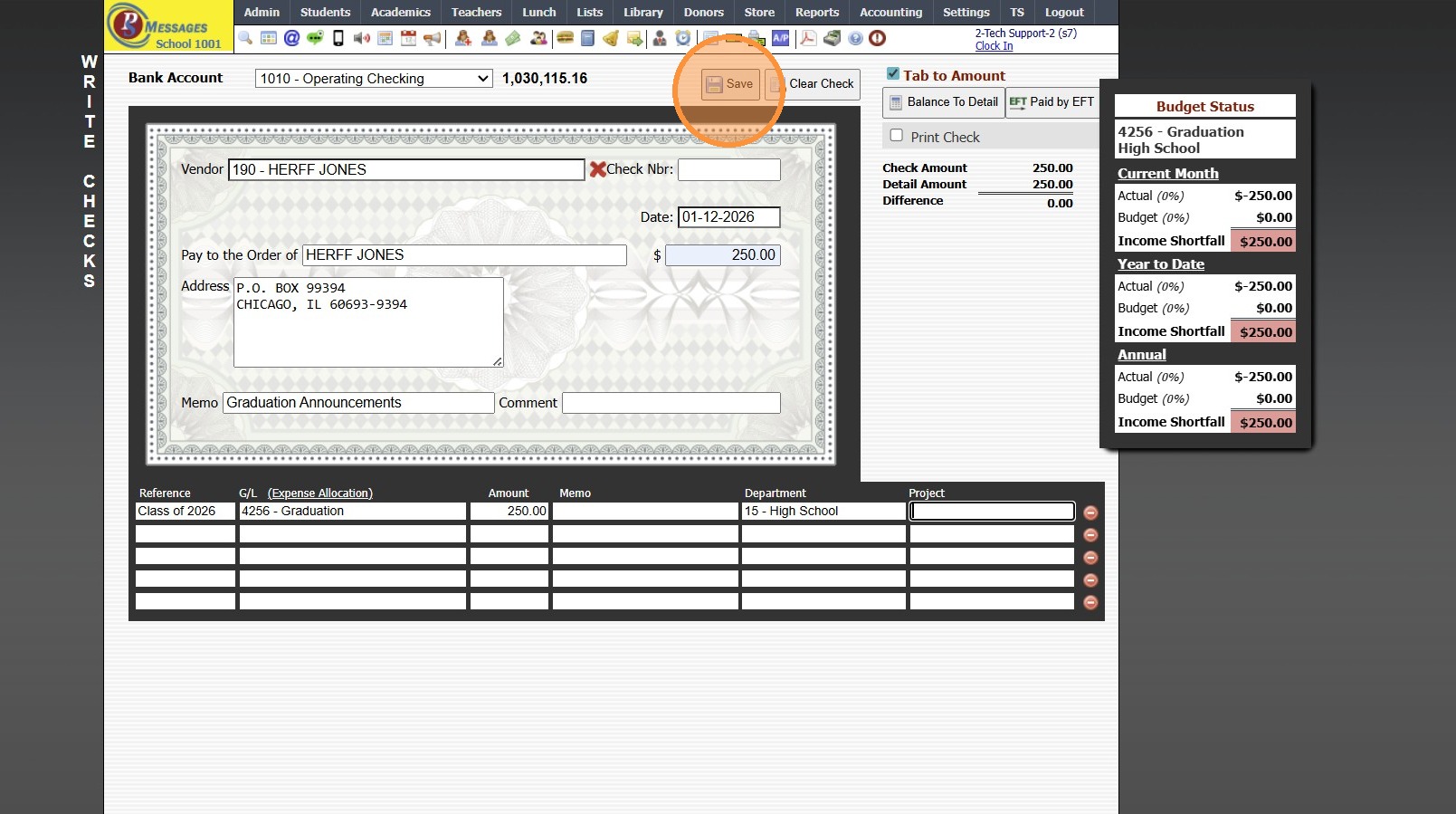
12. Click "Save"
6000.9.1
Related Articles
Creating a Basic Transaction Item (Defined Items)
Creating a Basic Transaction Item (Defined Items) 1. Log into PraxiSchool 2. Click "Lists" 3. Click "A/R Accounting" 4. Click "Transaction Items" 5. Click "Add" 6. Enter Description & Comment (typically these are the same) Add Notes (Optional) 7. ...Settings Media Student Media Permissions and Printing Report
Marking Media Permissions 1. Click "Students" 2. Click "Students" 3. Select Student 4. Click "Edit" 5. Check all Publicity fields that are Allowed. (Check = yes) 6. Click "Save" Creating Grid Report and Printing 7. Click "Basic Grid" 8. Click "Tag" ...Creating Document Profiles
Creating Document Profiles 1. Click "Settings" 2. Click "Security Settings" 3. Click "Document Profiles" 4. Select the document profile you need to add a document access to. 5. Click "Add" 6. Select the document. 7. Check the actions you want this ...Entering Basic AP Bills
Entering Basic AP Bills 1. Click "Accounting" 2. Click "Enter Accounting" 3. Click "A/P Bills" 4. Enter New Vendor or Select Existing Vendor 5. Enter Invoice Number 6. Enter Date Received 7. Enter Full Amount 8. Enter Net On Date 9. Enter the ...Entering Basic CC Bills
Entering Basic CC Bills 1. Click "Accounting" 2. Click "Enter Accounting" 3. Click "C/C Bills" 4. Select Credit Card from Dropdown Menu 5. Enter New Vendor or Select Existing Vendor 6. Enter Due Date (Optional) 7. Enter Invoice Number (If Applicable) ...