BlueFin Payments - Updating Batches
1. Click "Accounting"
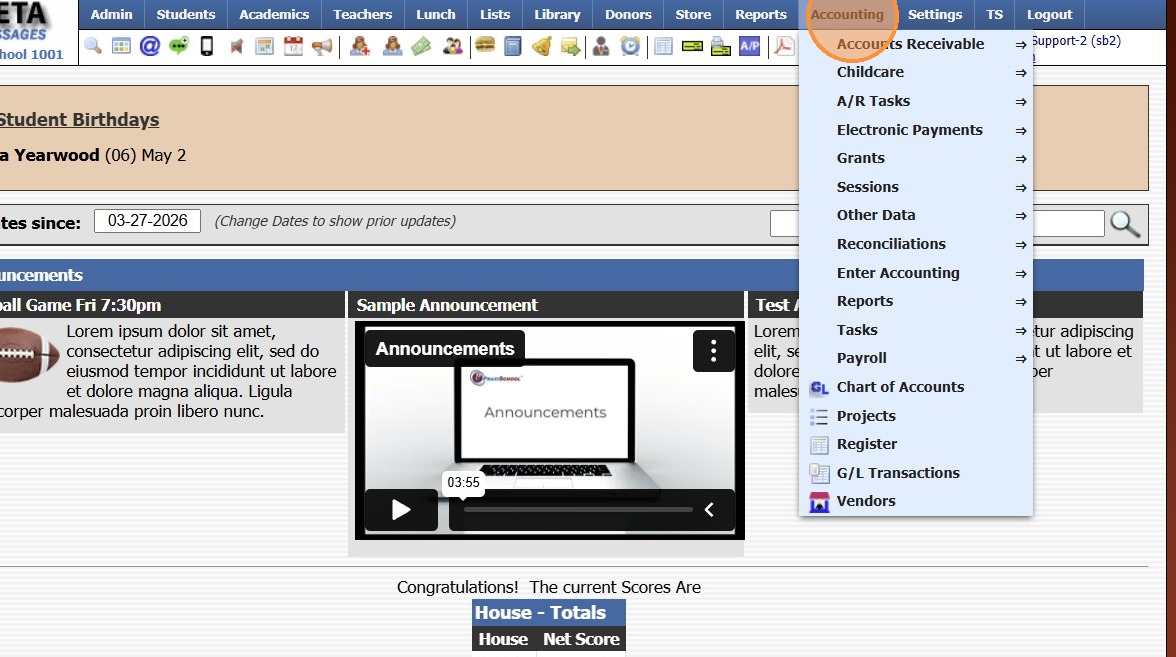
2. Click "Electronic Payments"
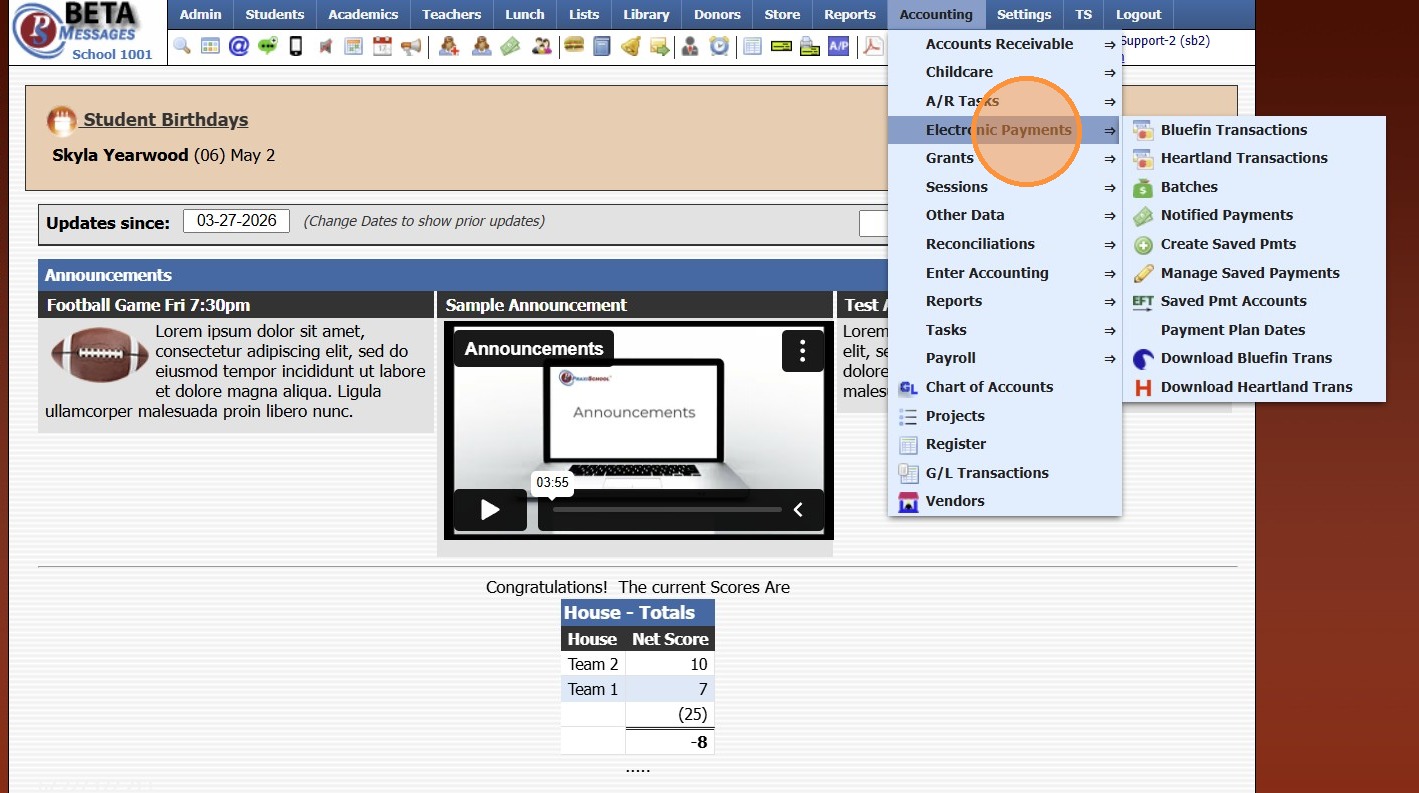
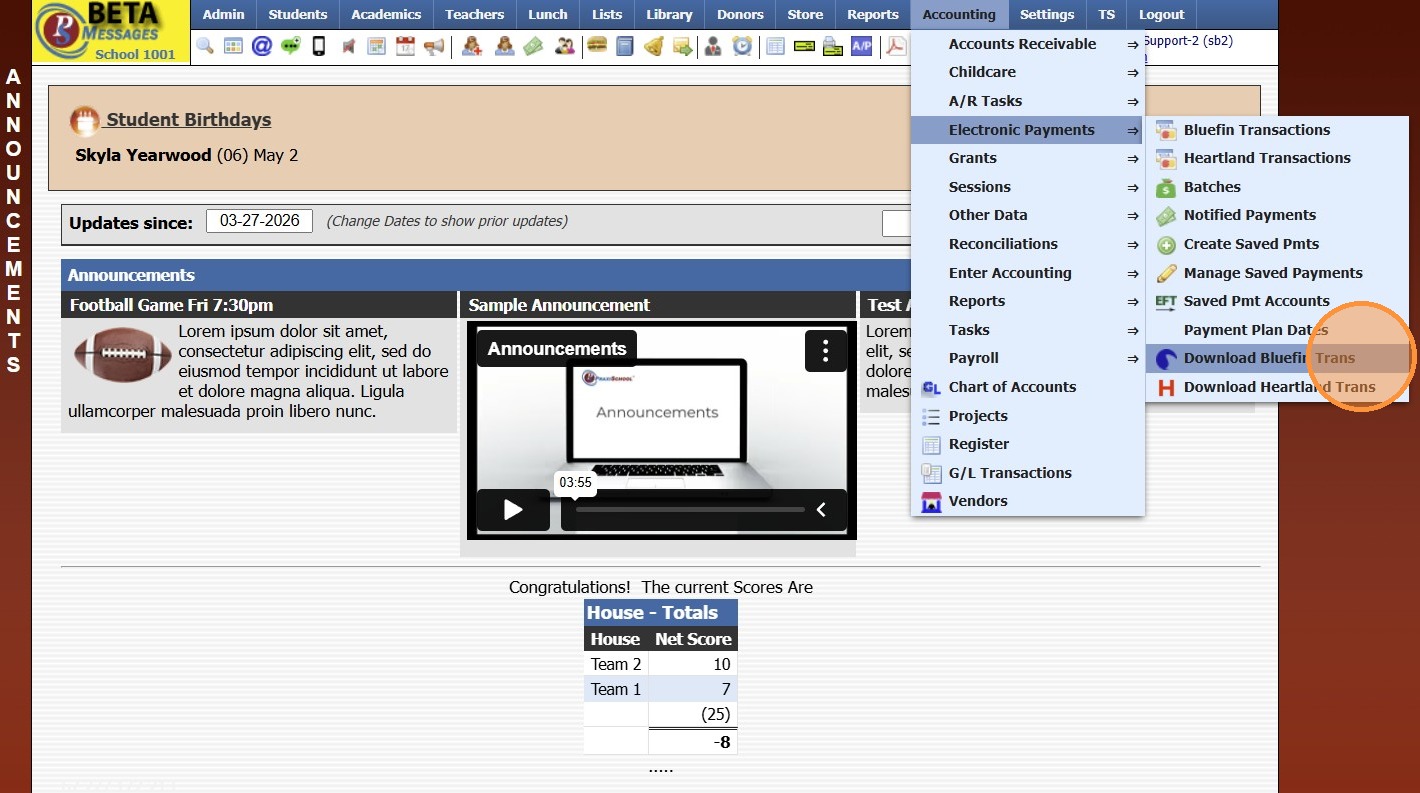
3. Click "Download Bluefin Trans"
4. Verify Status is set to "Both" & Tender Type is set to "All"
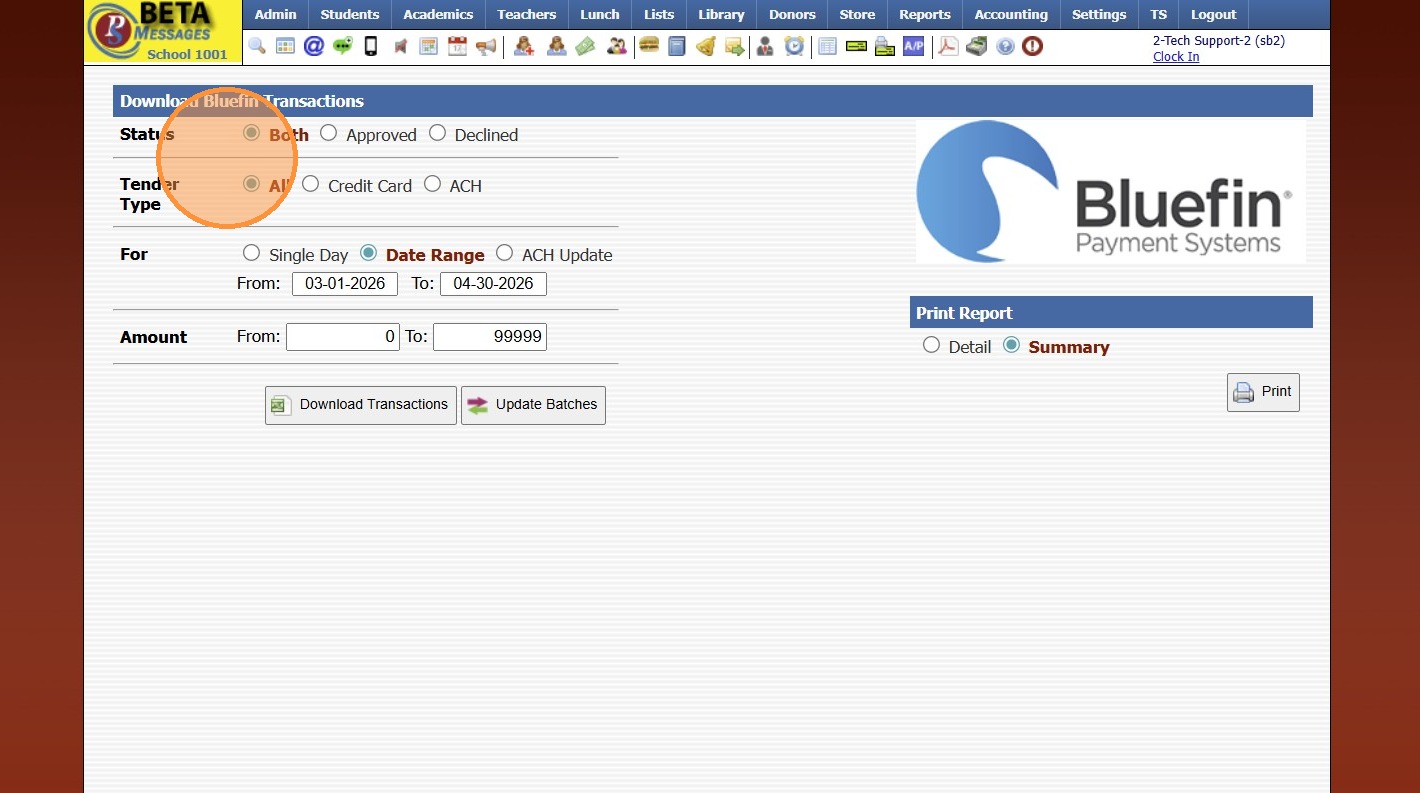
5. Set "From" & "To" Date
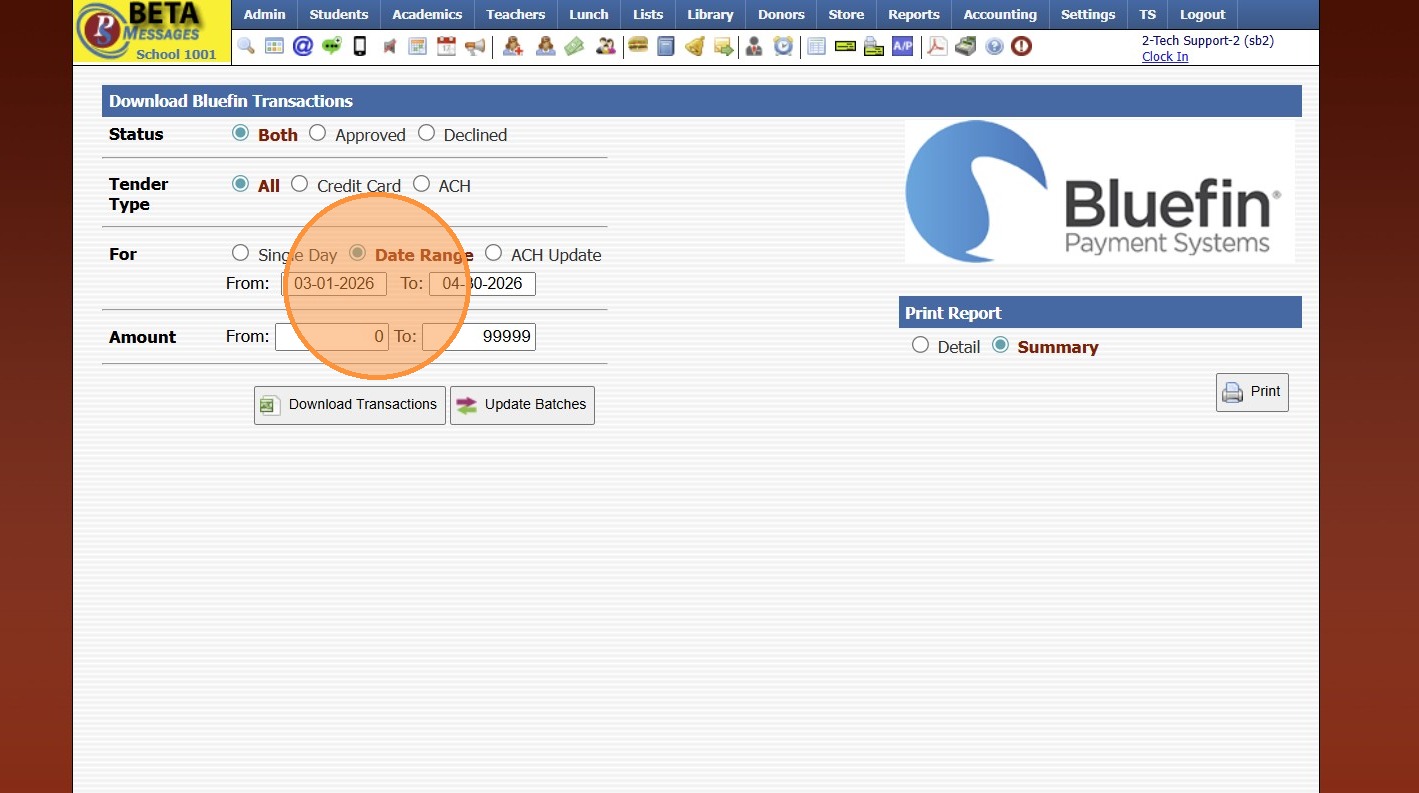
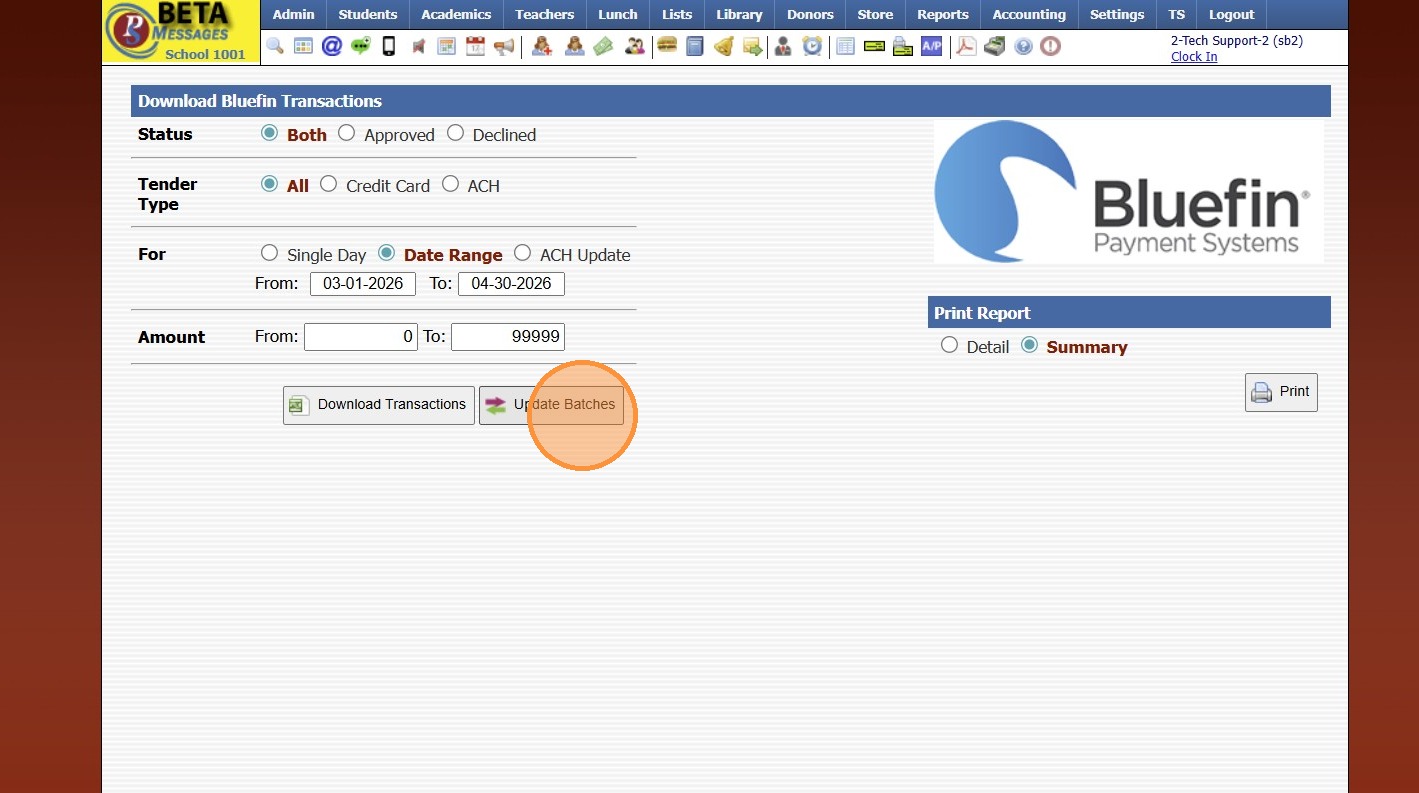
6. Click "Update Batches"
6000.4.13.1
Related Articles
Batches Step 1 - Updating Batches
1. Click "Accounting" 2. Click "Electronic Payments" 3. Click "Download Heartland Trans" 4. Set Date Range 5. Click "Credit Card" 6. Click "Update Batches" 7. Click "ACH" 8. Click "Update Batches" 6000.4.13Download BlueFin Transaction Report
Download BlueFin Transaction Report 1. Click "Accounting" 2. Click "Electronic Payments" 3. Click "Download BlueFin Trans" 4. Set Date Range 5. Click "Download Transactions" 6. Report will Download for Review 7. 6000.4.10Batches Step 2 - Transfer to Bank
(Batches should be updated prior to Transferring to Bank) 1. Click "Accounting" 2. Click "Electronic Payments" 3. Click "Batches" 4. Select Batch 5. Click "Transfer To Bank" 6. Transaction Date will Auto Populate, Date can be Modified to Date Batch ...Manually Posting Student Lunch Payments
1. Click the "Hamburger Icon" 2. Uncheck Print Receipts for Payments if a Receipt is not Needed 3. Select the Student 4. Select "Payment" 5. Select the Payment Type 6. Enter Amount of Payment 7. Click "Post" 8. Payment will Post to Account & Students ...Heartland Payments Set Up Details
Heartland Payments is eager to assist in establishing a merchant processing account (MID) for credit/debit and echeck (ACH). The purpose of this document is to furnish details specific to each option as well as the boarding portals (labeled ...