Assigning Staff to Receive New Document Upload Notifications
1. Click "Admin"
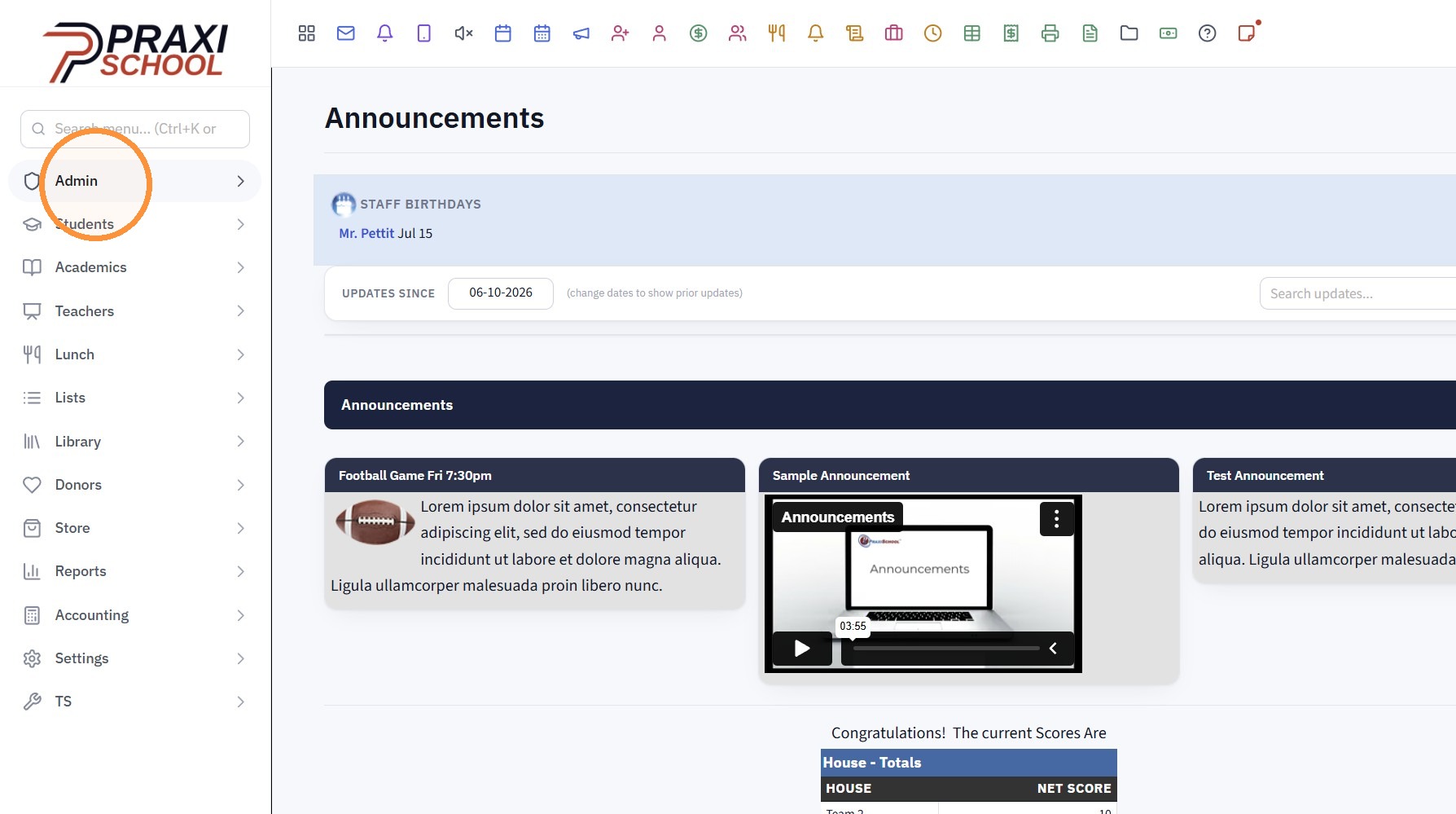
2. Click "Manage Document"
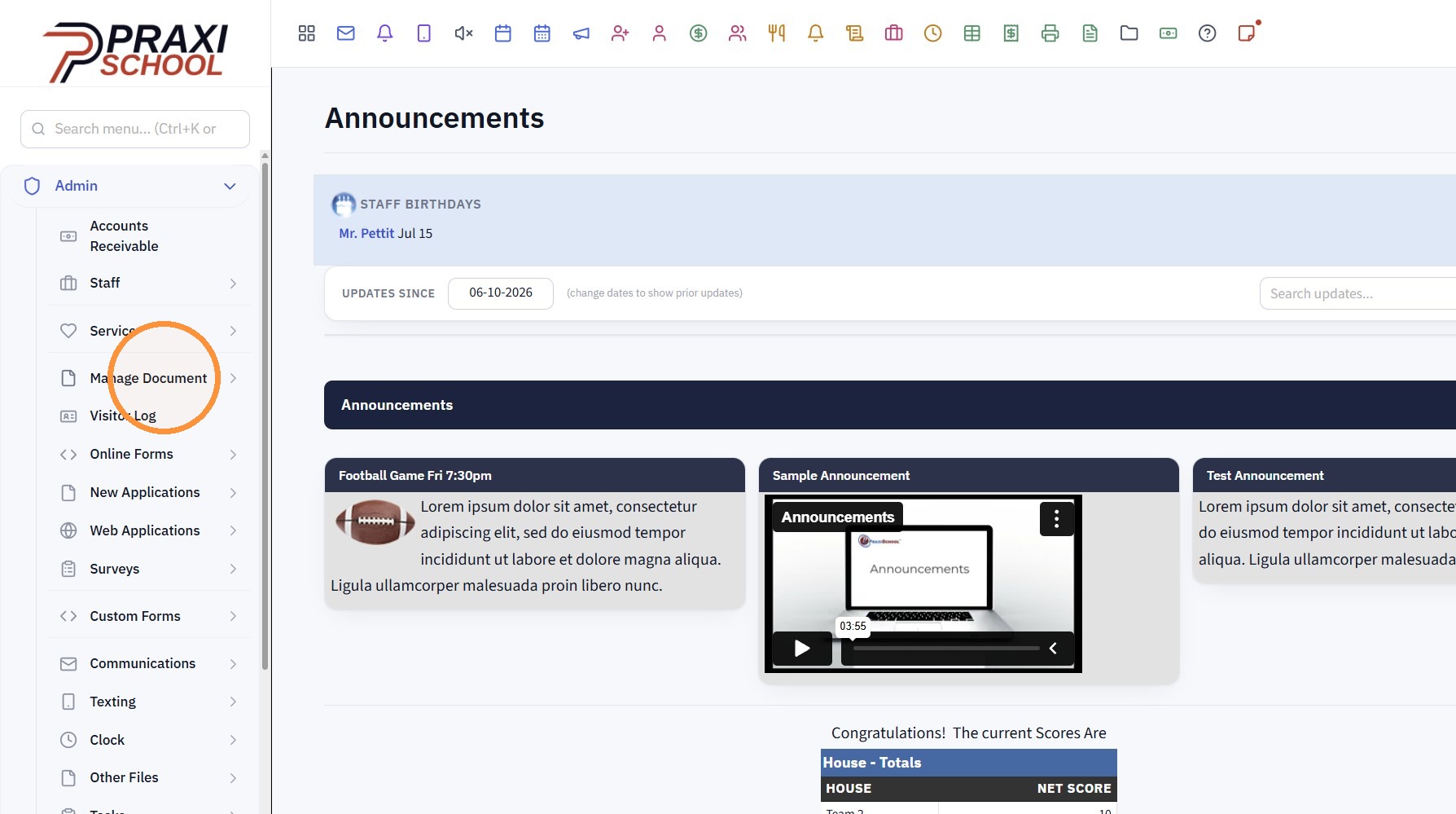
3. Click "Upload Links"
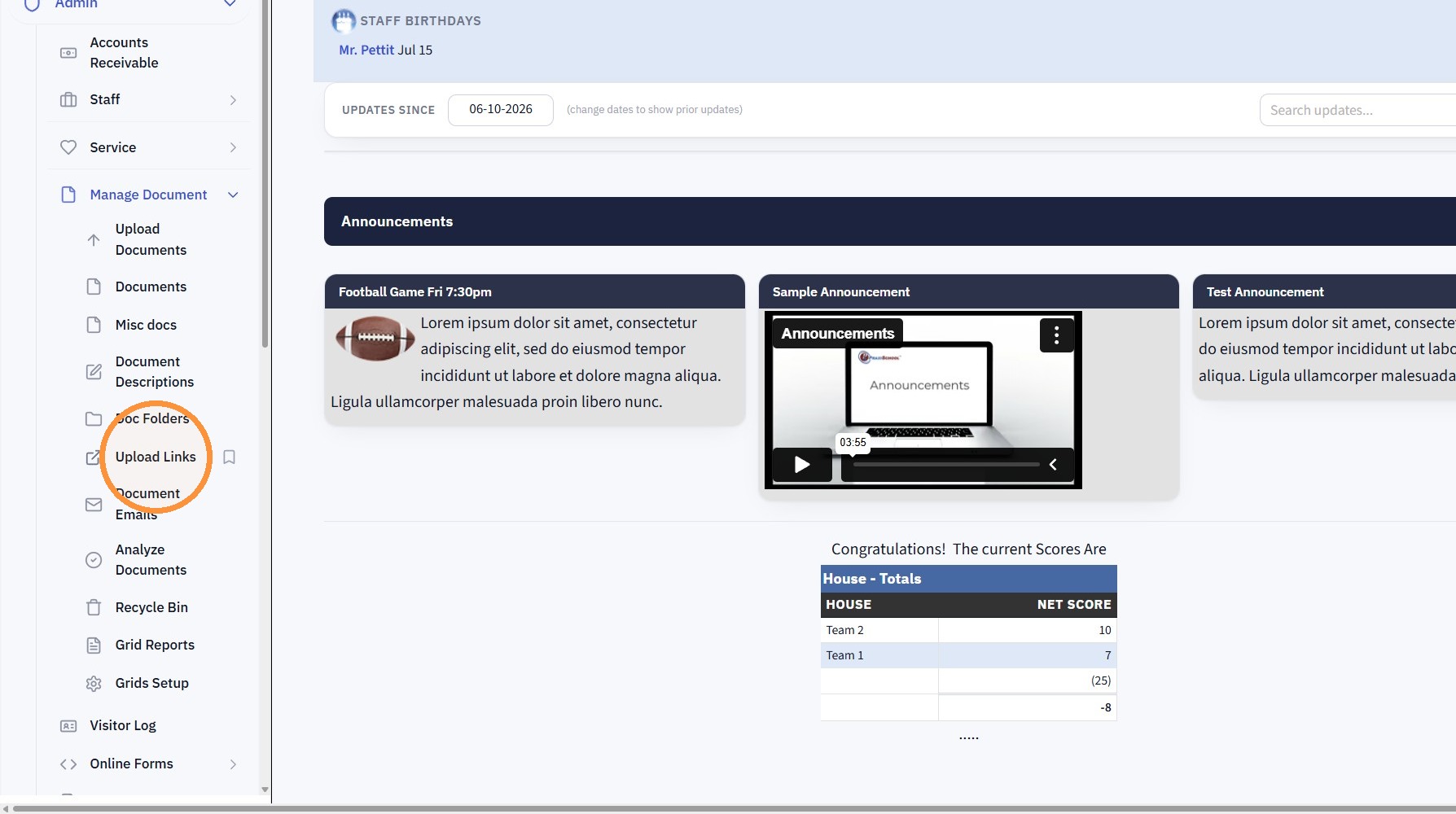
4. Select Document Upload Item
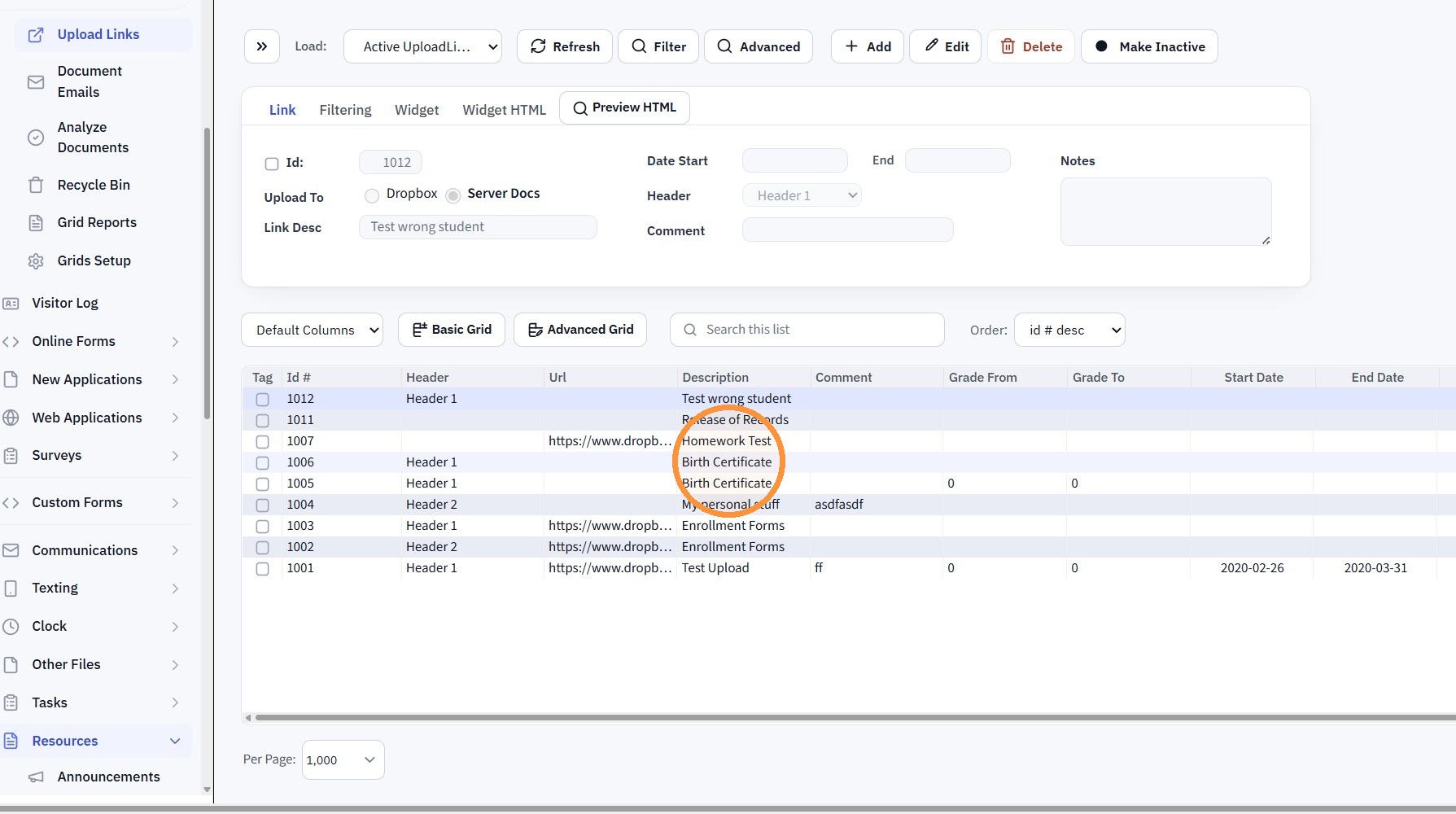
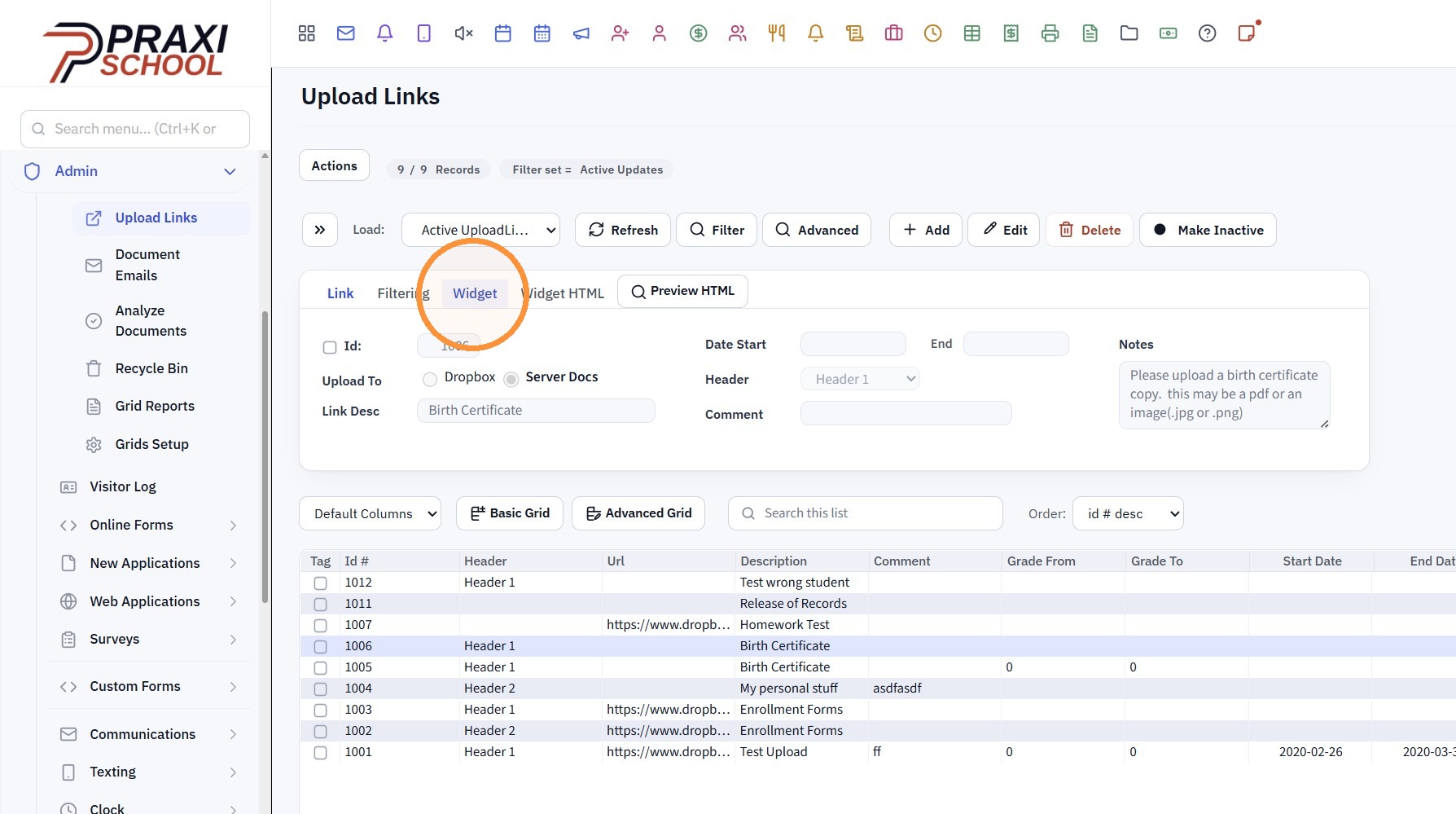
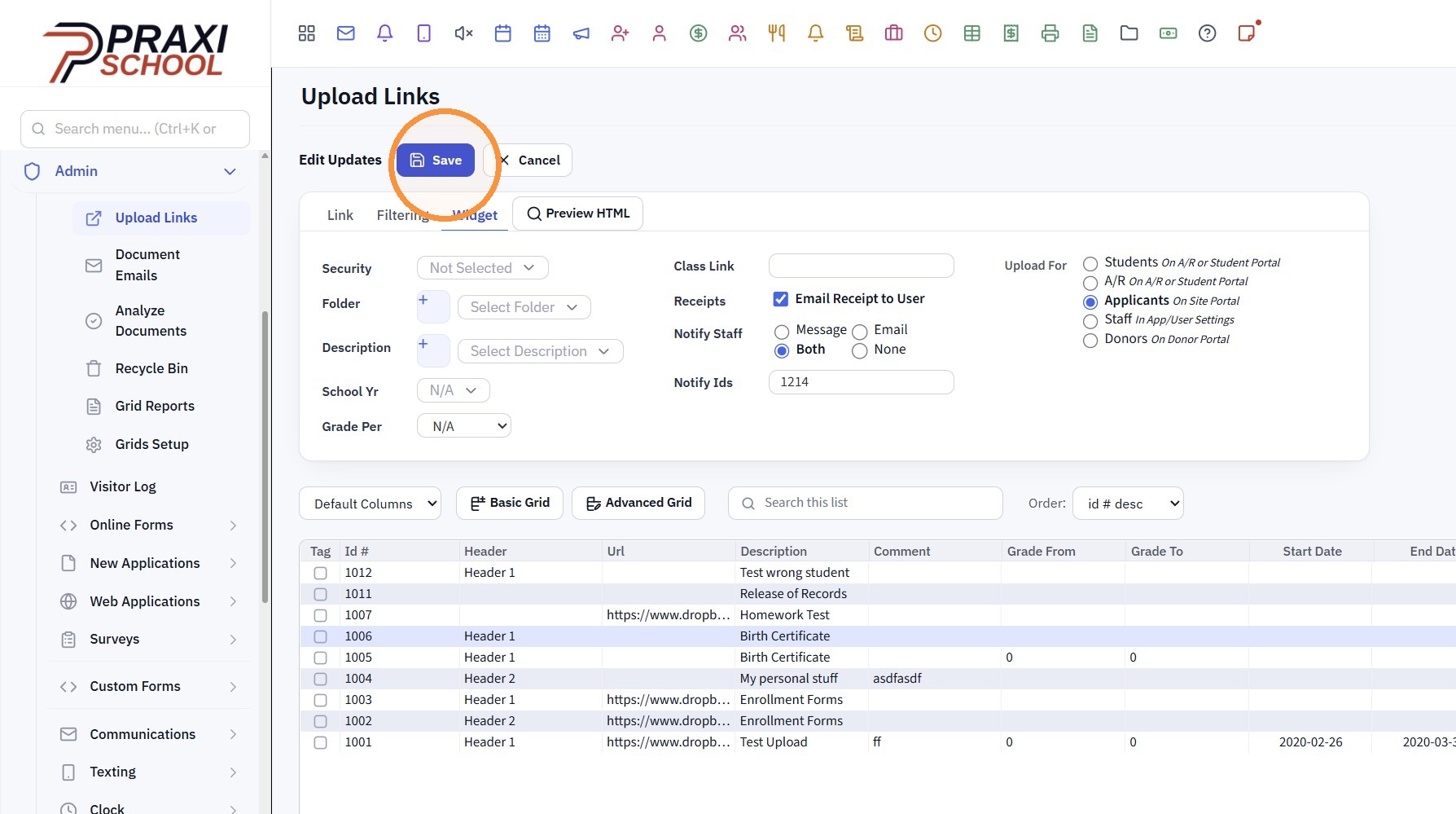
5. Click the "Widget" tab
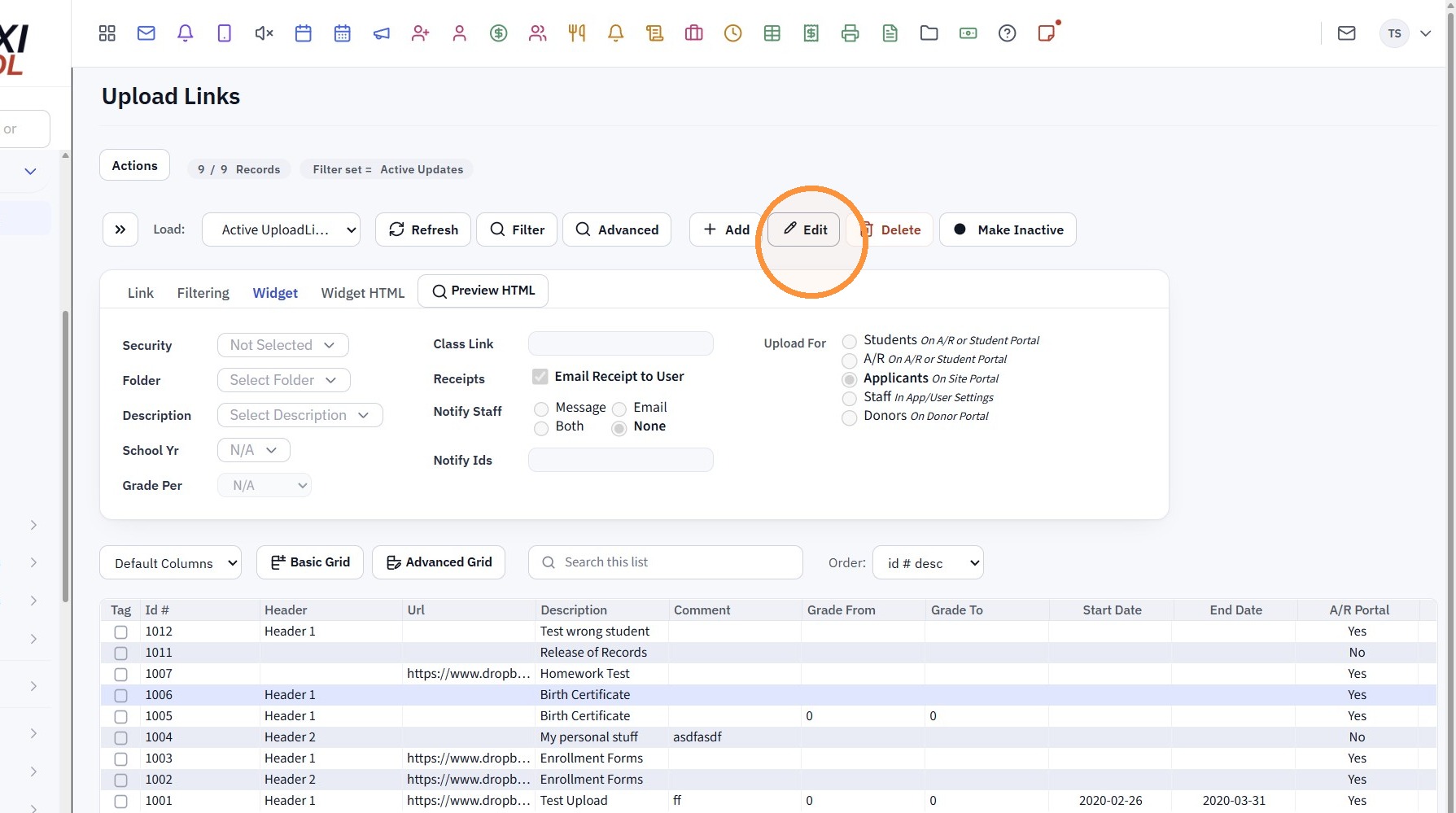
6. Click "Edit"
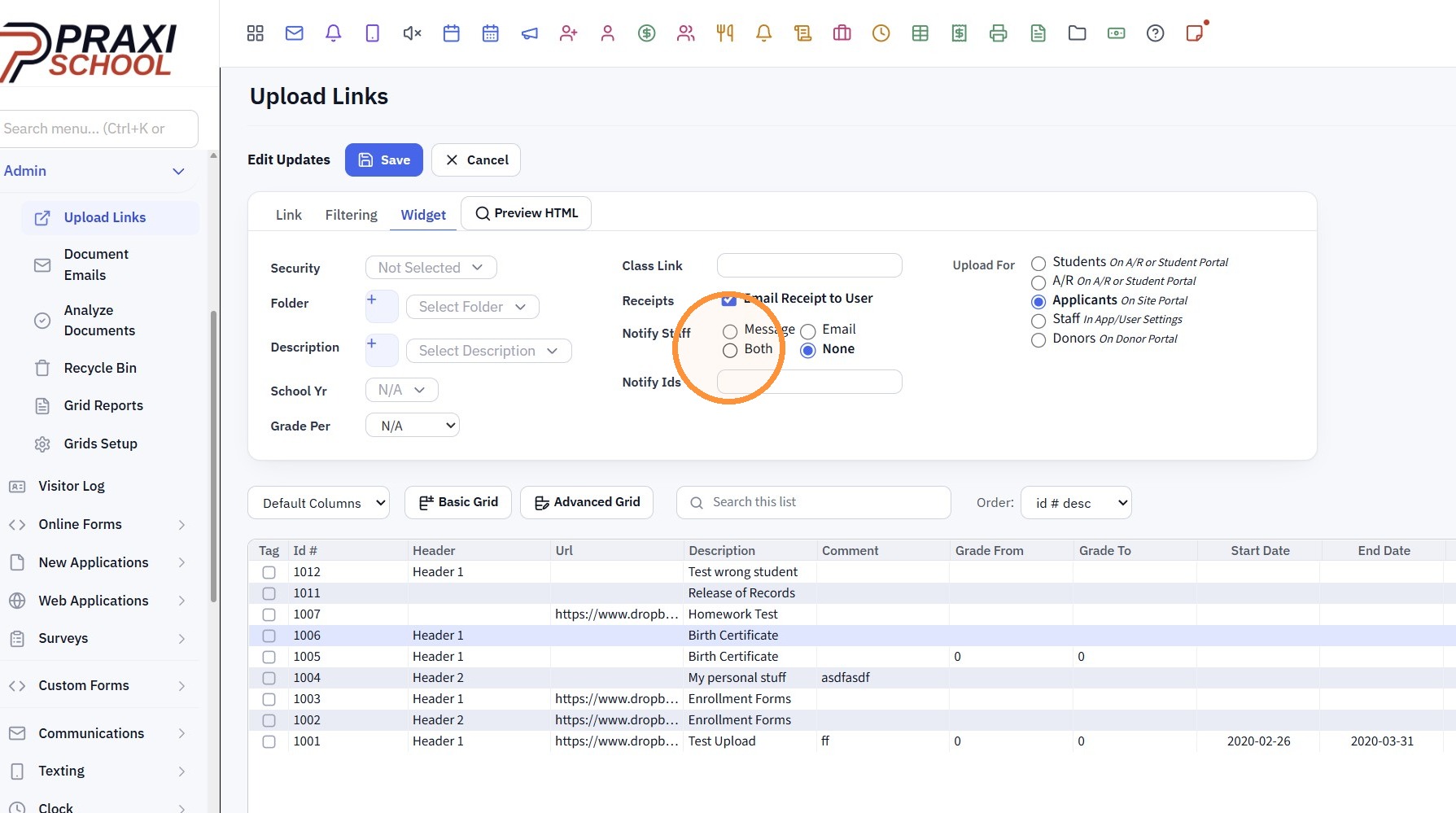
7. Select the Notify Staff Option (Message, Email or Both)
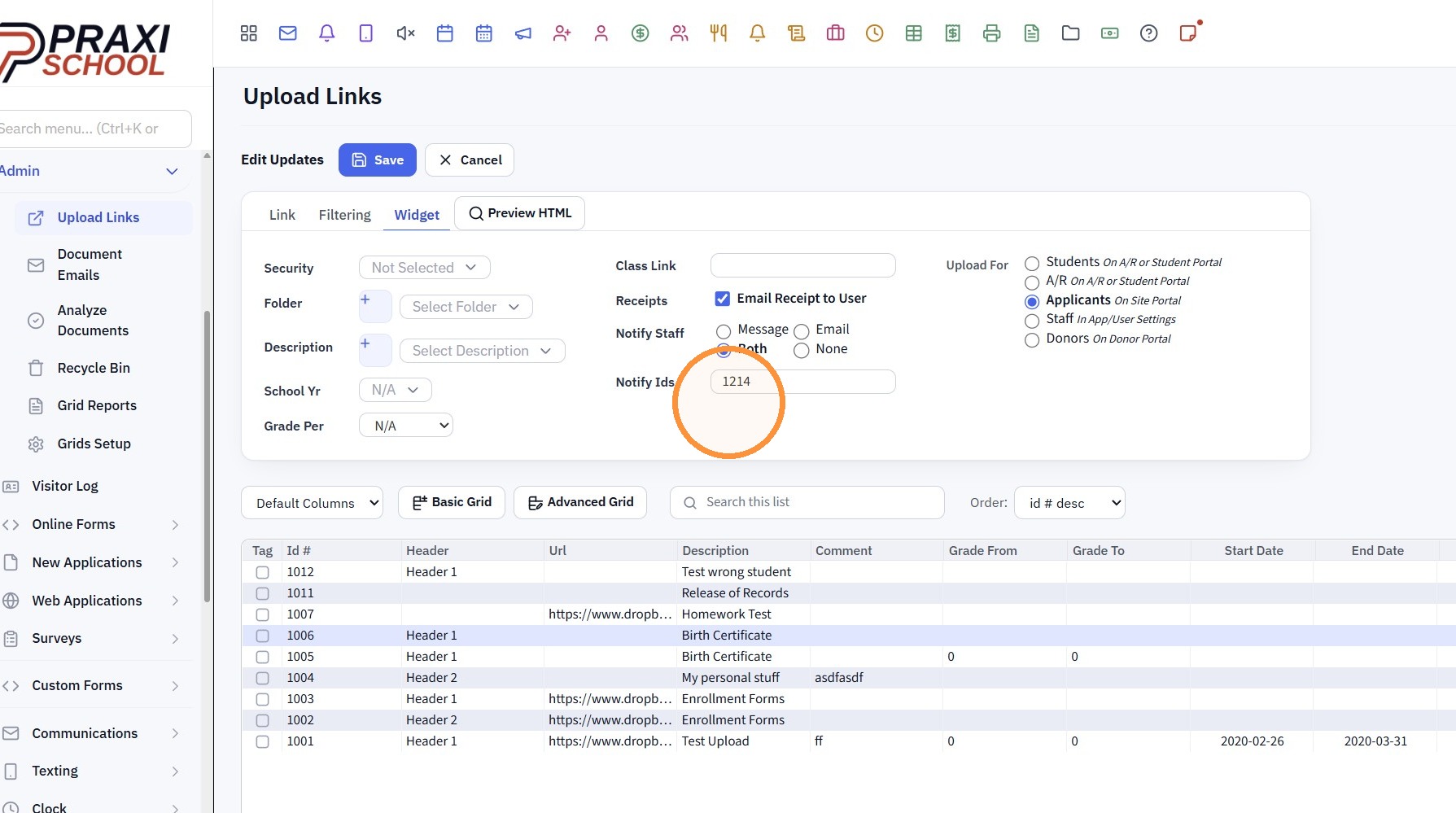
8. Enter the Staff ID
(If more than one Staff ID, enter first Staff ID a Comma & the Next Staff ID - No Spaces)
9. Click "Save"
1000.4.6.1
Related Articles
Creating Document Portal Upload Links
Creating Document Portal Upload Links 1. Click "Admin" 2. Click "Manage Document" 3. Click "Upload Links" 4. Click "Add" 5. Click the "Server Docs" field. 6. Enter a description for the document 7. Select the header if you want to group documents ...Assigning Staff Security from School Settings - Security
Assigning Staff Security from School Settings - Security 1. Login to PraxiSchool 2. Click "Settings" 3. Click "Security Settings" 4. Click "Staff Security" 5. Click on the Change Security Levels Toggle and Make sure you are in "Edit Staff In ...Assigning Staff Security from the Staff File
Assigning Staff Security from the Staff File 1. Log in to PraxiSchool 2. Click "Admin" 3. Click "Staff" 4. Click "Staff" 5. Click "Actions" 6. Click "Assign Security" 7. Select the Security Level you want to assign from the dropdown. 8. Select the ...Turning on Document Upload Links in Portals
Turning on Document Upload Links in Portals 1. Click "Settings" 2. Click "Security Settings" 3. Click "Portal Access" 4. Click "Edit" 5. Click the "Show A/R Docs" field. 6. Click the "Show Student Docs" field. 7. Click "Resources" 8. Check "Portal ...Adding a New Staff Member in PraxiSchool
Adding a New Staff Member in PraxiSchool 1. Log into PraxiSchool 2. Click "Admin" 3. Click "Staff " 4. Select "Staff" 5. Click "Add" 6. Enter Last Name, First Name, Goes By Name (Goes By Name is NOT Optional, the Goes By Name will populate on Report ...