Withdrawing a Student from a Class
1. Click "Academics"
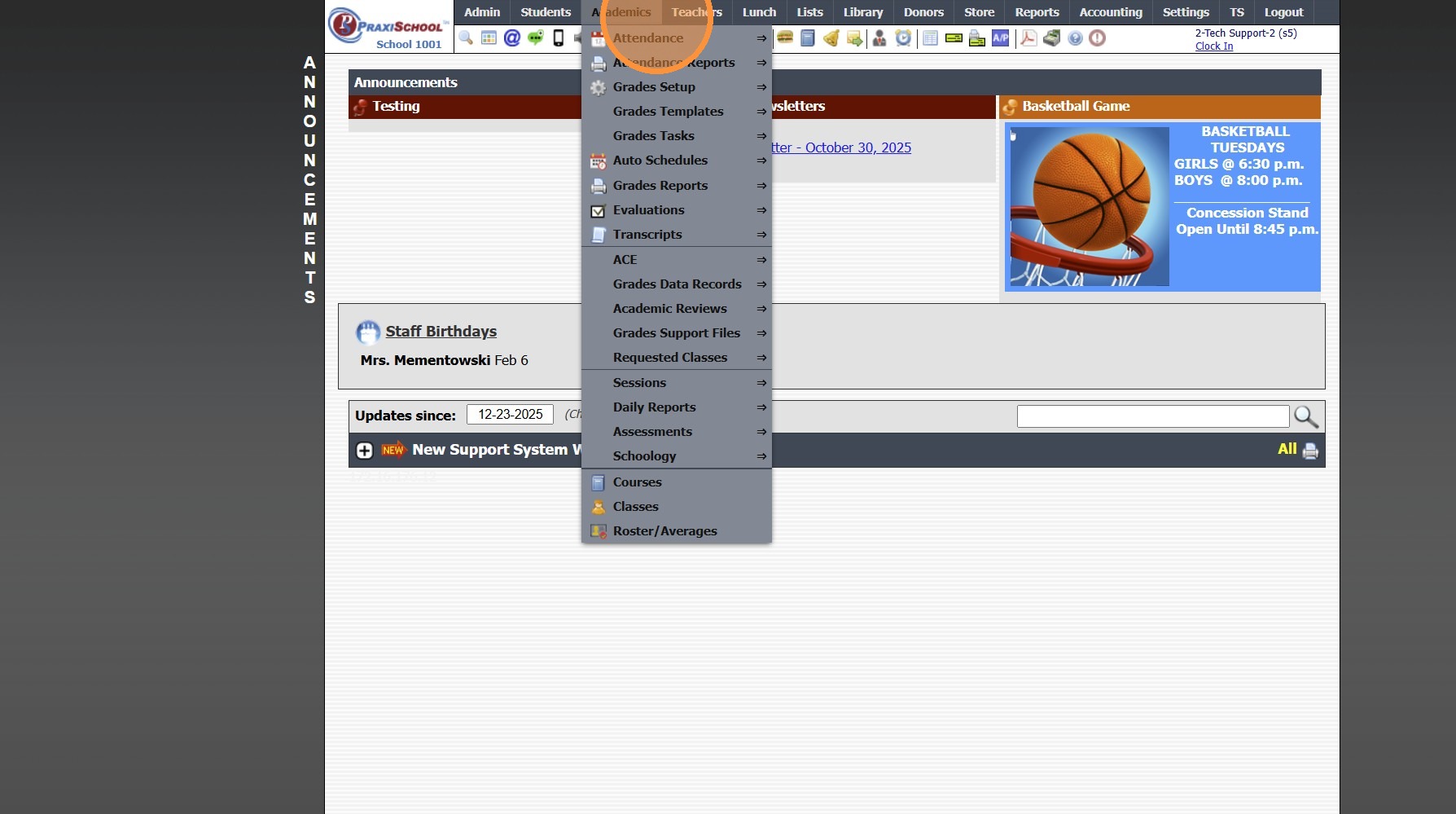
2. Click "Roster/Averages"
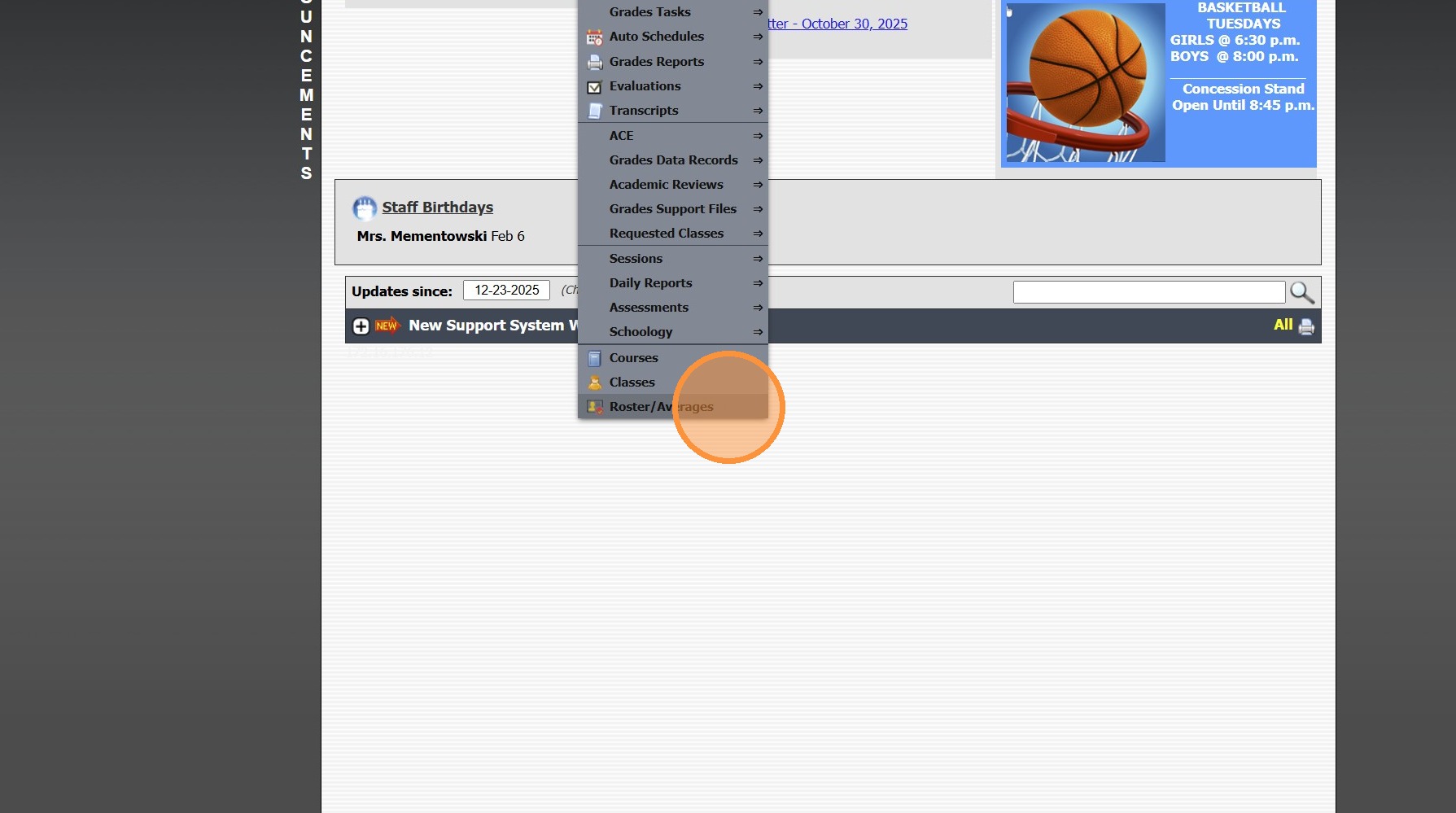
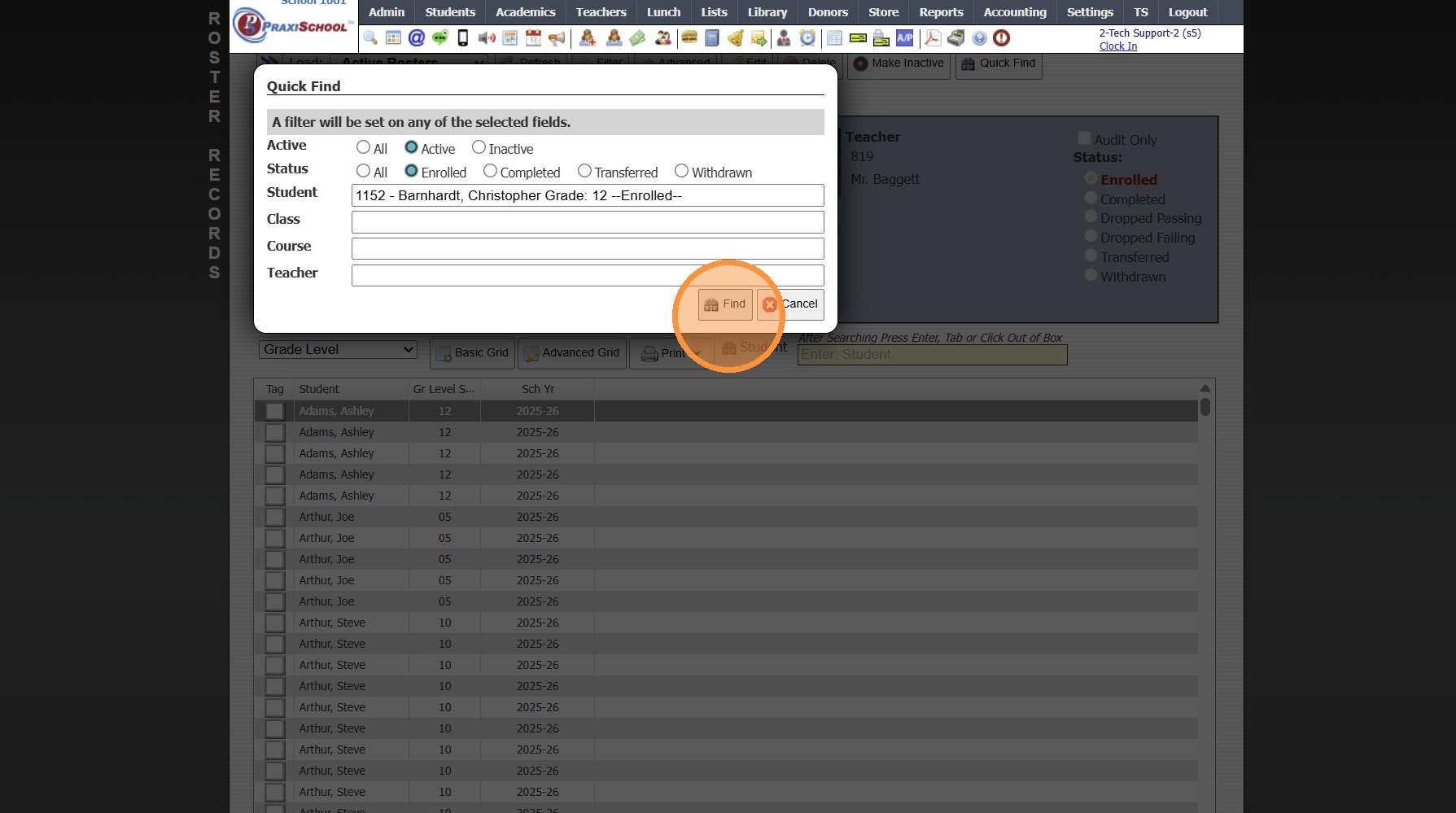
3. Click "Quick Find"
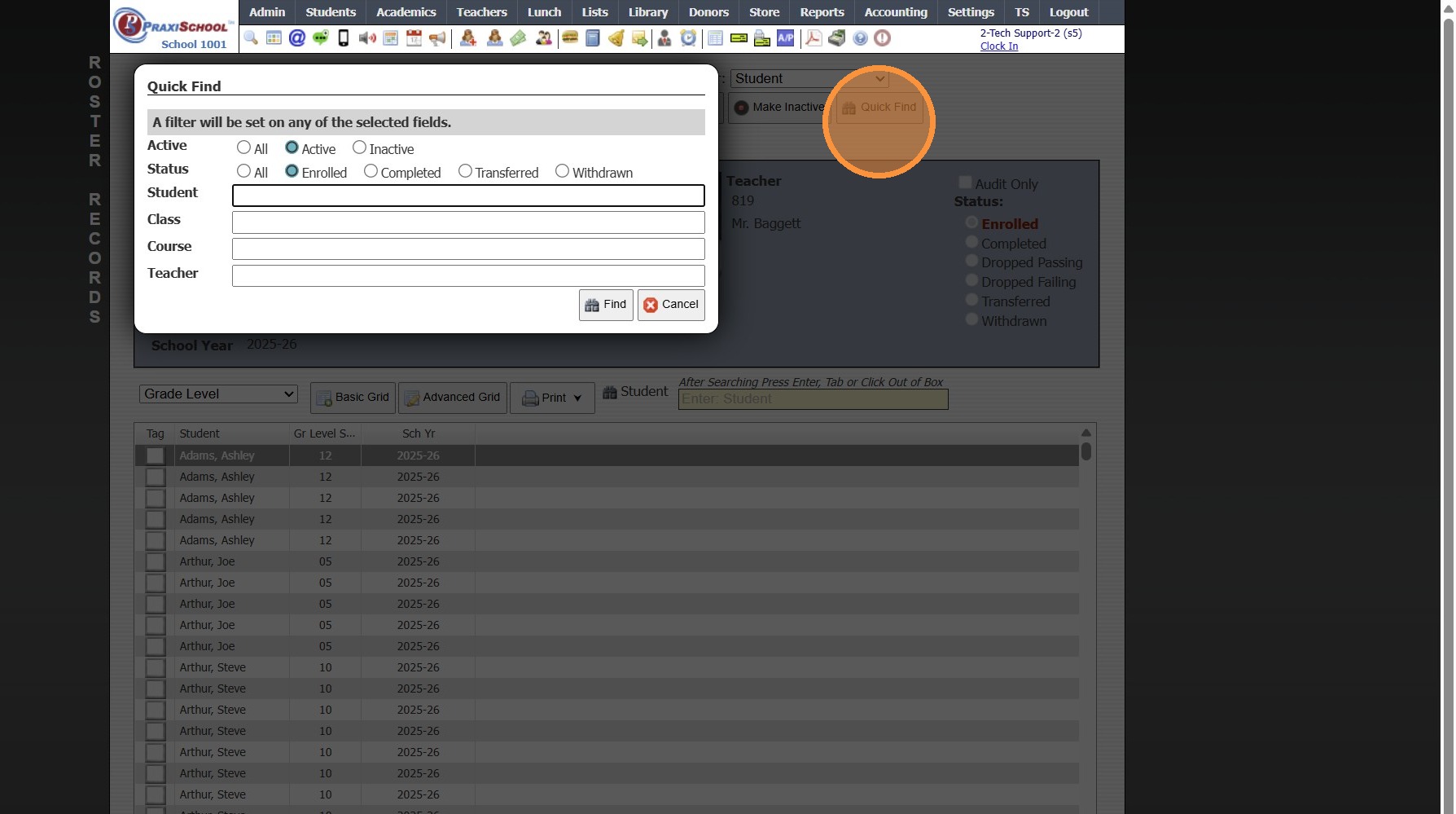
4. Search the Student
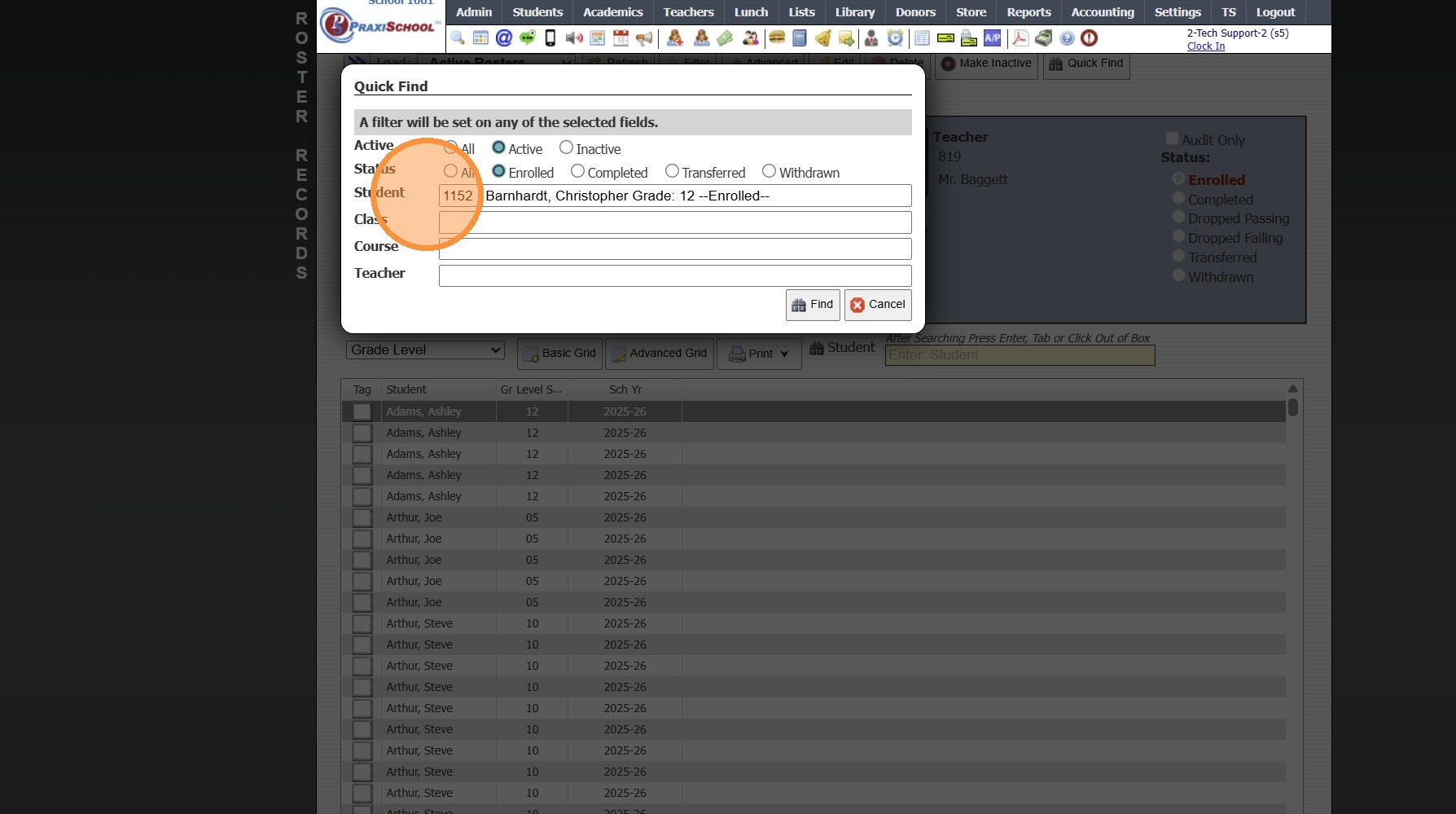
5. Click "Find"
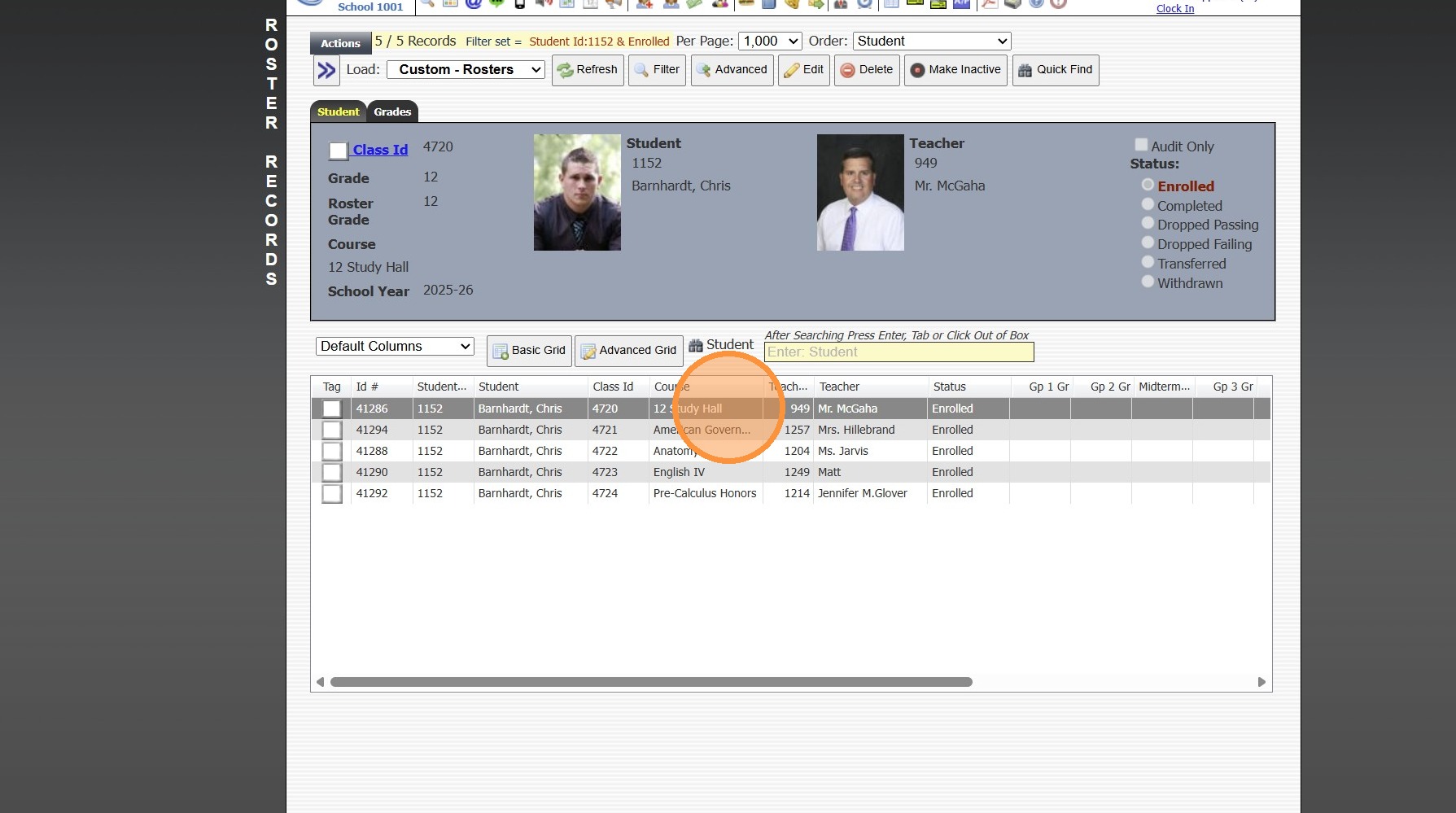
6. Select the Class
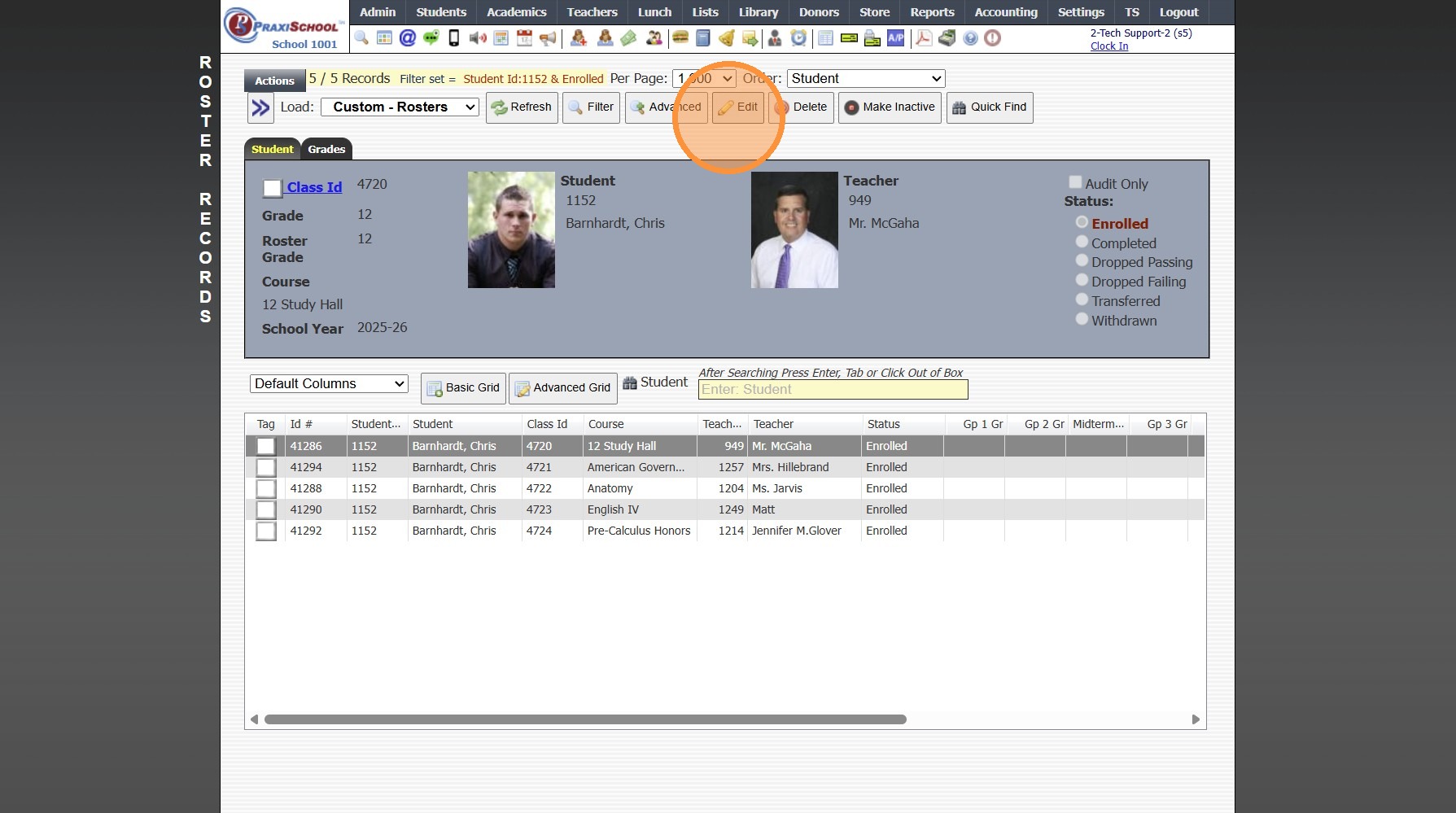
7. Click "Edit"
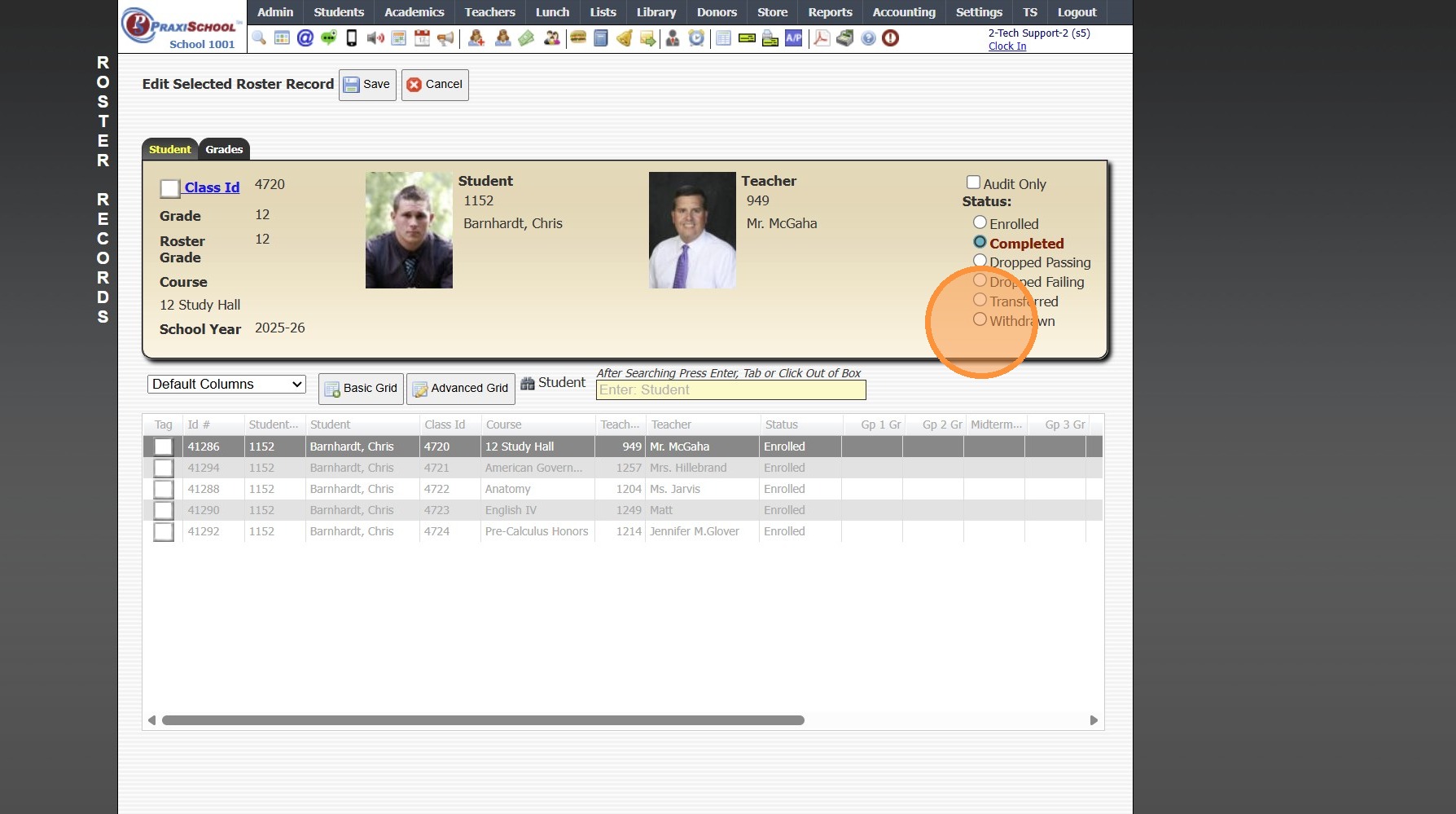
8. Click "Completed" to KEEP the Grades for the Report Card / Transcript
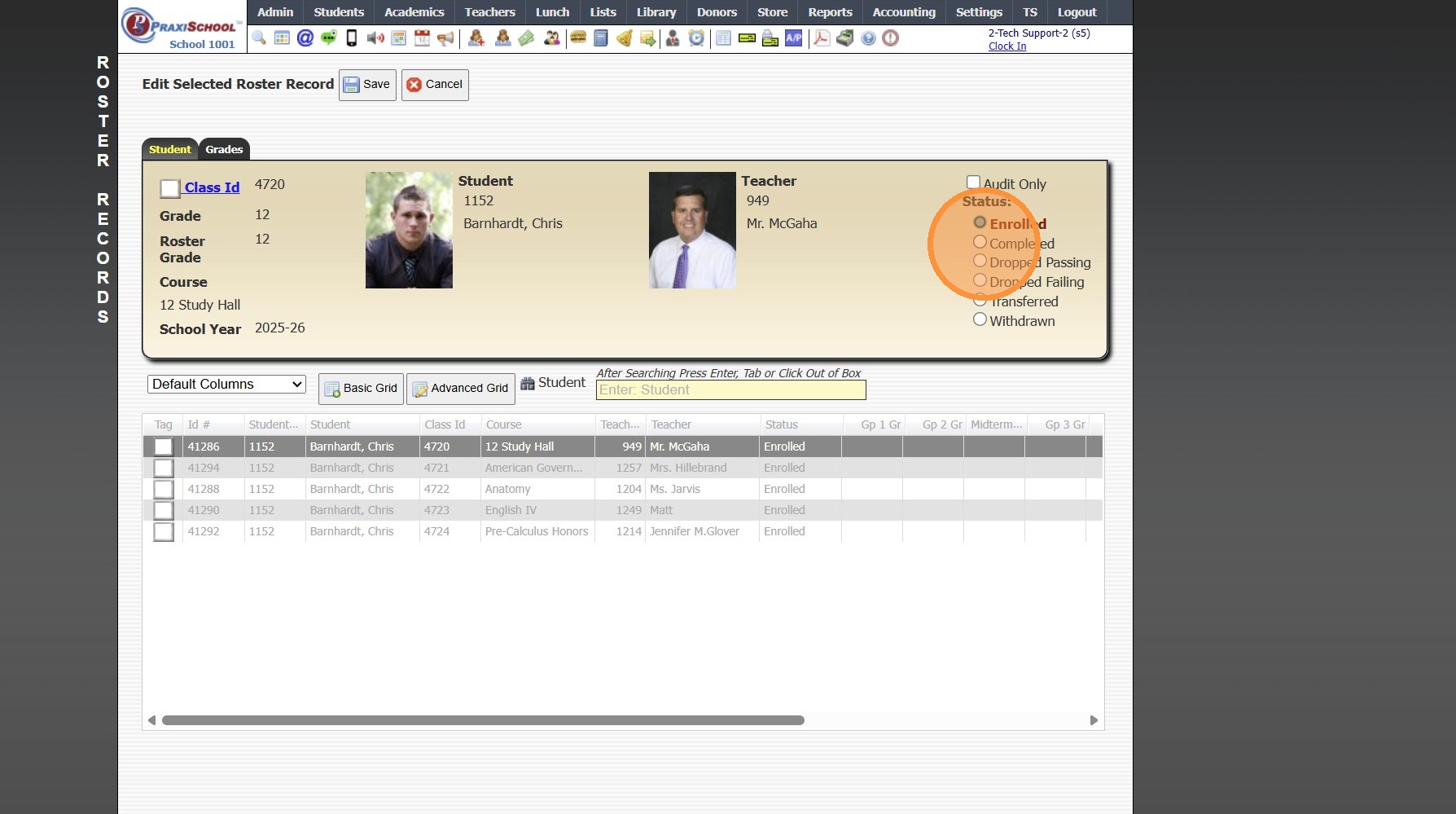
9. Click "Withdrawn" to Withdraw & NOT Keep the Grades for the Report Card / Transcript
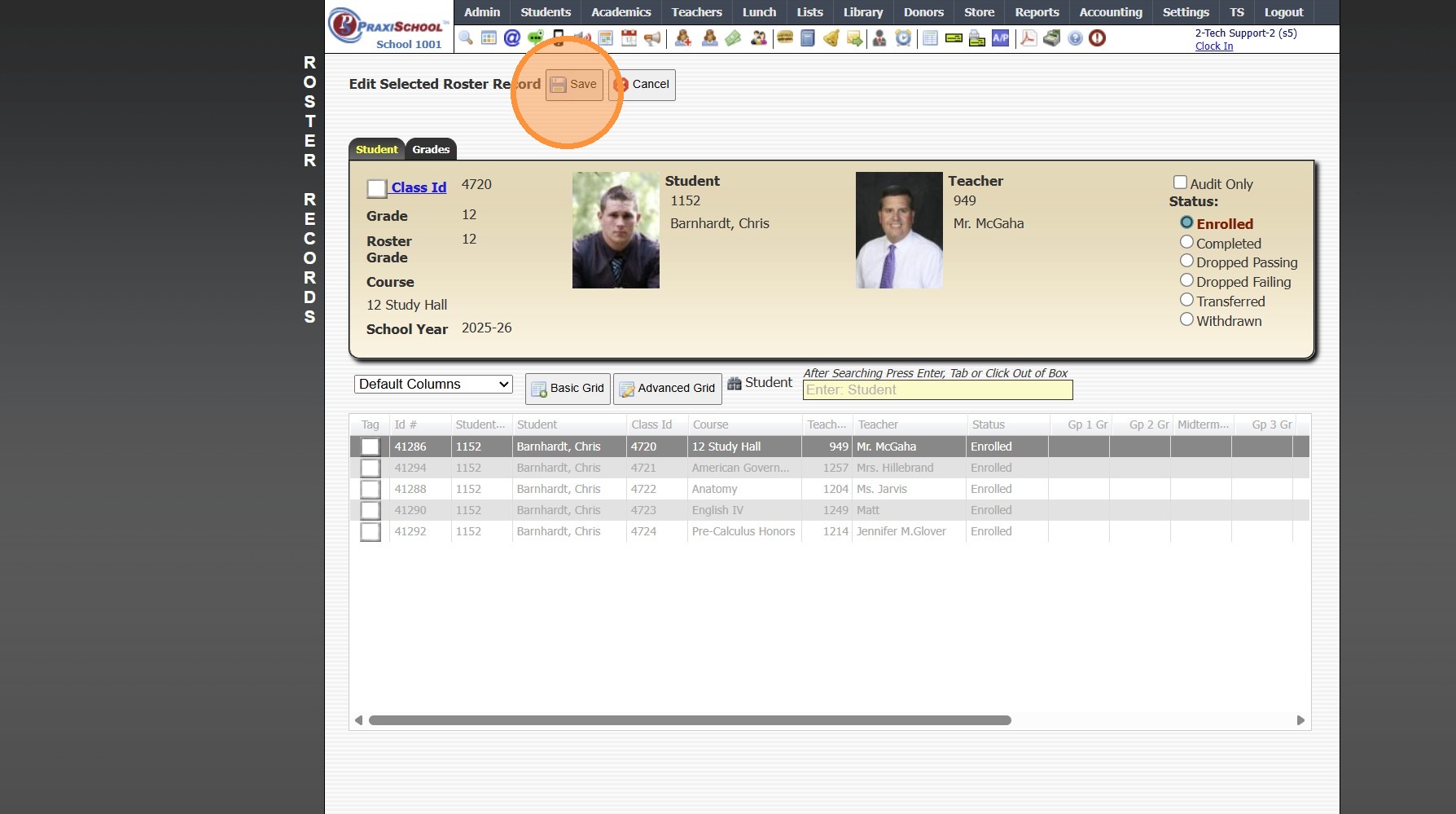
10. Click "Save"
2000.14.6
Related Articles
Withdrawing a Student
Withdrawing a Student 1. Log into PraxiSchool 2. Click "Students" 3. Click "Students" 4. Select Student to Withdraw 5. Click "Actions" 6. Click "Withdraw" 7. Select the Correct Session "Current, Summer or Next" 8. Click the "Clear" Box to Clear the ...I Withdrew a Student and now the Student's Grade are not on the Report Card.
I Withdrew a Student and now the Student's Grade are not on the Report Card. Tip: When Withdrawing the Student, next to Clear Class Schedule, the default option of Completed was more than likely changed to Withdrawn. Follow Instructions below to mark ...Updating a Class/Student Grade Level on a Transcript Class
1. Click "Academics" 2. Click "Transcripts" 3. Click "Transcripts" 4. Select Student 5. Click "Actions" 6. Click "Add/Edit Scores" 7. Select Class 8. Click "Edit" 9. Select Correct Grade Level 10. Click "Save & Close" 11. Click "Close" 8000.36Linking Student in PraxiSchool Class with Google Classroom Student
Link Student in PraxiSchool Class to Google Classroom Student 1. Click "Teachers" 2. Click "Google Classroom" 3. Click "Students" 4. Select the Praxi Class 5. Click "Link Students" 6. Check student you want to link. Must be done individually. 7. ...Unlinking Student in PraxiSchool Class with Google Classroom Student
Unlinking Student in PraxiSchool Class with Google Classroom Student 1. Click "Teachers" 2. Click "Google Classroom" 3. Click "Students" 4. Select the "4042 - Biology I - Mrs. Hillebrand" option. 5. Check student you want to unlink. These must be ...