Why is attendance not populating in the 1 Student Wizard?
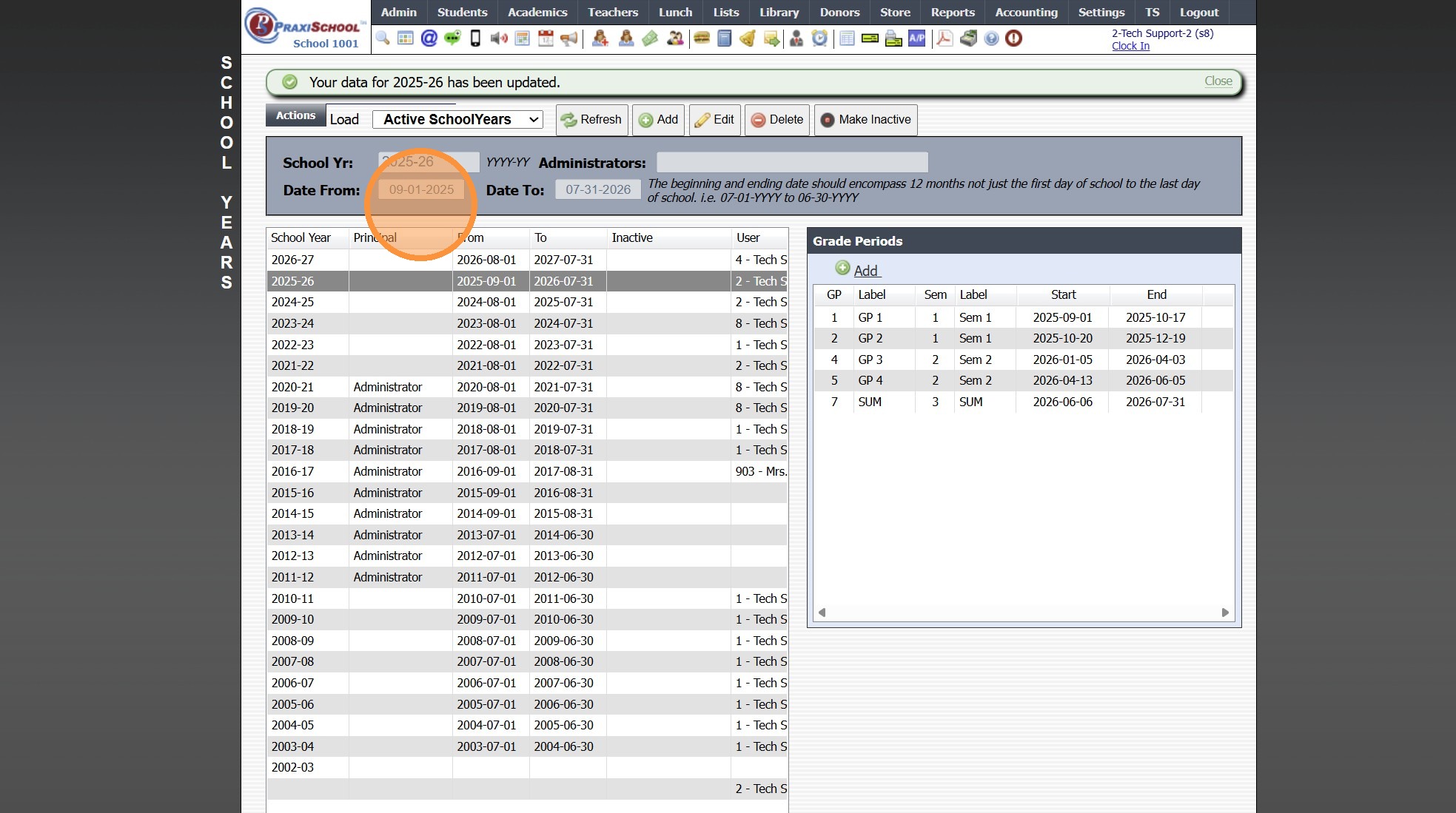
Tip: The Most Common Reason Attendance is not Populating in the 1 Student Wizard, is because the Start Date in the 1 Student Wizard being outside of the School Year Dates. See Instructions Below.
1. Click "Attendance"
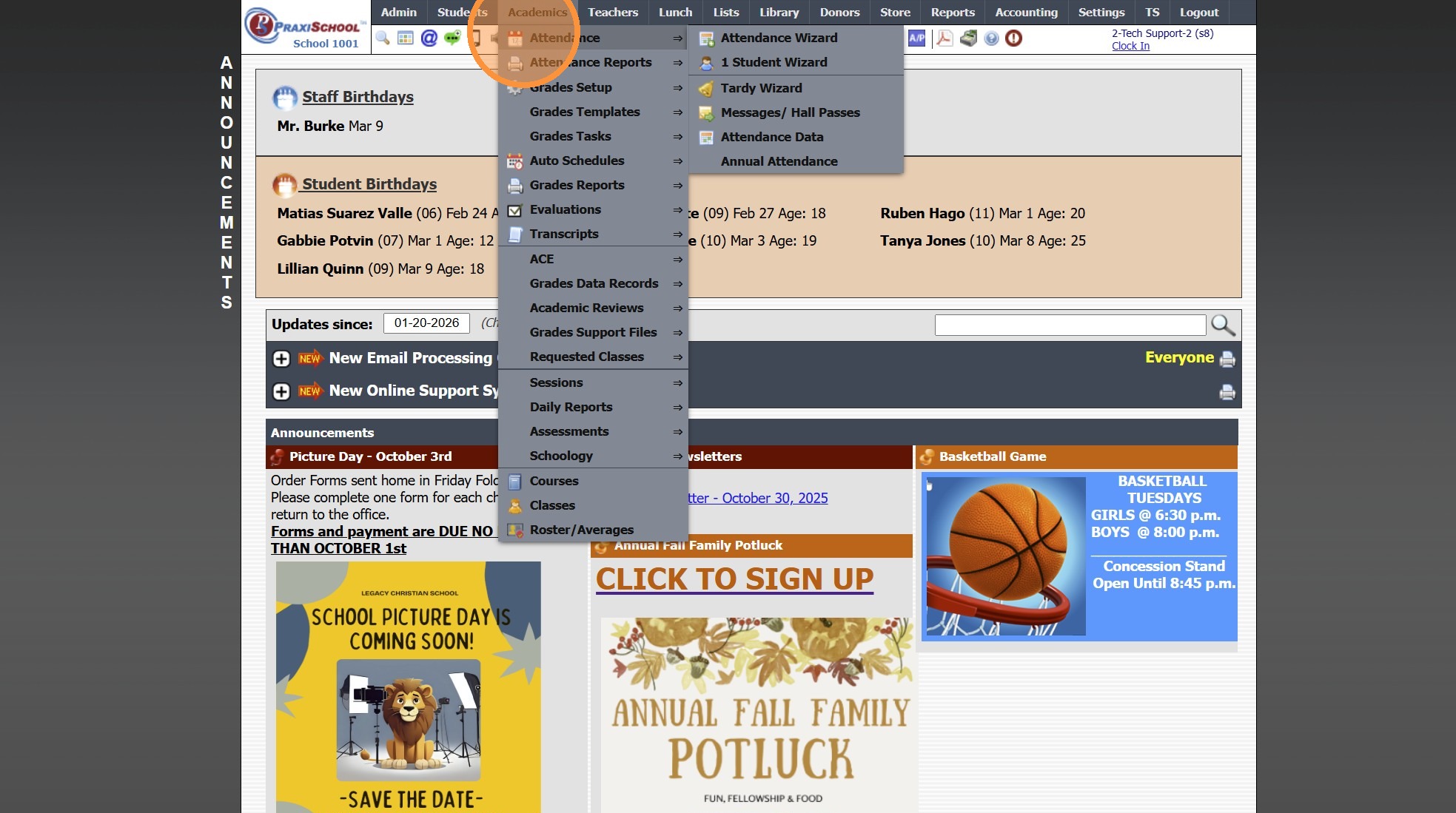
2. Click "1 Student Wizard"
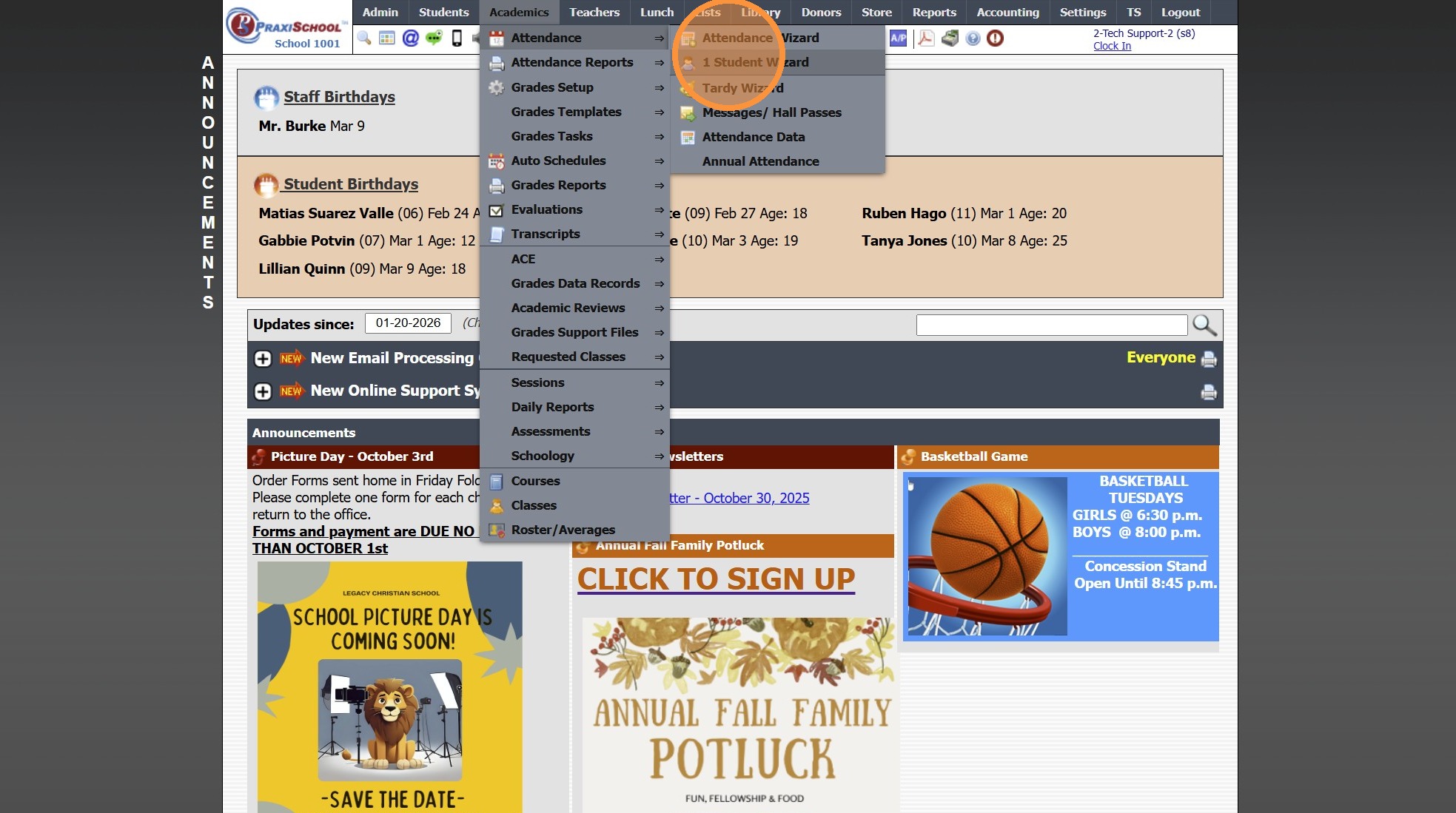
3. Search Student & Click Refresh
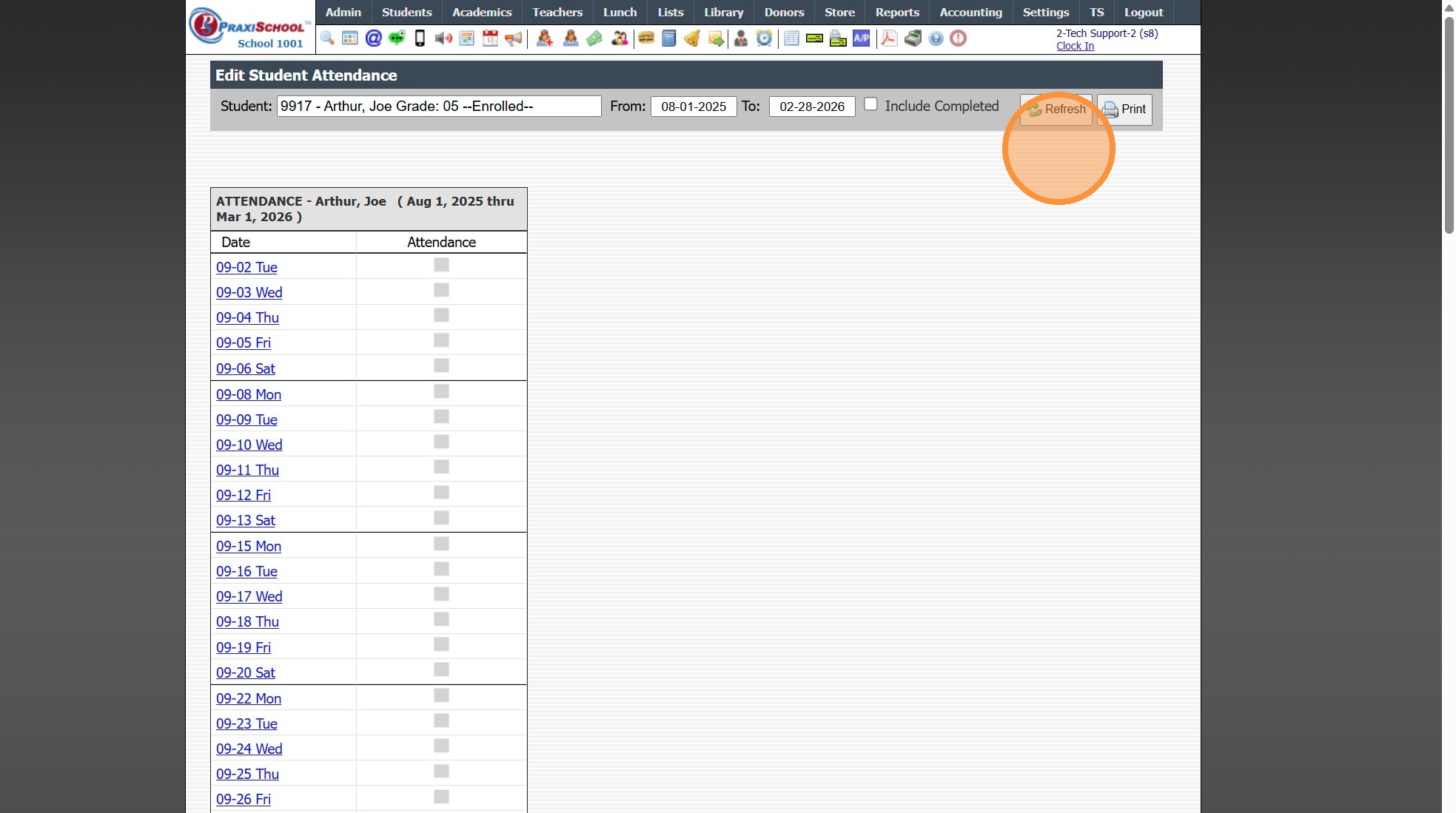
4. Change Date to the First Day of School
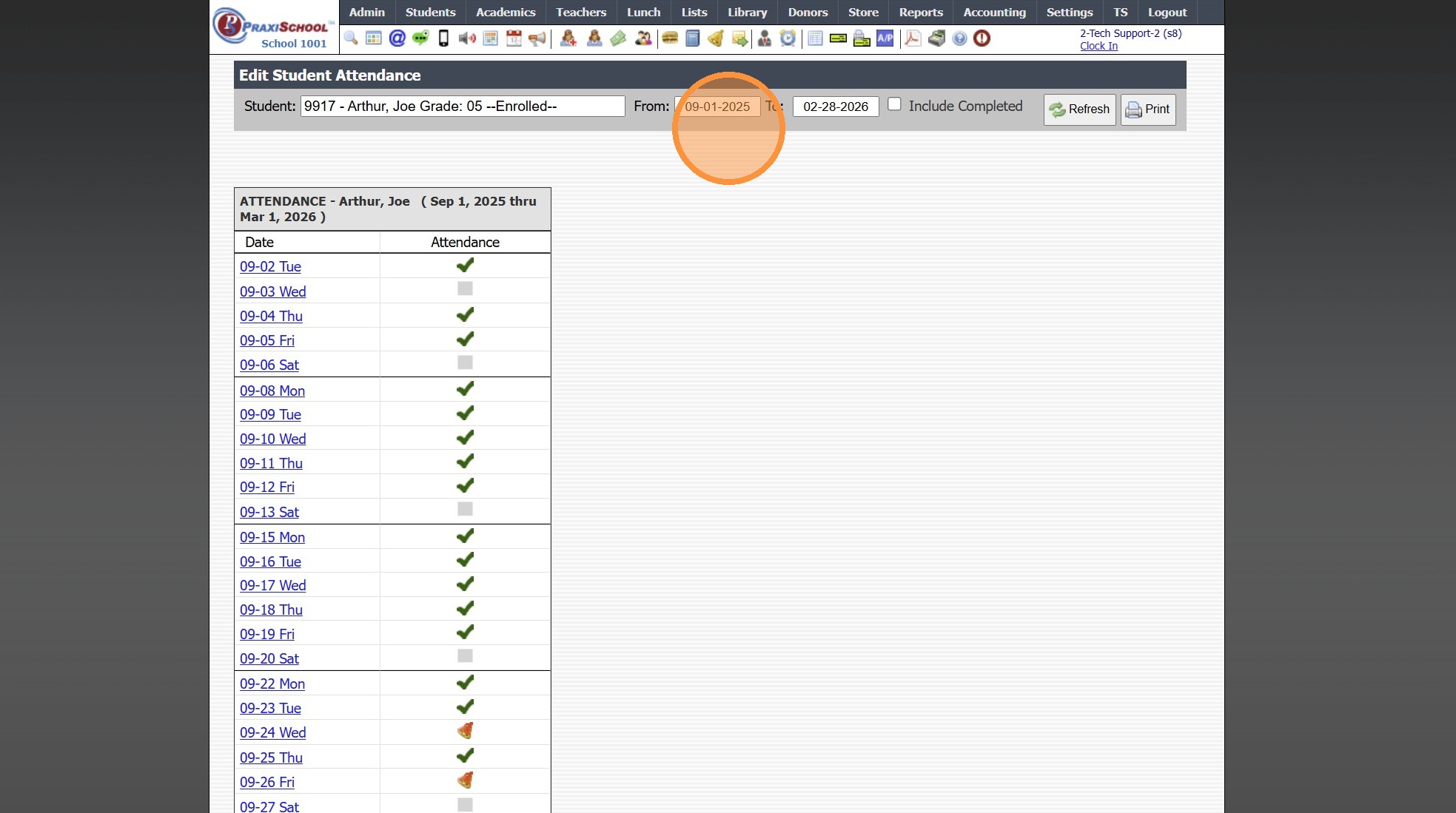
5. Click "Refresh"
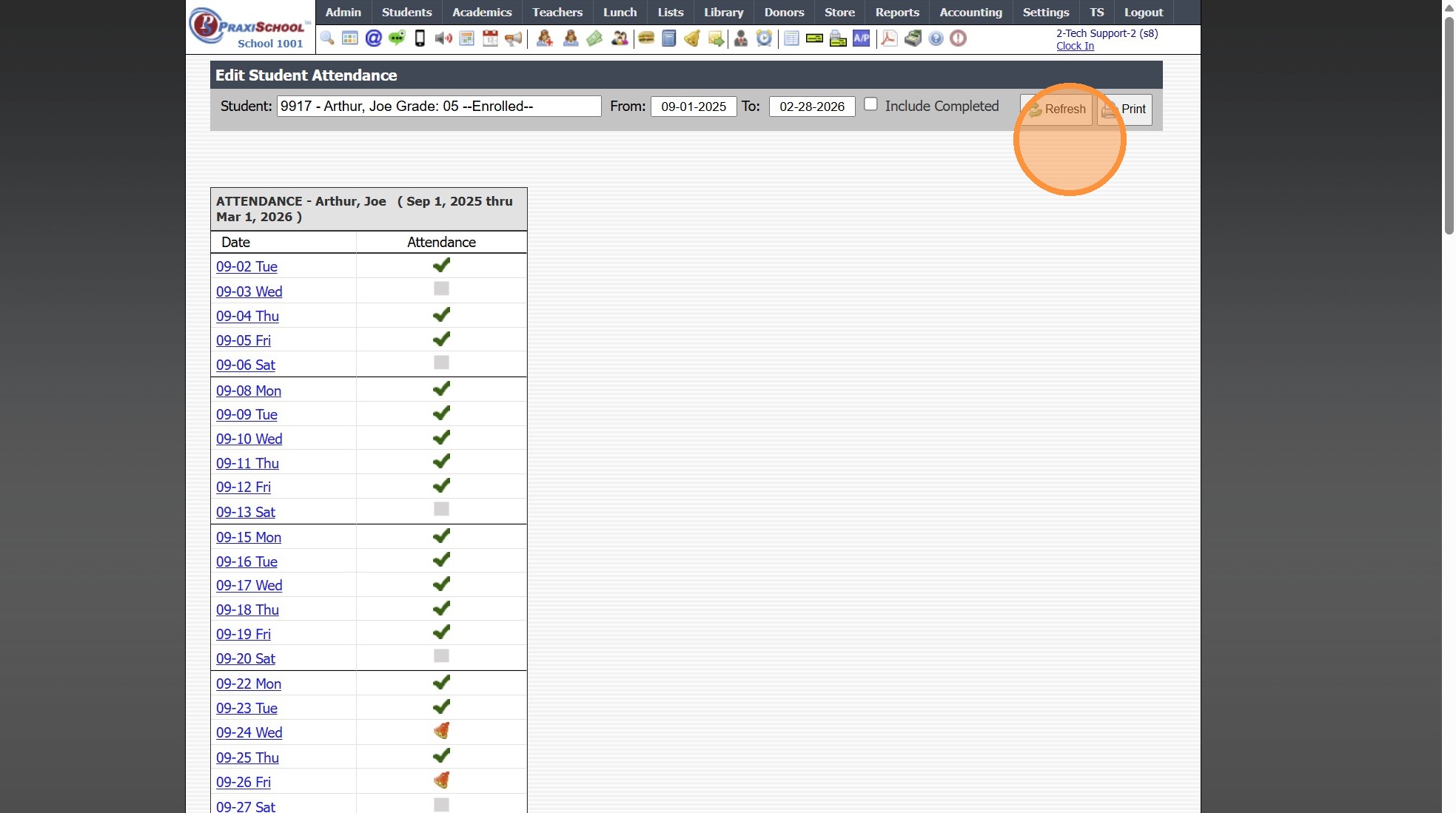
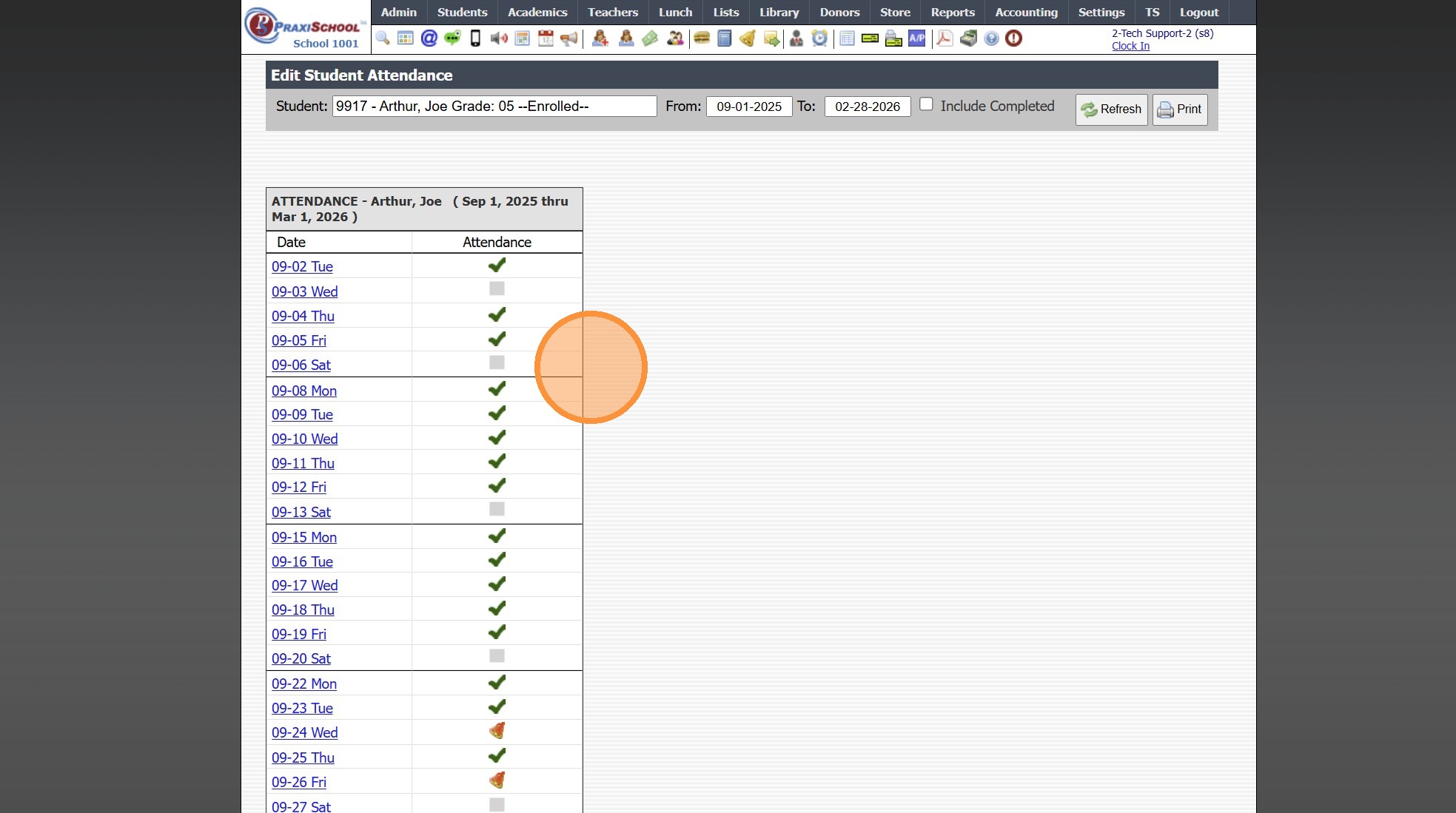
6. The Attendance Records will Populate
7. To See School Year Dates, Go to Lists, Academics, School Years
8000.11
Related Articles
Entering Attendance in the 1 Student Wizard
Entering Attendance in the 1 Student Wizard 1. Click "Academics" 2. Click "Attendance" 3. Click "1 Student Wizard" 4. Select Student 5. Set From Date and To Date 6. Click "Refresh" Marking Attendance for the Day 7. Click on the Date 8. Select ...Entering Attendance in the Attendance Wizard
Entering Attendance in the Attendance Wizard 1. Click "Academics" 2. Click "Attendance" 3. Click "Attendance Wizard" Entering by Grade Level(s) 4. Select Date to Enter Attendance For 5. Select Grade From and Grade To 6. Click "Load Detail" 7. Select ...Using the Tardy Wizard (Attendance Tardy Wizard)
Using the Tardy Wizard (Attendance Tardy Wizard) 1. Click "Academics" 2. Click "Attendance" 3. Click "Tardy Wizard" 4. Select Student 5. Enter Reason (Optional) 6. Select Class 7. Select "Notify Teacher" to Send Teacher a Message 8. Select Excused or ...Issuing a Hall Pass (Attendance Tardy Wizard)
Issuing a Hall Pass (Attendance Tardy Wizard) 1. Click "Academics" 2. Click "Attendance" 3. Click "Message / Hall Passes" 4. Select Student 5. Select Room From and Room To (Optional) 6. Select Staff to Receive Message 7. Select Message Options: For ...Icon Toolbar - Student Wizard Icon
Icon Toolbar - Student Wizard Icon Click on the Student Wizard Icon for Quick Access the Student Wizard 7500.1.10