Entering Attendance in the 1 Student Wizard
Entering Attendance in the 1 Student Wizard
1. Click "Academics"

2. Click "Attendance"
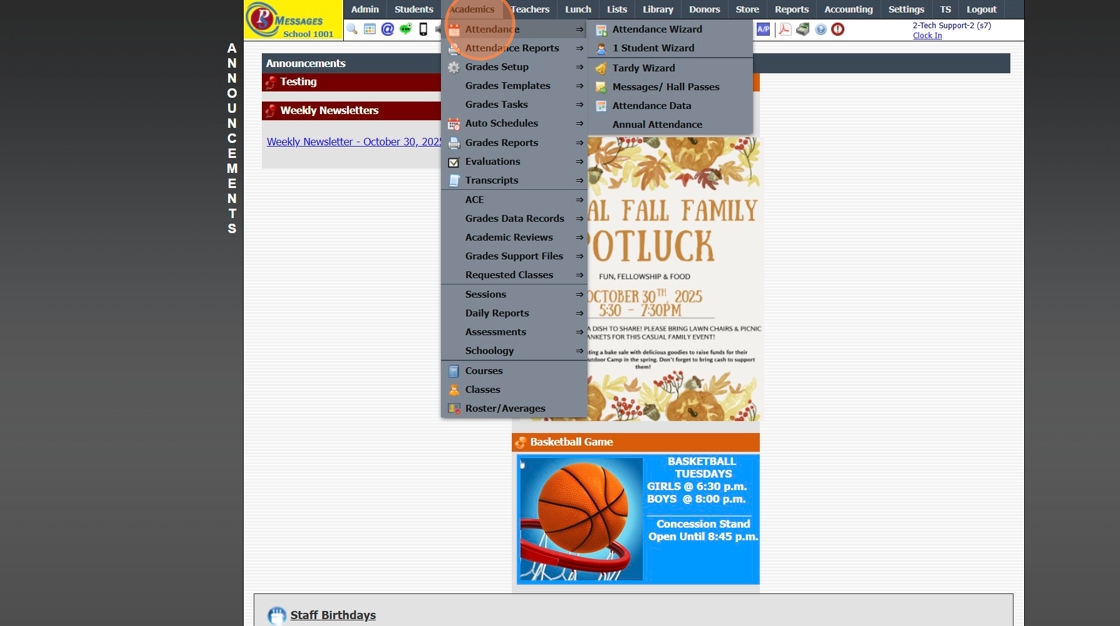
3. Click "1 Student Wizard"

4. Select Student
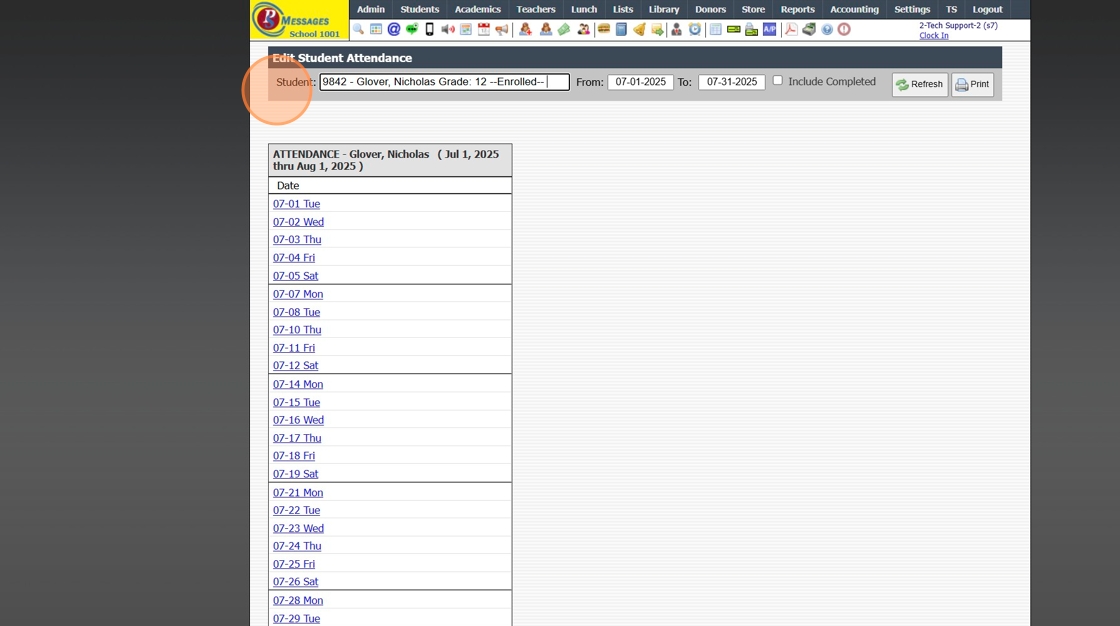
5. Set From Date and To Date

6. Click "Refresh"

Marking Attendance for the Day
7. Click on the Date

8. Select Attendance Type
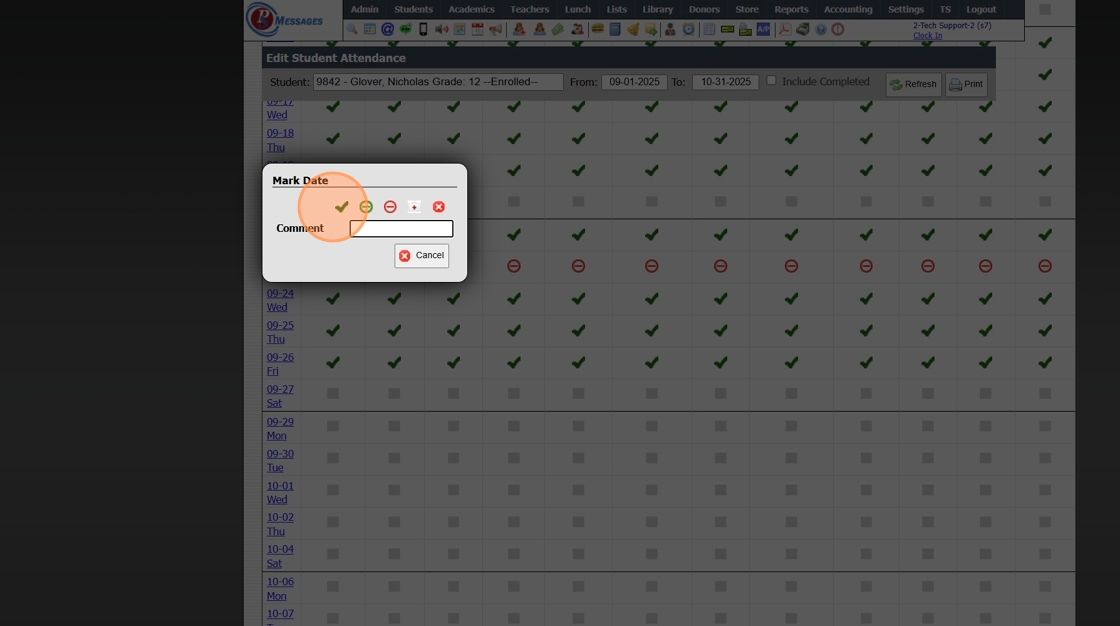
Marking Attendance for 1 Class
9. Left Click in the box for the Date & Class

10. Select the Attendance Type

Adding a Comment to the Attendance
11. Left Click in the box for the Date & Class

12. Enter Comment
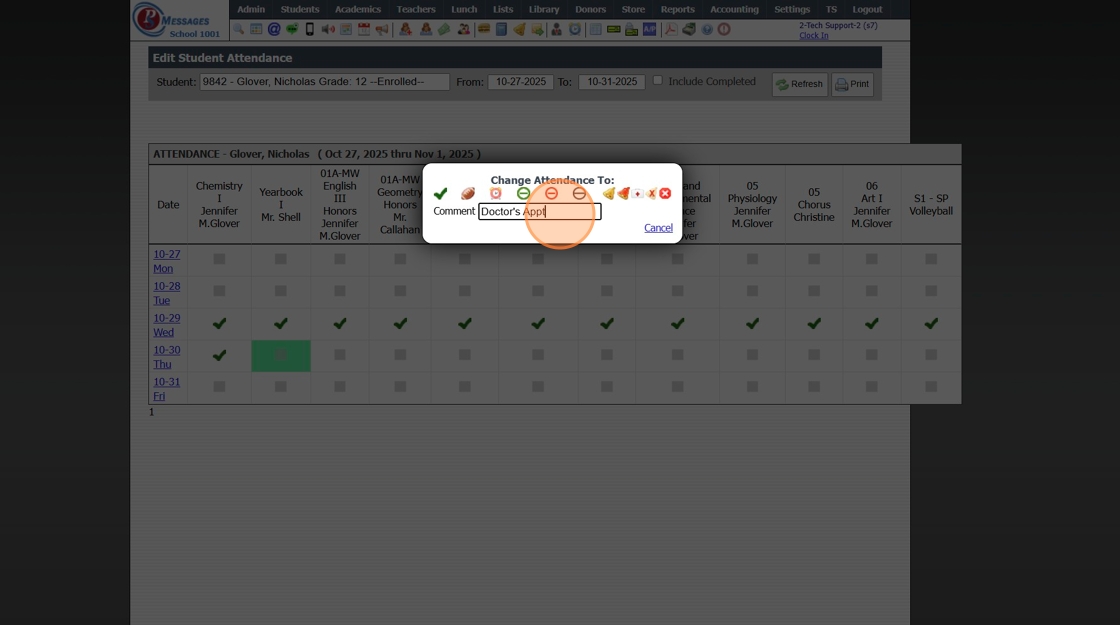
13. Select the Attendance Type

2000.1.2
Related Articles
Entering Attendance in the Attendance Wizard
Entering Attendance in the Attendance Wizard 1. Click "Academics" 2. Click "Attendance" 3. Click "Attendance Wizard" Entering by Grade Level(s) 4. Select Date to Enter Attendance For 5. Select Grade From and Grade To 6. Click "Load Detail" 7. Select ...Using the Tardy Wizard (Attendance Tardy Wizard)
Using the Tardy Wizard (Attendance Tardy Wizard) 1. Click "Academics" 2. Click "Attendance" 3. Click "Tardy Wizard" 4. Select Student 5. Enter Reason (Optional) 6. Select Class 7. Select "Notify Teacher" to Send Teacher a Message 8. Select Excused or ...Why is attendance not populating in the 1 Student Wizard?
Tip: The Most Common Reason Attendance is not Populating in the 1 Student Wizard, is because the Start Date in the 1 Student Wizard being outside of the School Year Dates. See Instructions Below. 1. Click "Attendance" 2. Click "1 Student Wizard" 3. ...Entering Attendance in the Classroom
Entering Attendance in the Classroom 1. Log into PraxiSchool 2. Click "Teachers" 3. Click "Classroom" 4. Select Class 5. Click "Classroom" 6. Select "Attendance" toggle 7. Click "Mark" to Mark Entire Class Present 8. Left-Click on a Student to Mark ...Manually Entering Staff Attendance in Batch
Manually Entering Staff Attendance in Batch 1. Click "Admin" 2. Click "Staff" 3. Click "Staff Attendance Wizard" 4. Tag Staff to Add Attendance for 5. Select the Attendance Type 6. Click "Process # Selected Staff" 1000.2.7