Why are Parents being Charged a Different Fee for Enrollment than the Set Amount?
Tip: The Most Common Reason Parents are being Charged a Different Fee from the Set Amount is because the Allow Variable Payment option is Selected on the Form AR Action Settings. The Allow Variable Payment option should only be Selected if the Amount Required on Submission is Less than the Total being Charged at the Time of Submission. See Instructions Below.
1. Click "Admin"
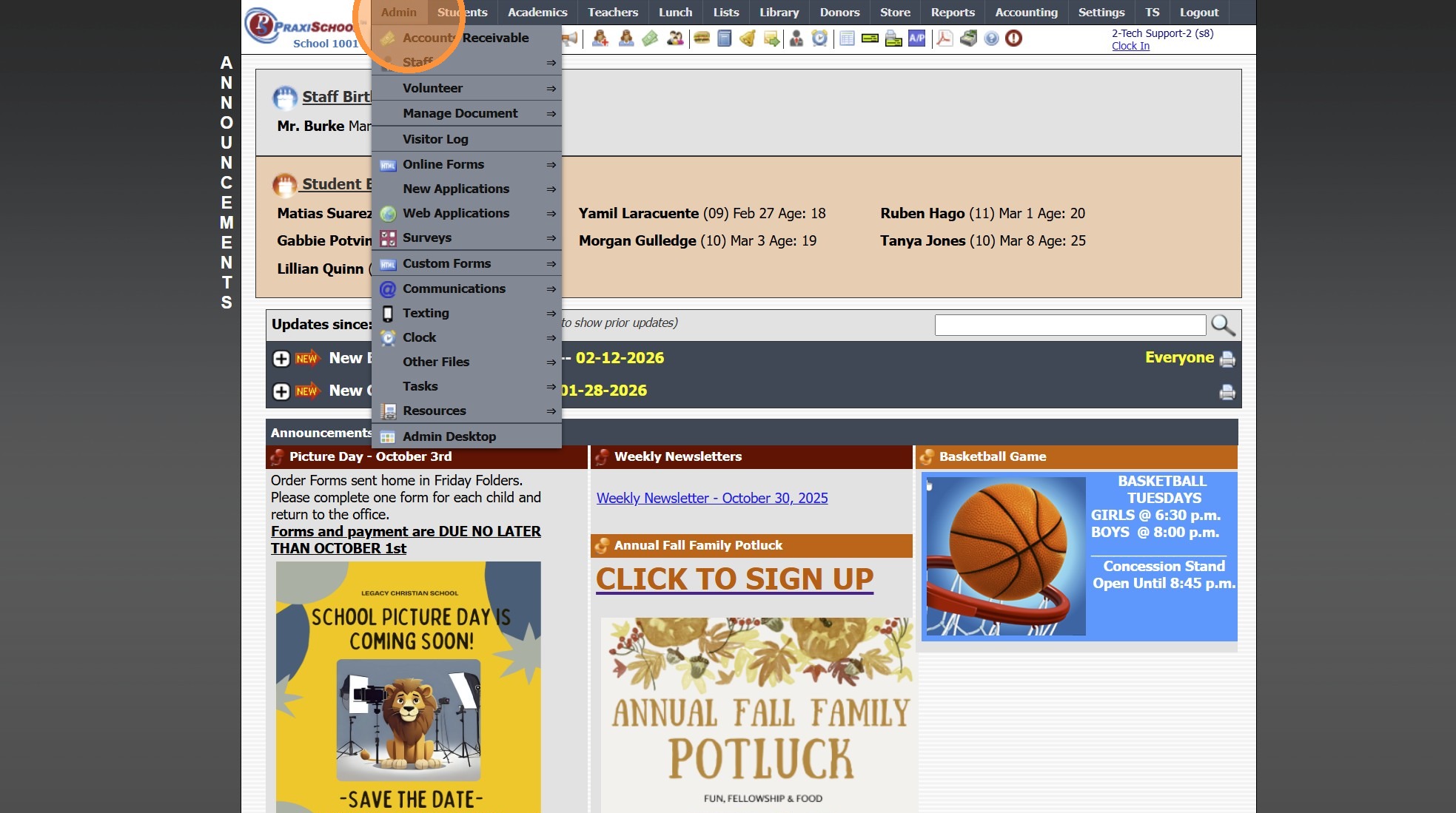
2. Click "Online Forms"
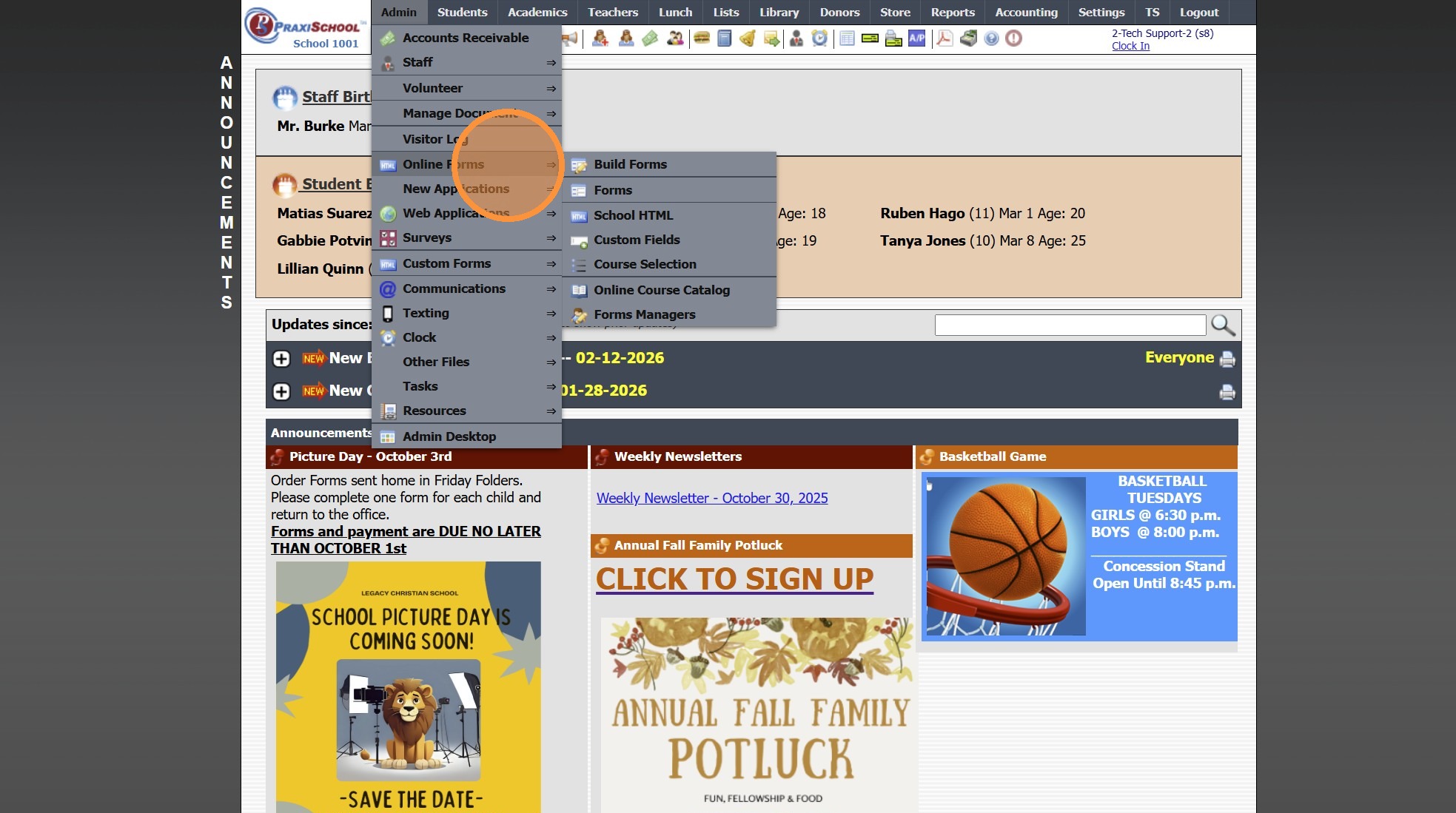
3. Click "Forms"
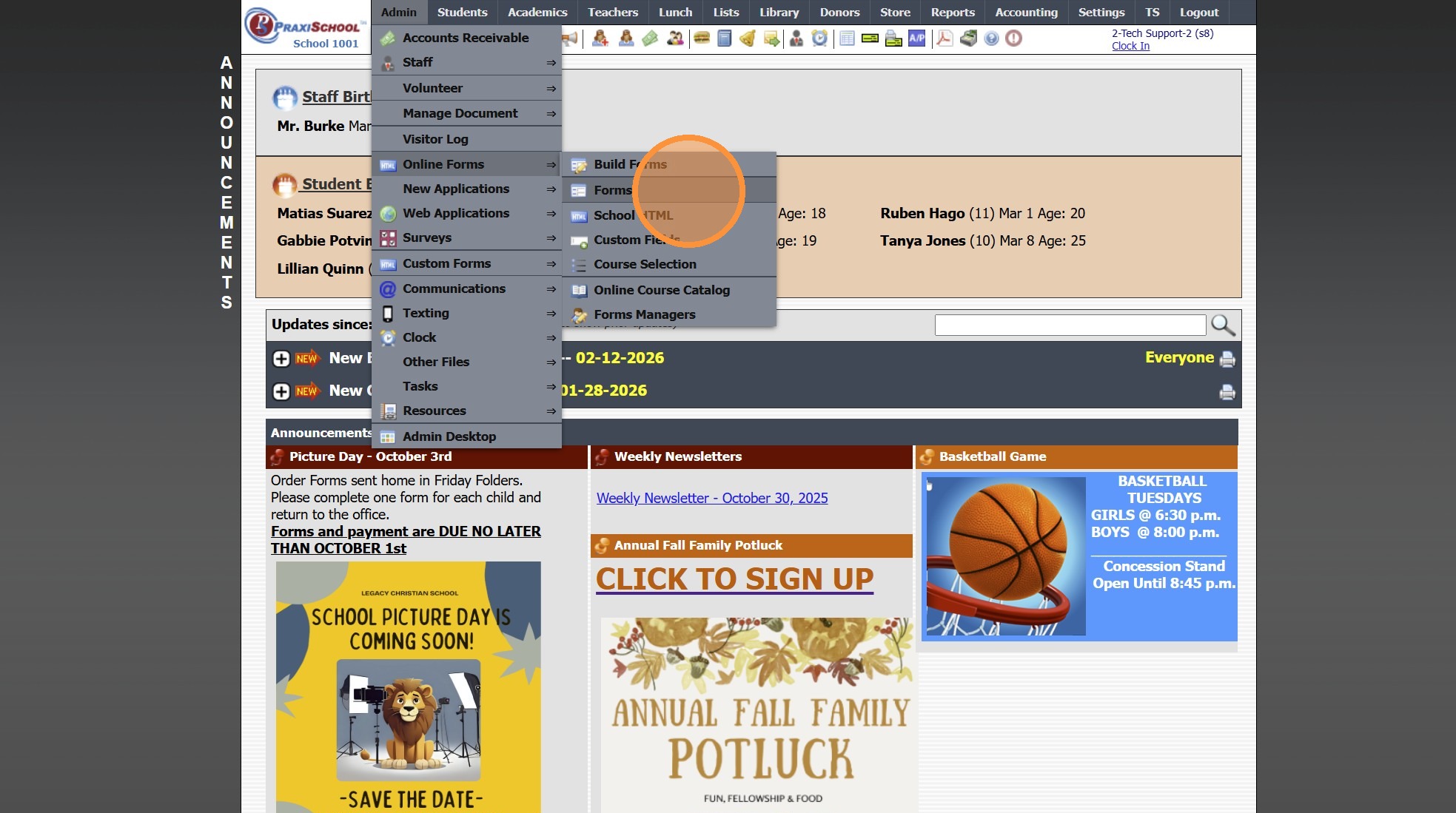
4. Select the Form
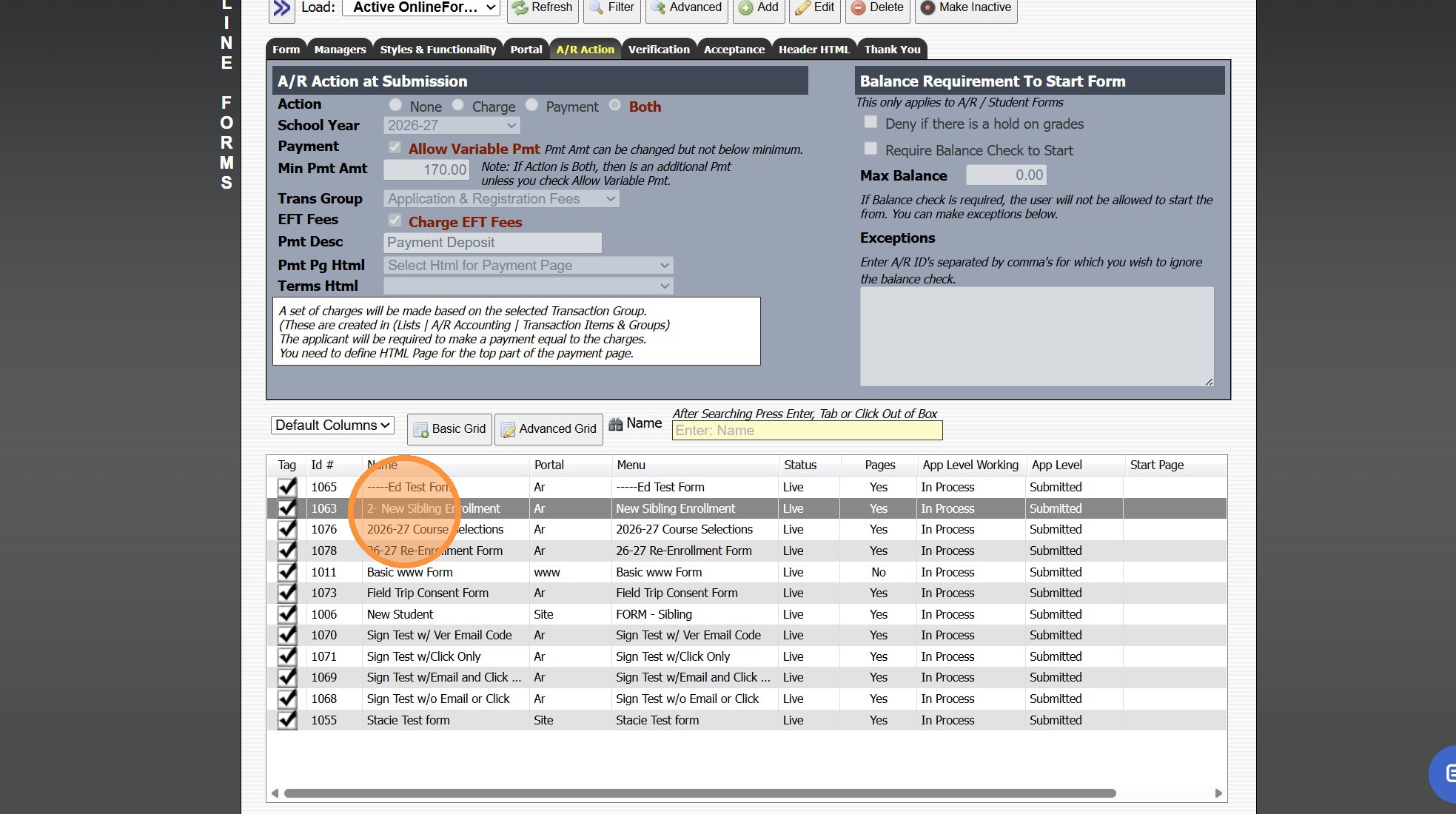
5. Click the "A/R Action" Tab
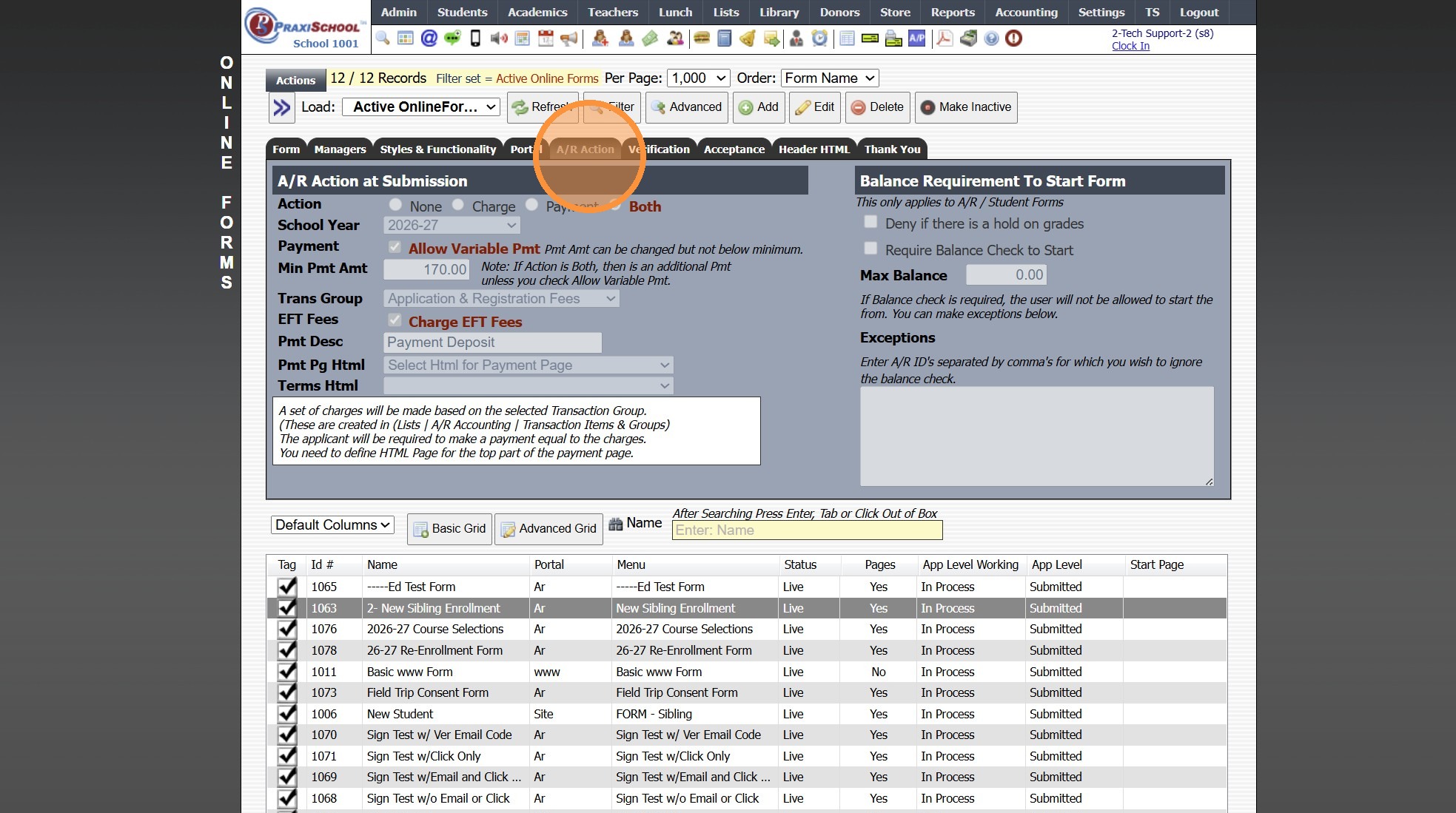
6. Click "Edit"
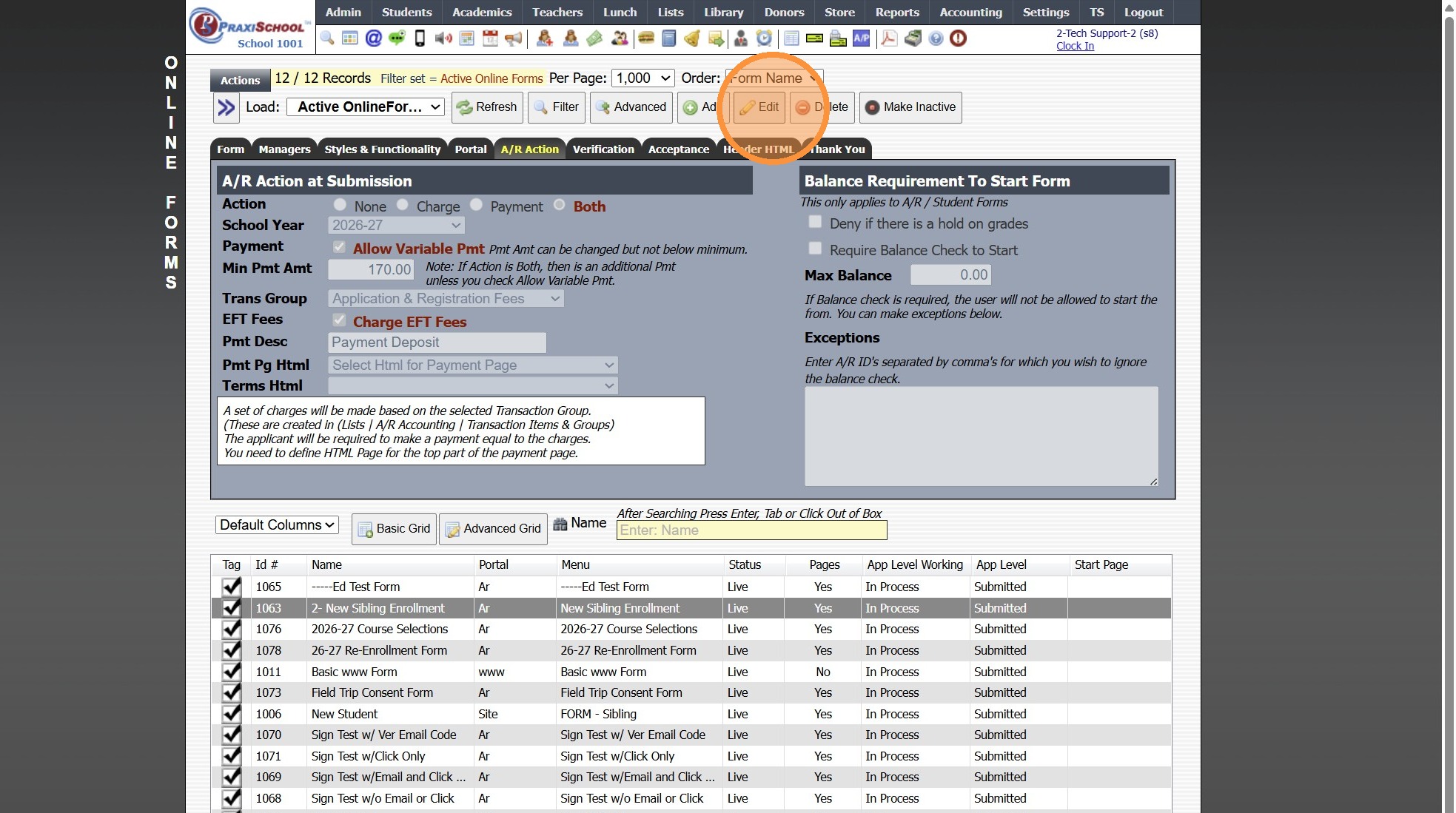
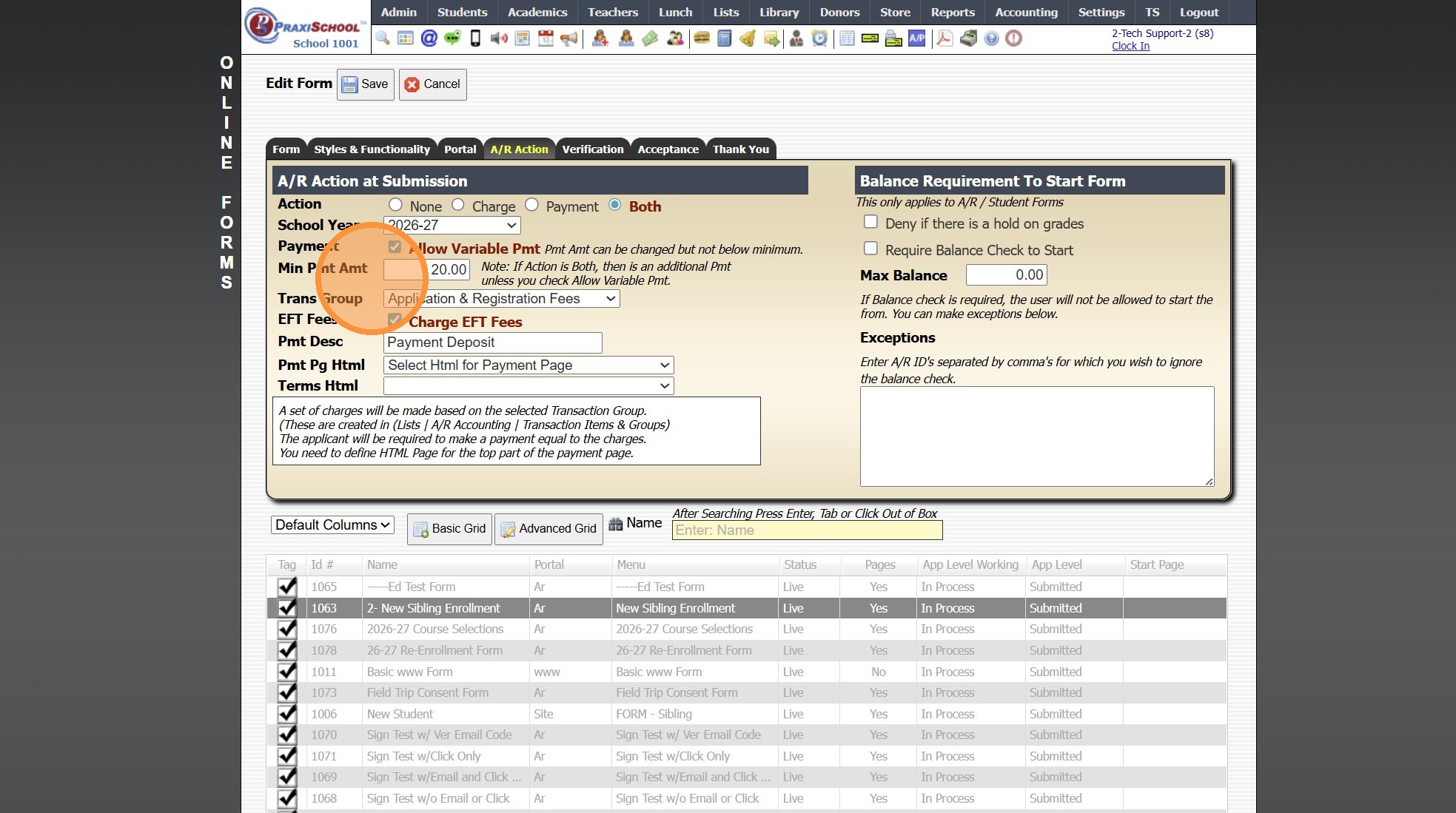
7. Uncheck the Allow Variable Payment box if the Full Amount being Charged is Required on Submission
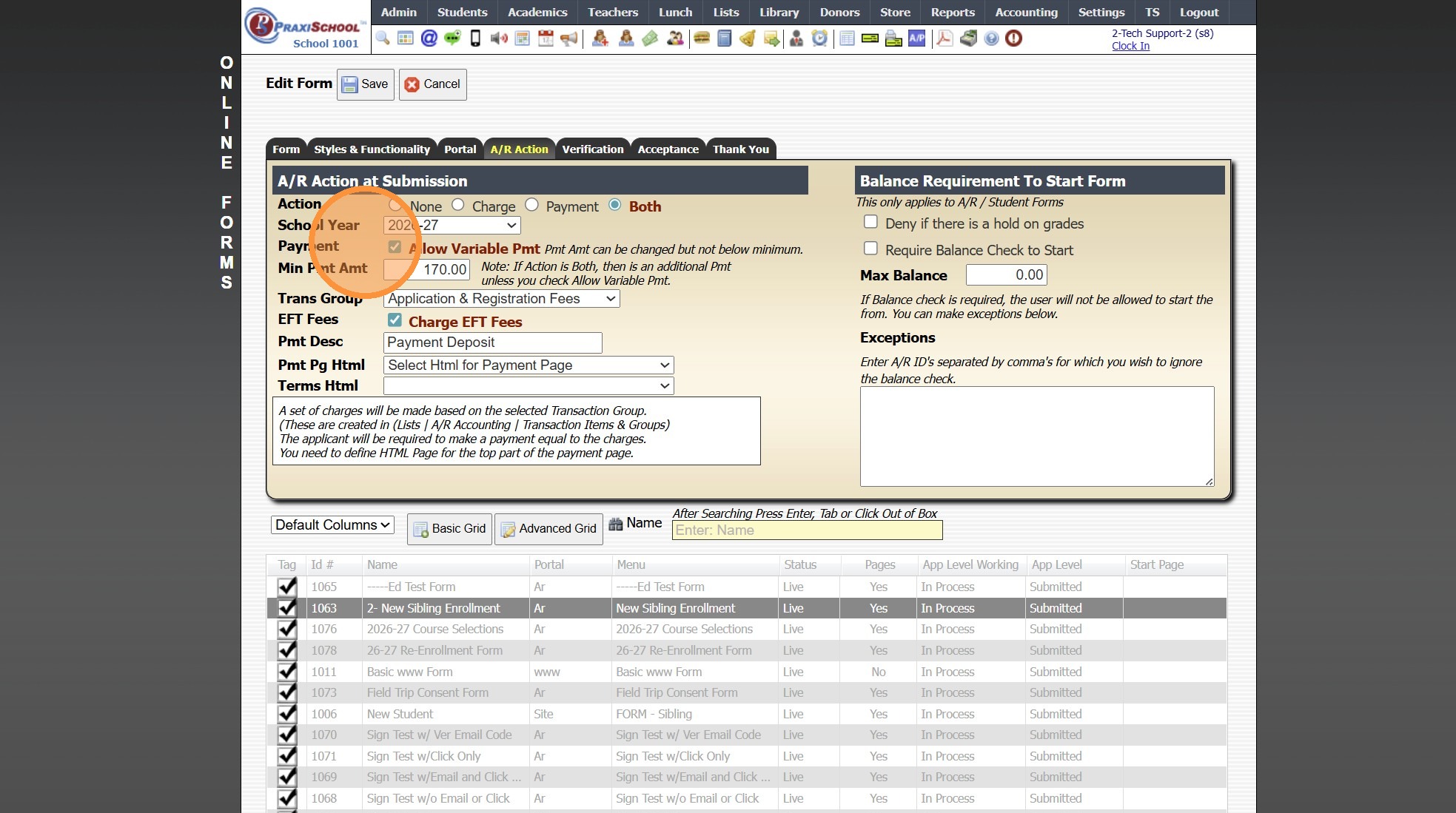
8. Remove the Min Pmt Amt
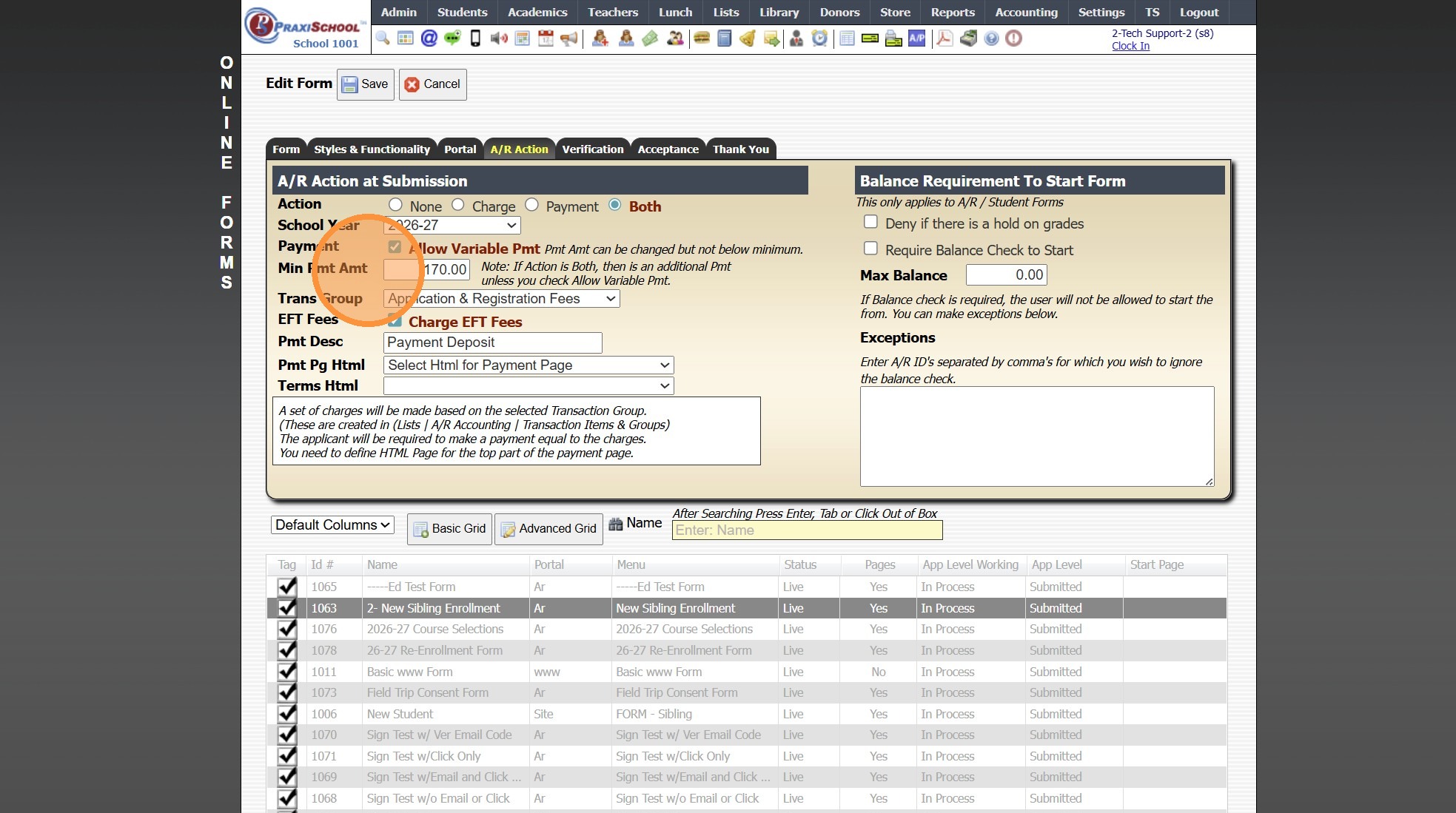
9. To See the Fees being Charged, go to Lists, AR Accounting, Transaction Groups, Select Transaction Group to see all Fees
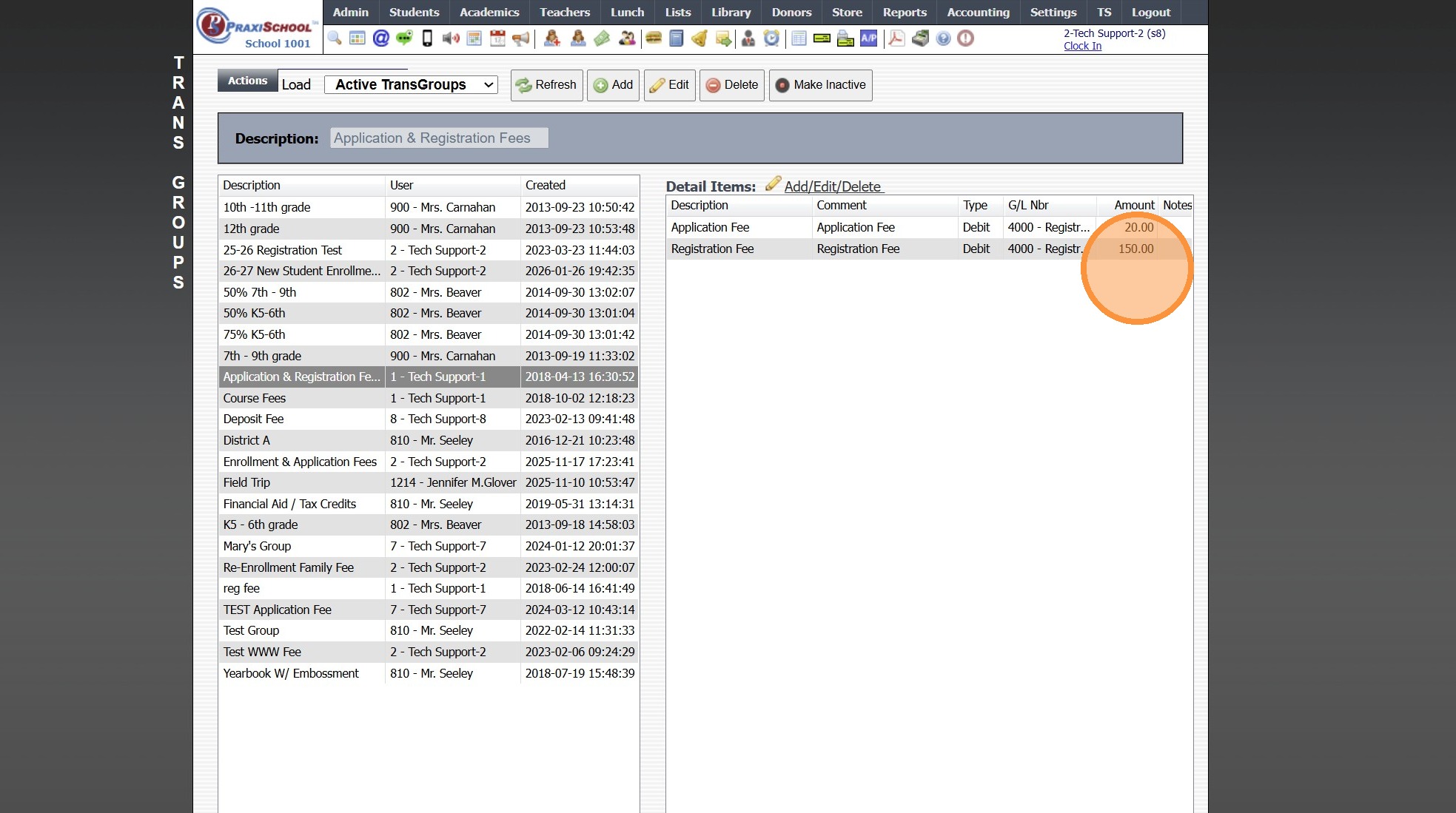
10. If Requiring less than Amount being Charged, Check the Allow Variable Pmt box & Enter the Amount Required on Submission
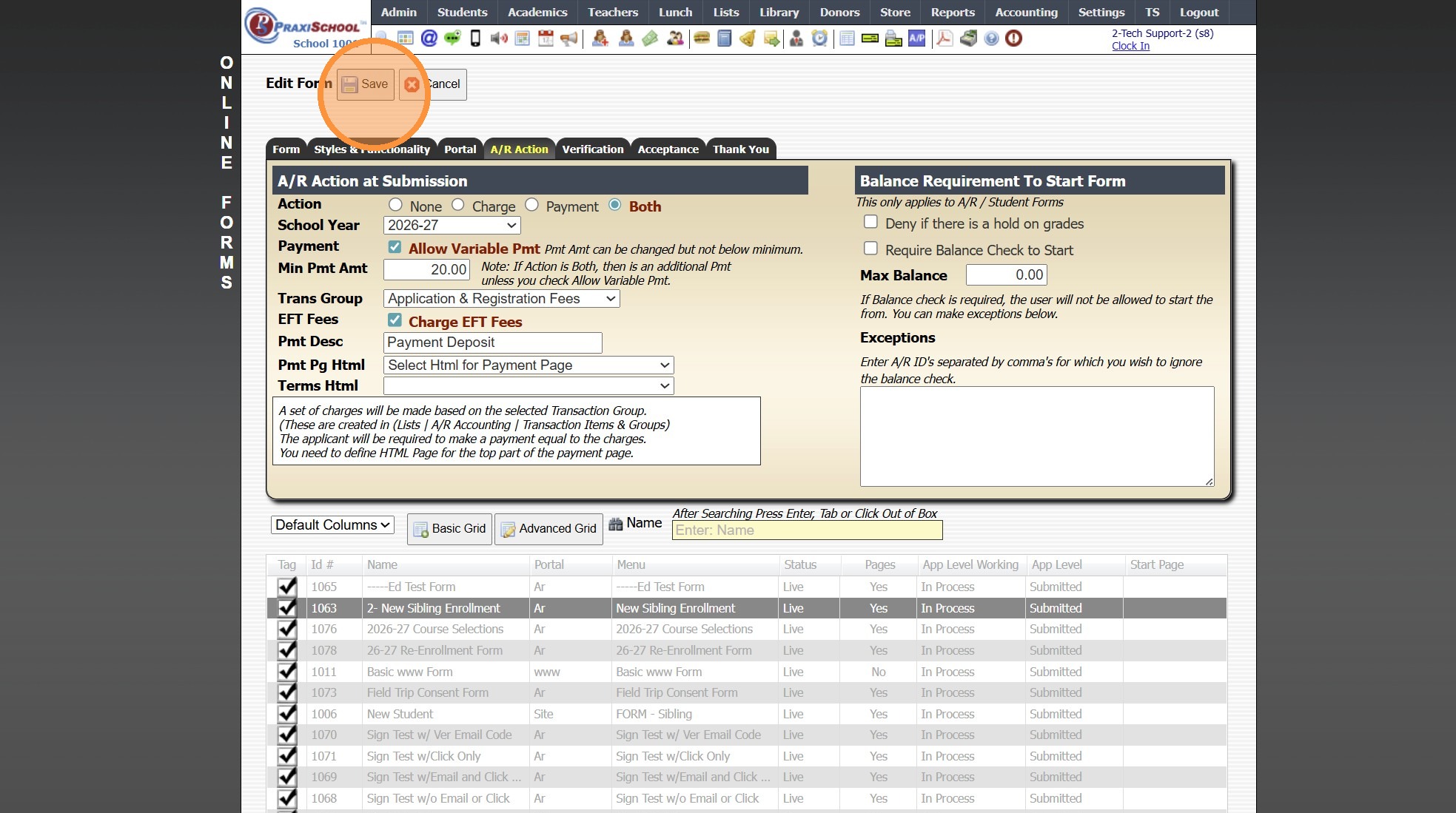
11. Click "Save"
Related Articles
Heartland Payments Set Up Details
Heartland Payments is eager to assist in establishing a merchant processing account (MID) for credit/debit and echeck (ACH). The purpose of this document is to furnish details specific to each option as well as the boarding portals (labeled ...Creating a Saved Payment & Setup a Payment Amount and Schedule
Creating a Saved Payment & Setup a Payment Amount and Schedule 1. Click "Accounting" 2. Click "Electronic Payments" 3. Click "Create Saved Pmts" 4. Search Account Name & Select 5. Verify Address, Email & Phone Number on File Matches Billing Address ...How do I Change a Student's Enrollment Date?
Tip: To Change a Student a Student's Enrollment Date so that the Enrollment Date is reflected Correctly in Praxi, the Enrollment Date should be Changed in Enrollment History. Follow the Instructions below to properly Change a Student's Enrollment ...Enrollment Reports
1. Click "Reports" 2. Click "Enrollment" Manually Selecting Report Options 3. Select the "For" option, "Enrolled" option, "Summer" option and/or the "Next Year" option 4. Select desired options for the Report 5. Select to Generate Enrollment Report ...Updating Class Enrollment Numbers
1. Click "Academics" 2. Click "Classes" 3. Click "Actions" 4. Click "Update Enrollment" 2000.13.5