Where do you go to Edit a Lesson Plan?
1. Go to the Classroom
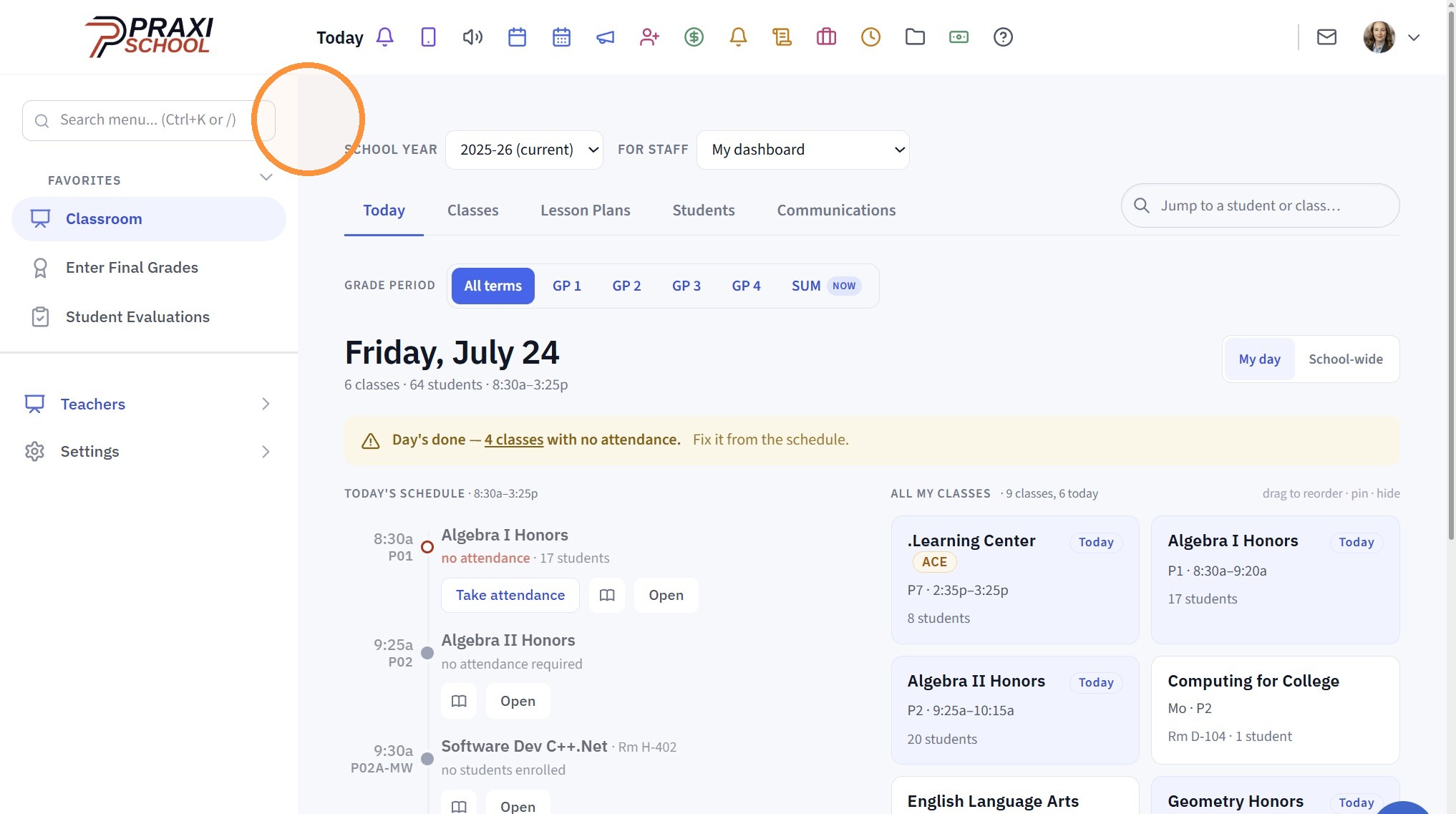
2. Click "Open"
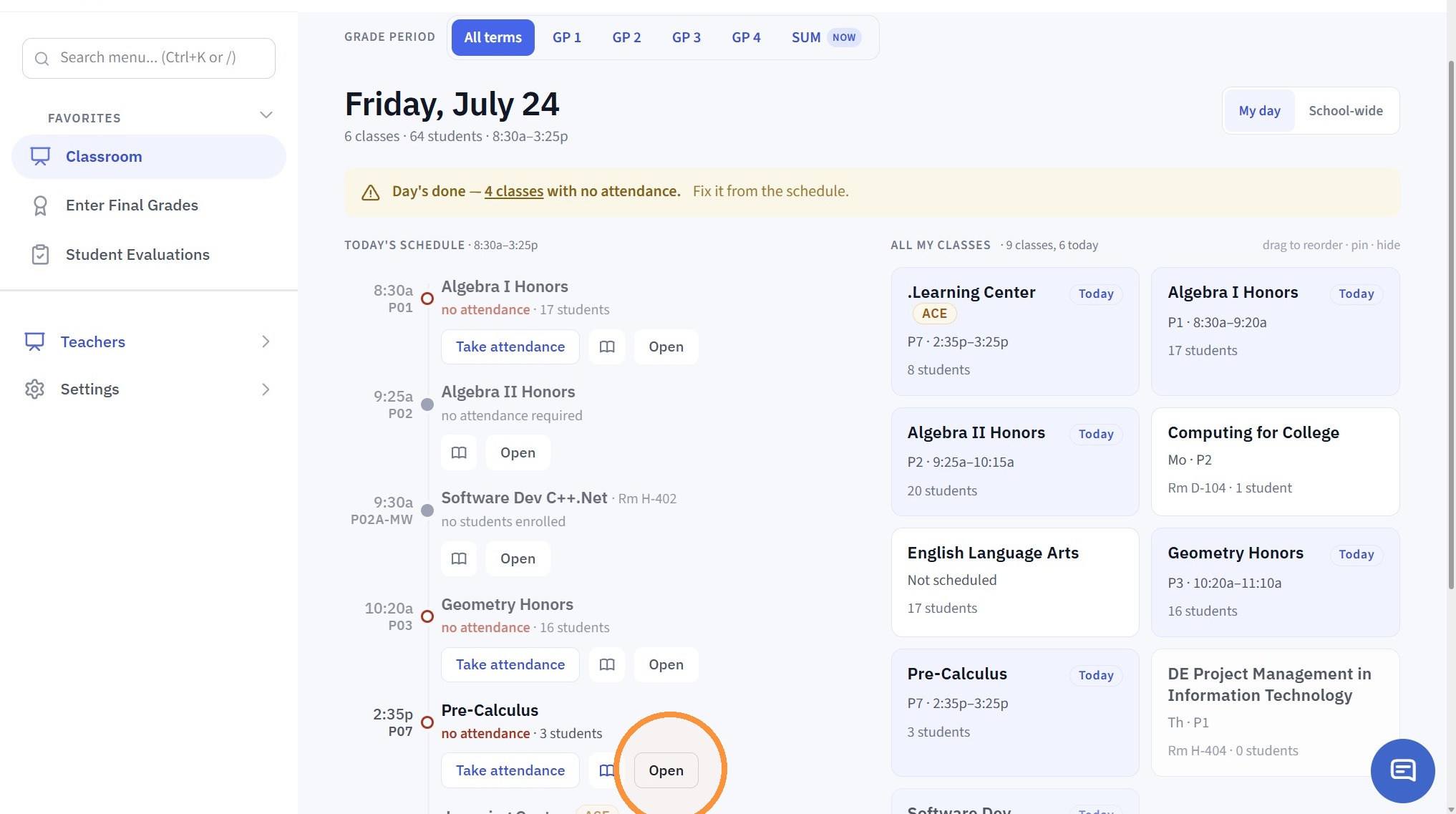
3. Click "Lesson Plan"
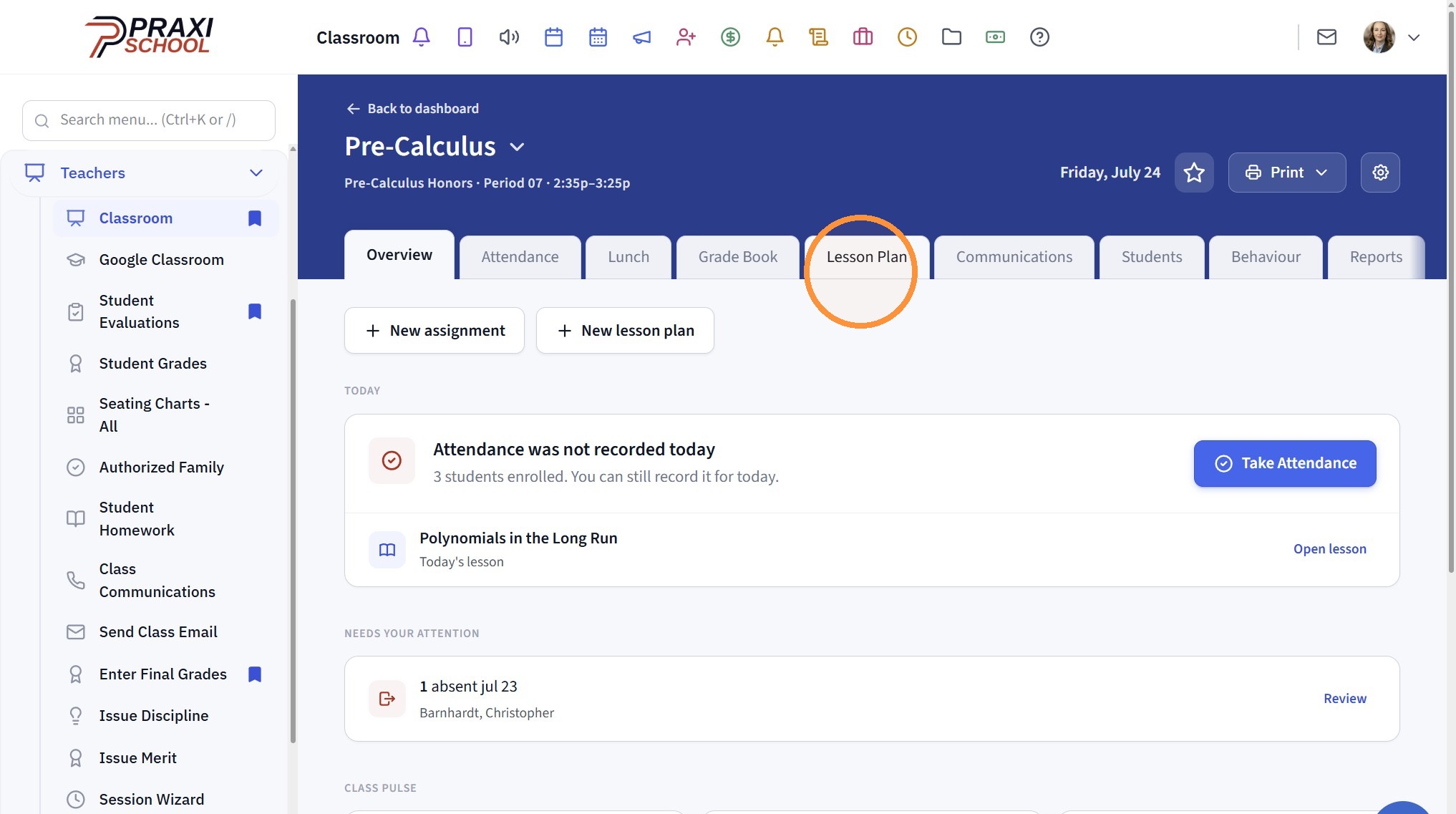
4. Click on the Lesson Plan to Edit
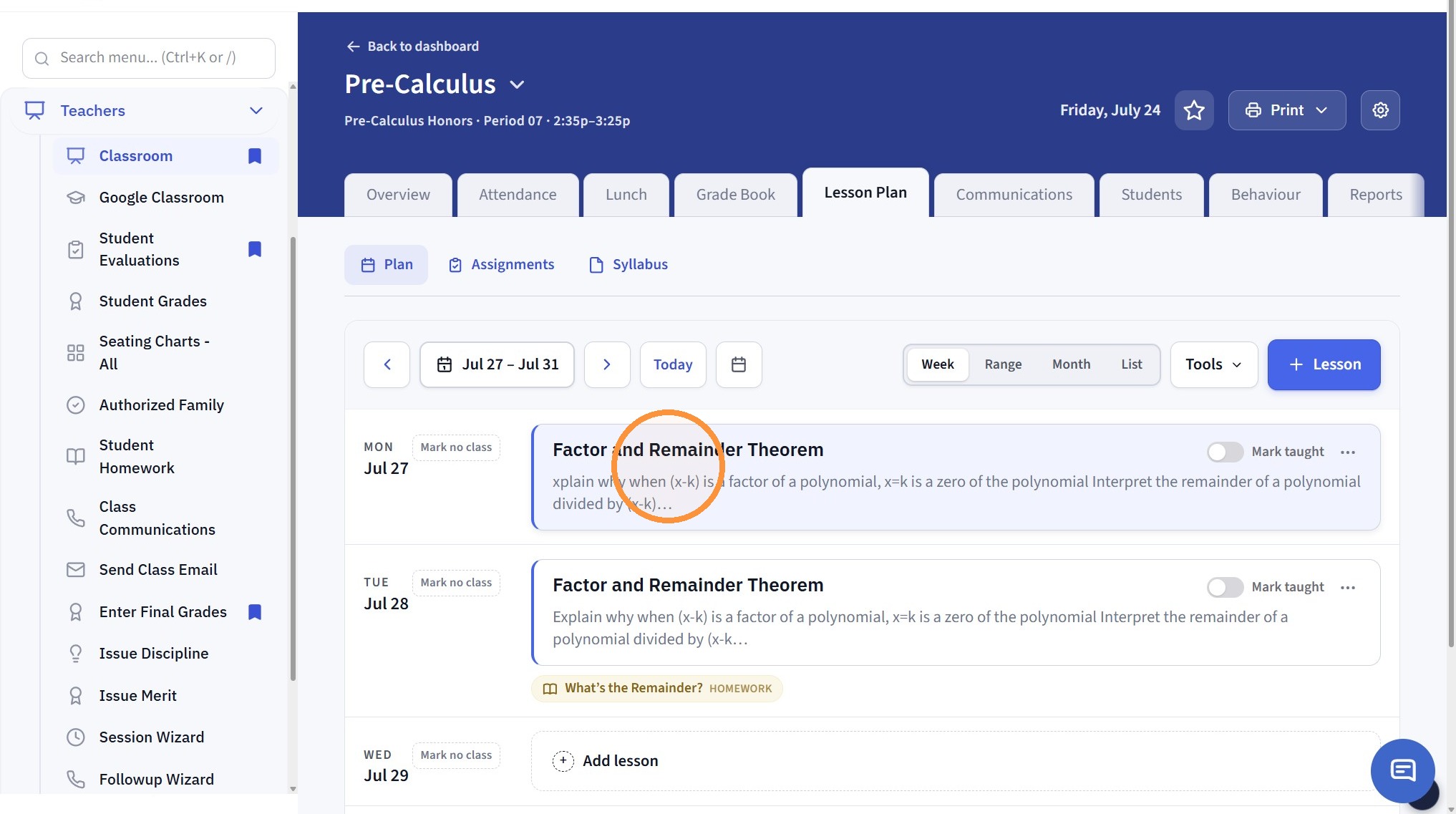
5. Click "Edit"
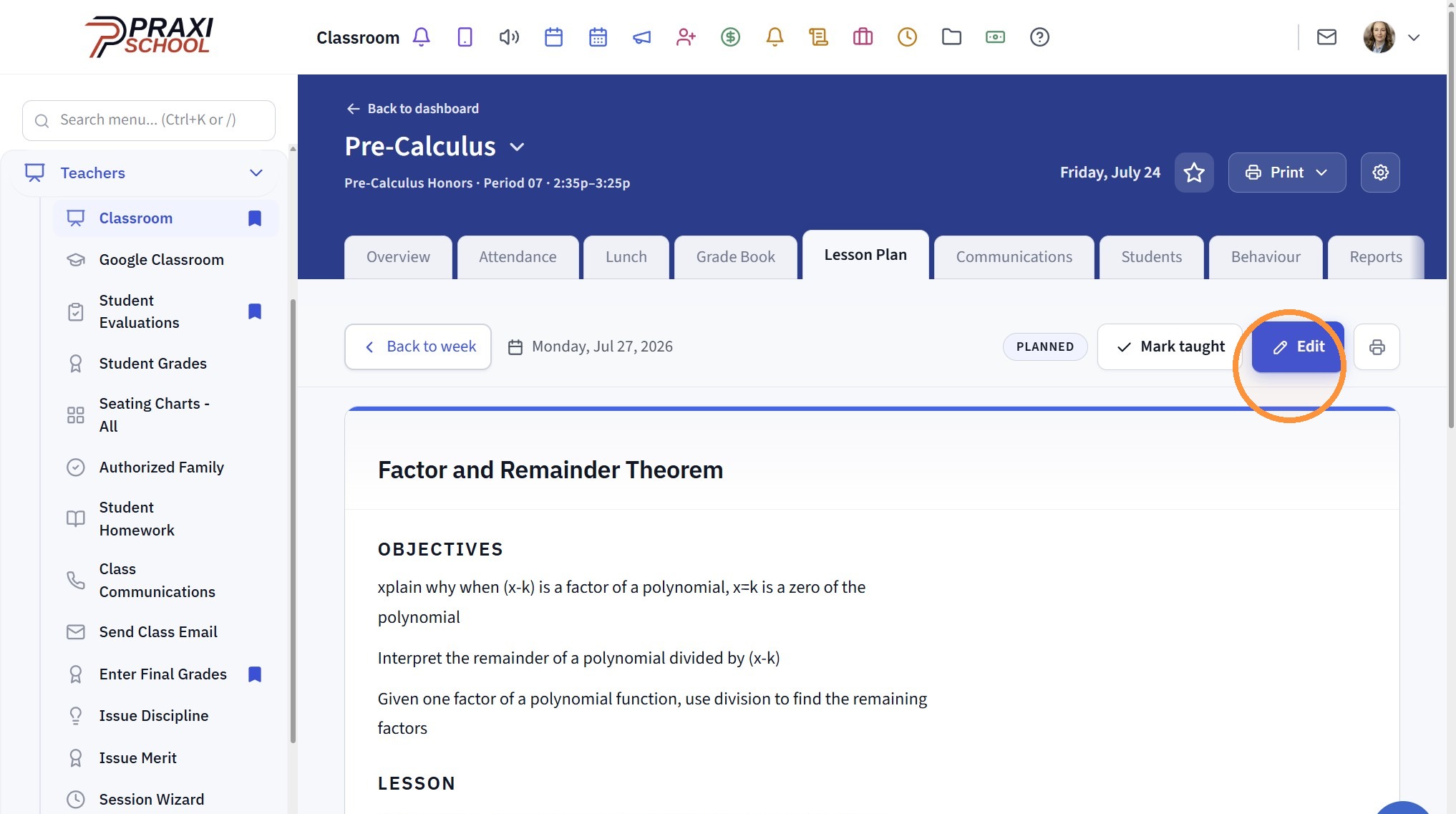
6. Edit the Lesson Plan
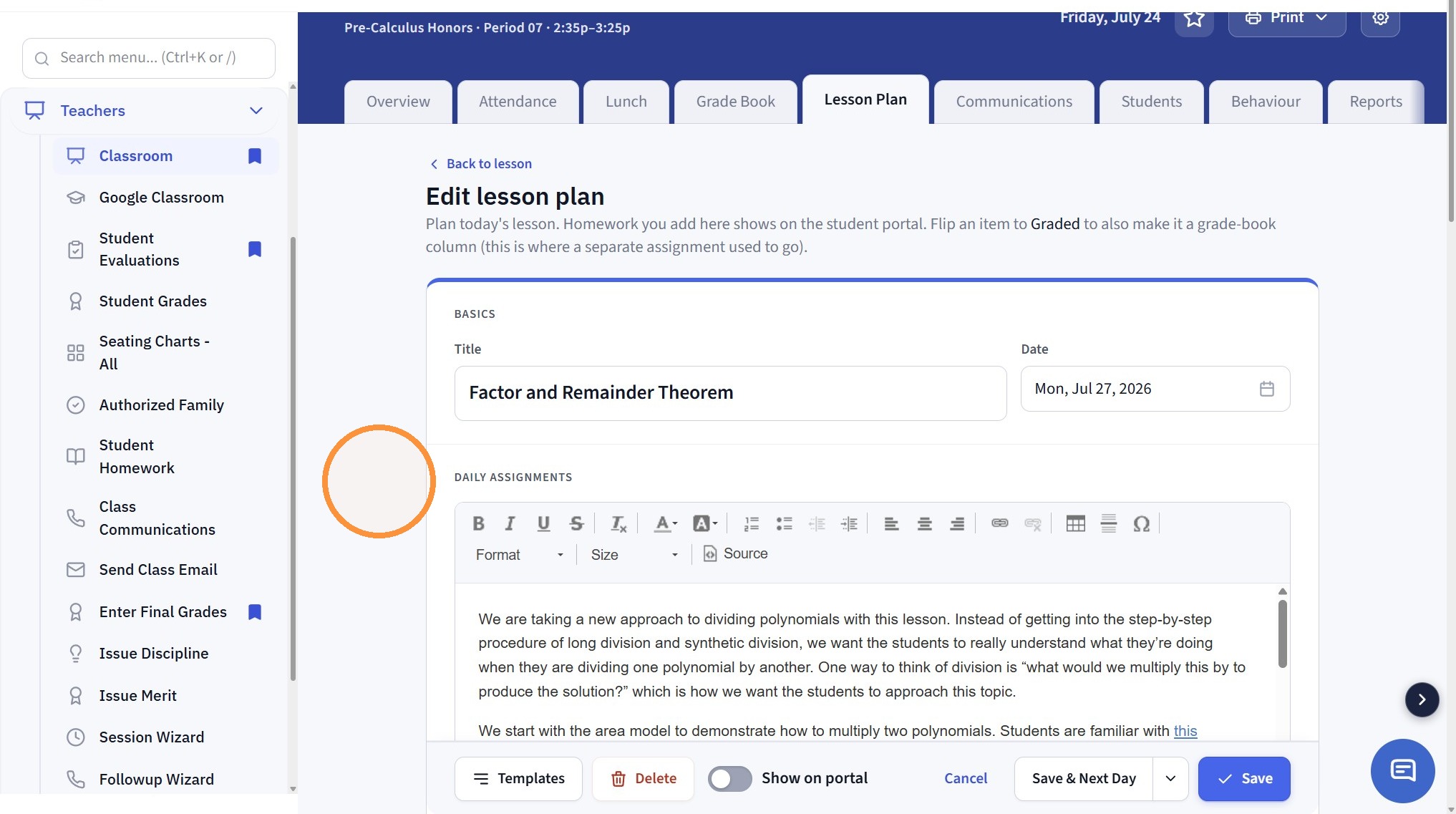
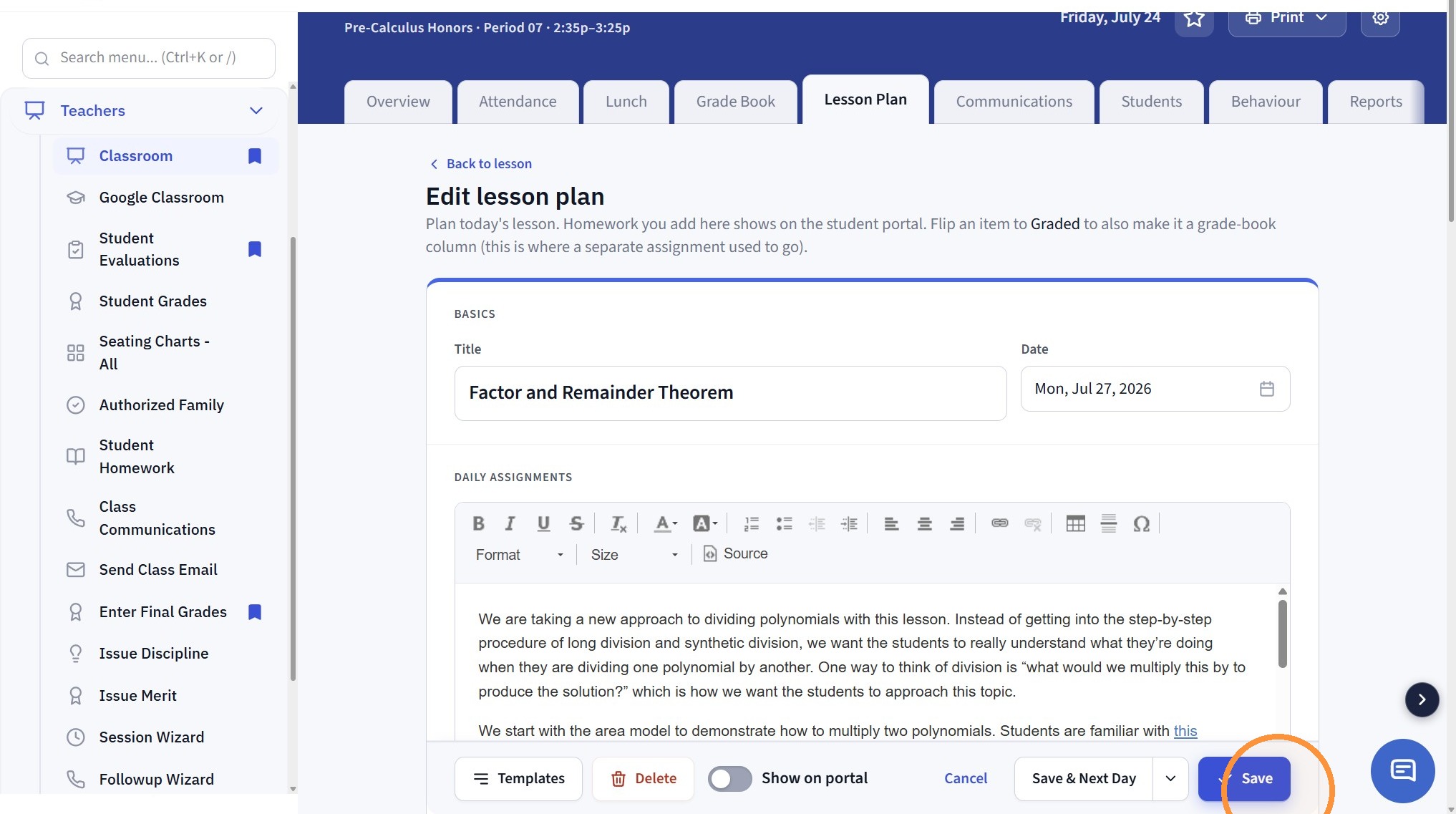
7. Click "Save"
Related Articles
Editing a Lesson Plan
1. Click "Teachers" 2. Click "Classroom" 3. Click "Open" 4. Click "Lesson Plan" 5. Click on Lesson Plan 6. Click "Edit" 7. Edit Lesson Plan 8. Click "Save"Nudging Lesson Plans
Nudging Lesson Plans Nudging Lesson Plans can be used to move Lesson Plans forward after missing school days. 1. Log into PraxiSchool 2. Click "Teachers" 3. Click "Classroom" 4. Select Class 5. Click "Lesson Plans" 6. Click "Nudge" 7. Select Show My ...Printing Multiple Class Lesson Plans
1. Click "Teachers" 2. Click "Classroom" 3. Select the Teacher from the For Staff dropdown menu 4. Click "Lesson Plans" 5. Click "Print" 6. Click "Print options…" 7. Click "From To Layout GridWeek at a glance Full contentEvery lesson in detail ...Copying Lesson Plans From Class to Class
Copying Lesson Plans From Class to Class Copy Lesson Plans from one Class to another Class in the Same School Year or from a Previous School Year 1. Log into PraxiSchool 2. Click "Teachers" 3. Click "Classroom" 4. Select Class to Copy Lesson Plans ...Batch Tag and Batch Edit Tags
Batch Tag and Batch Edit Tags Batch Tagging 1. Log into PraxiSchool 2. Navigate to Database Screen (i.e. Students, Staff, AR, Family, etc.) 3. Click "Actions" 4. Click "Batch Tag" 5. Set the Parameters for Tagging the Files 6. Click "Tag" Option 7. ...