Viewing Send Email History
1. Click "Admin"
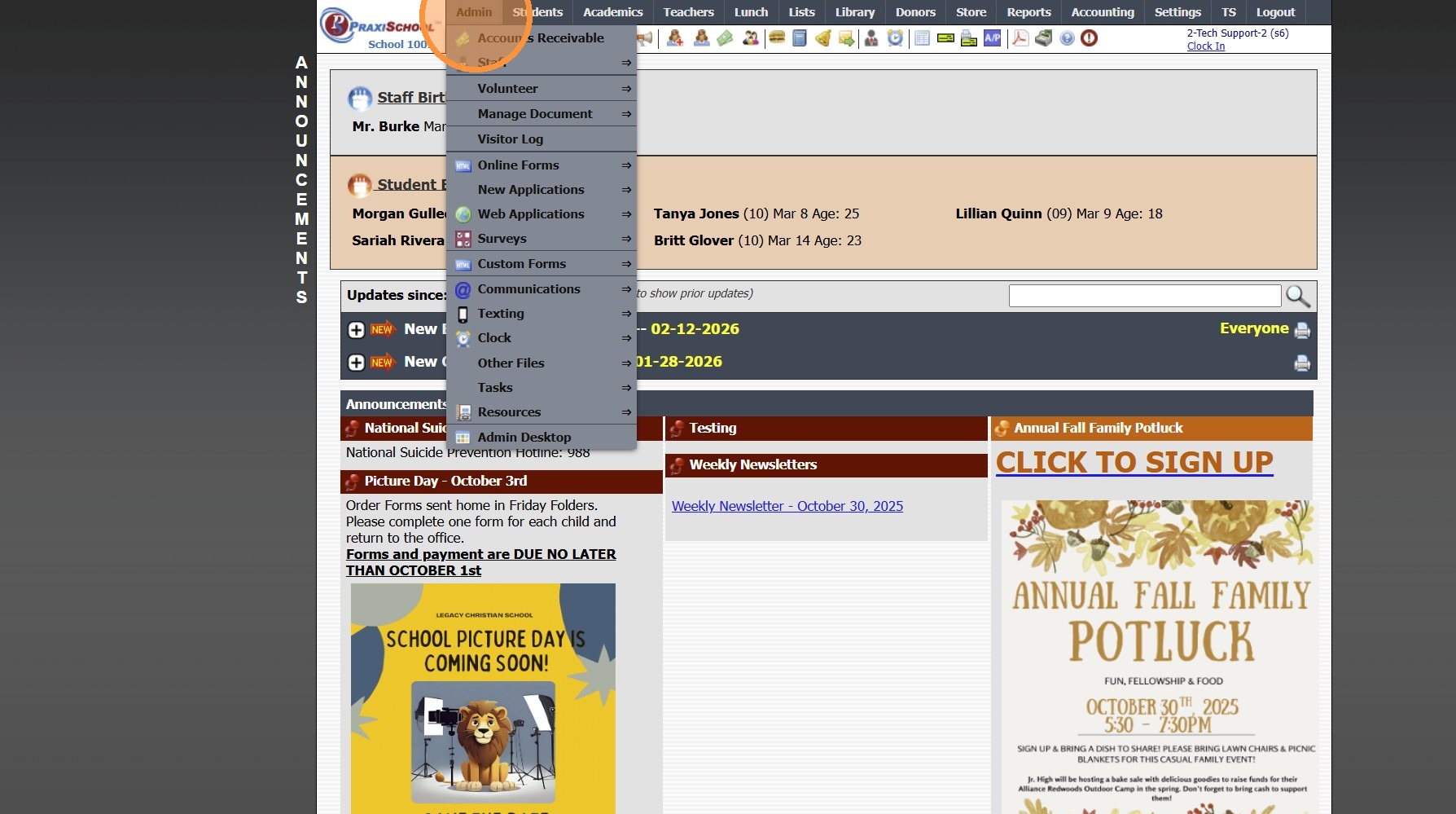
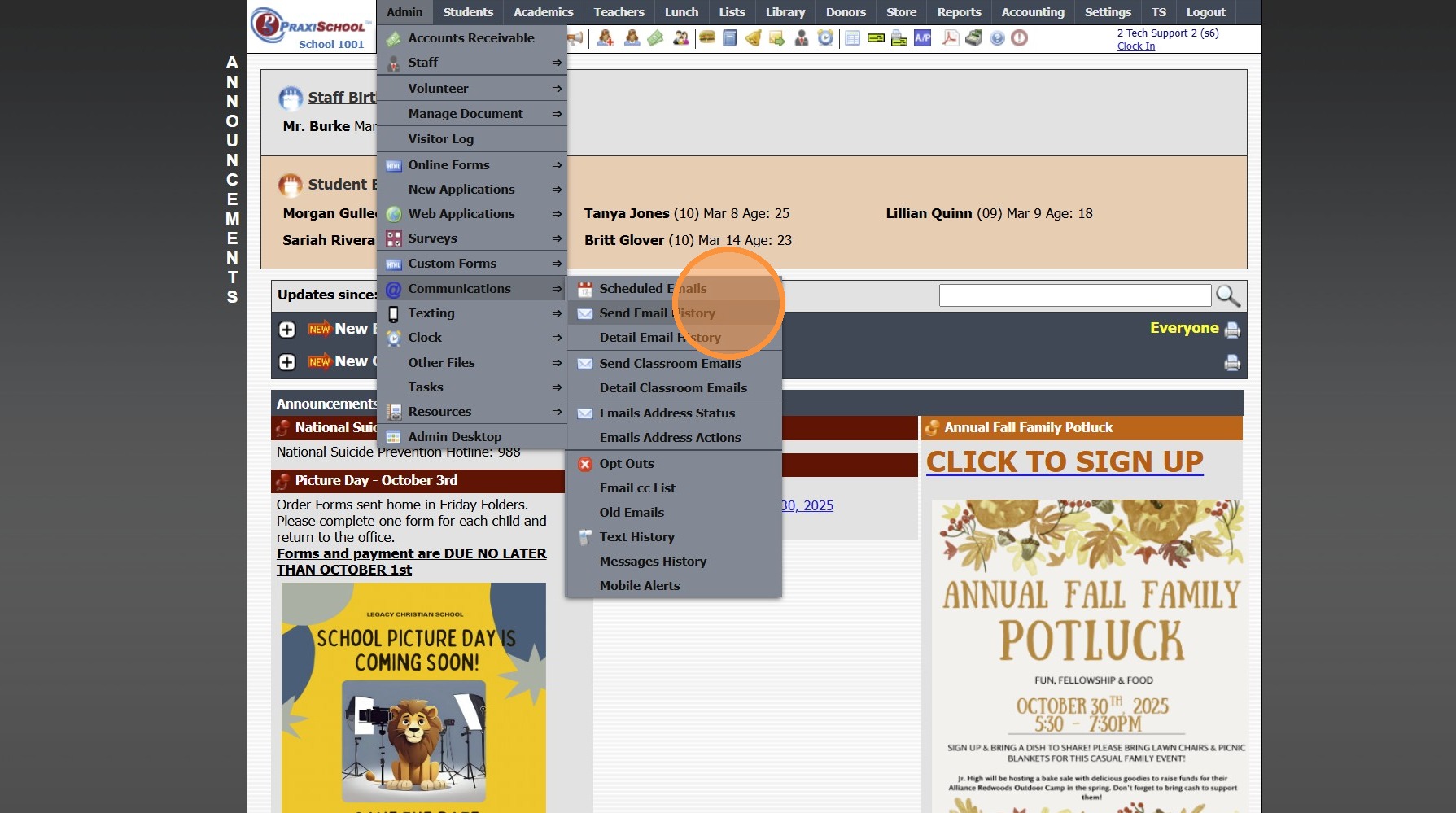
2. Click "Communications"

3. Click "Send Email History"
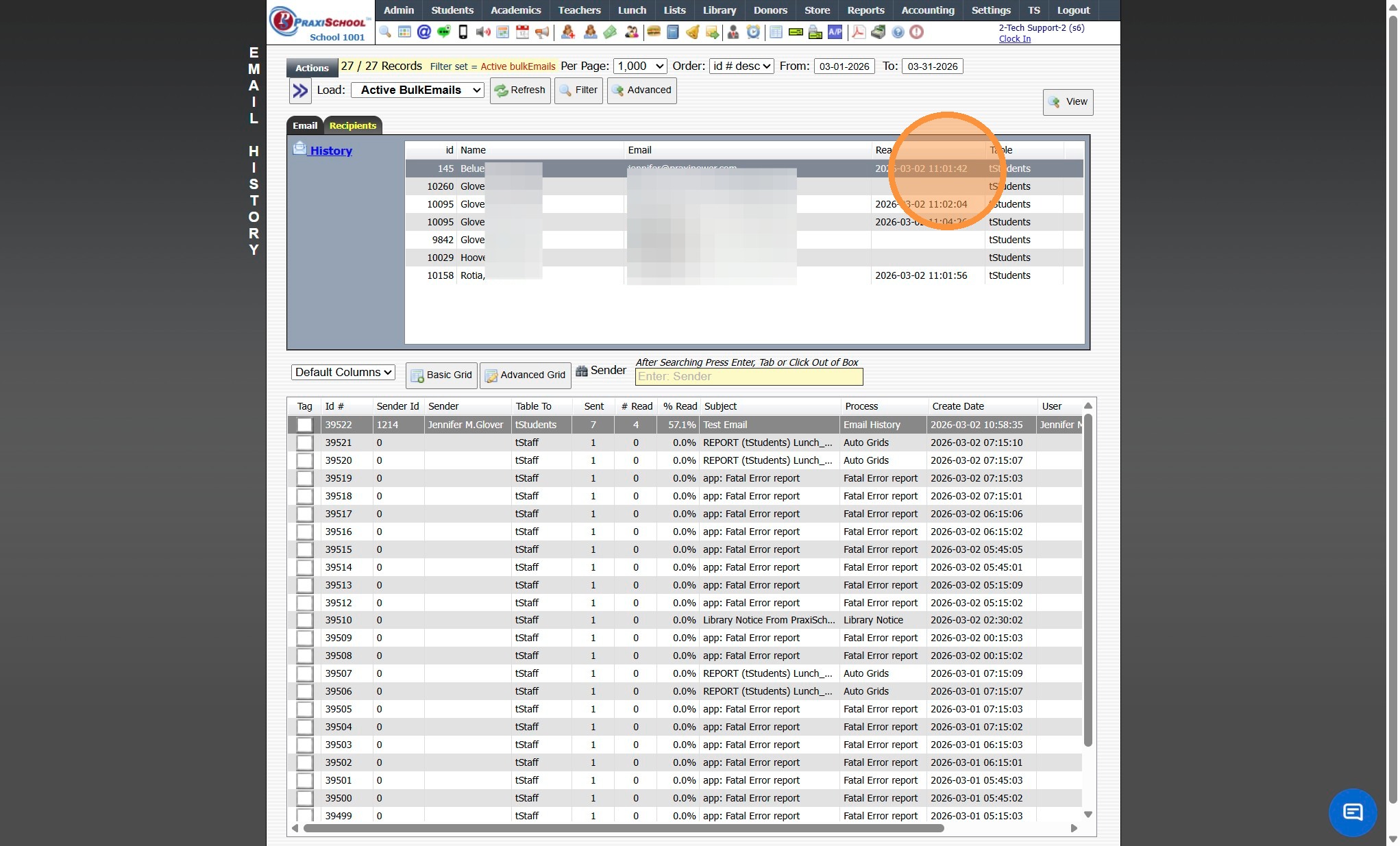
4. Select Email

5. Number of Emails Sent/Read & the Percent of Sent Email Read is Visible

6. Click "Recipients"

7. Under the Recipient tab, the Last Date & Time the Email was Read by Recipients is Visible
1000.10.2
Related Articles
Viewing Detailed Email History
1. Click "Admin" 2. Click "Communications" 3. Click "Detail Email History" 4. Set Start & End Dates 5. Click "Refresh" 6. Detail Email History is Visible by Recipient 1000.10.3Viewing Email Opt Outs
1. Click "Admin" 2. Click "Communications" 3. Click "Opt Outs" 4. Set Date Range 5. Click "Refresh" 6. All Email Opt Outs in selected Date Range will Populate 1000.10.8Sending a Schoolwide Email
Sending a Schoolwide Email 1. Log into PraxiSchool 2. Click the "@" Icon (@ is the Schoolwide Email icon) 3. Click Staff to Send to All Staff 4. Click A/R to Send to All AR 5. Click All to Send to All Family Files 6. Click Selected to Selected and ...Sharing Email Templates
Sharing Email Templates 1. Login to PraxiSchool 2. Go to File where emailed is copied from 3. Click "Actions" 4. Click "Send Email" 5. Click "Source" 6. Select & Copy All Source Screen Data 7. Click "Finished" After Copying Source 8. Click "Send ...Viewing Site User Data
Viewing Site User Data 1. Click "Admin" 2. Click "Web Applications" 3. Click "Site Users" 4. Select Site User 5. Site User Name, Email, Relationship to Student and Phone Numbers are visible under the Name tab If the check box for Test Forms is ...