Sending a Long Text Message
The Long Message feature can be used to send Text Messages that are longer than the allowed number of characters to avoid sending multiple text messages.
1. Click "Admin"
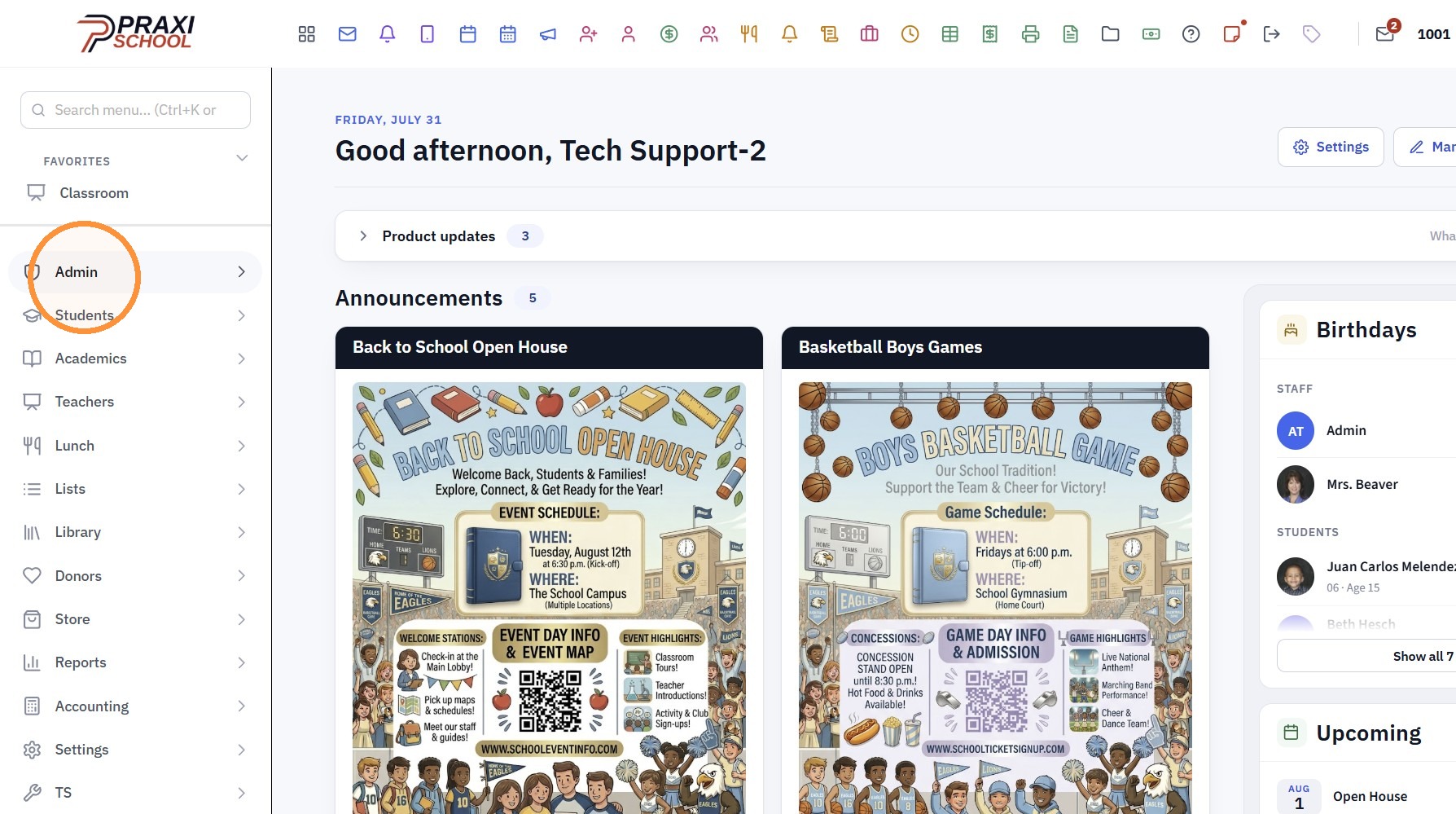
2. Click "Texting"
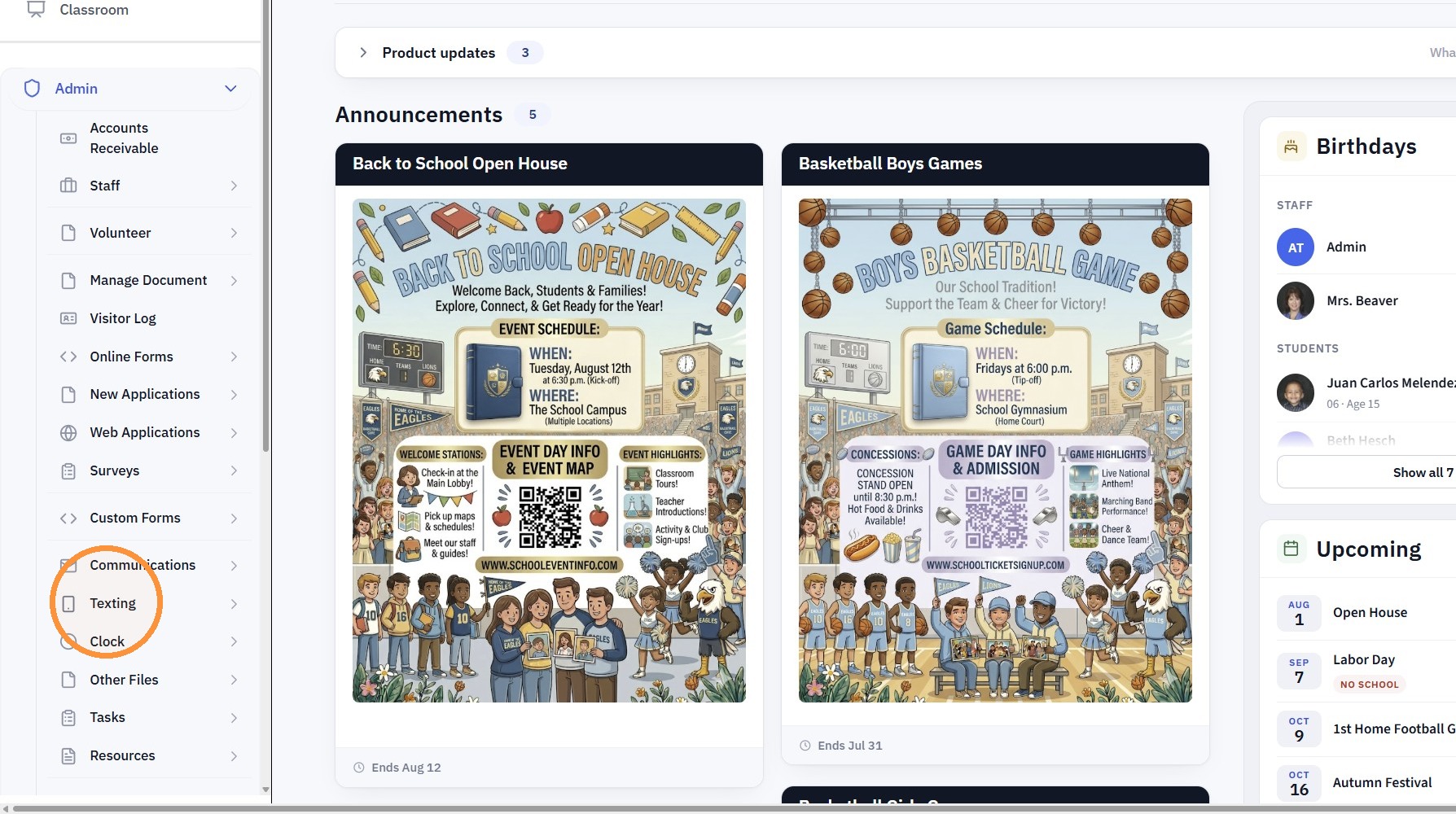
3. Click "Send Text Message"
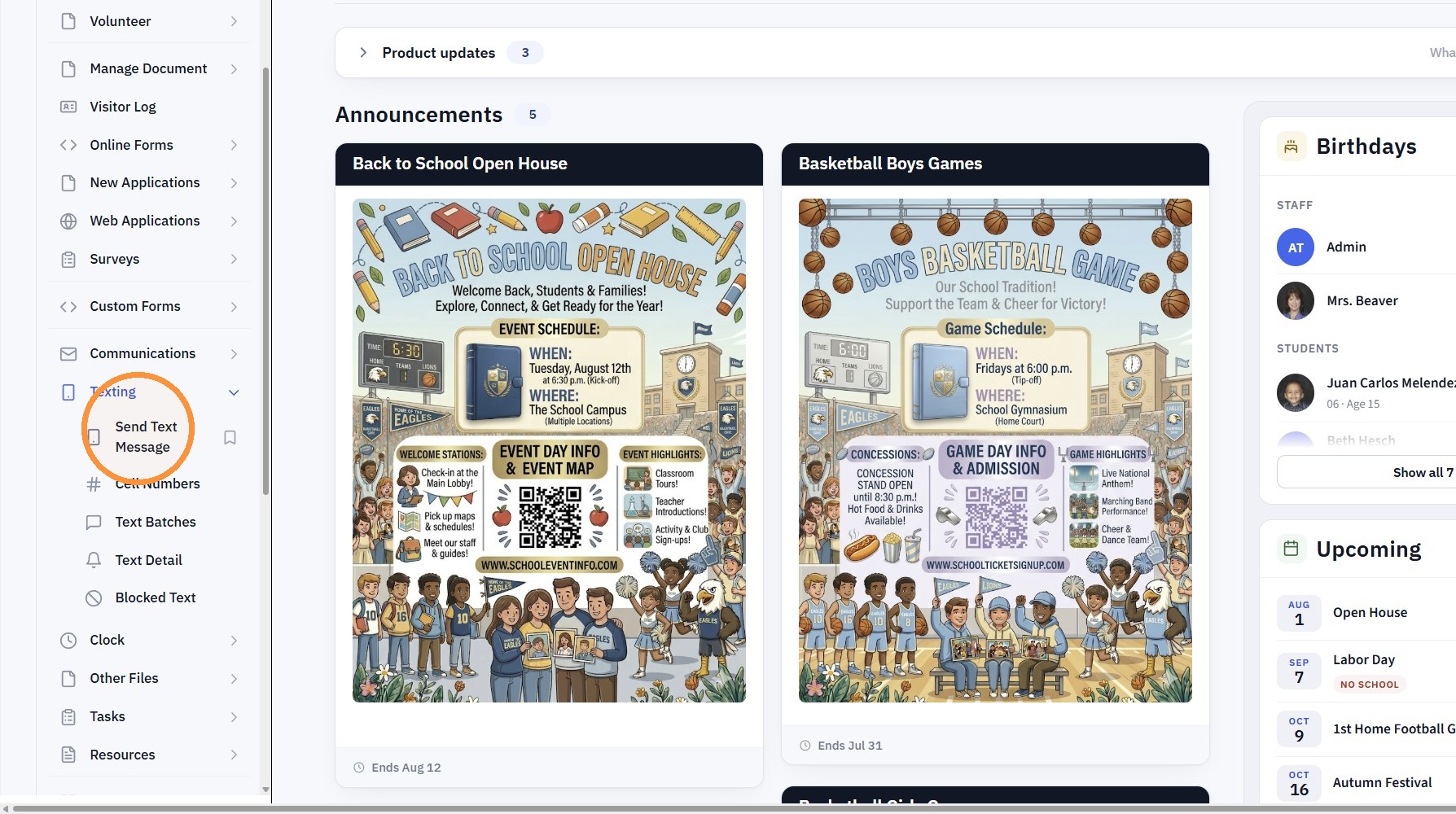
4. Click "Add"
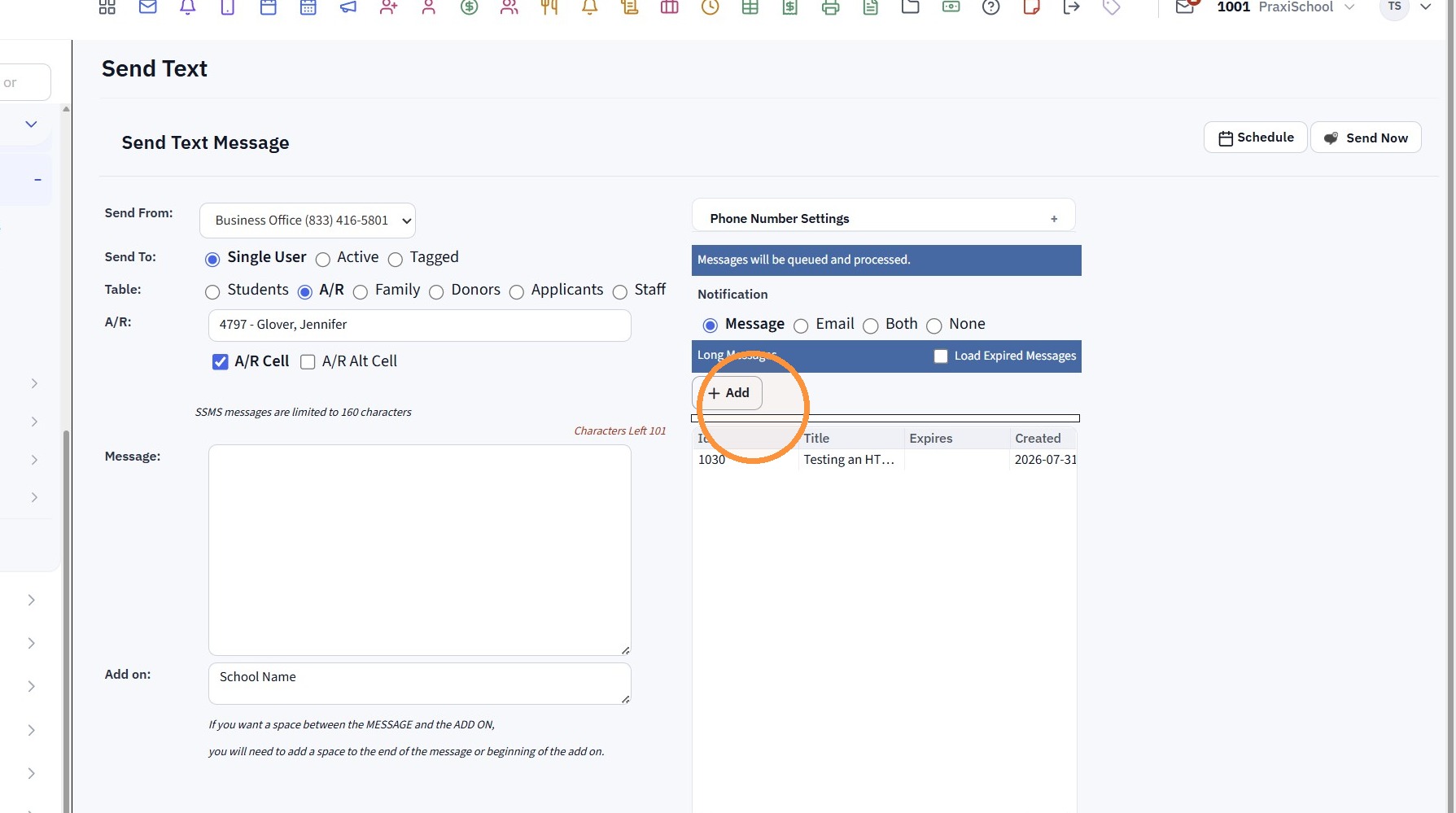
5. Enter the Title for the Long Message
(An Expiration Date can be Added but is not required)
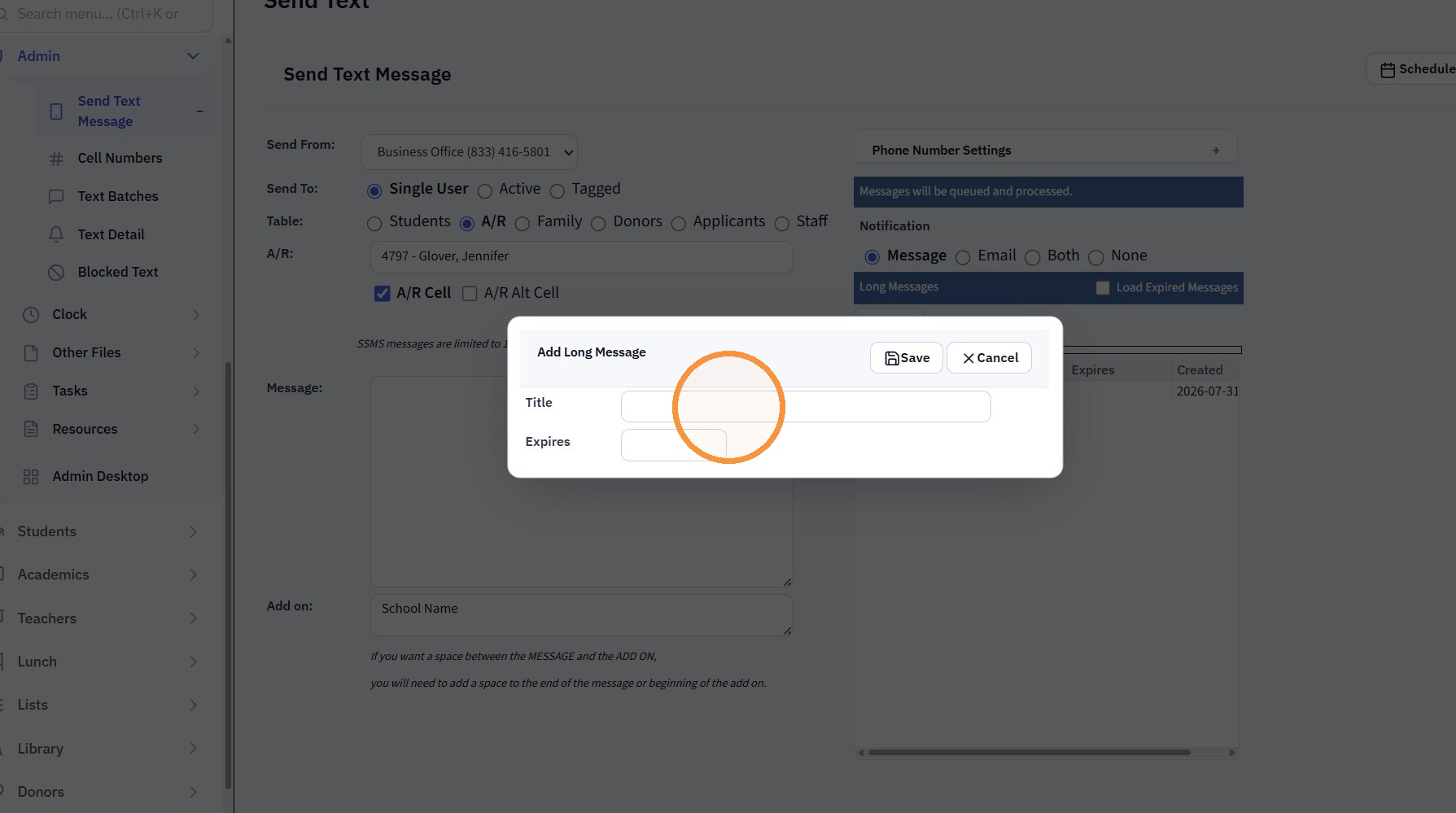
6. Click "Save"
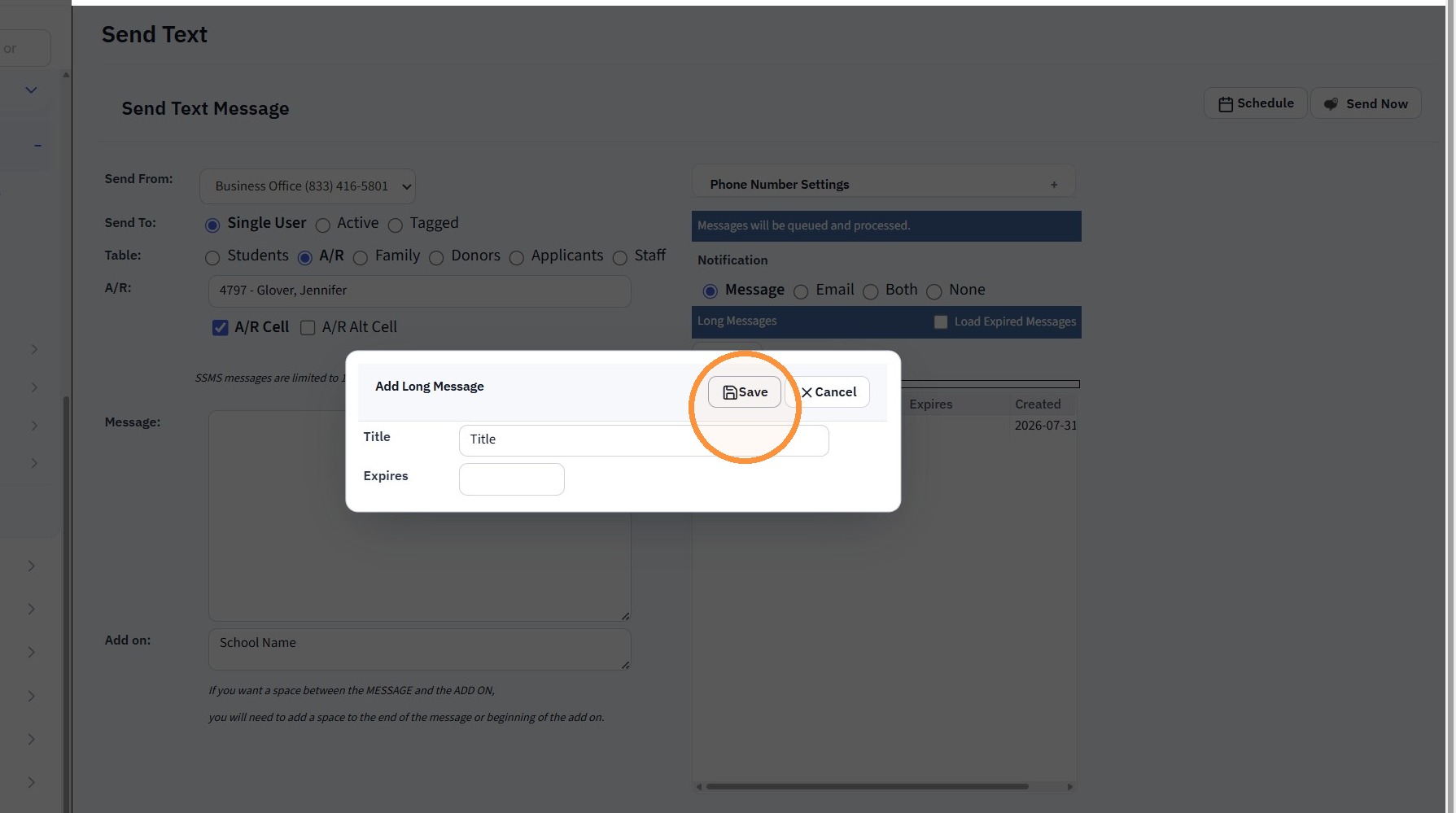
7. Click on the Title
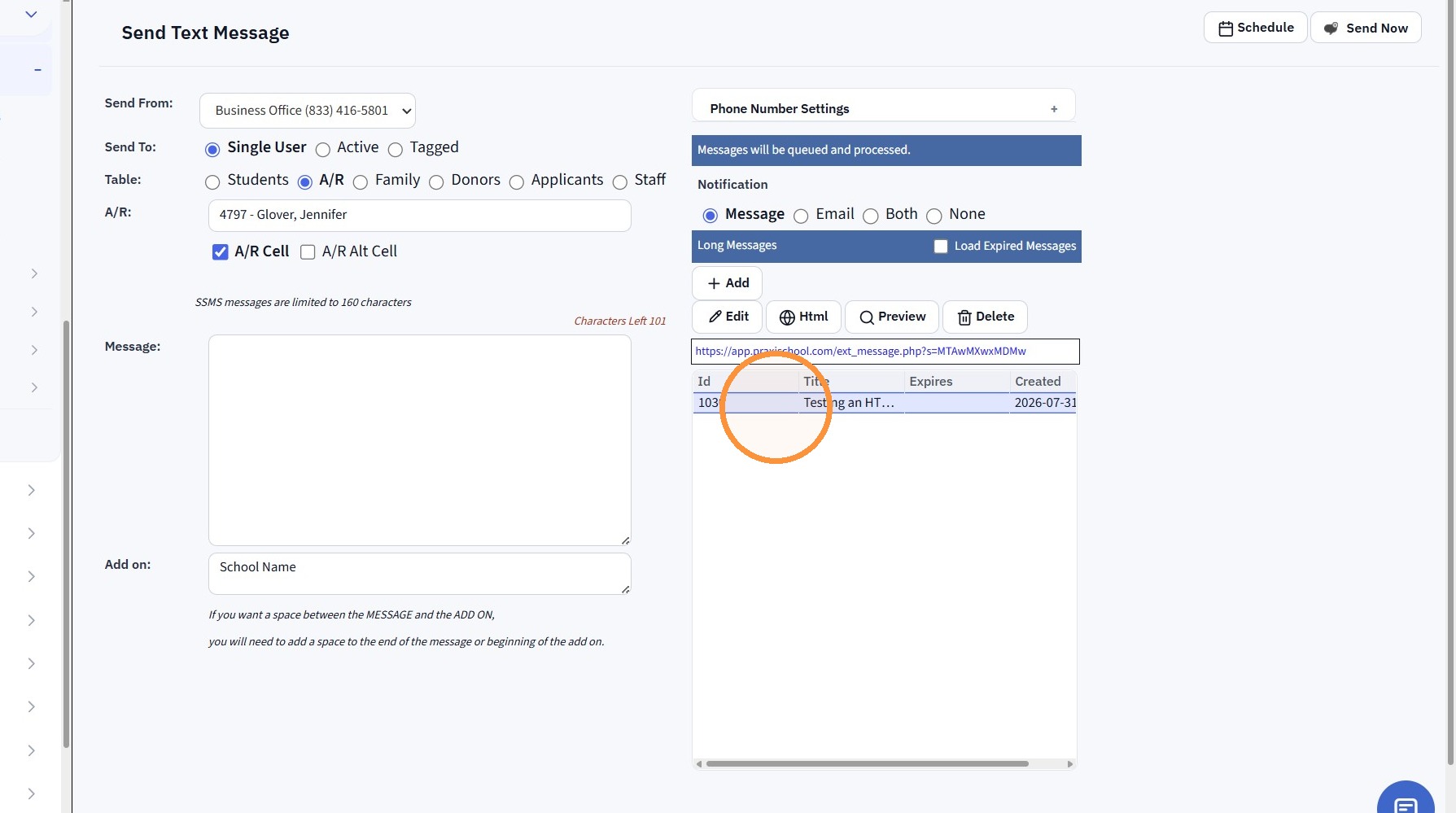
8. Click "Html"
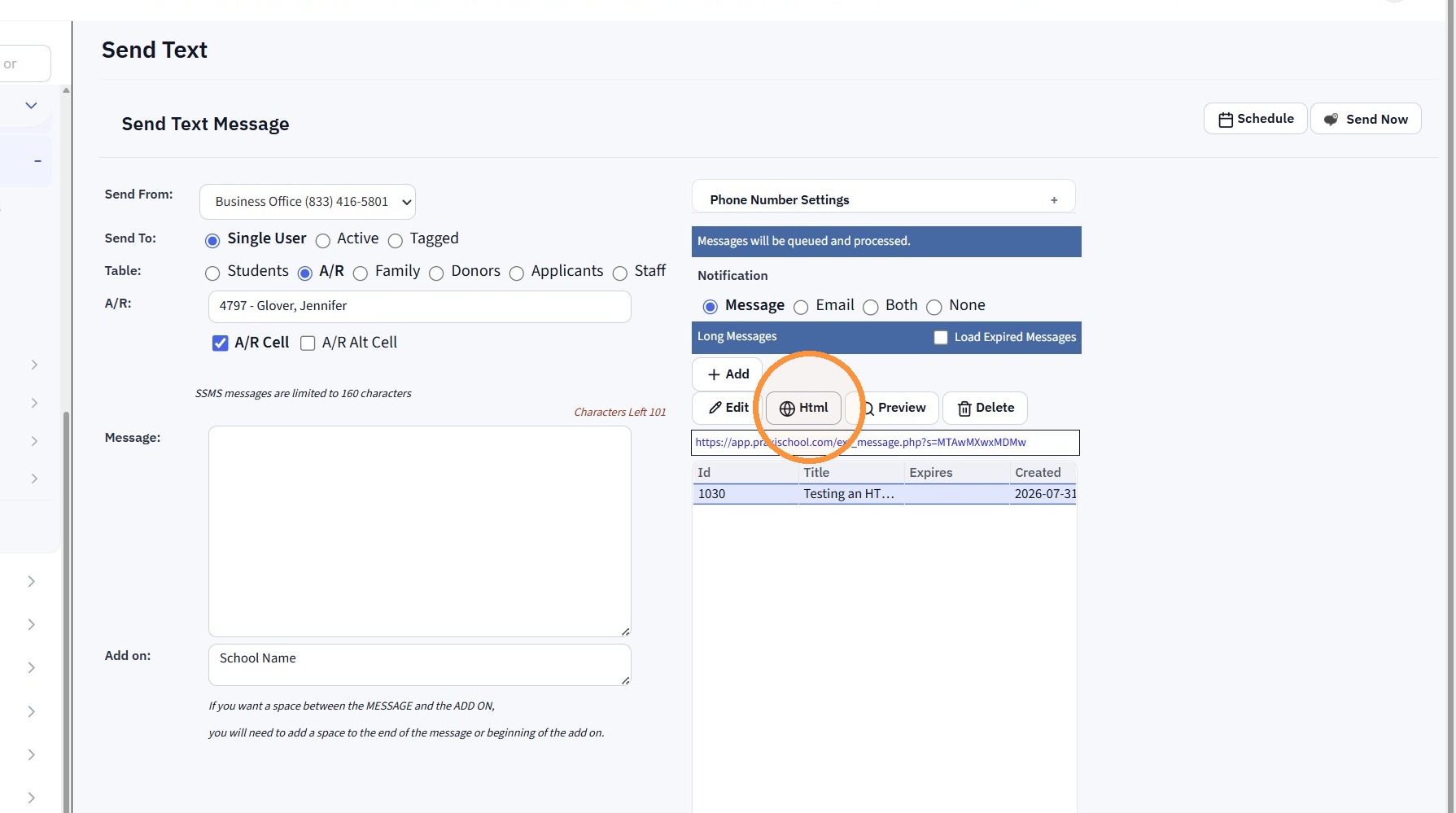
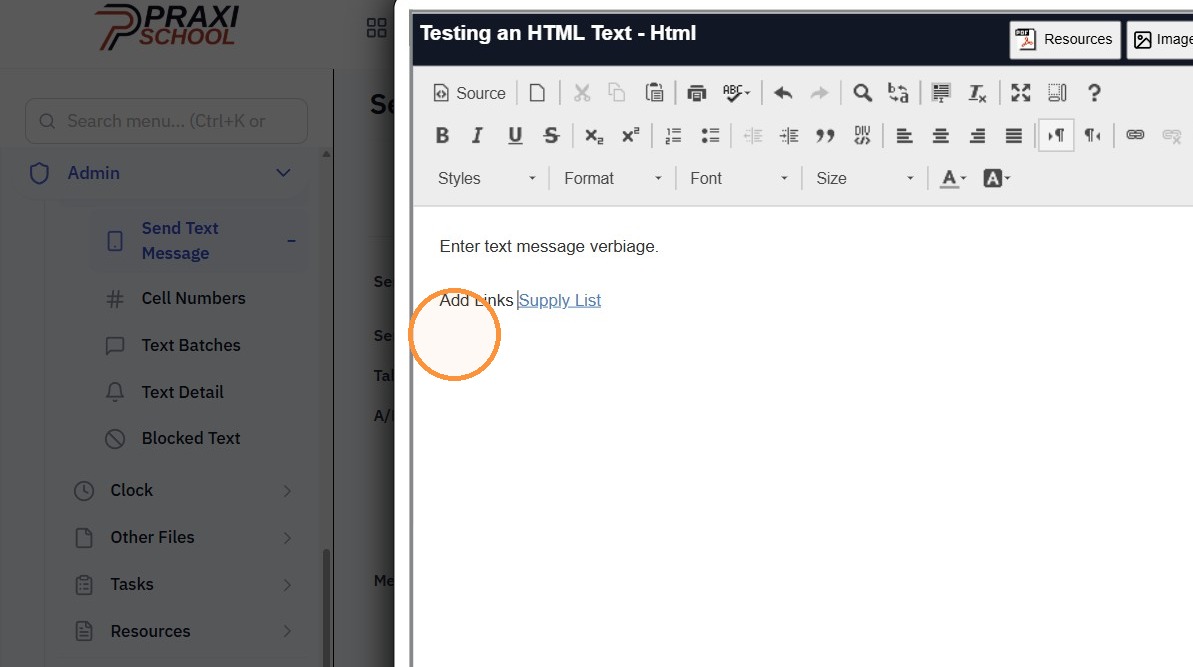
9. Enter the Long Message (Links can be added as well)
PLEASE NOTE: Links that are added will show the full link address.
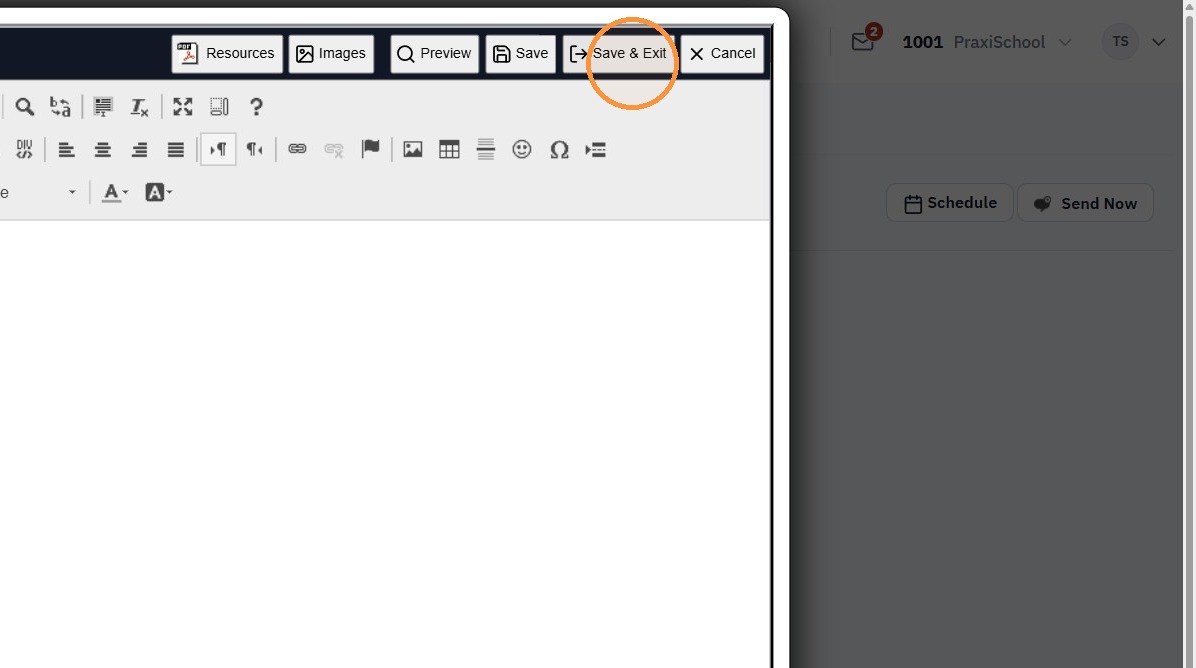
10. Click "Save & Exit"
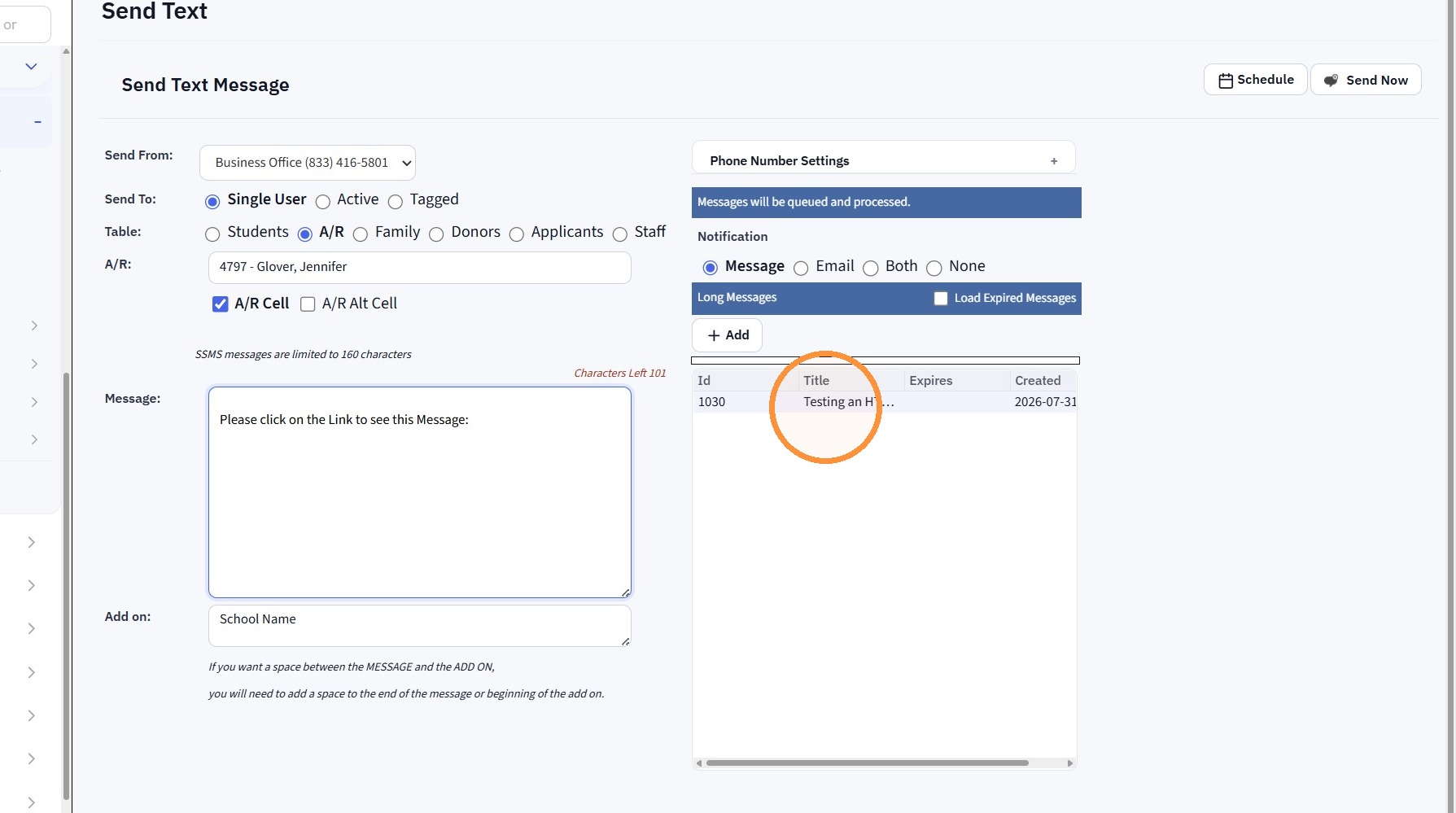
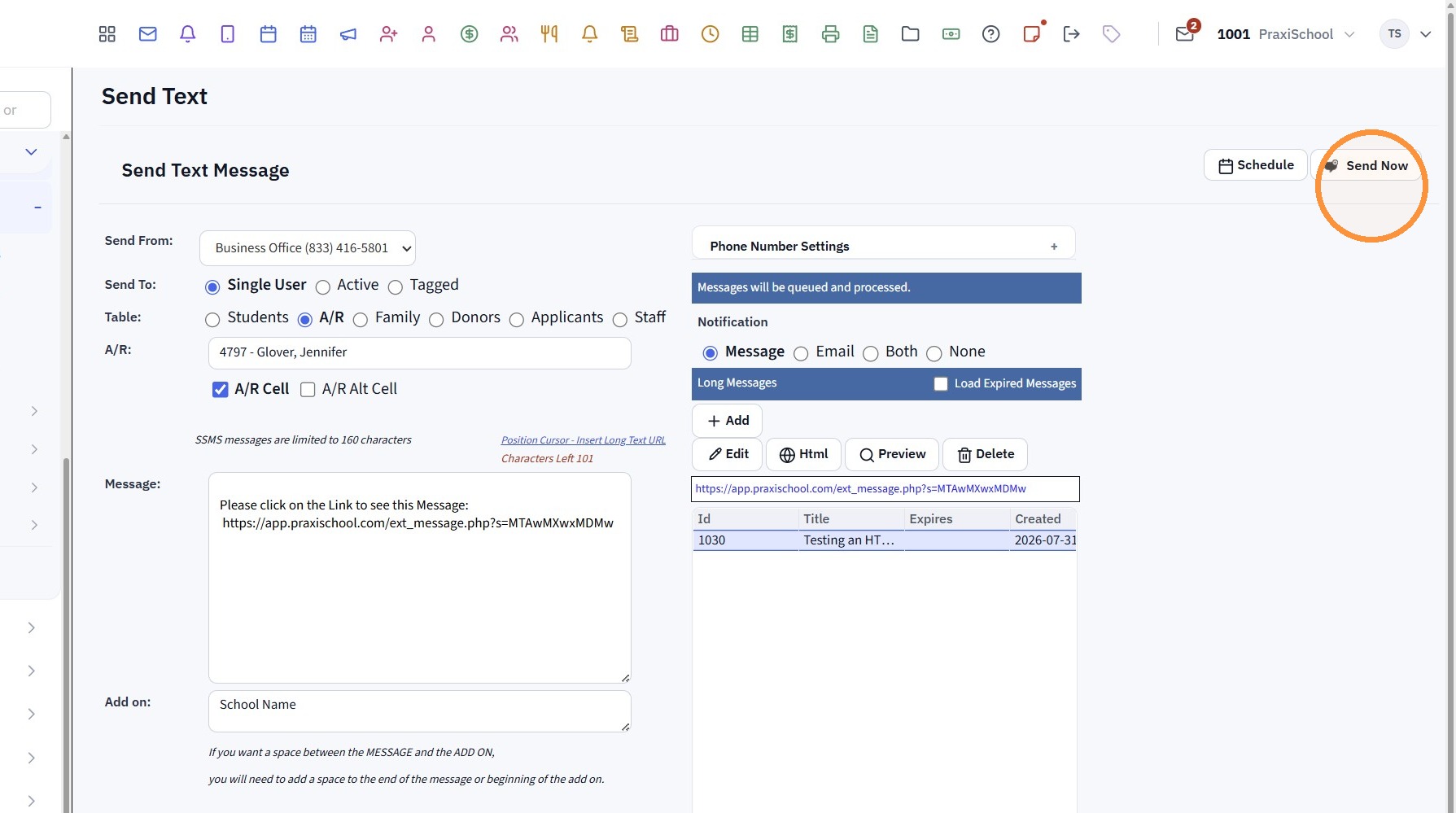
11. Click on the Long Message Title
12. A Short Message can be added in the Message box (Optional)
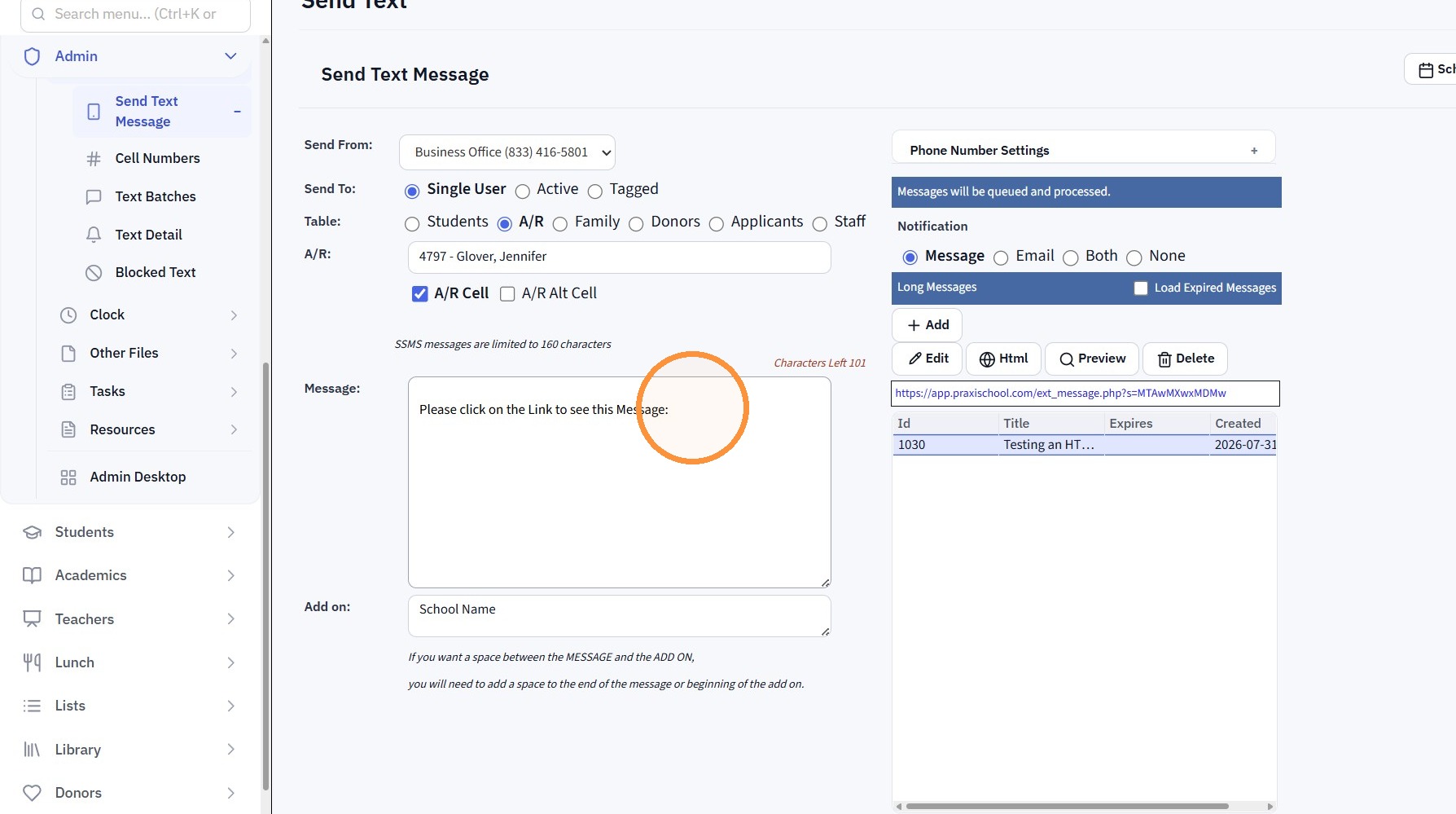
13. Click "Position Cursor - Insert Long Text URL" to Add the Long Message Link
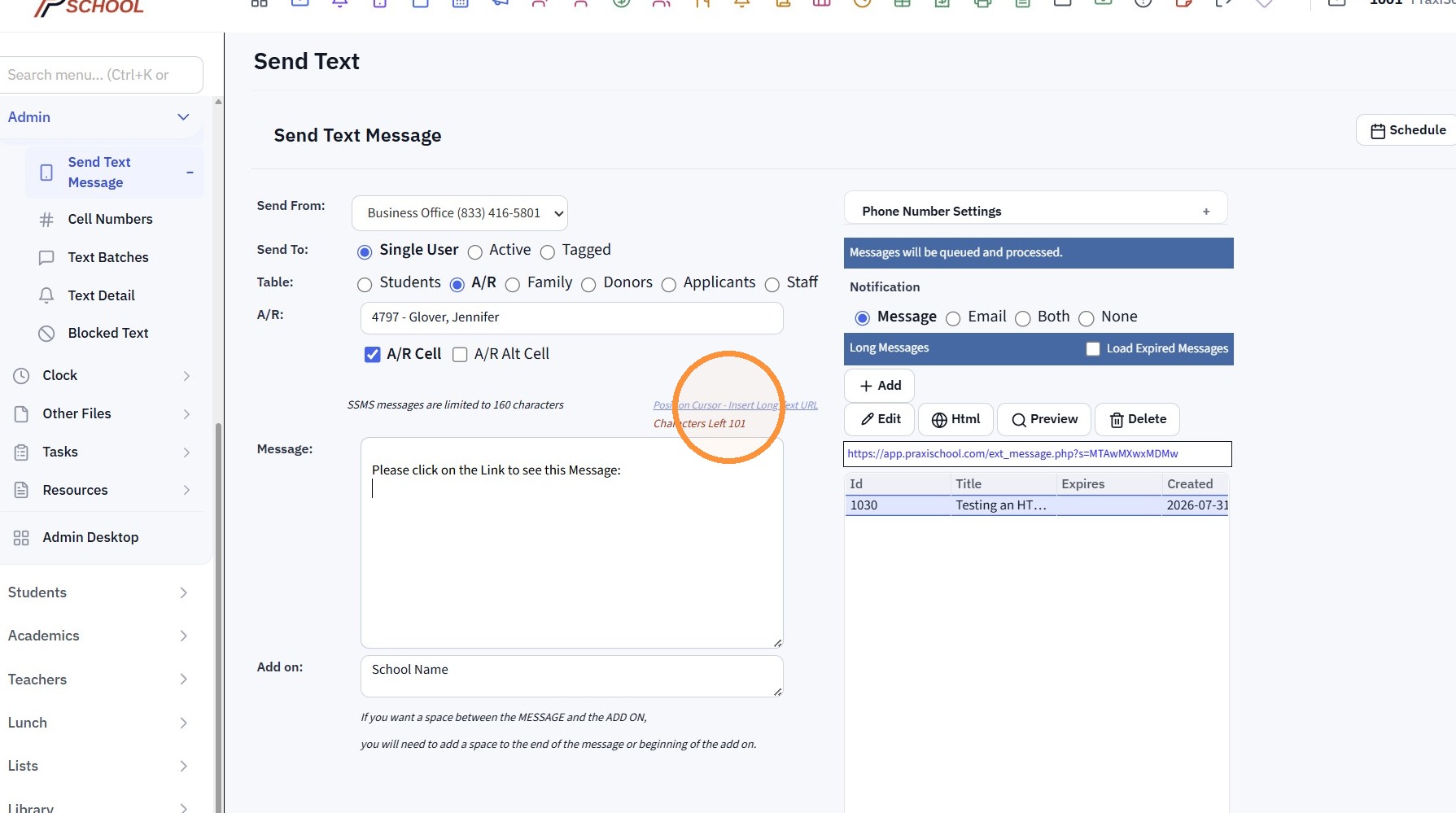
14. Click "Send Now"
Related Articles
Text Details
Text Details 1. Click "Admin" 2. Click "Texting" 3. Click "Text Detail" 4. Select Text Message to View 5. View Text Data & Status 6. View Sent Result 7. 1000.11.4Sending Messages to A/R / Account Type
Sending Messages to A/R / Account Type 1. Click on PraxiSchool Icon to Open Messages Screen 2. Click the "+" Icon 3. Select "AR" Toggle Sending a Message to a Single AR 4. Select AR to Send Message To 5. Click "Send Message" 6. Enter Message 7. Click ...Sending Messages to Staff / Staff Groups
Sending Messages to Staff / Staff Groups 1. Click on PraxiSchool Icon to Open Messages Screen 2. Click the "+" Icon 3. Select "Staff" Toggle Sending a Message to a Single Staff Member 4. Tag Staff to Send Message To 5. Click "Send Message" 6. Enter ...Setting Message Alert Tones
Setting Message Alert Tones 1. Click "Settings" 2. Click "User Settings" 3. Click "Message Alerts" 4. Select Volume Preference for Message Alerts 5. Select Message Alerts Sound Preference 6. Select Volume Preference for Urgent Message Alerts 7. ...Sending a Schoolwide Email
Sending a Schoolwide Email 1. Log into PraxiSchool 2. Click the "@" Icon (@ is the Schoolwide Email icon) 3. Click Staff to Send to All Staff 4. Click A/R to Send to All AR 5. Click All to Send to All Family Files 6. Click Selected to Selected and ...