Rosters - Year End Routines
1. Click "Academics"
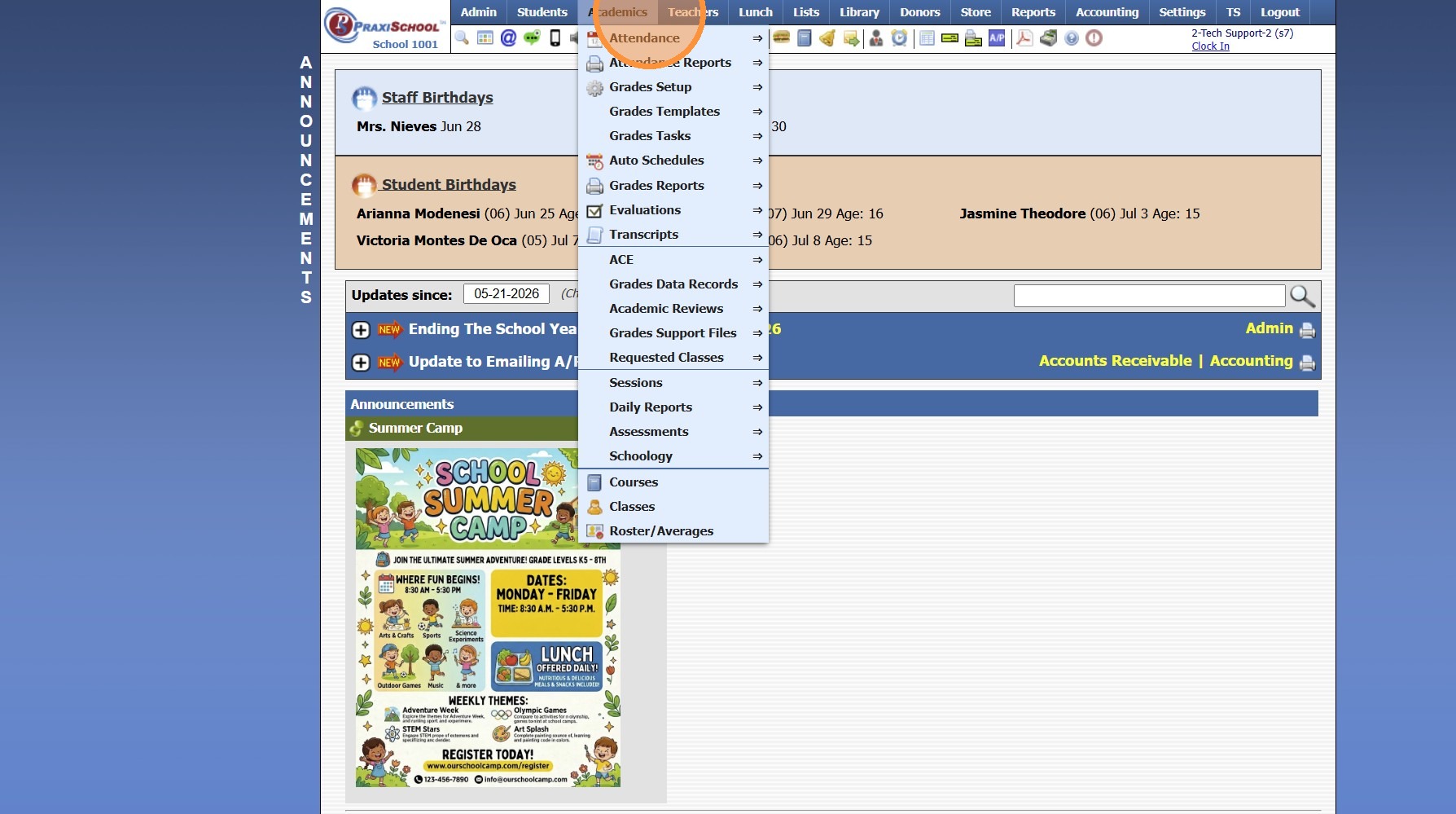
2. Click "Roster/Averages"
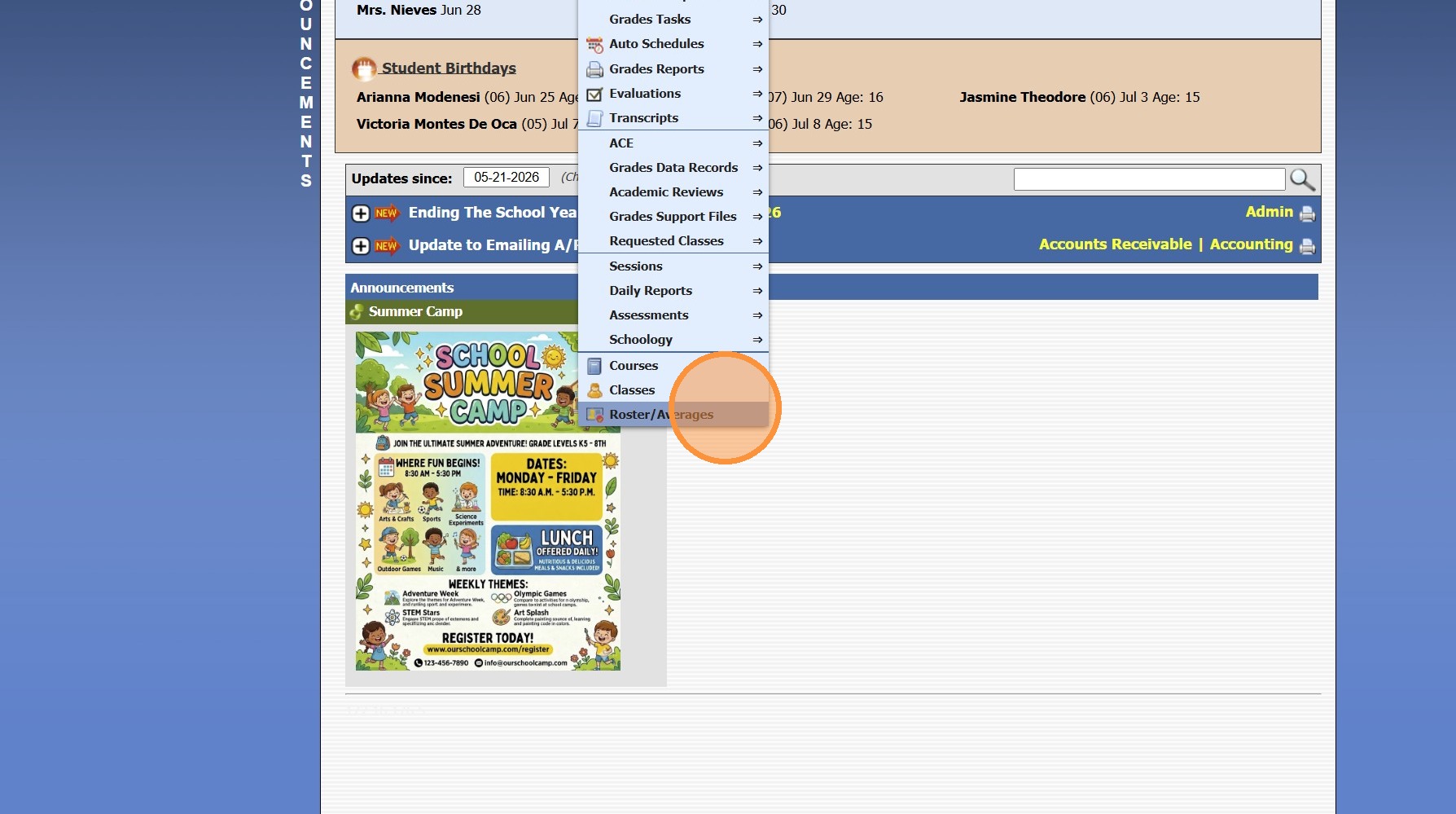
3. Click "Actions"
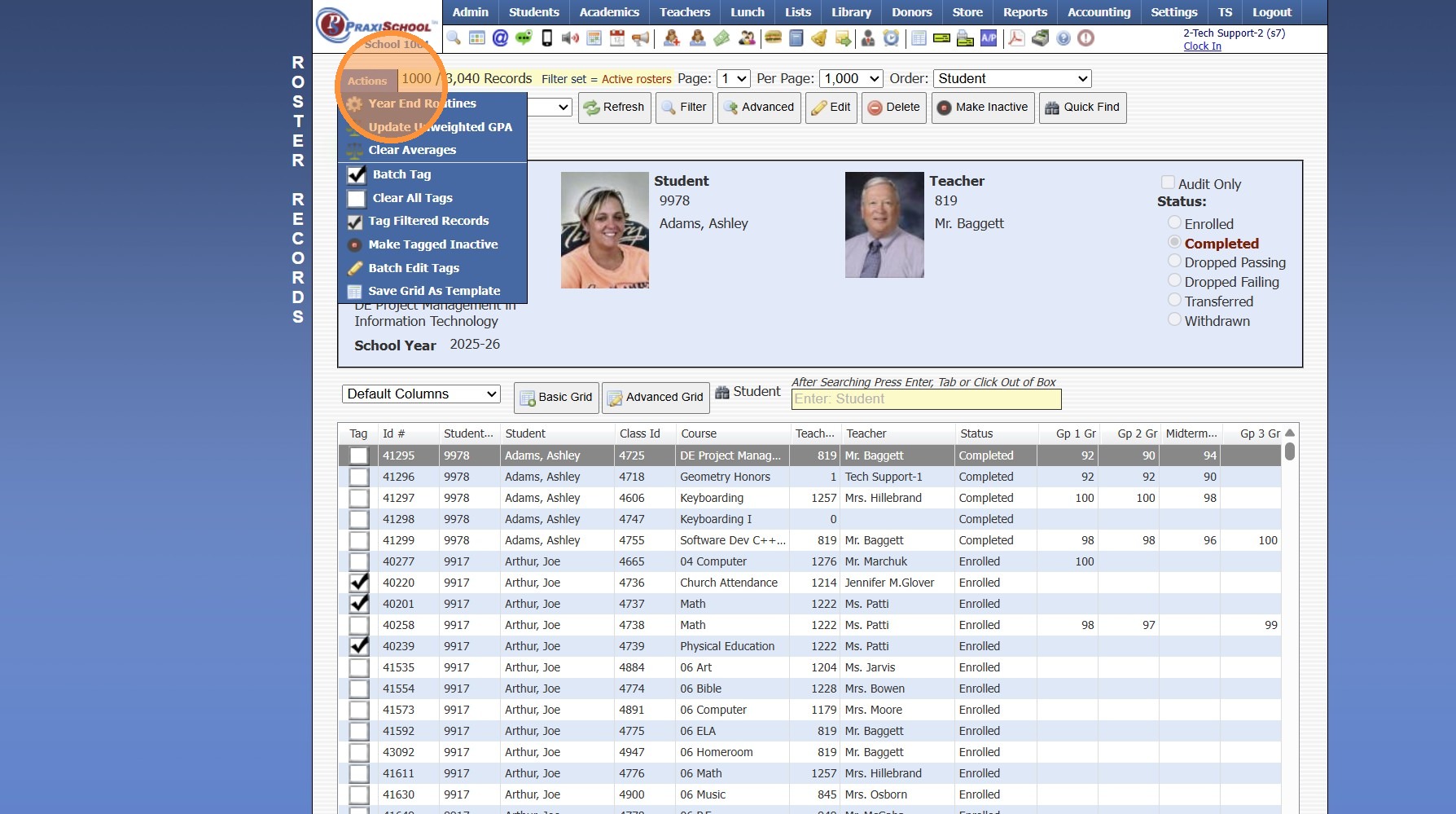
4. Click "Year End Routines"
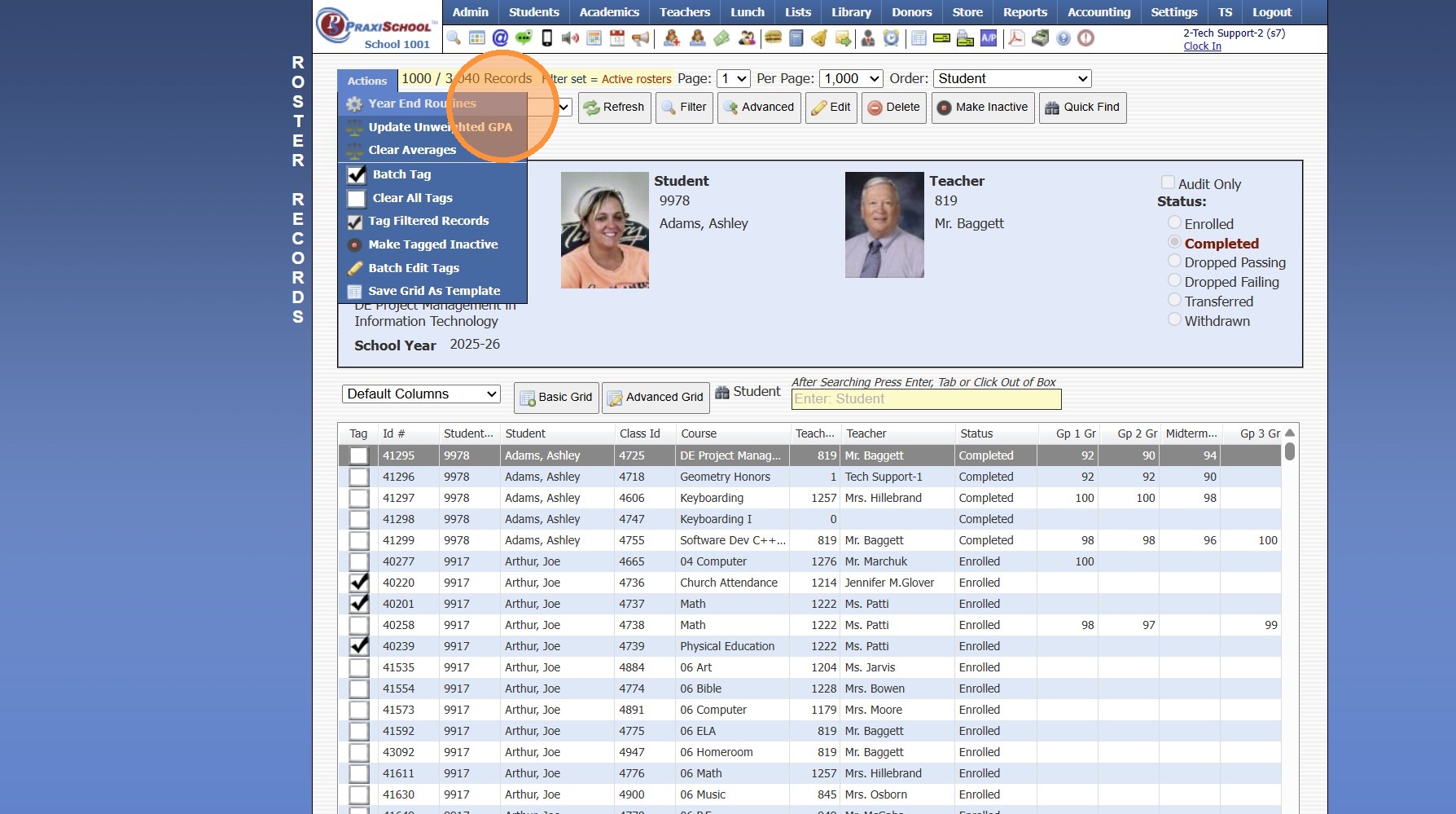
5. Select the School Year
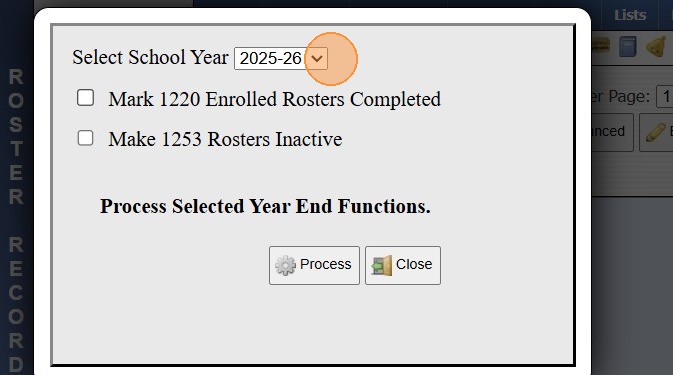
6. Check "Mark **** Enrolled Rosters Completed"
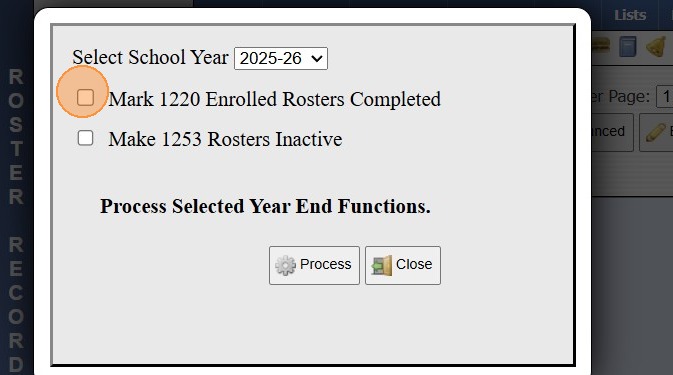
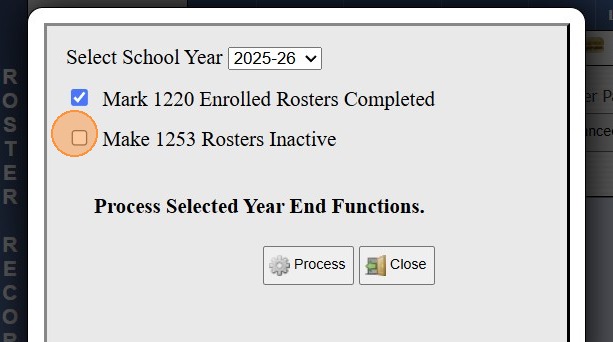
7. Check "Make **** Rosters Inactive"
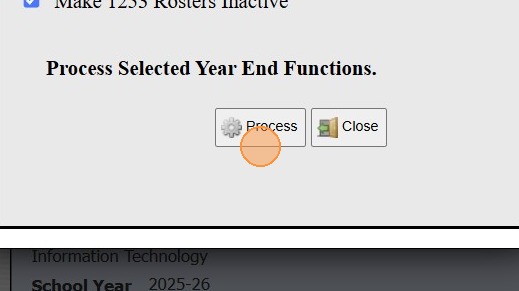
8. Click "Process"
2000.14.5
Related Articles
Session Close Tasks - Academic Tasks: Make Prior Year Rosters Inactive
1. Click "Academics" 2. Click "Roster/Averages" 3. Click "Actions" 4. Click "Year End Routines" 5. Select the School Year 6. Check "Mark **** Enrolled Rosters Completed" 7. Check "Make **** Rosters Inactive" 8. Click "Process" 9600.4.13Editing School Year Dates
1. Click "Lists" 2. Click "Enrollment" 3. Click "School Years" 4. Select School Year 5. Select Grade Period 6. Click "Edit" 7. Set Start & End Dates 8. Click "Post Grade Period" 3500.1.1.1Ending the School Year Procedures
Greetings from PraxiPower, Click to Watch Short Instructional Video As always, Ending your current school year is a key process youMUST do before moving to the next year. It is VERY IMPORTANT to close your current school year in Praxi and to “roll ...Online Forms Auto Start & End Dates
Online Forms Auto Start & End Dates 1. Click "Admin" 2. Click "Online Forms" 3. Click "Forms" 4. Select "Styles & Functionality" tab 5. Enter Auto Start & End Date and Time 1000.6.4Showing Current Year & Next Year Contracts on Portal
1. Click "Settings" 2. Click "Security Settings" 3. Click "Portal Access" 4. Select Parent Portal Access to Update 5. Click "Billing" Tab 6. Click "Edit" 7. Select All to show Current Year and Next Year Contracts 8. Click "Save" 1000.1.4.1