Marking a Test Form to Live
Example Re-Enrollment Form
1. Click "Admin"
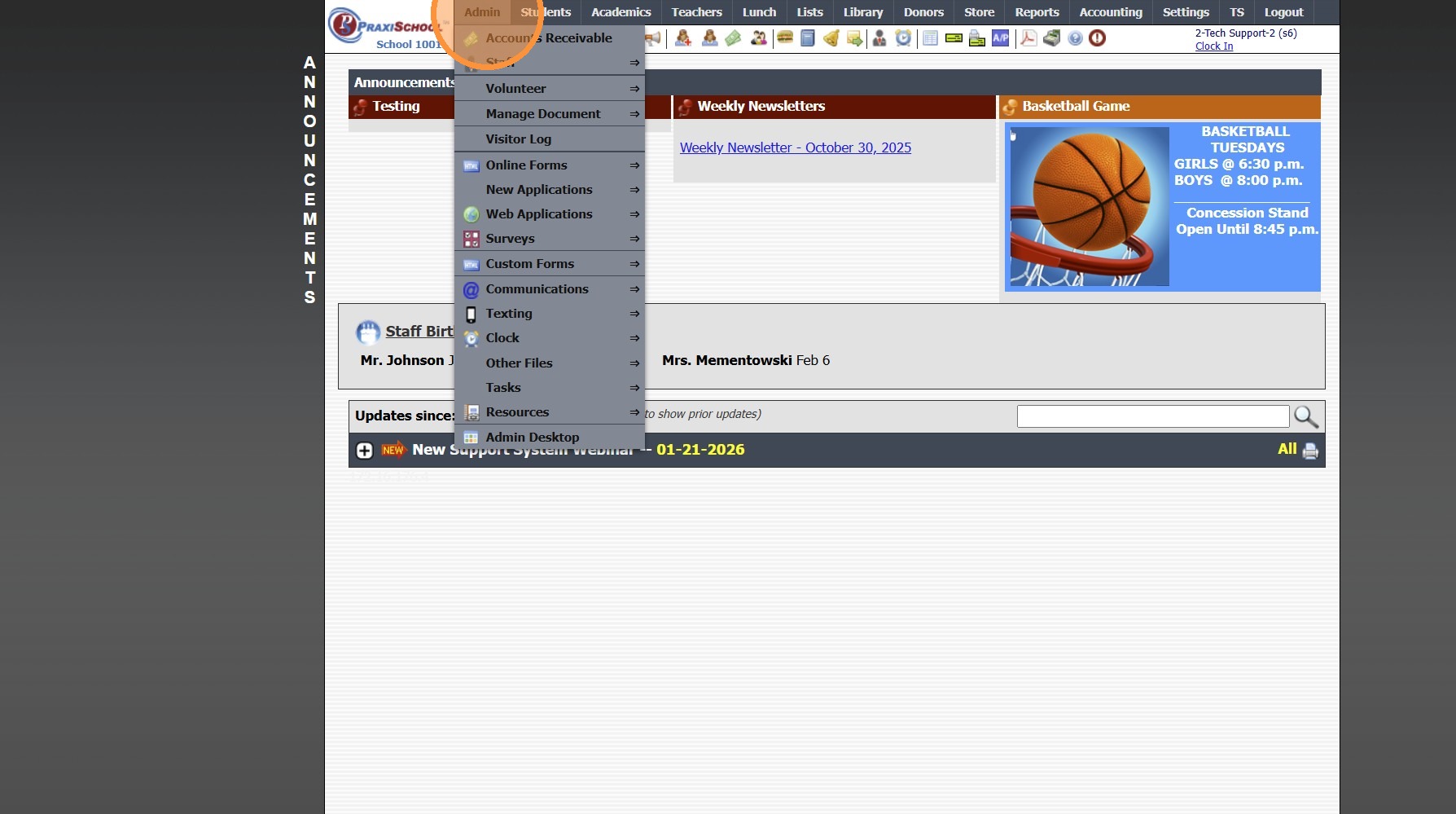
2. Click "Online Forms"
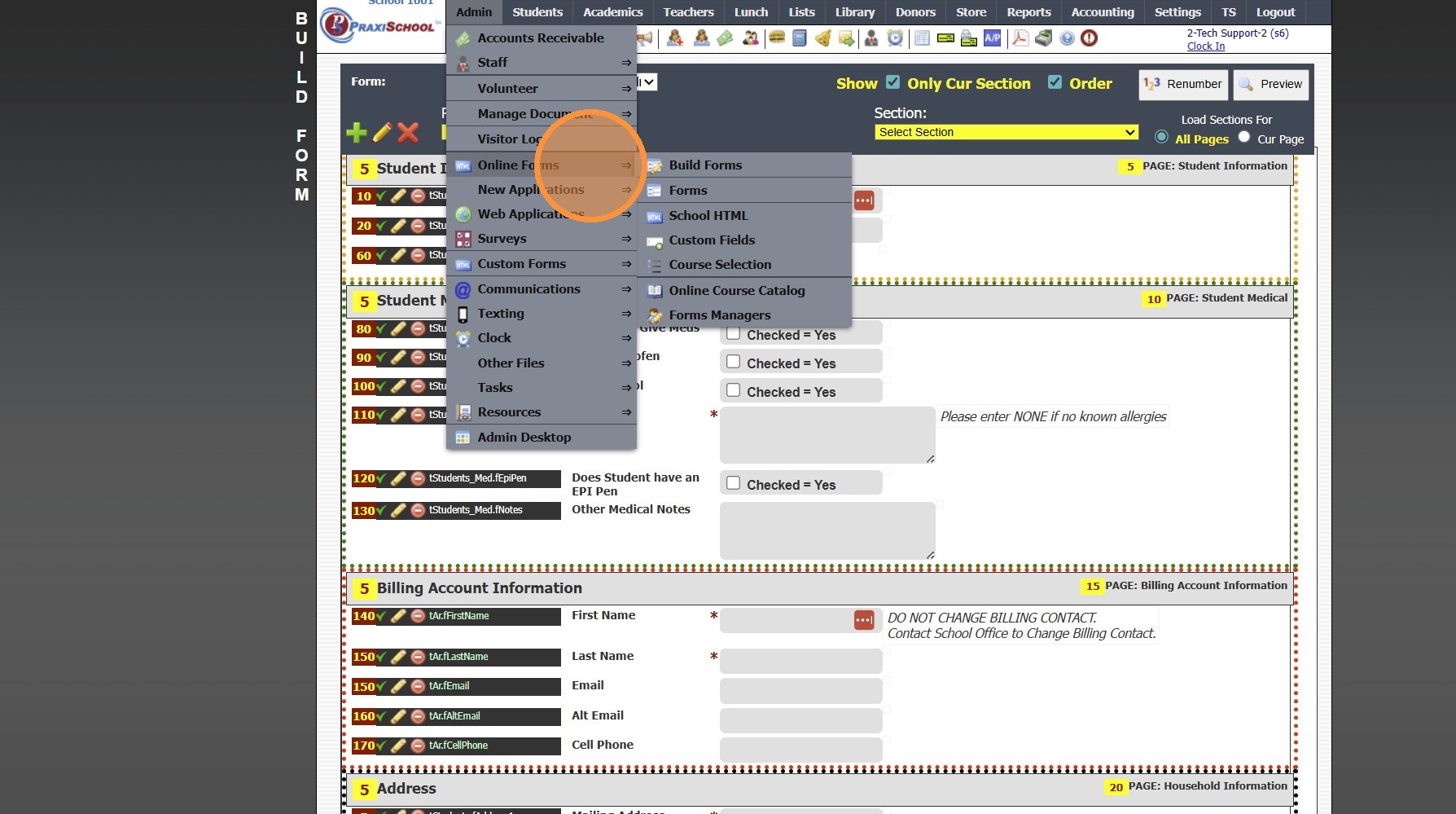
3. Click "Forms"
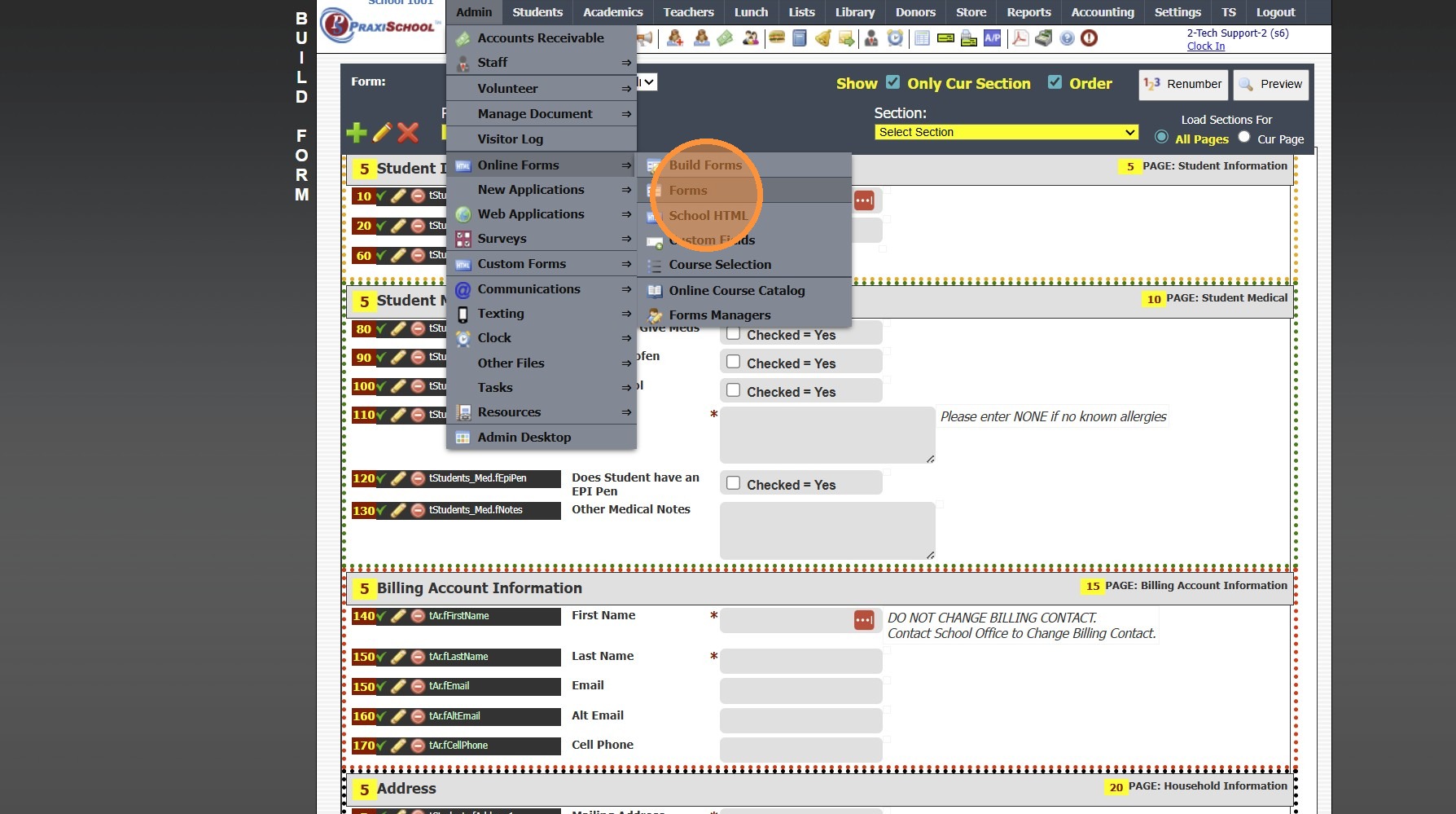
4. Select Form & Click "Edit"
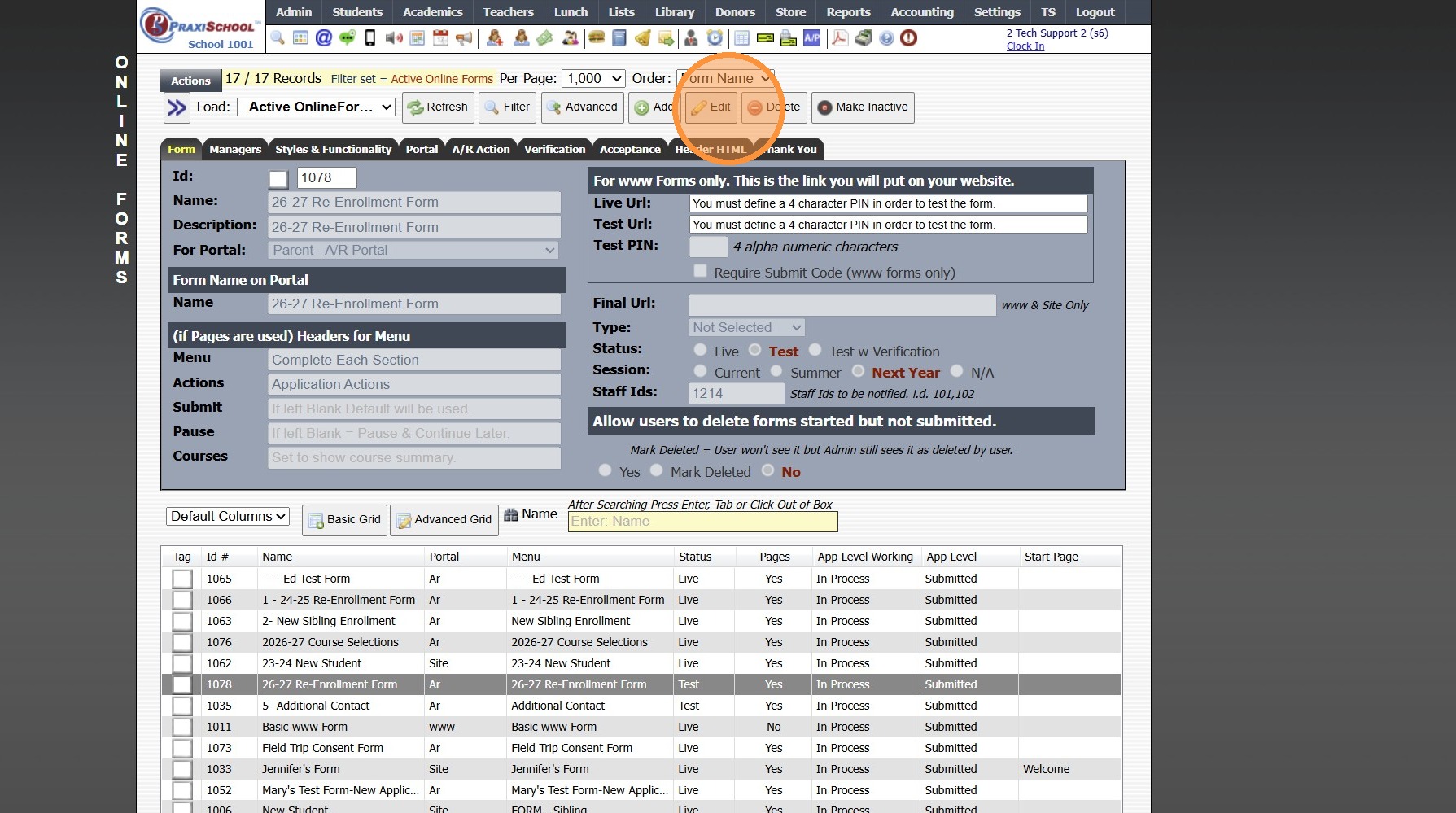
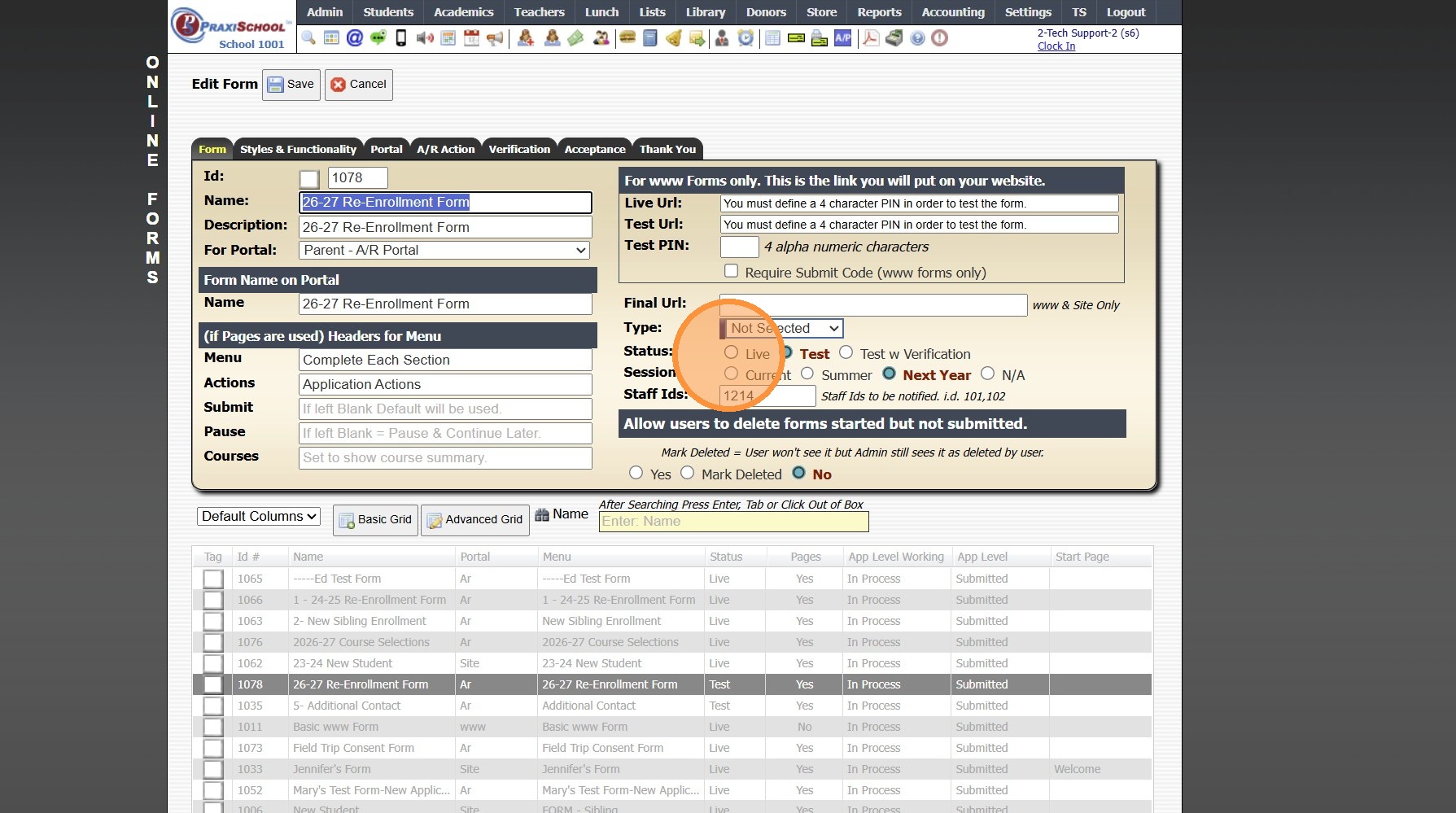
5. Click "Live"
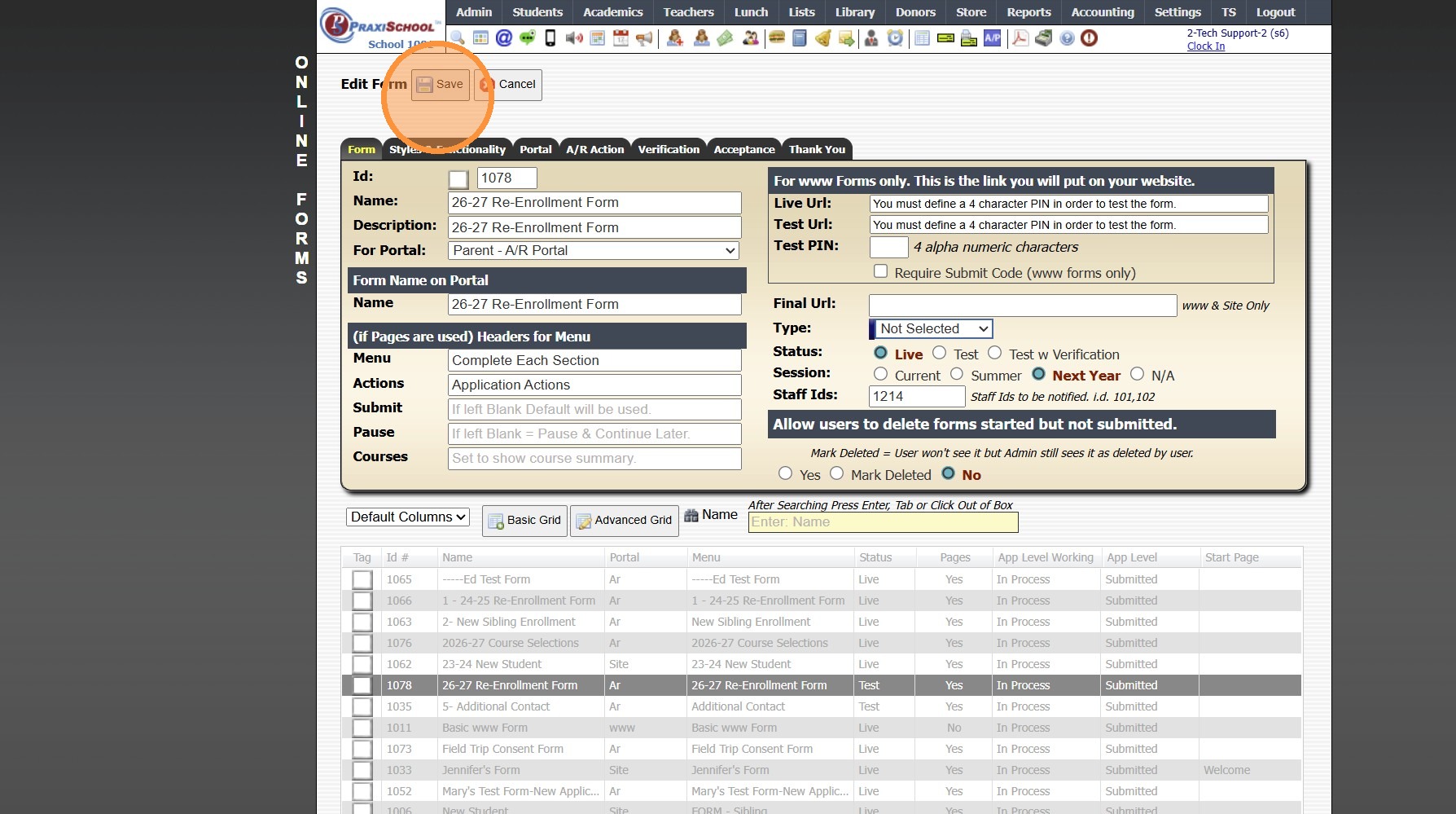
6. Click "Save"
1000.6.10
Related Articles
Building a Standard AR Portal Form
Example Re-Enrollment Form 1. Click "Admin" 2. Click "Online Forms" 3. Click "Build Forms" 4. Select Form 5. Click the "+" Icon to Add a Page 6. Enter the Order Number (Recommendation: Set Order Numbers in Increments of 5 or 10 to Allow Additional ...AR & Site Applicant Form Live URL
1. When using AR & Site Applicant Forms, the Live URL cannot be used. AR & Site Applicant Form require the User to be Logged In to the AR Portal or the Site Portal to access these Forms. 8000.24Creating a www Form
1. Click "Admin" 2. Click "Online Forms" 3. Click "Forms" 4. Click "Add" 5. Add Form Name, Description and Portal Form Name 6. Select the For Portal Option: "From Your Website (Only new registration)" 7. Click "Test" to put in Test Mode until Form is ...Creating an AR Portal Form
1. Click "Admin" 2. Click "Online Forms" 3. Click "Forms" 4. Click "Add" 5. Add Form Name, Description and Portal Form Name 6. Select the For Portal Option: "Parent - A/R Portal" 7. Click "Test" to put in Test Mode until Form is Built 8. Select ...Creating a Site Portal Form
1. Click "Admin" 2. Click "Online Forms" 3. Click "Forms" 4. Click "Add" 5. Add Form Name, Description and Portal Form Name 6. Select the For Portal Option: "Application Site (Only new registration)" 7. Click "Test" to put in Test Mode until Form is ...