How Can the Extra Space on the Payment Page of an Online Form be Removed

1. Click Admin > Online Forms > Forms
2. Select the Form
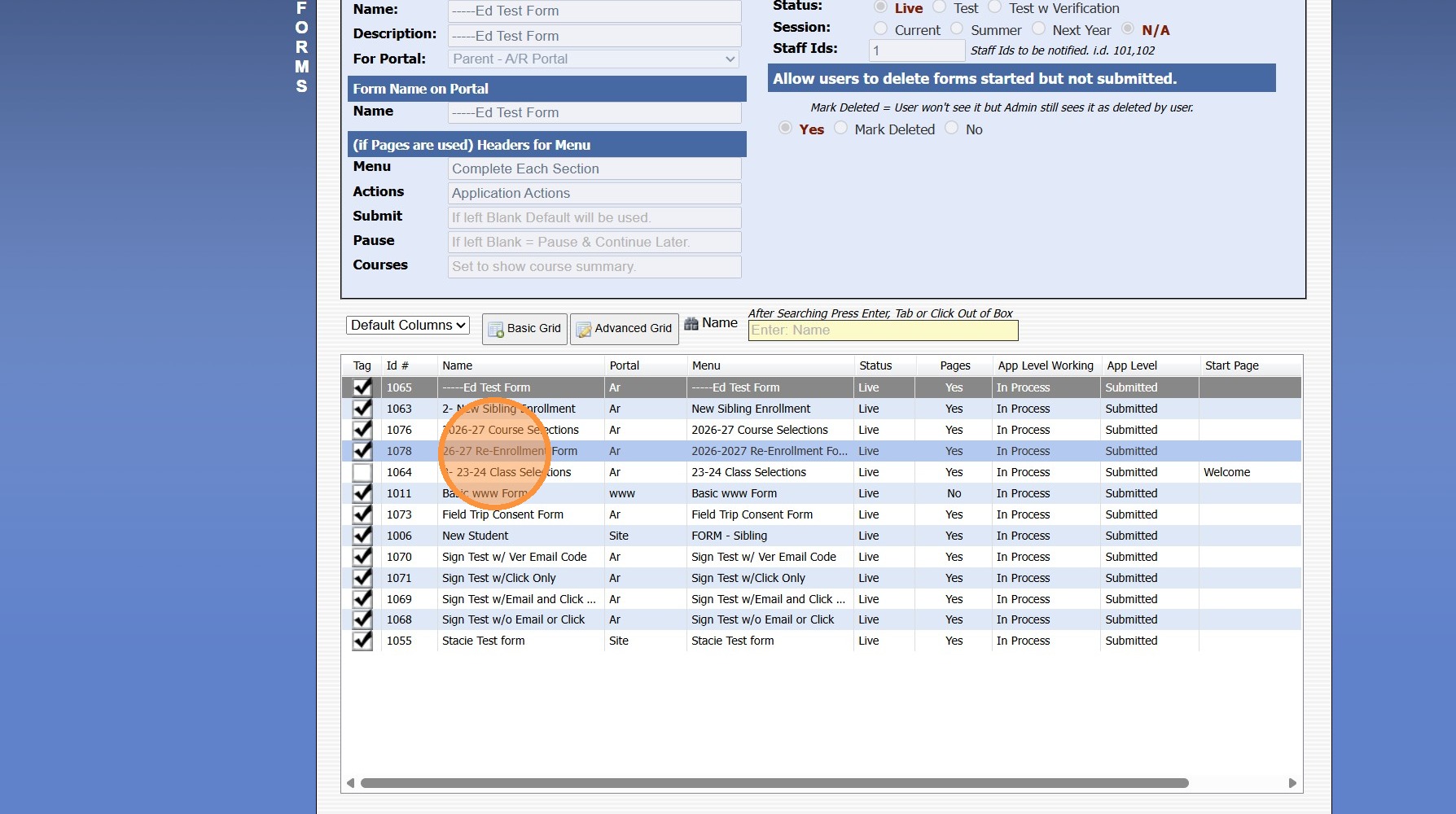
Form Configuration
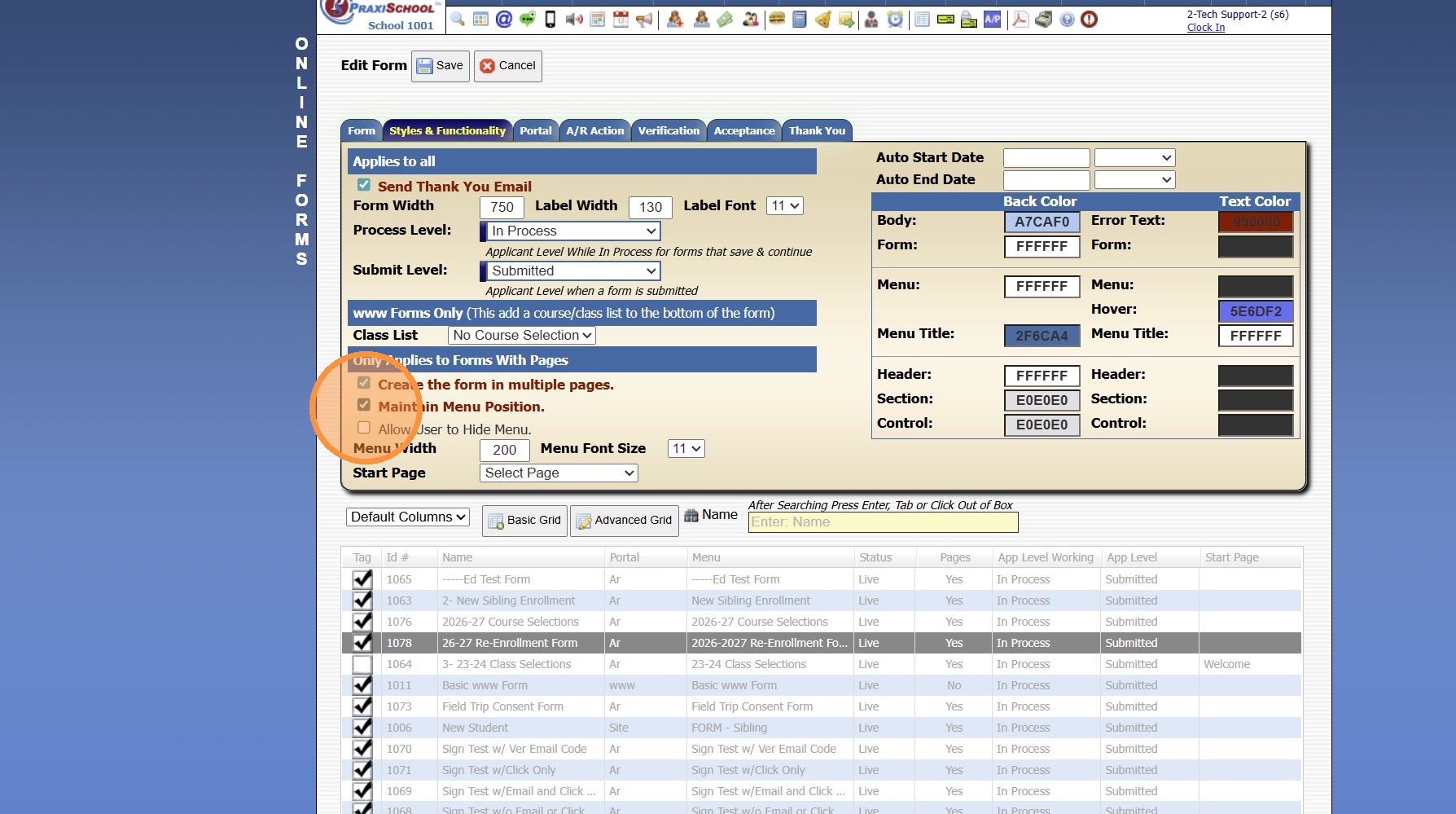
3. Select the "Styles & Functionality"
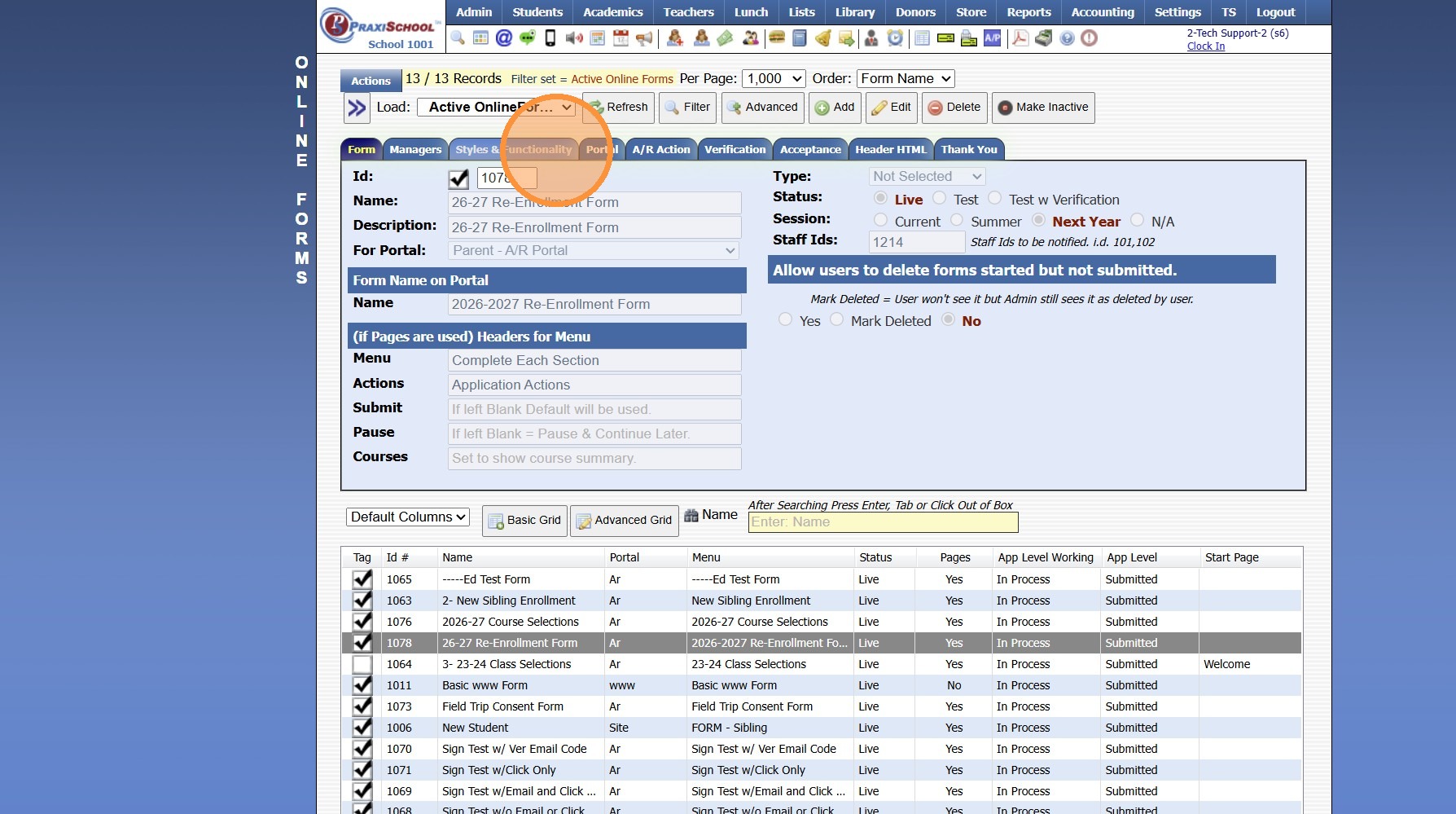
4. Click "Edit"
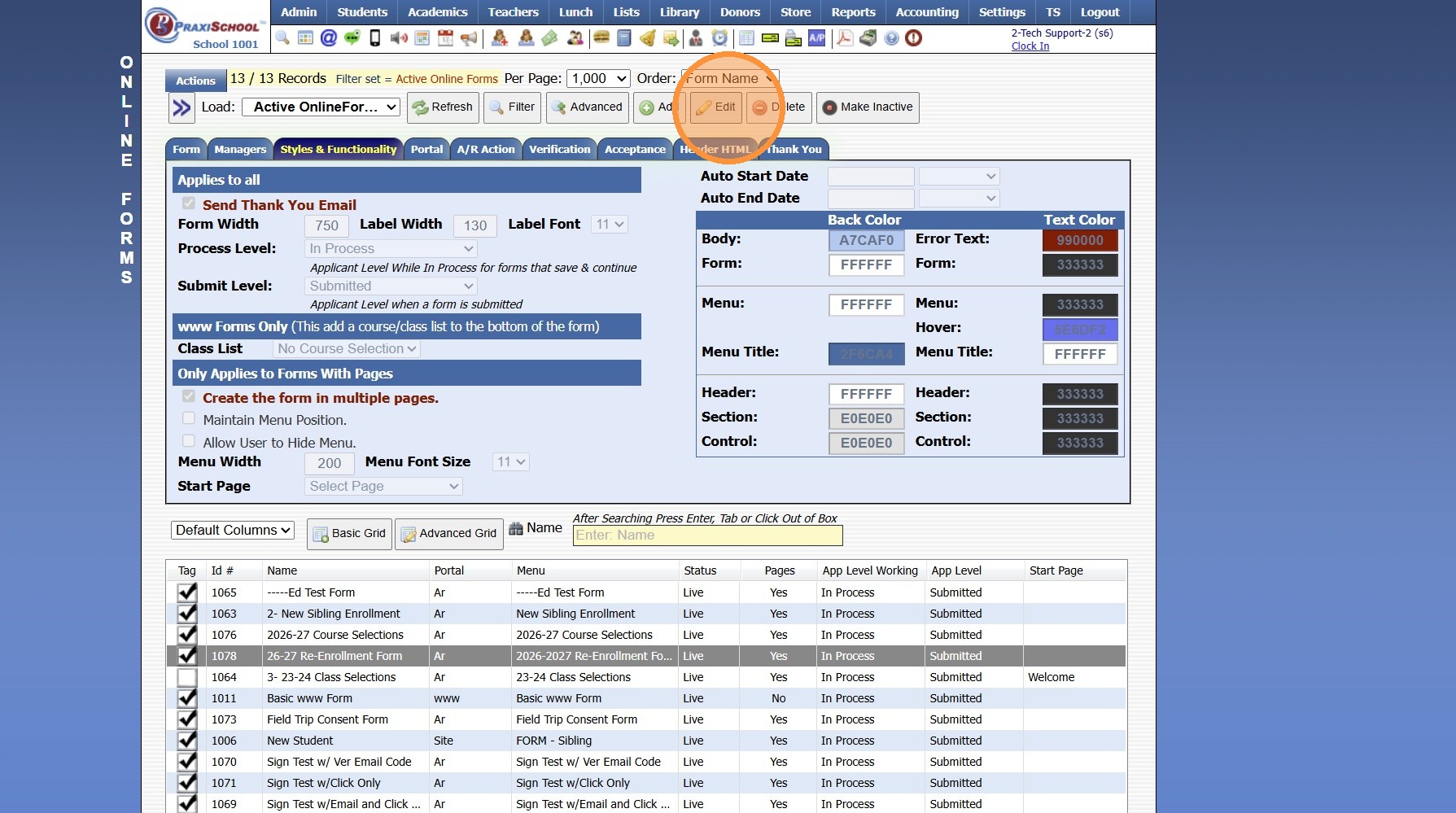
5. UnCheck the "Maintain Menu Position" box
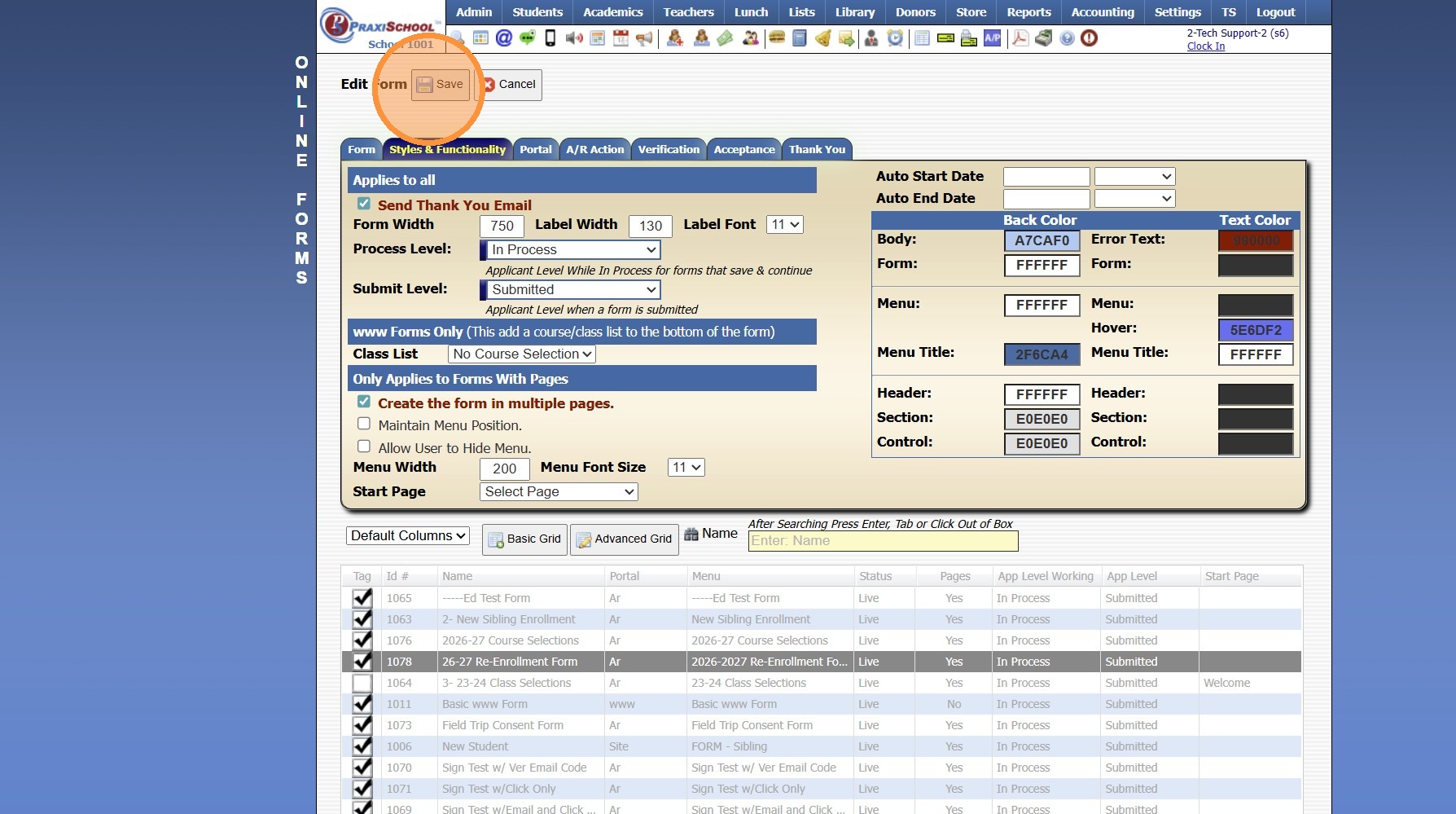
6. Click "Save"
8000.35
Related Articles
Adding a Transaction Group to an Online Form
1. Navigate to Admin > Online Forms > Forms. 2. Select the Form to Update 3. Click on "A/R Action" Tab 4. Click "Edit" 5. Select Charge, Payment or Both (Both will Charge & Collect the Payment) 6. Select the Trans Group from the Dropdown Menu 7. ...Accessing & Previewing Online Form Templates
1. Click "Admin" 2. Click "Online Forms" 3. Click "Forms" 4. Select Form 5. Click "Header HTML" 6. Click "Preview Form" 7. A Preview of the Form will Populate 1000.6.20Creating Custom Fields for Online Form/Surveys
Custom Fields create for Online Forms are for the purpose of Printing the Form Only, Custom Fields do NOT Save to the Student, AR nor Family Files. 1. Click "Admin" 2. Click "Online Forms" 3. Click "Custom Fields" 4. Click "Add" 5. Select or Add a ...Online Form Types and Portal Options
Online Form Types and Portal Options Online Form Types 1. Parent - A/R Portal (Forms for Existing Families, available on Parent Portal) 2. Student Portal (Forms for Existing Students, available on Student Portal) 3. From Your Website (Only new ...Building a Standard AR Portal Form
Example Re-Enrollment Form 1. Click "Admin" 2. Click "Online Forms" 3. Click "Build Forms" 4. Select Form 5. Click the "+" Icon to Add a Page 6. Enter the Order Number (Recommendation: Set Order Numbers in Increments of 5 or 10 to Allow Additional ...