Forgot Your Password - Staff
1. Go to Admin Login Screen
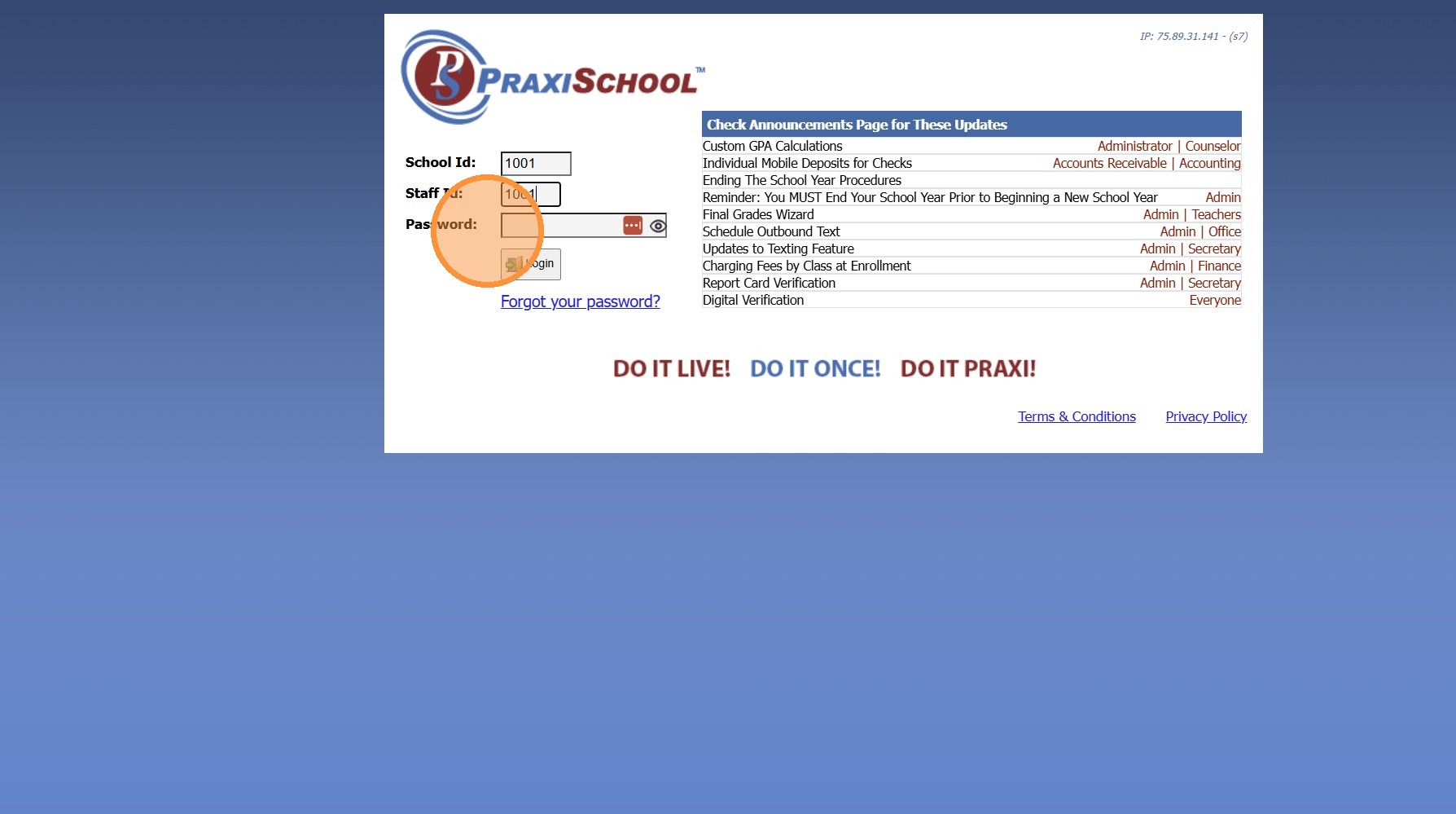
2. Click "Forgot your password?"
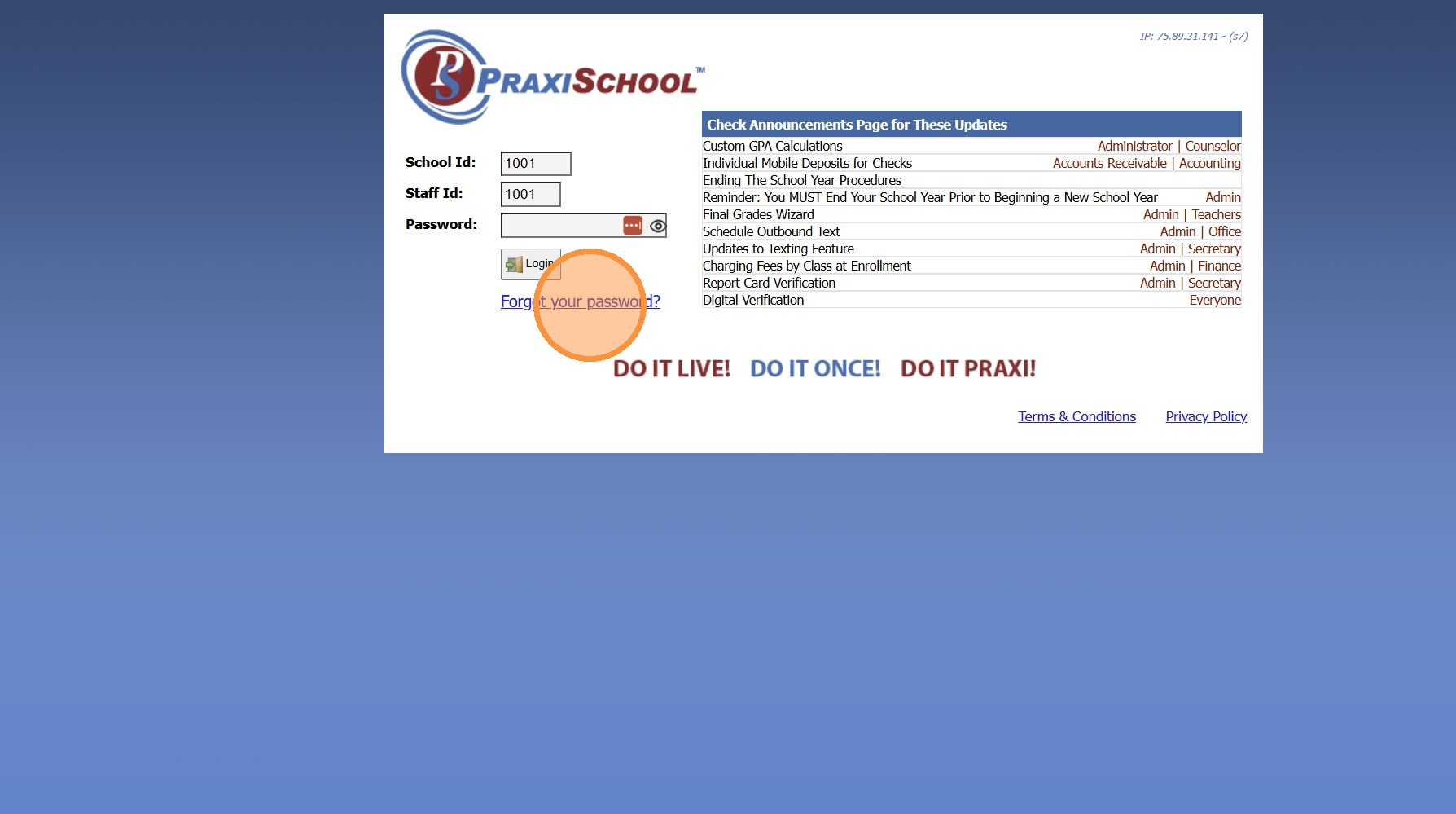
3. Enter School ID & Staff ID
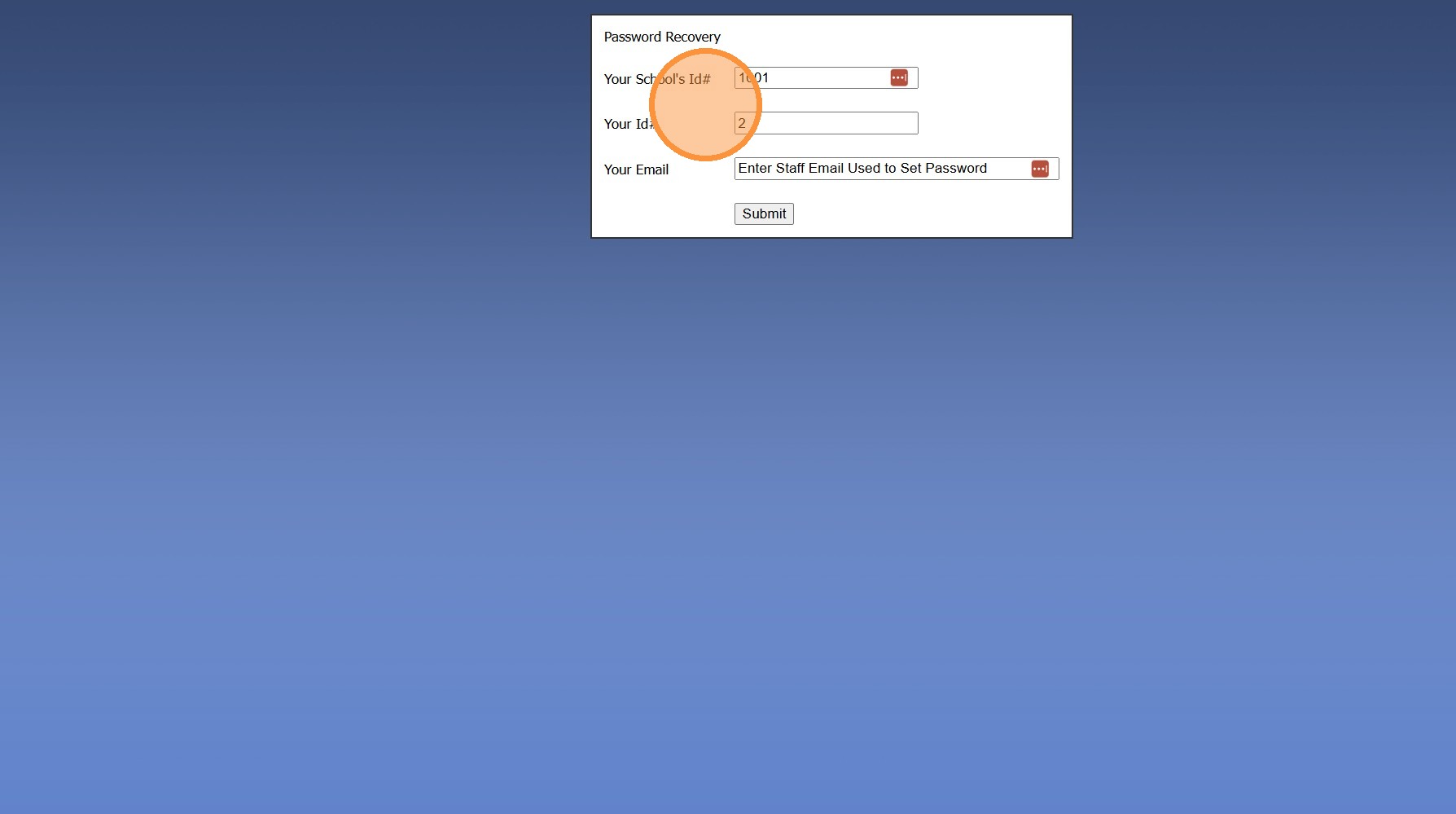
4. Enter Staff Email Address
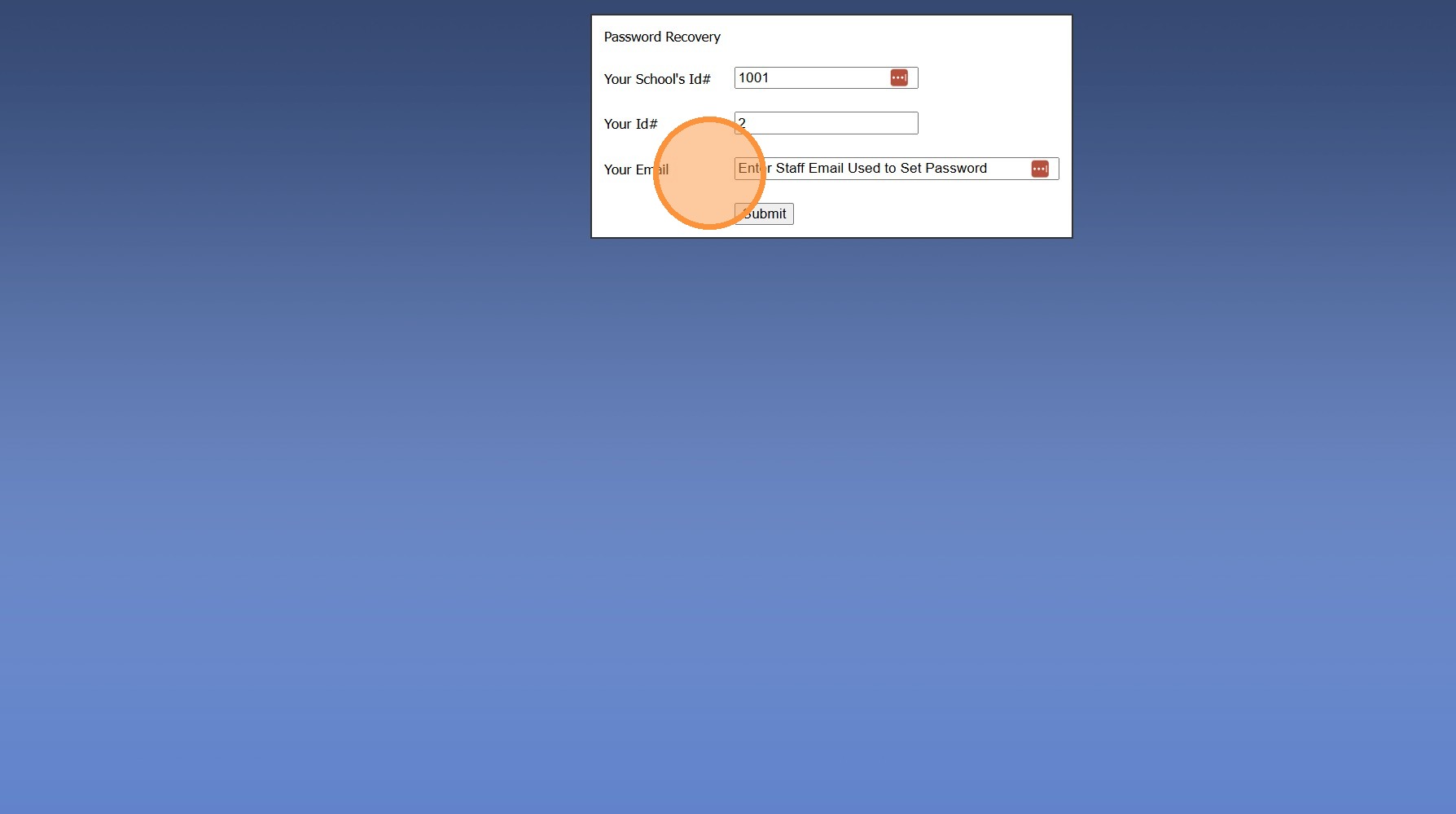
5. Click "Submit"
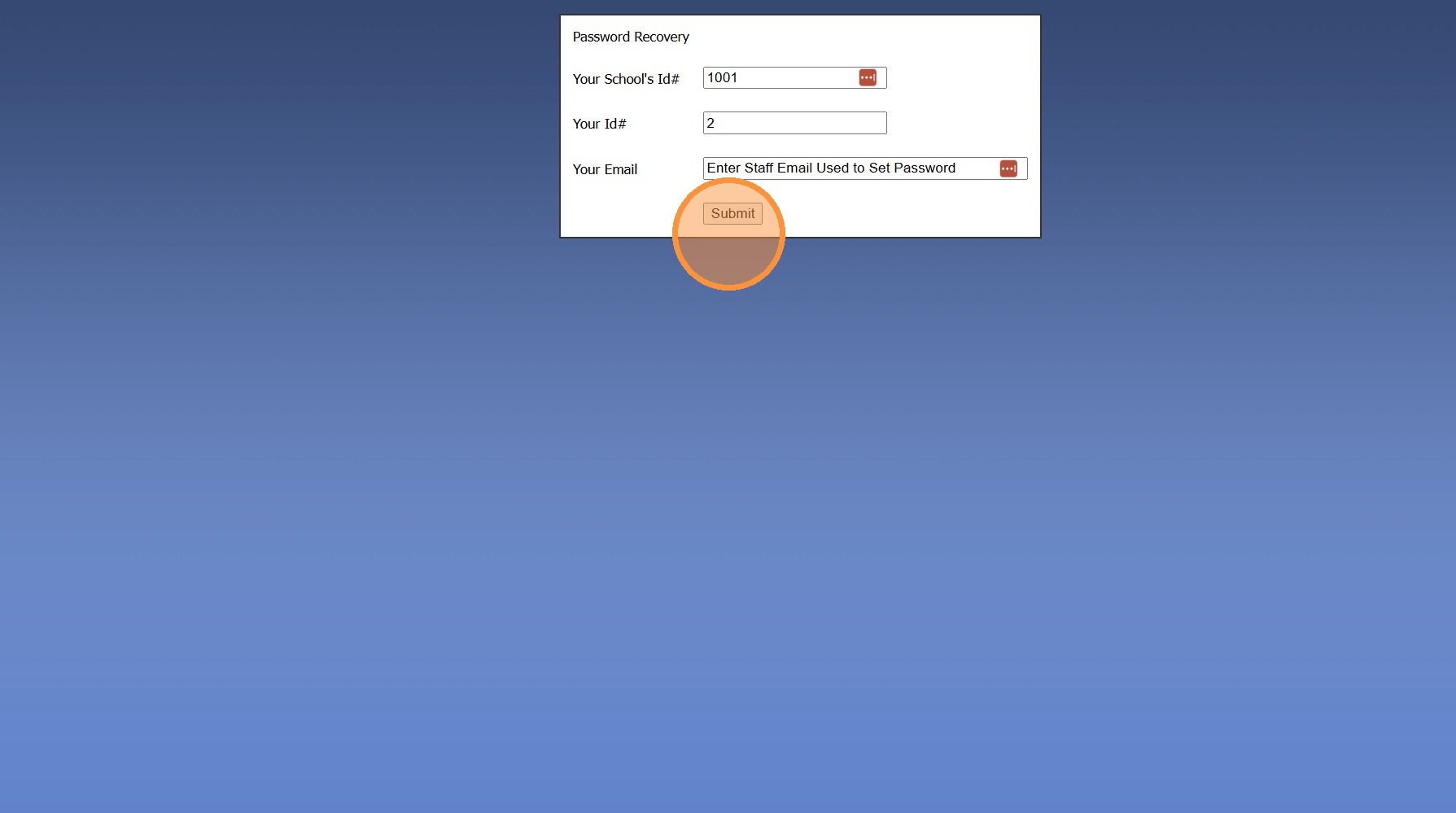
6. A Password Reset Email will be Emailed to Staff Email Address
7. Select "Password Reset Email"
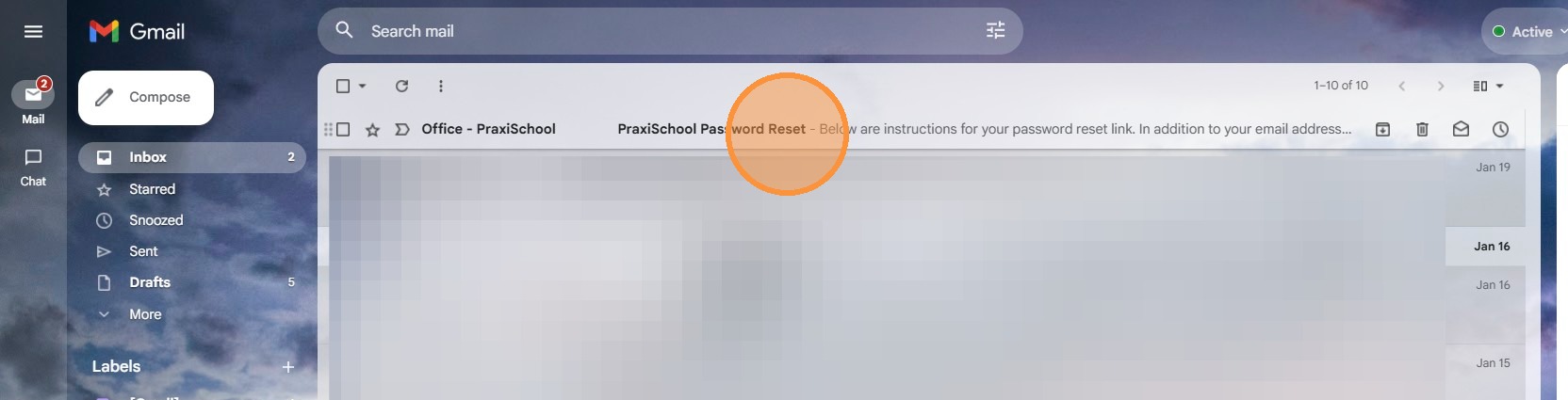
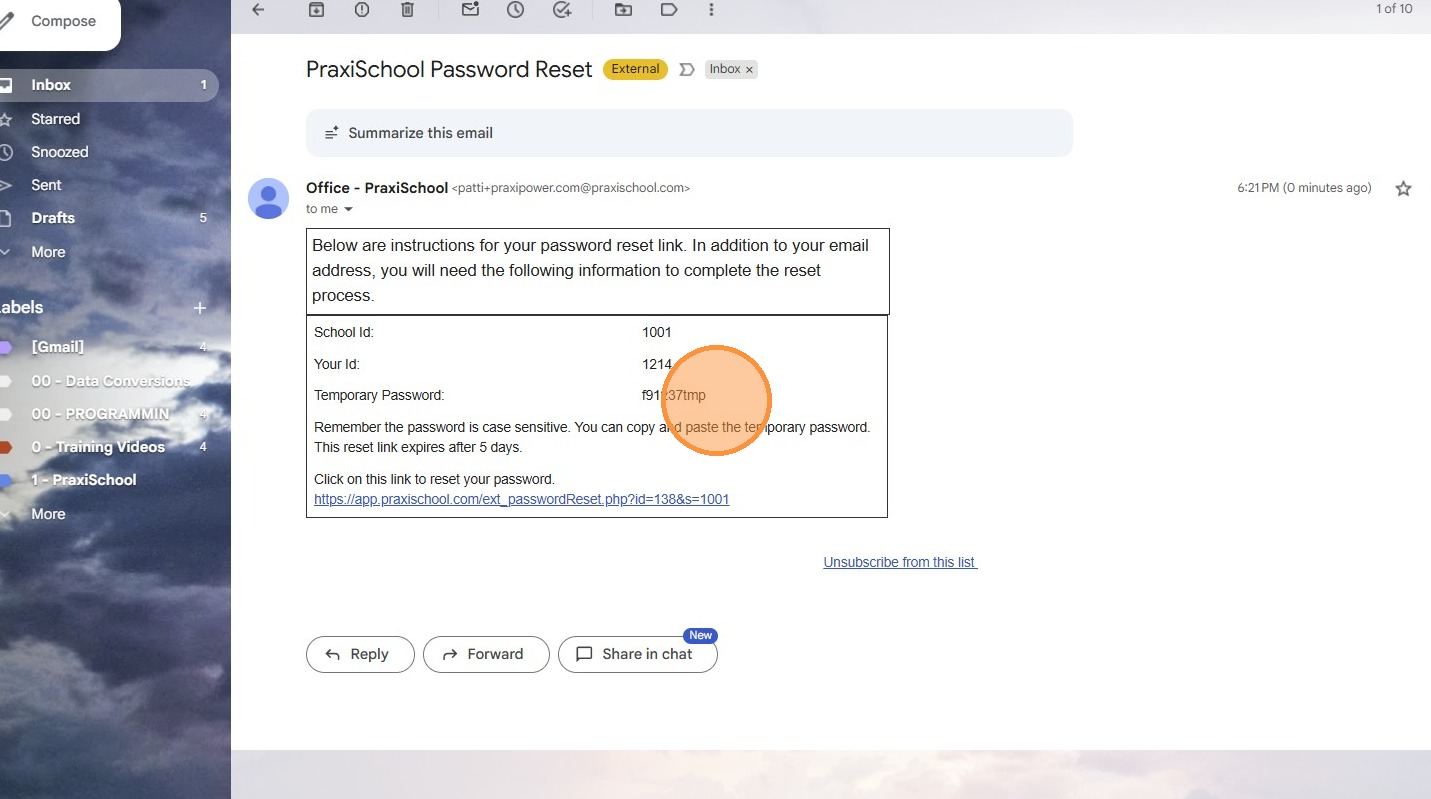
8. Copy Temporary Password
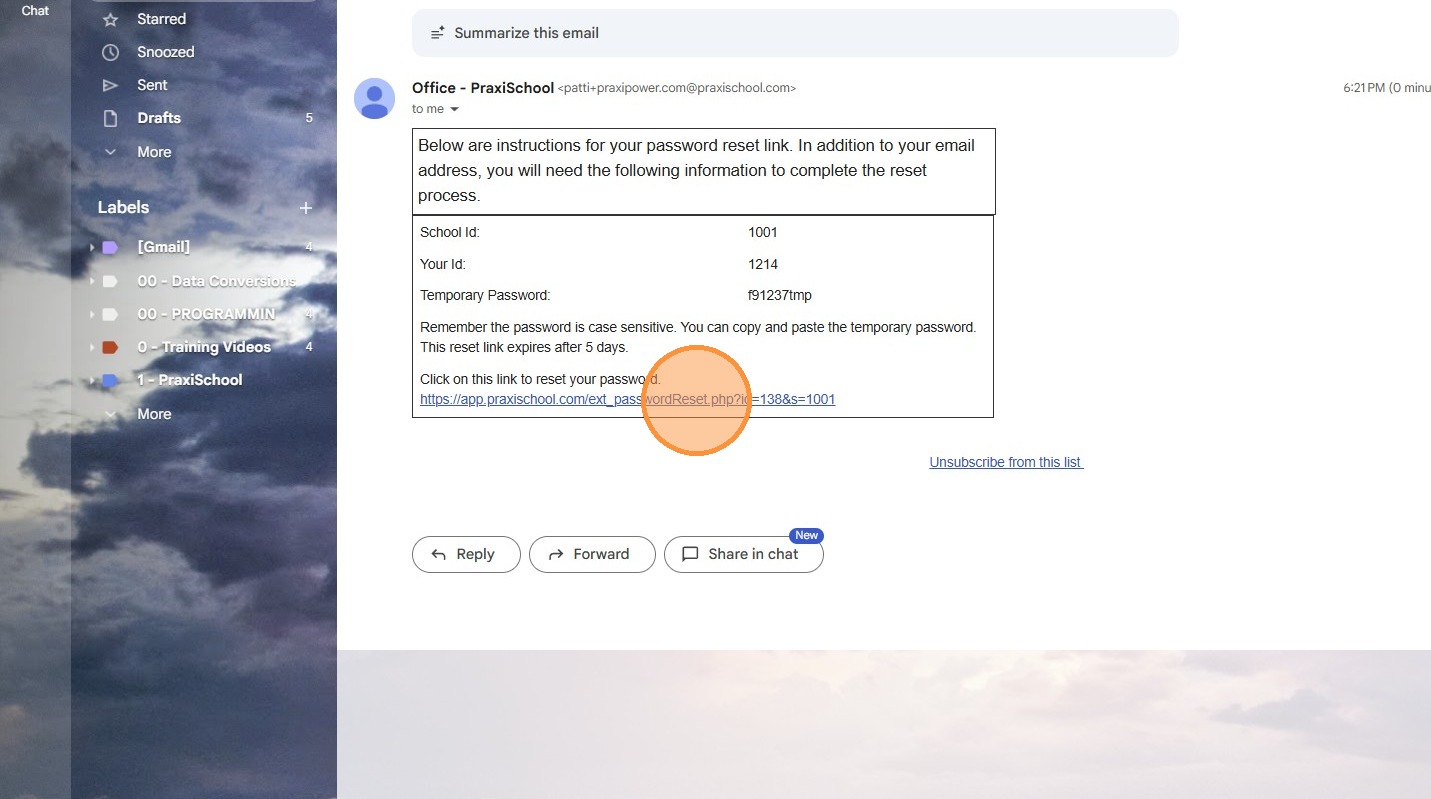
9. Click on Password Reset Link
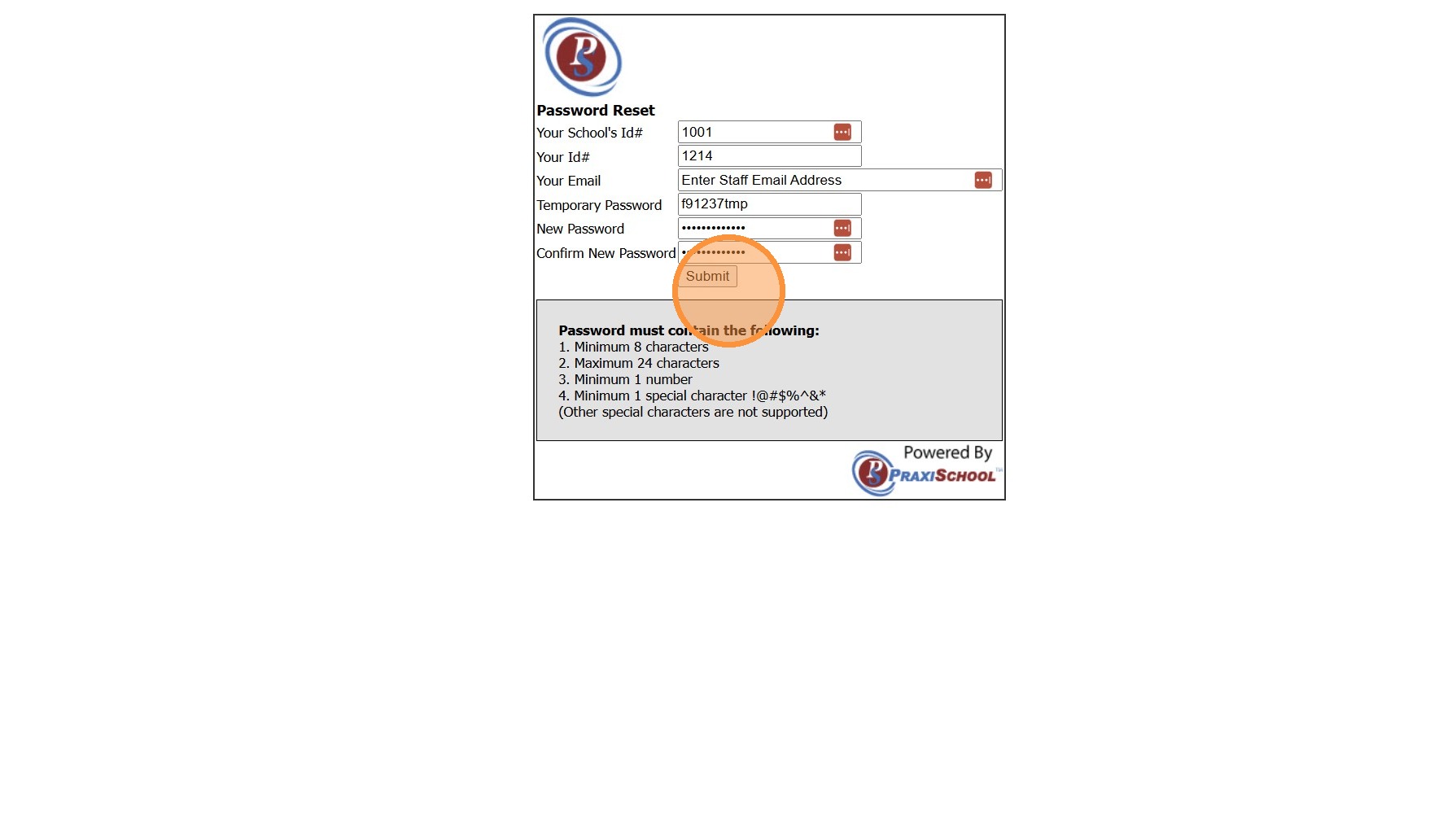
10. Enter School ID & Staff ID
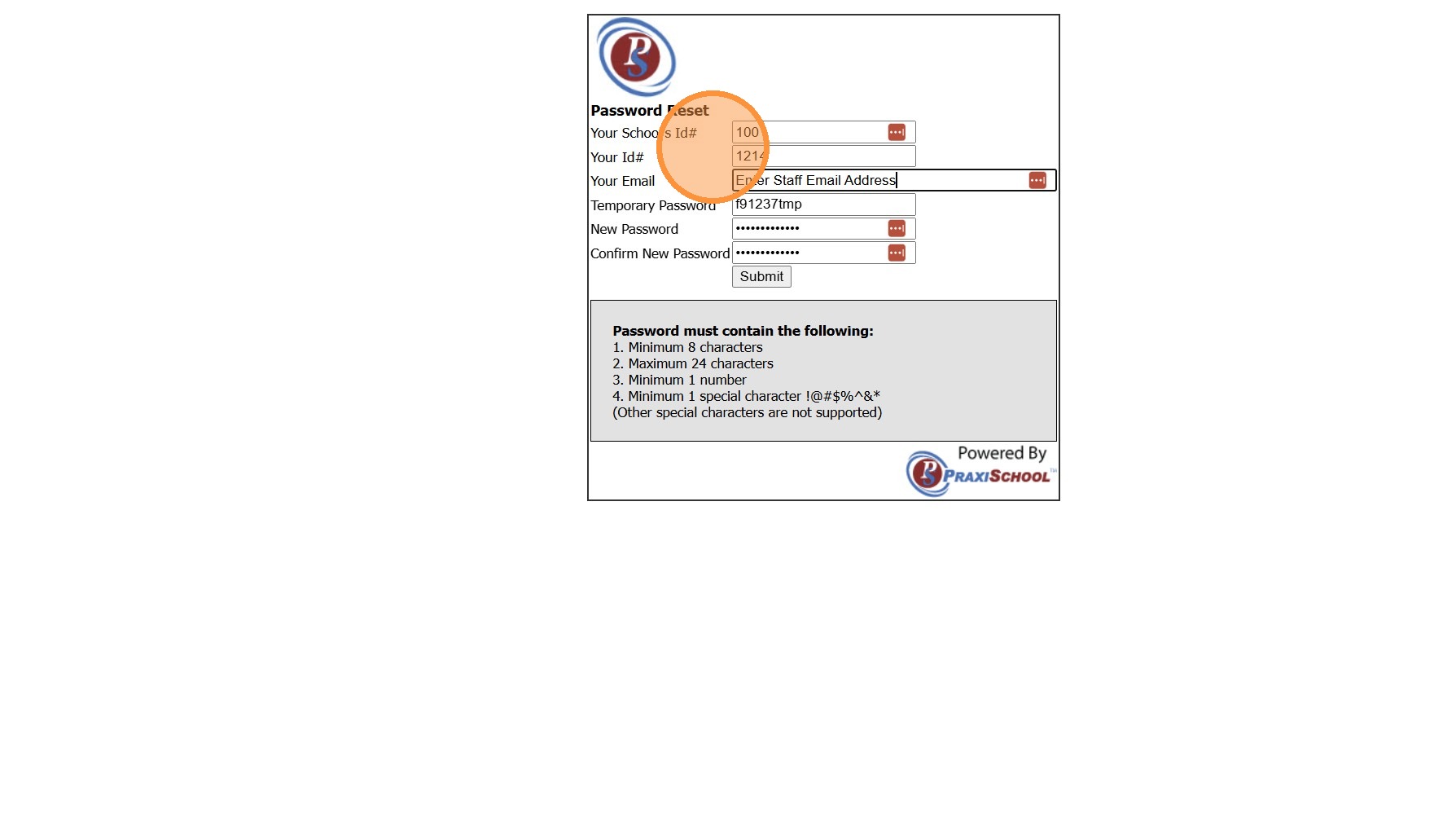
11. Enter Staff Email Address
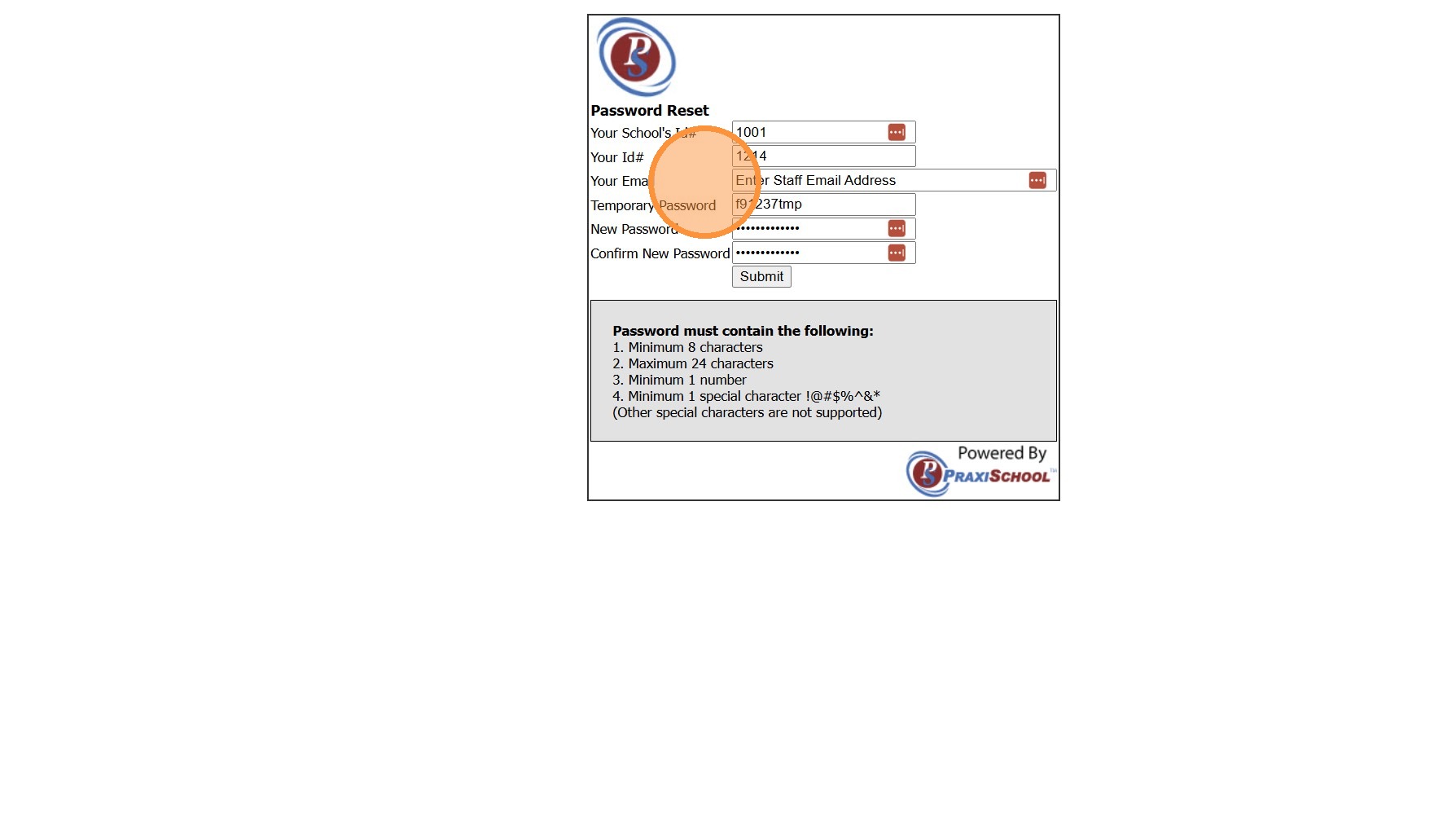
12. Enter "Temporary Password"
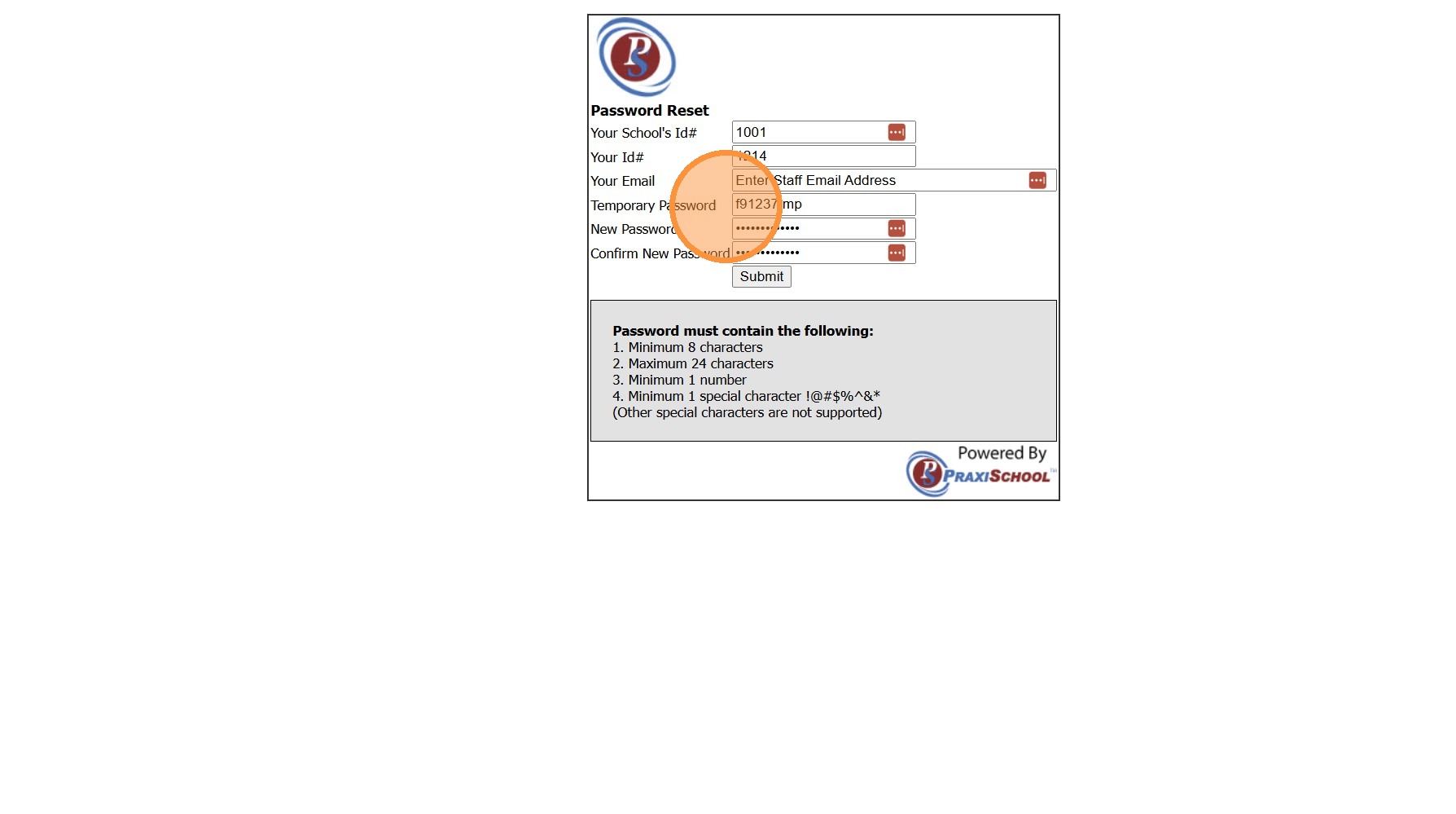
13. Enter "New Password" & Confirm
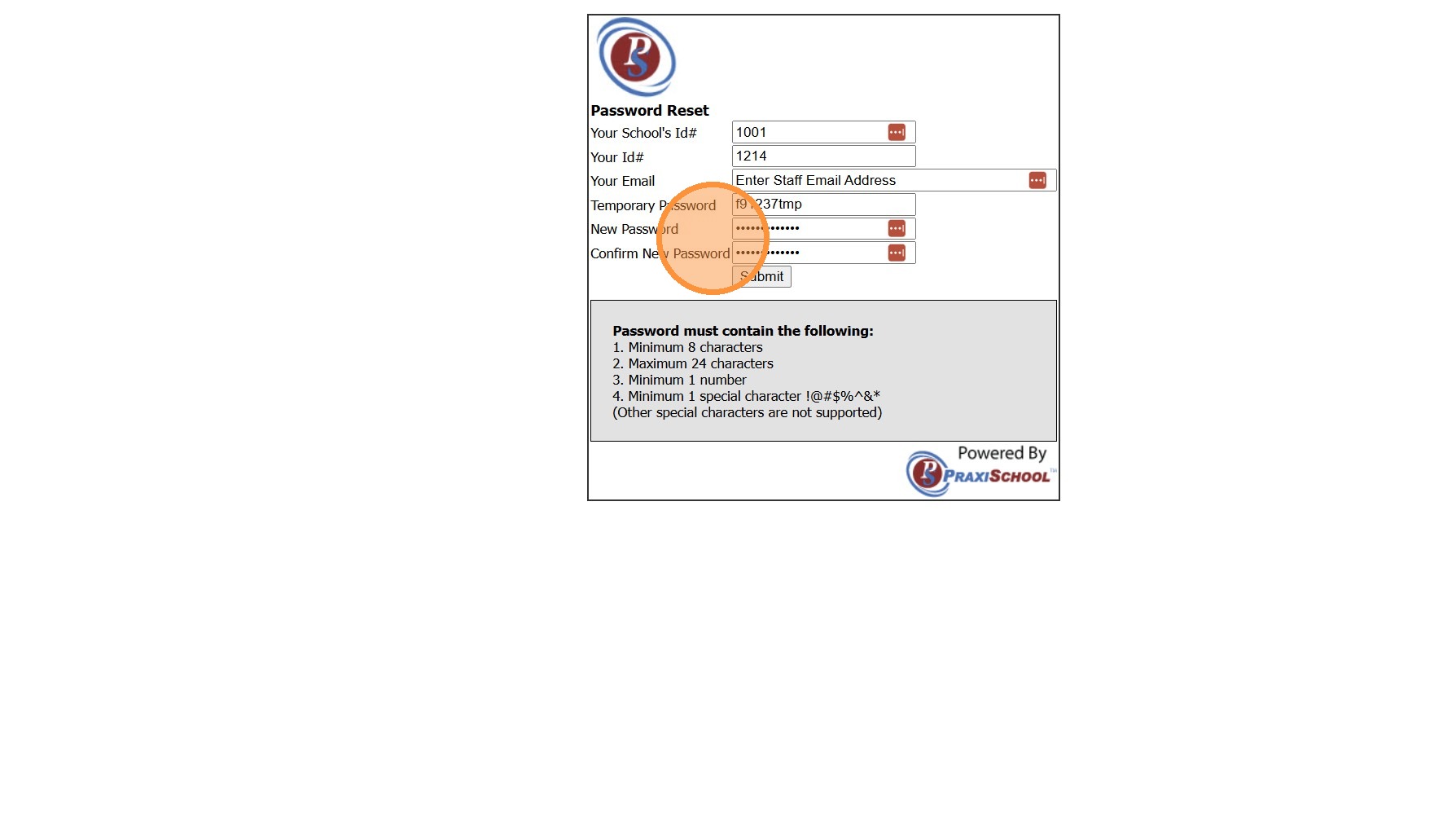
14. Click "Submit"
7000.6.1
Related Articles
Sending a Password Reset Link - Staff
1. Click "Admin" 2. Click "Staff" 3. Click "Staff" 4. Select Staff 5. Click "Actions" 6. Click "Reset Password" 7. Click "Send Reset Link" 7000.6.2Changing Your Password
Changing Your Password 1. Click "Settings" 2. Click "User Settings" 3. Click "Password" 4. Enter Current Password 5. Enter New Password & Confirm New Password 6. Click "Save" 6500.4.11Sending Welcome Emails to Staff, AR (Parents) and Students
1. Log into PraxiSchool and Select the Database To Send the Welcome Email From (i.e. Staff, AR or Students) 2. Click "Actions" 3. Click "Send Email" 4. Click "Templates" 5. Click to Open Folder and click on the "Welcome" Email Template 6. Click ...Sending Site Users a Password Reset Link
Sending Site Users a Password Reset Link 1. Click "Admin" 2. Click "Web Applications" 3. Click "Site Users" 4. Select Site User 5. Click "Actions" 6. Click "Reset Password" 7. Click Send Reset Link to send a Password Reset Link to Site Users Email 8. ...Icon Toolbar - Staff Icon
Icon Toolbar - Staff Icon Click on the Staff Icon for Quick Access to the Staff File 7500.1.18