Entering a Standard Deposit
Entering a Standard Deposit
1. Click "Accounting"
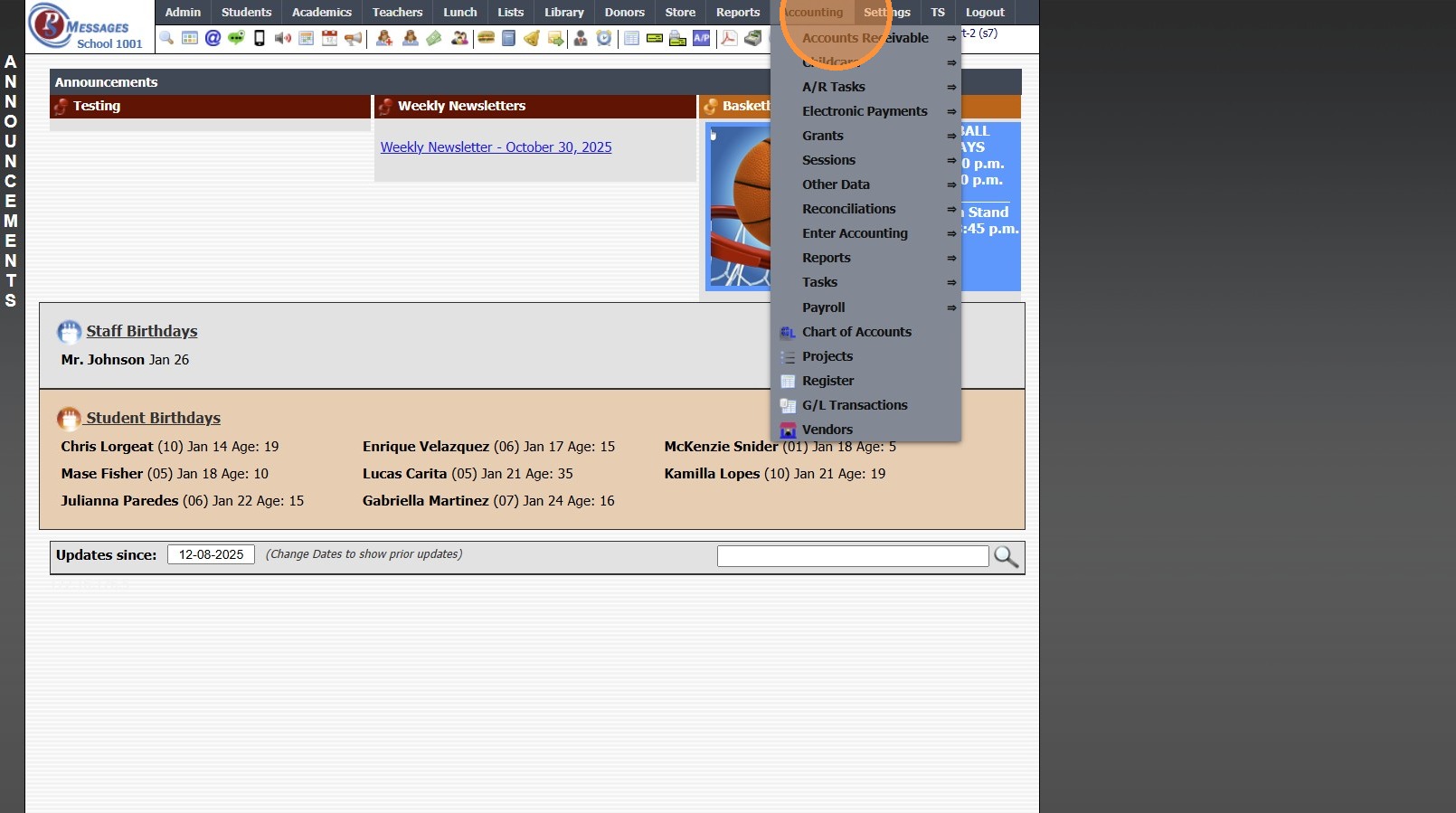
2. Click "Enter Accounting"
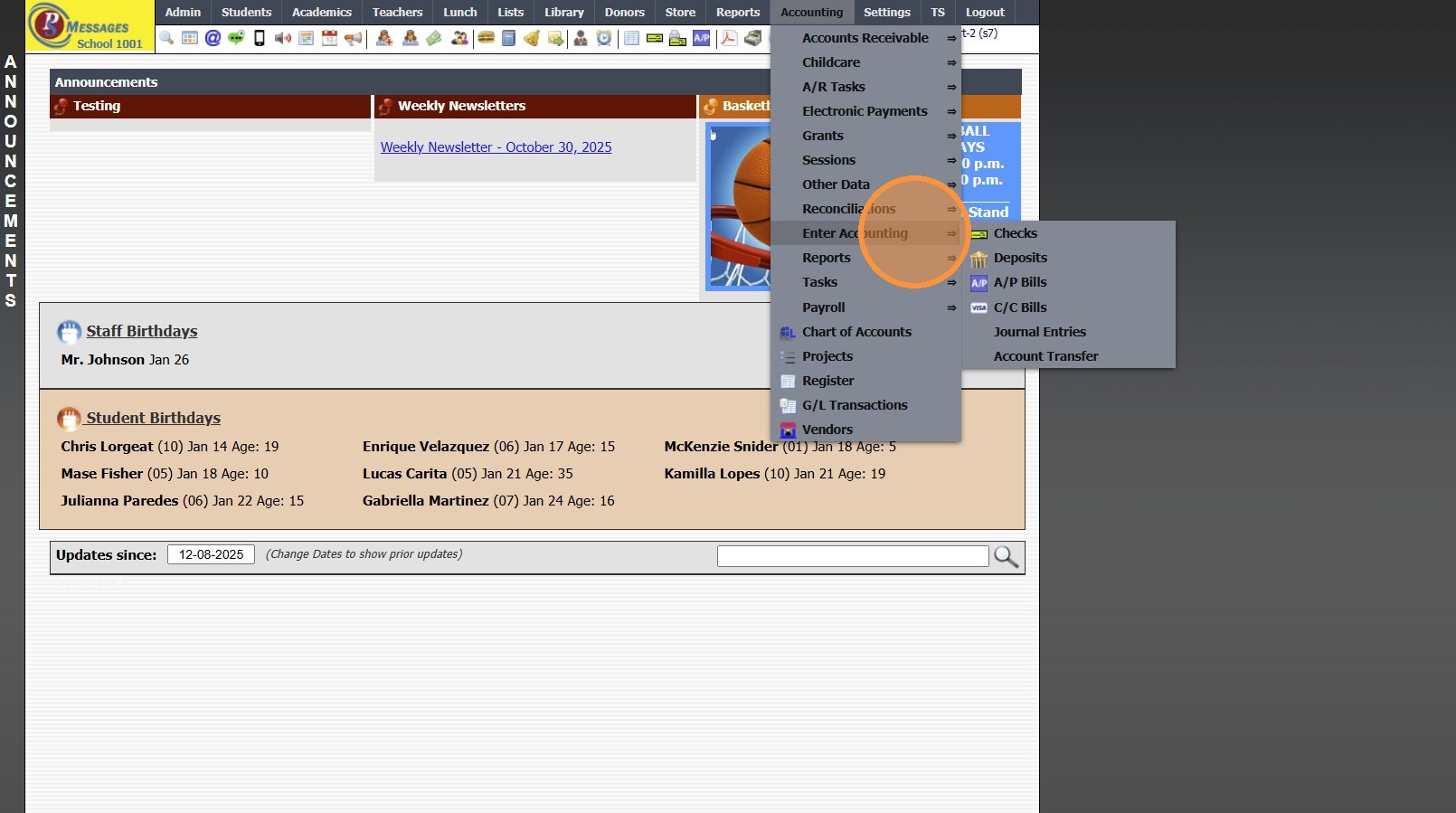
3. Click "Deposits"
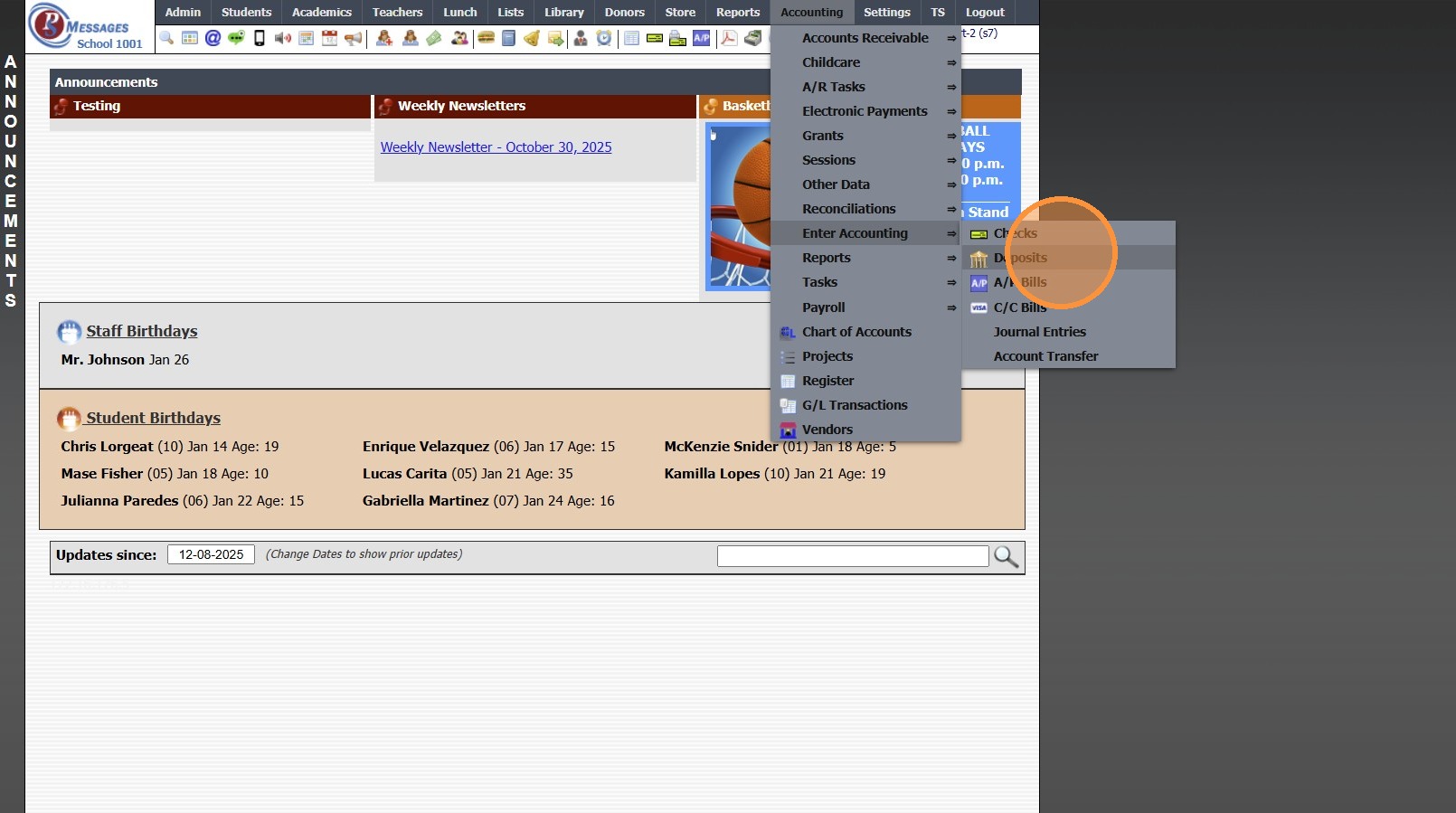
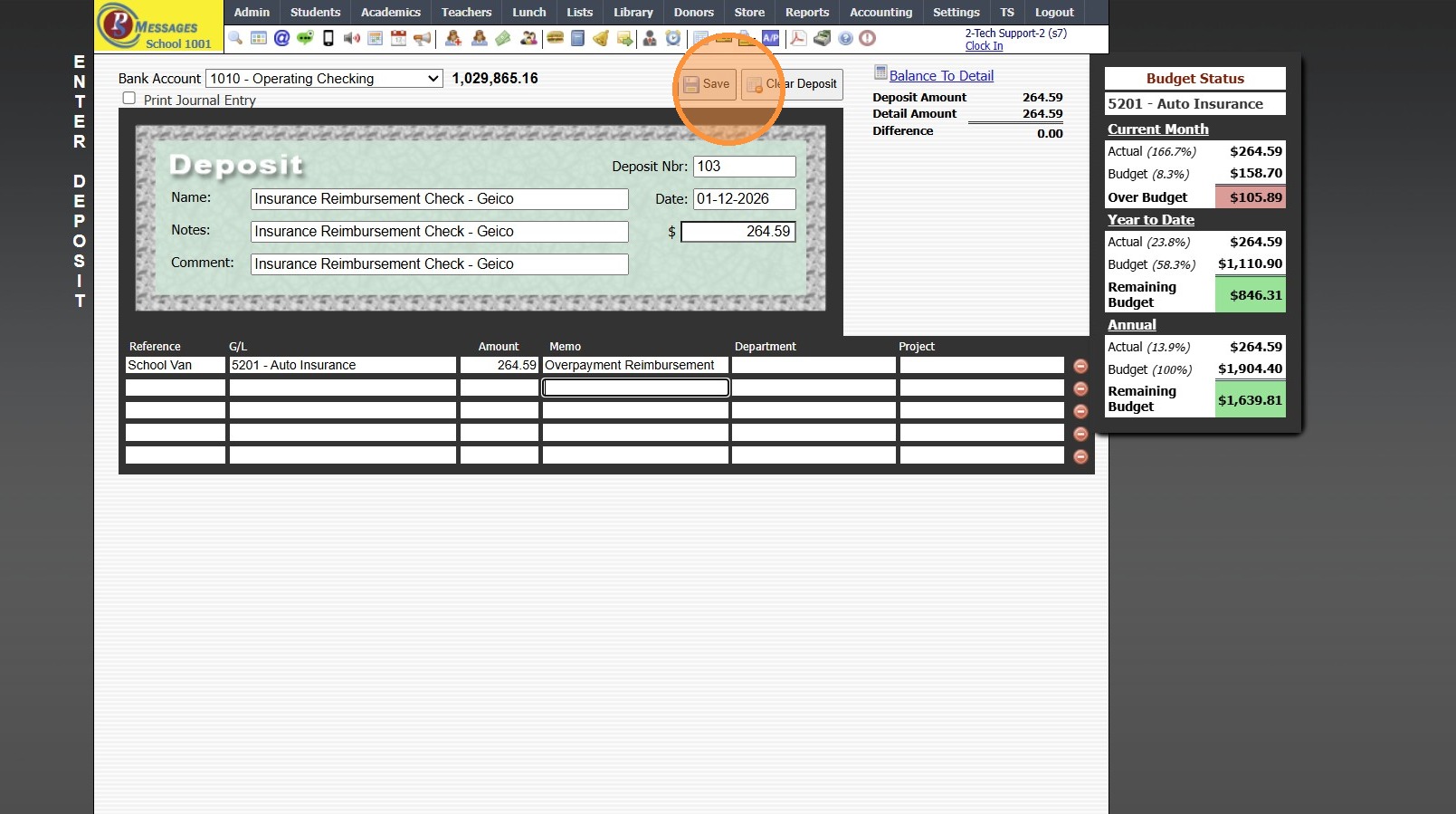
4. Default Bank Account will Automatically Populate, Change if Needed
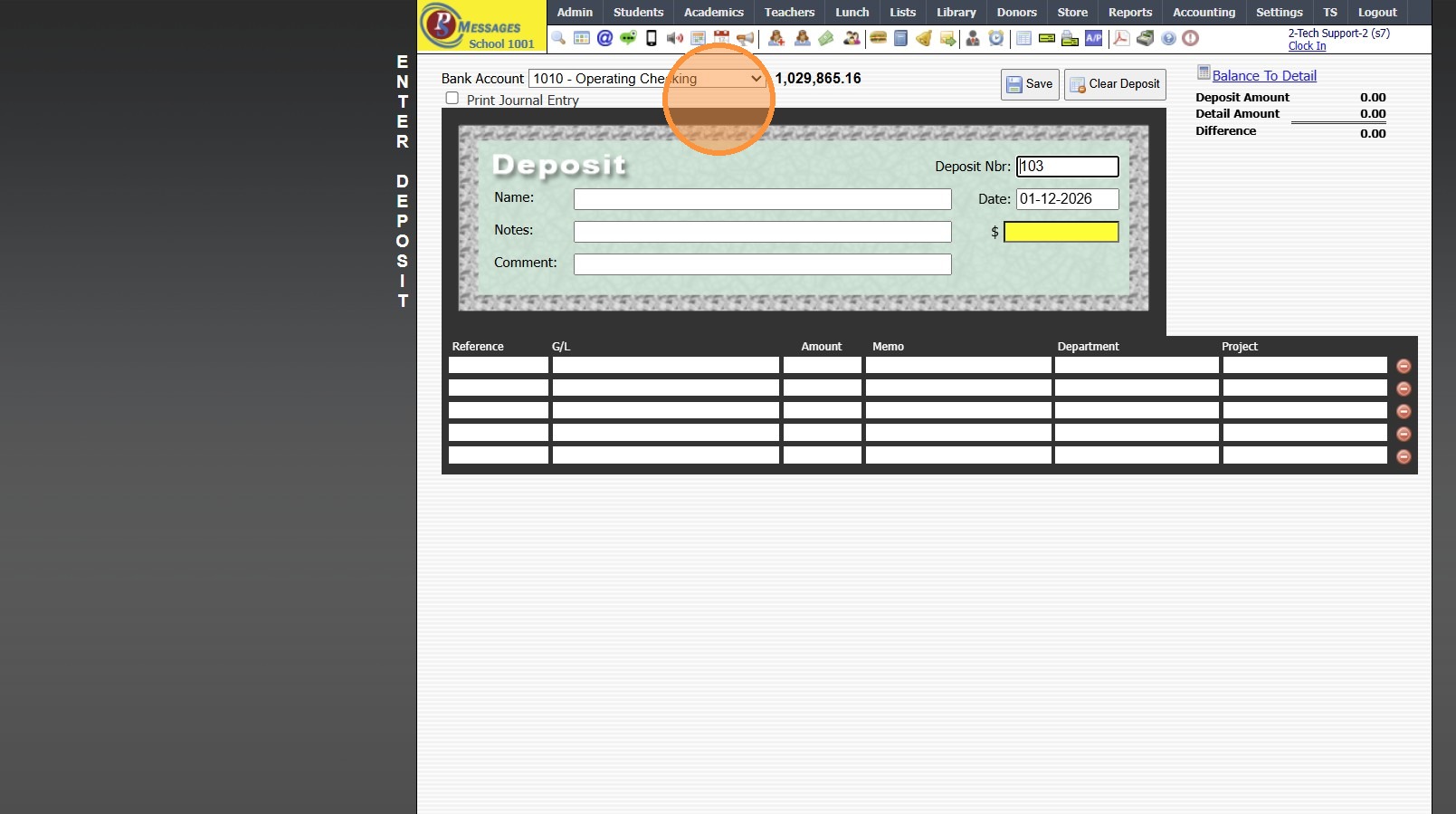
5. Current Date will Automatically Populate, Change if Needed
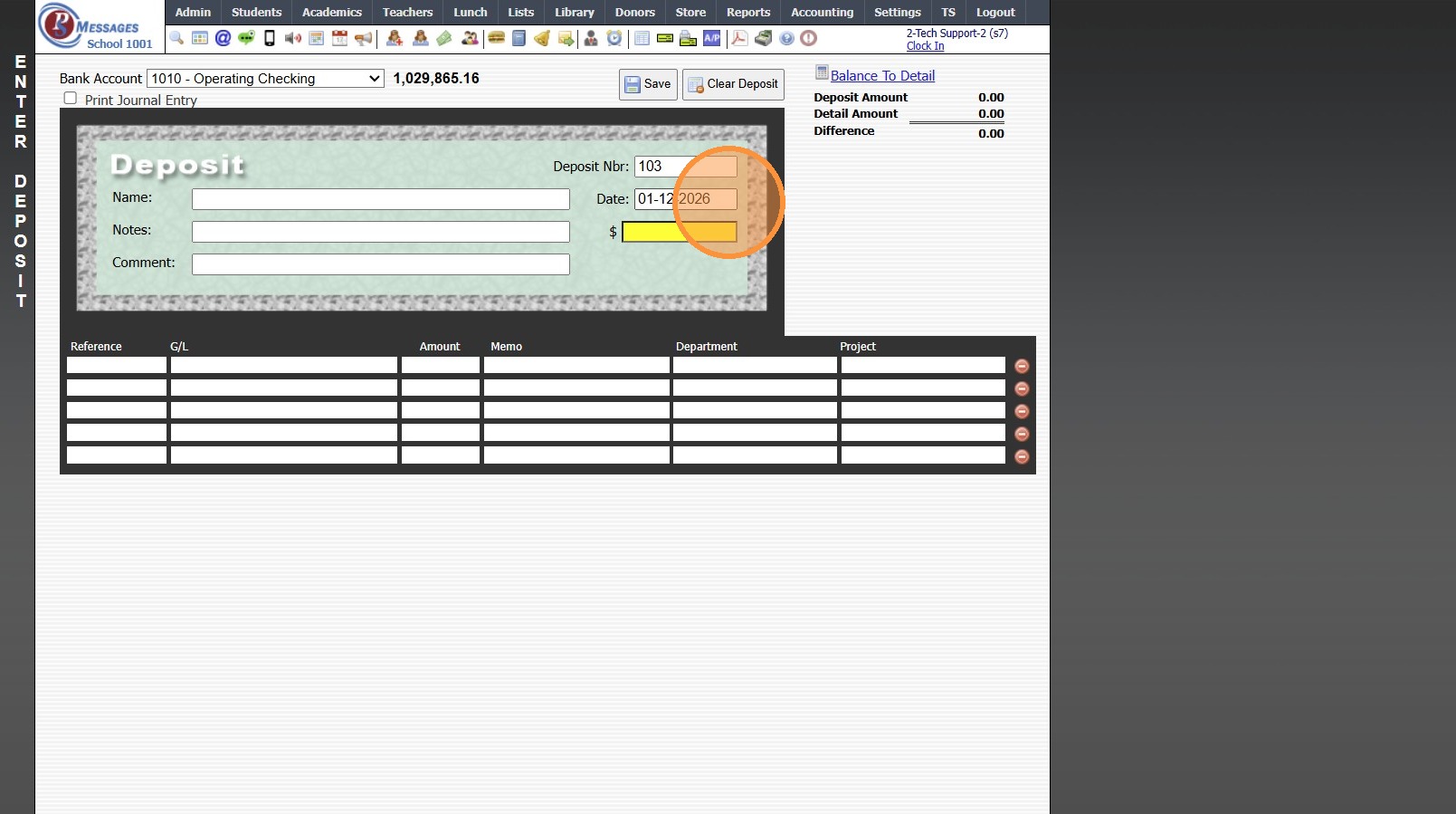
6. Enter Deposit Name
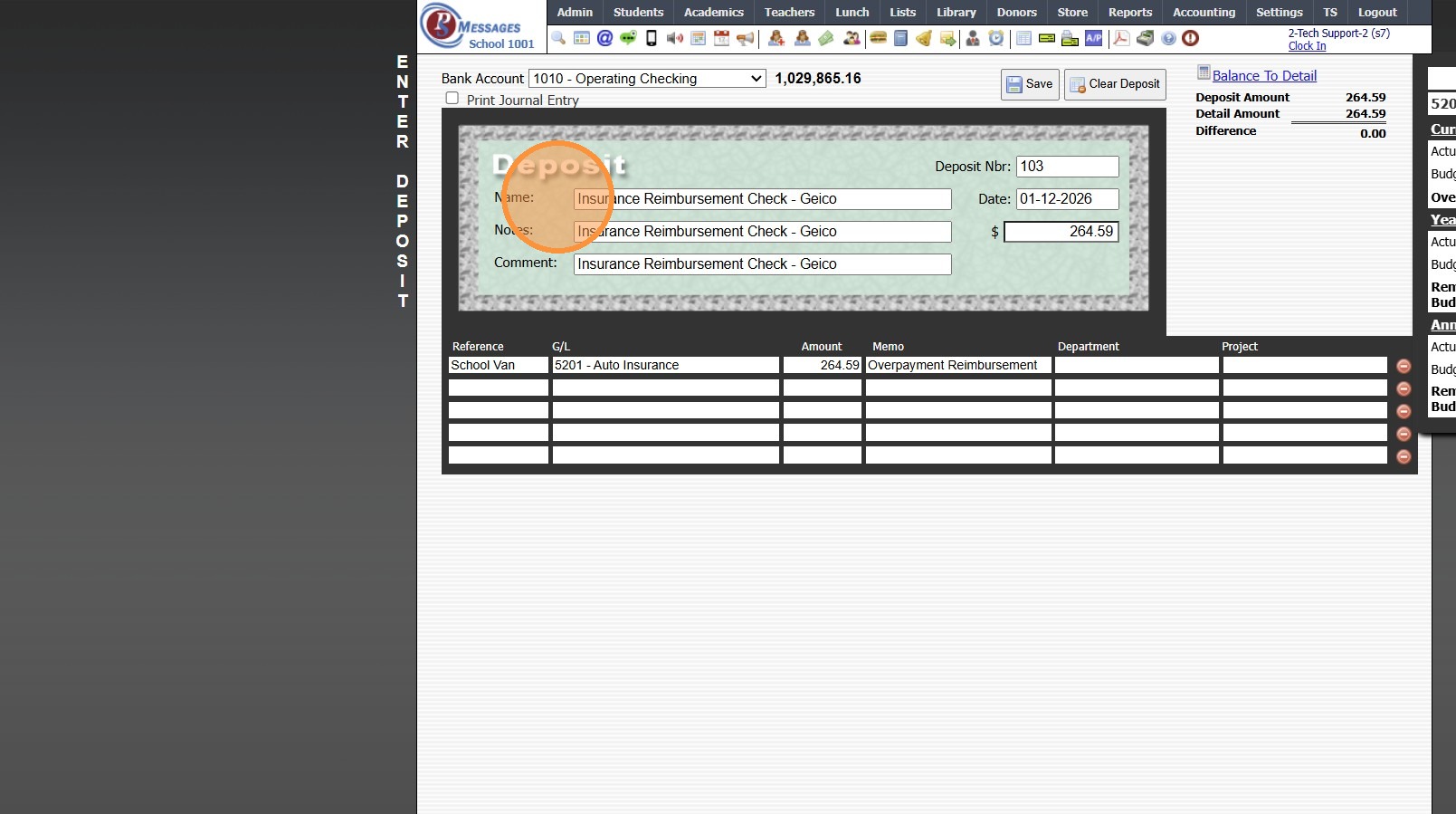
7. Enter Deposit Notes & Comment
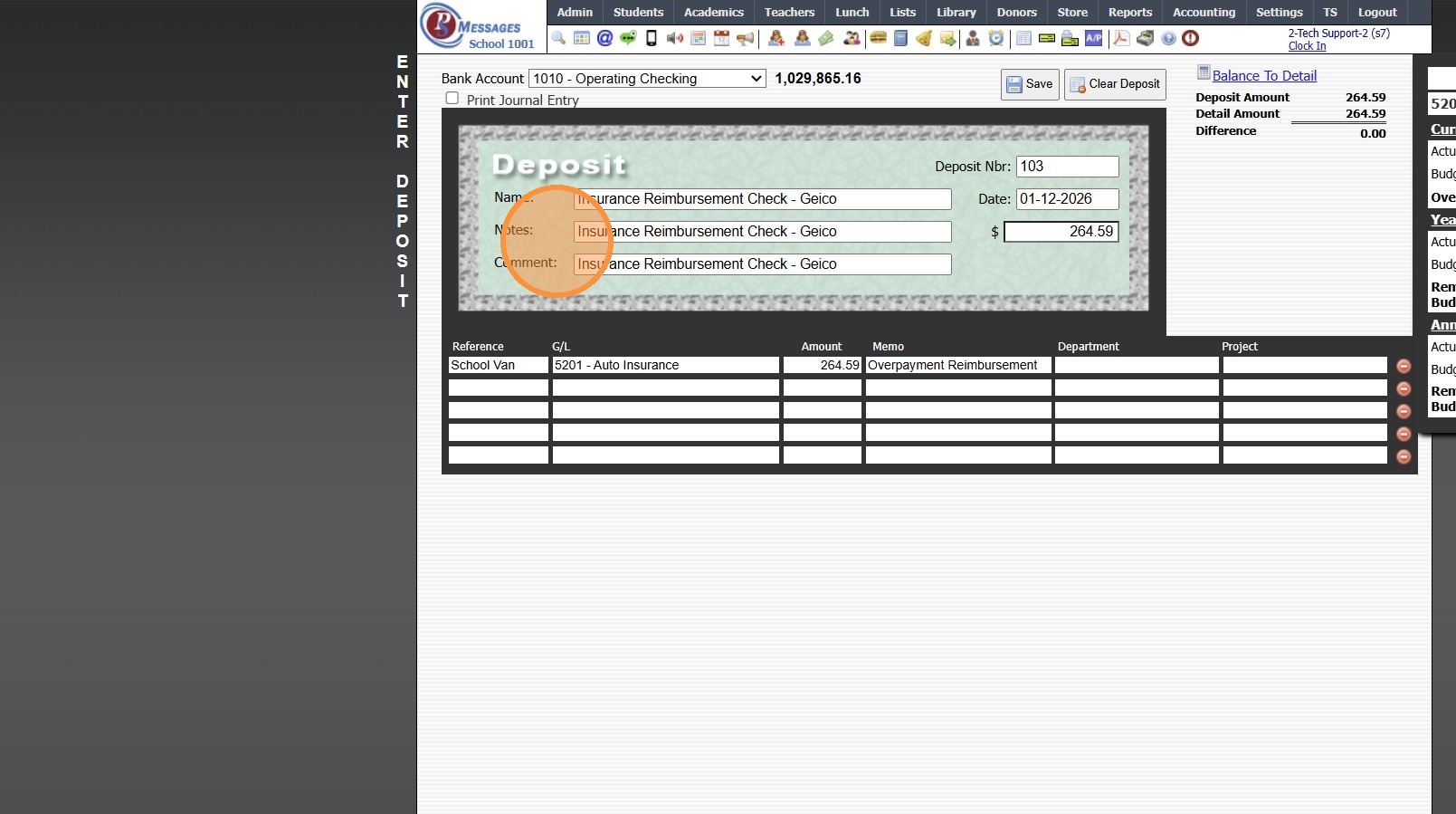
8. Enter Full Deposit Amount
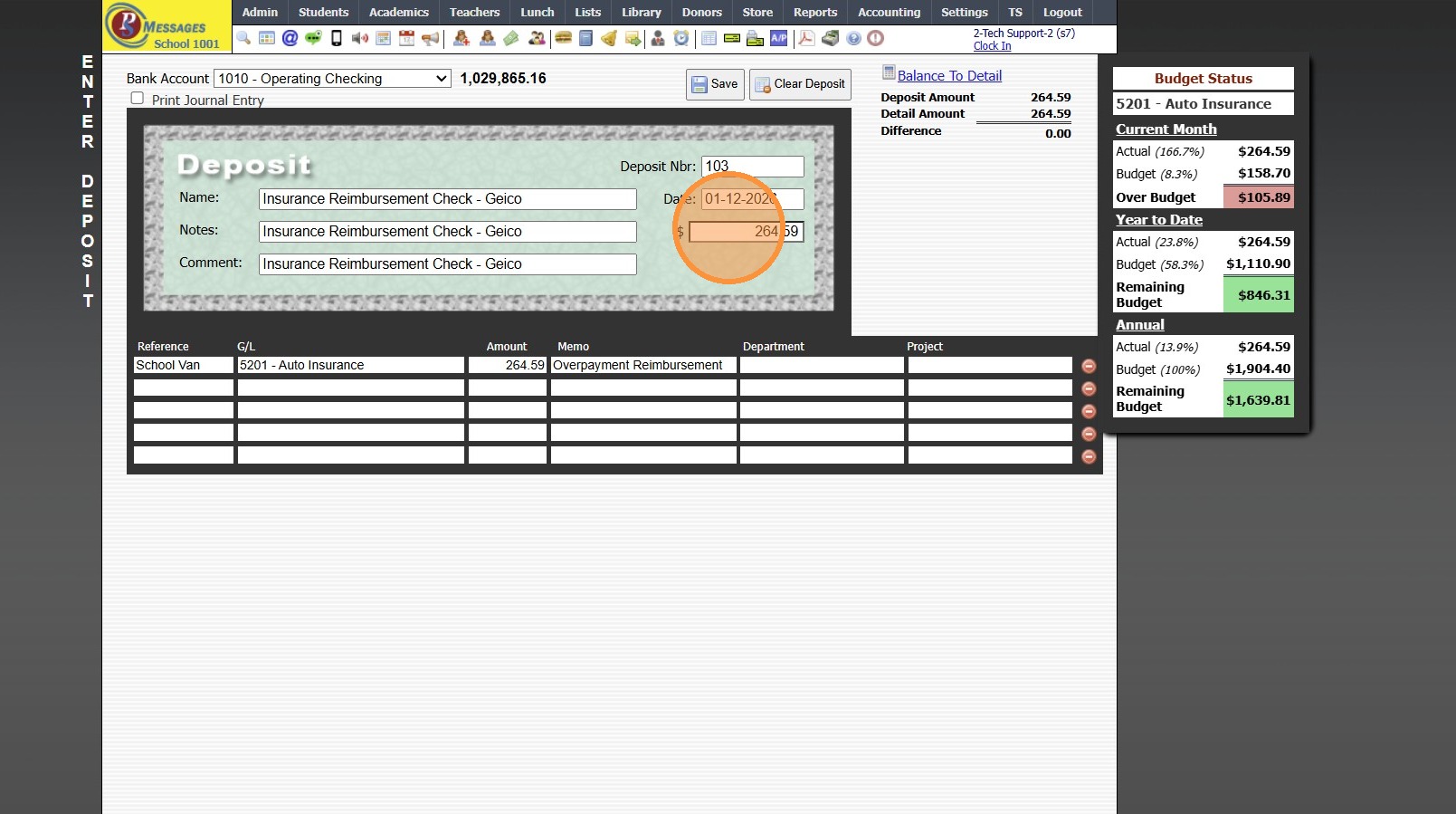
9. Enter Reference (Optional)
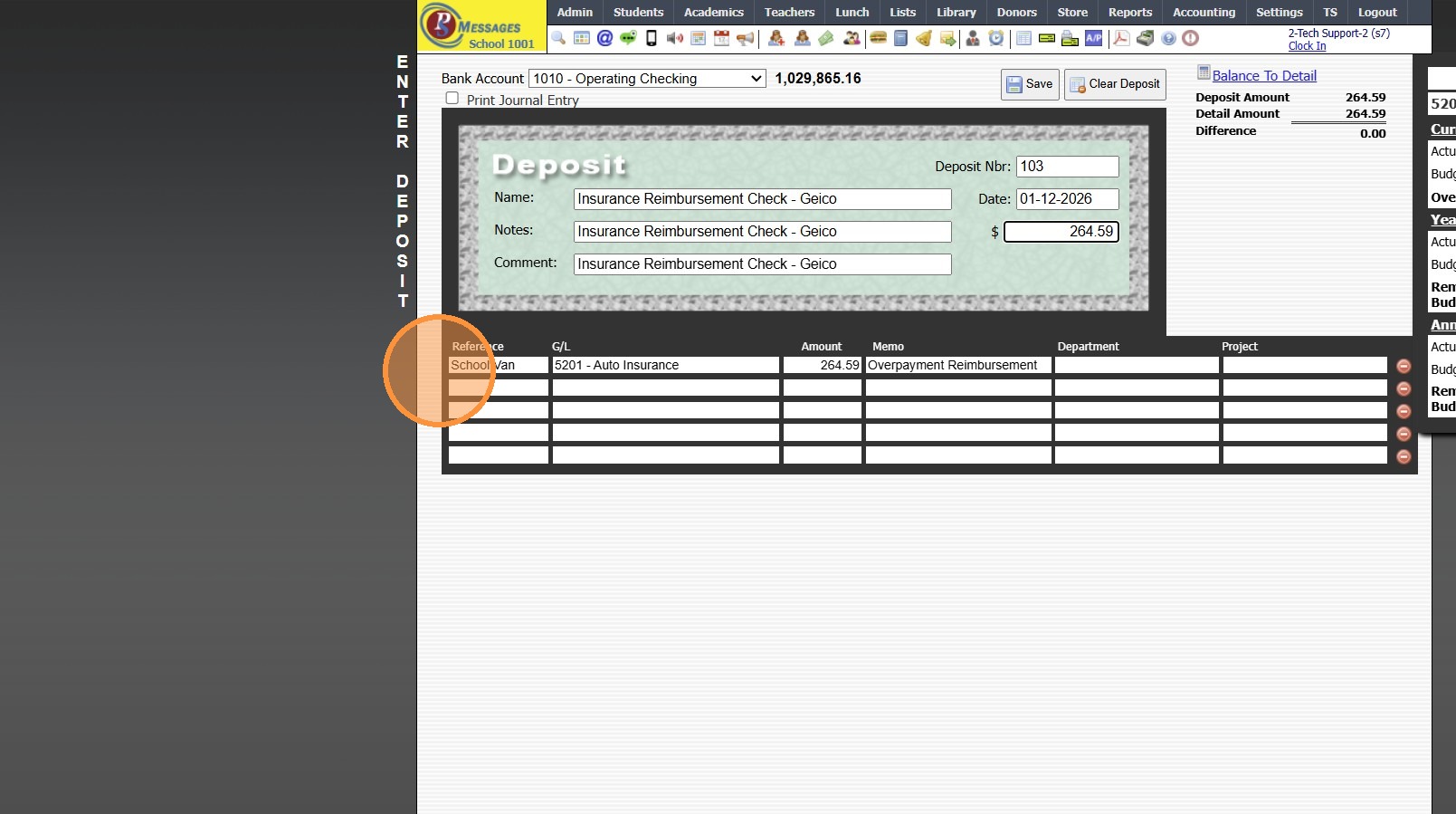
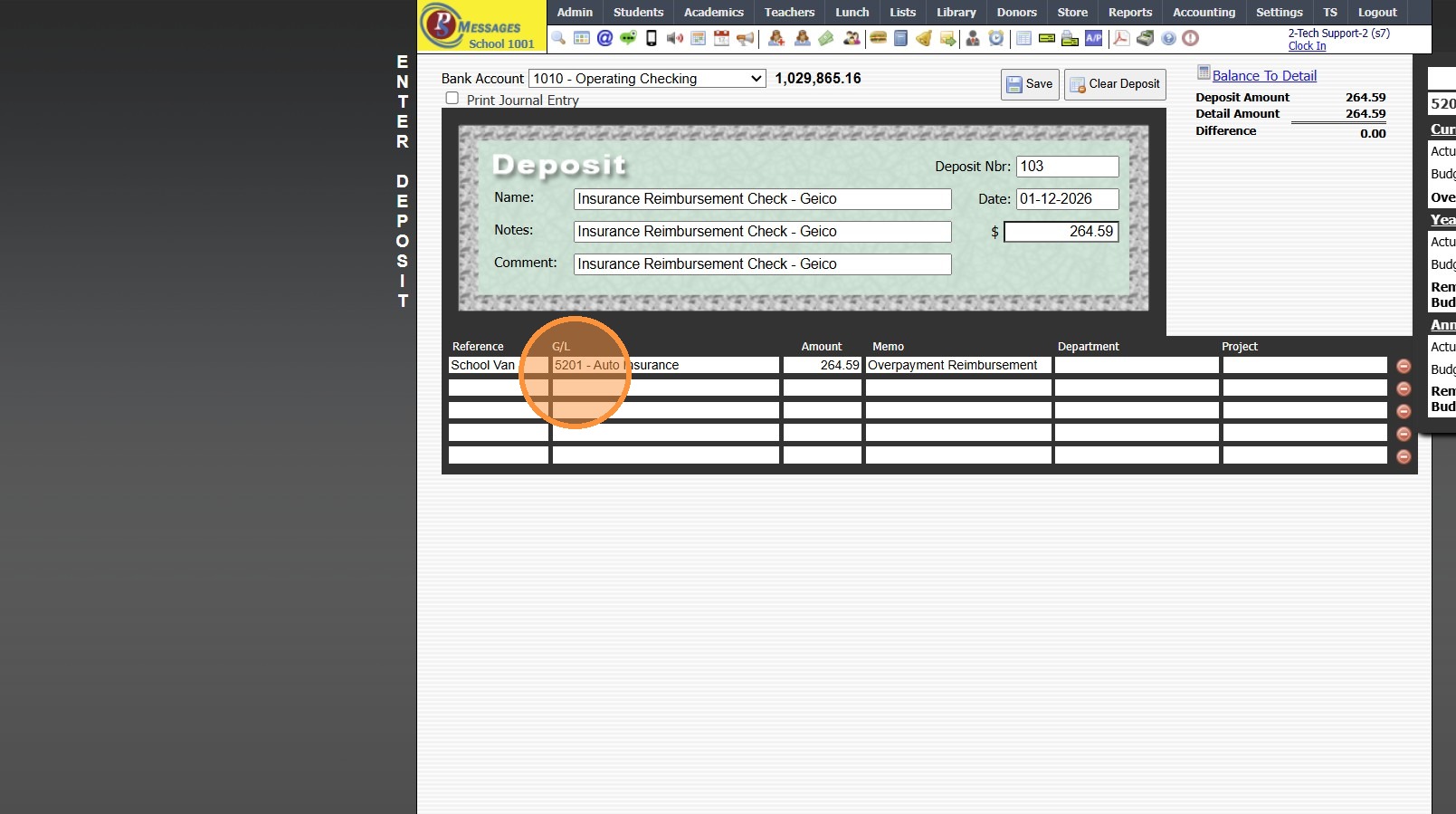
10. Select Appropriate General Ledger Number
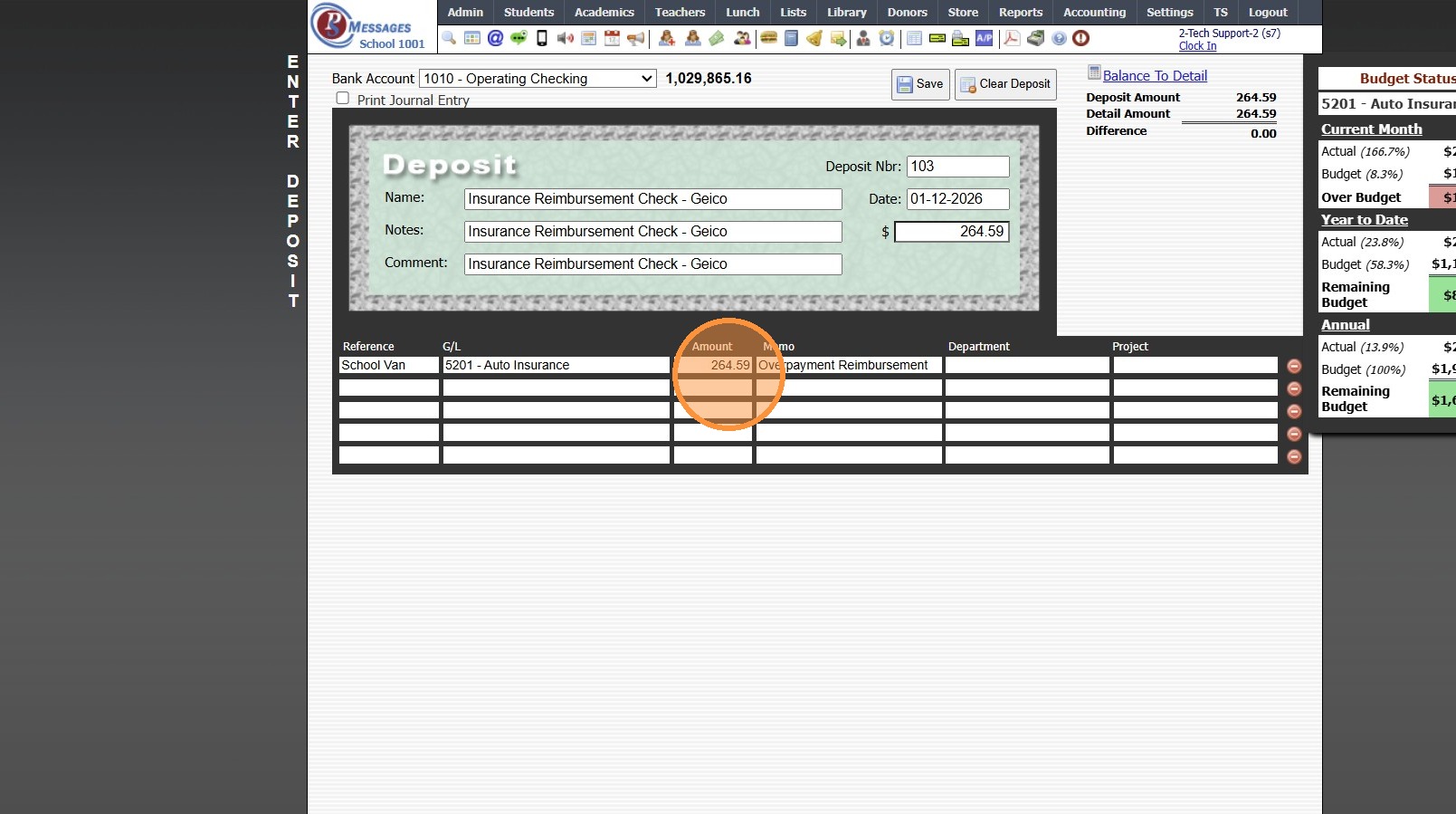
11. Amount will Automatically Populate based on the Deposit Amount
12. Enter a Memo (Optional)
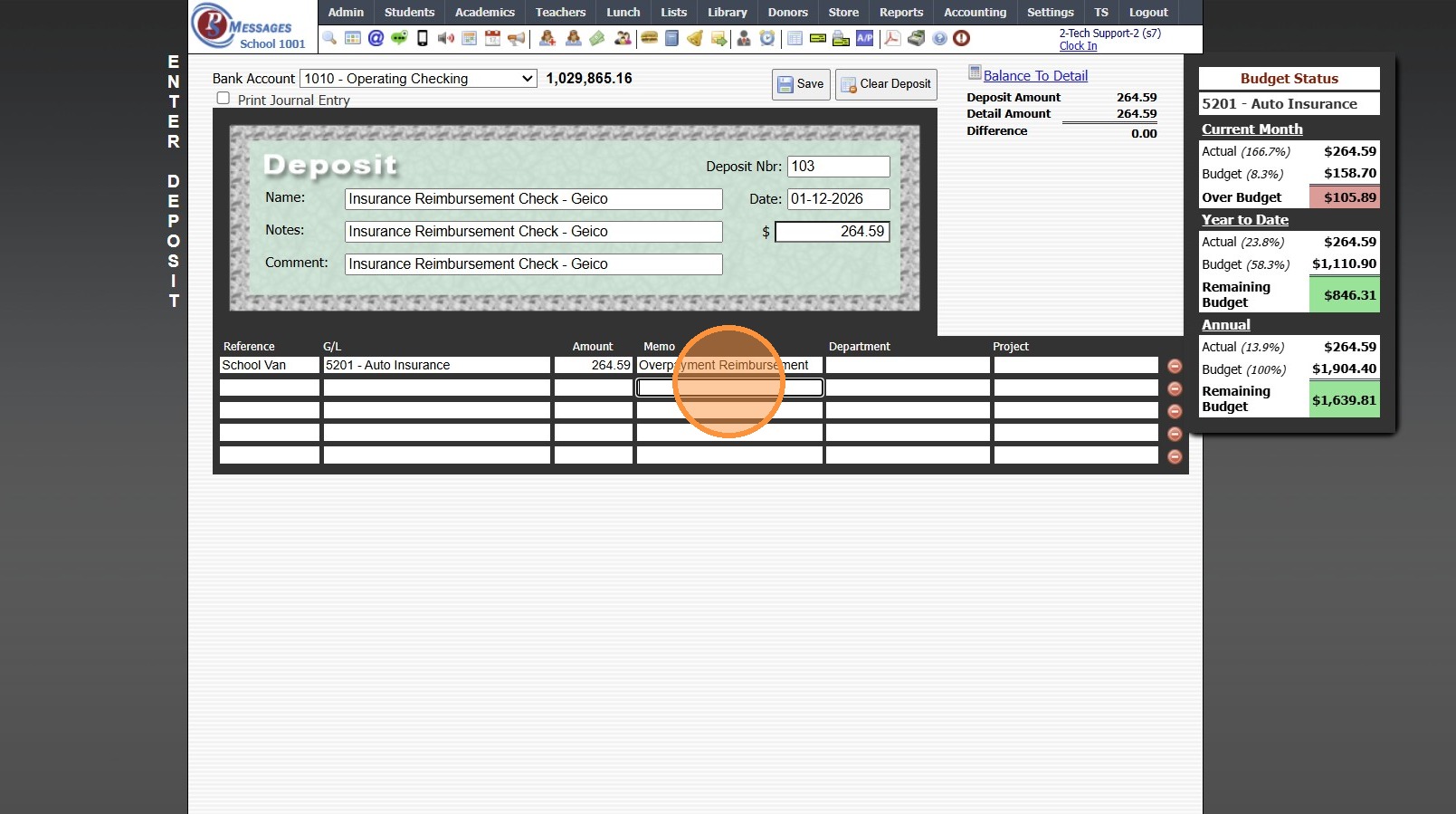
13. Click "Save"
6000.9.2
Related Articles
Making an AR Deposit
Making an AR Deposit Making a standard AR Deposit including all items in the Make Deposit screen. 1. Log into PraxiSchool 2. Click "Accounting" 3. Click "A/R Tasks" 4. Click "Make Deposit" 5. Click "Start Deposit" to Make a Full Deposit 6. Enter the ...Making an AR Deposit by Date Range
Making an AR Deposit by Date Range Making a standard AR Deposit based on a specific Date Range. 1. Log into PraxiSchool 2. Click "Accounting" 3. Click "A/R Tasks " 4. Click "Make Deposit" 5. Select the "Date Range" option. 6. Enter the Start and End ...Making an AR Deposit
Making an AR Deposit 1. Click "Accounting" 2. Click "A/R Tasks" 3. Click "Make Deposit" Making a Date Range Deposit 4. Select "Date Range" from Dropdown 5. Select Start & End Date (Use Calendar to select Year, Month & Date) 6. Enter Deposit Date 7. ...Viewing a Standard Monthly Calendar
Viewing a Standard Monthly Calendar 1. Login to PraxiSchool 2. Click the 1st Calendar Icon to a Standard Calendar 3. This will populate a Standard Calendar View 7500.1.7Entering Assignment Grades
Entering Assignment Grades 1. Log into PraxiSchool 2. Click "Teachers" 3. Click "Classroom" 4. Select Class 5. Click "Grade Book" 6. Select the "Post Grades" Toggle 7. Select Component 8. Select Assignment 9. Click "One time before entering grades, ...