Entering a Refund/Overpayment in CcBills
1. Click "Accounting"
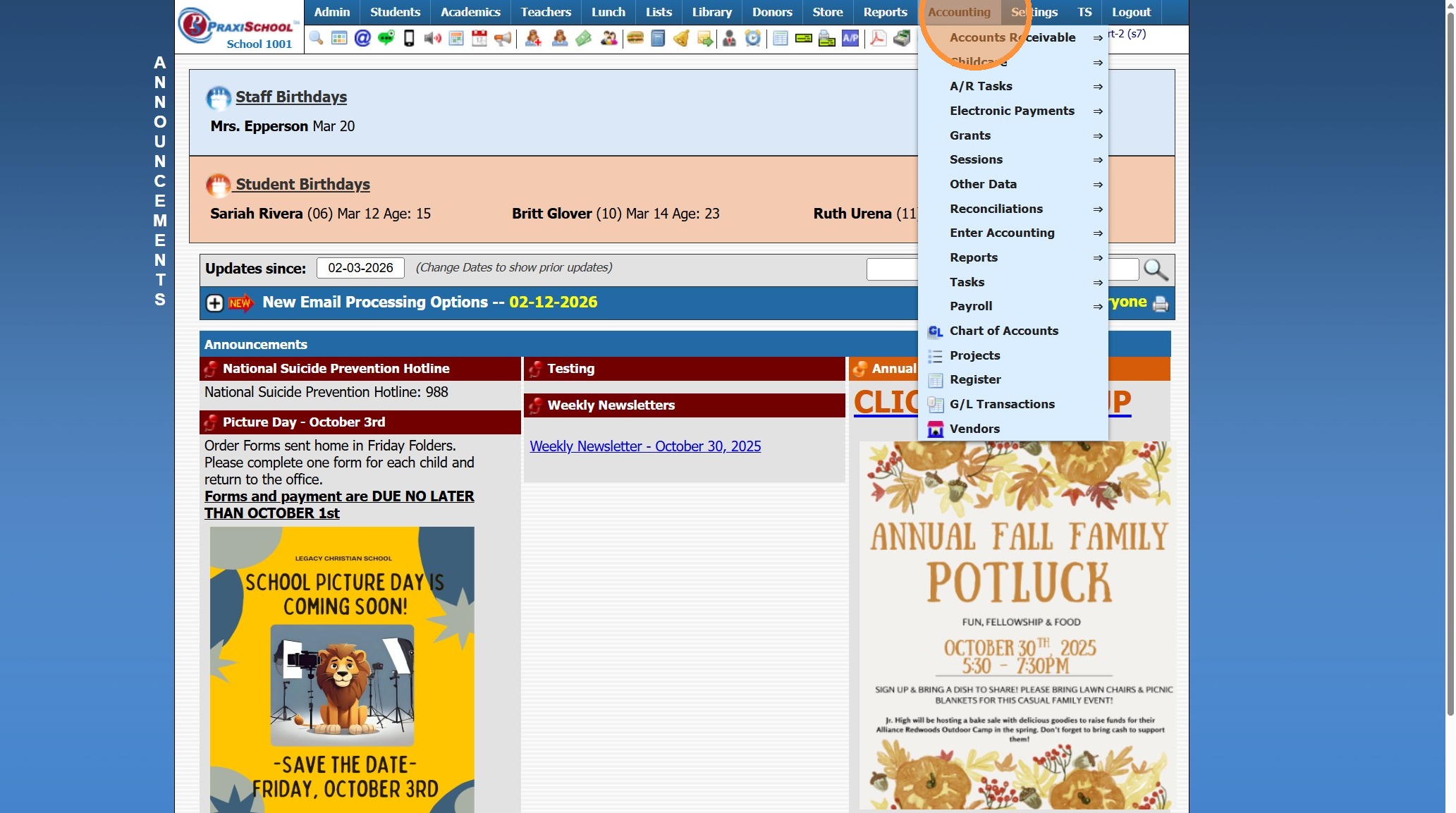
2. Click "Enter Accounting"
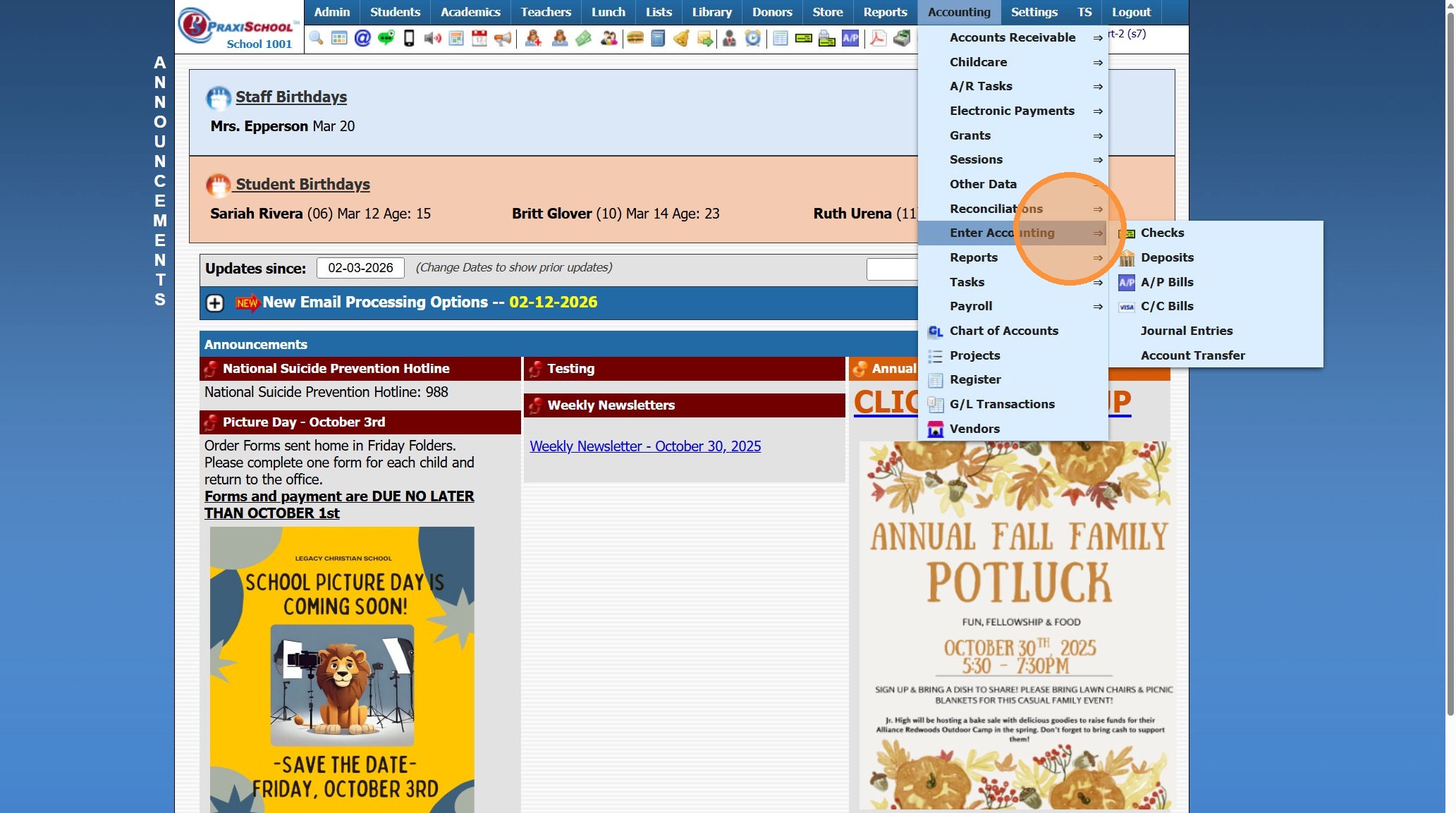
3. Click "C/C Bills"
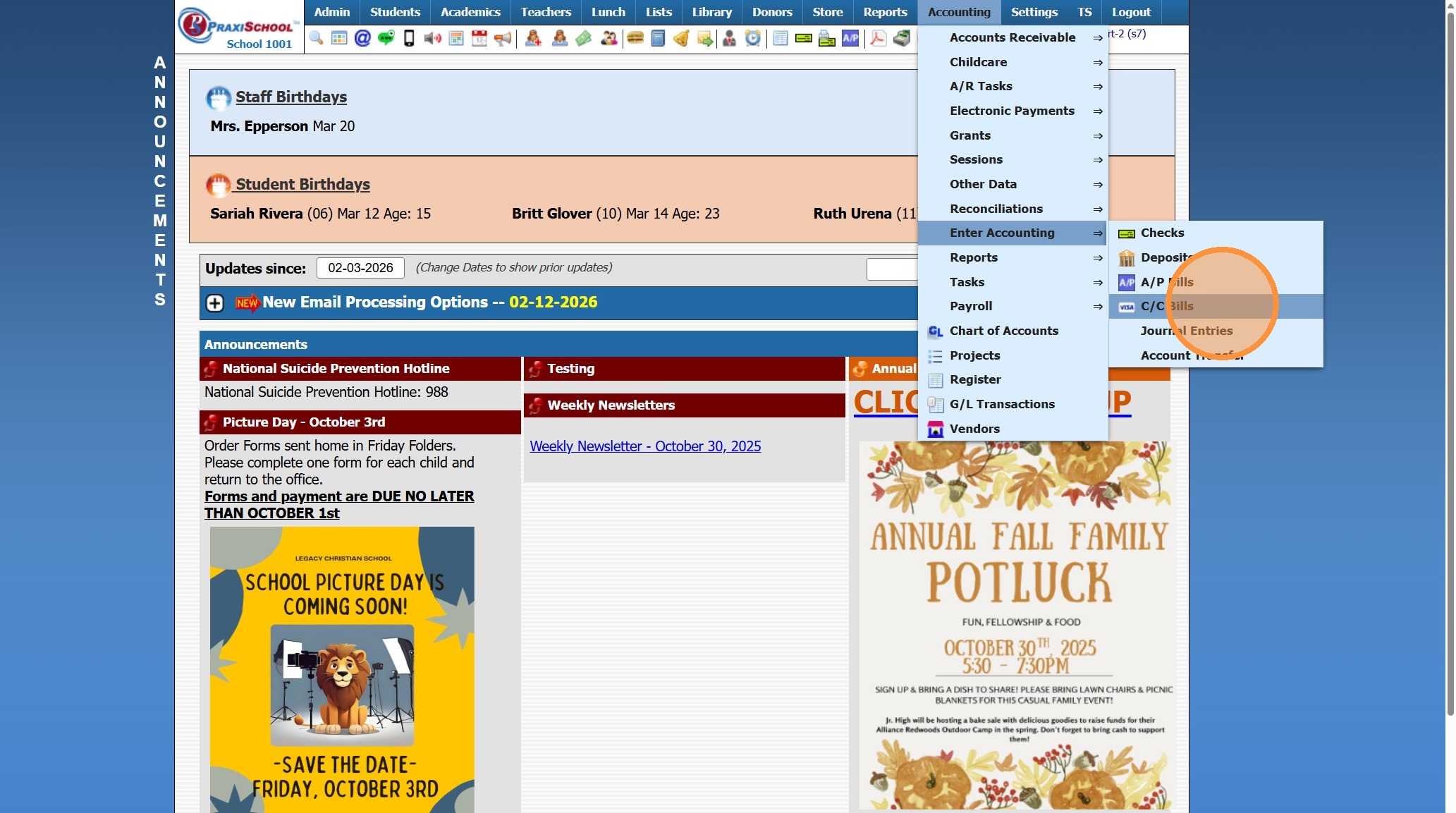
4. Select the Vendor
(If credit is not for a specific Vendor, use or create a New Vendor for Misc Refund/Overpayment)
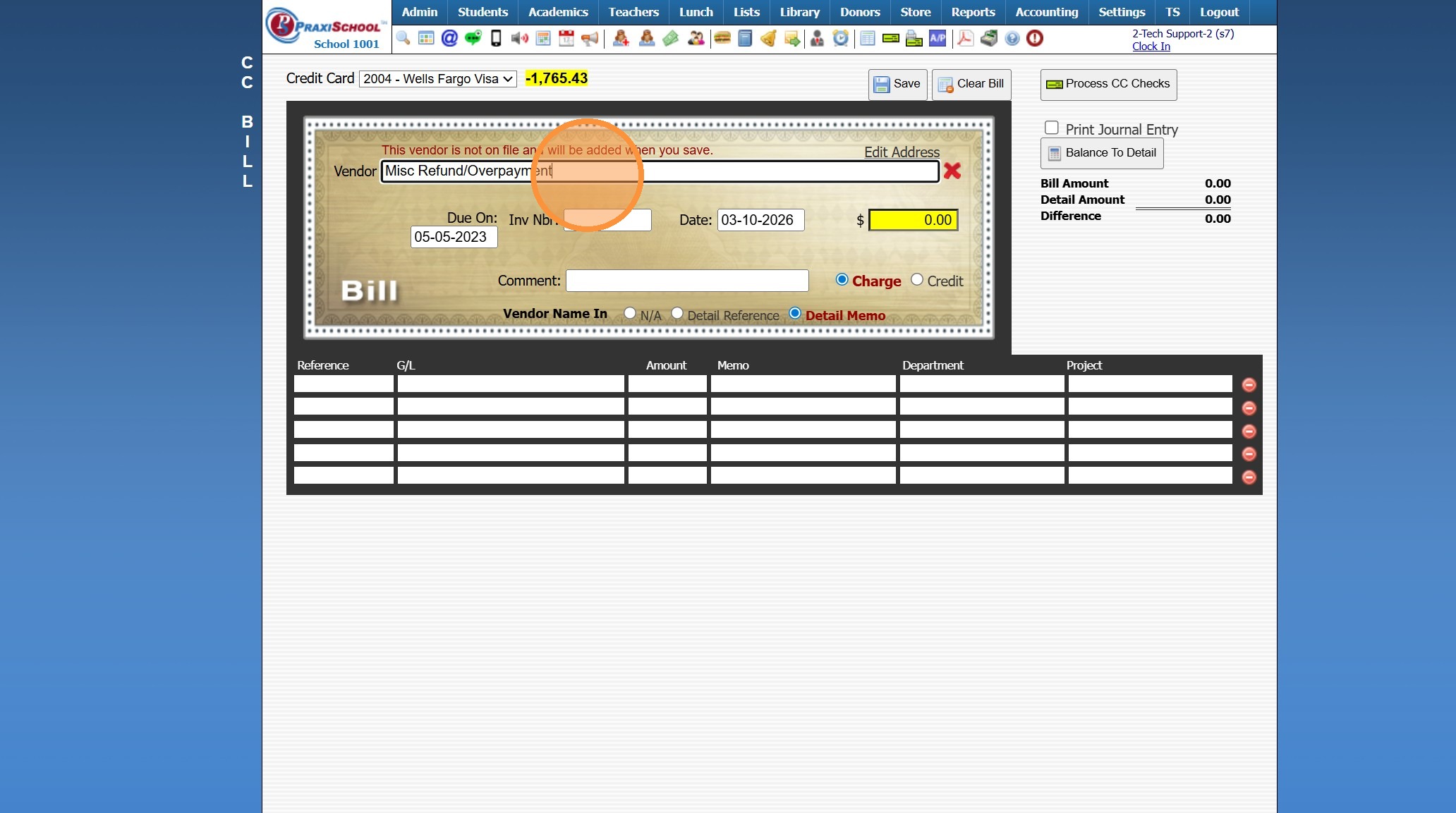
5. Select the "Credit" Toggle
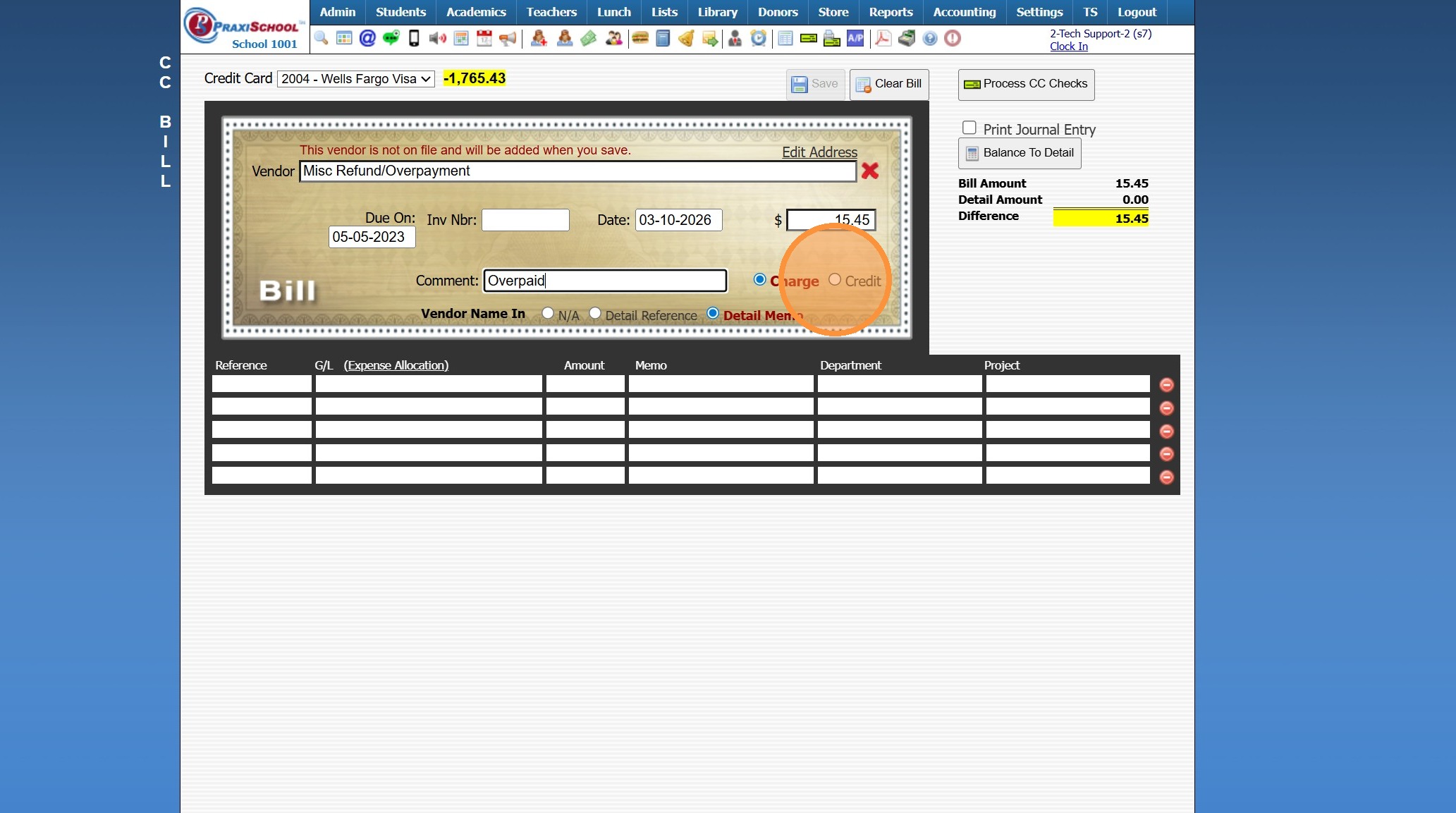
6. Enter Comment (Optional)
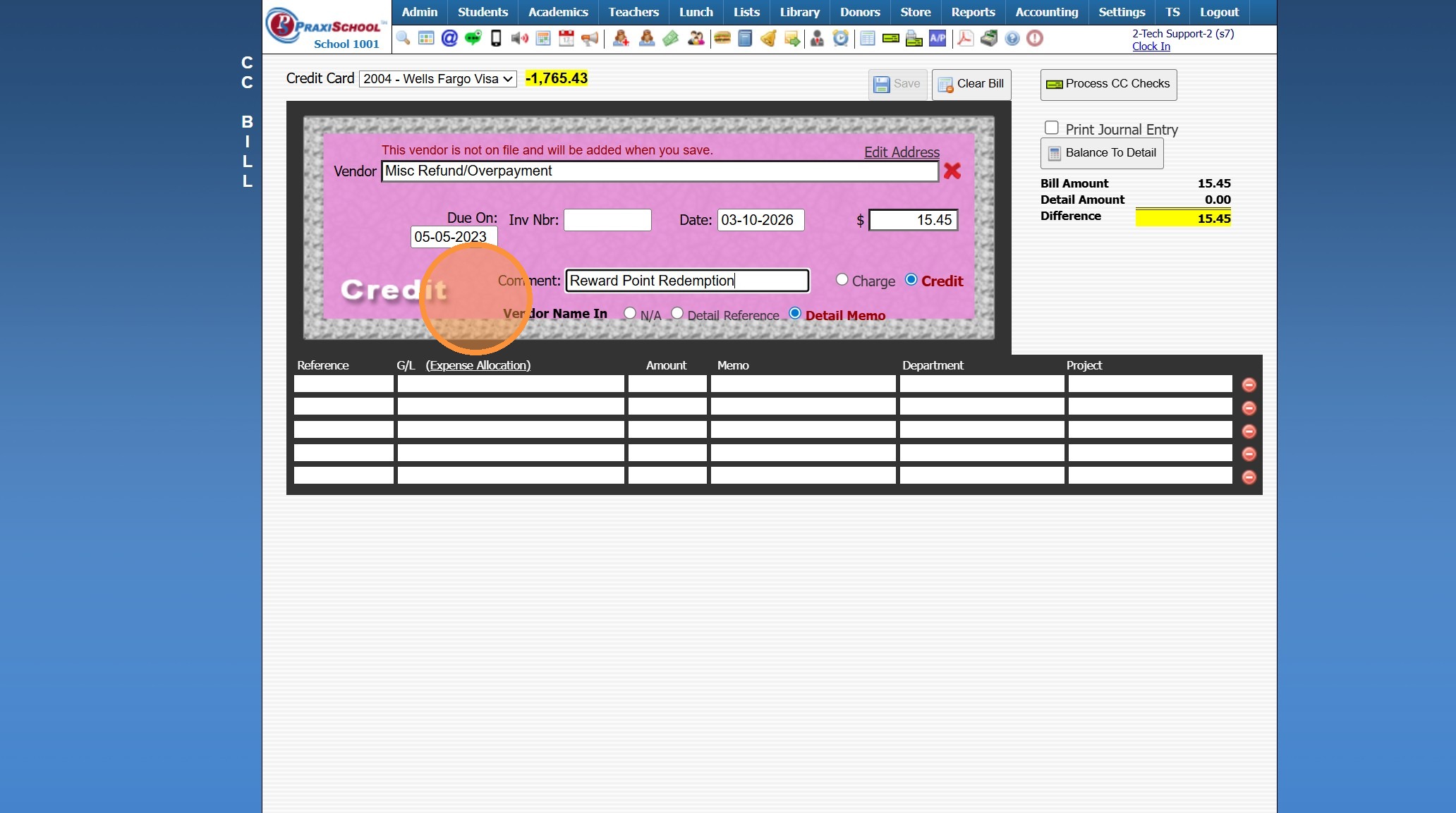
7. Select General Ledger Number to Allocate Credit towards
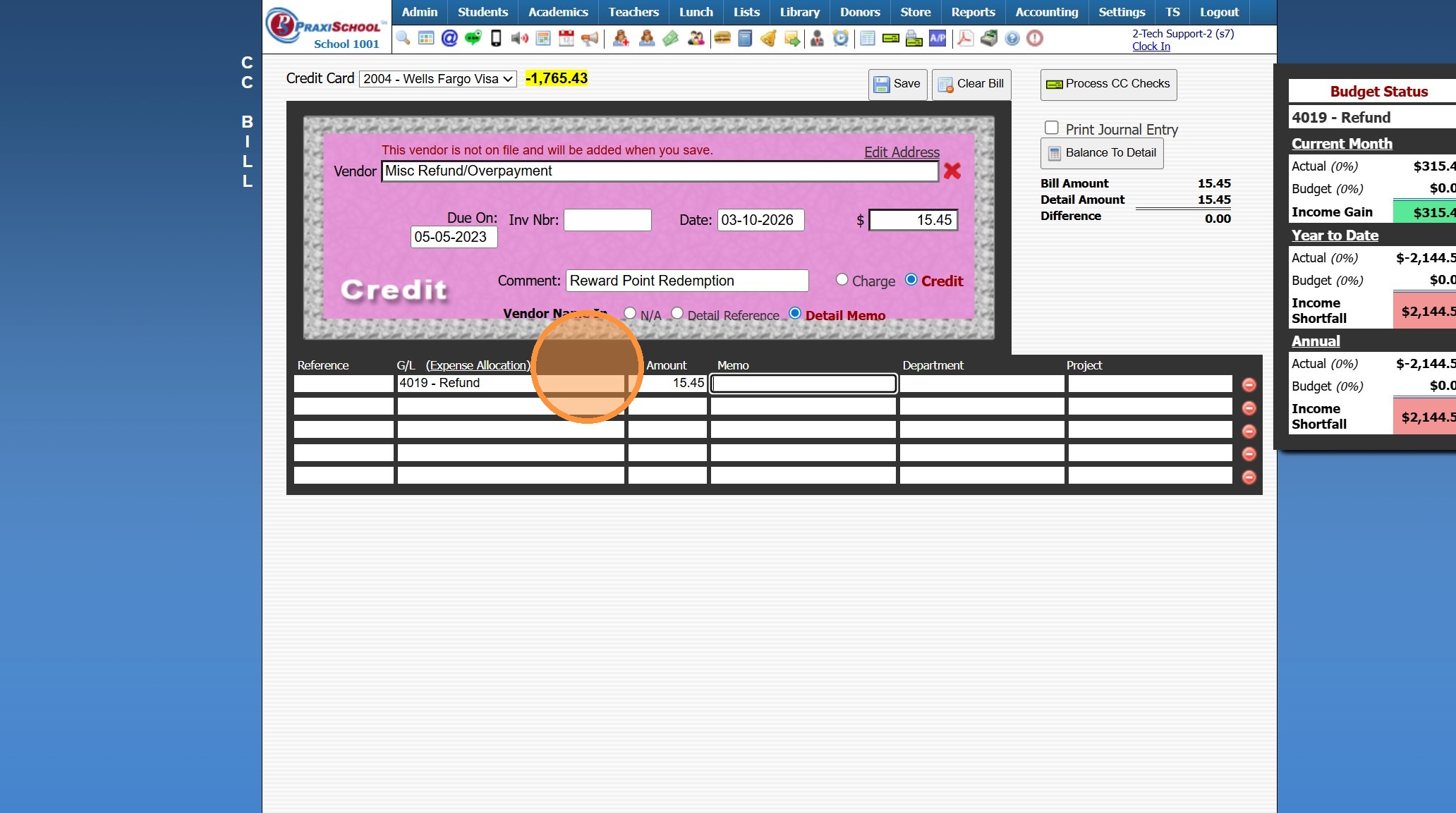
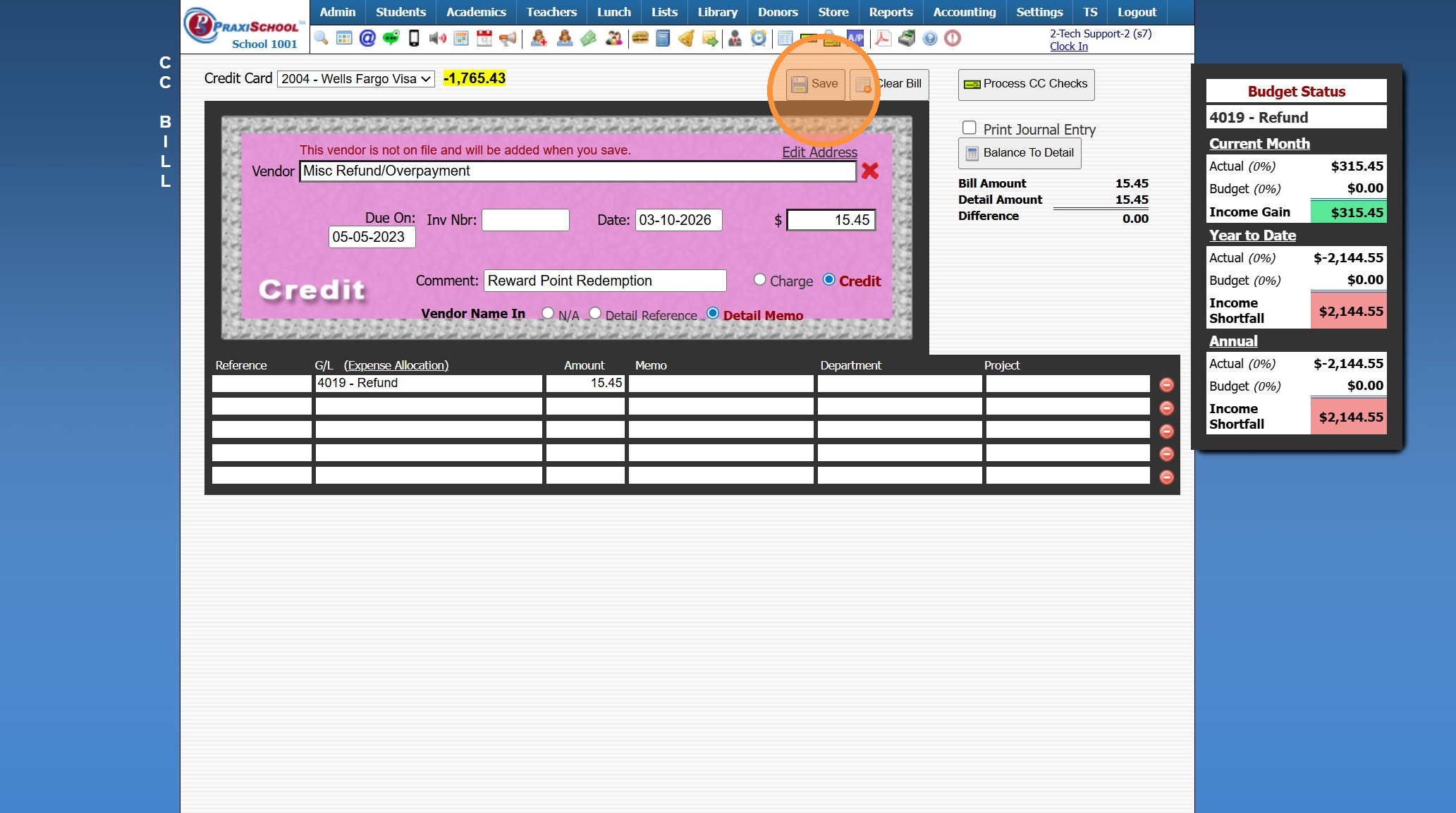
8. Click "Save"
6000.9.6
Related Articles
When entering CcBills I lost my place, where can I see what I have already entered?
1. Click "Accounting" 2. Click "Enter Accounting" 3. Click "C/C Bills" 4. Click "Process CC Checks" 5. Select Credit Card & Refresh to see all Entered, but not Processed CcBills 8000.27Posting a Refund to an AR Account
Posting a Refund to an AR Account 1. Go to Accounts Receivable 2. Select Student Account 3. Click "$" in the Blue Box 4. Select the "Account Refund" option from the Defined Item Dropdown Menu 5. Verify Date and Update Amount (if necessary) 6. Enter ...Posting a Refund to an AR Account (Owed Balance)
Posting a Refund to an AR Account (Owed Balance) 1. Go to Accounts Receivable 2. Select Student Account 3. Click "Actions" 4. Click "Refund Account" 5. Enter Refund Date 6. Click "Check & Credit" 7. Make sure Bank Acct General Ledger is Selected 8. ...Entering Assignment Grades
Entering Assignment Grades 1. Log into PraxiSchool 2. Click "Teachers" 3. Click "Classroom" 4. Select Class 5. Click "Grade Book" 6. Select the "Post Grades" Toggle 7. Select Component 8. Select Assignment 9. Click "One time before entering grades, ...Entering Student Conduct
Entering Student Conduct 1. Log into PraxiSchool 2. Click "Teachers" 3. Click "Classroom" 4. Select Class 5. Click "Grade Book" 6. Click "Detail" Toggle 7. Select Student 8. Click "Conduct" 9. Enter Letter Grade for Each Item 10. Make sure to Tab out ...