Editing a Student's Roster Grade
1. Click "Academics"
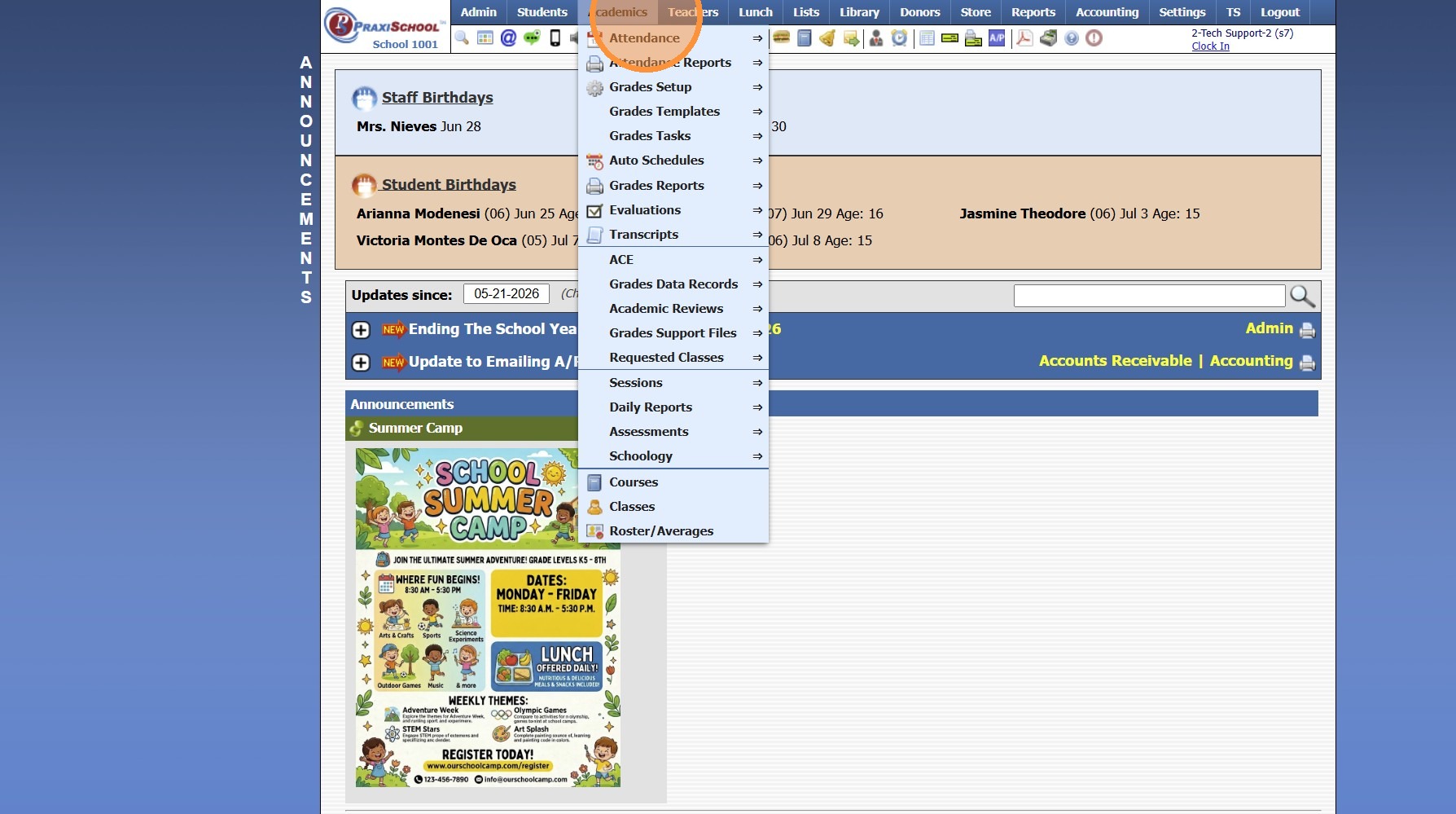
2. Click "Roster/Averages"
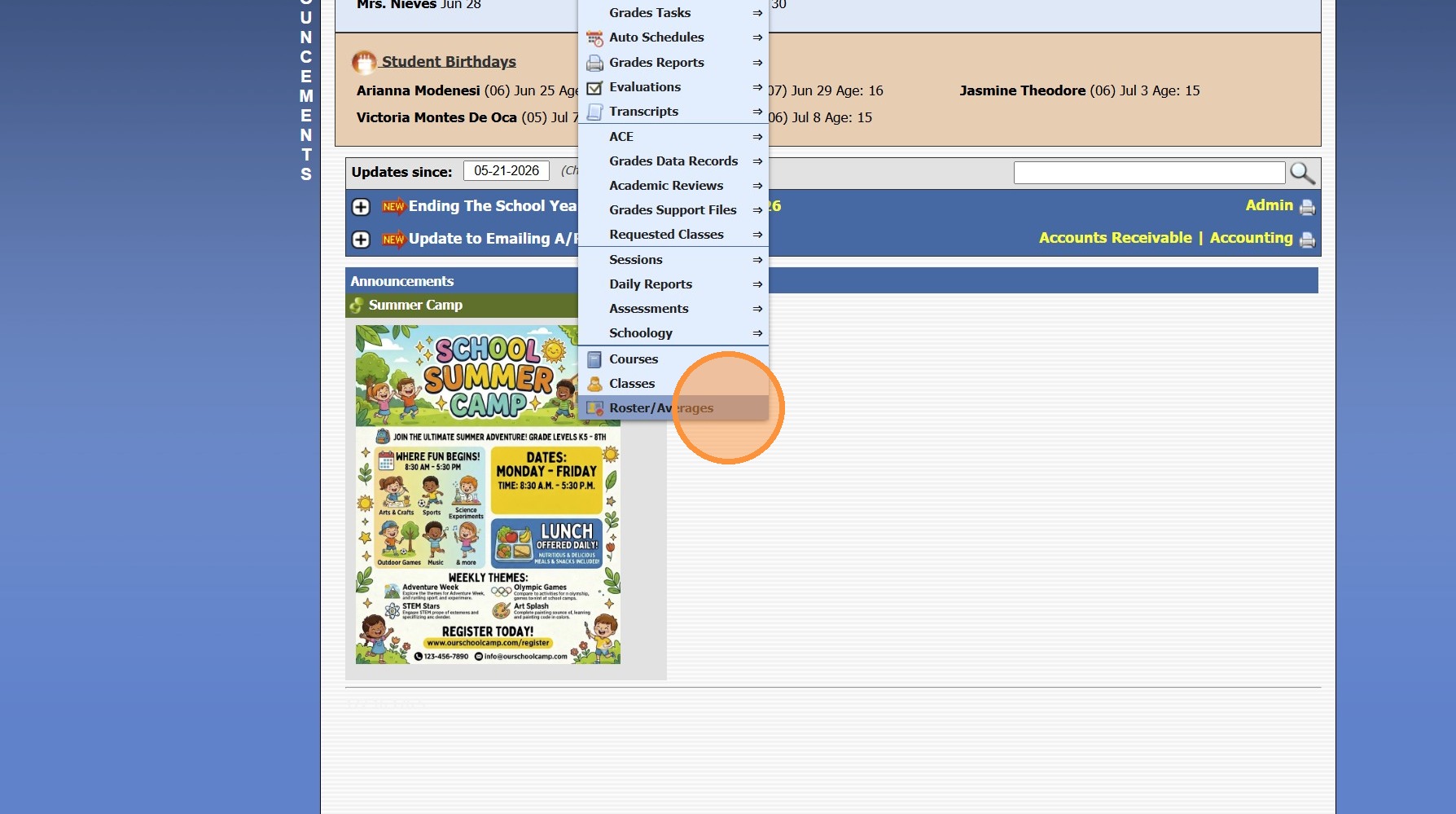
3. Click "Quick Find"
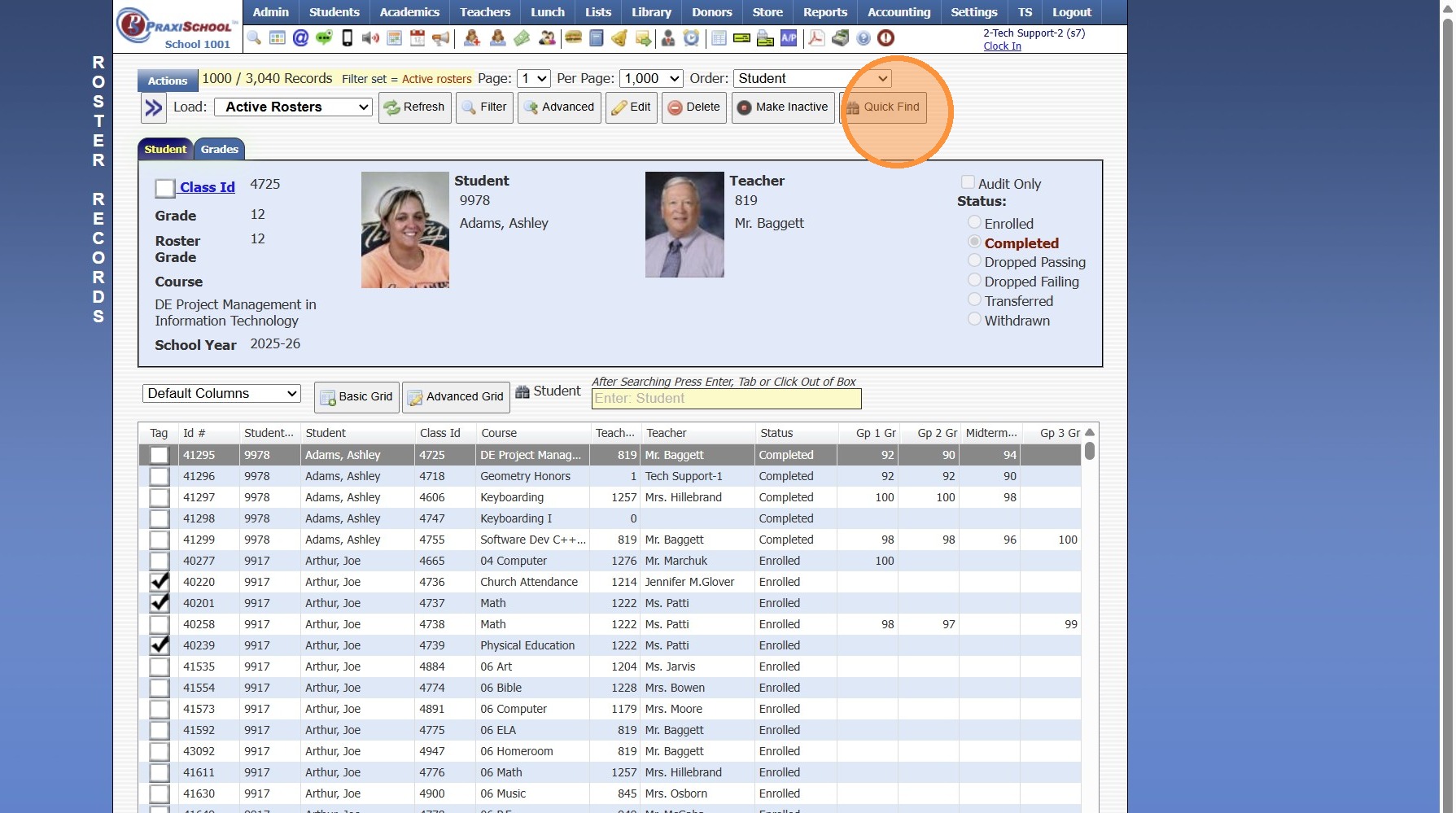
4. Select the Active & Status Settings
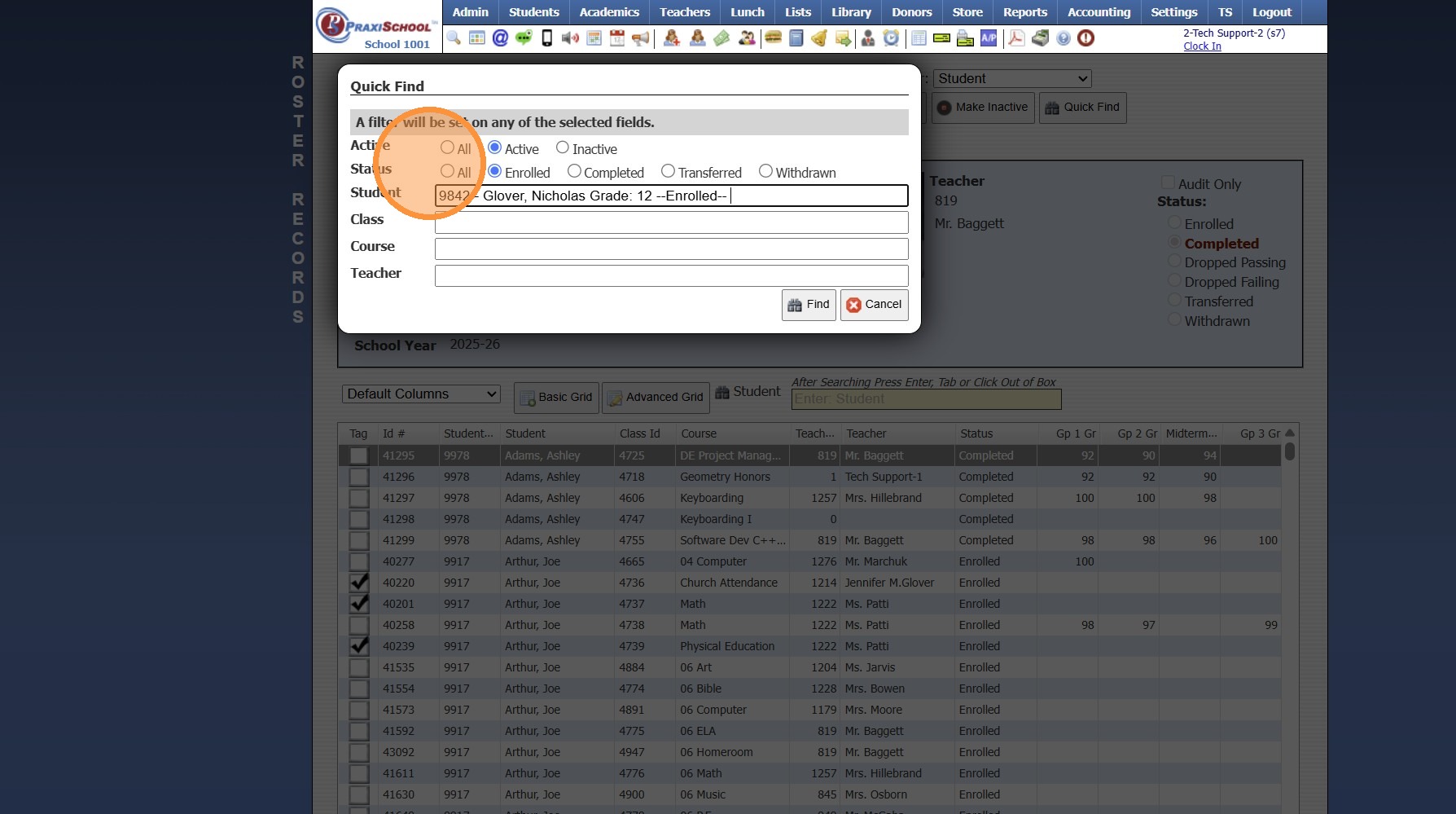
5. Search the Student, Class, Course and/or Teacher
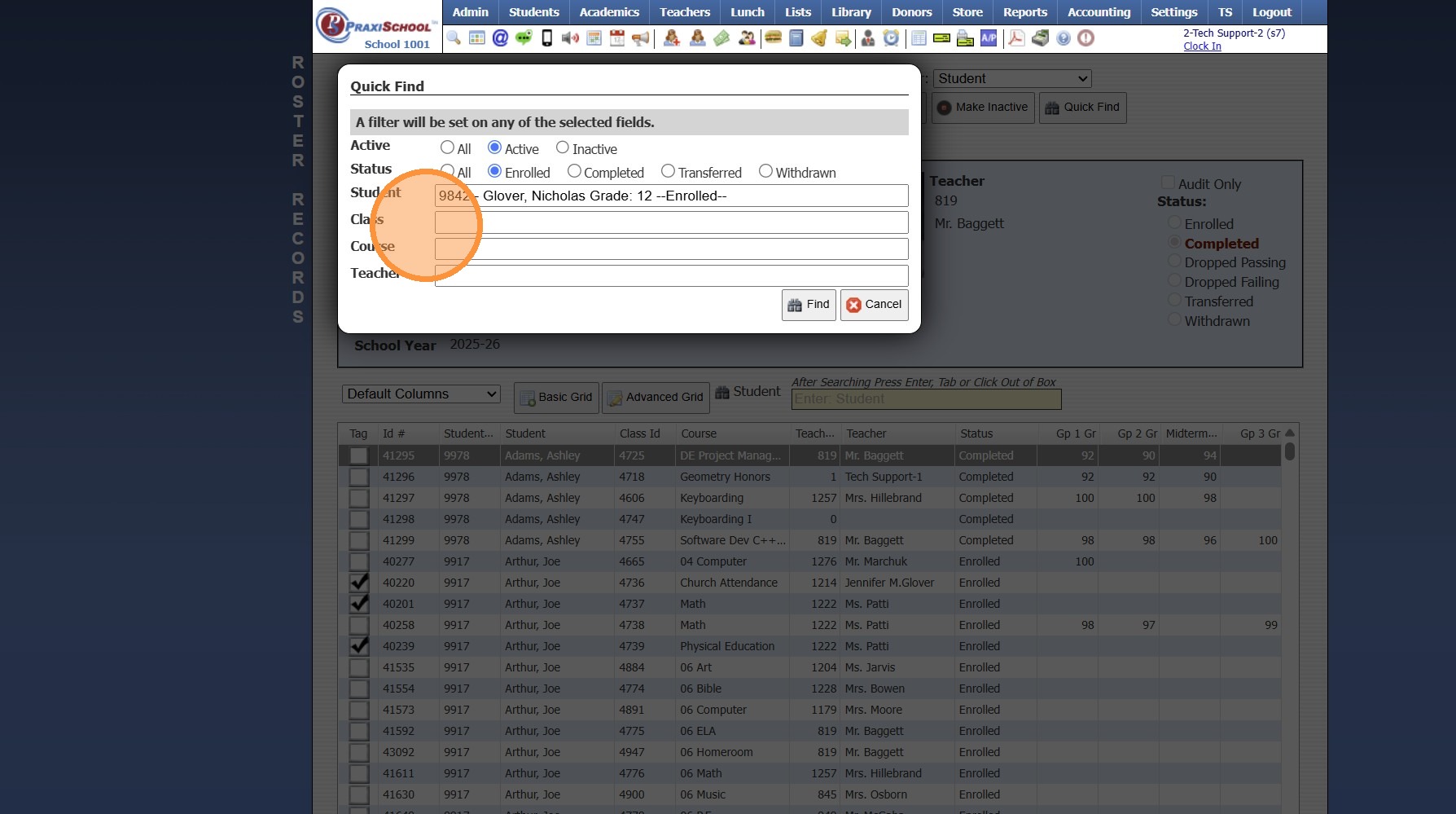
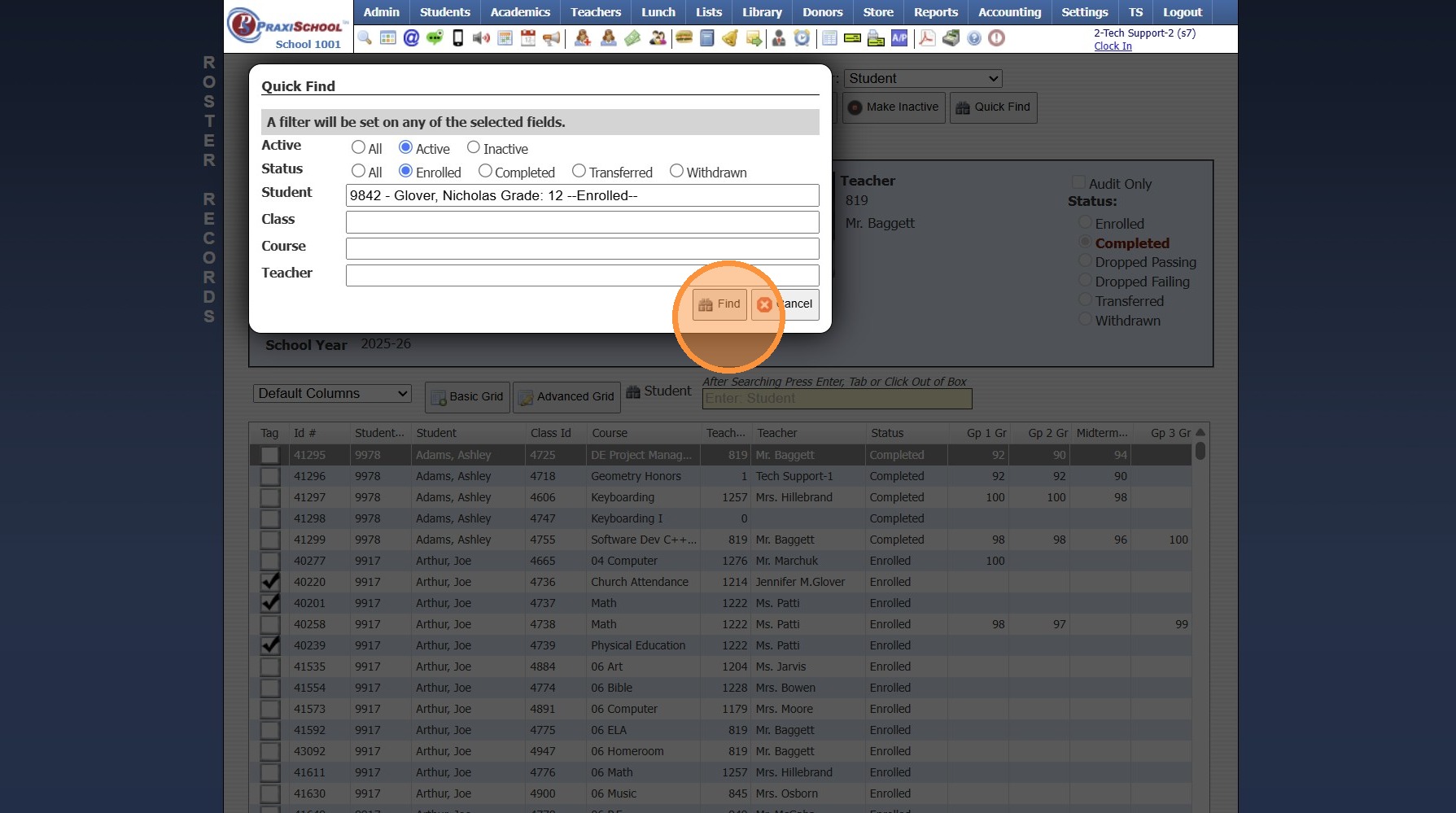
6. Click "Find"
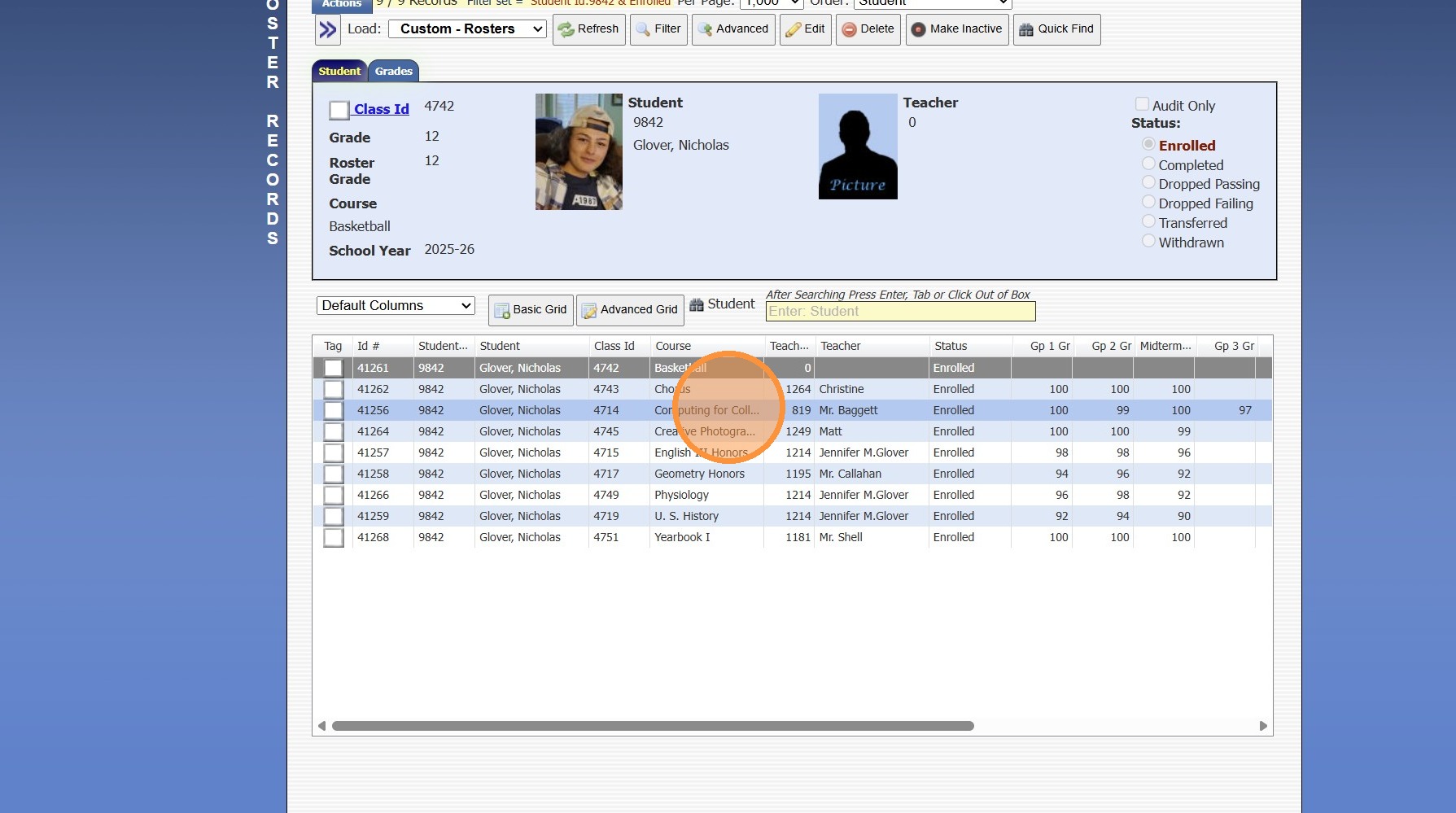
7. Select the Roster
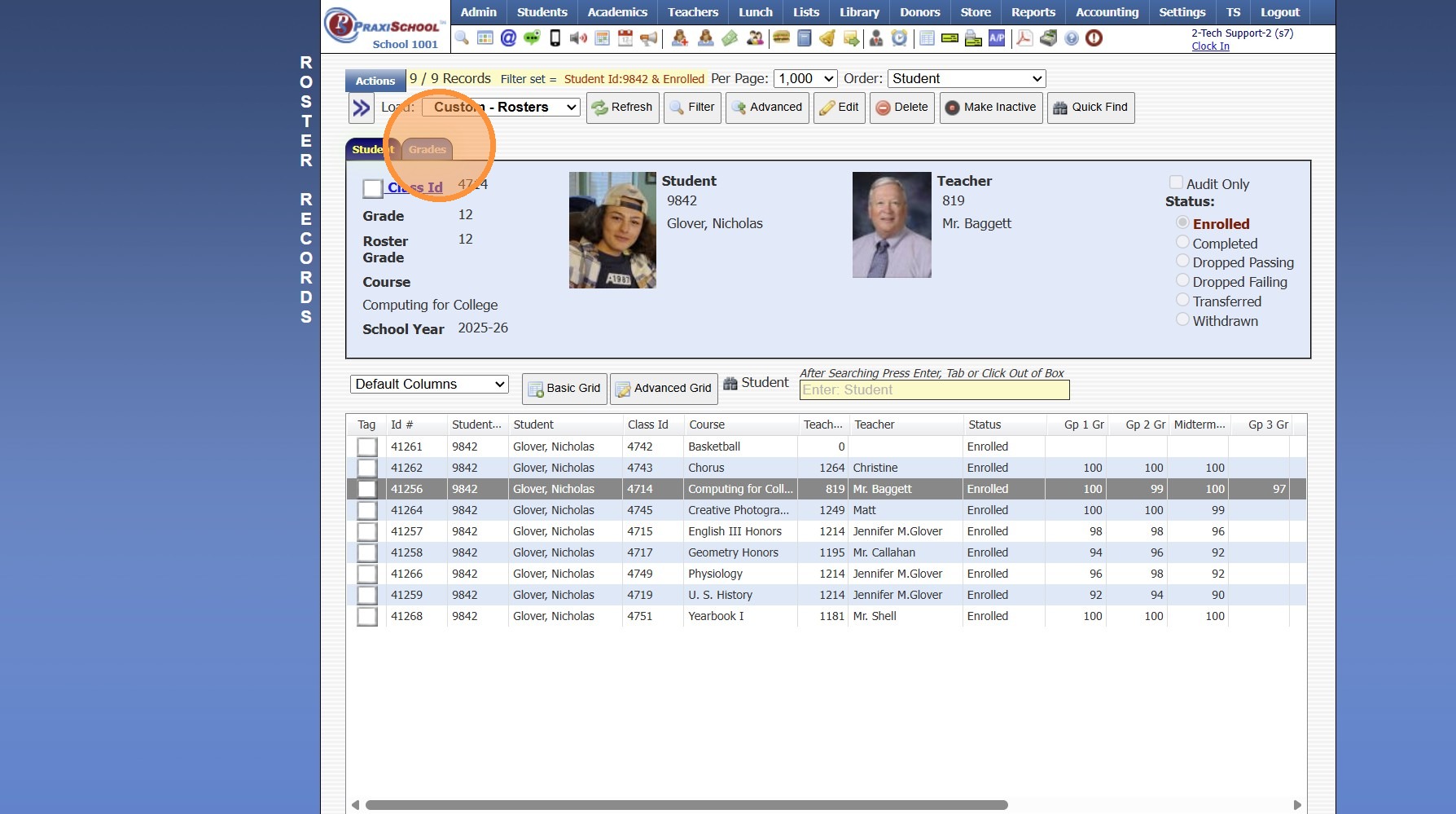
8. Click the "Grades" Tab
9. Click "Edit"
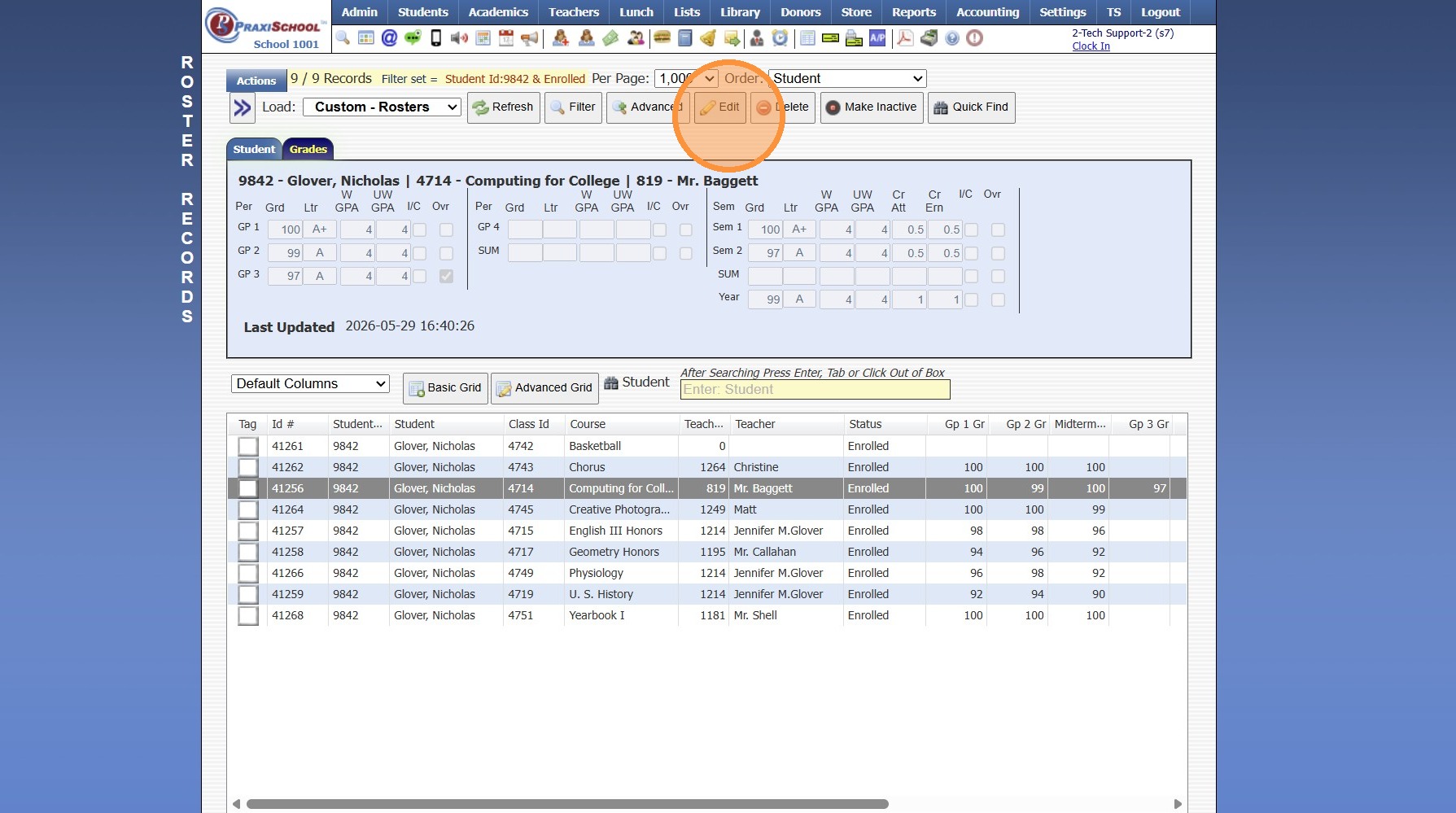
10. Edit the Grade Period Grade & Check the Ovr Box
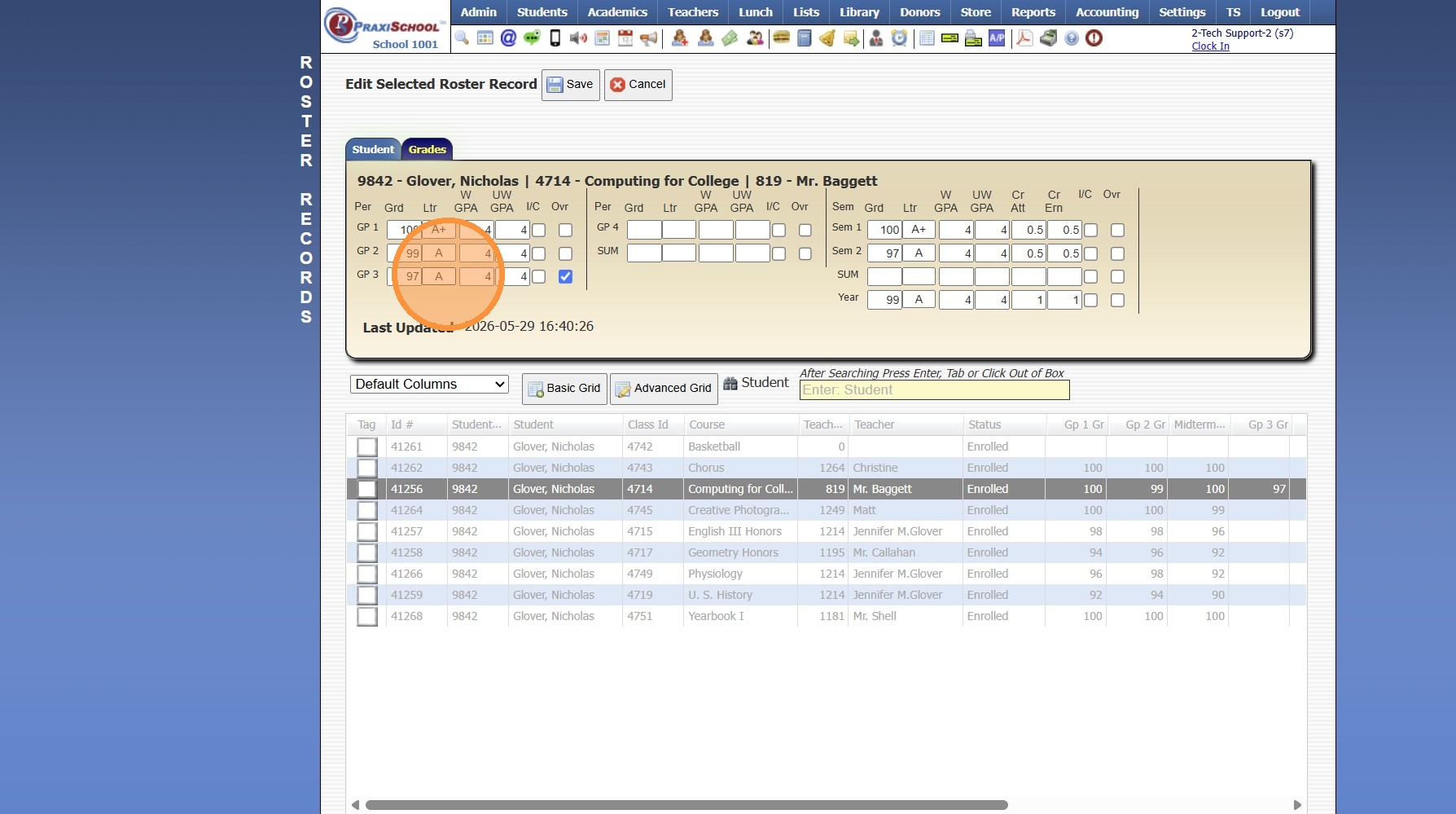
11. Edit the Semester Grade & Check the Ovr Box
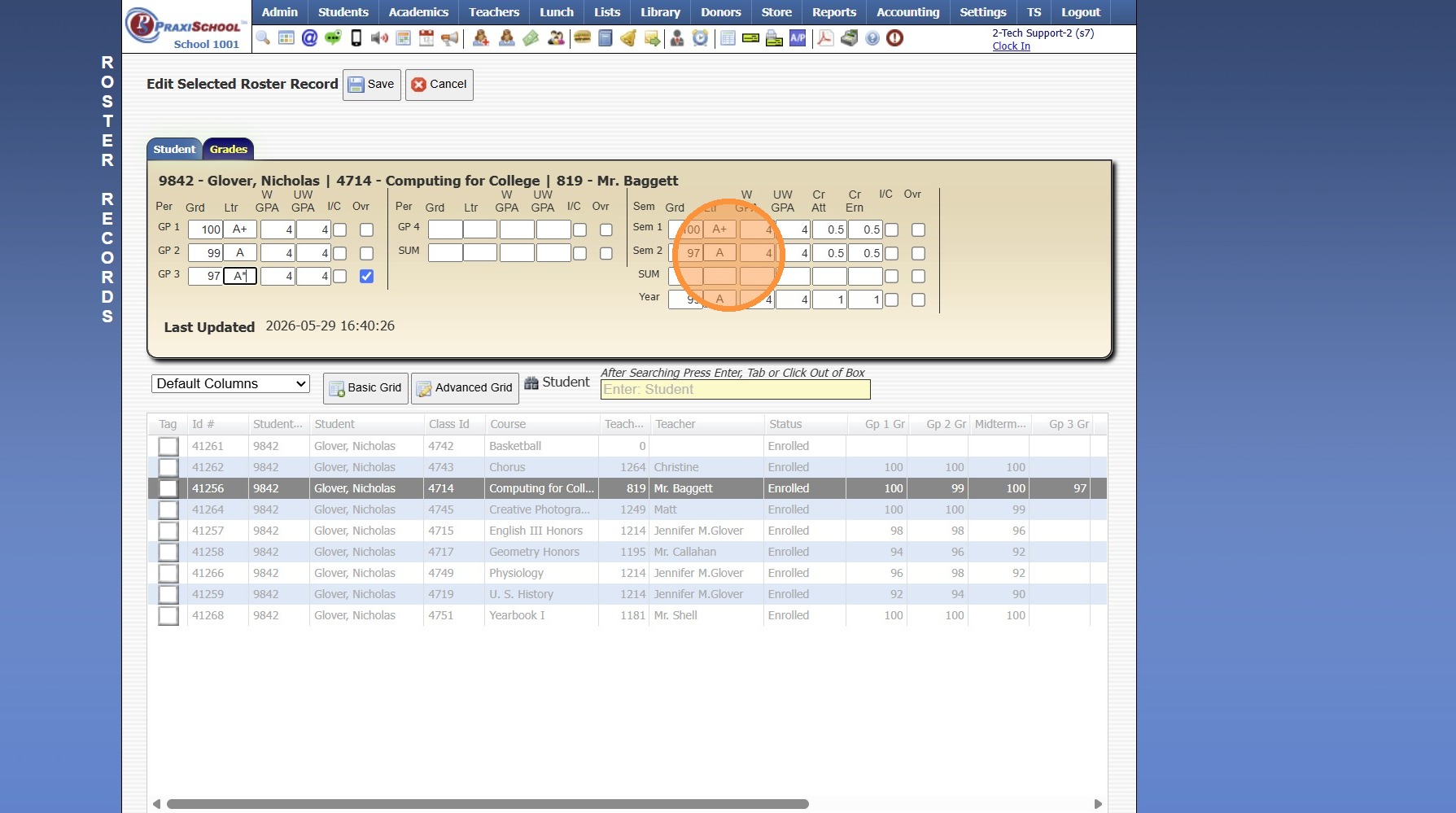
12. Click "Save"
2000.14.10
Related Articles
Updating Incorrectly Dropped Grade(s)
Updating Incorrectly Dropped Grade(s) 1. Click "Teachers" 2. Click "Classroom" 3. Select Class 4. Click "Grade Book" 5. Click the "Post Grades" Toggle 6. Select Component 7. Select Assignment 8. Click + Next to Student Name 9. Remove Added Comment ...Entering Grades in Roster/Averages
1. Click "Academics" 2. Click "Roster/Averages" 3. Click "Quick Find" 4. Search the Student 5. Click "Find" 6. Select Class Roster 7. Click "Edit" 8. Click "Grades" tab 9. Enter the Grade Period Number Grade, Letter Grade, Weighted & Unweighted GPA's ...Batch Editing Student's Year of Graduation
Batch Editing Student's Year of Graduation 1. Click "Students" 2. Click "Students" 3. Click "Actions" 4. Click "Batch Tag" 5. Select Grade Level 6. Click "Tag Students" 7. Click "Close & Set Filter" 8. Click "Actions" 9. Click "Batch Edit Tags" 10. ...ADMIN: Adding / Editing Report Card Notes to Existing Student Report Card Notes
ADMIN: Adding / Editing Report Card Notes to Existing Student Report Card Notes 1. Click "Academics" 2. Click "Grades Support Files" 3. Click "Report Card Class Notes" 4. Select Student 5. Click "Edit" 6. Click "Notes" 7. Click in Notes Box 8. Add / ...Drop Lowest Grade
Drop Lowest Grade 1. Click "Teachers" 2. Click "Classroom" 3. Select Class 4. Click "Grade Book" 5. Click "Averages" Toggle 6. Click "Drop Low Grade" Button 7. Select Component(s) (If more than one component is selected, the lowest grade for each ...