Creating GL Filters
1. Click "Lists"
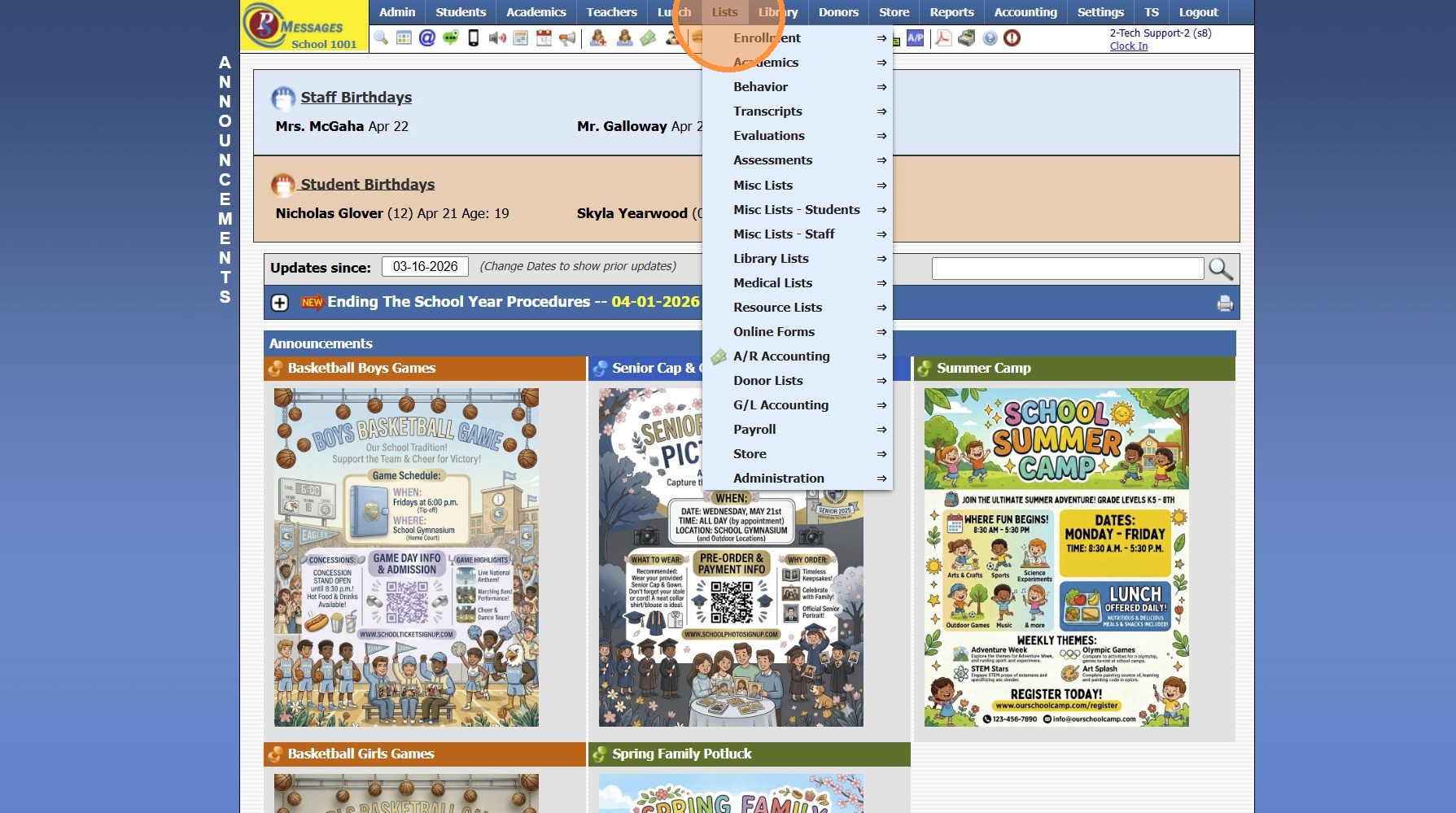
2. Click "G/L Accounting"
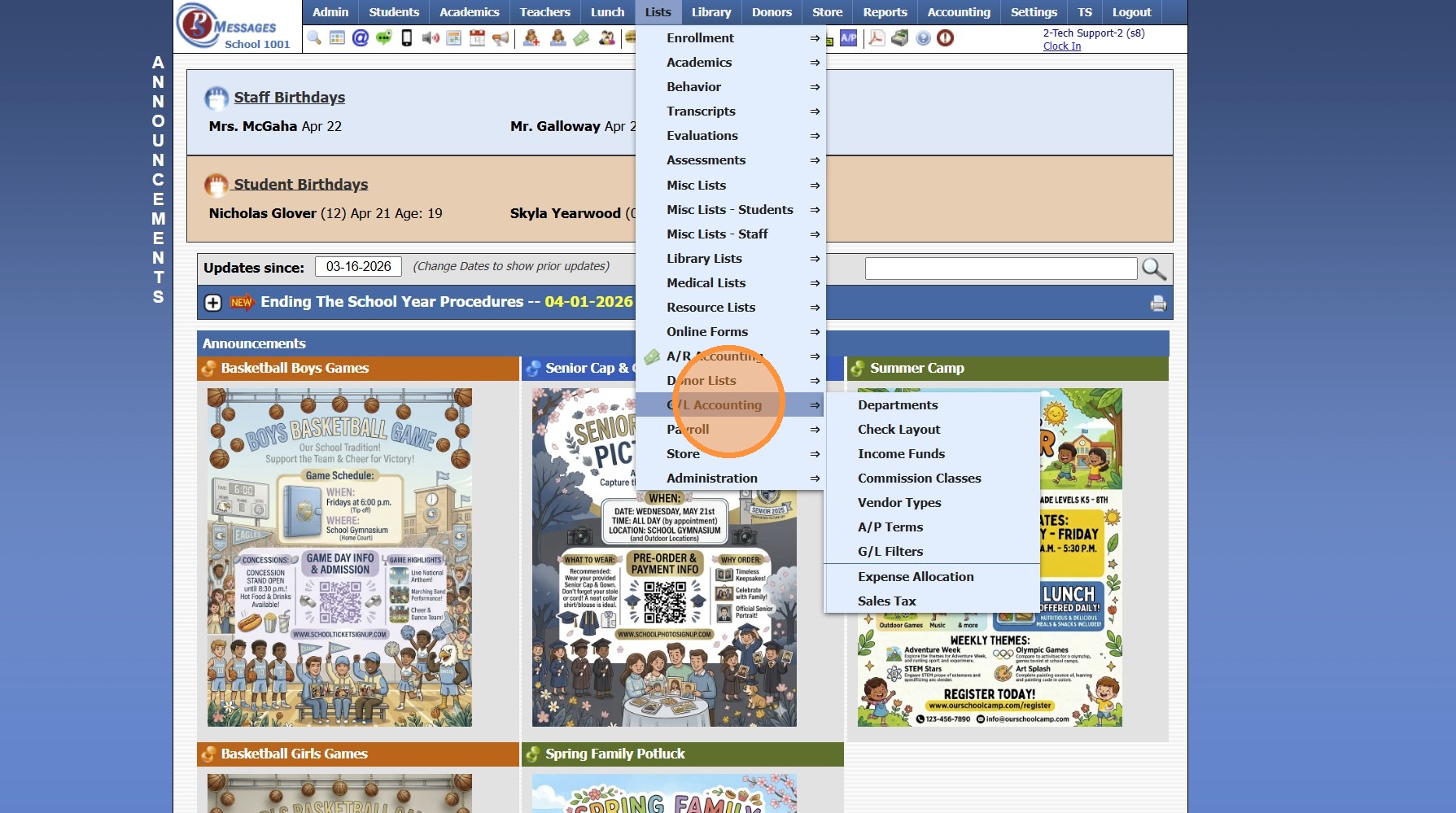
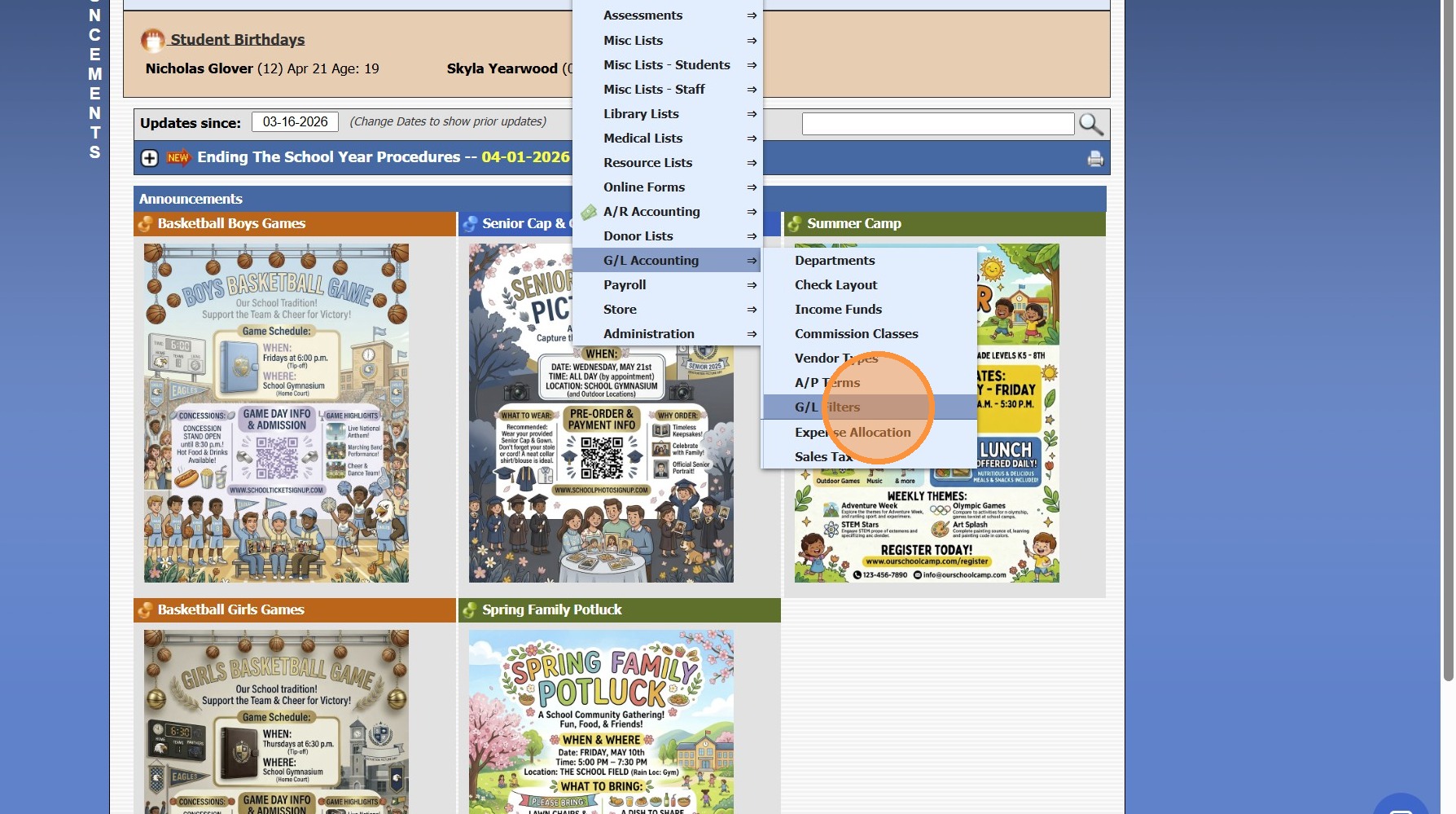
3. Click "G/L Filters"
4. Click "Add"
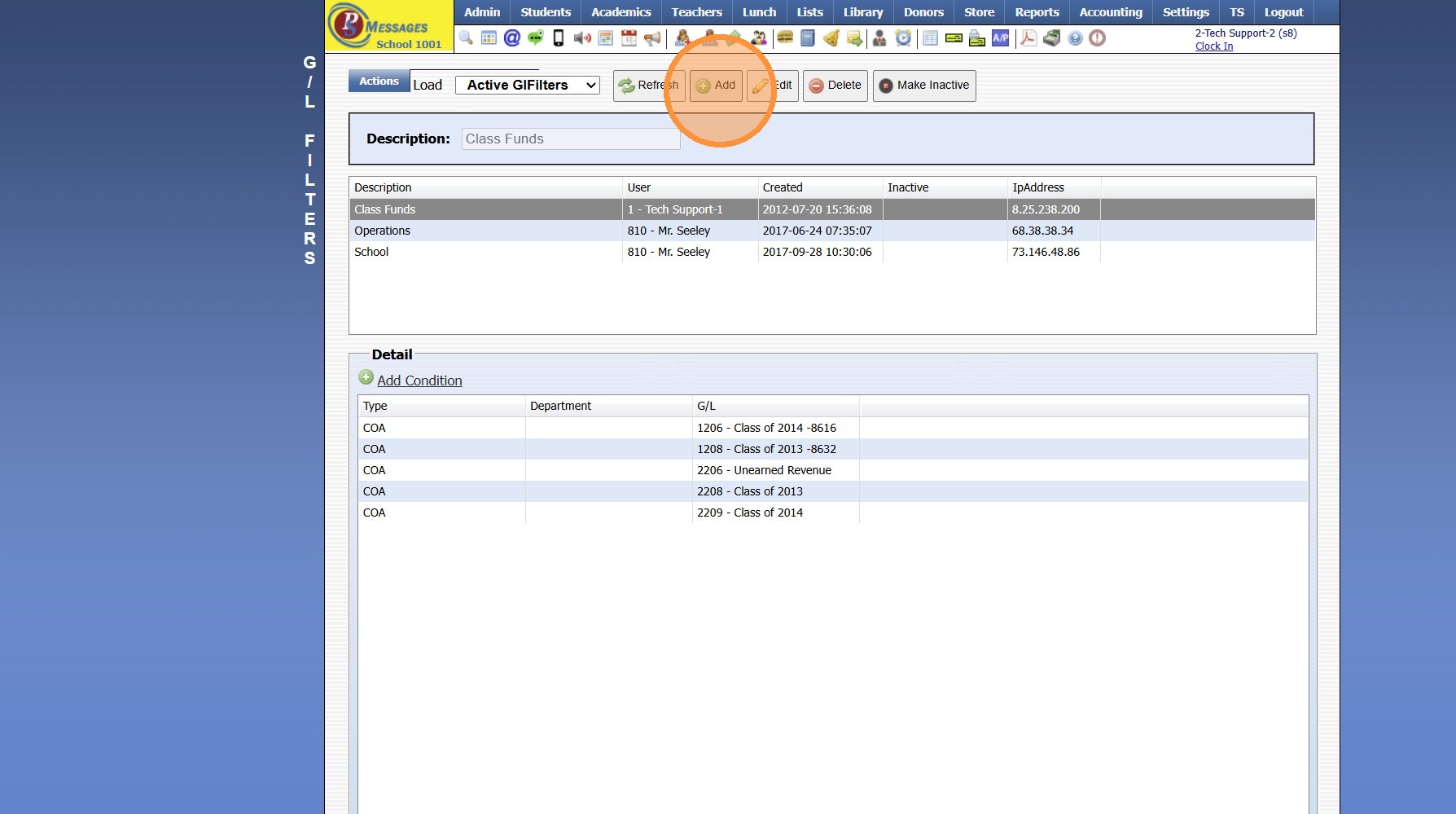
5. Enter Filter Description
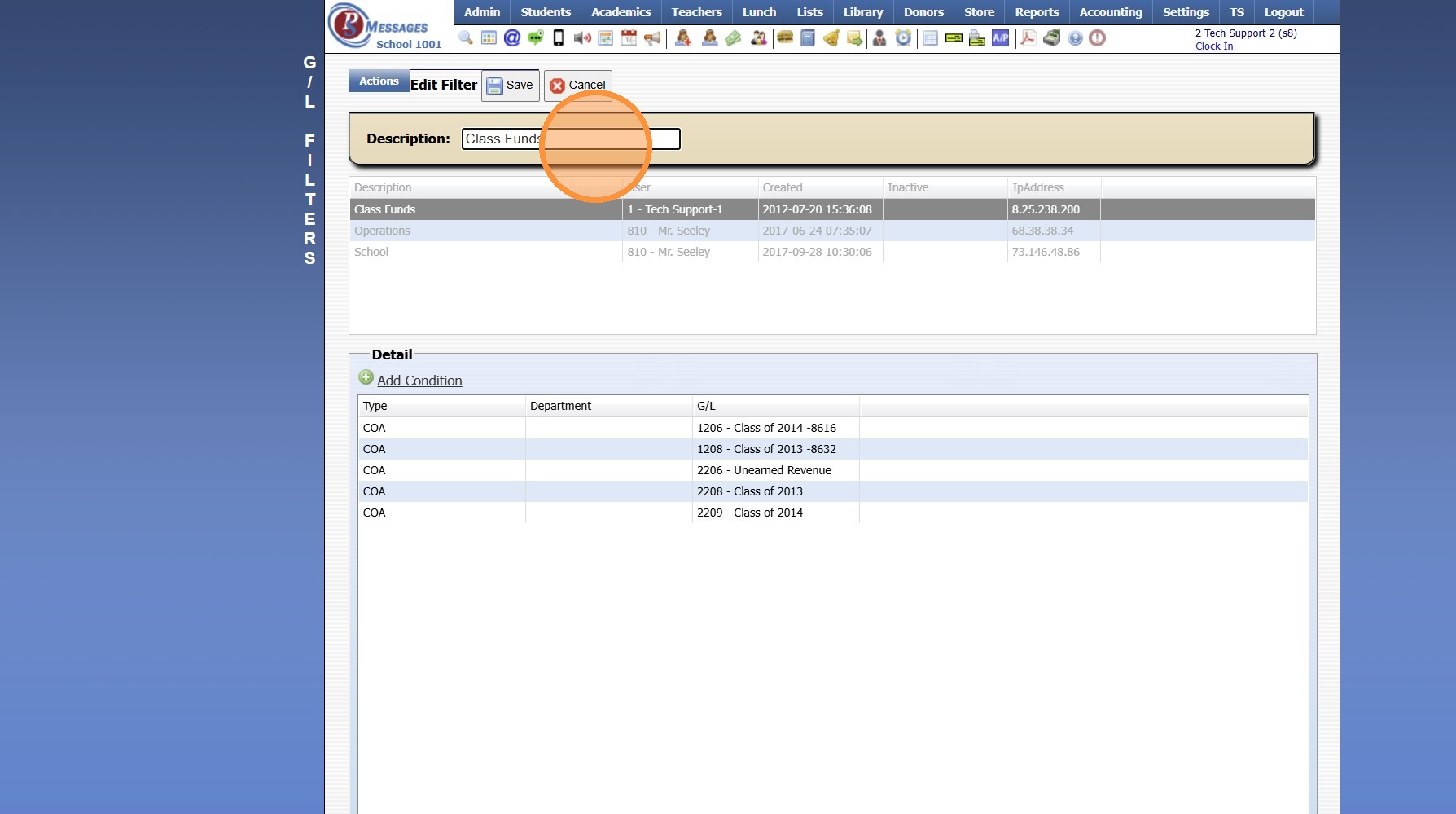
6. Click "Save"
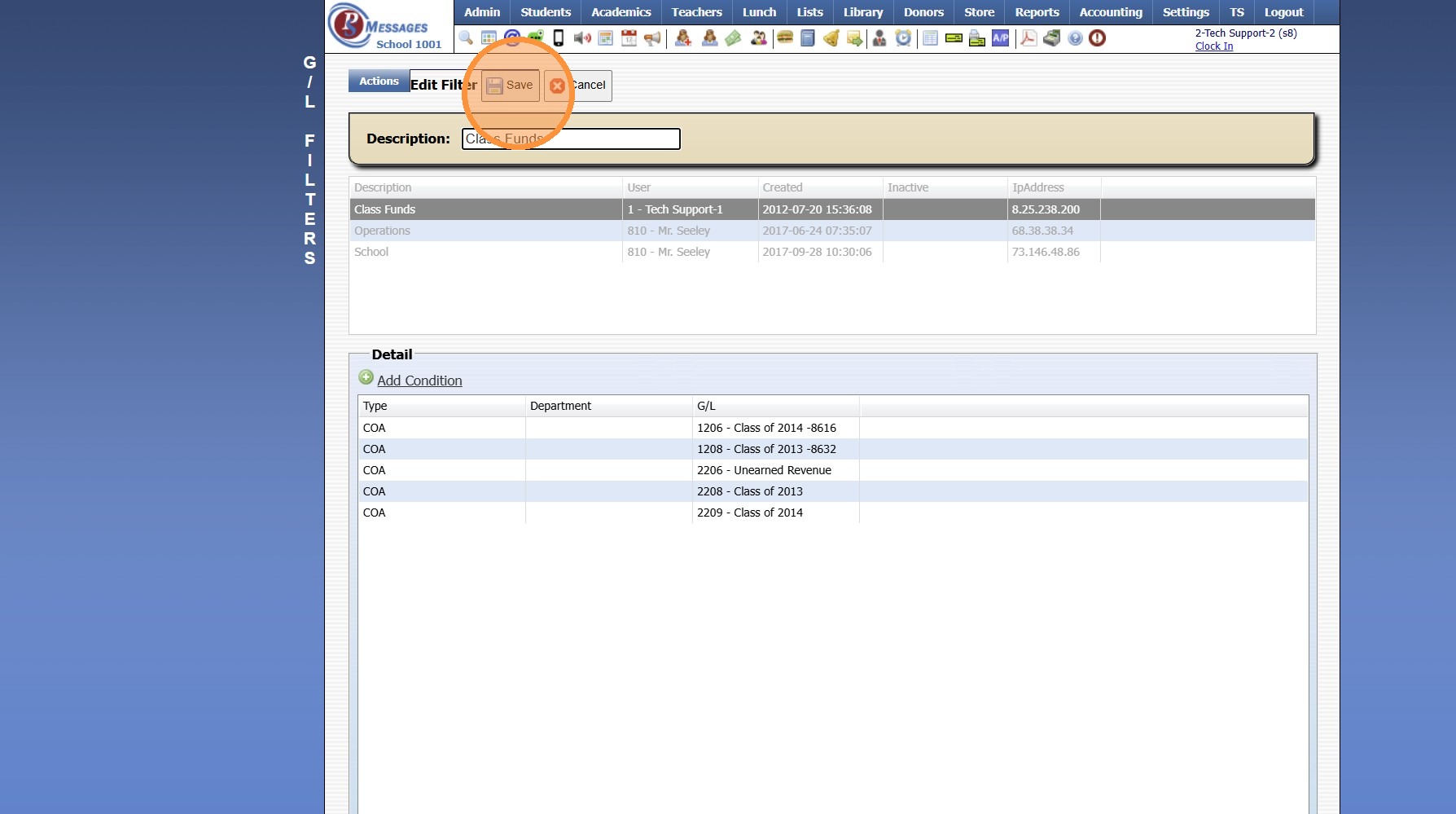
7. Click "Add Condition"
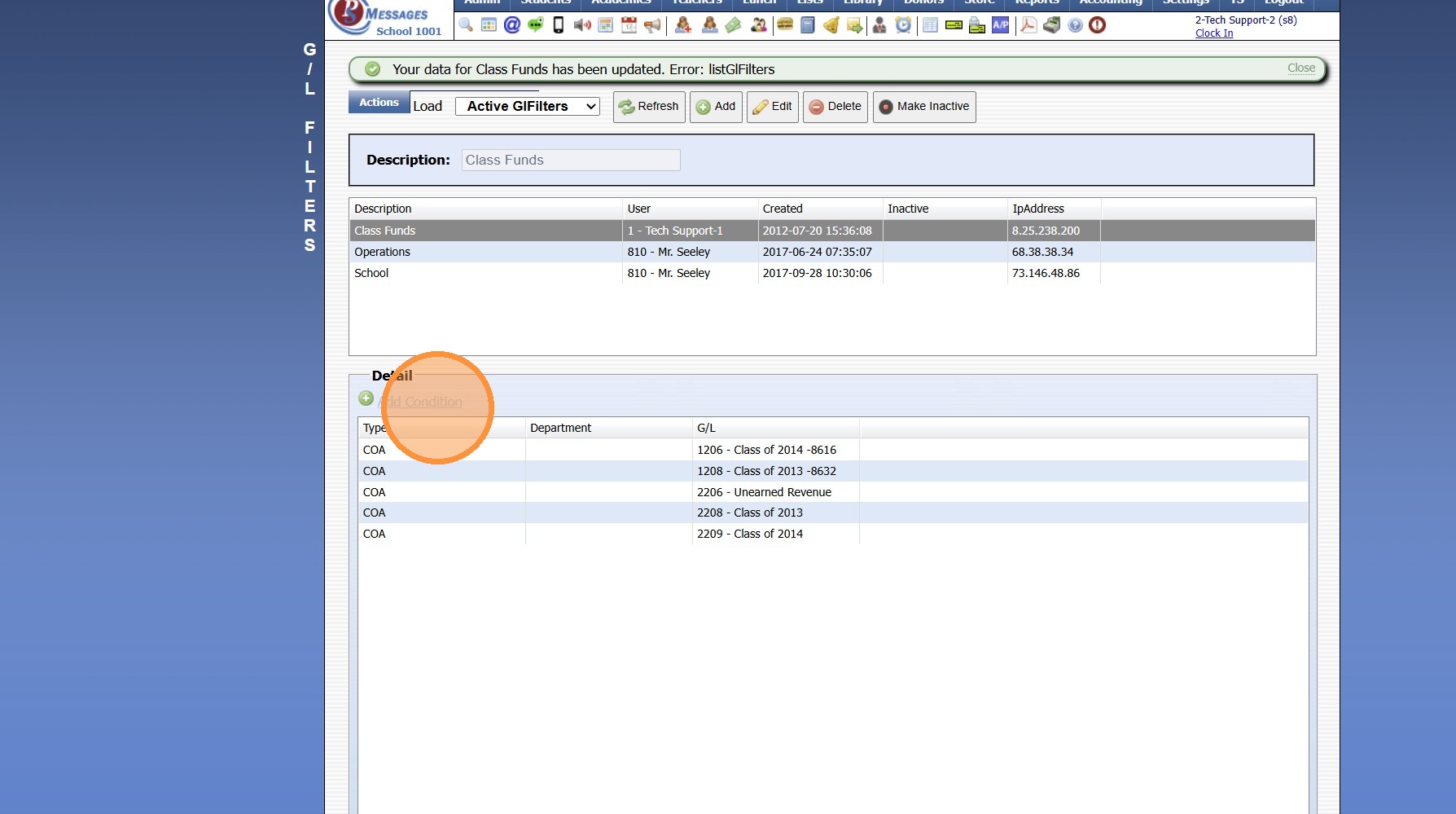
Department Based GL Filters
8. Click "Department"
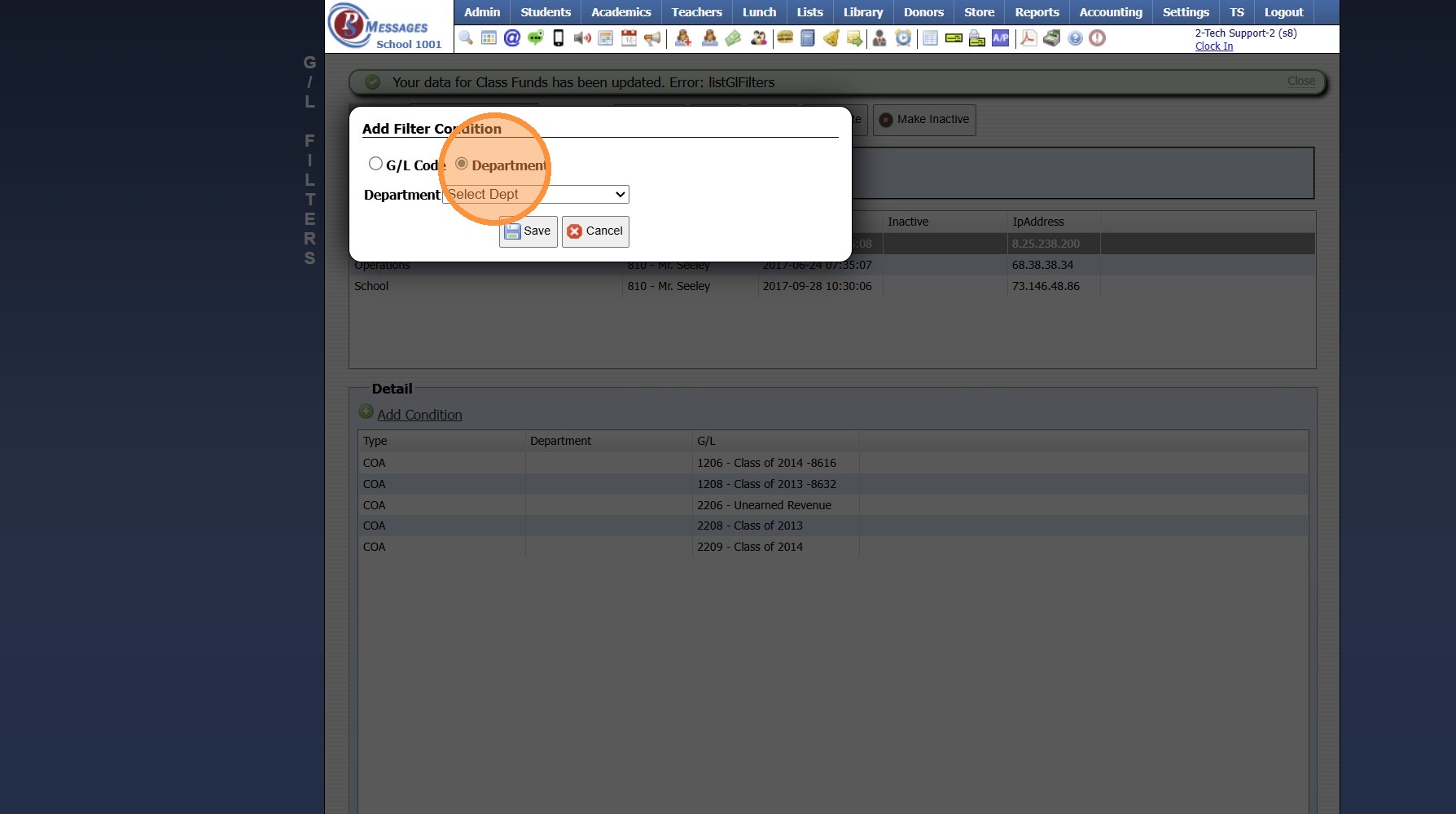
9. Select the Department
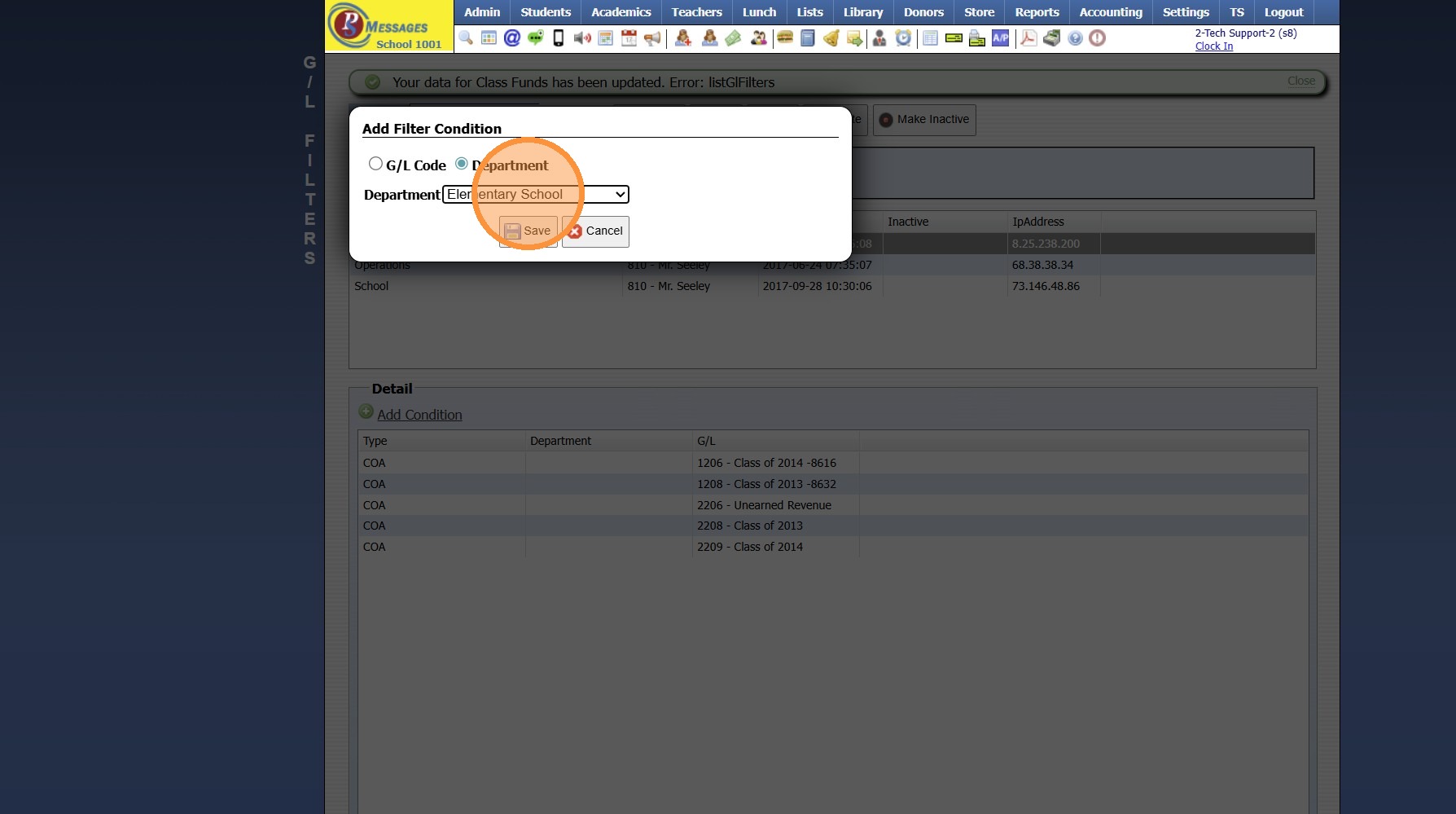
10. Click "Save"
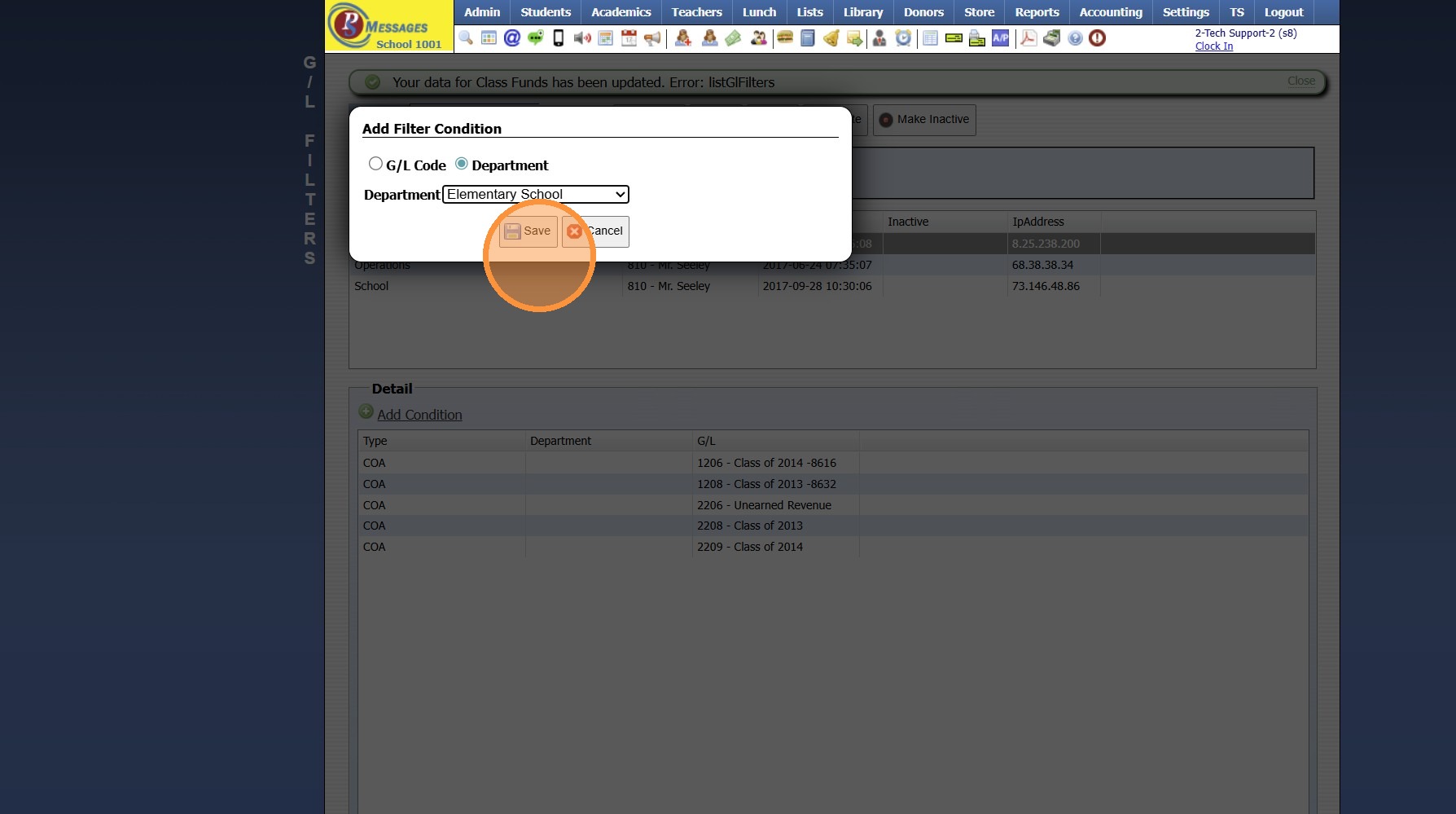
Specific General Ledger Number GL Filters
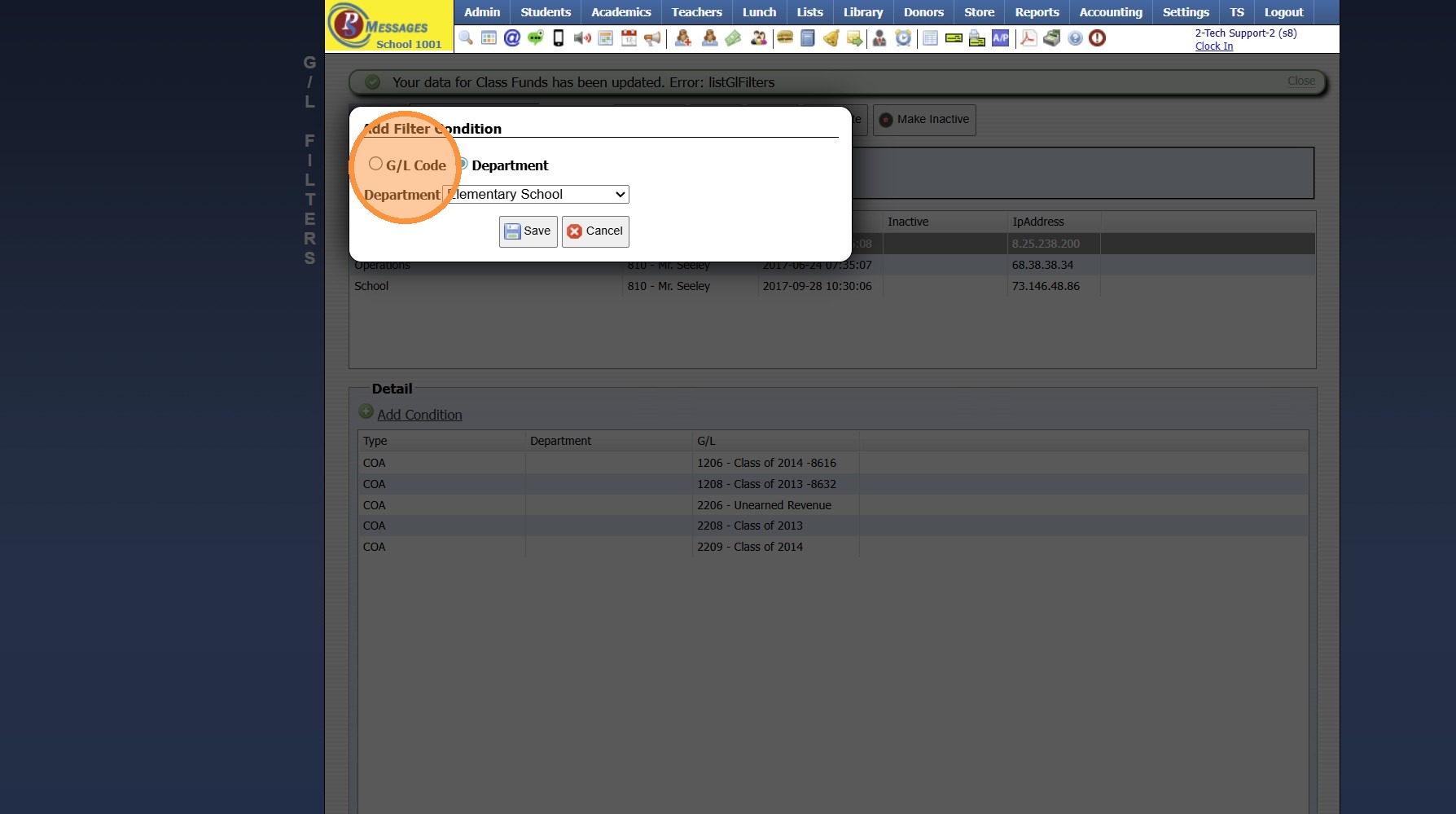
11. Click "G/L Code"
12. Select the GL Code (GL#)
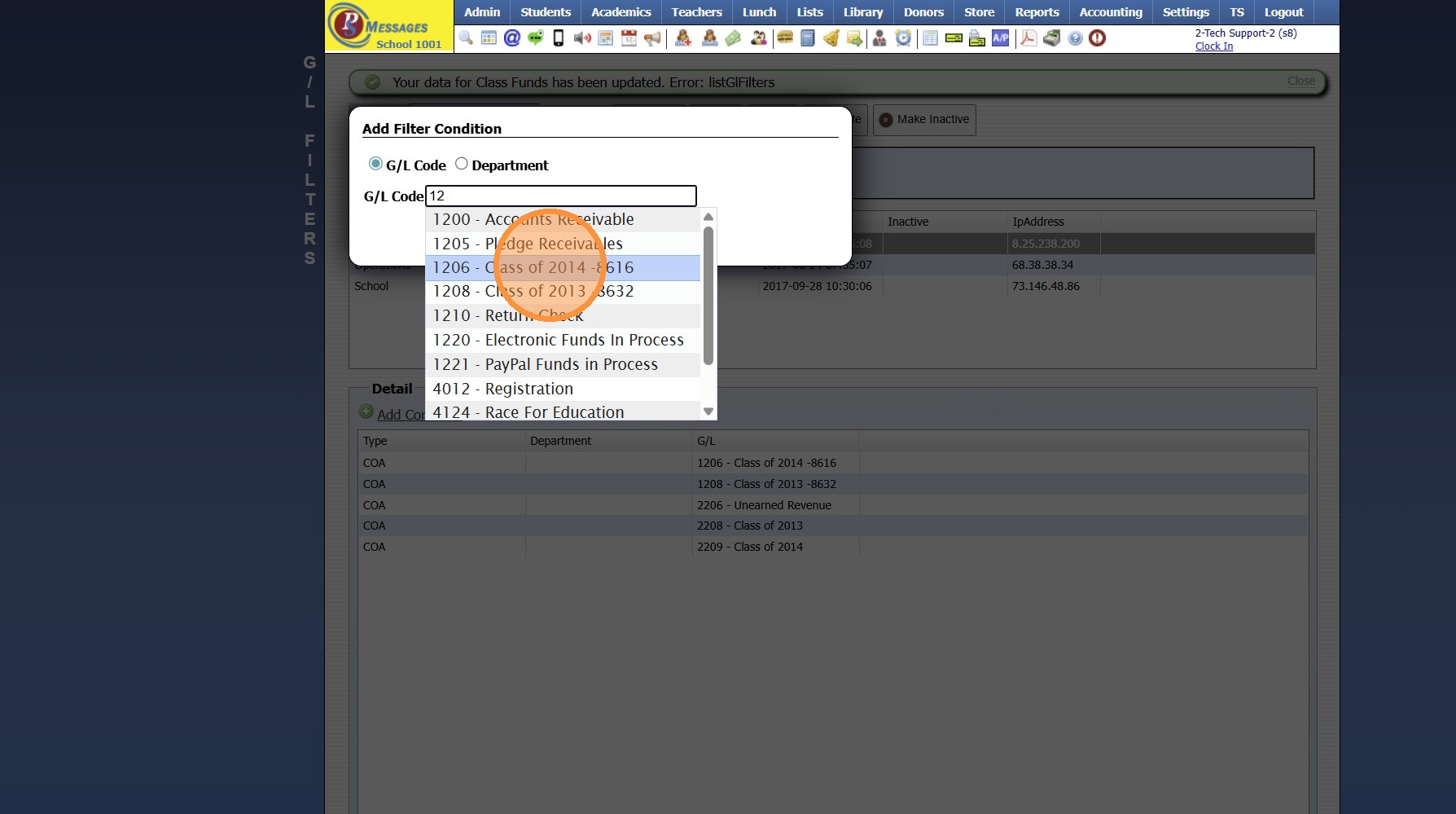
13. Click "Save"
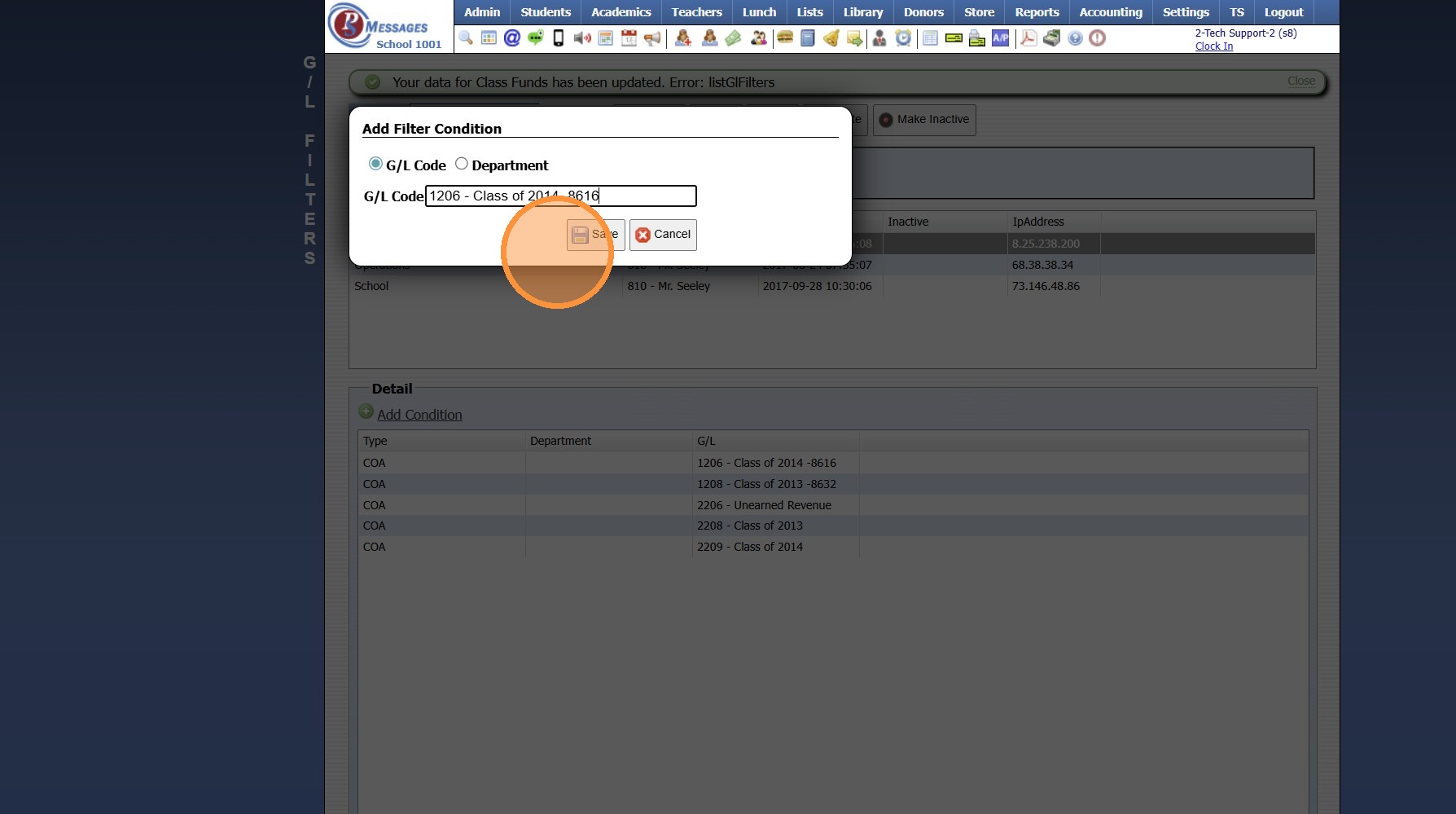
14. Repeat for each General Ledger Number to be Included in GL Filter
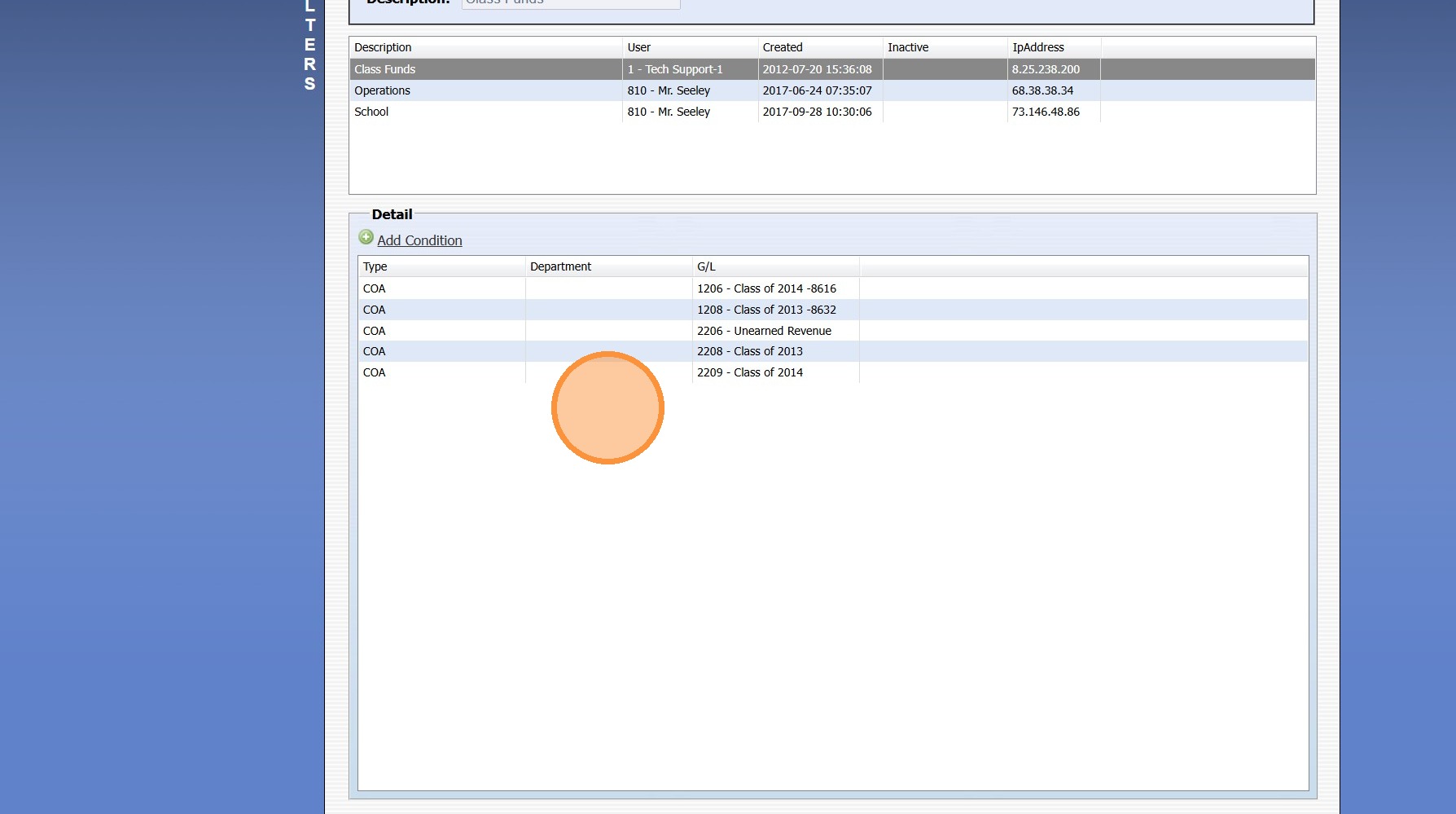
15. Once Added, All General Ledger Numbers for Filter will Populate in Details Screen
3500.13.7
Related Articles
General Ledger Report (Filter) - Setup GL Filters
1. Click "Accounting" 2. Click "Reports" 3. Click "General Ledger" 4. Select "Filter" from Dropdown Menu Creating GL Filters 5. Select the Setup GL Filters Hyperlink 6. Clicking Setup GL Filters Opens the Screen for Creating GL Filters 6000.10.18Creating School Calendar Items
Creating School Calendar Items 1. Log into PraxiSchool 2. Click "Admin" 3. Click "Resources" 4. Click "School Calendar" 5. Click "Add" 6. Enter the Calendar Item Description 7. Select Type (Public, No School, Make-Up, Staff) Public, No School and ...Creating a Basic Transaction Item (Defined Items)
Creating a Basic Transaction Item (Defined Items) 1. Log into PraxiSchool 2. Click "Lists" 3. Click "A/R Accounting" 4. Click "Transaction Items" 5. Click "Add" 6. Enter Description & Comment (typically these are the same) Add Notes (Optional) 7. ...Creating Groups
Creating Groups 1. Click "Lists" 2. Click "Misc Lists" 3. Click "Groups" 4. Click "Add" 5. Enter an Order Number (Optional) 6. Select Category from Dropdown Menu * Tip: * You can click the Blue Bar to add a Category 7. Enter the Group Description 8. ...Creating Components
Creating Components 1. Log into PraxiSchool 2. Click "Teachers" 3. Click "Classroom" 4. Select Class 5. Click "Assignments" 6. Click "Add" 7. Enter 1 Letter Identifier (Ex. T - Test, H - Homework, C- Classwork, Q - Quiz) Enter Order (Optional) 8. ...