Analyzing Grades (Grades Tasks)
Analyzing Grades
1. Log into PraxiSchool

2. Click "Academics"

3. Click "Grades Tasks"

4. Click "Analyze Grades"

5. Verify Correct School Year is Selected and Select Grade Analysis Setup

6. Select Grade Period to Analyze Grades For

7. Select Rounding Options
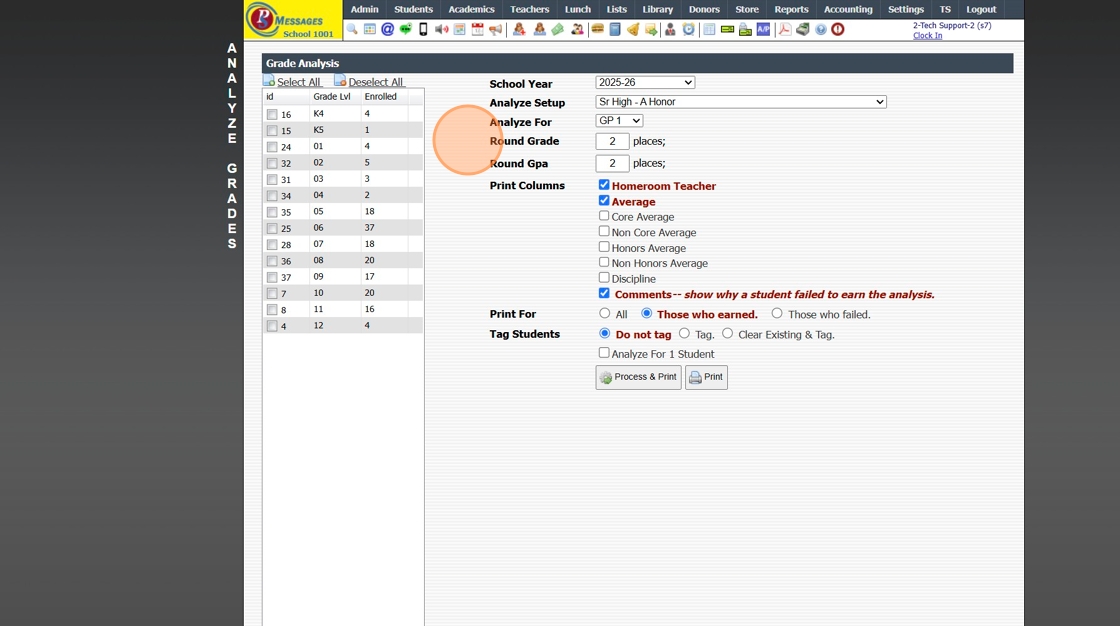
8. Select Print Column Options

9. Select Print For Option
(Select Tag Students - Default "Do not Tag") (Optional)

10. Click "Select All" or Select Grade Levels to Analyze

11. Click "Process & Print"
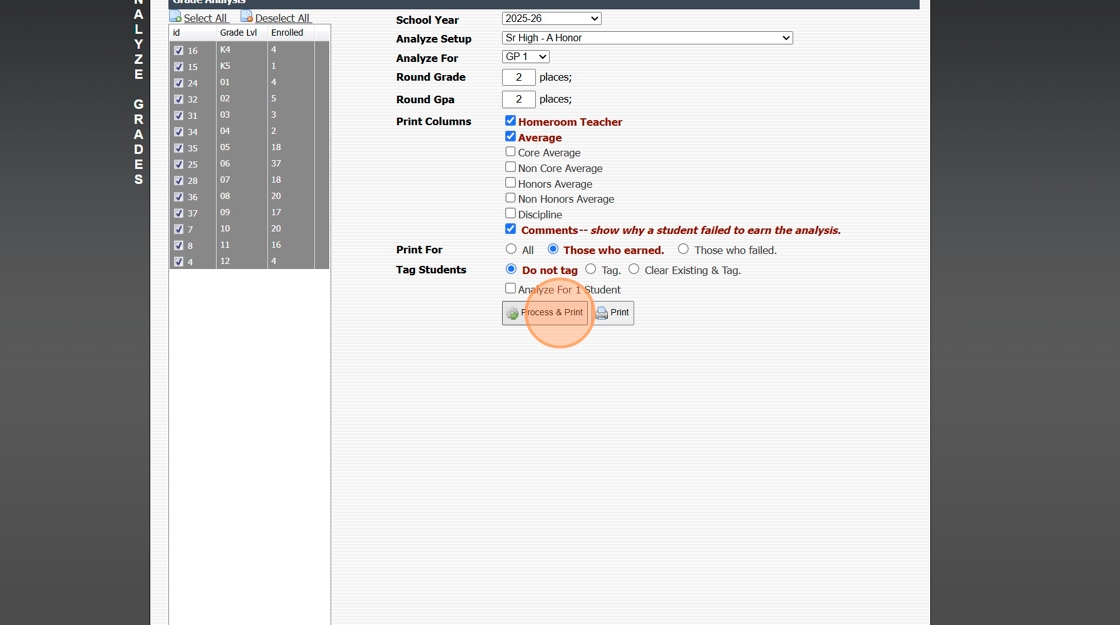
12. Grade Analysis Report Options:
Print, Email or Download to a PDF

2000.4.8
Related Articles
Session Close Tasks - Academic Tasks: Average Grades
1. Click "Academics" 2. Click "Grades Tasks" 3. Click "Average Grades" 4. Click "Select All" 5. Select Grade Periods to Average 6. Select Semesters to Average 7. Select Year to Average 8. Select Notification Preference 9. Click "Average Grades" 10. ...Creating Awards
NOTE: The Grade Analysis must be processed before Awards can be Created. 1. Click "Academics" 2. Click "Grades Tasks" 3. Click "Create Awards" 4. Select the Grade Analysis for Analysis 1 (Analysis 2-4 can be Selected if Analyzing using Different ...Averaging Grades (Administration)
Averaging Grades (Administration) 1. Login to PraxiSchool 2. Click "Academics" 3. Click "Grades Tasks" 4. Click "Average Grades" 5. Select School Year from Dropwdown 6. Select Grade Period(s) to Average (Ex. GP1, GP2, GP3, GP4 or Select All to ...Posting Grades to the Transcripts
1. Log into PraxiSchool 2. Click "Academics" 3. Click "Grades Tasks" 4. Click "Post Transcripts" 5. Select the Correct School Year 6. Select the Transcript Type and Semester 7. Click "Select All" 8. Click "Post Transcripts" 9. Repeat for each ...Session Close Tasks - Enrollment: Pre-Registering Existing Student Using the Promote Students Wizard
1. Click "Academics" 2. Click "Grades Tasks" 3. Click "Promote Students" 4. Select the Effective Date 5. Select Grade Levels to Promote 6. Click "Next Session" to Pre-Register for Next Year 7. Click "Create Record in Enrollment History" to add the ...