Touch Clock (iPads / Tablets)
1. Click "Admin"
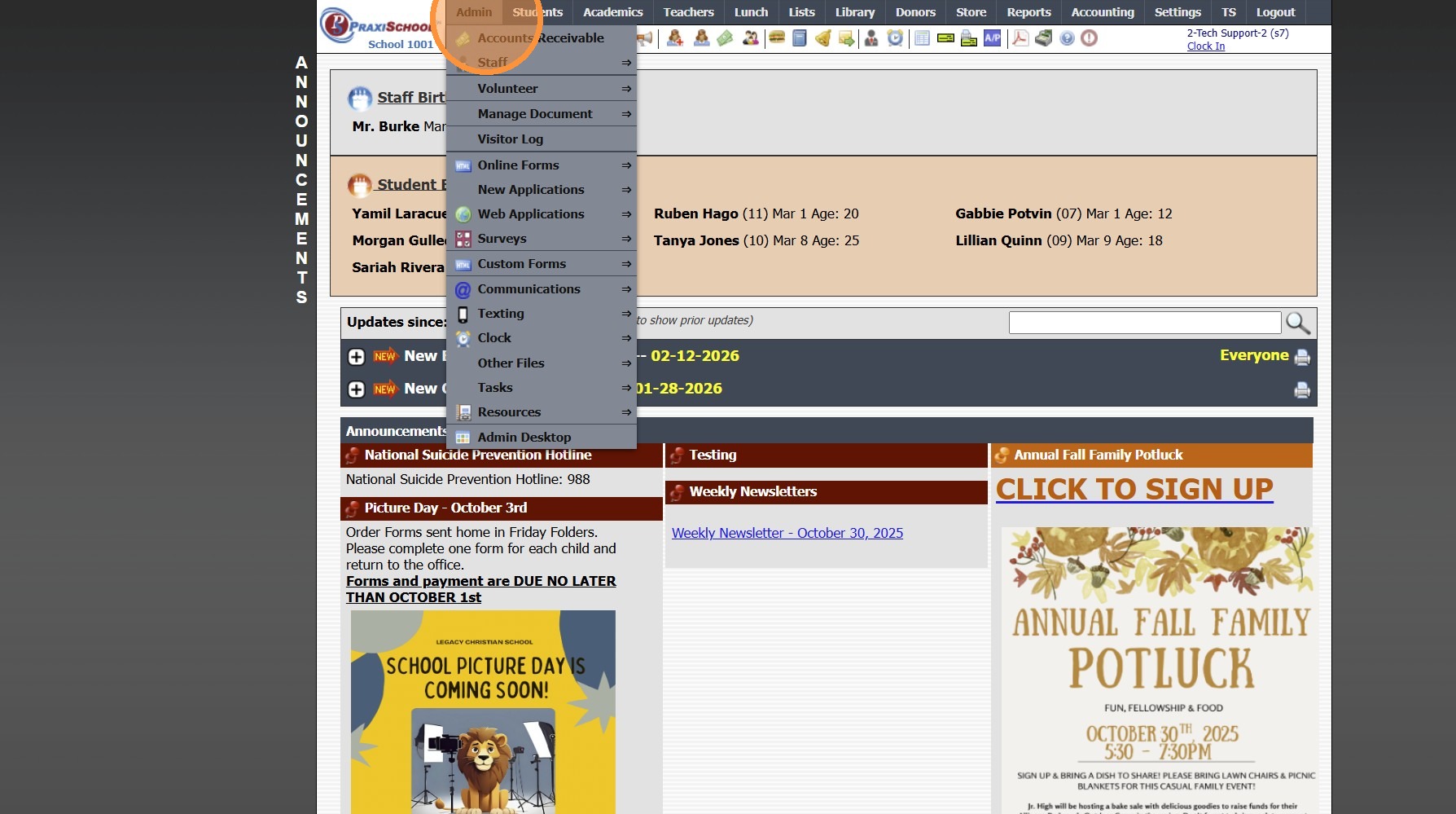
2. Click "Clock"
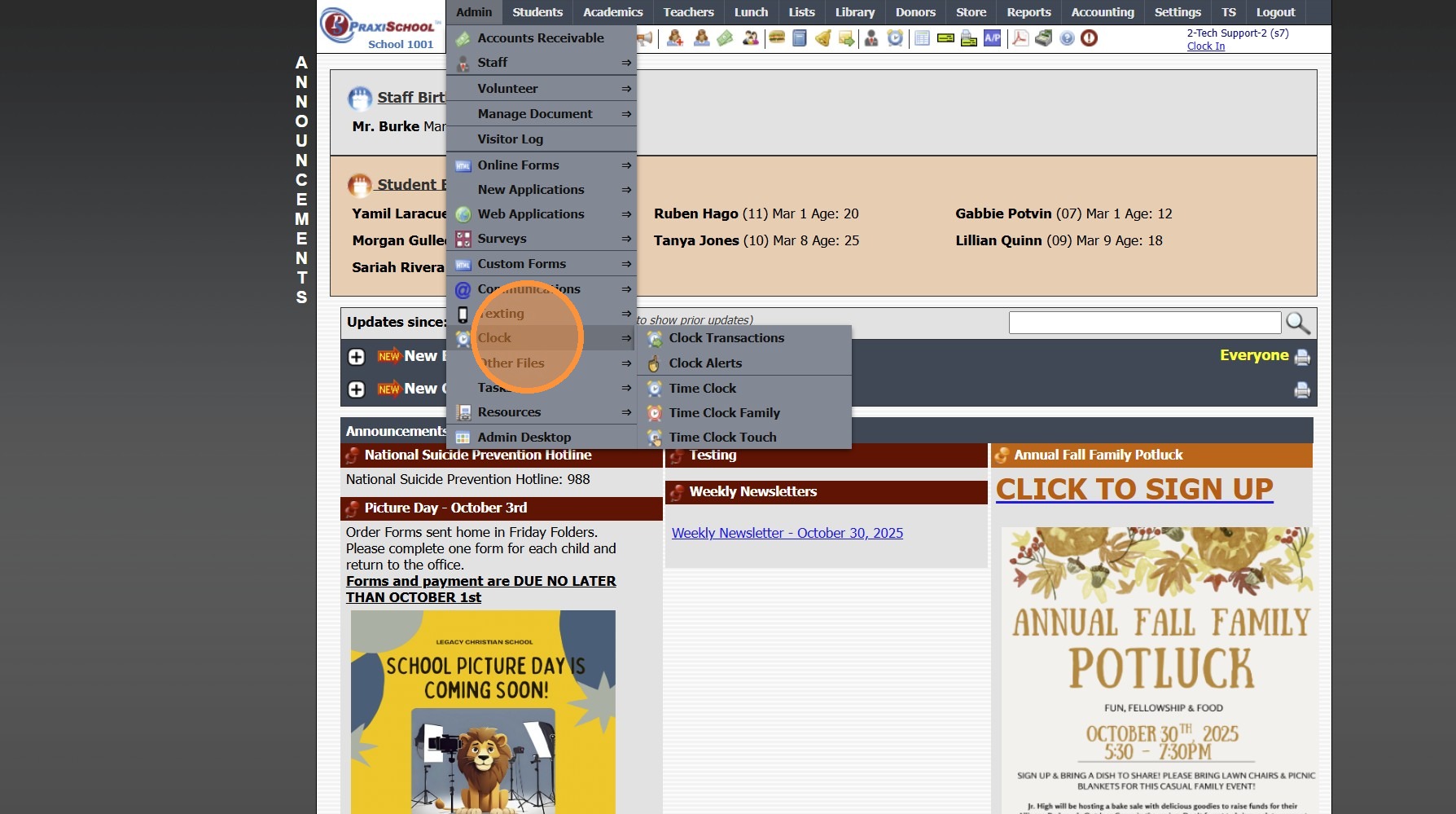
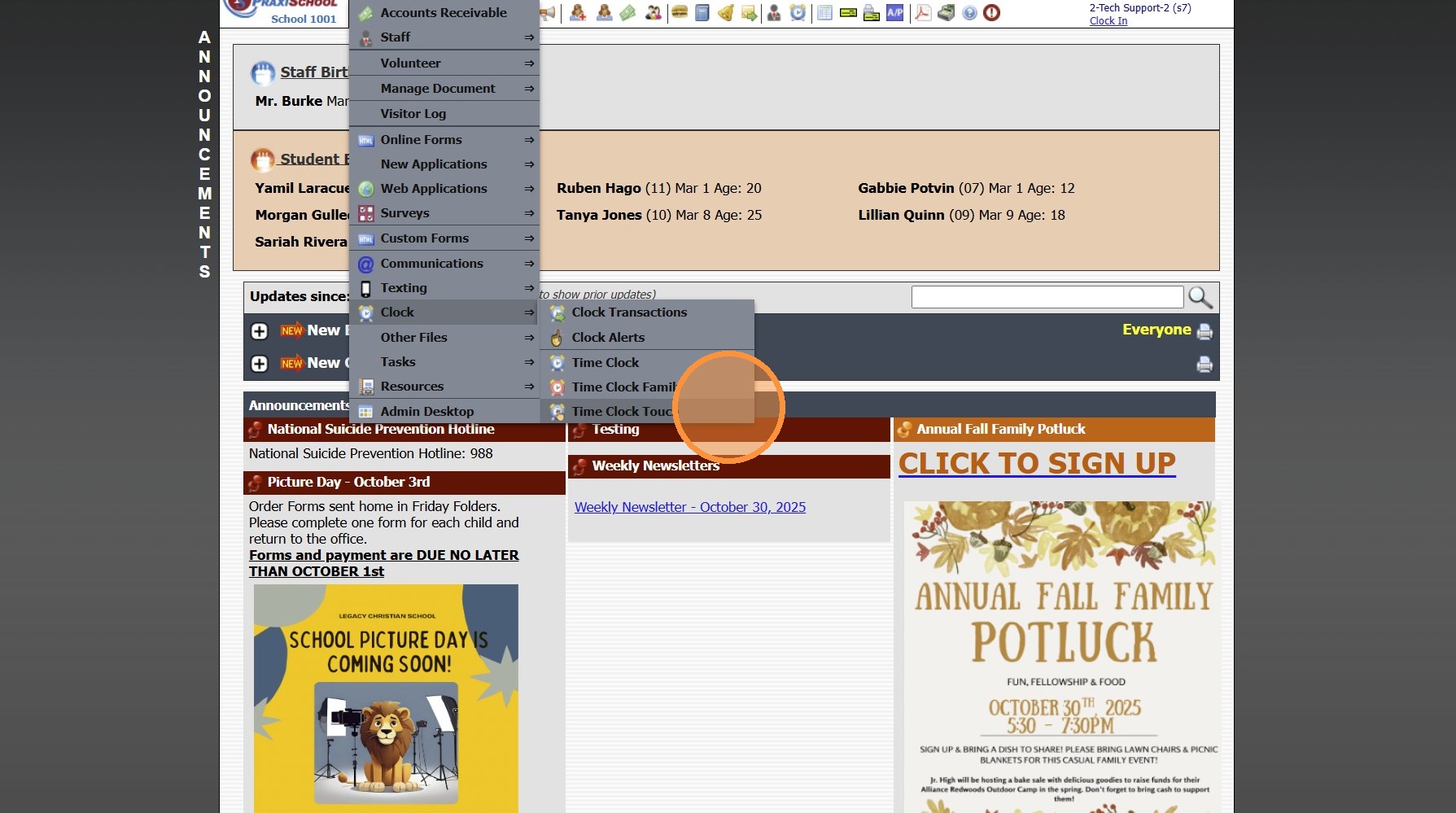
3. Click "Time Clock Touch"
4. Enter Student ID
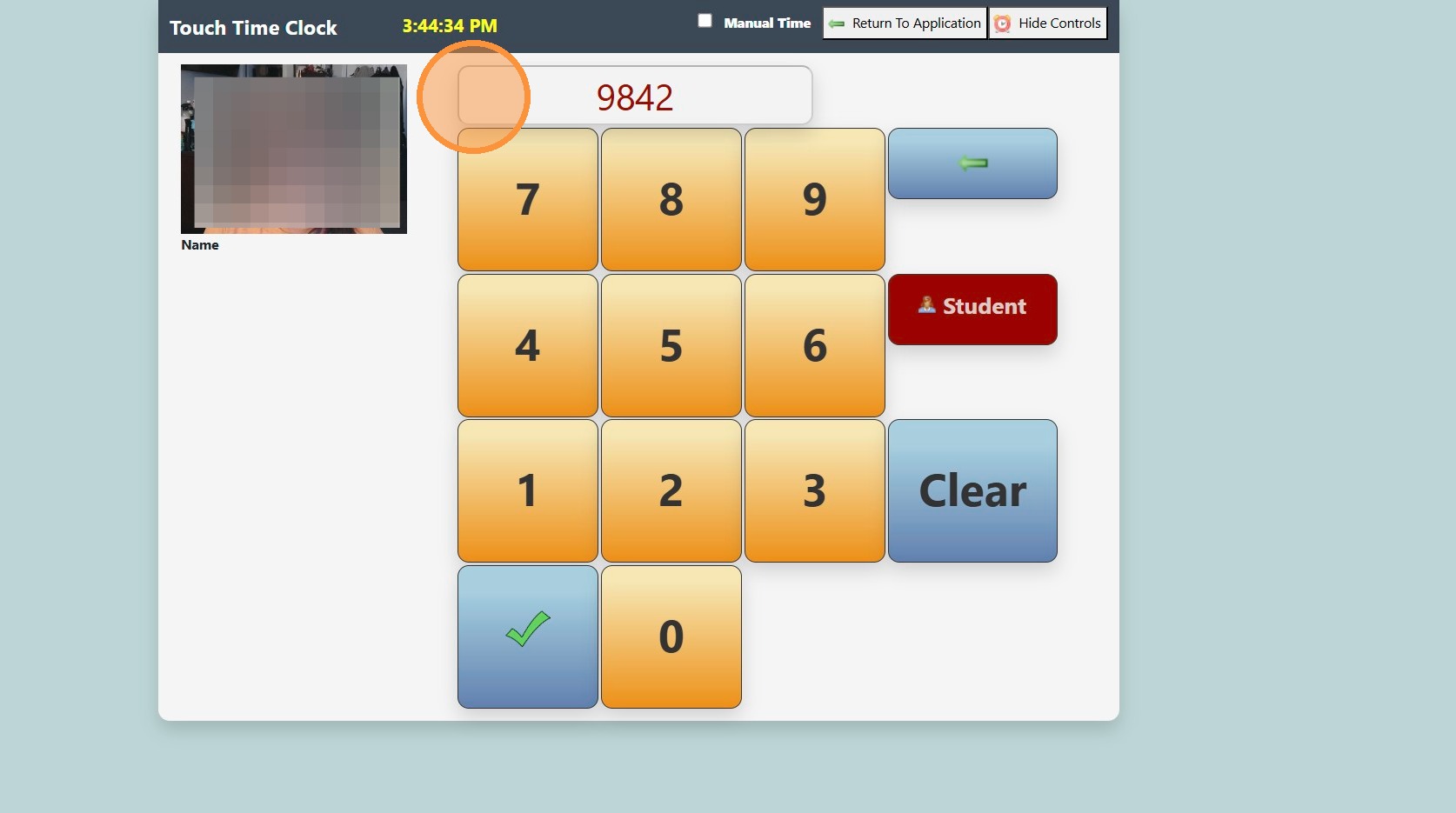
5. Click the "✓" Icon
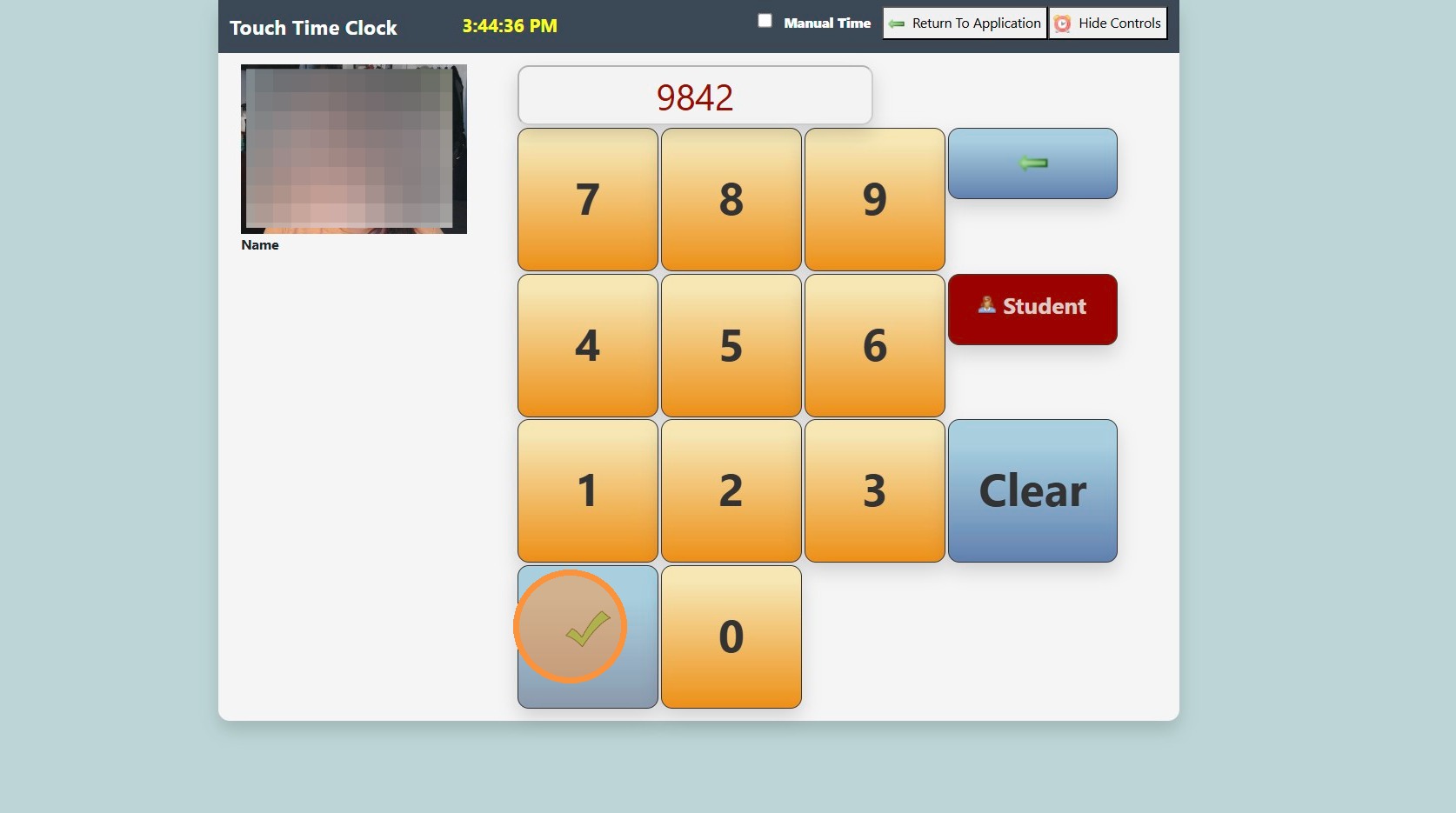
6. Click "Clock"
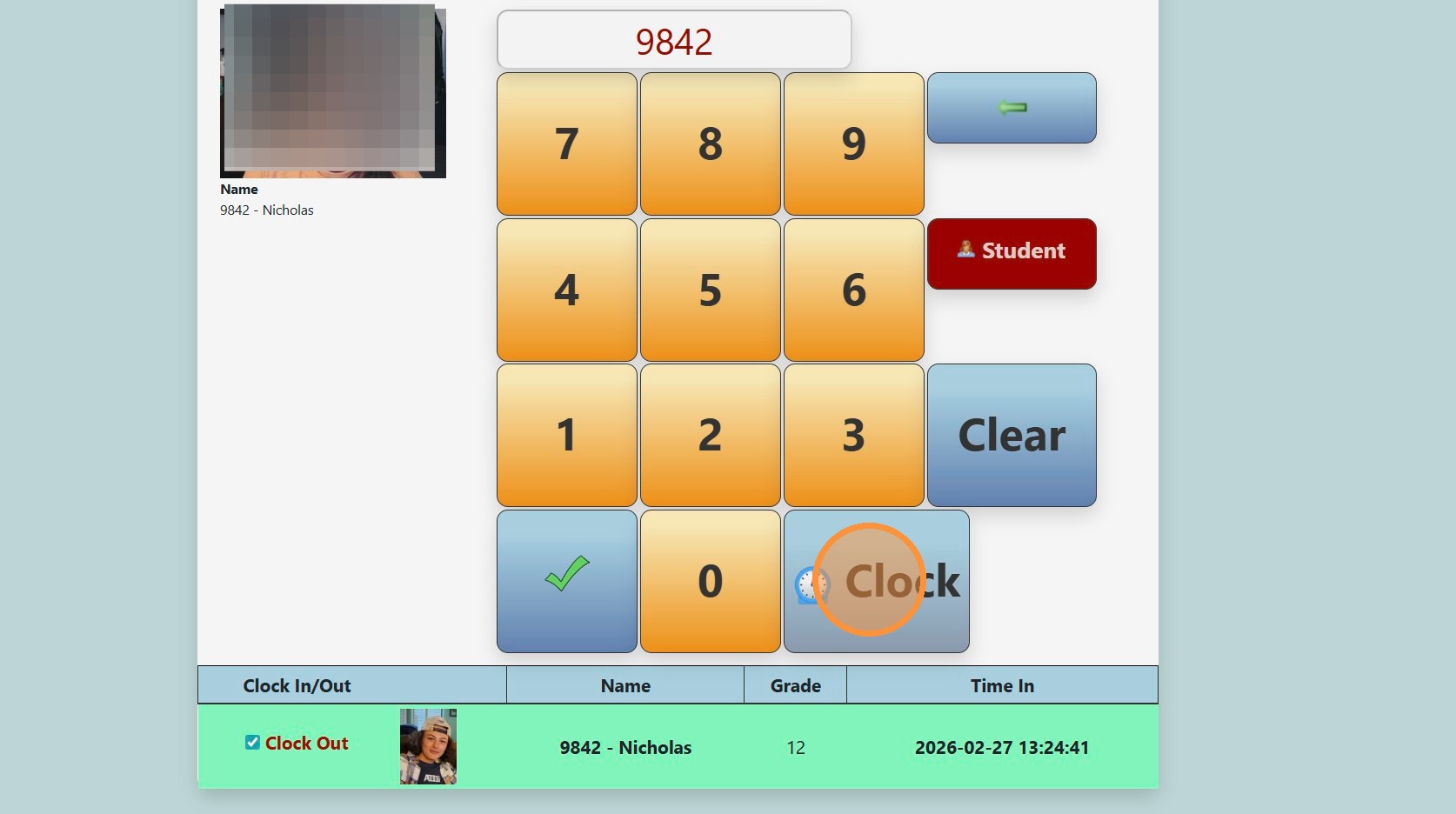
Tip: If using the Webcam to Save Picture of Person Clocking Student In/Out, the Picture will be Saved in Clock Transactions. See Below:
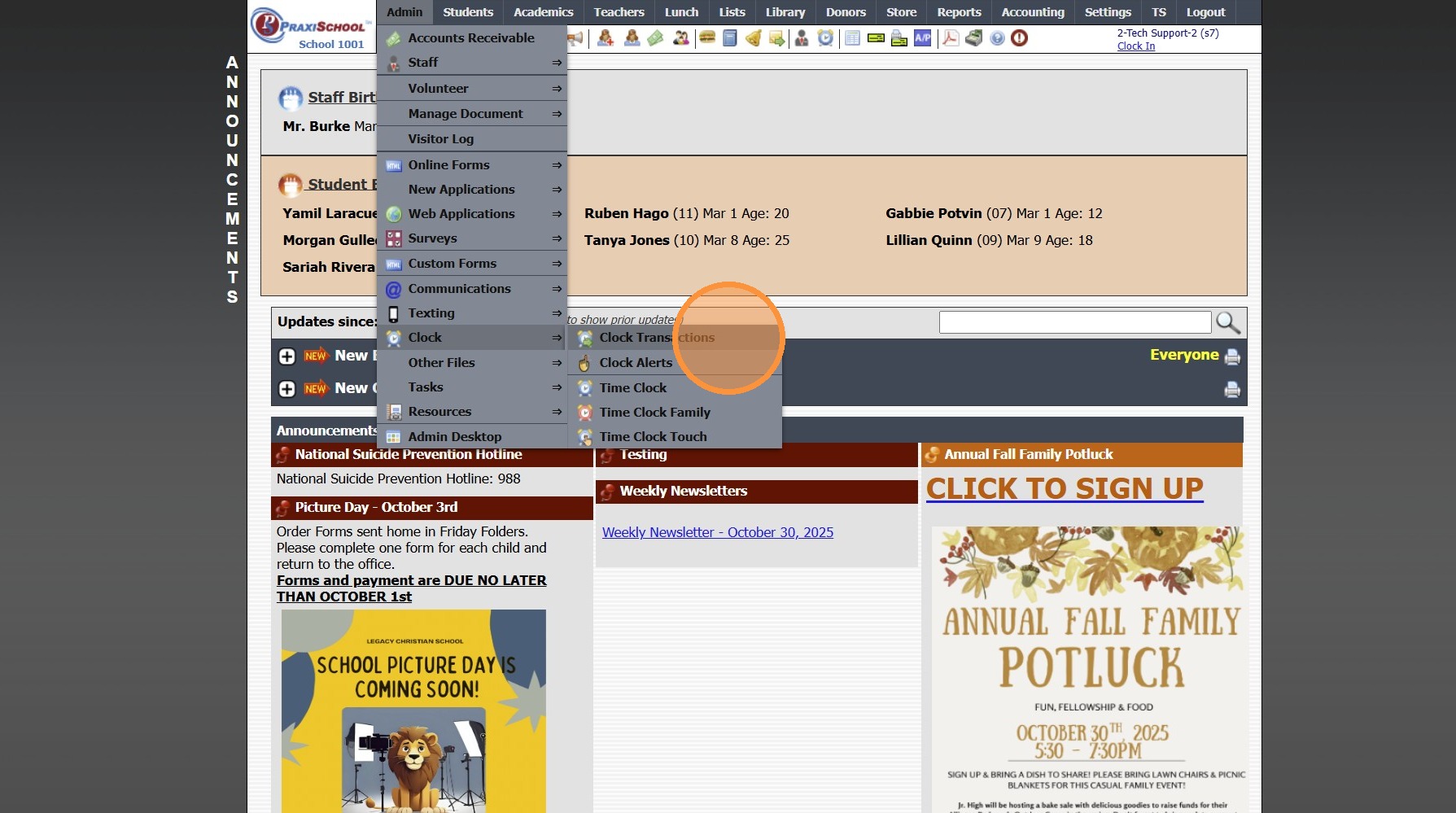
7. Click "Admin"
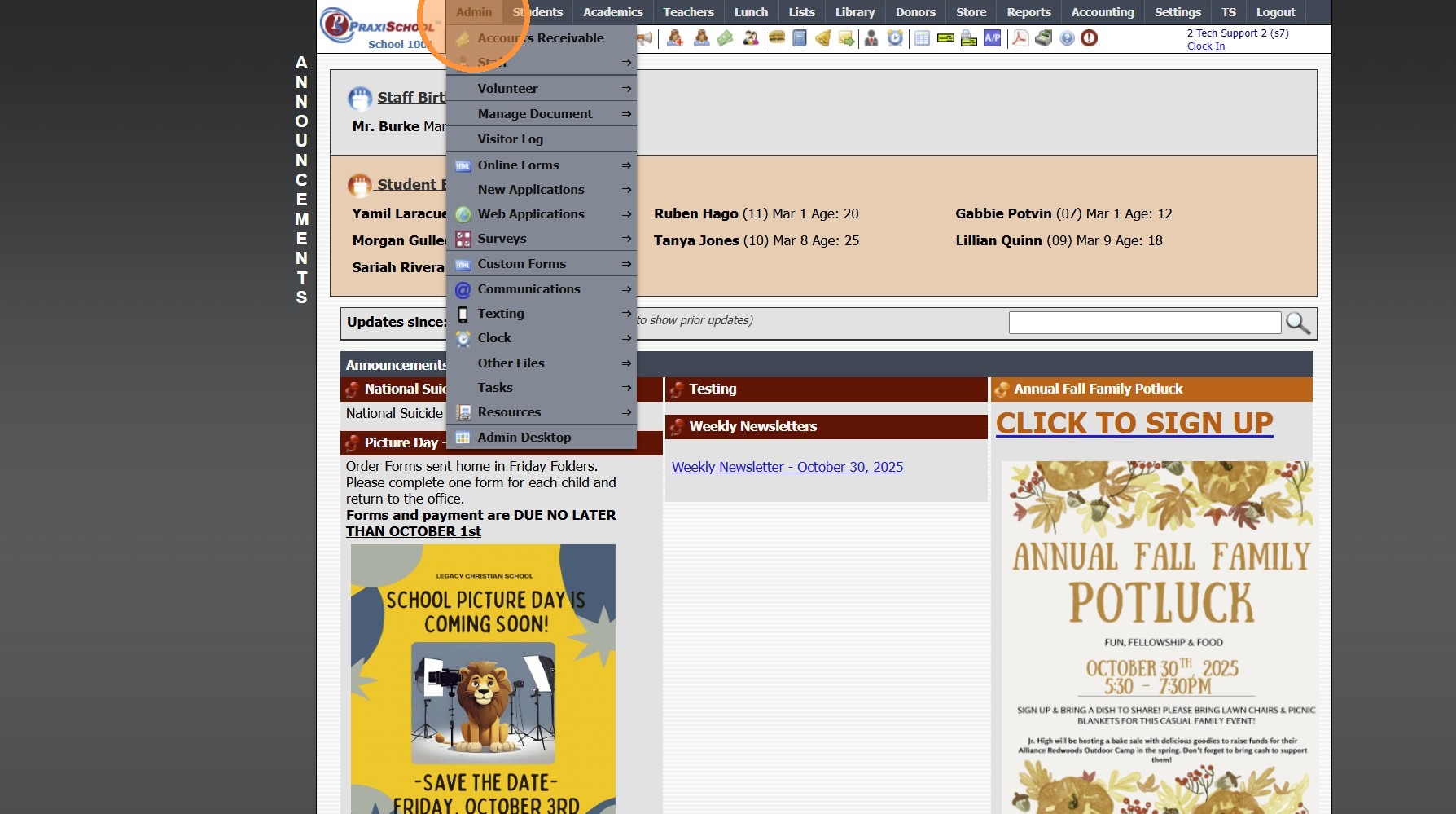
8. Click "Clock"
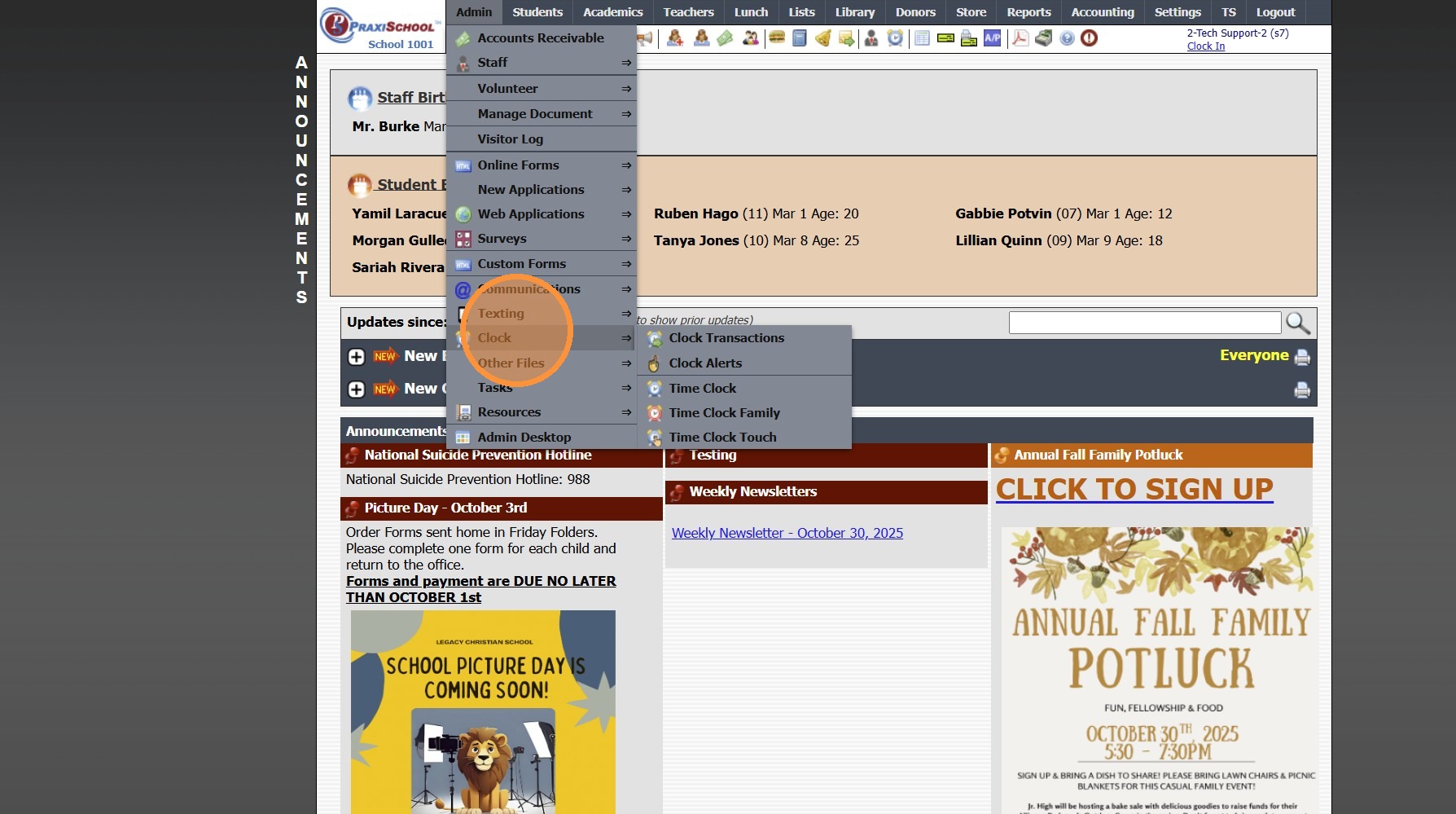
9. Click "Clock Transactions"
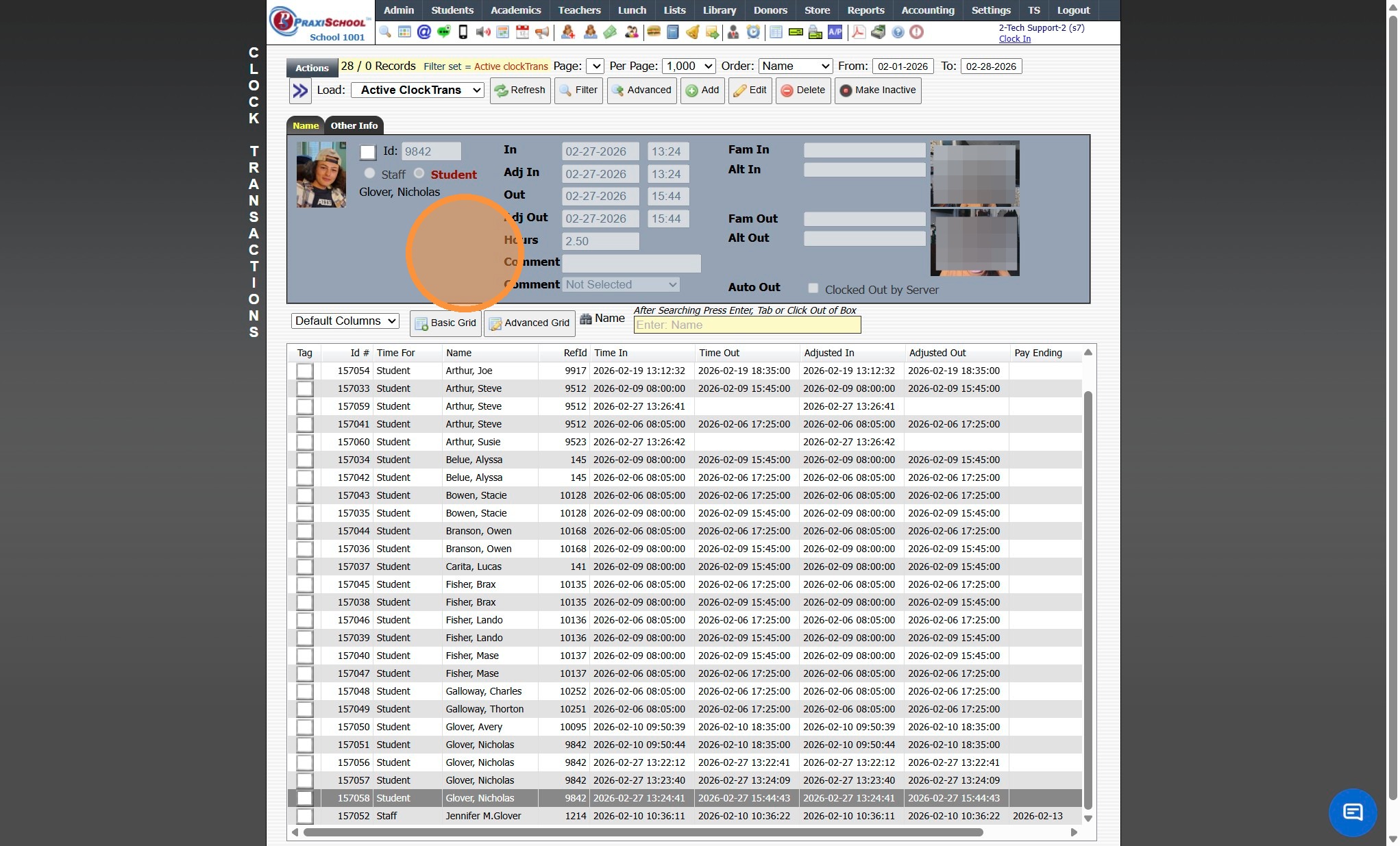
10. Select the Transaction
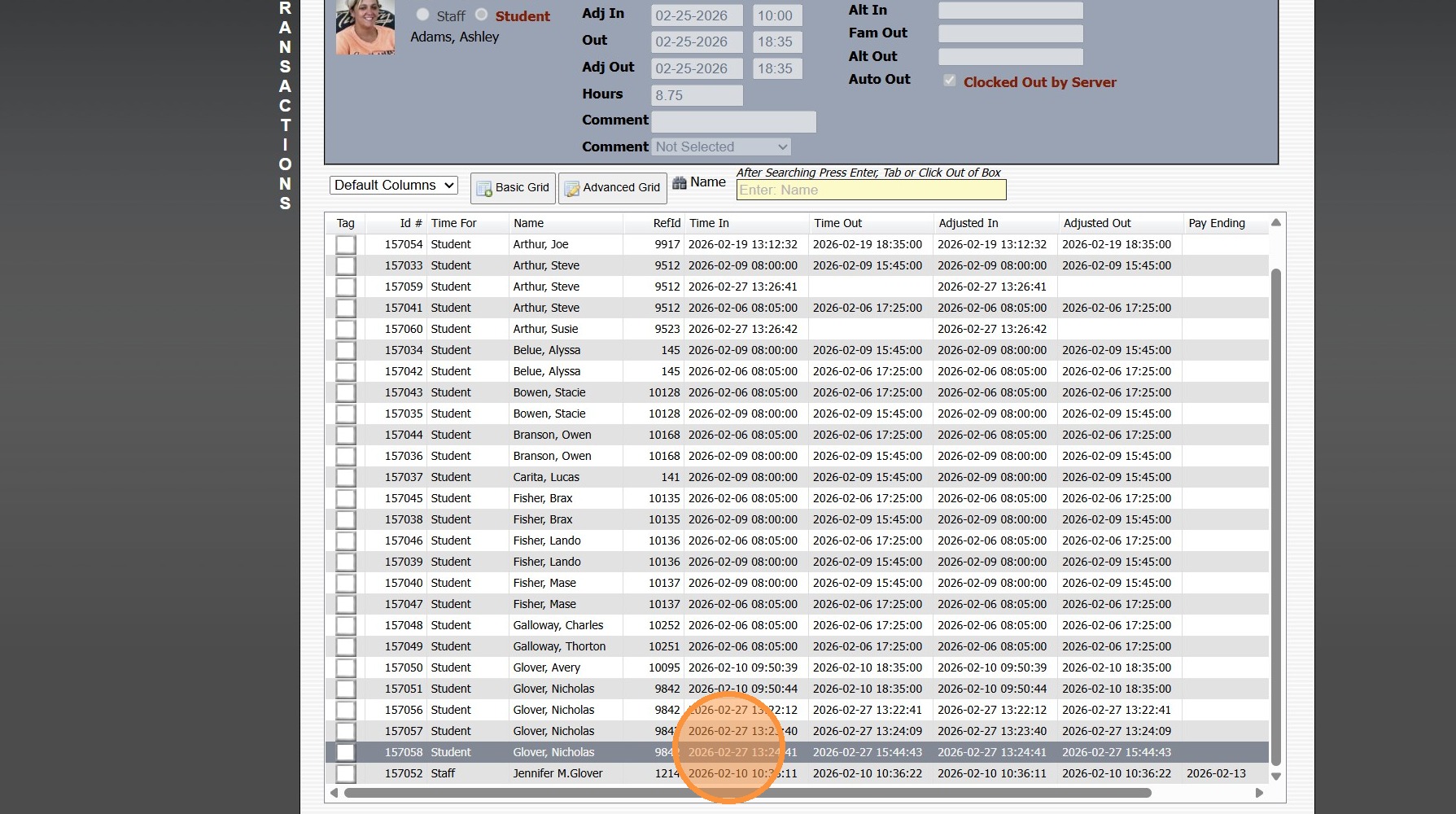
11. The Clock In Picture will Populate at the Top, the Clock Out Picture will Populate at the Bottom
1000.12.5
Related Articles
User Clock In / Clock Out
User Clock In / Clock Out 1. Click "Clock In" Under User ID & Name 2. Click "Clock Out" Under User ID & Name 7500.1.28Family Clock
1. Click "Admin" 2. Click "Clock" 3. Click "Time Clock Family" 4. Search Family Member by Name 5. All Students Connected to Family Member Clocking Students In/Out as Primary will Automatically be Selected. 6. Click "Clock" 7. Click "Click To Clock" ...Clock Alerts
Clock Alerts 1. Log into PraxiSchool 2. Click "Admin" 3. Click "Clock" 4. Click "Clock Alerts" 5. Set Date From and Date To & Click "Refresh" 6. Click "Add" 7. Select Alert For Option: All - All Students, Staff and Family will receive the Alert ...Time Clock Transactions
Time Clock Transactions 1. Log into PraxiSchool 2. Click "Admin" 3. Click "Clock" 4. Click "Clock Transactions" 5. Set Date From and Date To & Click "Refresh" 6. Click on a Timeclock Transaction to View Clock Details 7. Select Grid Report 8. Click ...TimeClock Icon - Standard Time Clock
TimeClock Icon - Standard Time Clock 1. Click the TimeClock icon on the Icon Toolbar Clocking In / Out Using a Scanner 2. Select the "Scan Barcode" toggle 3. Click inside the Clock Id box & Scan Staff / Student Barcode (Box will turn green & state ...