Submitting a Time Off Request
Submitting a Time Off Request
1. Click "Settings"
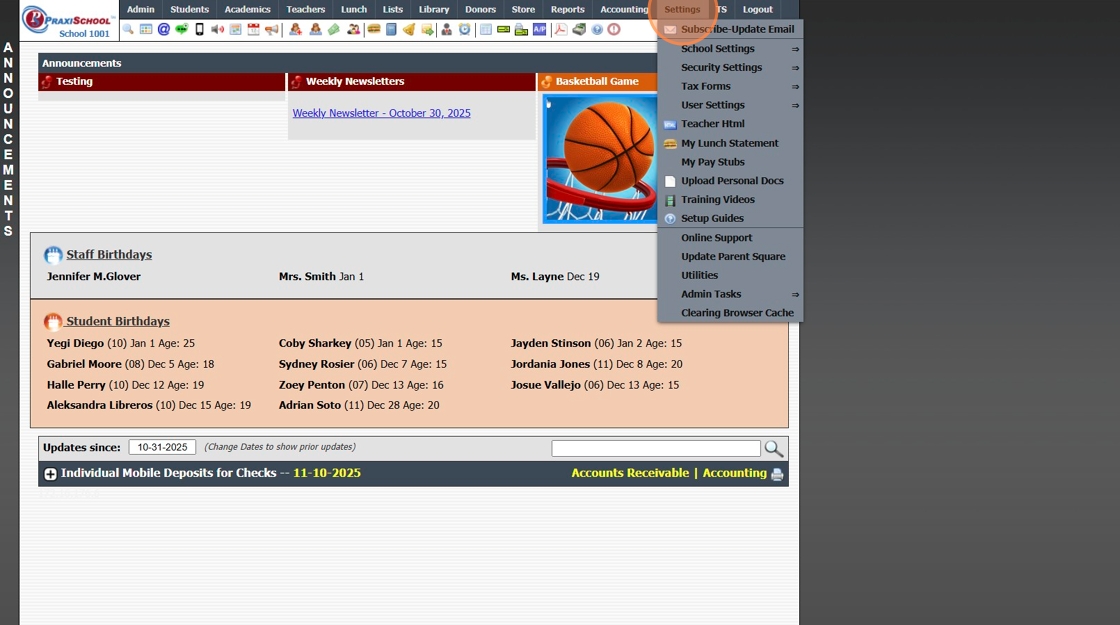
2. Click "User Settings"
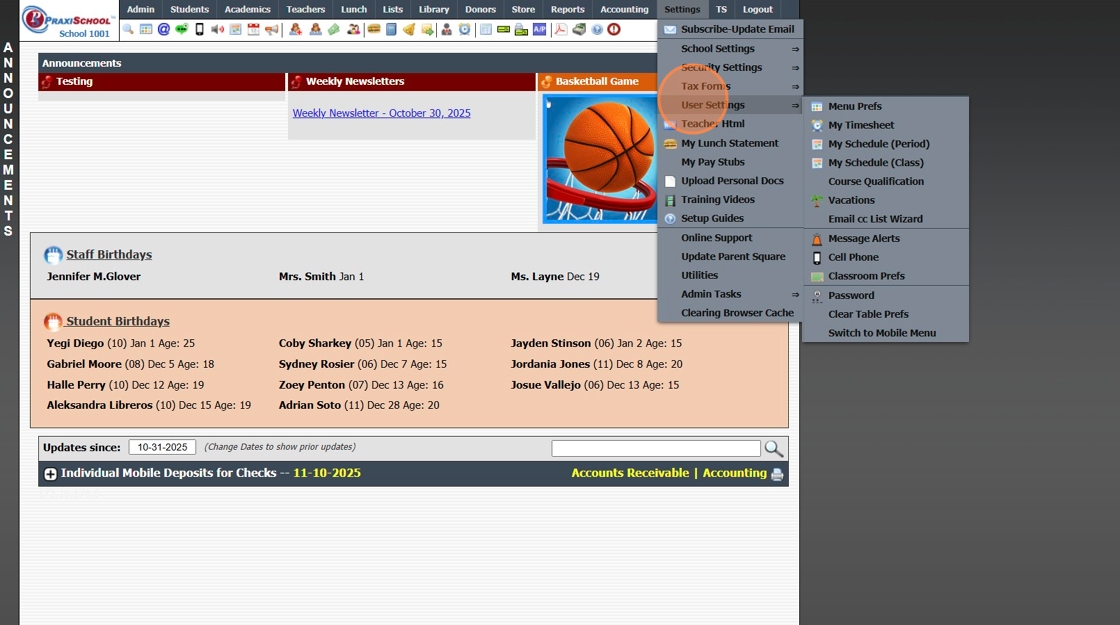
3. Click "Vacations"
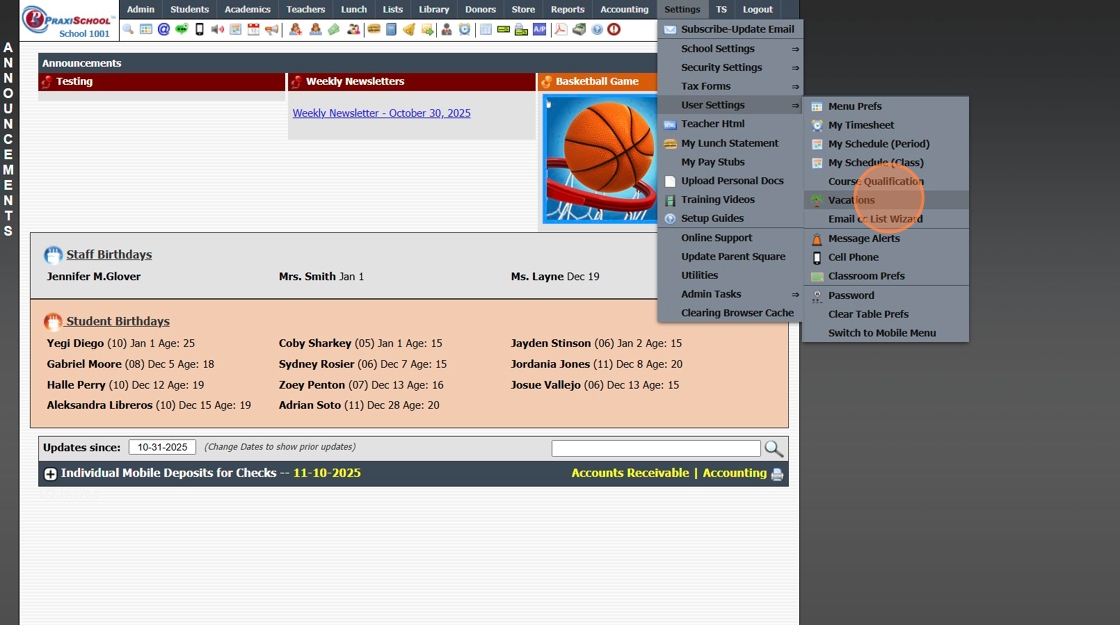
4. Click "Add"
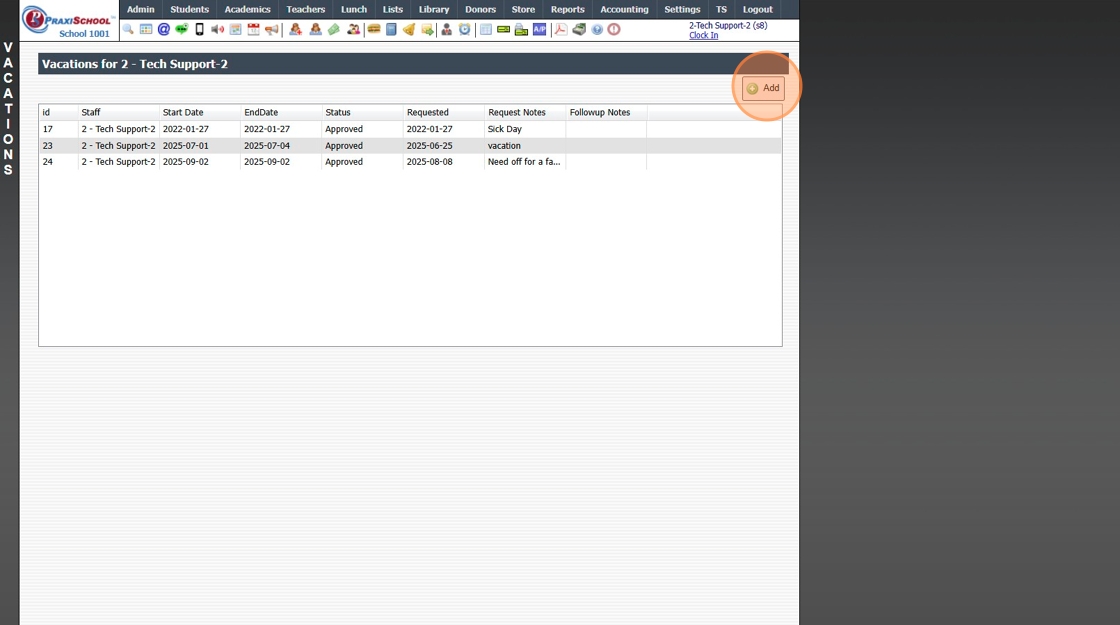
5. Verify Staff Name is Selected
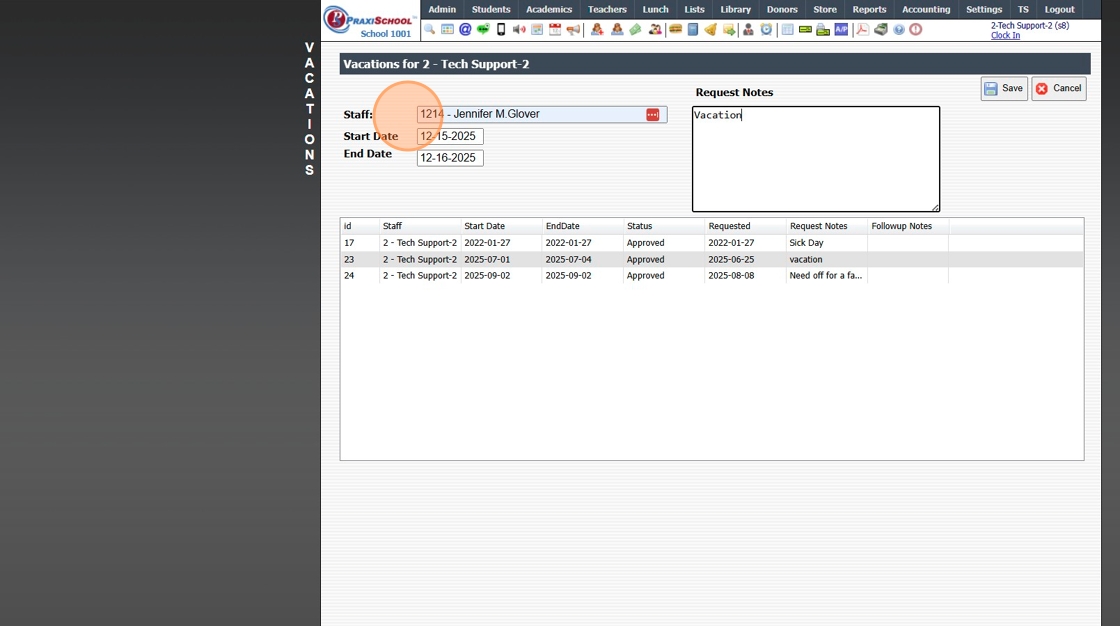
6. Enter Start & End Dates for Requested Time Off
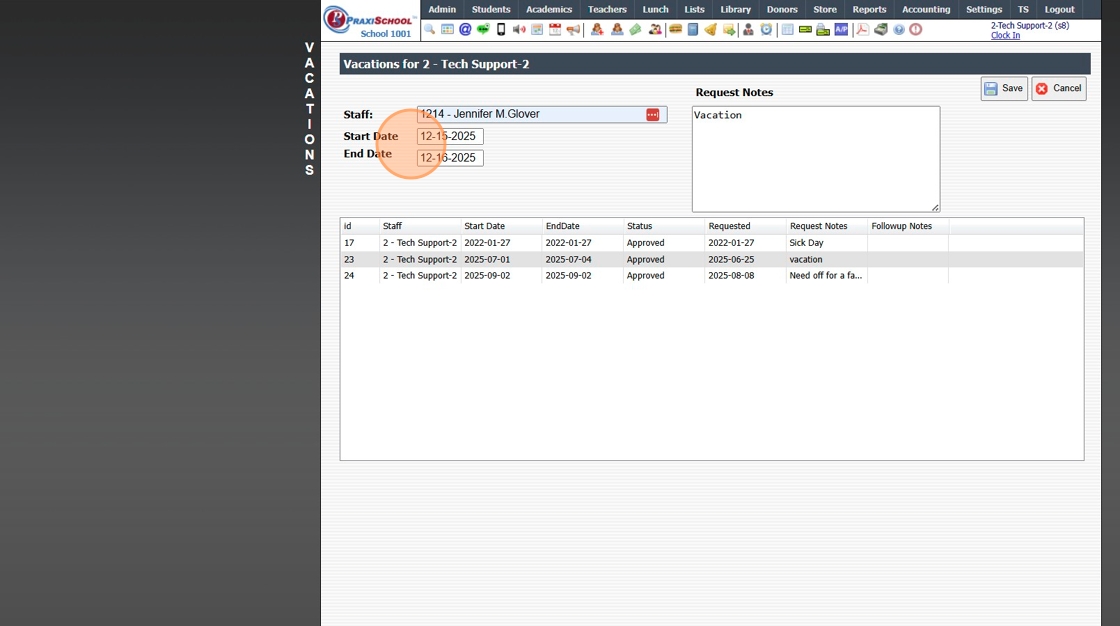
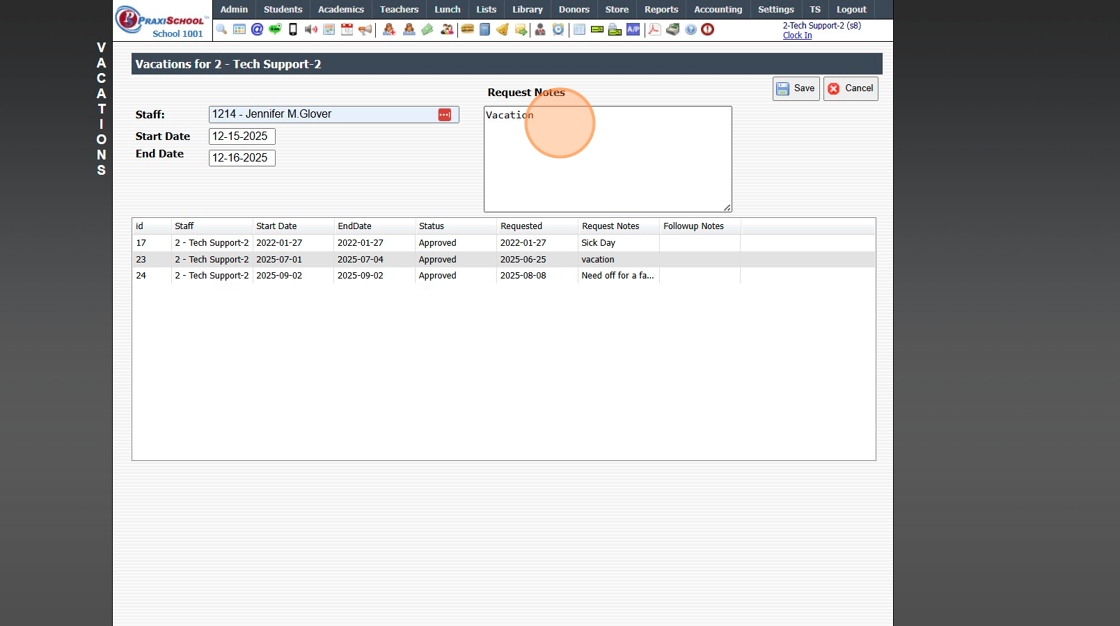
7. Enter Request Notes (Optional)
8. Click "Save"
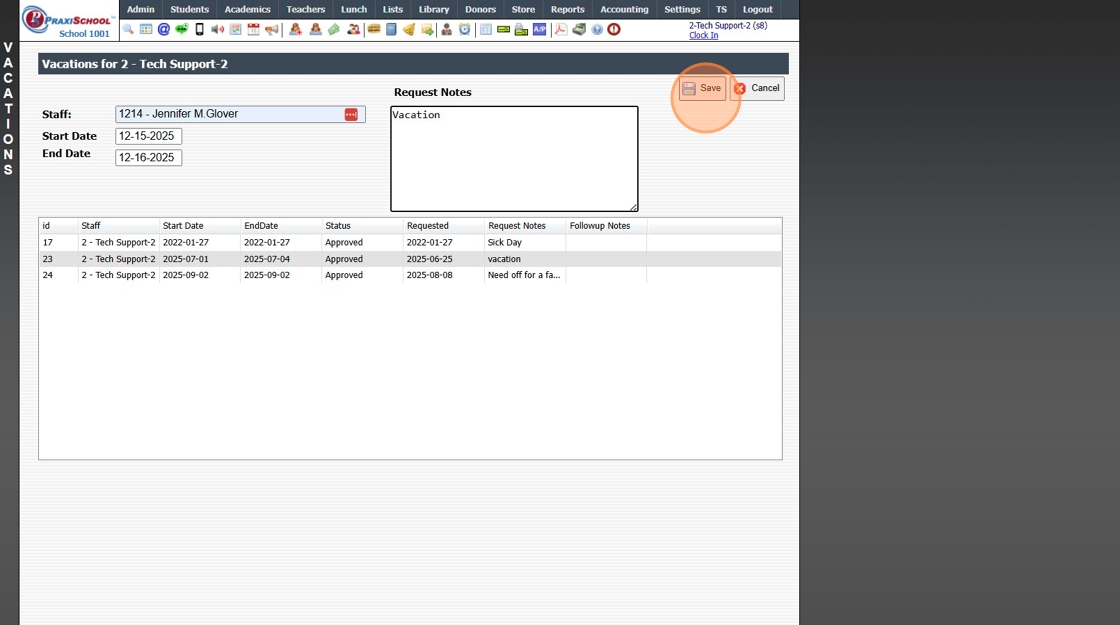
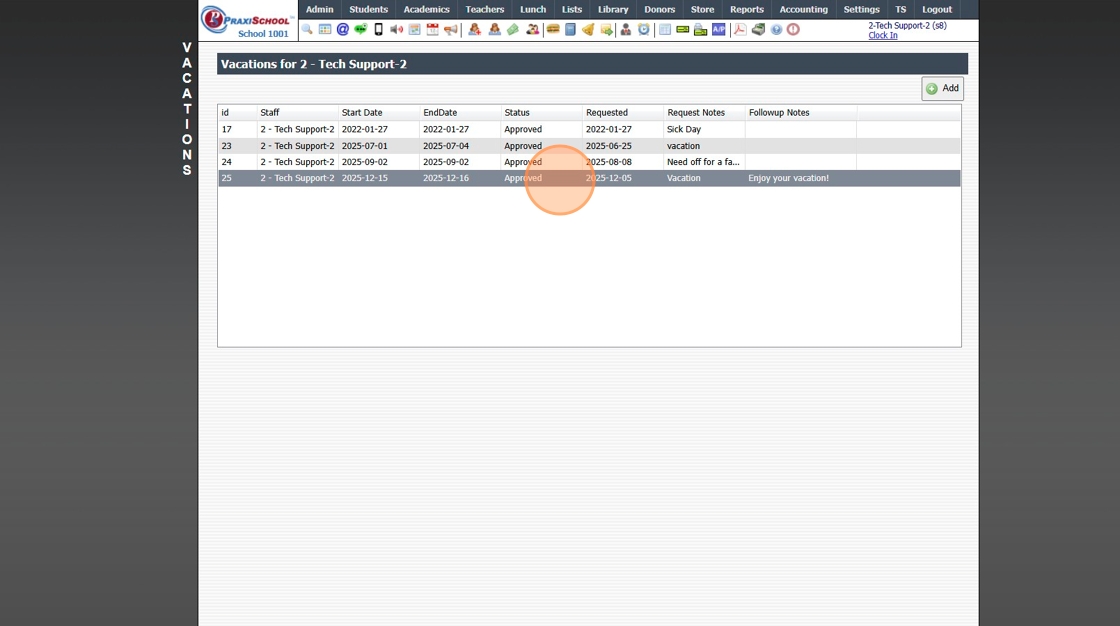
9. Time Off Requests & Status are Visible in the Vacations Screen
6500.4.6
Related Articles
Viewing, Approving or Denying Staff Time Off Requests
Viewing, Approving or Denying Staff Time Off Requests 1. Click "Admin" 2. Click "Staff" 3. Click "Vacations" 4. Select Time Off Request 5. Click "Edit" 6. Select "Approved / Denied" 7. Enter Number of Requested Hours / Days (Optional) 8. Enter Follow ...Time Clock Transactions
Time Clock Transactions 1. Log into PraxiSchool 2. Click "Admin" 3. Click "Clock" 4. Click "Clock Transactions" 5. Set Date From and Date To & Click "Refresh" 6. Click on a Timeclock Transaction to View Clock Details 7. Select Grid Report 8. Click ...TimeClock Icon - Standard Time Clock
TimeClock Icon - Standard Time Clock 1. Click the TimeClock icon on the Icon Toolbar Clocking In / Out Using a Scanner 2. Select the "Scan Barcode" toggle 3. Click inside the Clock Id box & Scan Staff / Student Barcode (Box will turn green & state ...Creating & Submitting an ID Card Order
Creating & Submitting an ID Card Order 1. Click "Reports" 2. Click "Id Cards" 3. Select Database (Ex. Students, Student/Family, Staff or Family) 4. Select ID Card Format 5. Click "Refresh" 6. Tag Individuals to Add to Order 7. Click "Create New ...Updating Staff Attendance from Time Clock Transactions
Updating Staff Attendance from Time Clock Transactions 1. Click "Admin" 2. Click "Staff" 3. Click "Staff Attendance Wizard" 4. Click "Update From Time Clock" 1000.2.7