Setting Up Custom Attendance
Setting Up Custom Attendance
1. Select Custom Attendance Icon
Tip: Custom Attendance Icon should be a simple 16 x 16 pixels image
2. Open PraxiSchool & Click "Admin"
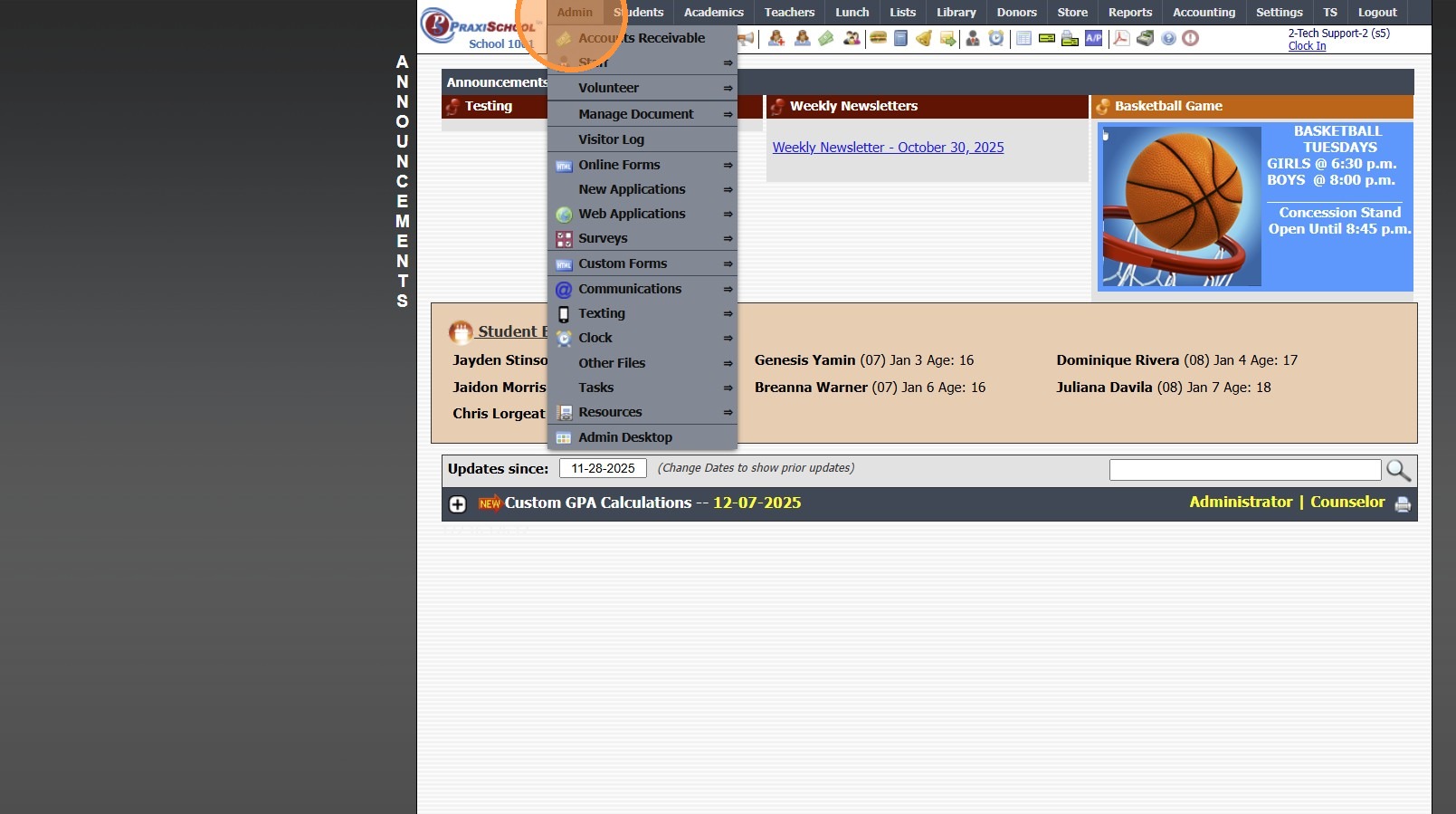
3. Click "Resources"
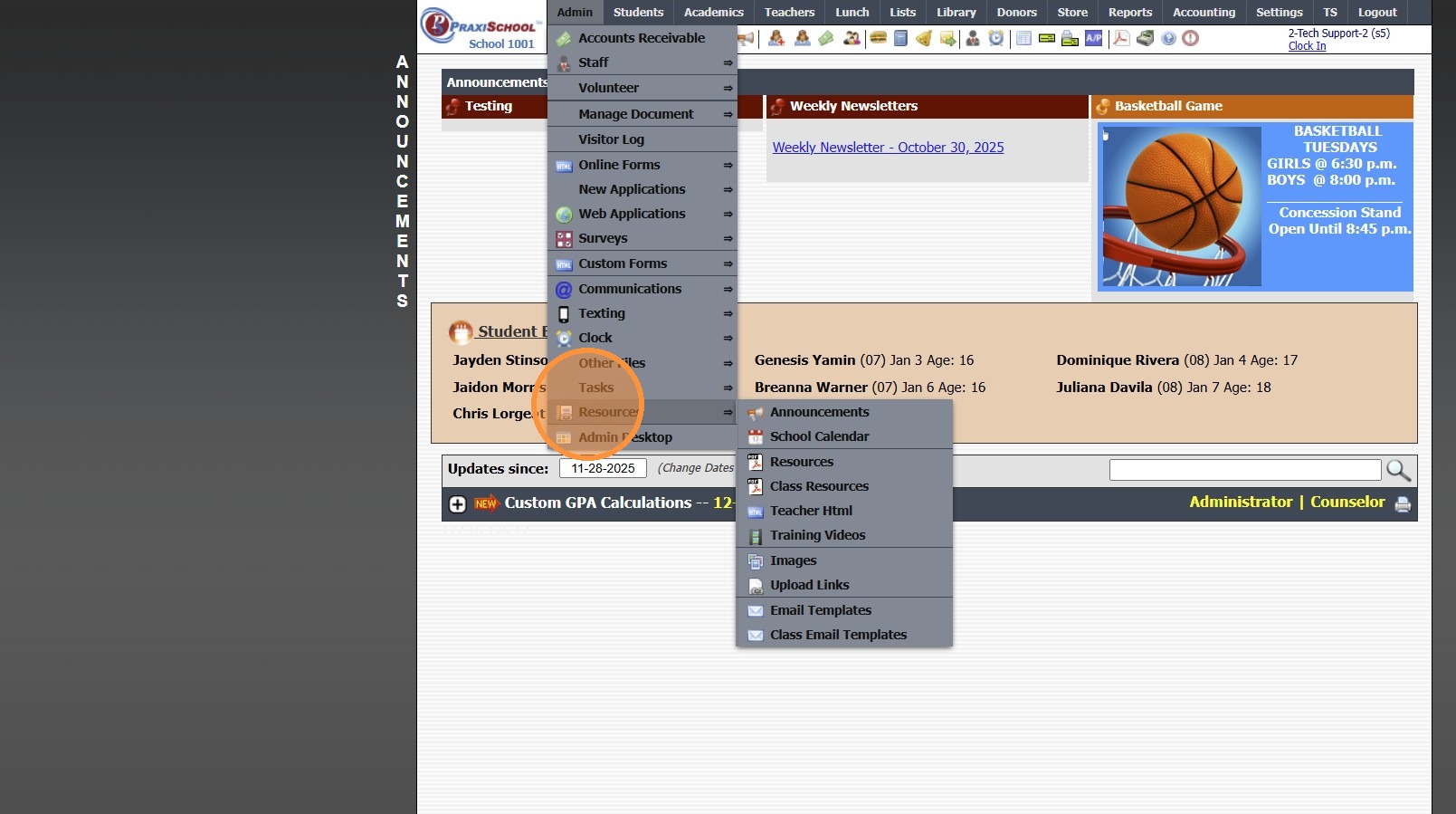
4. Click "Resources"
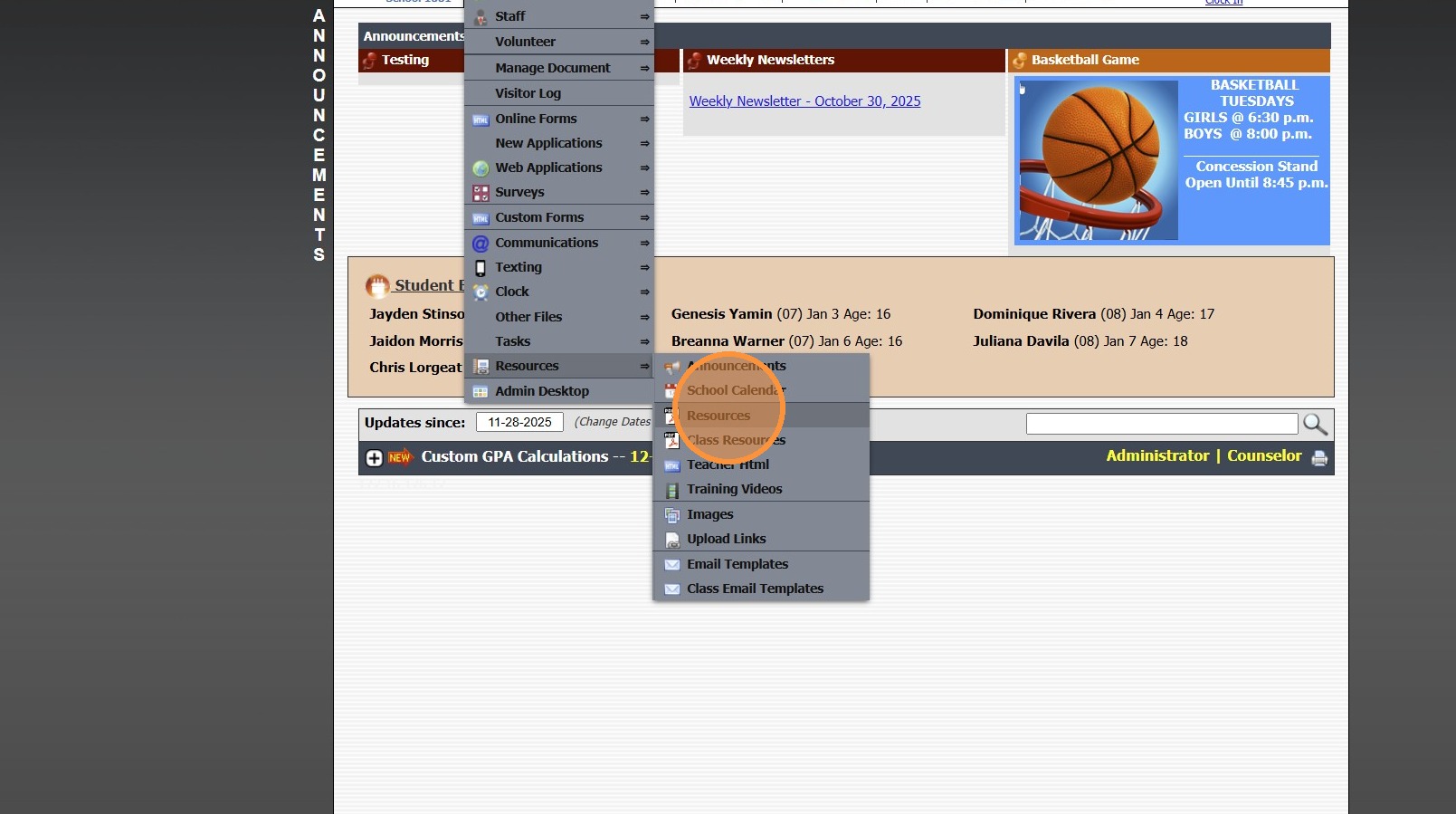
5. Click "Add"
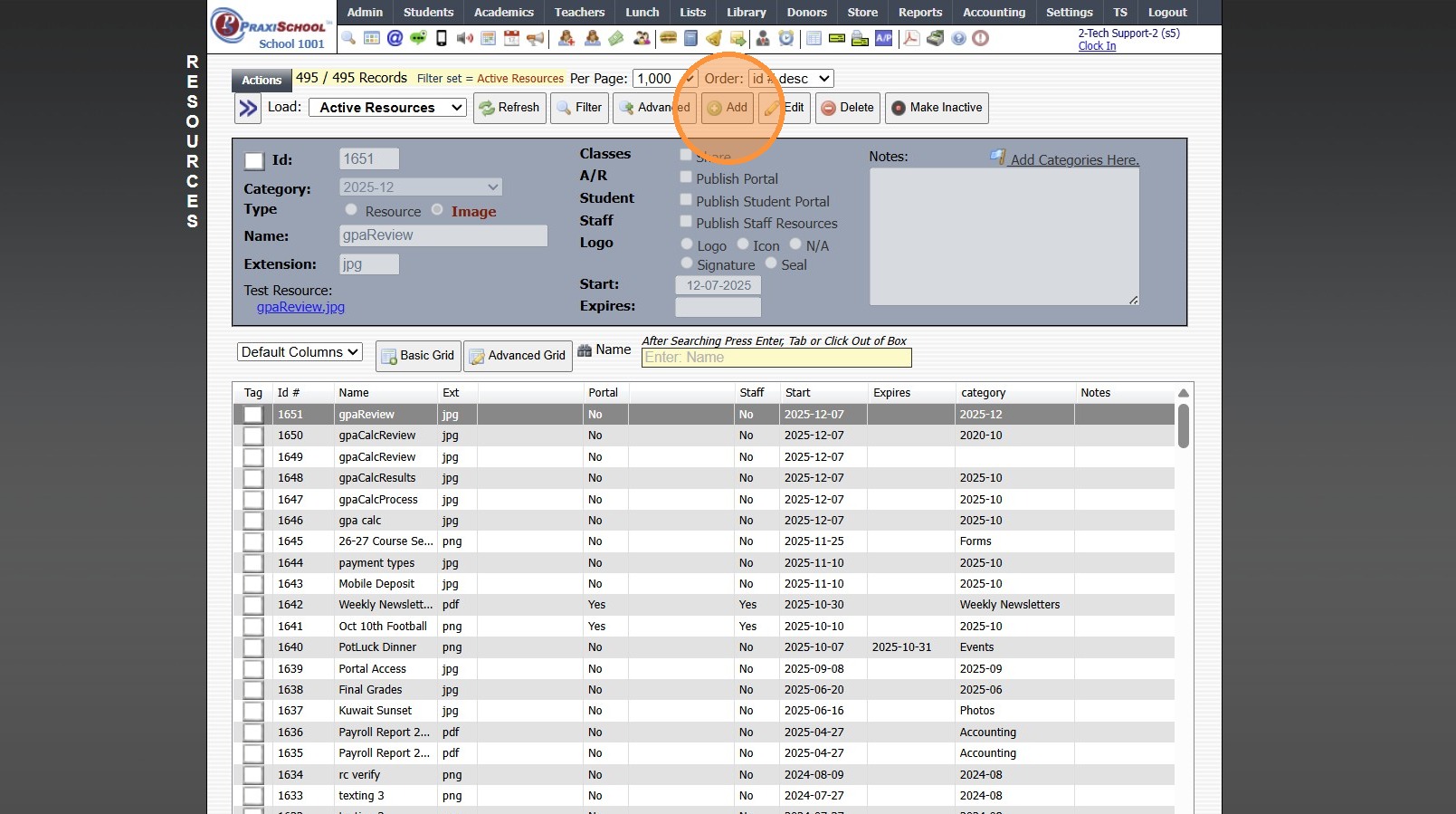
6. Enter Icon Name
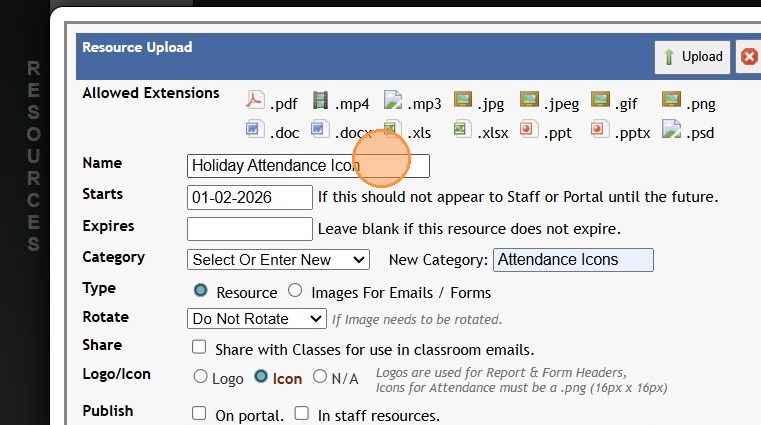
7. Select Category from Dropdown
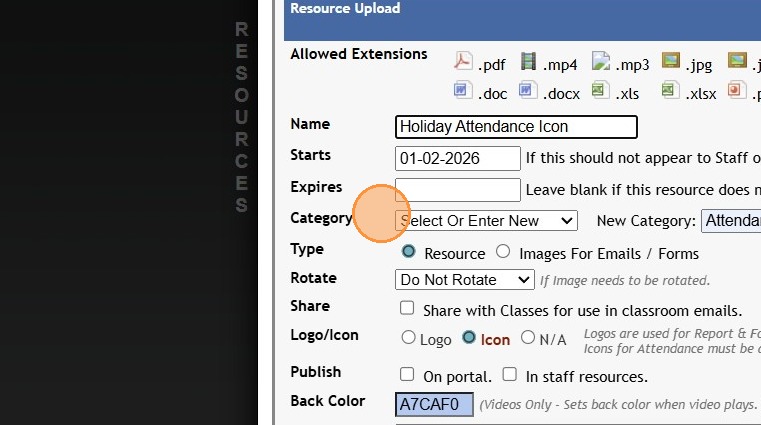
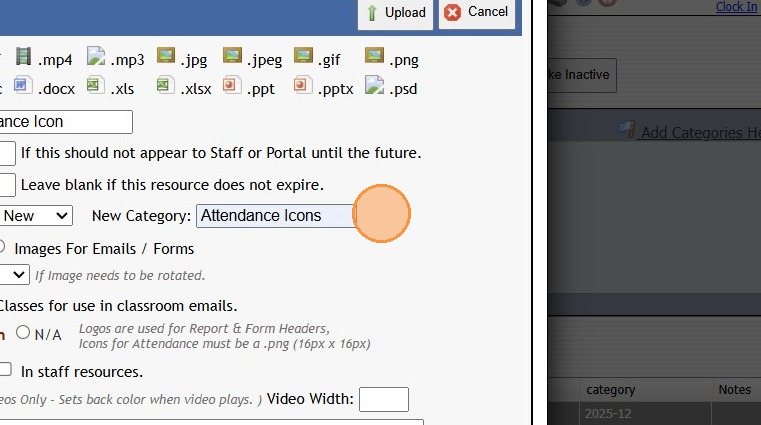
8. If Category is not in Dropdown, enter New Category Name
9. Select "Logo"
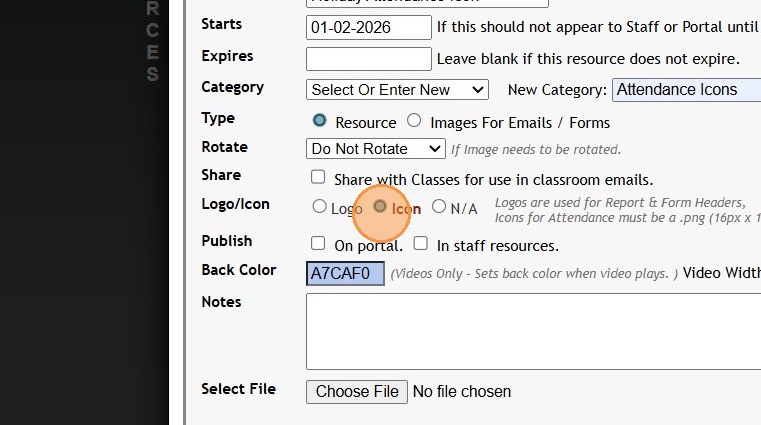
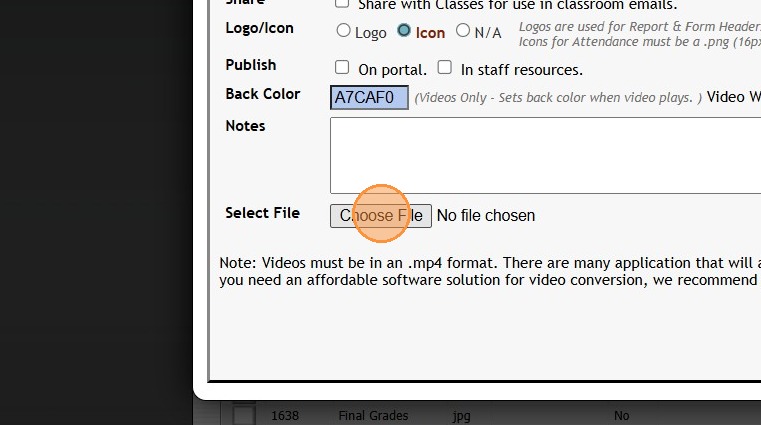
10. Click "Choose File" to Select Icon
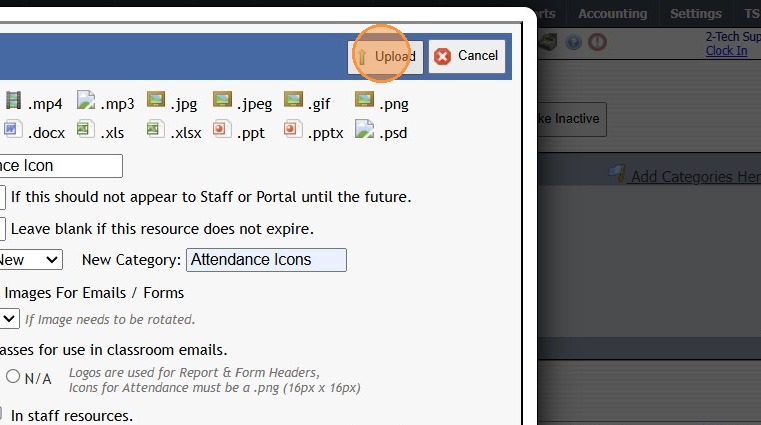
11. Click "Upload"
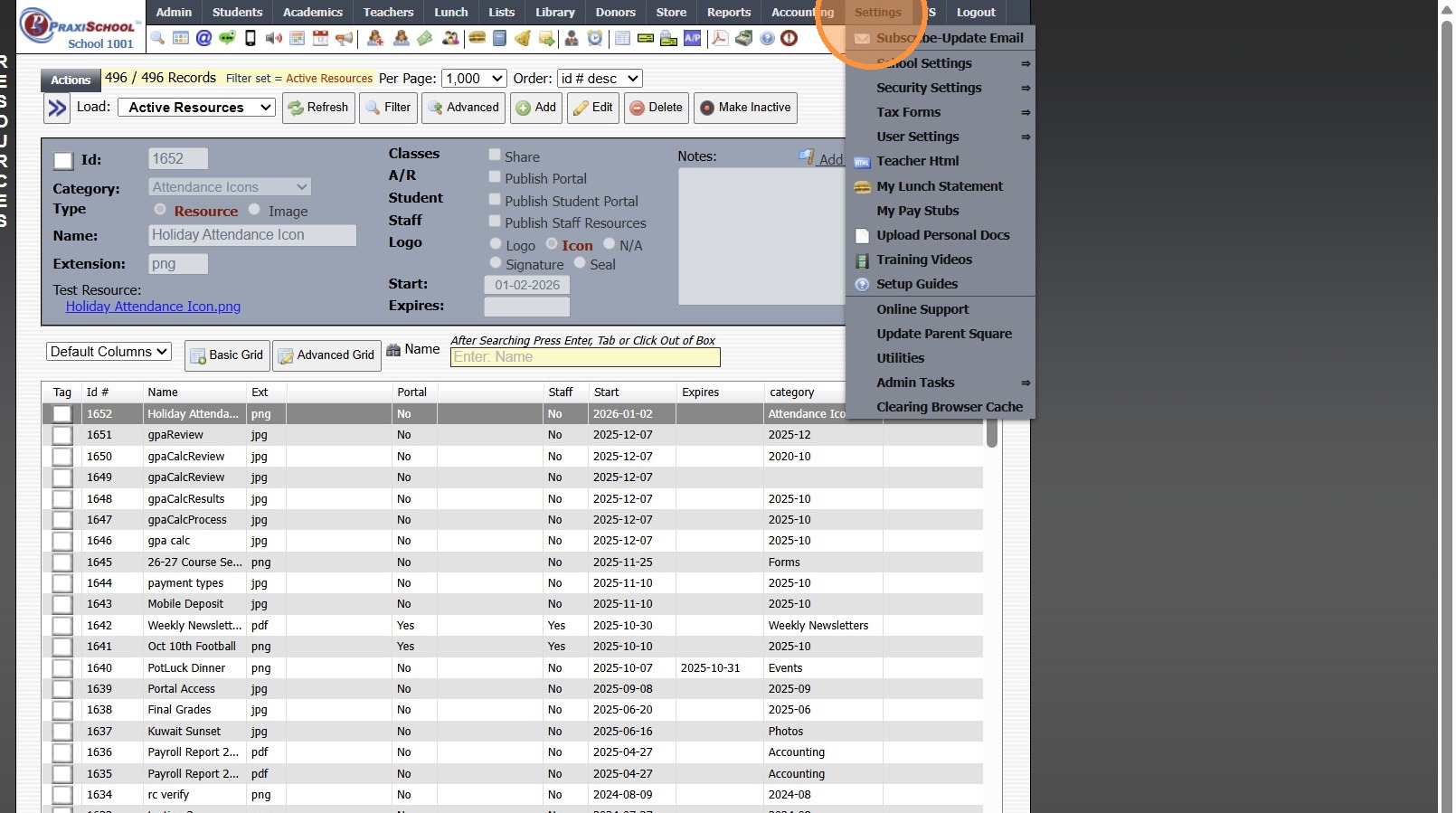
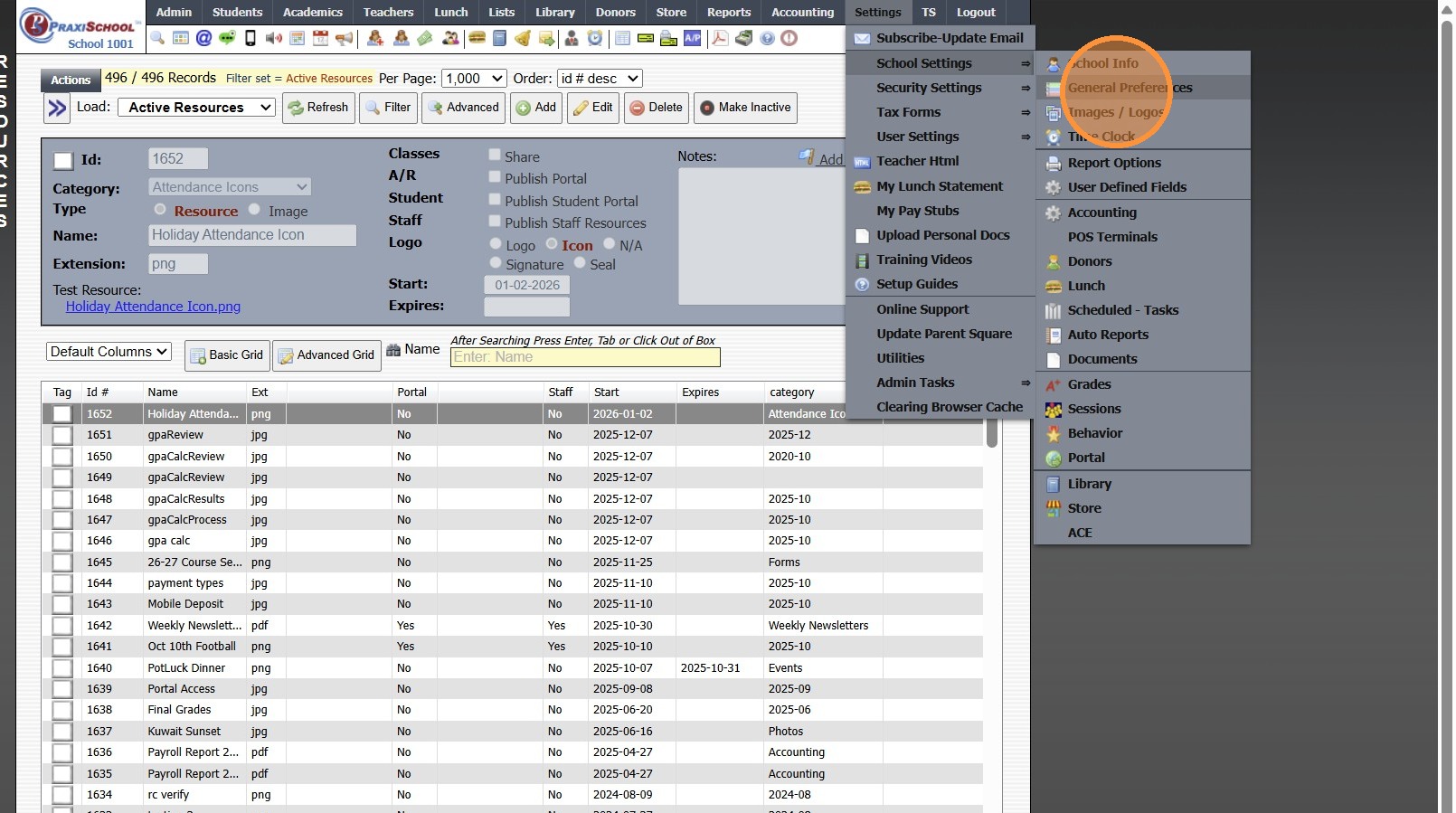
12. Click "Settings"
13. Click "School Settings"
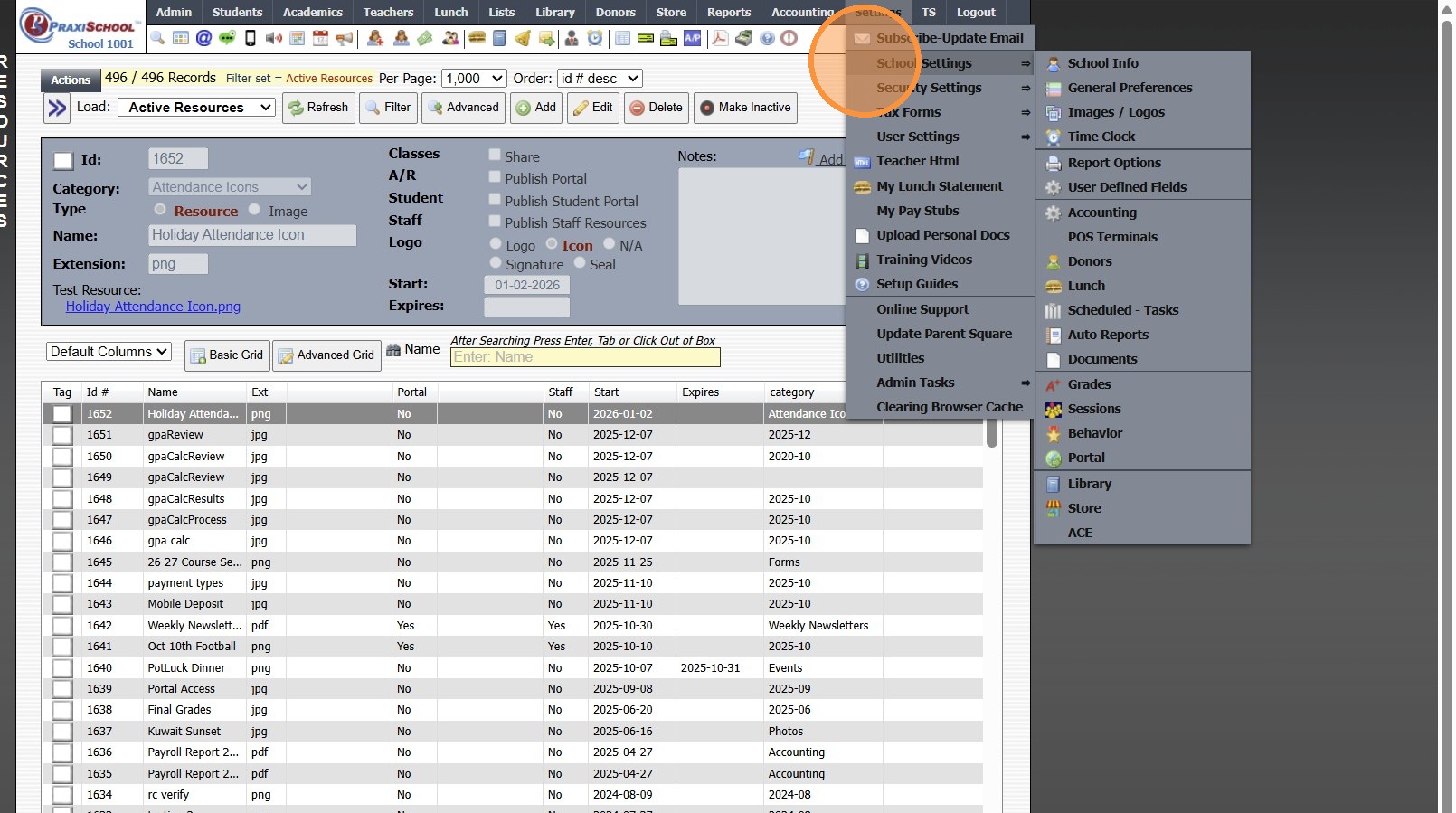
14. Click "General Preferences"
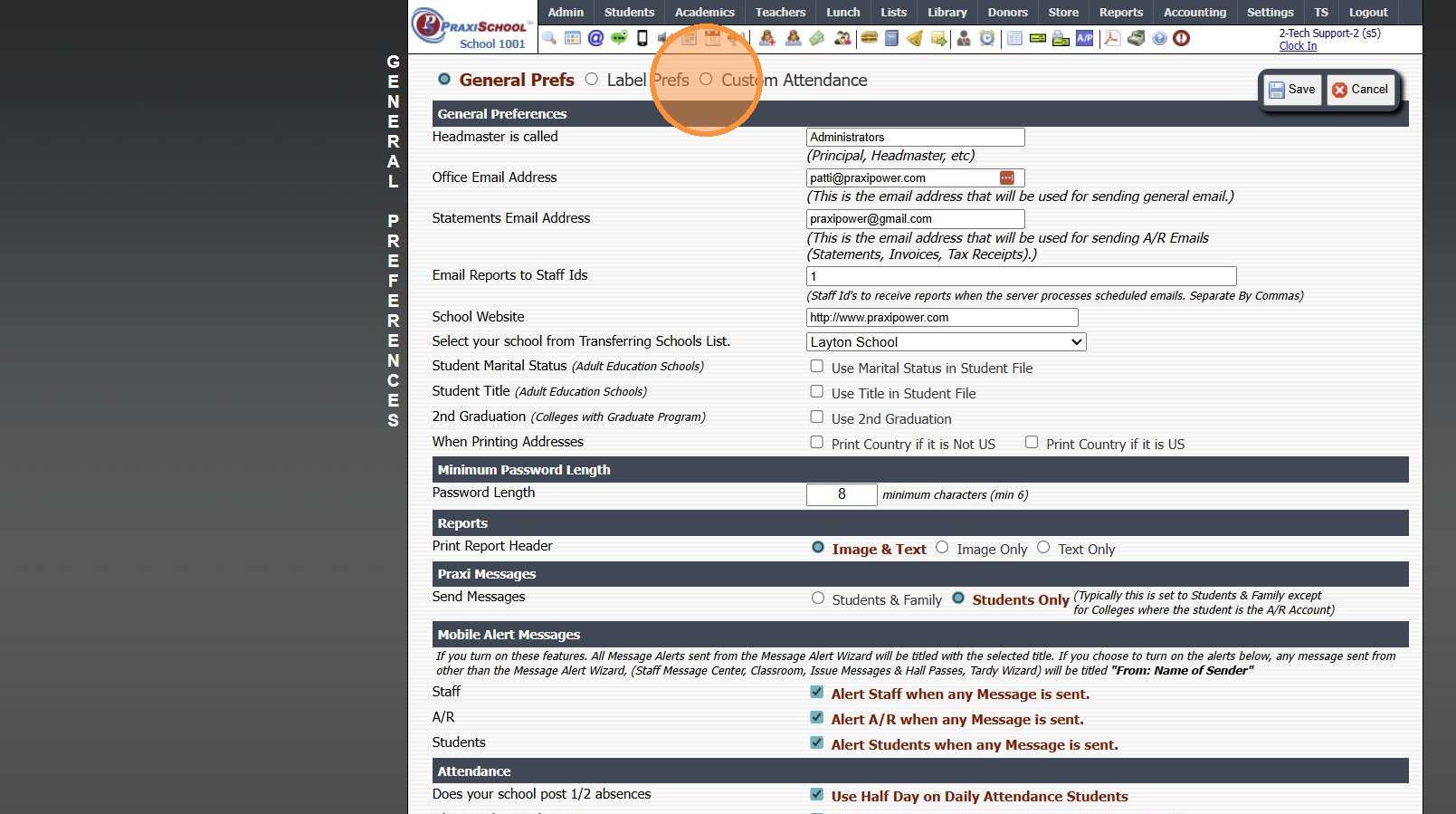
15. Click the "Custom Attendance" toggle
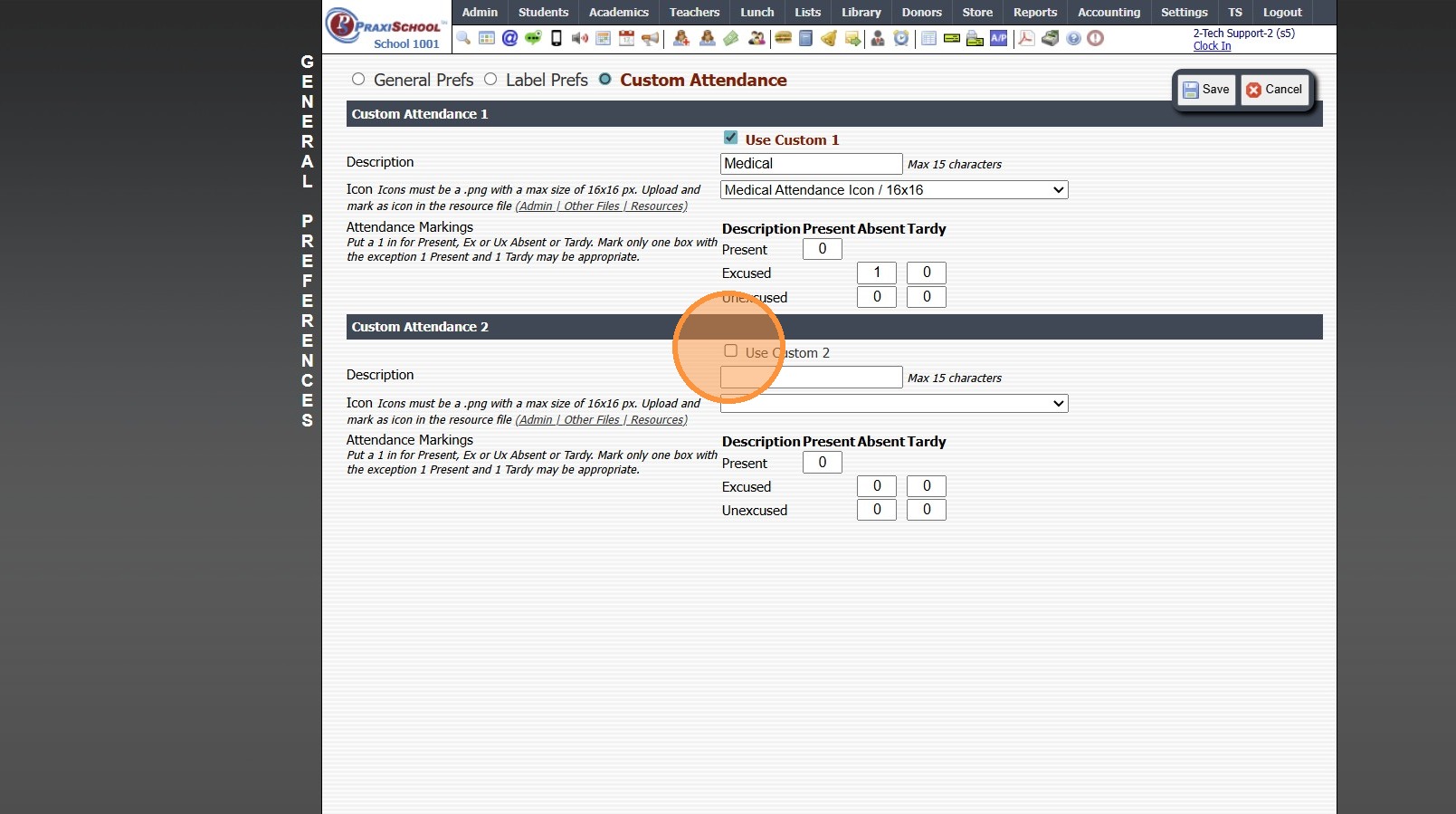
16. Check box for Use Custom Attendance
17. Enter Custom Attendance Description
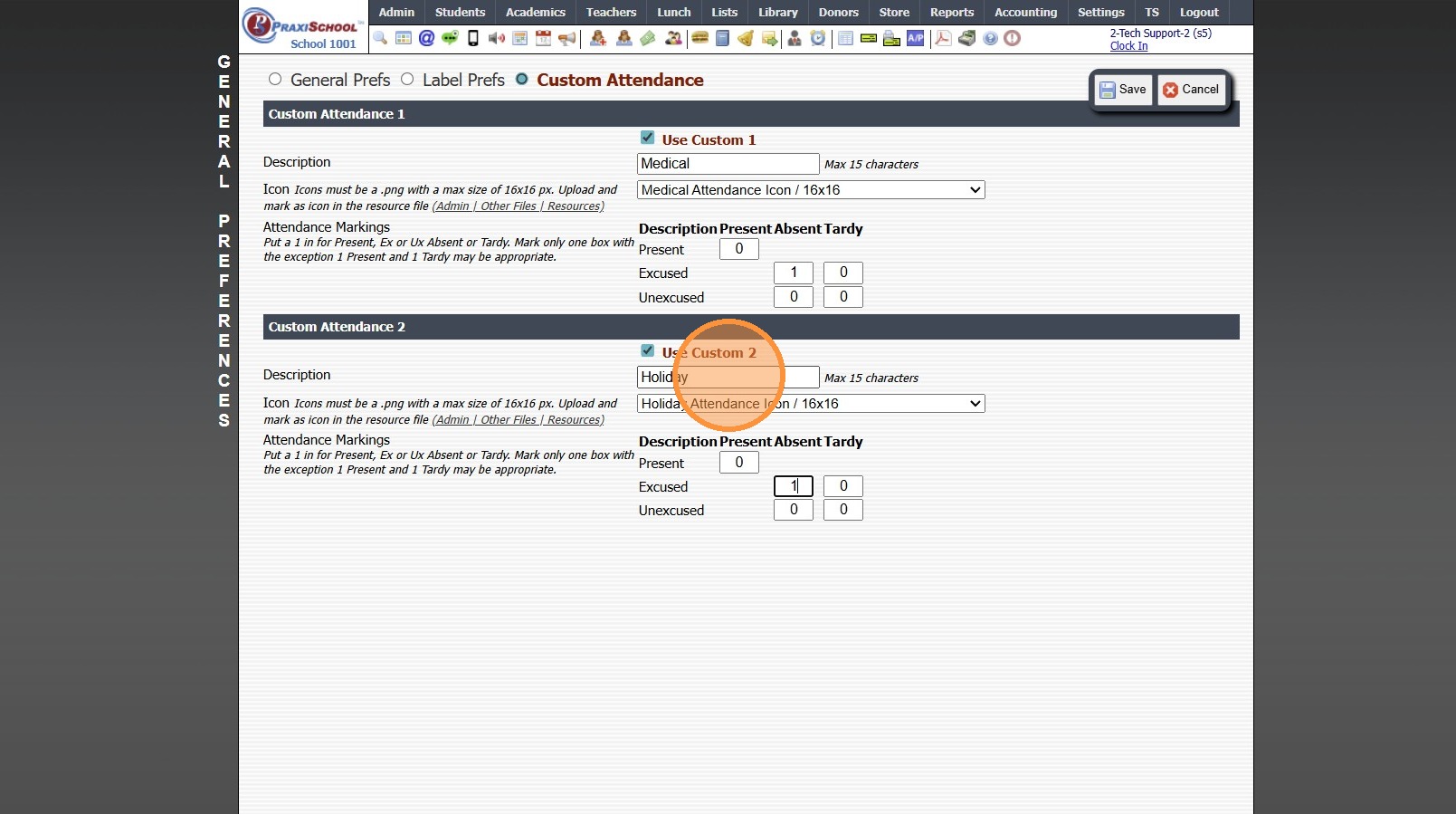
18. Select Icon from Dropdown
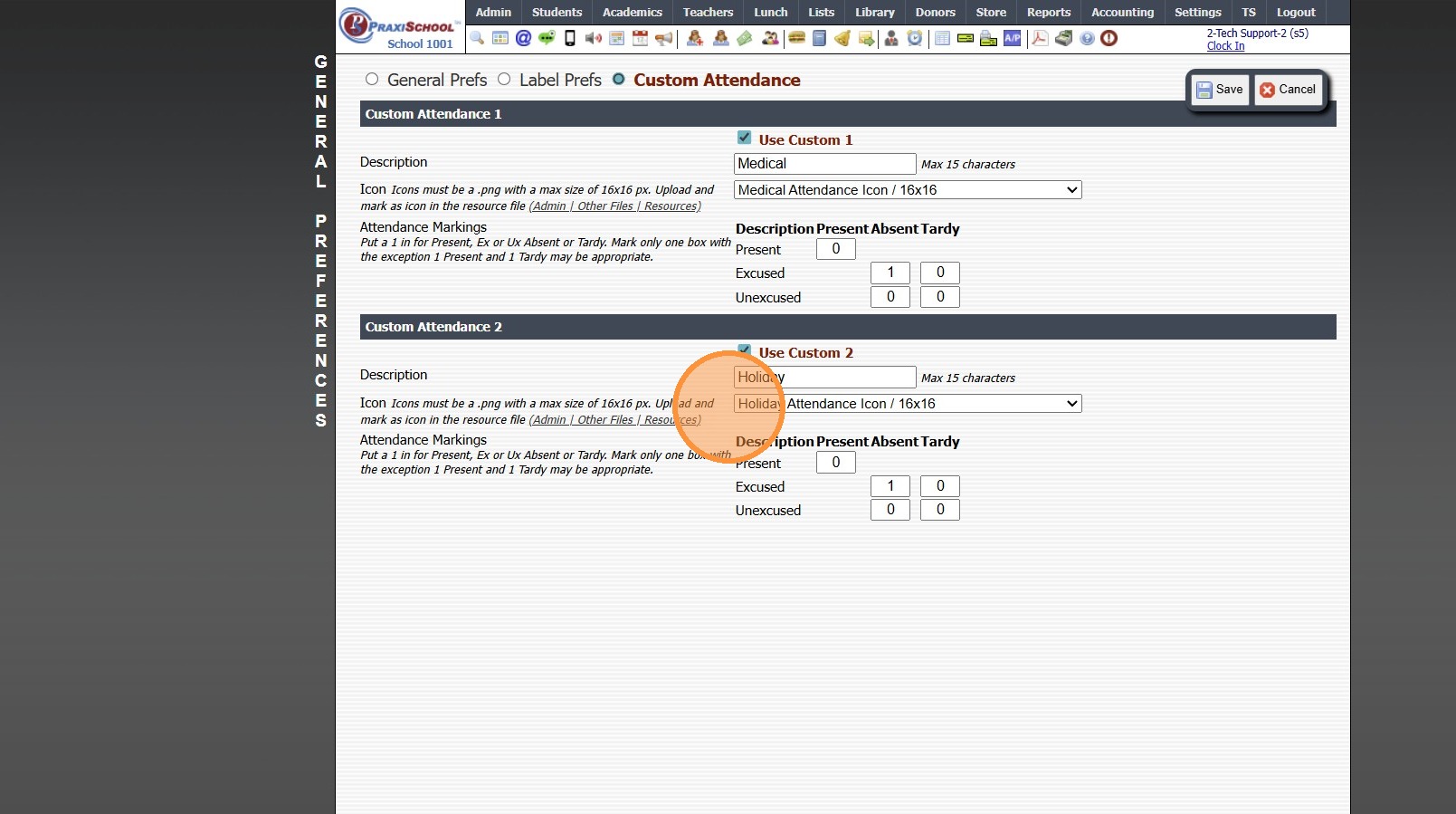
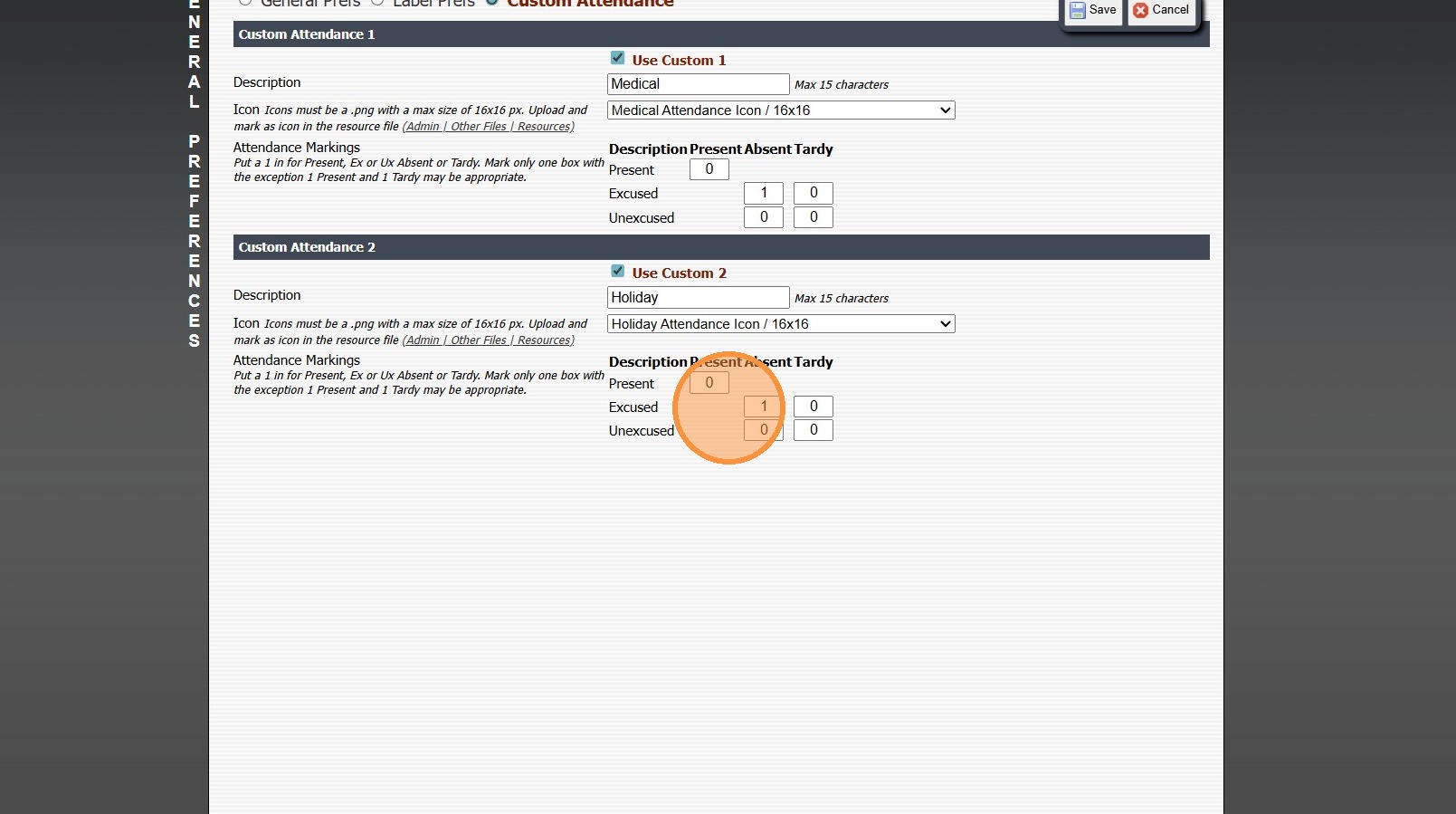
19. Enter a "1" in the correct Attendance
(Ex: If the attendance is considered Present, enter a 1 next to Present. If the attendance is considered an Excused Absent, enter a 1 next to Excused in the Absent column)
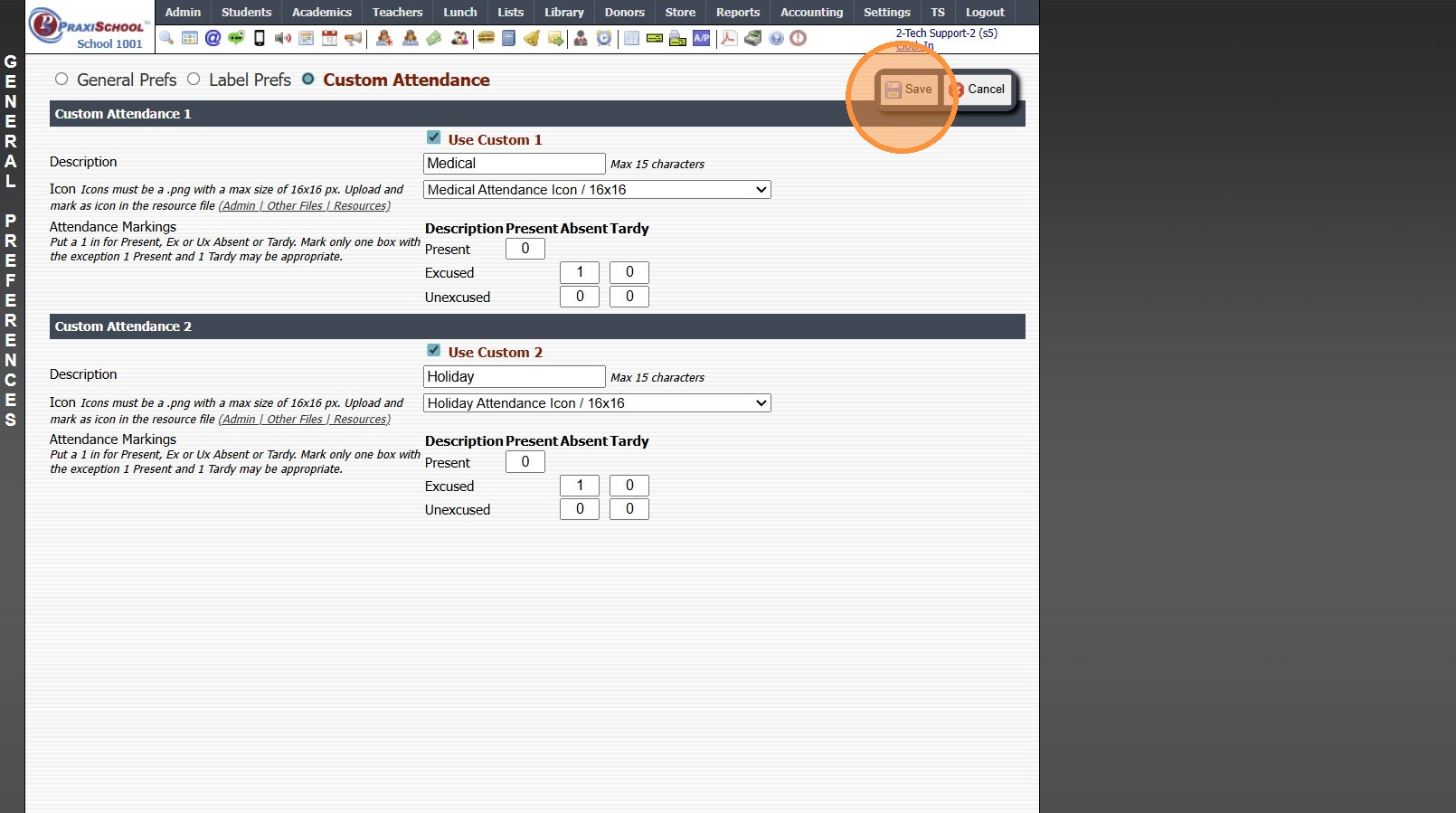
20. Click "Save"
21. 6500.2.4
Related Articles
Requesting Custom Attendance Icon Options
Please submit a Ticket to support@praxipower.com to request up to 4 custom attendance options. Once Custom Attendance option(s) have been added, please refer to Setting Up Custom Attendance.District Attendance Reports
1. Click "Academics" 2. Click "Attendance" 3. Click "Attendance Data" 4. Set the Date Range 5. Make sure the Per Page count is Higher than the Amount of Records & Click "Refresh" 6. Select a Custom Grid Report 7. Click "Print ⮟" 8. Click "Large ...Emailed Daily Attendance Reports
1. Click "Settings" 2. Click "School Settings" 3. Click "Scheduled - Tasks" 4. Scroll to the "Email Daily Attendance Reports" Section 5. Enter Run Time & Staff Id(s) to Receive Report 6. Select Report Preferences 7. Click "Save" 6500.2.55Setting a Class of Filter in Transcripts
Setting a Class of Filter in Transcripts For a Specific Transcript Type 1. Click "Academics" 2. Click "Transcripts" 3. Click "Transcripts" 4. Click "Filter" 5. Select Data Field "Type" 6. Select Operator "Does Contain" 7. Set Value to Transcript Type ...Creating a Custom Grid Report
1. Select the Database to Create the Custom Grid (Ex. Students, AR, Classes, etc) 2. Click "Basic Grid" 3. Click on the Field to Add to the Custom Grid Report (Repeat for each Field) 4. The Up/Down Arrow can be used to move a Field & the Back Arrow ...