Opening New Grade Period For Report Cards
Opening New Grade Period For Report Cards
1. Click "Academics"

2. Click "Grades Setup"

3. Click "Report Card"

4. Select Report Card Template
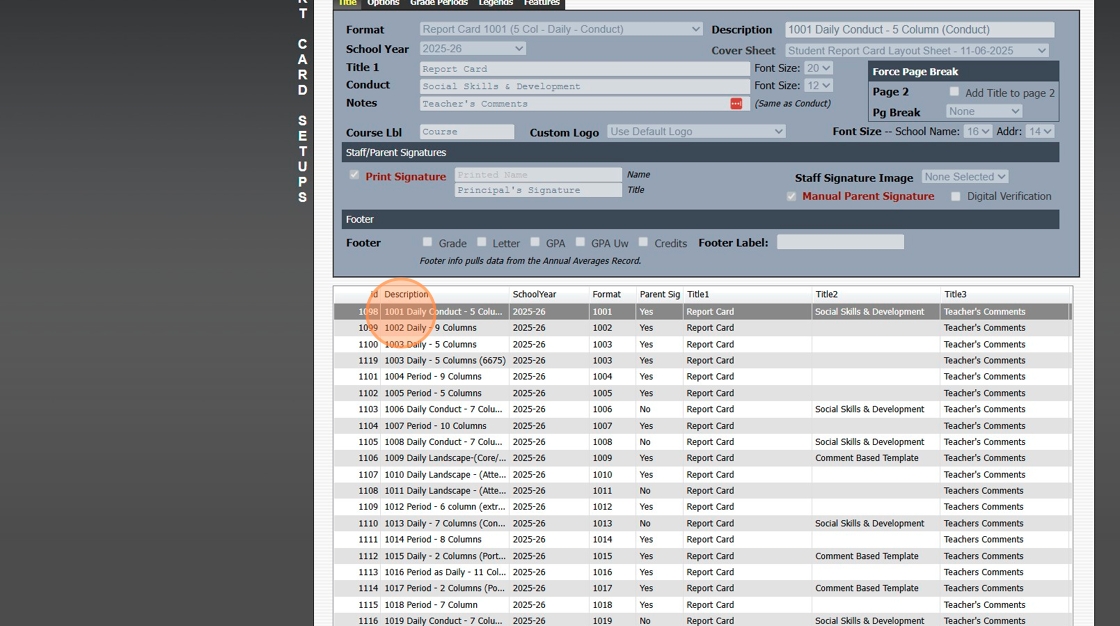
5. Click "Grade Periods"

6. Click "Edit"

7. Check the Box next to Print Grade Periods for the Grade Period to add to the Report Card

8. Check the Box next to Print Grade Period Notes for the Grade Period to add to the Report Card (Optional)
(If using Comments, Check the Box next to Print Grade Period Notes for the Grade Period to add to the Report Card) (Optional)

9. Check the Box next to Print Grade Period Conduct for the Grade Period to add to the Report Card (Optional)

10. Click "Save"

11. 2000.2.2
Related Articles
Opening a Closed Grade Period
Opening a Closed Grade Period A Closed Grade Period can be Opened to Allow Updates to Student's Overall Averages. NOTE: Opening a Closed Grade Period will clear all Roster Grades that have been marked Override. 1. Log into PraxiSchool 2. Click ...Closing a Grade Period
Closing a Grade Period Closing a Grade Period Prevents Grade Changes after Report Cards have been Processed. Teachers can Add/ Edit prior Grade Period Assignments. However, the Student's Overall Average will not Change. 1. Log into PraxiSchool 2. ...Preparing to Print Report Cards
Preparing to Print Report Cards Averaging Grades 1. Click "Academics" 2. Click "Grades Tasks" 3. Click "Average Grades" Averaging by Teacher 4. Click "Select All" 5. Verify "School Year" 6. Click "Grade Period(s)" 7. Click "Semester(s)" 8. Click ...Creating a Report Card Template for a New Student
If a New Student Enrolls After the First Grade Period Report Cards are Created, a Report Card Template will need to be Created for the New Student. 1. Click Academics > Grades Reports > Print Report Cards 2. Click "Process For 1 Student" & Search the ...Emailing Report Cards in Batch
1. Click "Academics" 2. Click "Grades Reports" 3. Click "Print Report Cards" 4. Click "Select All" or select by Grade / Homeroom Teacher 5. Select Email From Option 6. Select Email To Option(s) 7. Add Message (Optional) 8. Select Verify Period ...