Issuing a Hall Pass from the Classroom
1. Click "Teachers"
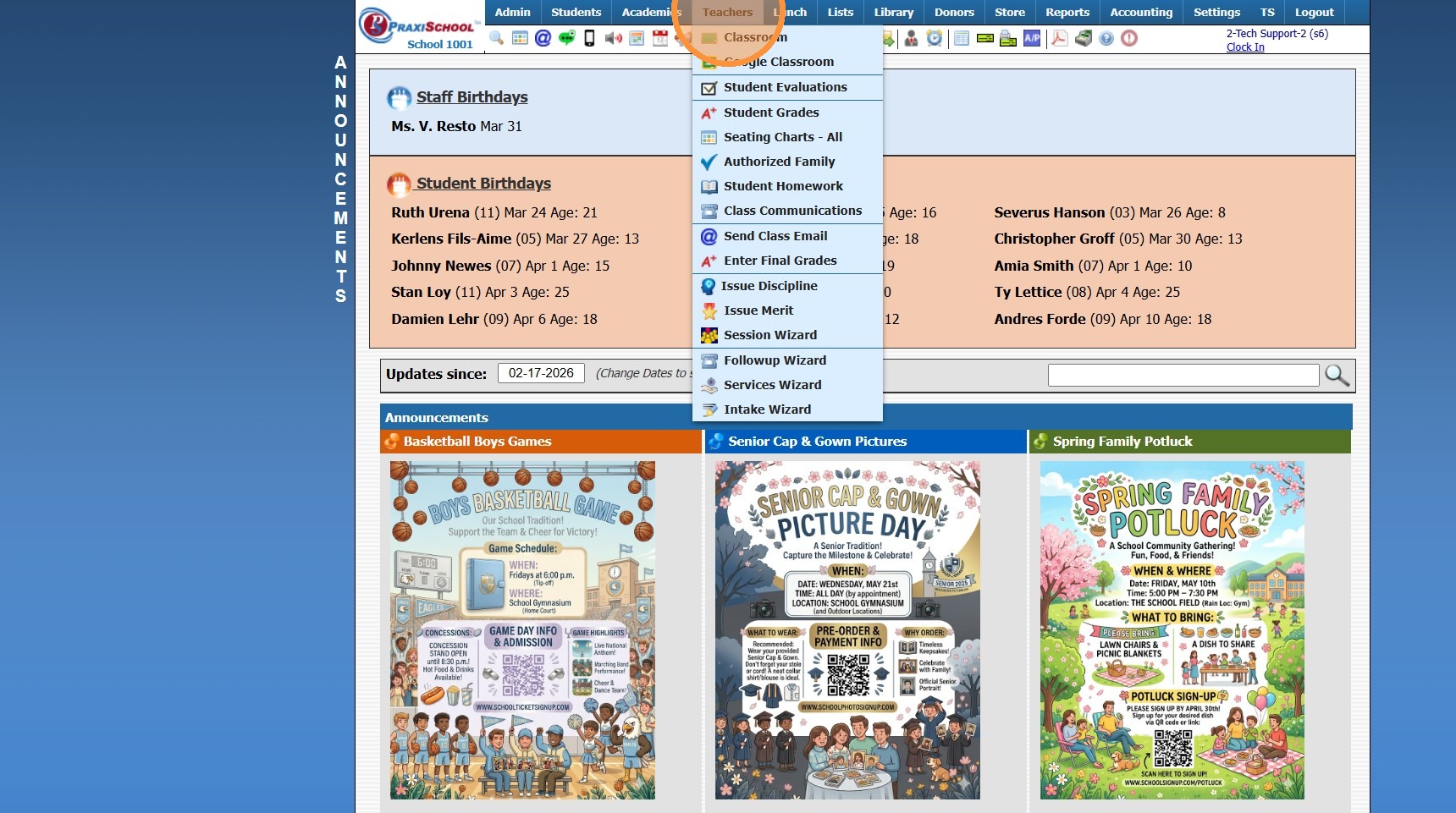
2. Click "Classroom"
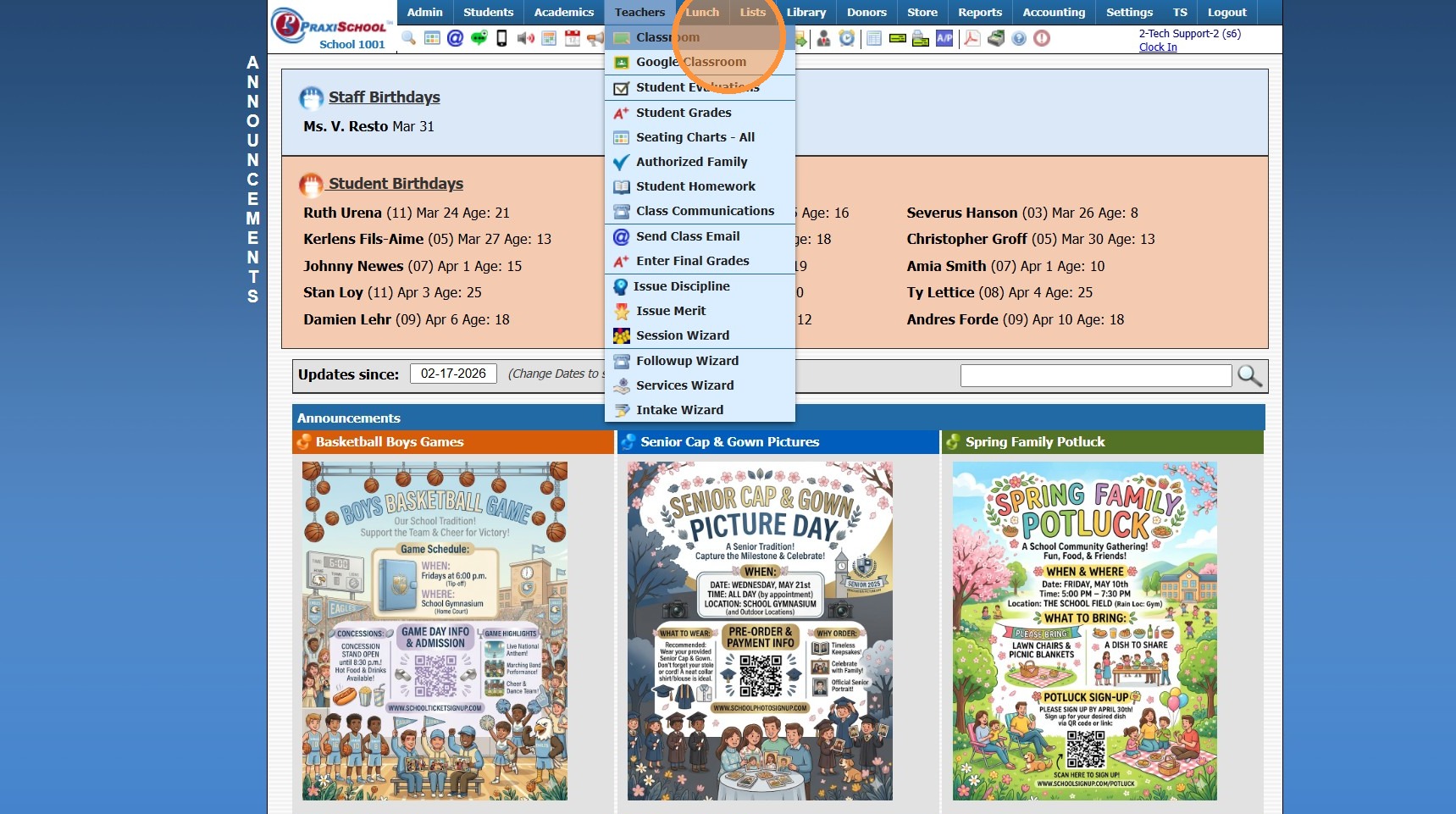
3. Select Class
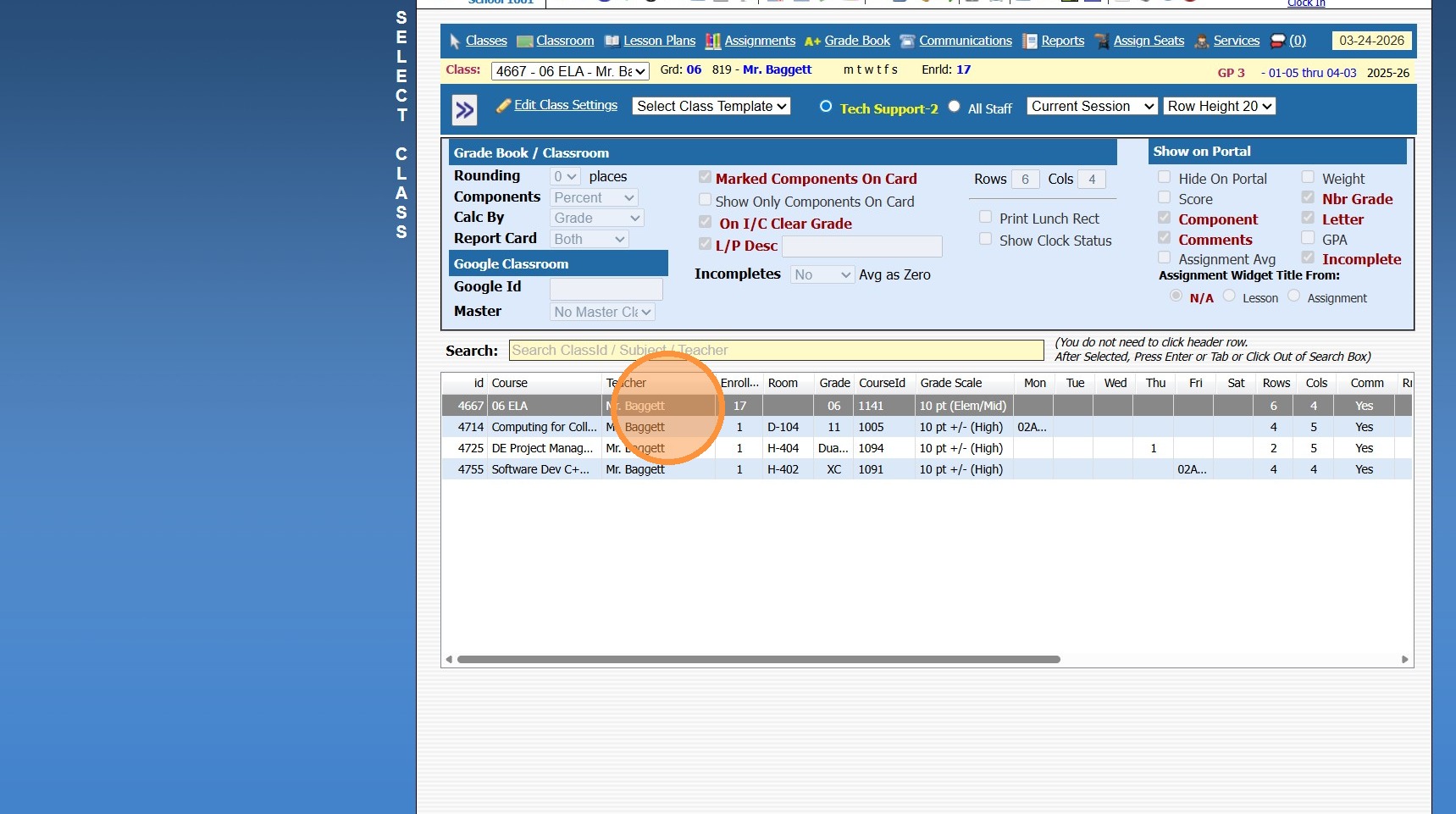
4. Click "Classroom"
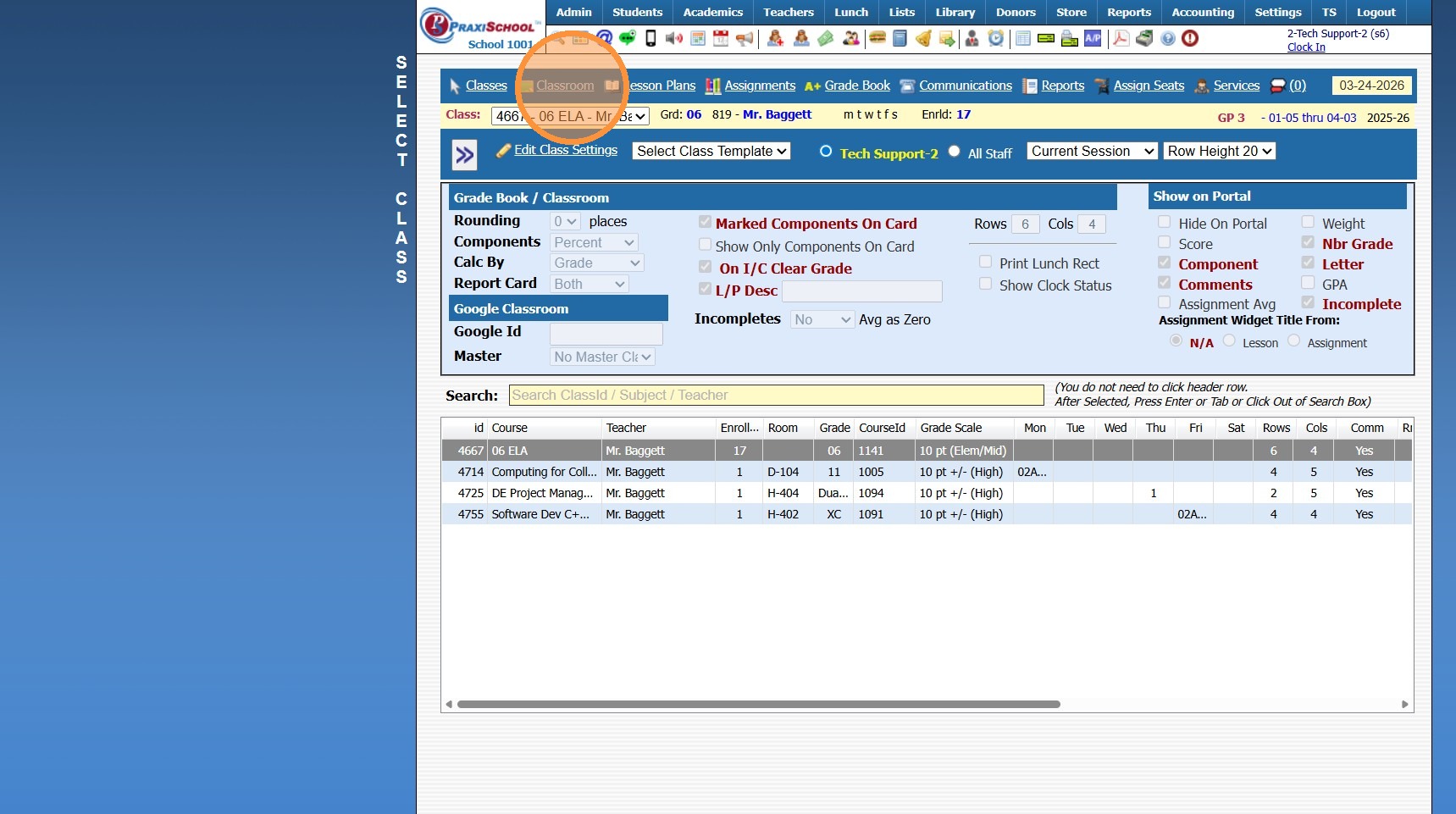
5. Left Click on Student
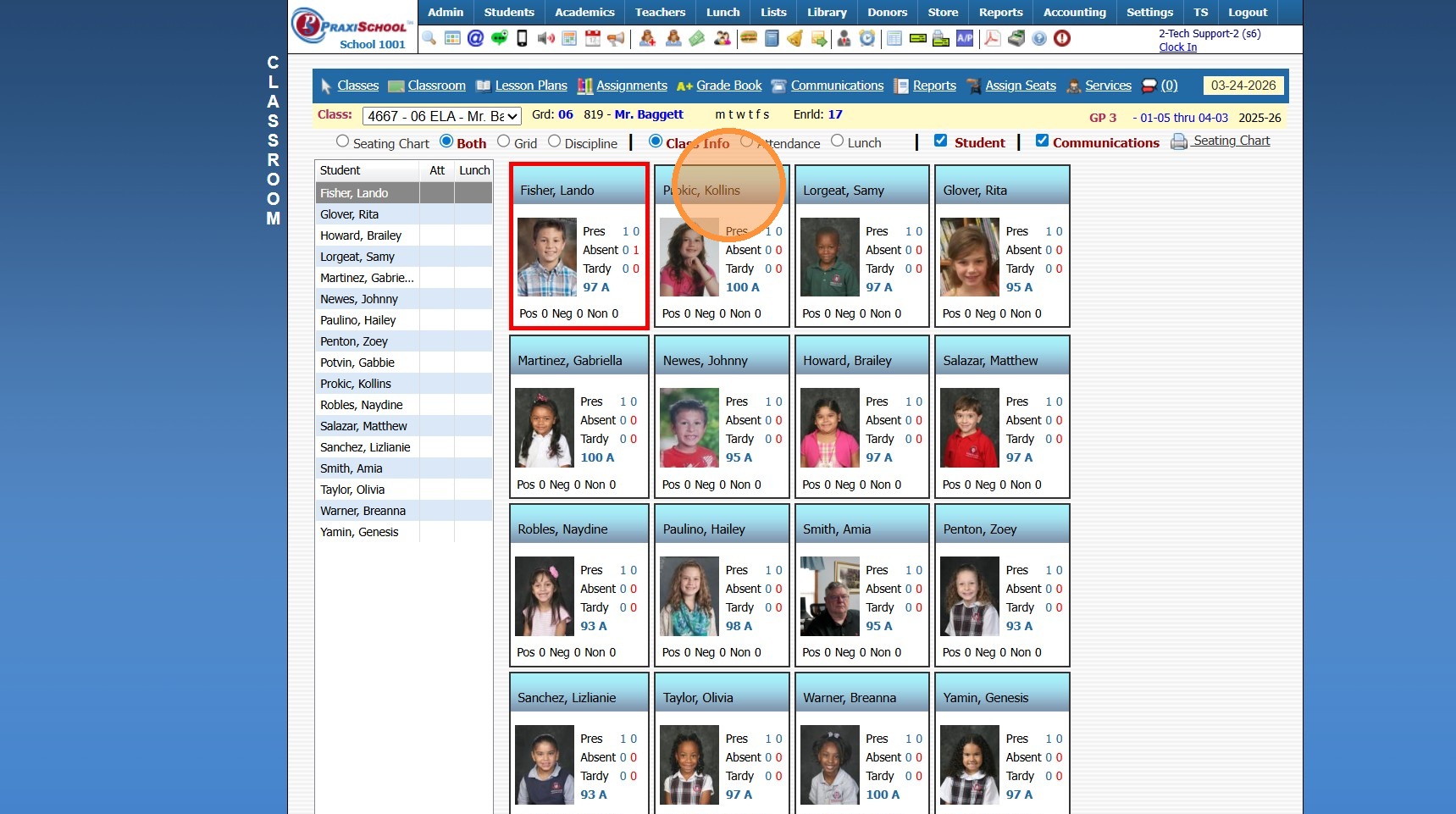
6. Click "Hall Pass / Messages"
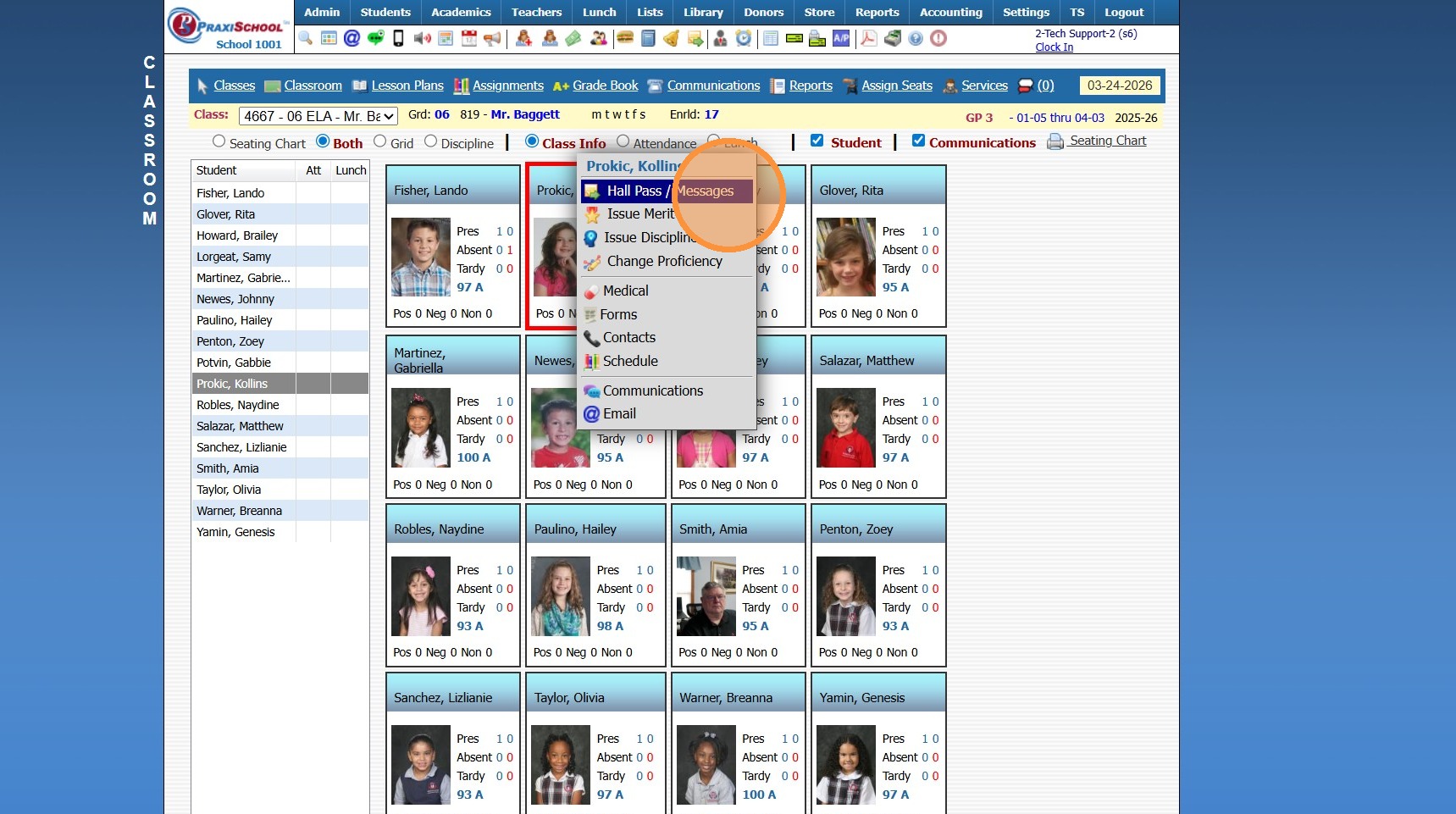
7. Enter Hall Pass Message
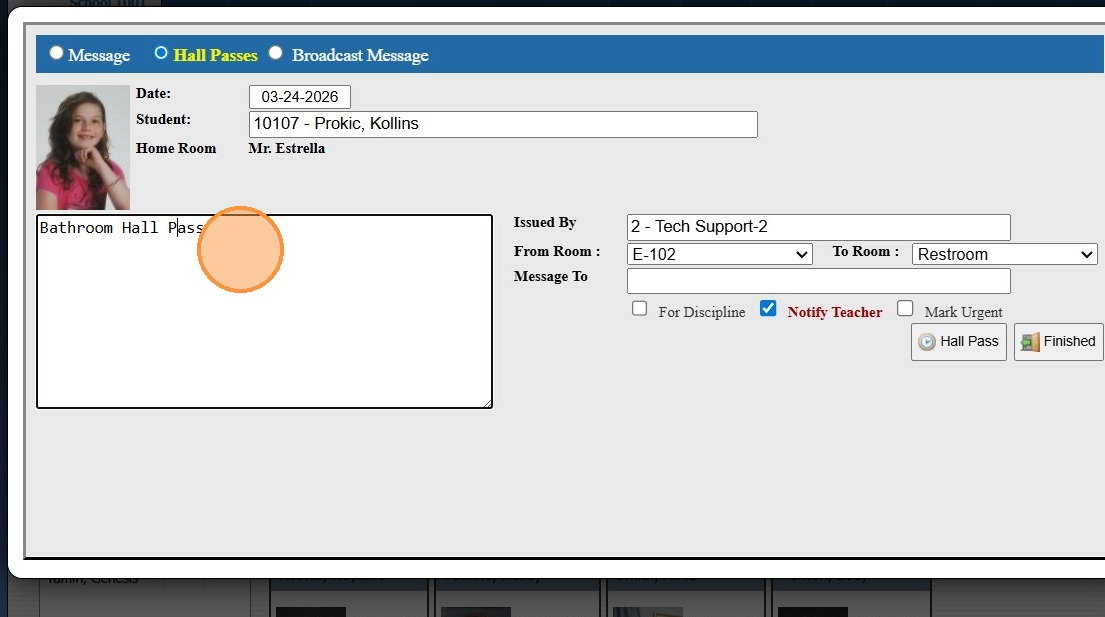
8. Select Room From and Room To (Optional)
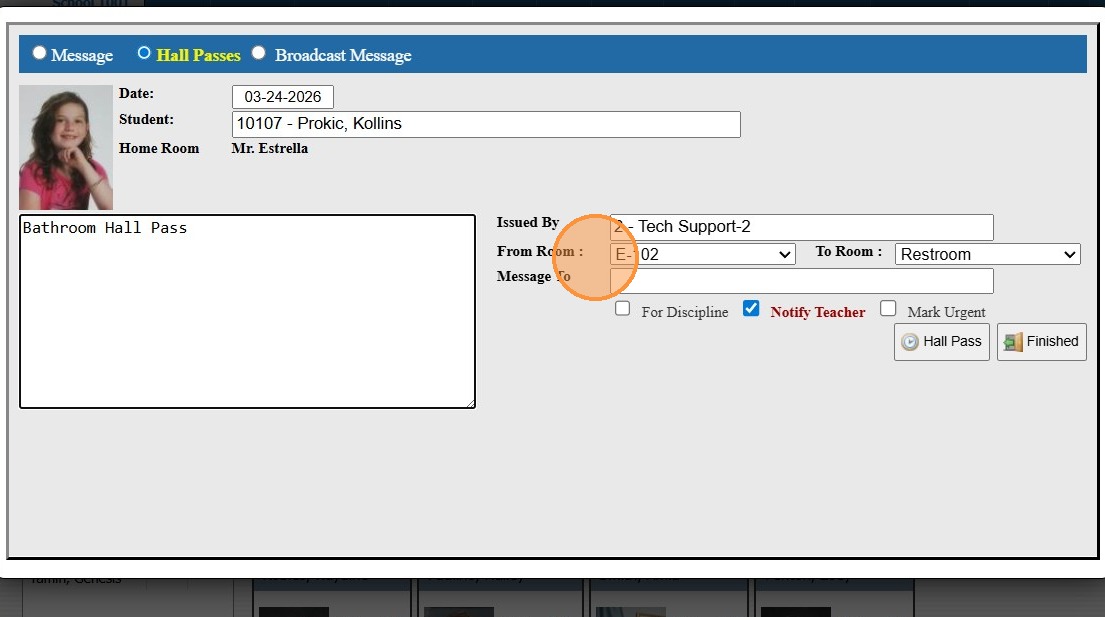
9. Select Staff to Send Hall Pass Message to (Optional)
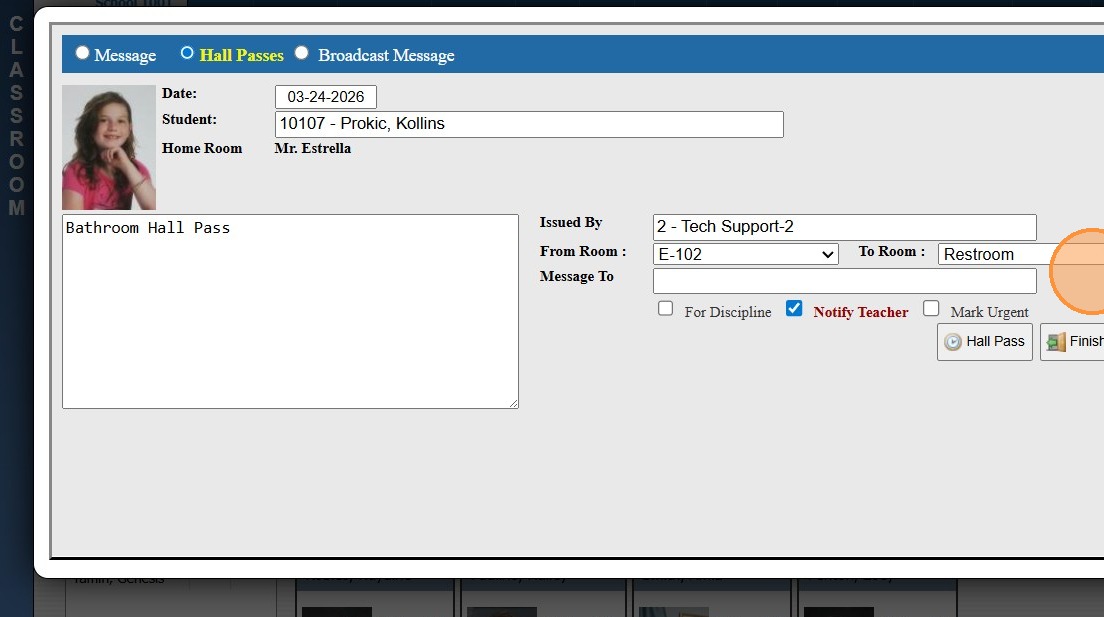
10. Click "Hall Pass"
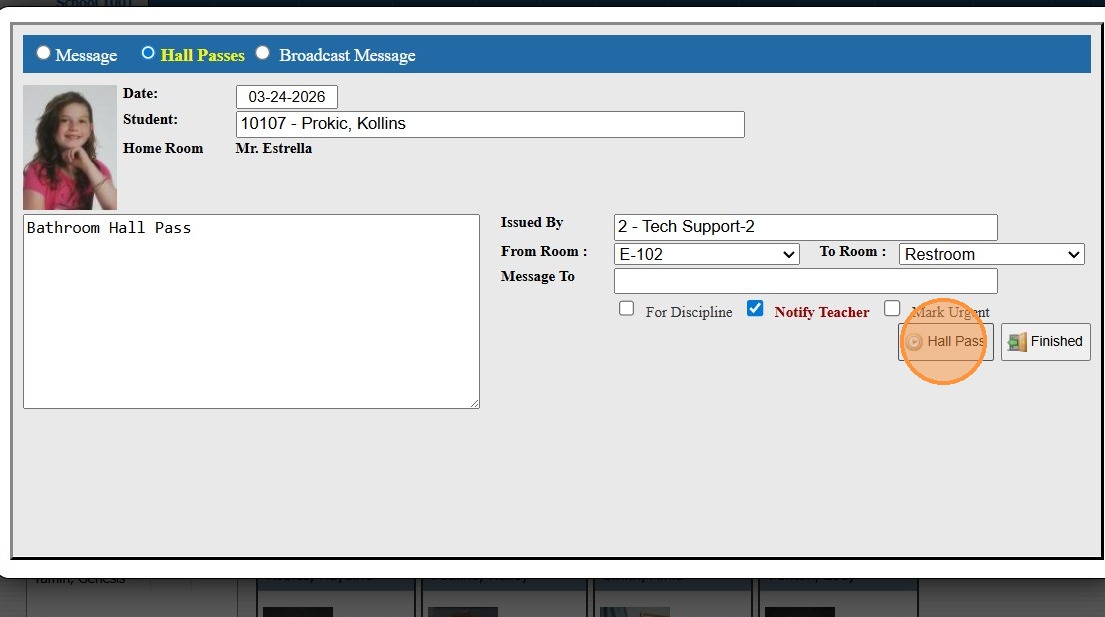
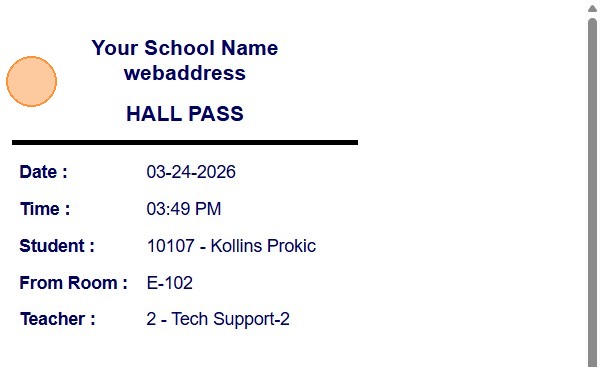
11. Hall Pass will Generate to Print
2500.1.6
Related Articles
Issuing a Hall Pass (Icon)
Issuing a Hall Pass (Icon) 1. Click Hall Pass / Message Icon 2. Select Student 3. Select Room From and Room To (Optional) 4. Select Staff to Receive Message 5. Select Message Options: For Discipline - Hall Pass Issued for Student as a Result of a ...Issuing a Hall Pass (Attendance Tardy Wizard)
Issuing a Hall Pass (Attendance Tardy Wizard) 1. Click "Academics" 2. Click "Attendance" 3. Click "Message / Hall Passes" 4. Select Student 5. Select Room From and Room To (Optional) 6. Select Staff to Receive Message 7. Select Message Options: For ...Issuing Discipline from the Classroom
Issuing Discipline from the Classroom 1. Login to PraxiSchool 2. Click "Teachers" 3. Click "Classroom" 4. Click "Classroom" 5. Click the "Class Info" field. 6. Left Click the Student Profile 7. Click "Issue Discipline" 8. Select the Reason 9. Under ...Issuing a Merit in the Classroom
Issuing a Merit in the Classroom 1. Login to PraxiSchool 2. Click "Teachers" 3. Click "Classroom" 4. Click "Classroom" 5. Click "Class Info" 6. Left Click the Student Profile 7. Click "Issue Merit" 8. Select Merit Type from the Dropdown 9. Type the ...Issuing a PACE in the Learning Center
Issuing a PACE in the Learning Center 1. Click "Teachers" 2. Click "Classroom" 3. Select Learning Center Course in Grid 4. Click "Grade Book" 5. Select Student 6. Click on the Line "-" Under the PACE Number to Issue 7. Click "Issue" 2500.17.3