Importing Student / Staff Photos in Batch
Tip: Please Note: Images must be saved by Student/Staff ID Number, not by Name
1. Click "Admin"
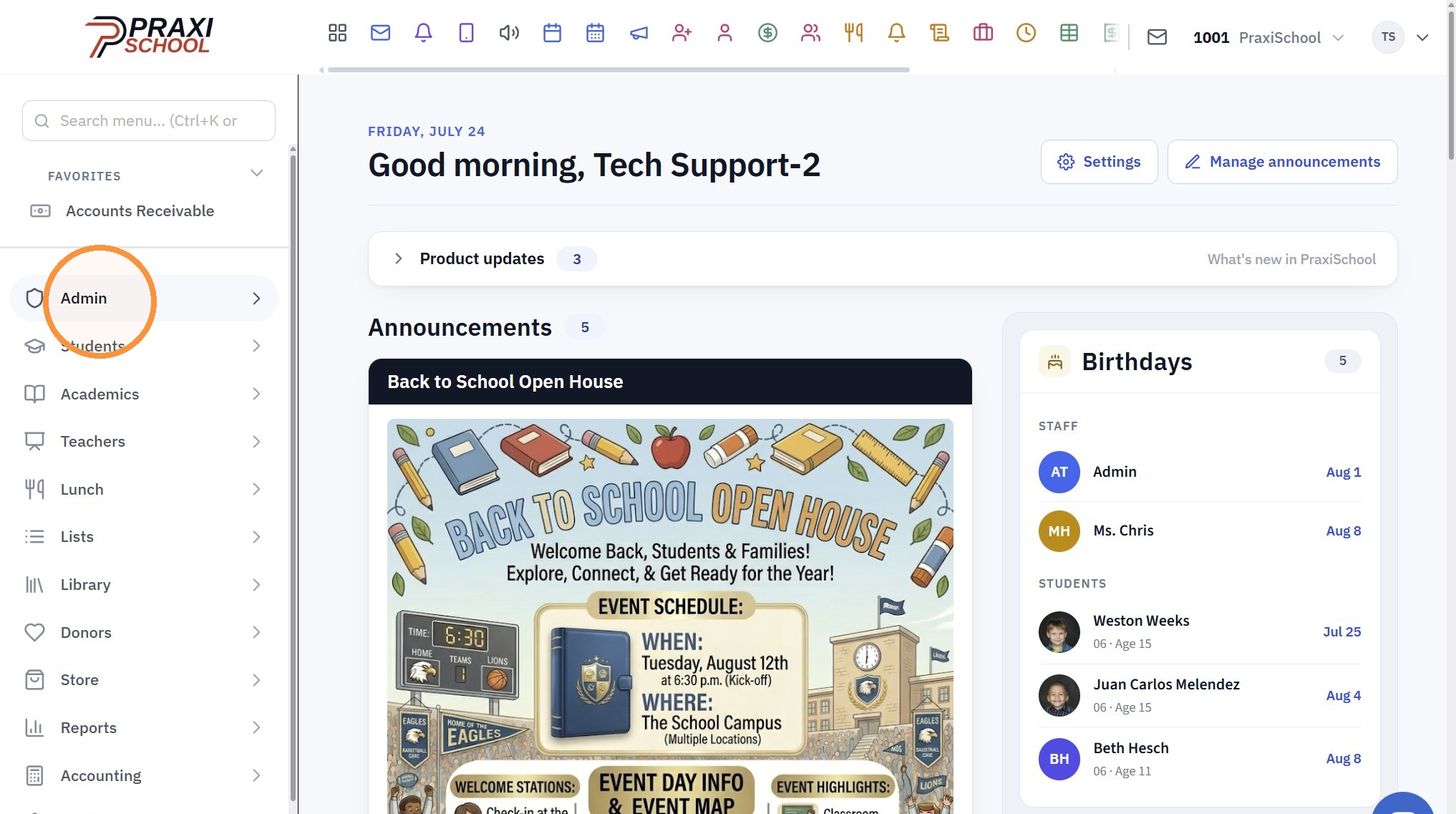
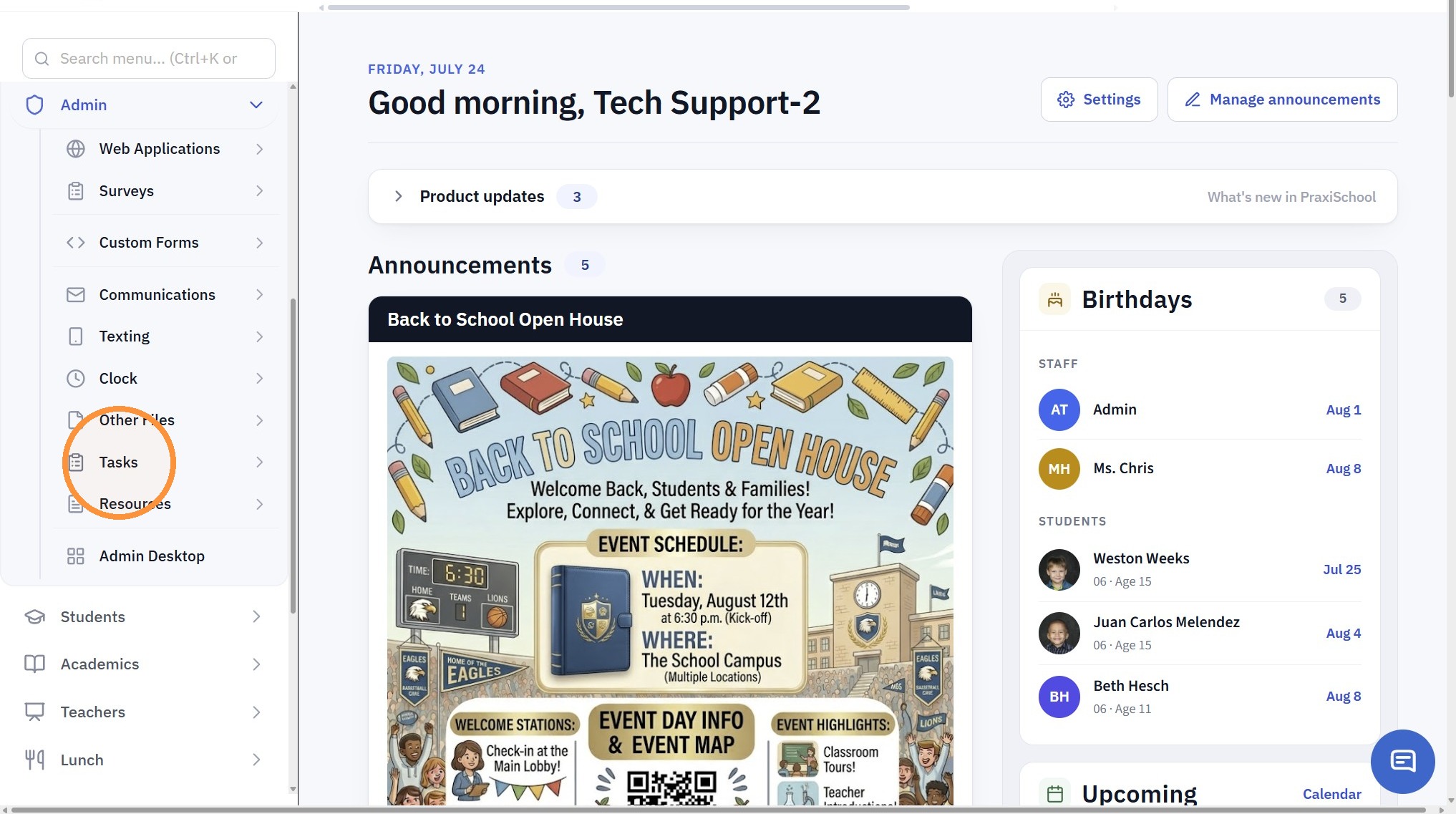
2. Click "Tasks"
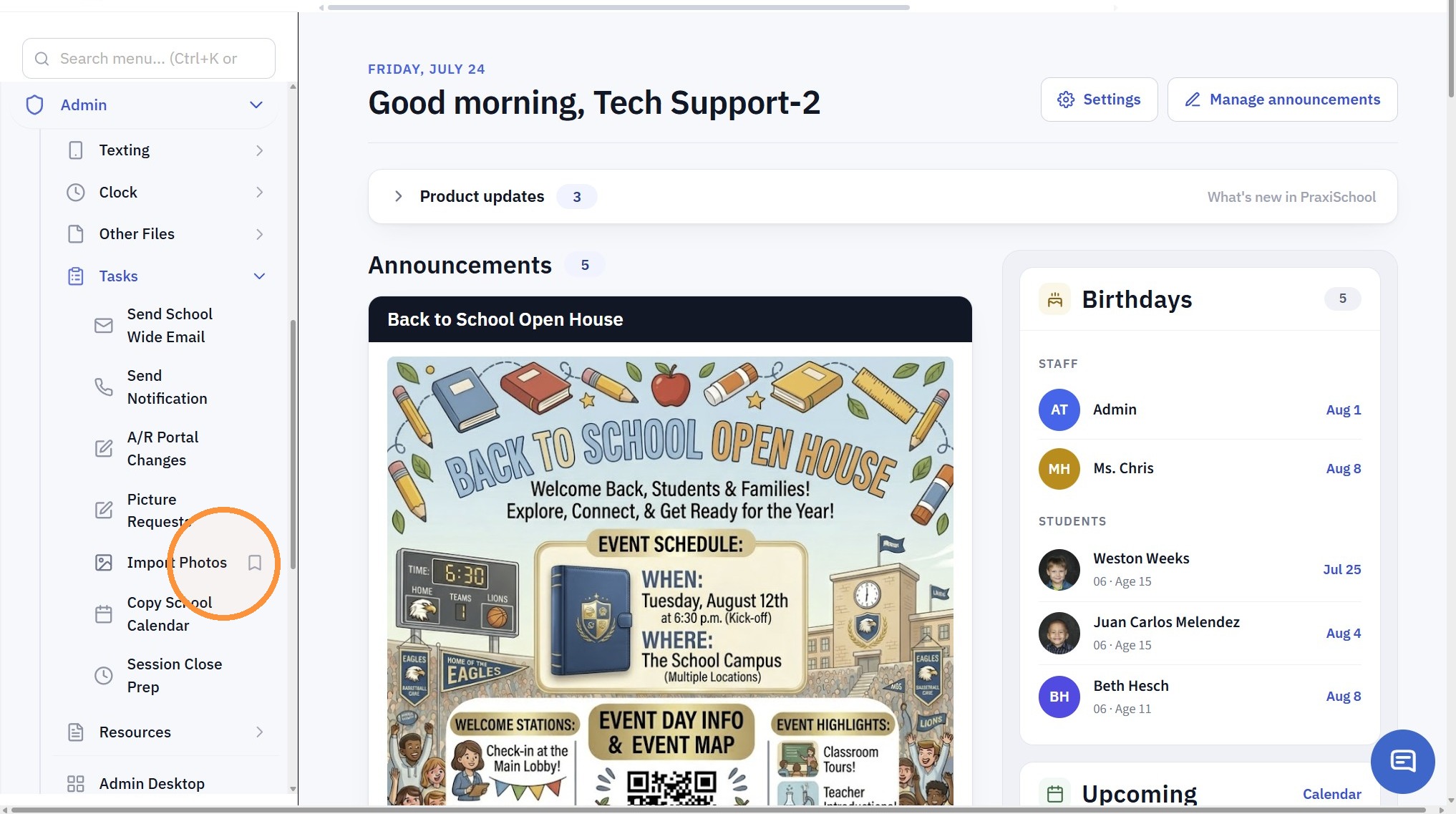
3. Click "Import Photos"
4. Select the Import For Option
(Ex. Students, Staff or Family)
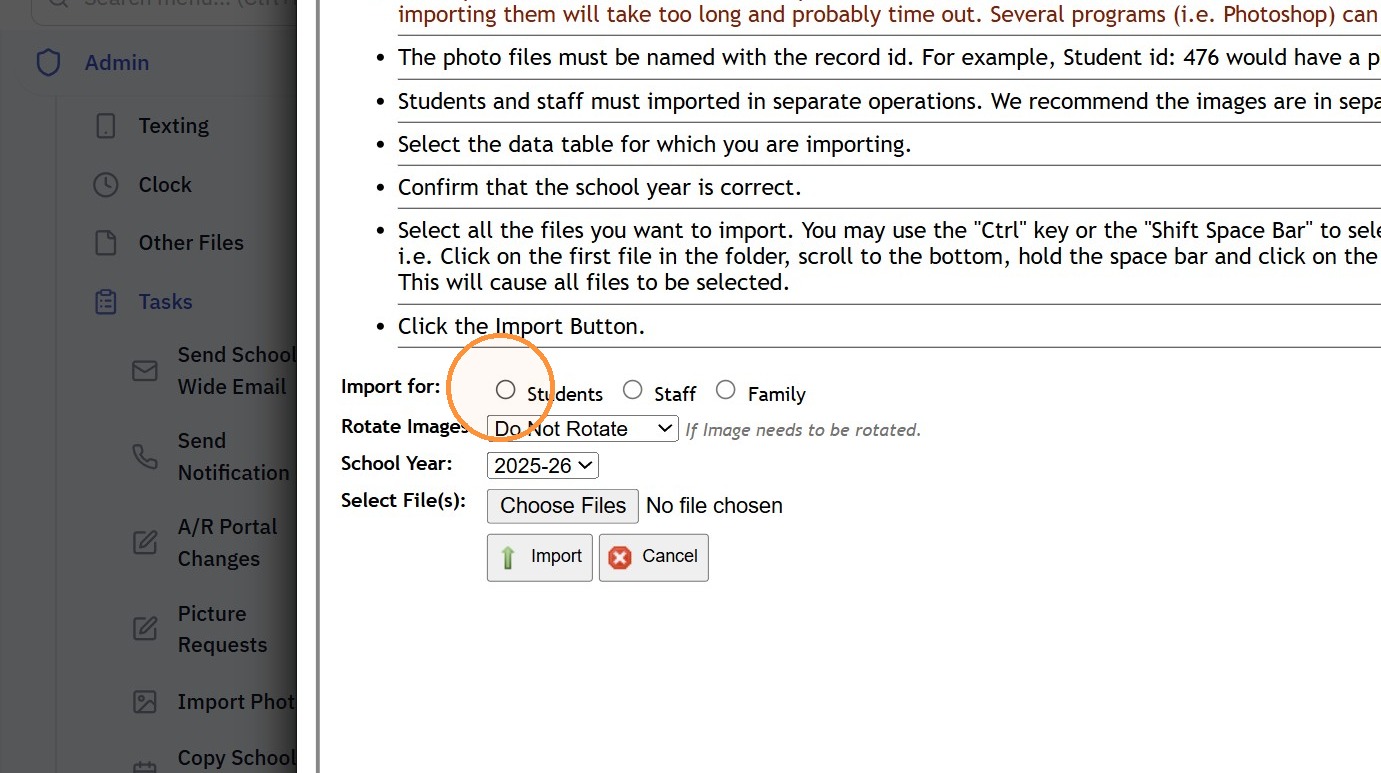
5. Select the School Year
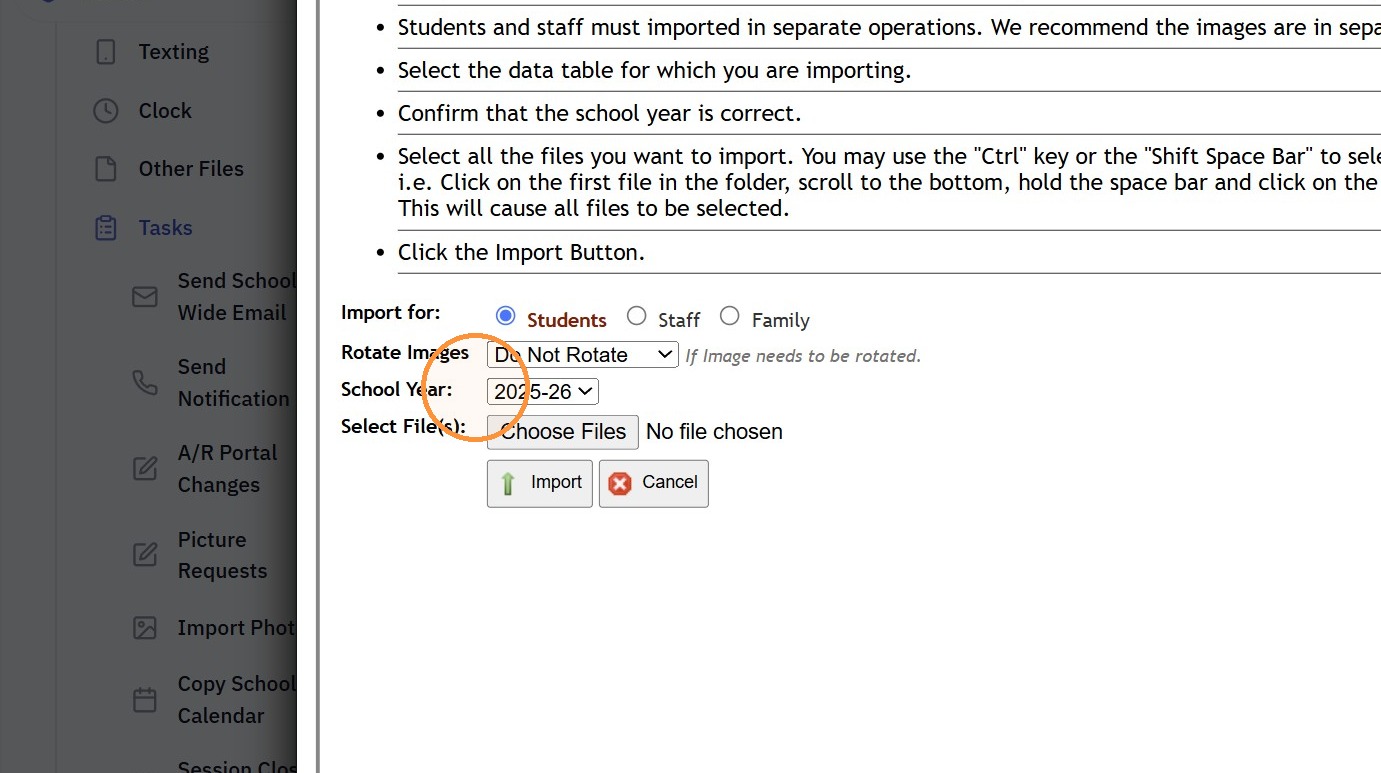
6. Click Choose Files
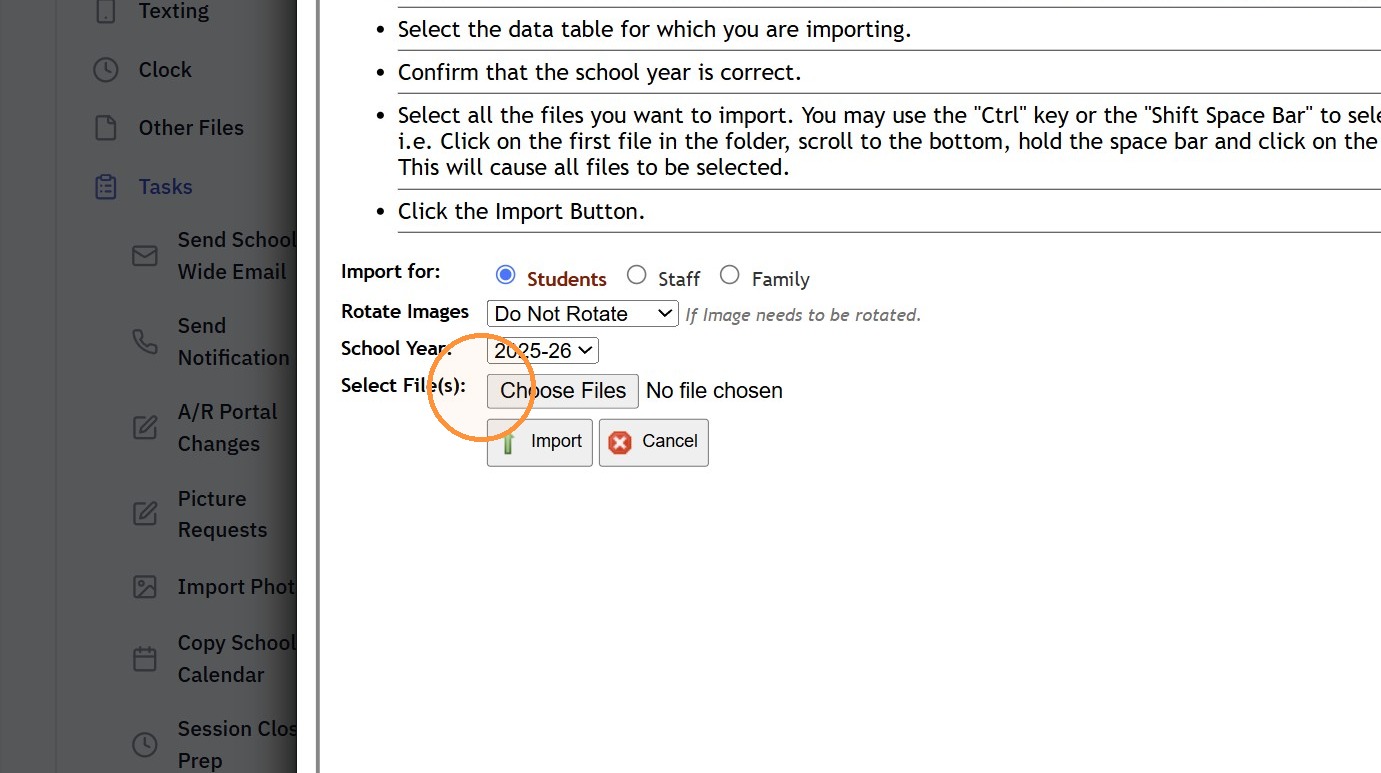
7. Select up to 50 Images to Import
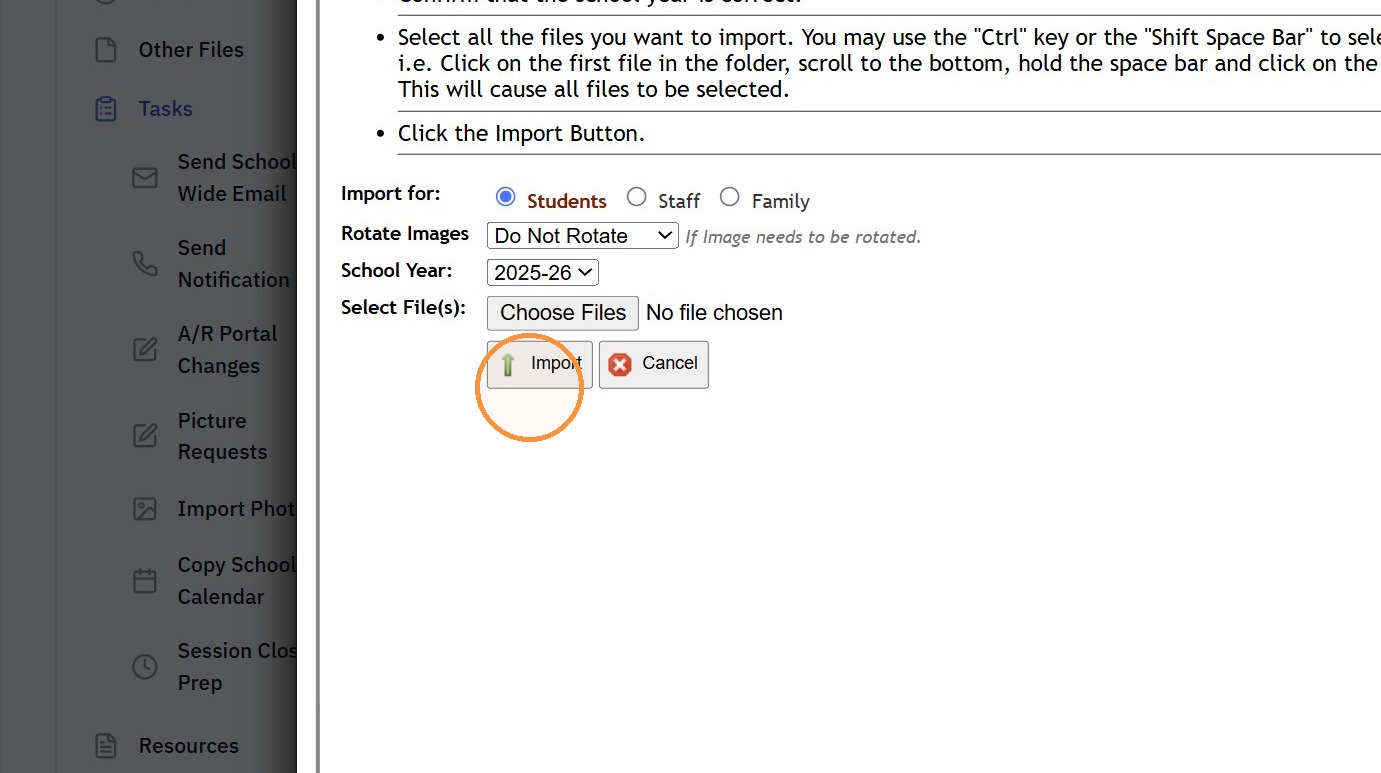
8. Click "Import"
Related Articles
Uploading Student / Staff Photos Individually
1. Go to the Student or Staff Database 2. Select the Student or Staff 3. Click the "Pics" Tab 4. Click "Upload Picture" 5. Click "Choose File" & Select the Image 6. Click to Upload (Photo can be Cropped prior to Uploading to the Student / Staff file) ...Updating Student/Teacher Photos on Student Evaluation
Updating Student/Teacher Photos on Student Evaluation 1. Click "Academics" 2. Click "Evaluations" 3. Click "Student Evaluations" 4. Click "Actions" 5. Click "Tag Filtered Records" 6. Click "Actions" 7. Click "Update Photos" 8. Select "Students" to ...Batch Tag and Batch Edit Tags
Batch Tag and Batch Edit Tags Batch Tagging 1. Log into PraxiSchool 2. Navigate to Database Screen (i.e. Students, Staff, AR, Family, etc.) 3. Click "Actions" 4. Click "Batch Tag" 5. Set the Parameters for Tagging the Files 6. Click "Tag" Option 7. ...Manually Entering Staff Attendance in Batch
Manually Entering Staff Attendance in Batch 1. Click "Admin" 2. Click "Staff" 3. Click "Staff Attendance Wizard" 4. Tag Staff to Add Attendance for 5. Select the Attendance Type 6. Click "Process # Selected Staff" 1000.2.7Making Inactive Student Transcripts Inactive in Batch
Making Inactive Student Transcripts Inactive in Batch 1. Click "Academics" 2. Click "Transcripts" 3. Click "Transcripts" 4. Click "Actions" 5. Deactivate for Inactive, type "INACTIVE" & Click "Ok" 6. 2000.8.19