How do I remove Students from a Class in Batch without removing Grades & Attendance?
1. Click "Academics"
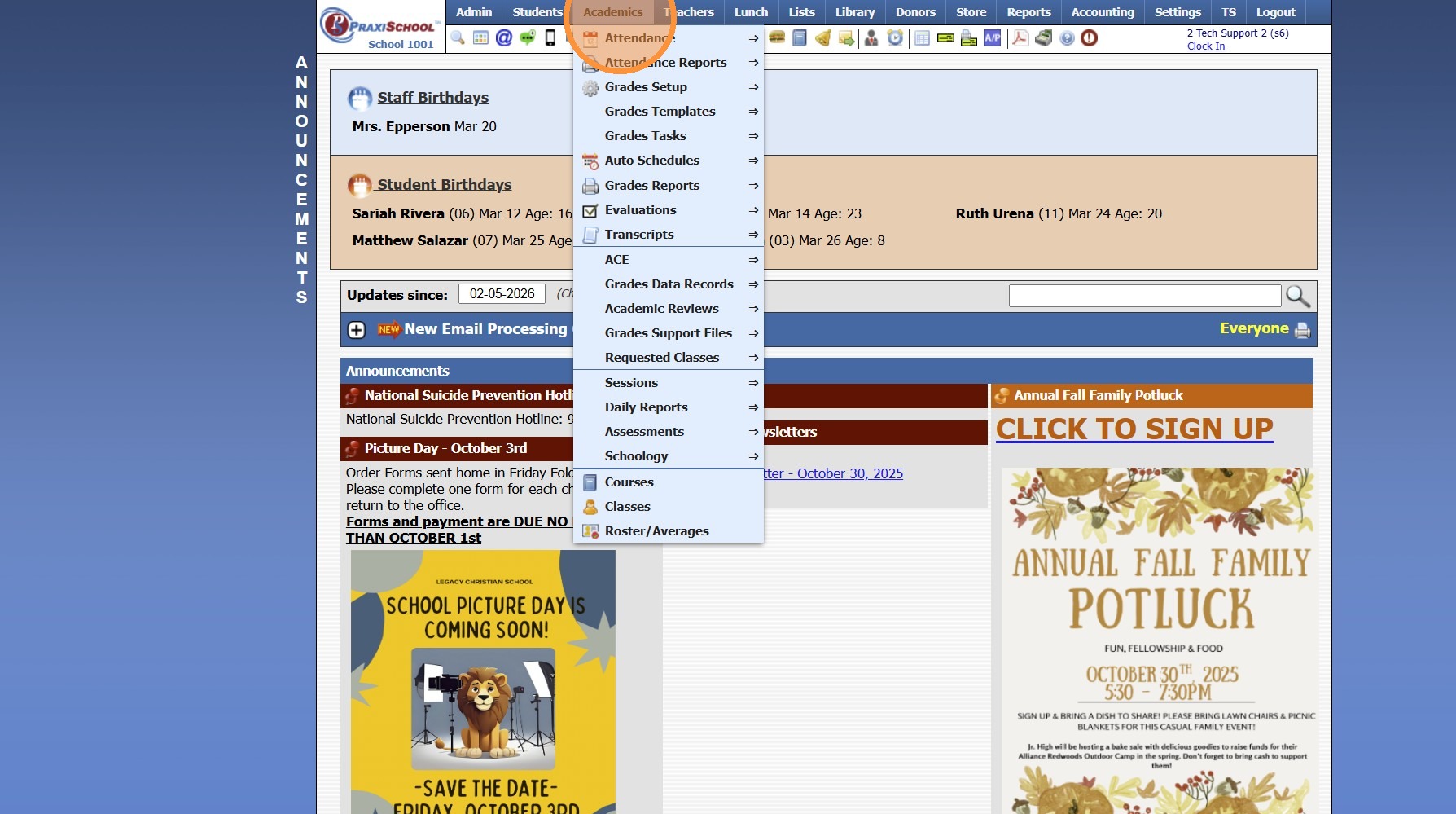
2. Click "Roster/Averages"
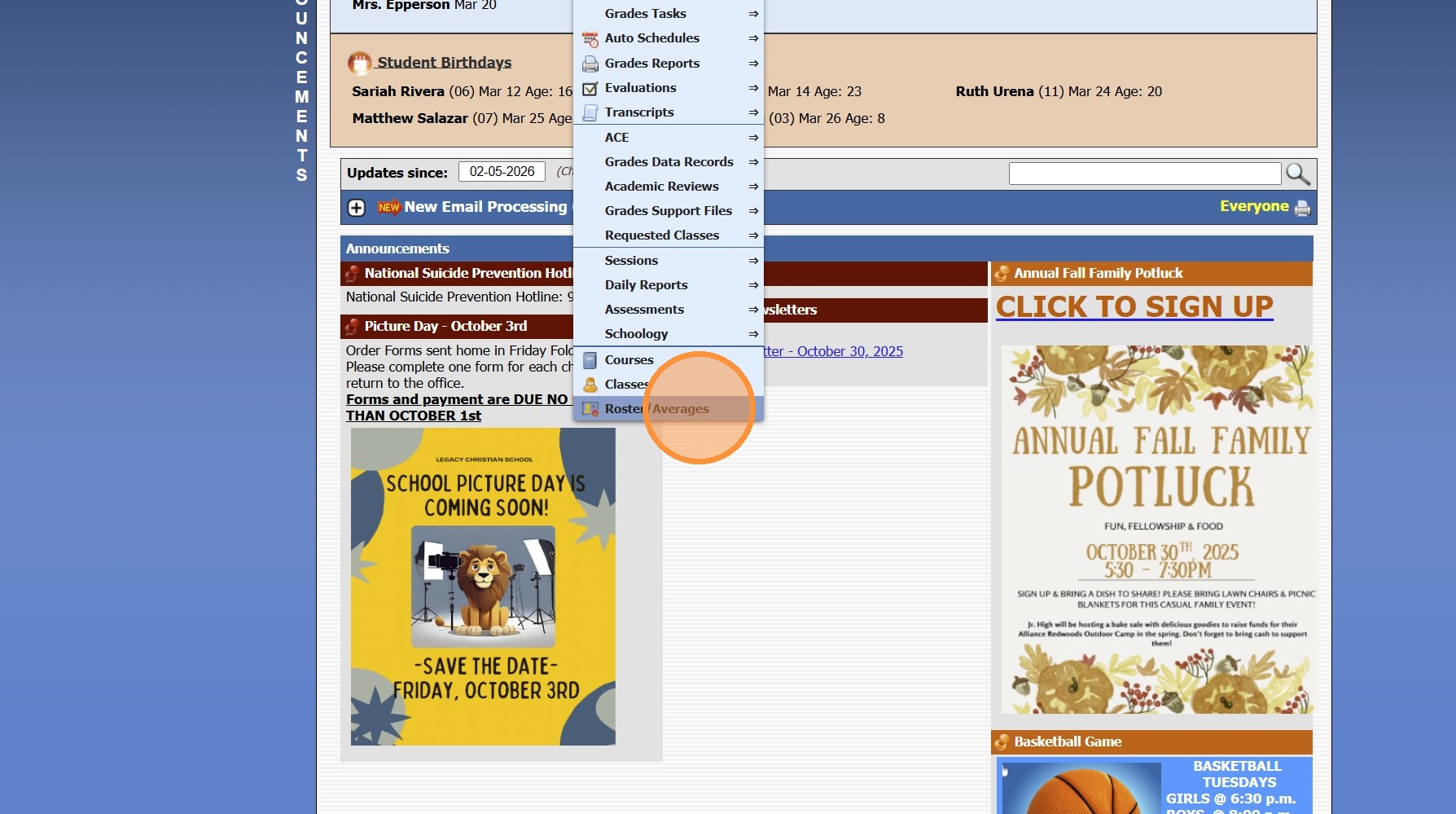
3. Click "Quick Find"
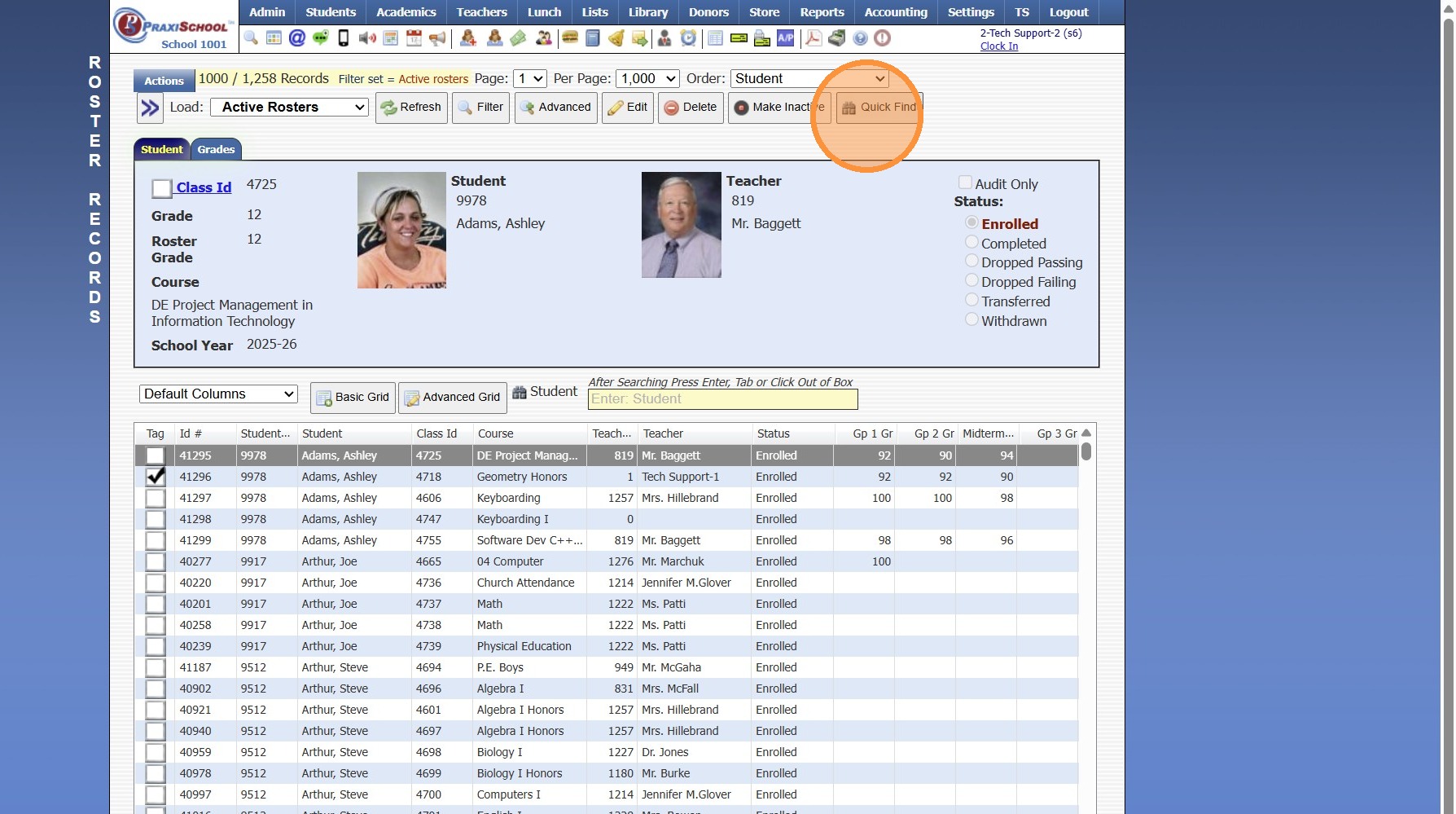
4. Search the Class
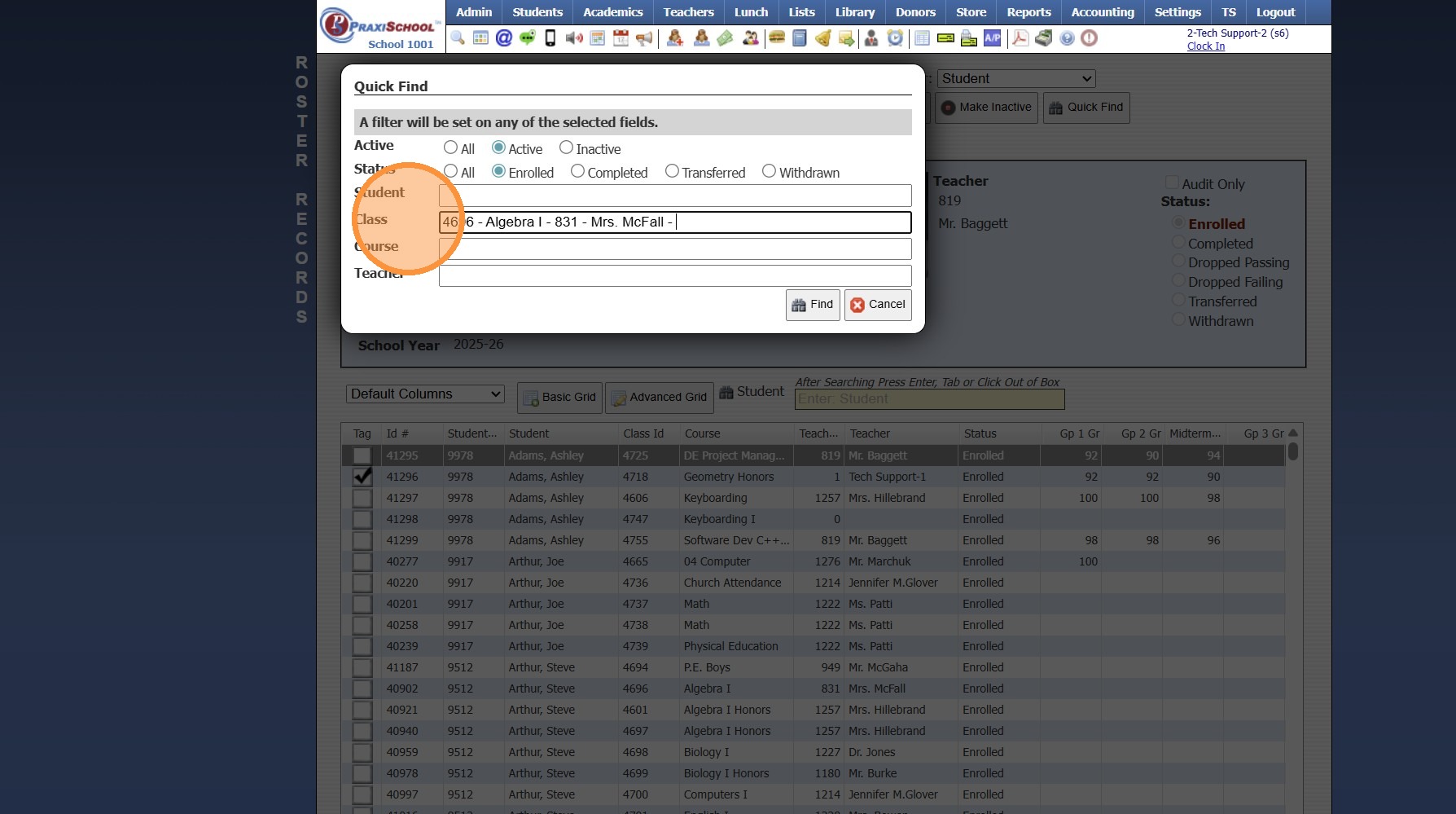
5. Click "Find"
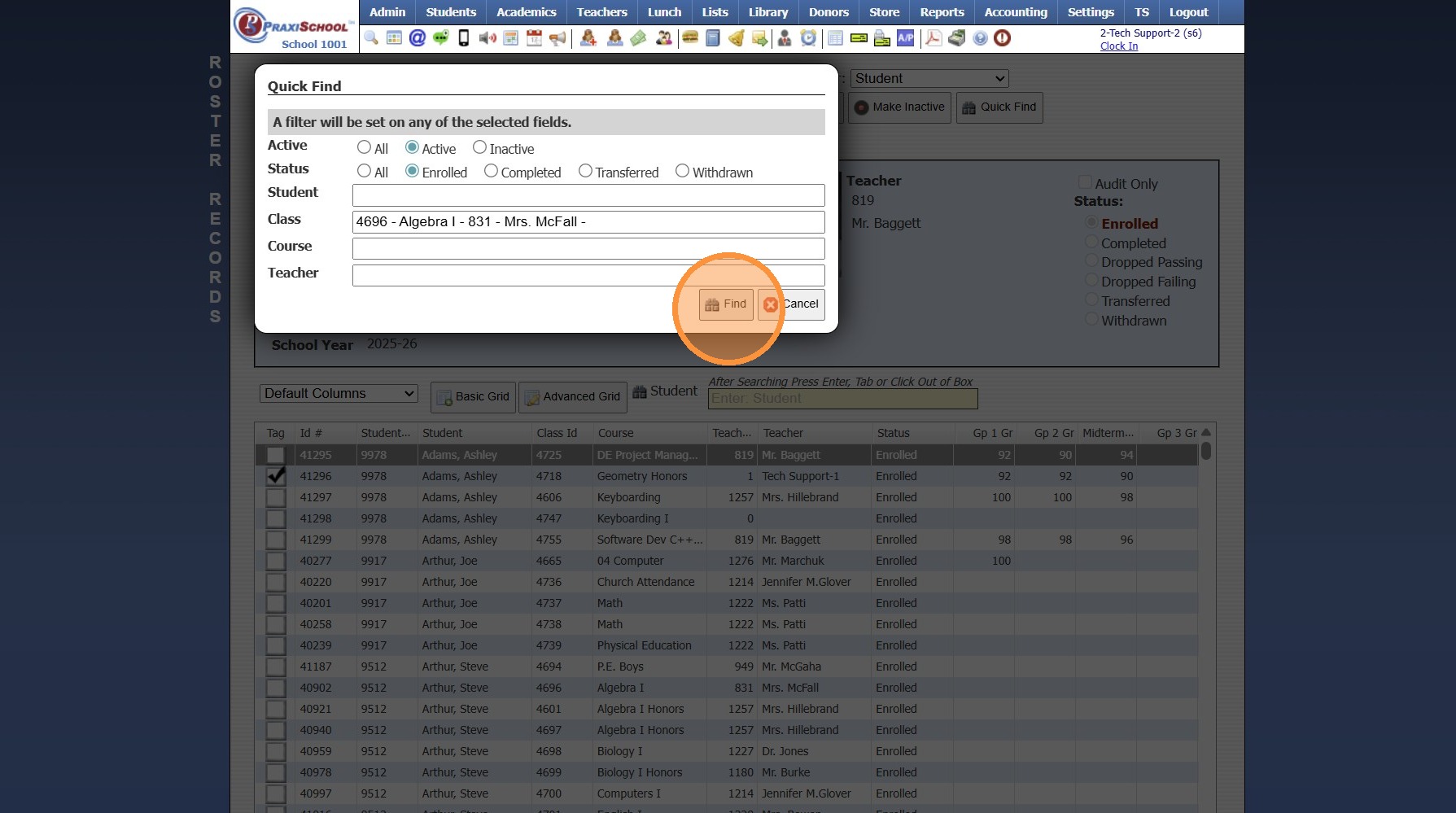
6. Tag Students that Need to be Completed
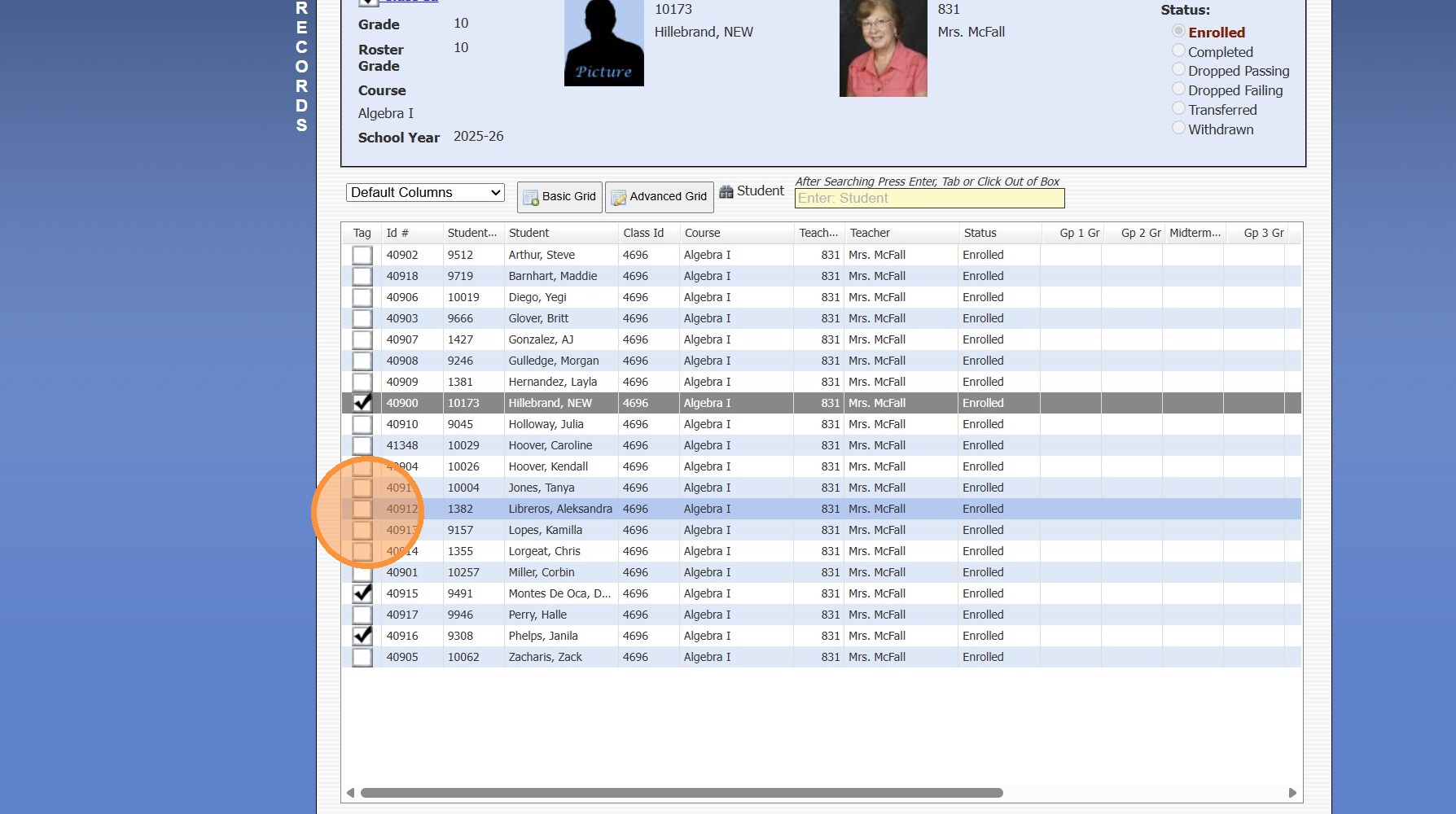
7. Click "Actions"
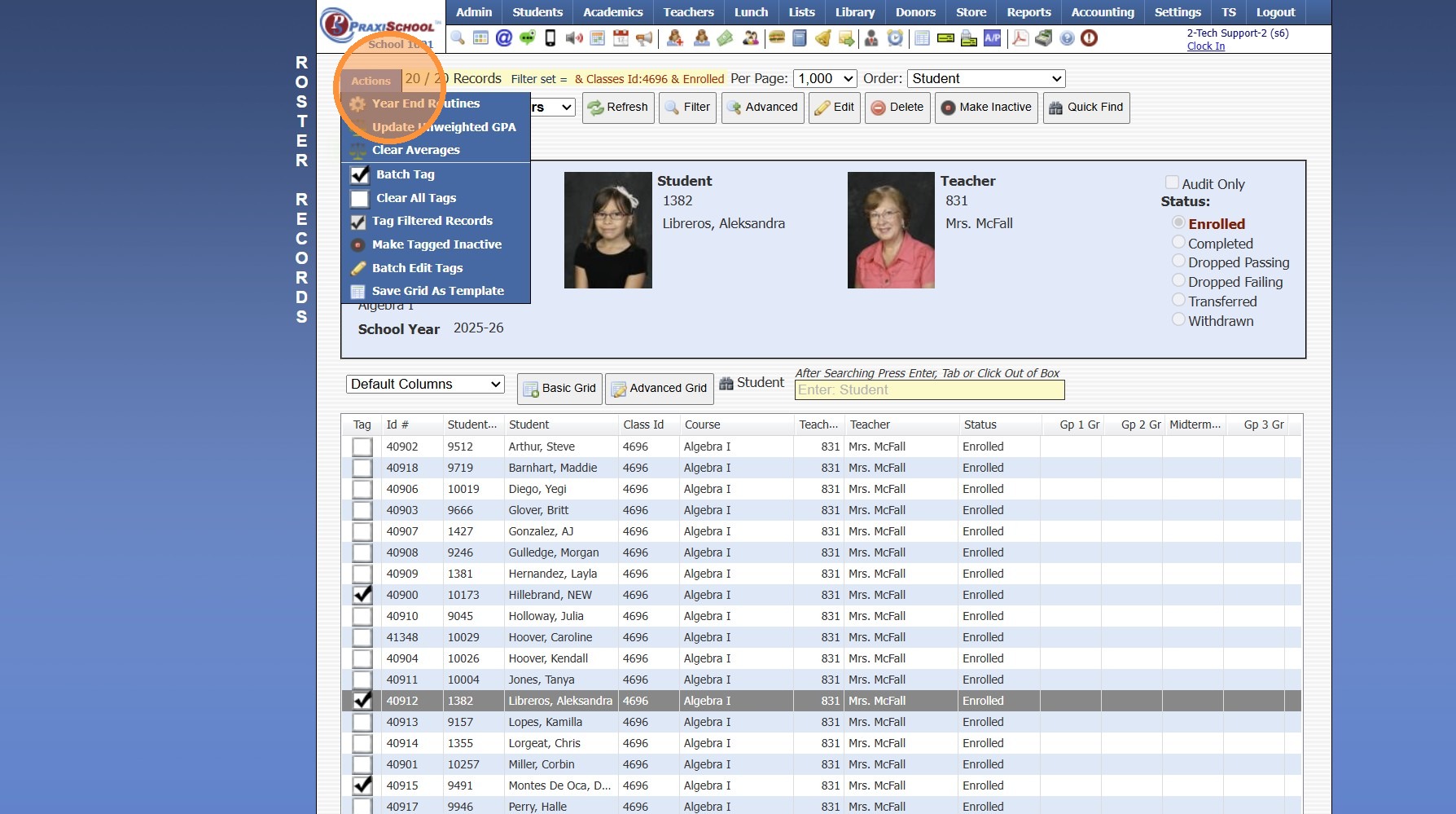
8. Click "Batch Edit Tags"
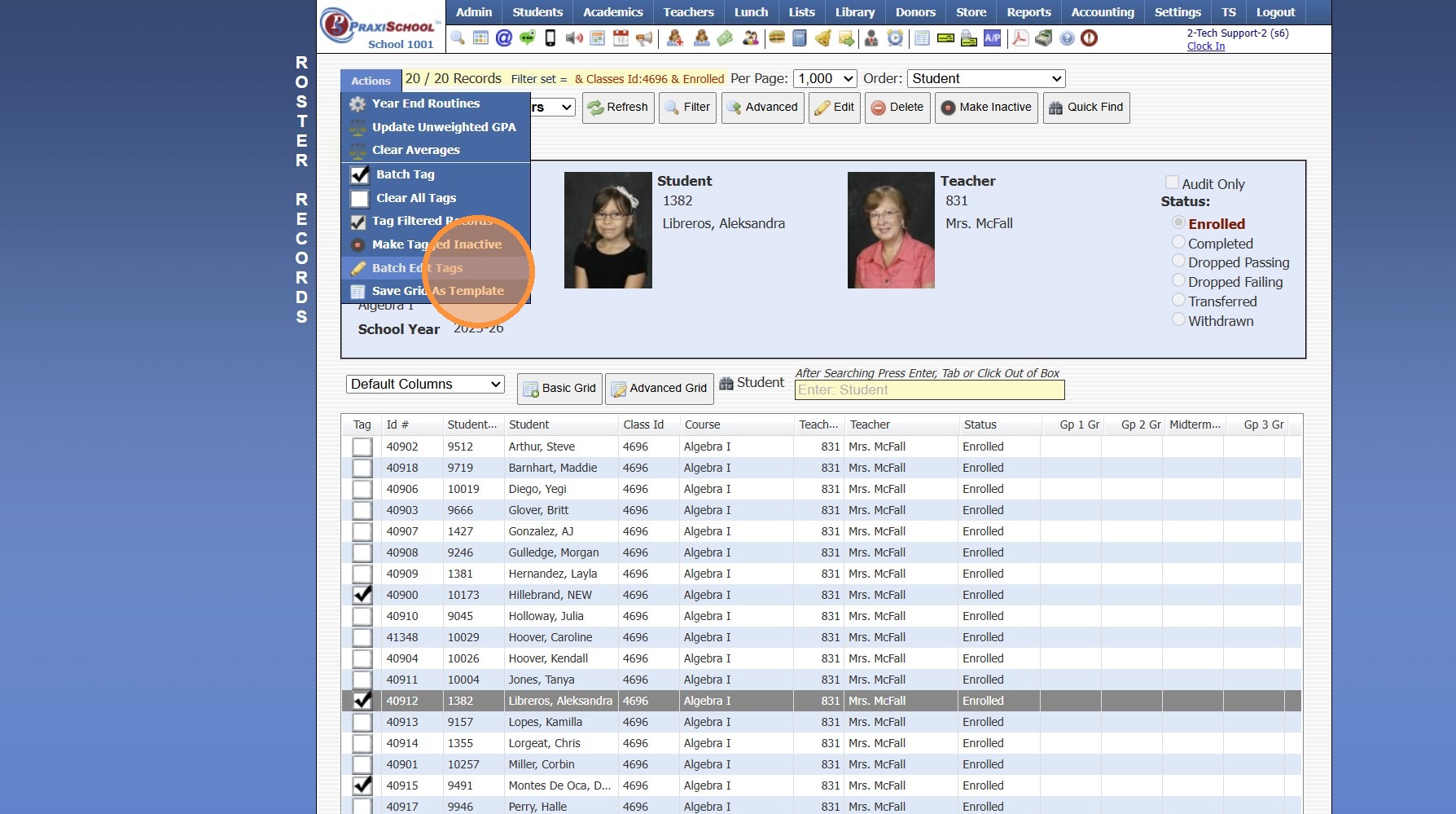
9. Select the Data Field "Status"
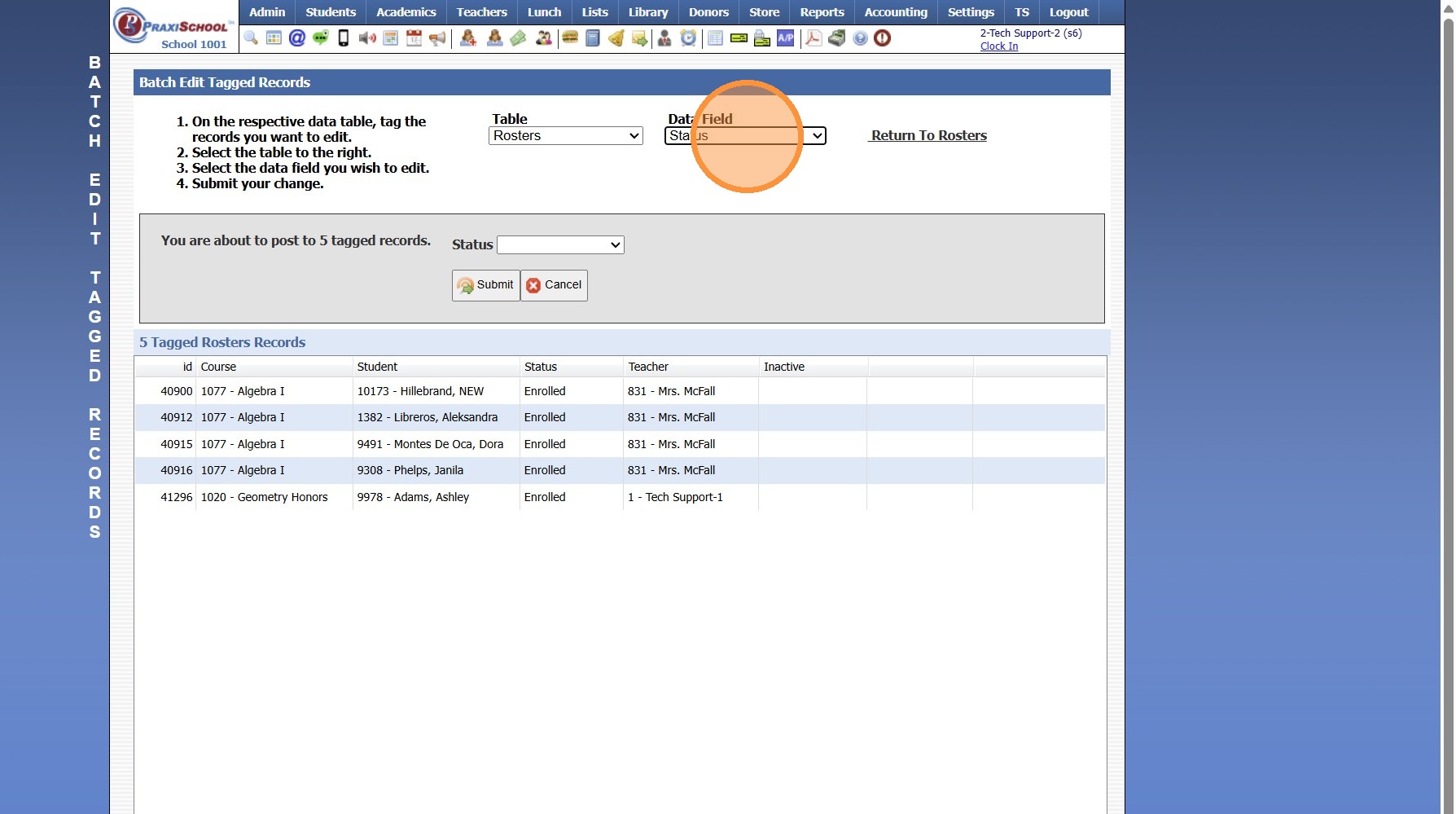
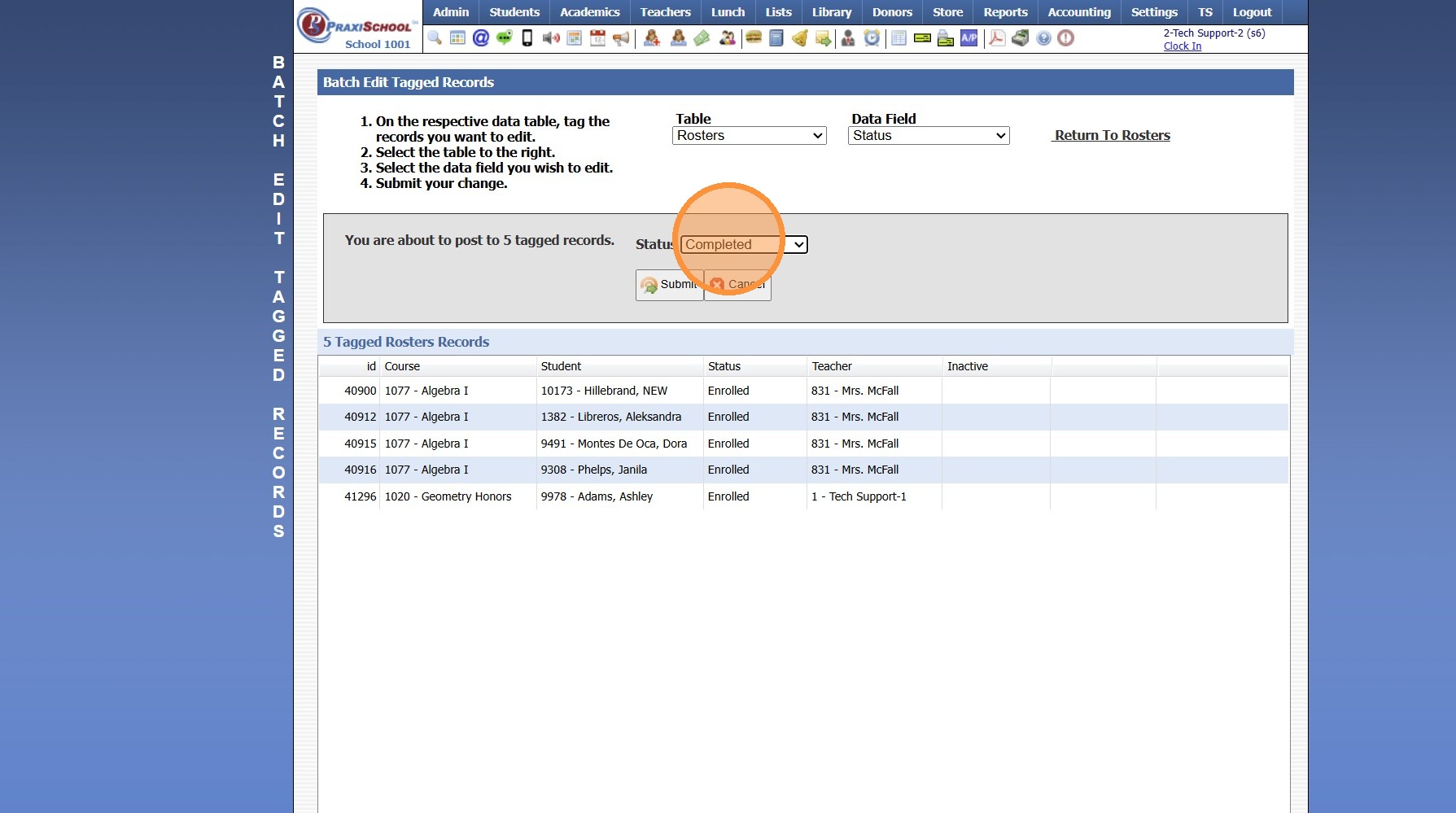
10. Select "Completed"
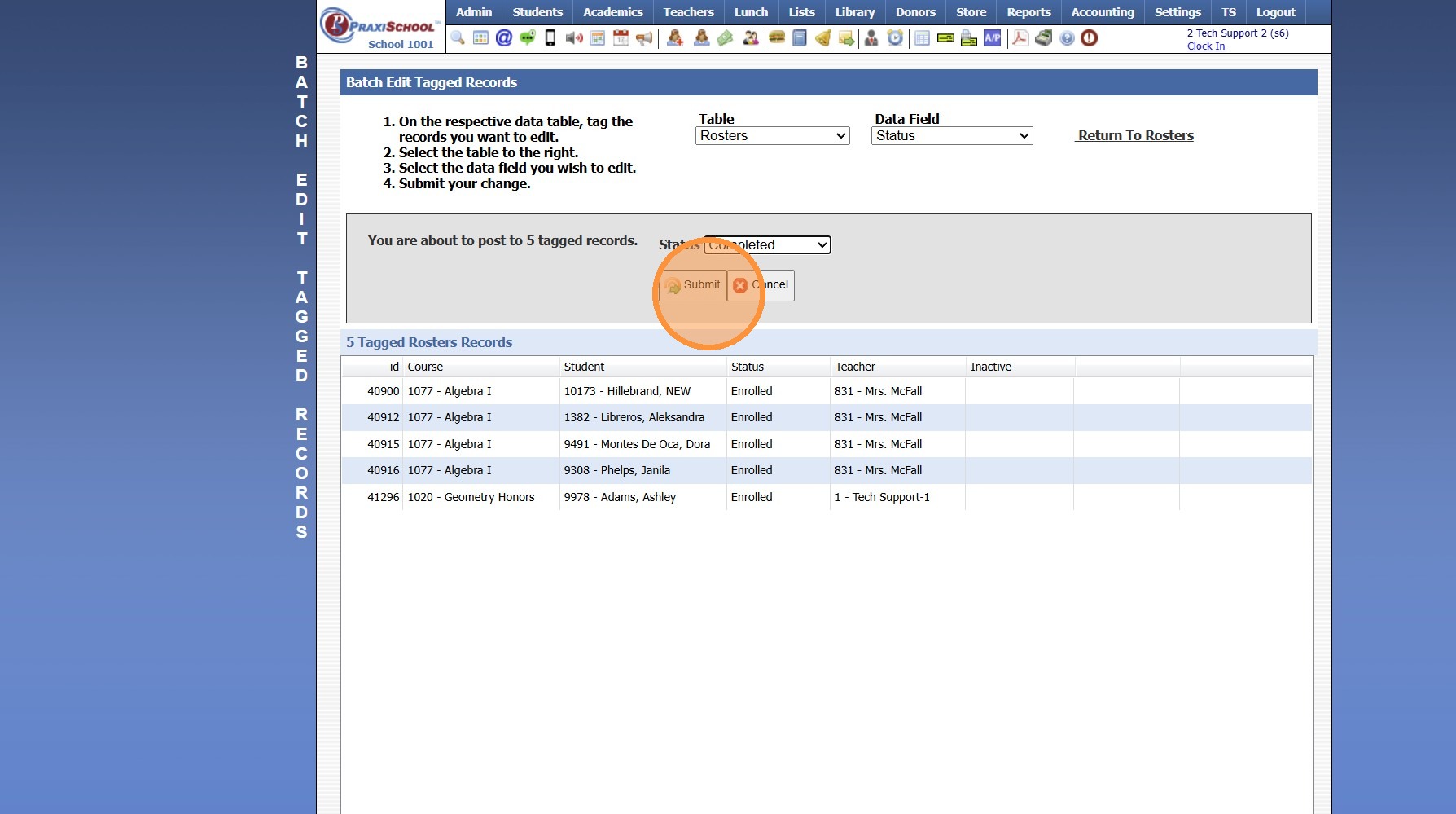
11. Click "Submit", Type "yes" & Click "Ok"
8000.21
Related Articles
Batch Removing Hold On Grades
Batch Removing Hold On Grades 1. Click "Admin" 2. Click "Accounts Receivable" 3. Select the "Hold on Grades" Filter 4. Click "Actions" 5. Click "Clear All Tags" 6. Click "Actions" 7. Click "Tag Filtered Records" 8. Click "Actions" 9. Click "Batch ...Batch Removing Hold On Grades
Batch Removing Hold On Grades 1. Click "Admin" 2. Click "Accounts Receivable" 3. Select the "Hold on Grades" Filter 4. Click "Actions" 5. Click "Clear All Tags" 6. Click "Actions" 7. Click "Tag Filtered Records" 8. Click "Actions" 9. Click "Batch ...ADMIN: Adding Report Card Notes for Students without Existing Report Card Notes
ADMIN: Adding Report Card Notes for Students without Existing Report Card Notes 1. Click "Academics" 2. Click "Grades Support Files" 3. Click "Report Card Class Notes" 4. Click "Add" 5. Select Student 6. Select Class 7. Click "Notes" tab 8. Select ...Archiving Students in Batch
Archiving Students in Batch 1. Click "Students" 2. Click "Students" 3. Tag Student Records to Archive 4. Click "Actions" 5. Click "Other Actions" 6. Click "Archive Students" 7. Click "Select All" 8. Click "Archive Checked Students", Click "Ok" & ...Batch Enrolling Students into Classes
1. Click "Academics" 2. Click "Grades Tasks" 3. Click "Schedule Students" 4. Select the Grade Level & Click "Load Students" 5. Select the Grade Level & Click "Load Classes" 6. Tag the Students OR Click "Select All" 7. Tag the Classes OR Click "Select ...