Entering Assignment Grades Using Max Score
Entering Assignment Grades Using Max Score
Max Score can be used to enter the maximum score for each Student. (Ex. a Homework Assignment earns a 100% if turned in and all Students turned in the Assignment)
1. Log into PraxiSchool

2. Click "Teachers"

3. Click "Classroom"

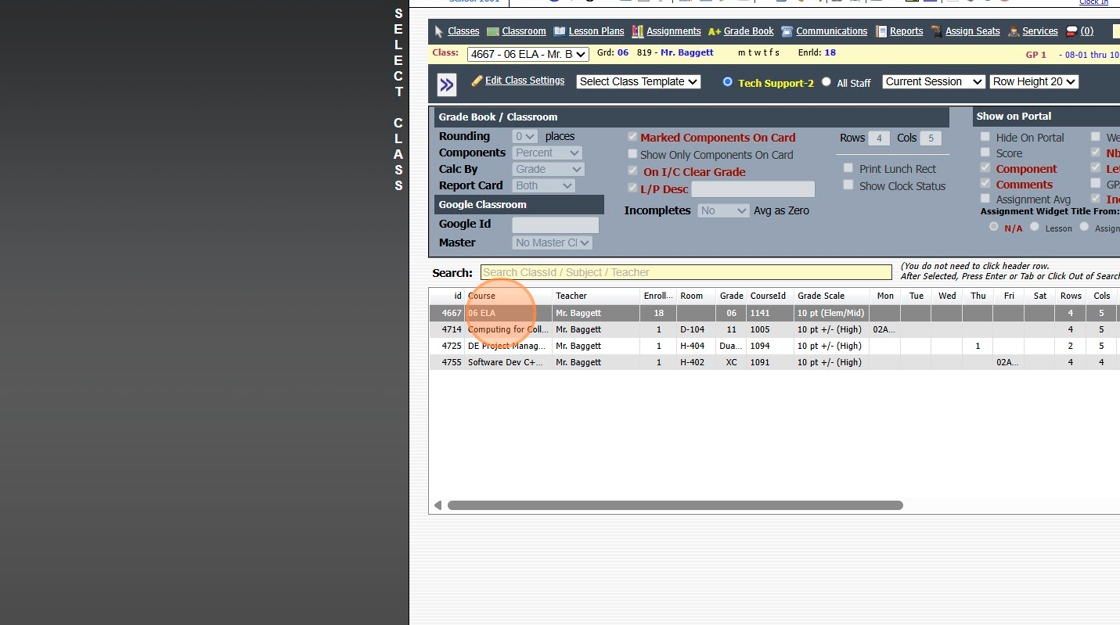
4. Select Class
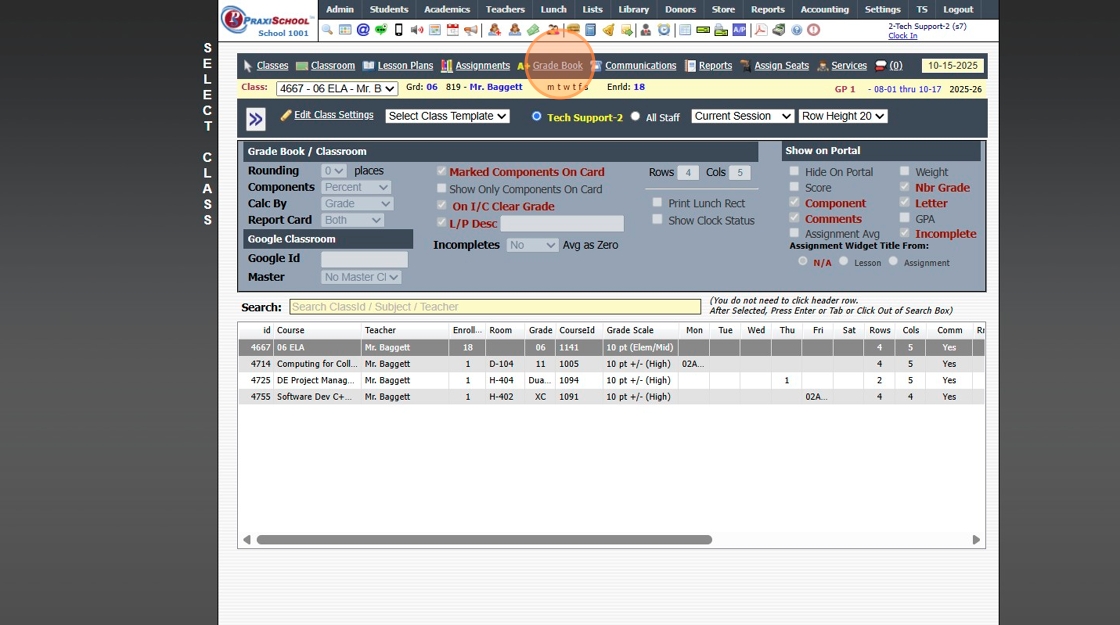
5. Click "Grade Book"
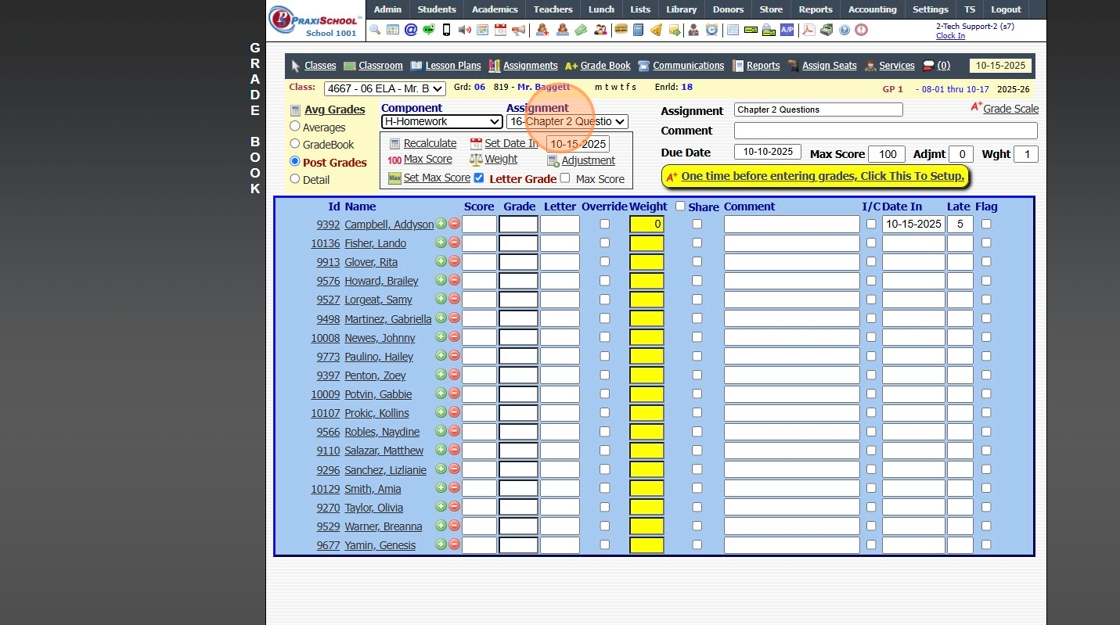
6. Select the "Post Grades" Toggle

7. Select Component

8. Select Assignment
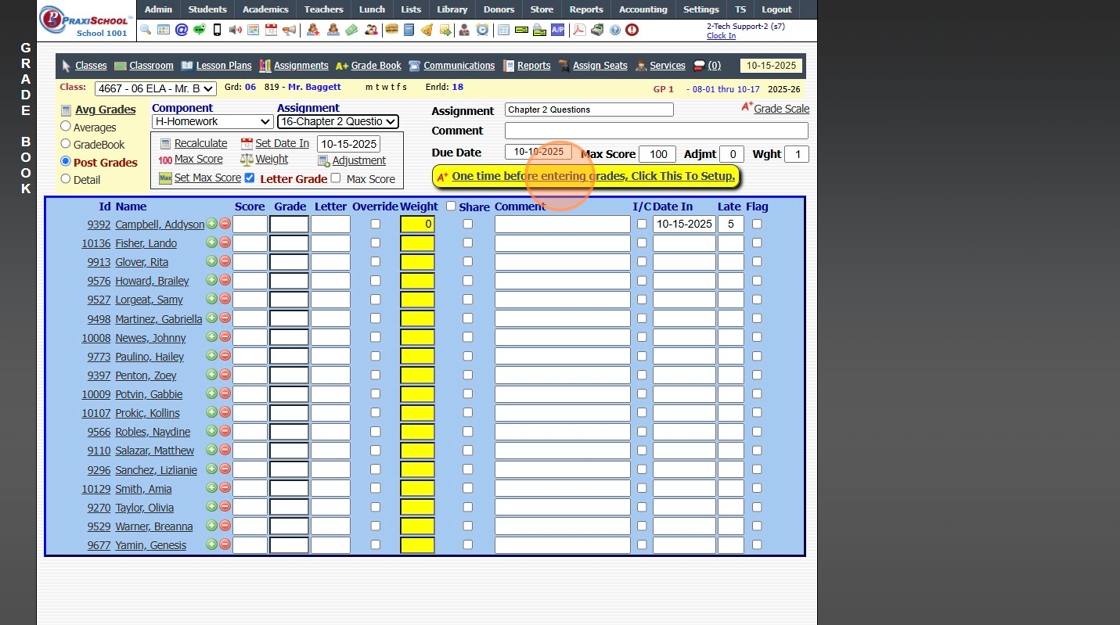
9. Click "One time before entering grades, Click This To Setup."
10. Click "Max Score"

11. Click "Avg Grades" to update Cumulative Average

2500.1.30
Related Articles
Entering Assignment Grades
Entering Assignment Grades 1. Log into PraxiSchool 2. Click "Teachers" 3. Click "Classroom" 4. Select Class 5. Click "Grade Book" 6. Select the "Post Grades" Toggle 7. Select Component 8. Select Assignment 9. Click "One time before entering grades, ...Posting Assignment Grades & Averaging Grade Book Grades Accessing the Grade Book by an Assignment from an Assignment
1. Click "Teachers" 2. Click "Classroom" 3. Select Class 4. Click "Assignments" 5. Select Component 6. Double-click on Assignment to Open Grade Book for that Specific Assignment 7. Click the Yellow Bar "One time before entering grades, Click This To ...Posting Assignment Grades & Averaging Directly in the Grade Book
1. Click "Teachers" 2. Click "Classroom" 3. Select Class 4. Click "Grade Book" 5. Select Post Grades Toggle 6. Select the Component 7. Select the Assignment 8. Click the Yellow Bar "One time before entering grades, Click This To Setup" (Clicking the ...Entering Final Grade Period OR Semester Grades
Entering Final Grade Period OR Semester Grades 1. Click "Teachers" 2. Click "Enter Final Grades" 3. Select Class 4. Select Grade Period / Semester 5. Click "Refresh" 6. Enter Numeric Grade for each Enrolled Student 2500.10.1Adjusting a Class Assignment Grade to Include a Curve
Adjusting a Class Assignment Grade to Include a Curve 1. Log into PraxiSchool 2. Click "Teachers" 3. Click "Classroom" 4. Select Class 5. Click "Grade Book" 6. Select the "Post Grades" toggle 7. Select the Component 8. Select the Assignment 9. Enter ...