Clearing an IC on a Student's Report Card
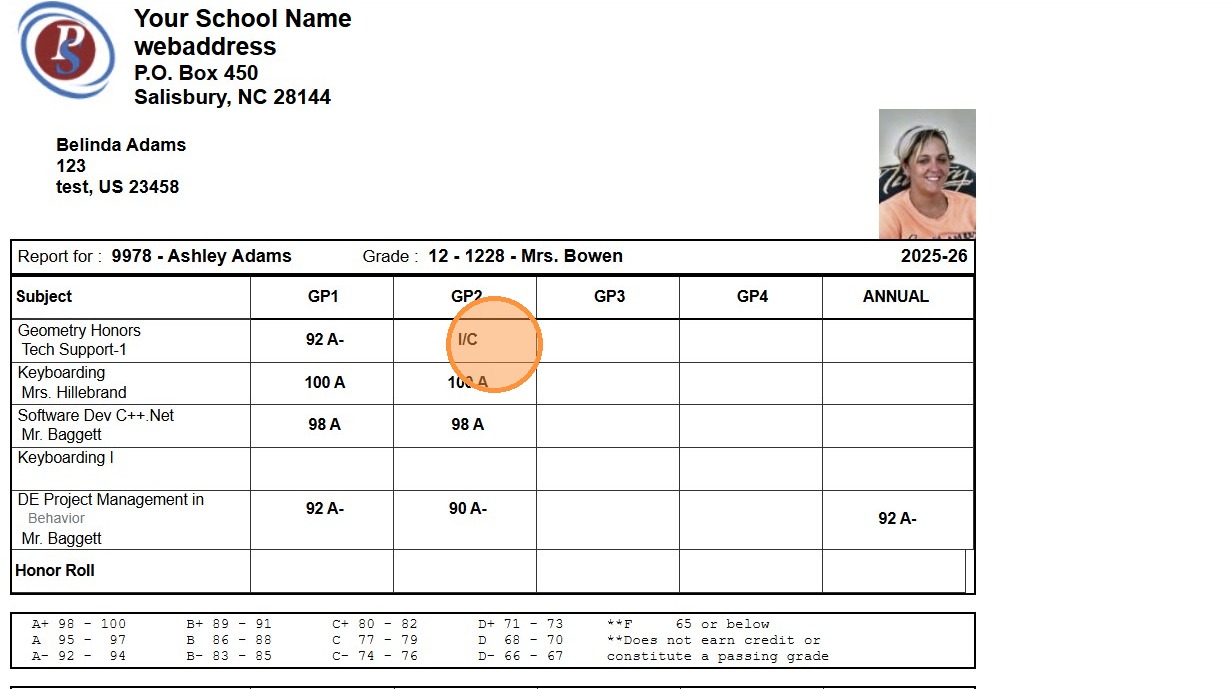
Tip: The Most Common Reason the Student's is showing an Incomplete on the Report Card is because the Roster was Marked IC. See Instructions Below.
1. Report Card shows an I/C
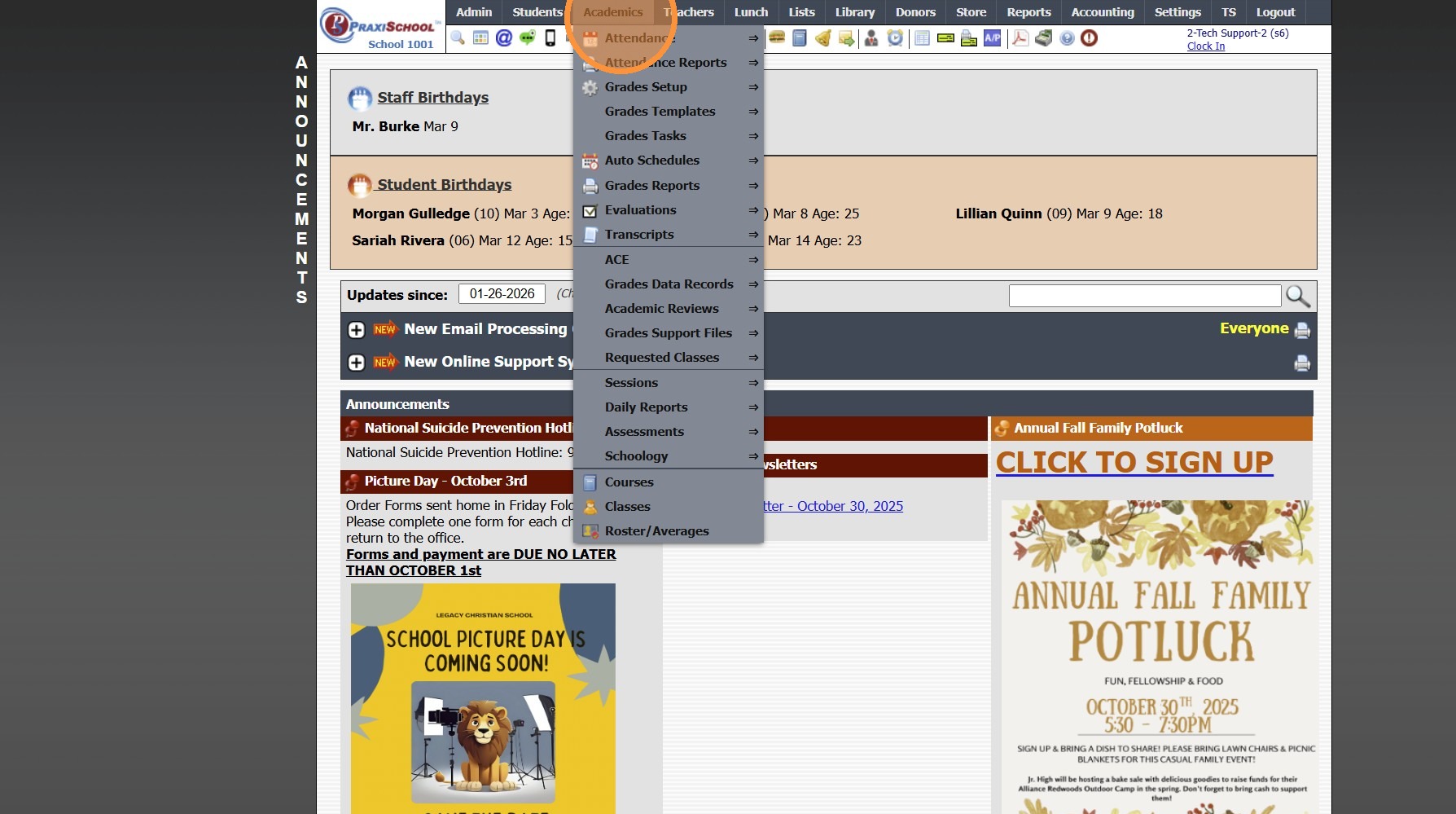
2. Click "Academics"
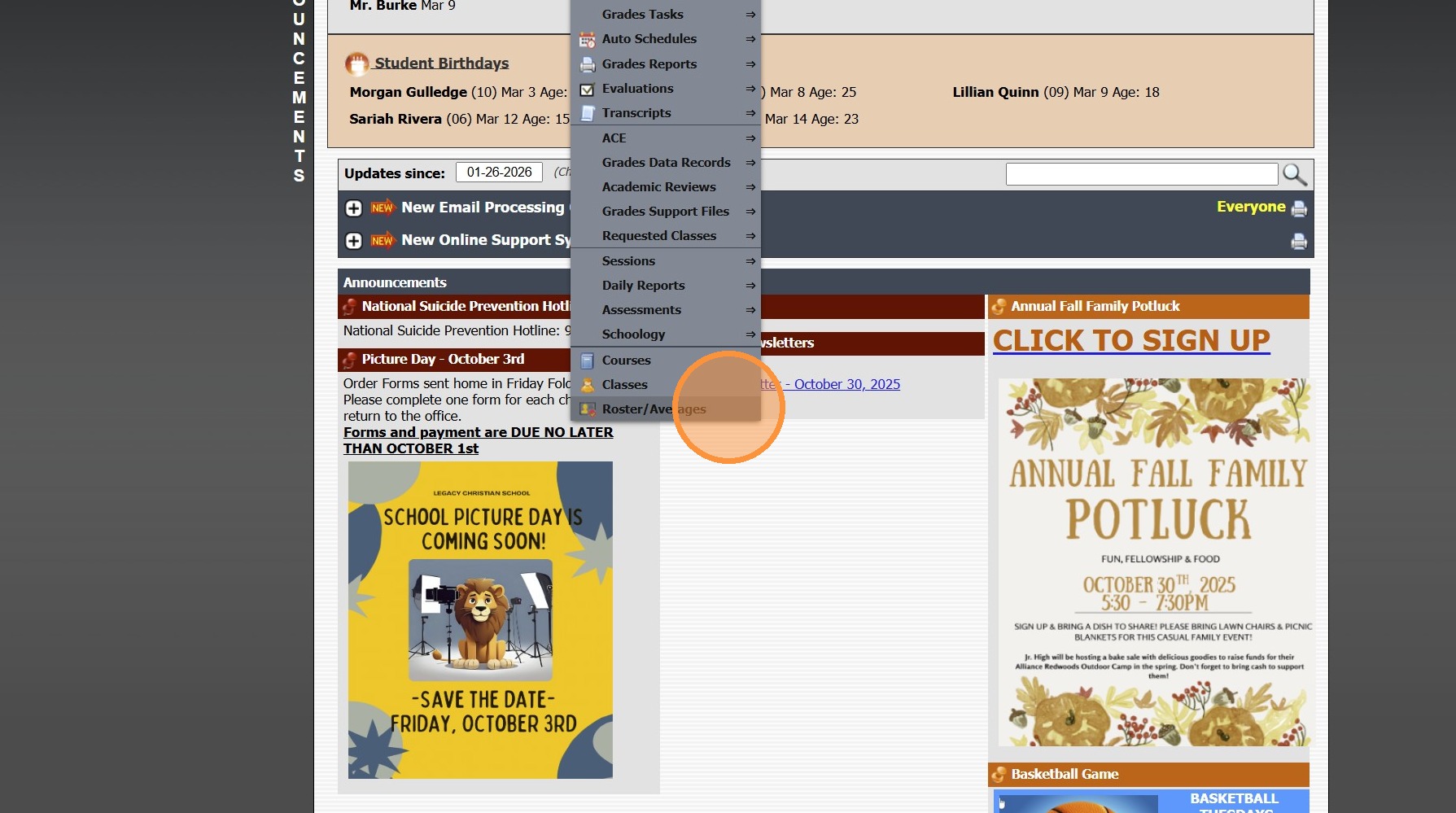
3. Click "Roster/Averages"
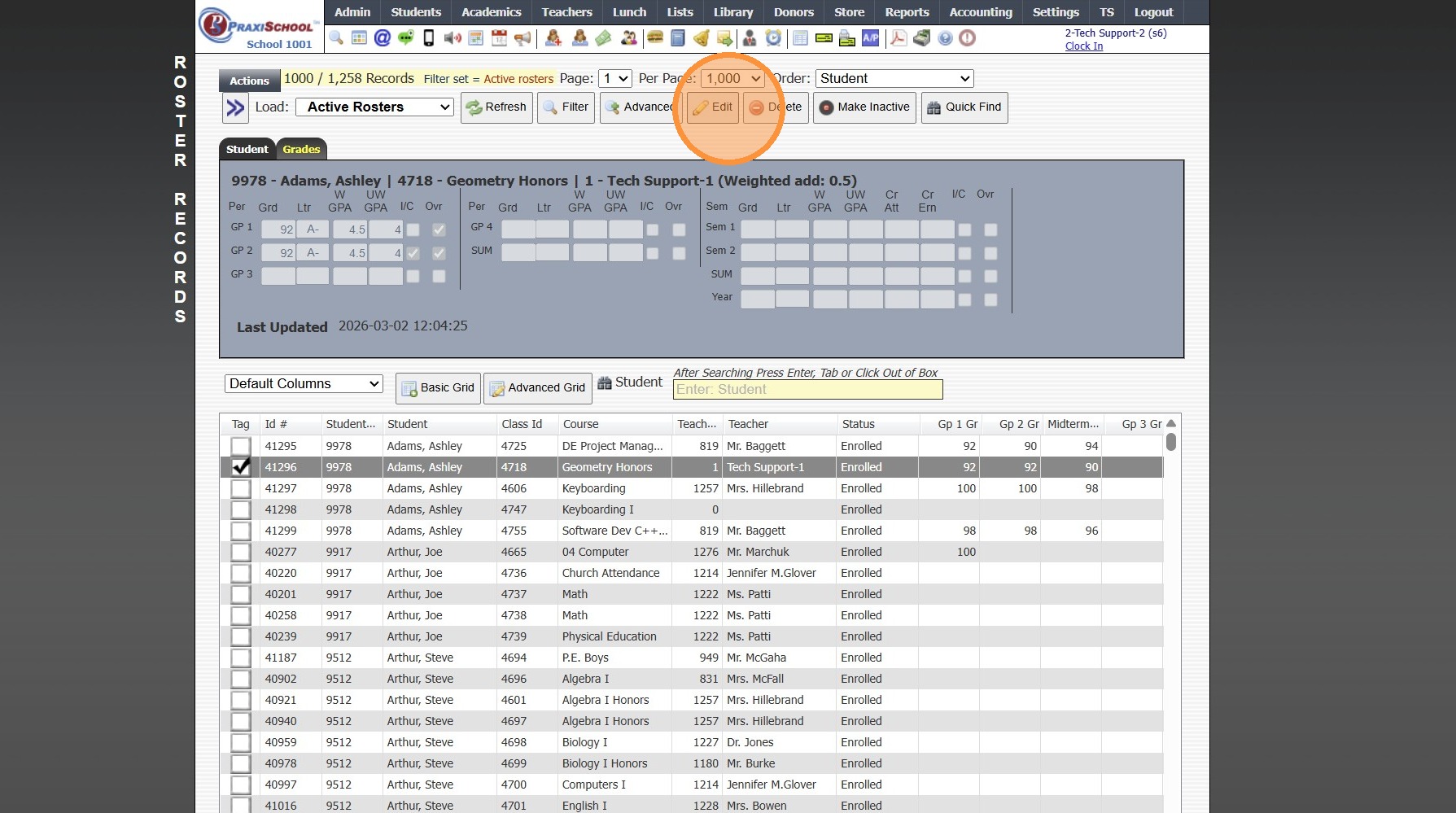
4. Select Student Roster & Click the Grades tab
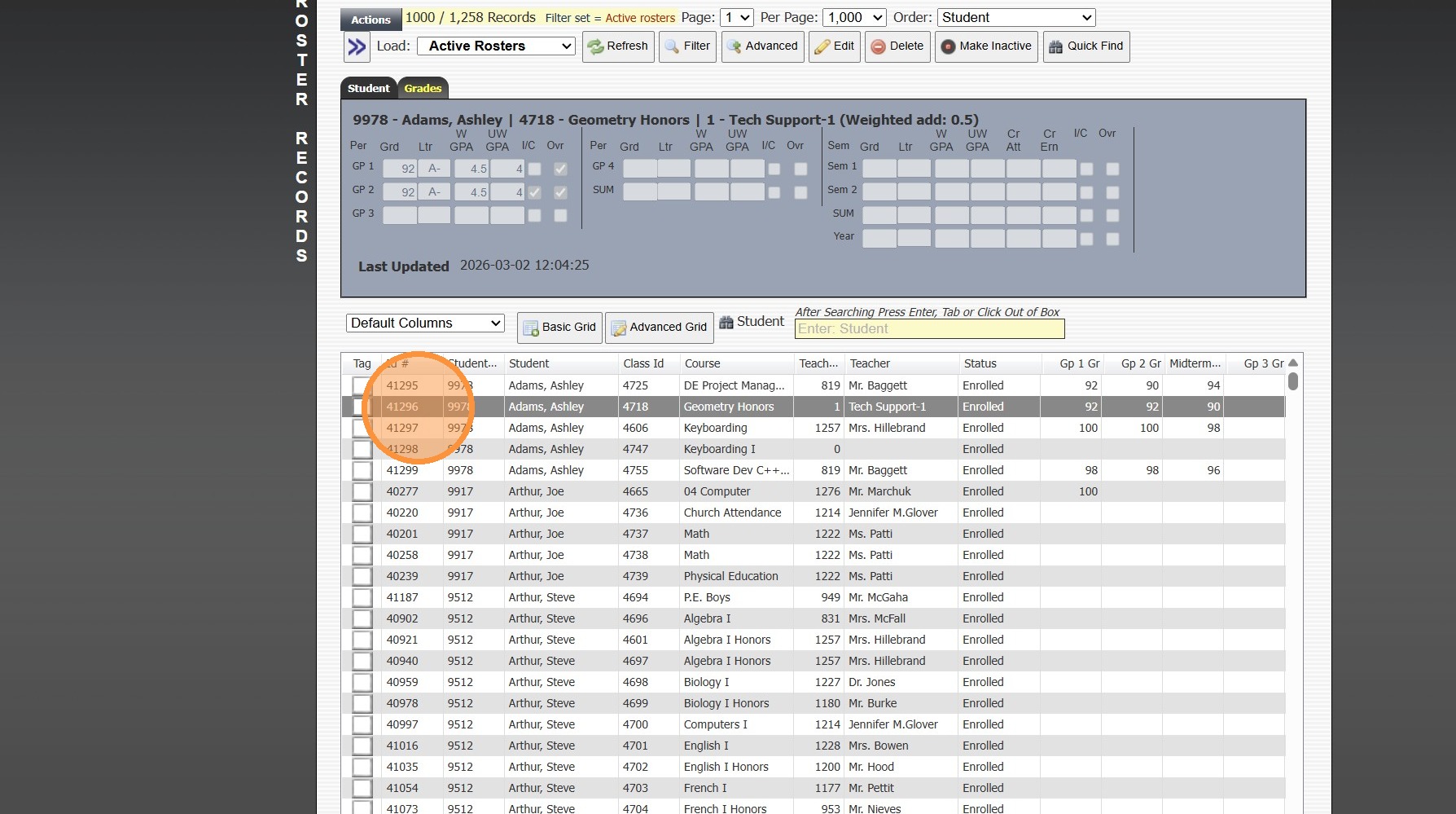
5. Click "Edit"
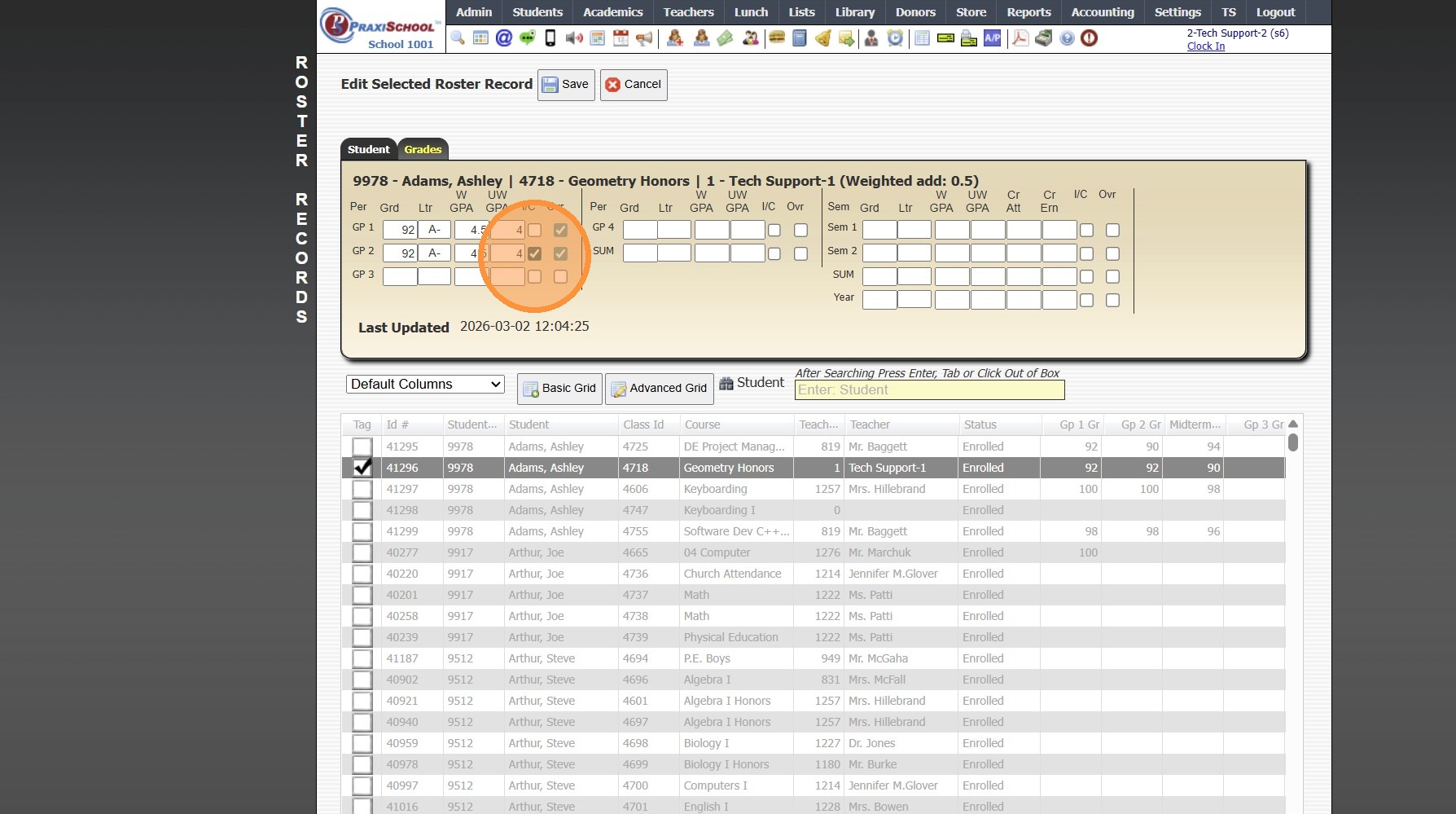
6. Uncheck the I/C Box
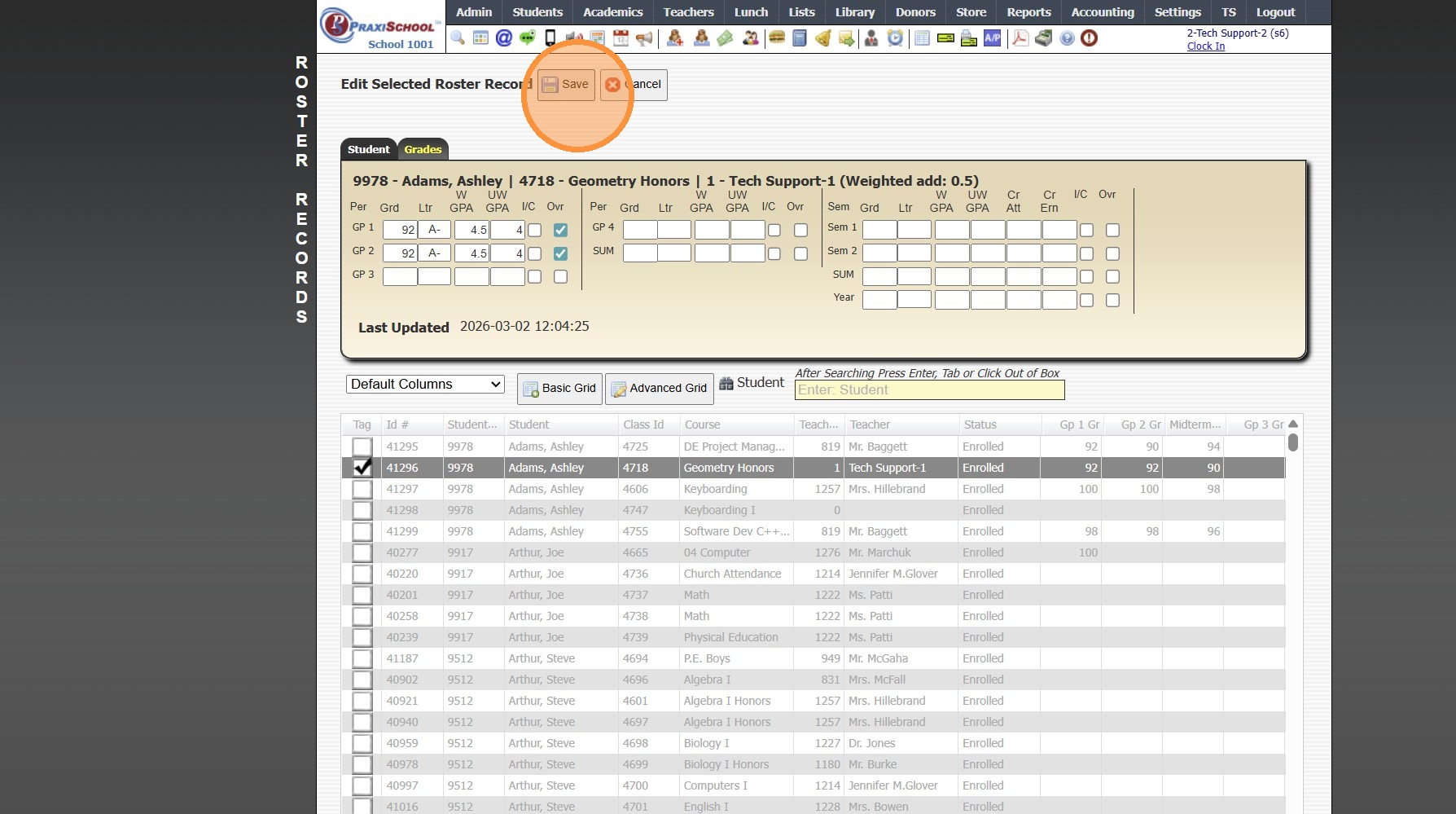
7. Click "Save"
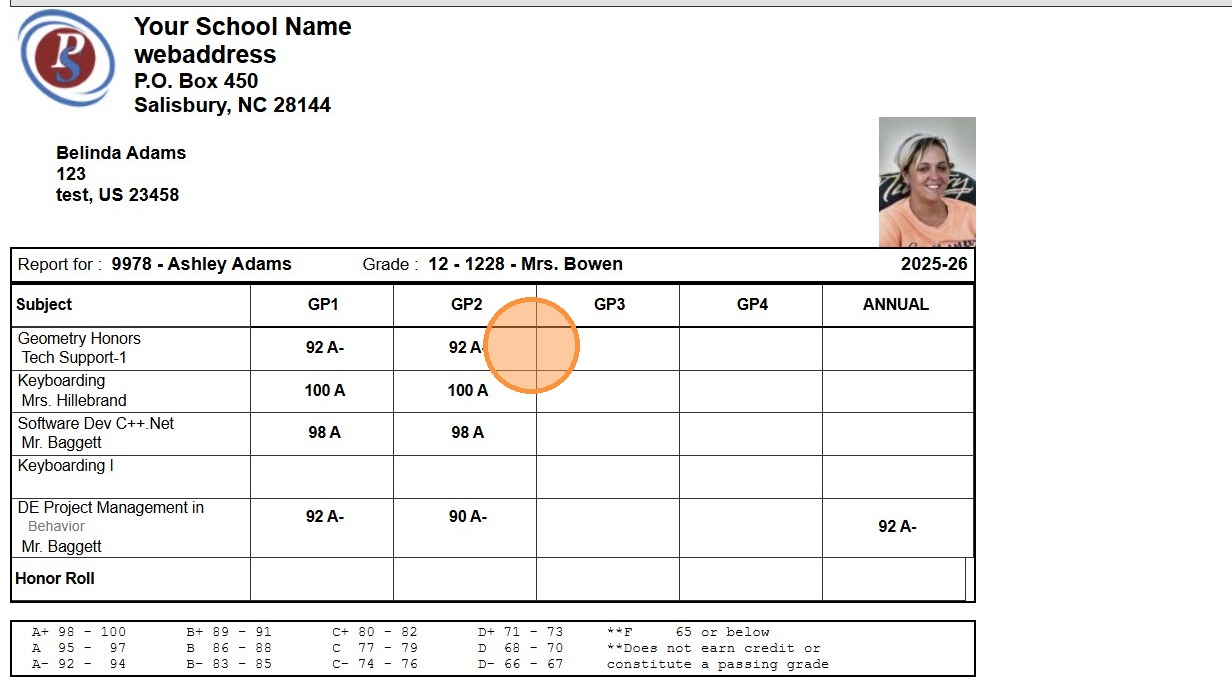
8. The IC is no longer on the Report Card
8000.16
Related Articles
ADMIN: Viewing Student Report Card Notes
ADMIN: Viewing Student Report Card Notes 1. Click "Academics" 2. Click "Grades Support Files" 3. Click "Report Card Notes" 4. Click "Pleasure to have in class." 5. Click "Id: Student Teacher School Year ...ADMIN: Adding / Editing Report Card Notes to Existing Student Report Card Notes
ADMIN: Adding / Editing Report Card Notes to Existing Student Report Card Notes 1. Click "Academics" 2. Click "Grades Support Files" 3. Click "Report Card Class Notes" 4. Select Student 5. Click "Edit" 6. Click "Notes" 7. Click in Notes Box 8. Add / ...Creating a Report Card Template for a New Student
If a New Student Enrolls After the First Grade Period Report Cards are Created, a Report Card Template will need to be Created for the New Student. 1. Click Academics > Grades Reports > Print Report Cards 2. Click "Process For 1 Student" & Search the ...Updating Student Pictures on Report Cards
Updating Student Pictures on Report Cards Updating Student Pictures, if Student Pictures are added after Report Cards have already been created 1. Click "Academics" 2. Click "Grades Reports" 3. Click "Print Report Cards" 4. Select to Update by ...Emailing a Report Card for a Withdrawn Student
Emailing a Report Card for a Withdrawn Student 1. Click "Academics" 2. Click "Grades Reports" 3. Click "Print Report Cards" 4. Select the "Process For 1 Student" option 5. Select the "All Students" option 6. Select the Student Tip: If emailing a ...