Batch Updating Teachers on Classes
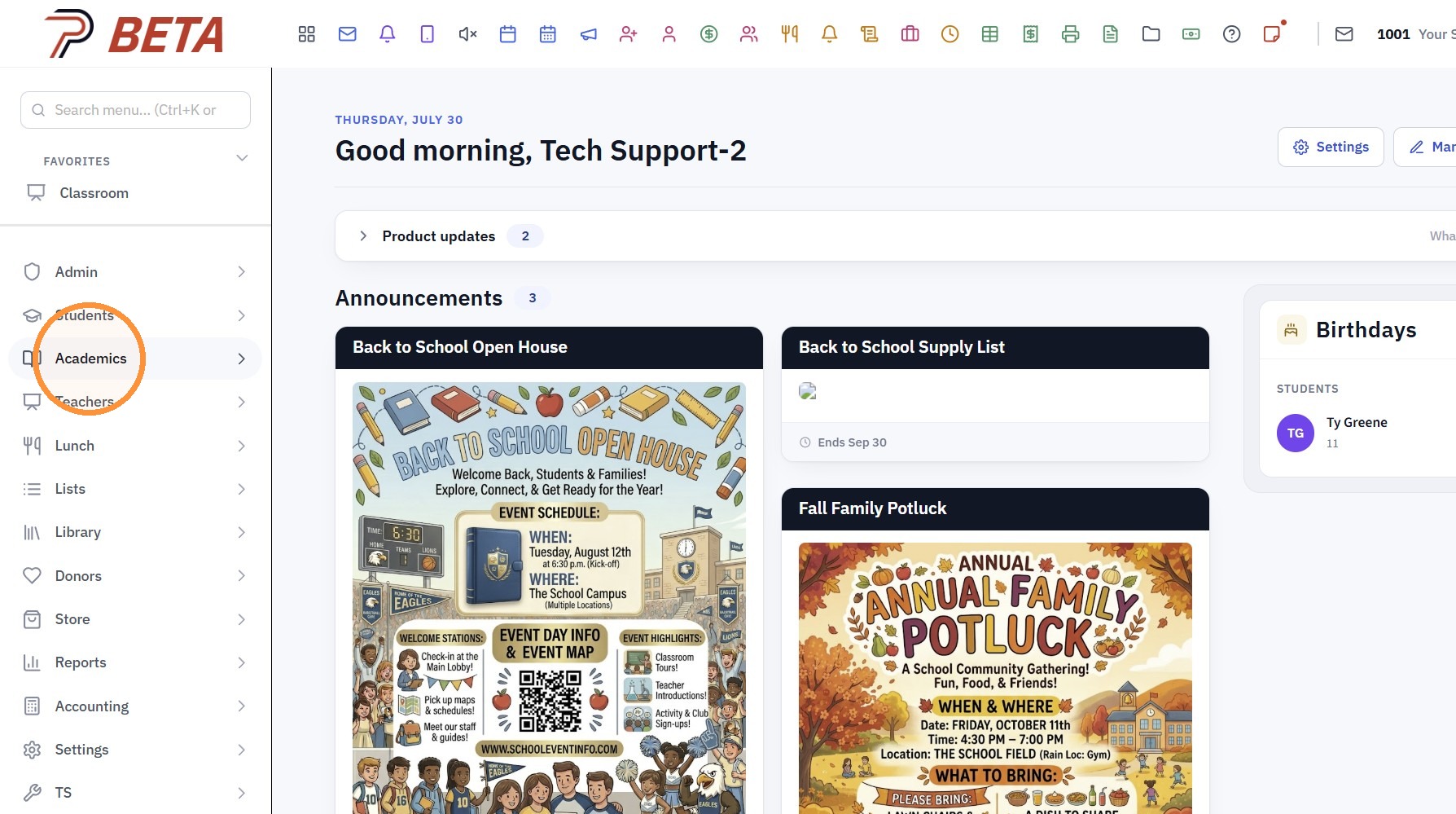
1. Click "Academics"
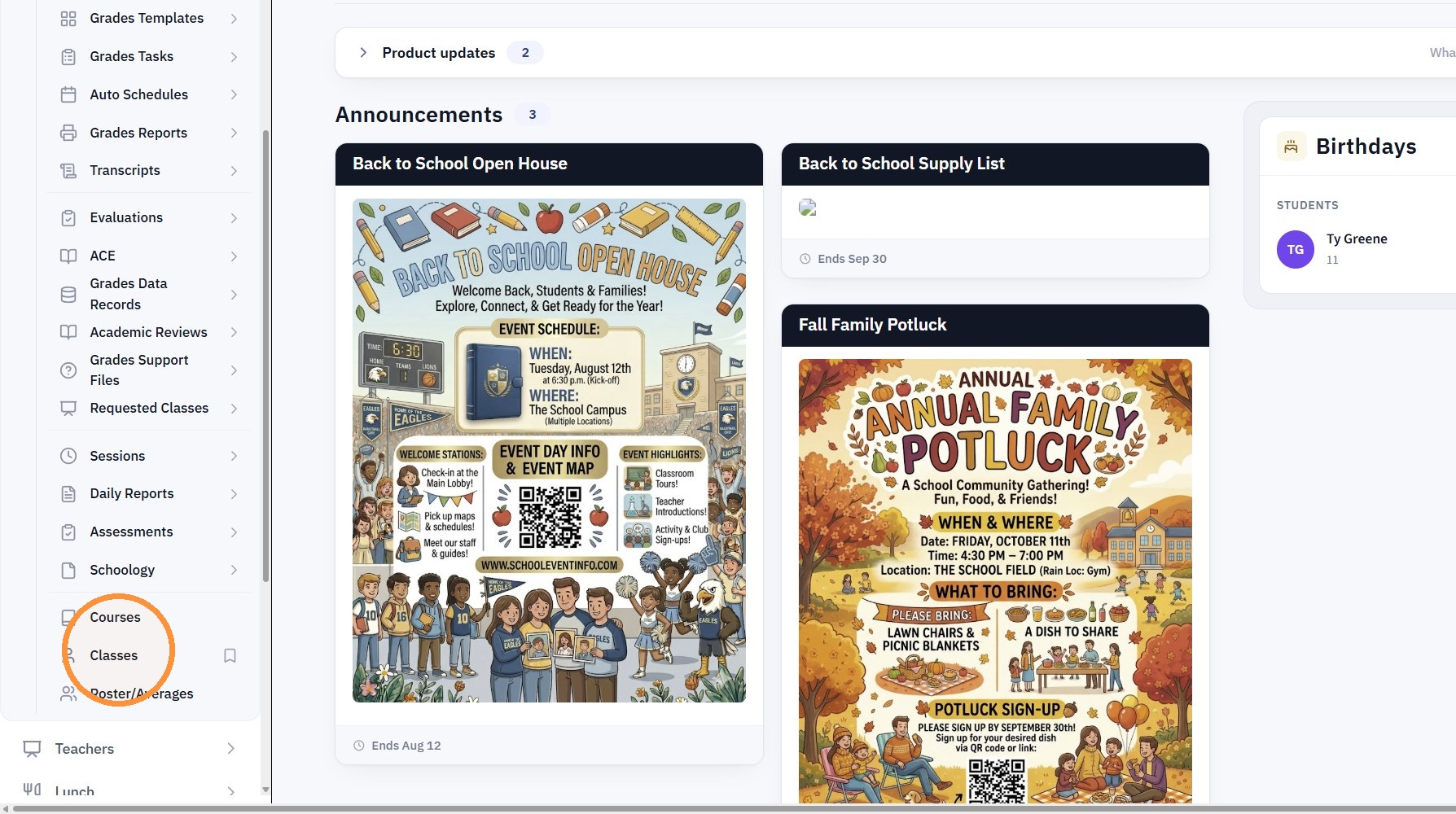
2. Click "Classes"
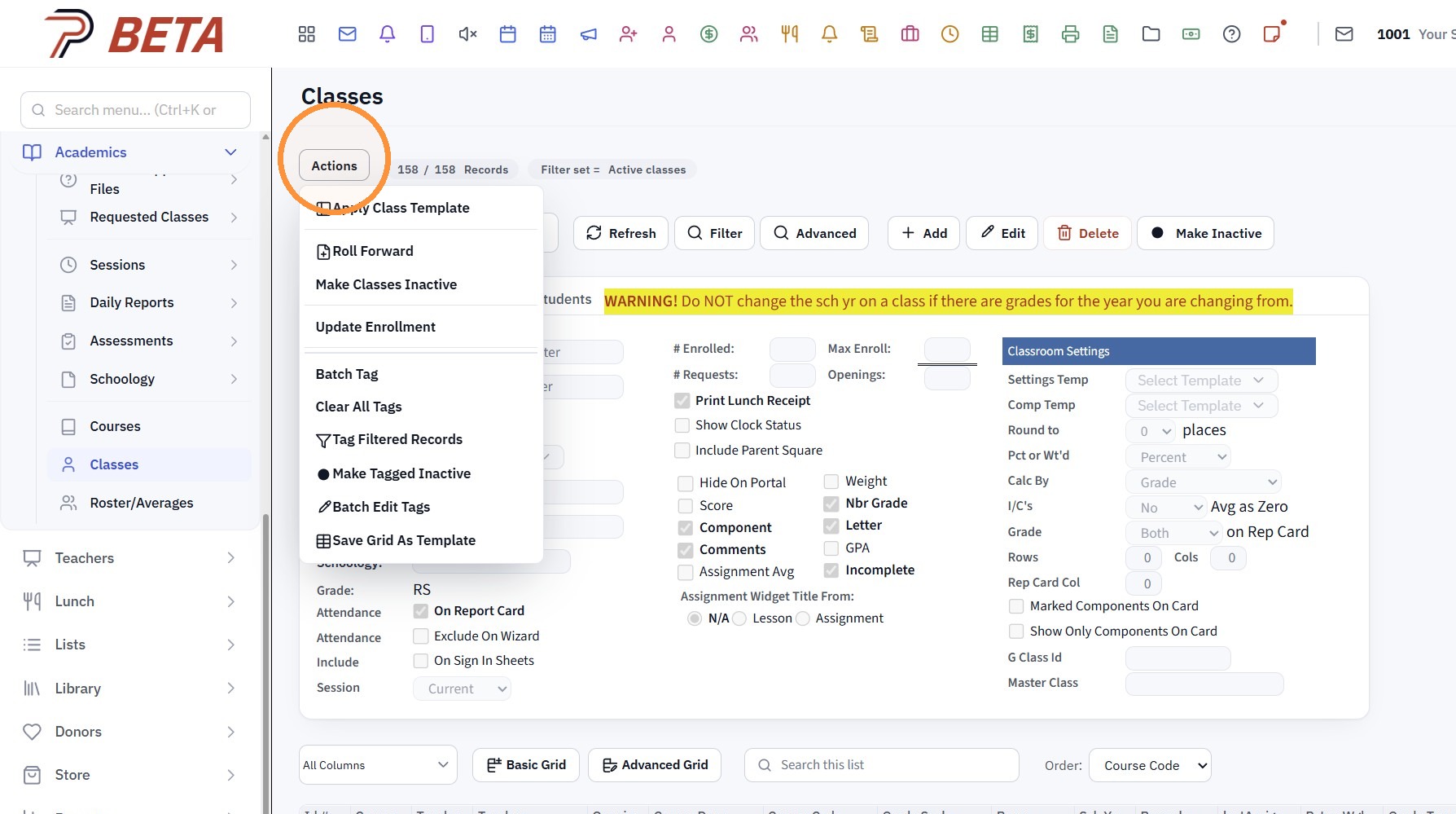
3. Click "Actions"
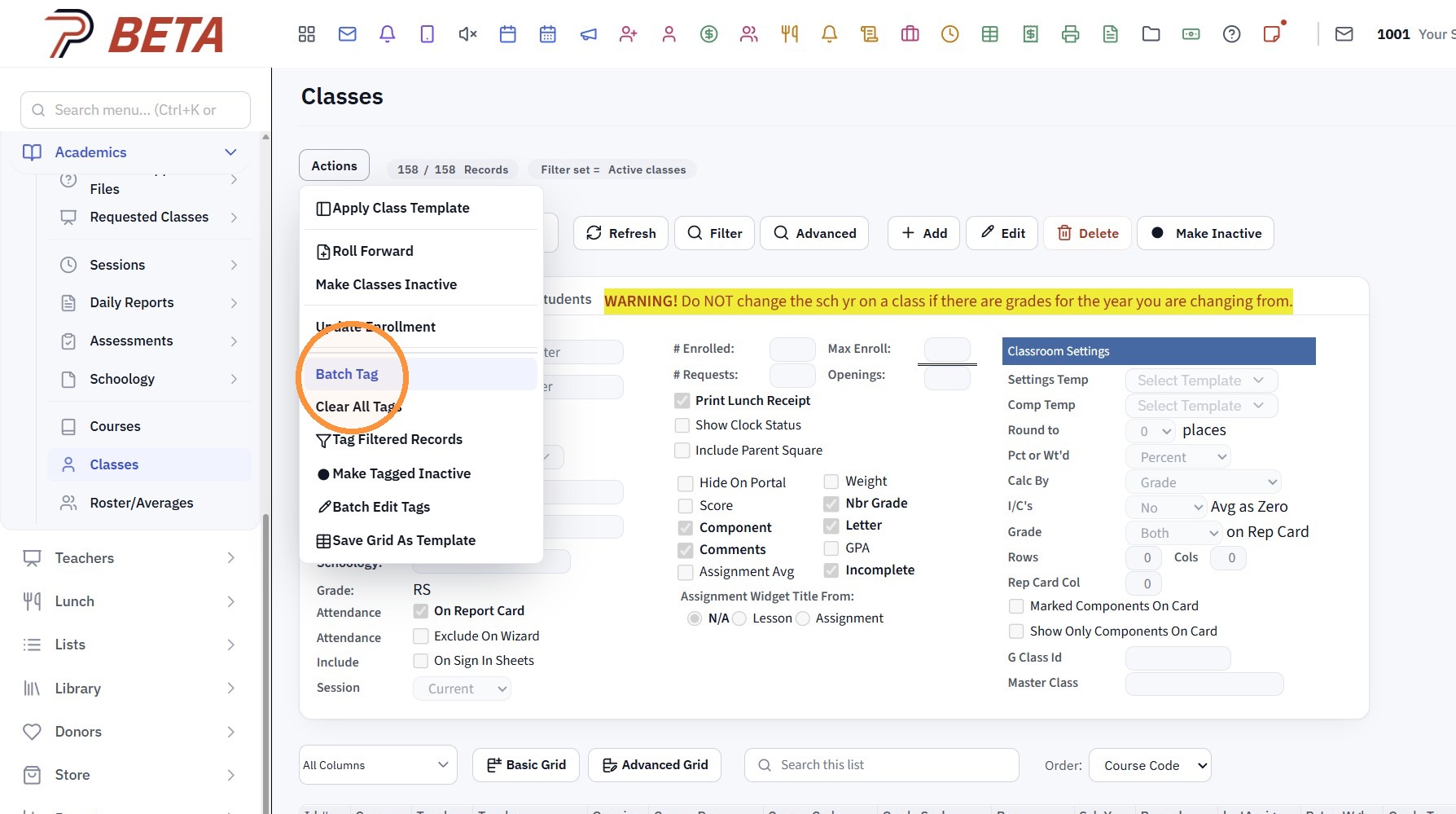
4. Click "Batch Tag"
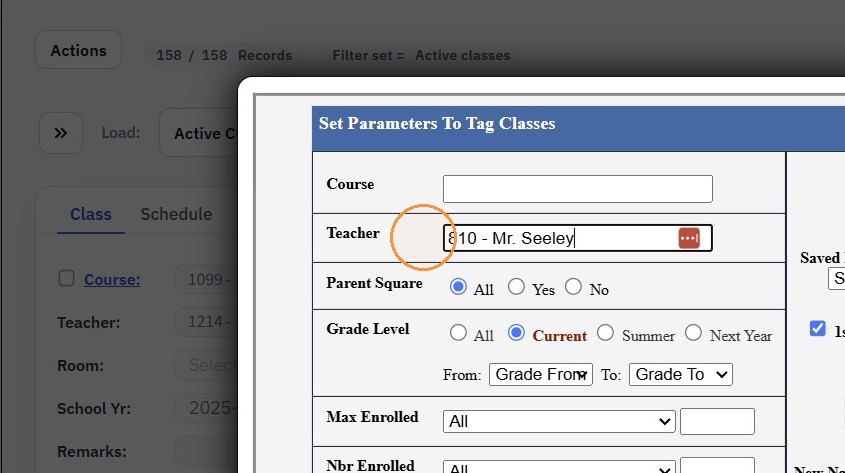
5. Select CURRENT Teacher
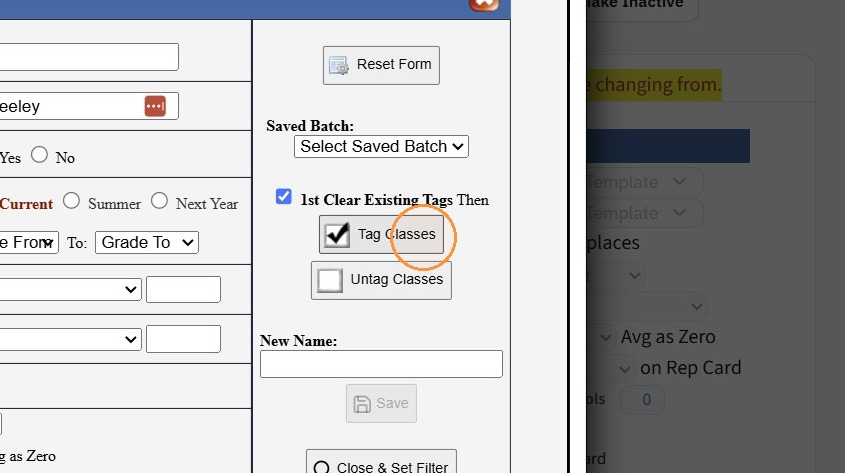
6. Click "Tag Classes"
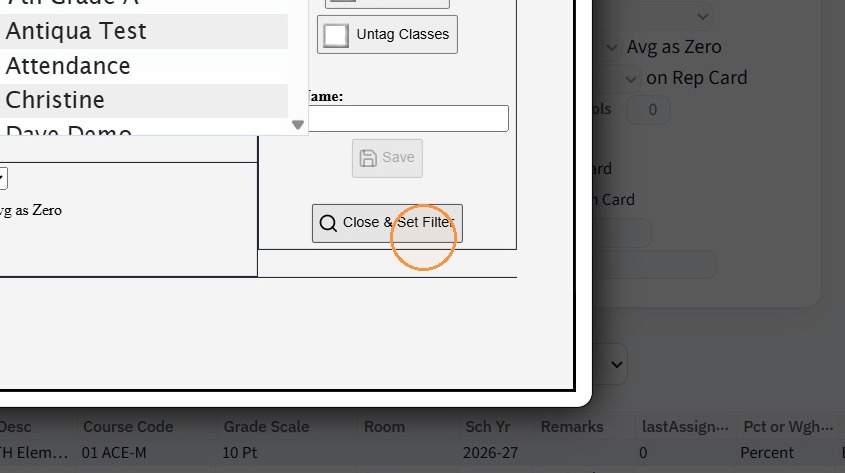
7. Click "Close & Set Filter"
8. Click "Actions"
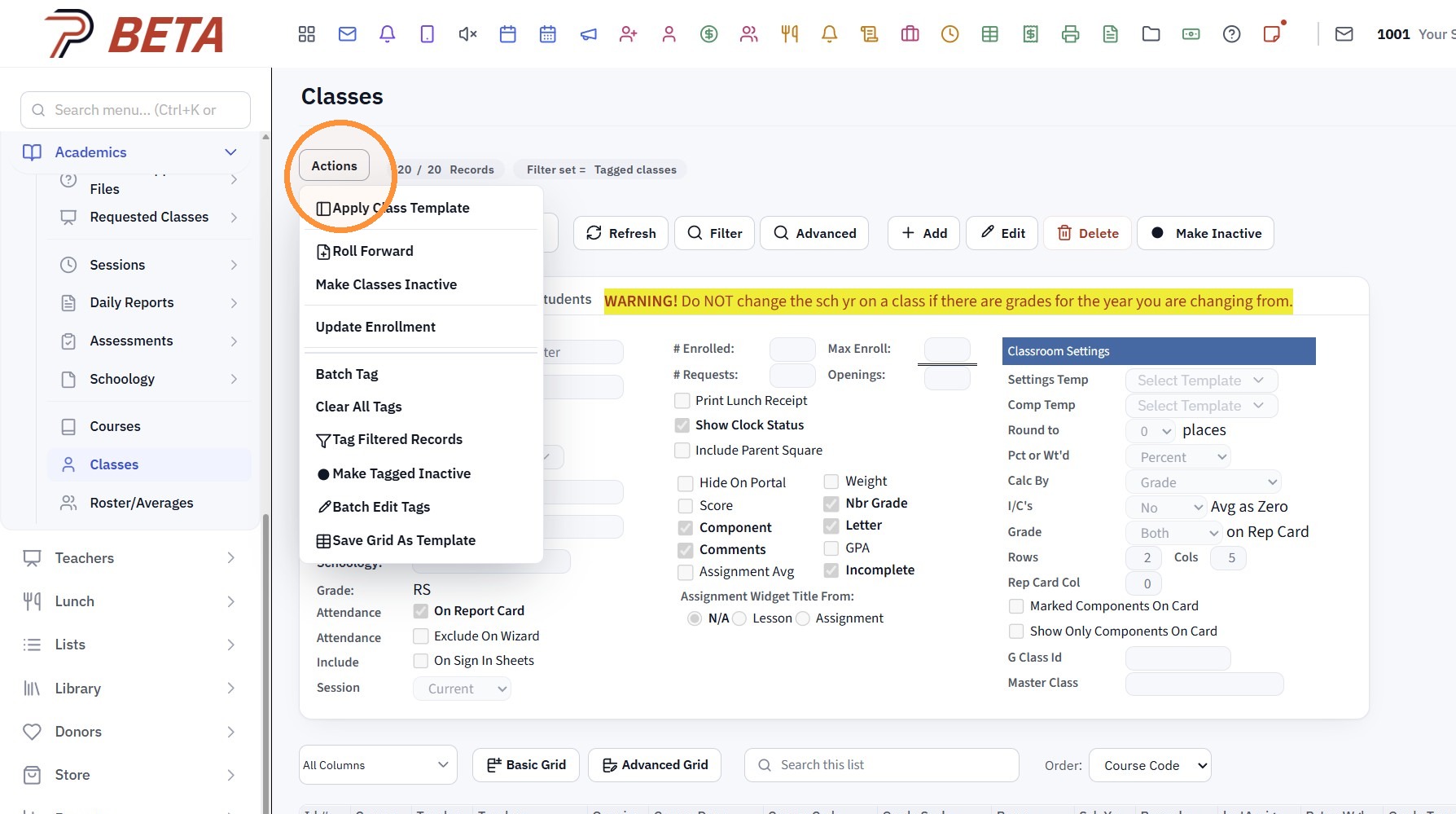
9. Click "Batch Edit Tags"
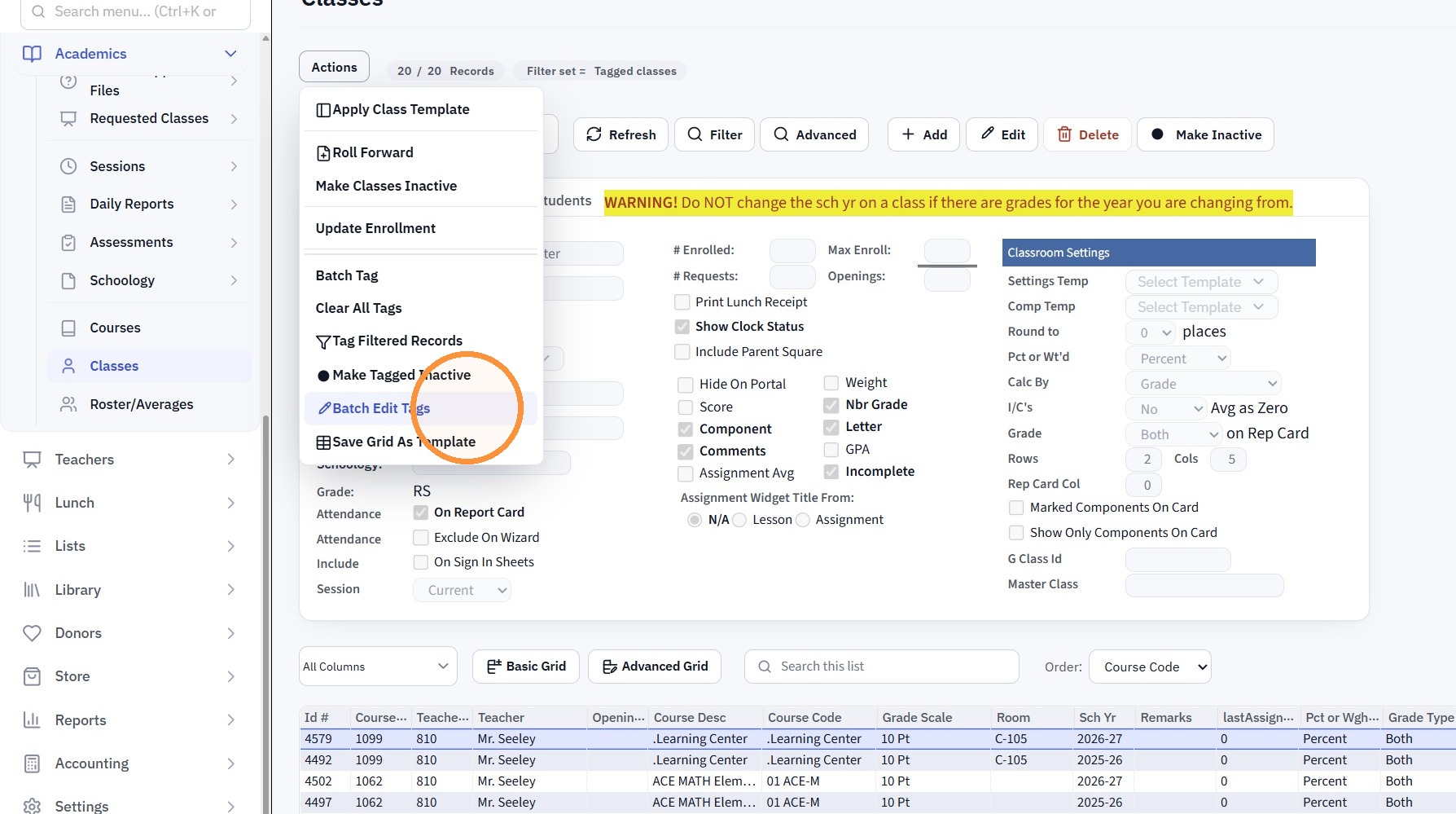
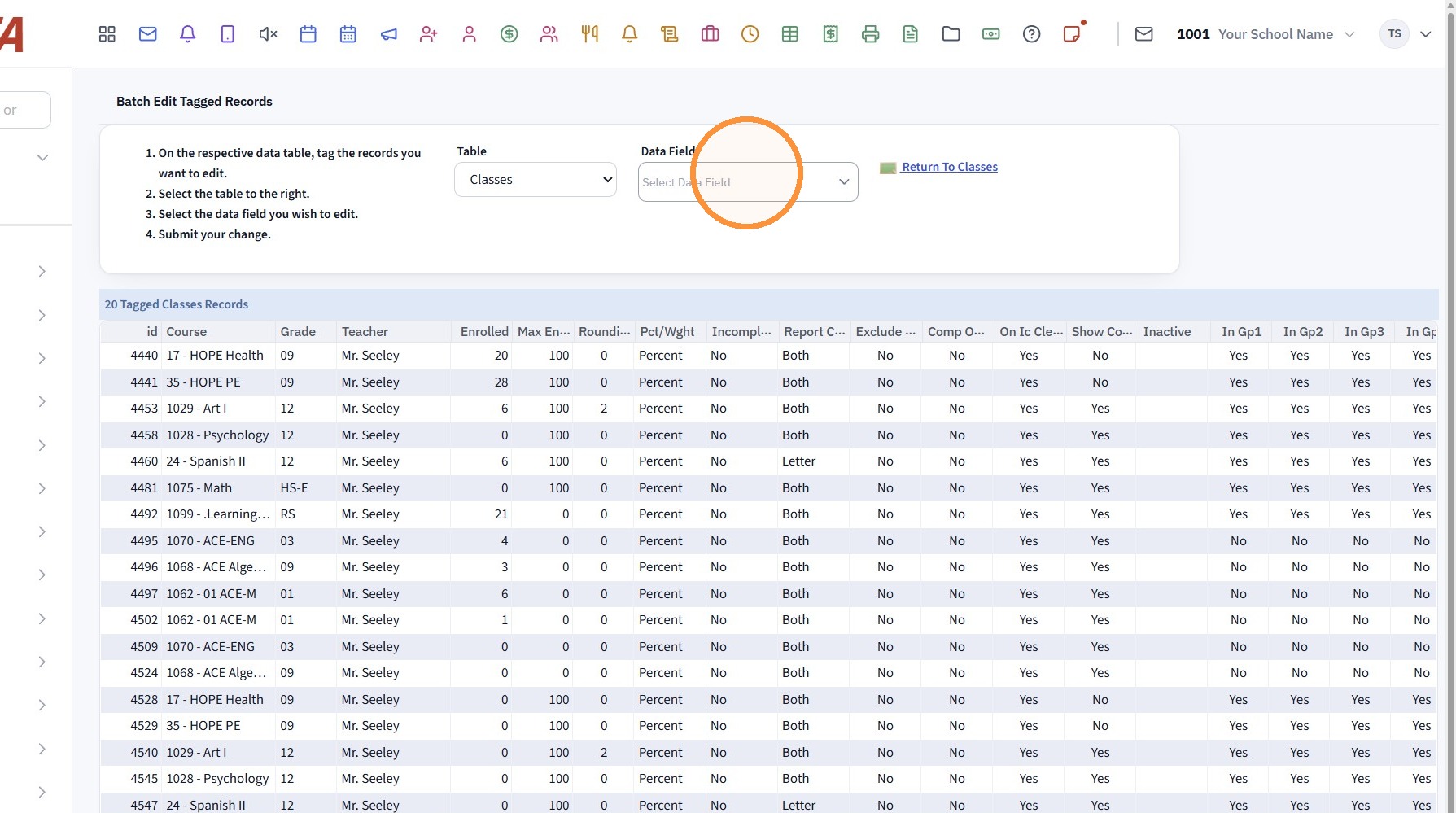
10. Select the Data Field "Teacher"
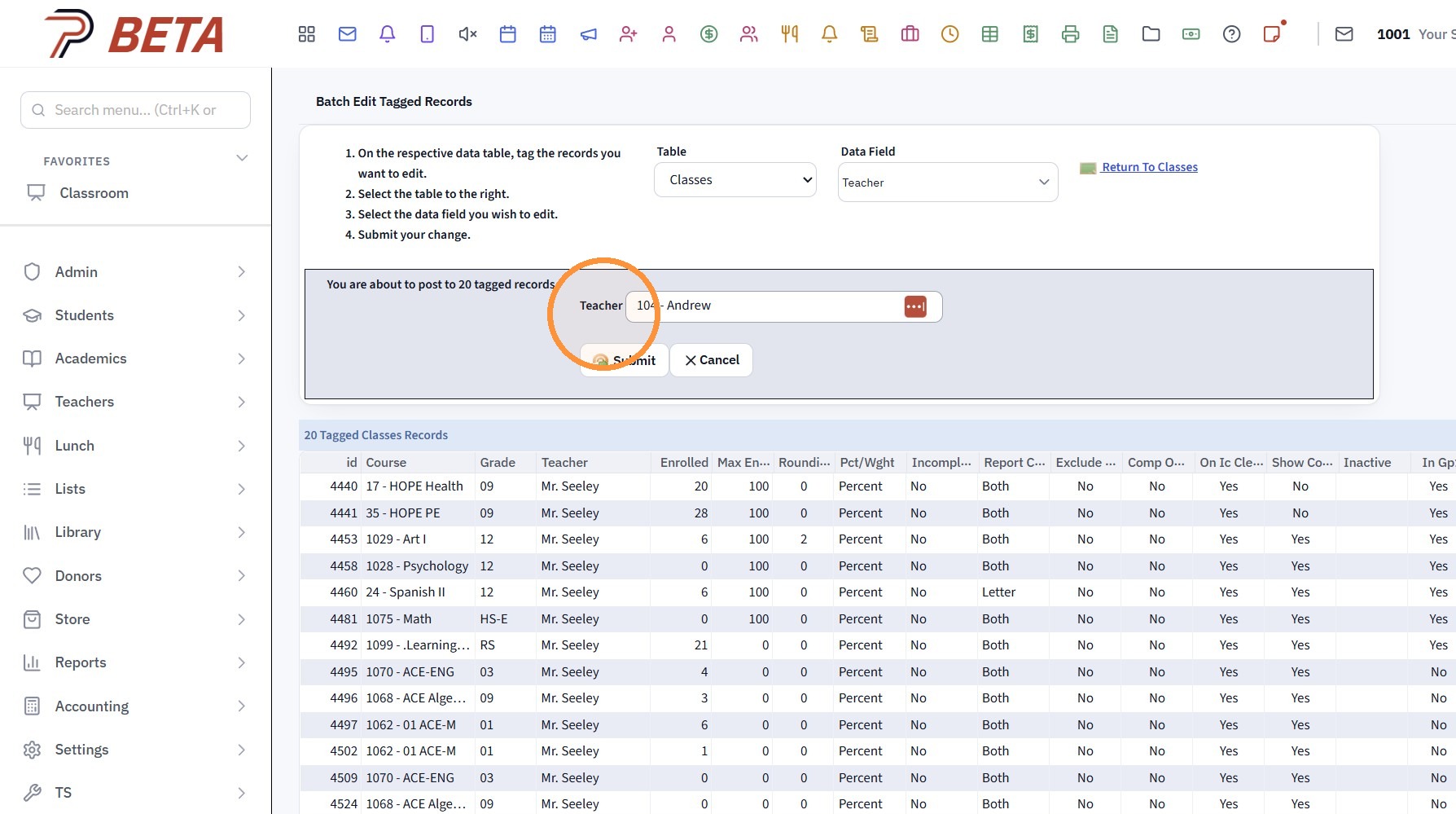
11. Select the NEW Teacher
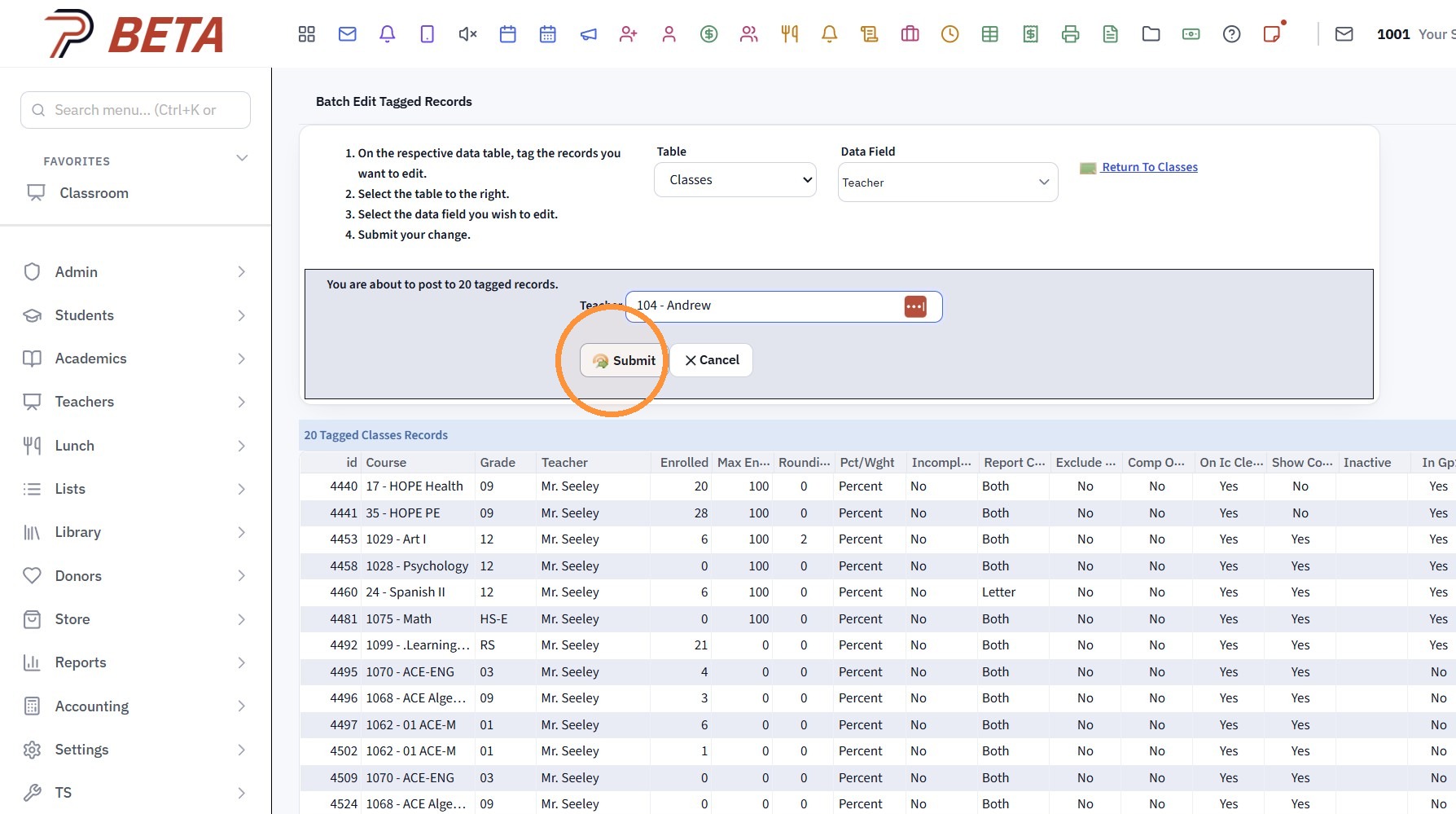
12. Click "Submit", Type "yes" & Click "Ok"
Related Articles
Updating the Assigned Teacher on Classes Using the Batch Tag Feature
Updating the Assigned Teacher on Classes Using the Batch Tag Feature 1. Click "Academics" 2. Click "Classes" 3. Click "Batch Tag" 4. Select Current Teacher 5. Click "Tag Classes" 6. Click "Close & Set Filter" 7. Click "Actions" 8. Click "Batch Edit ...Updating the Assigned Teacher on Classes
Updating the Assigned Teacher on Classes 1. Click "Academics" 2. Click "Classes" 3. Tag Classes to Update 4. Click "Actions" 5. Click "Batch Edit Tags" 6. Select the "Teacher" under Data Field dropdown menu 7. Select the New Teacher 8. Click "Submit" ...Teachers - Classroom - Classes
Teachers - Classroom - Classes 1. Log into PraxiSchool 2. Click "Teachers" 3. Click "Classroom" 4. Classes is the Default Classroom View 5. Class Settings for Grading and Google Classroom 6. Class Settings for Components, Lesson Plans and Incomplete ...Updating the Teachers on Evaluations
Updating the Teachers on Evaluations 1. Click "Academics" 2. Click "Evaluations" 3. Click "Student Evaluations" 4. Click "Filter" 5. Select "Teacher" as the Data Field option 6. Select "Does Contain" 7. Enter the Existing Teachers Last Name & Click ...Updating the School Year in Classes
1. Click "Academics" 2. Click "Classes" 3. Tag Class(es) 4. Click "Actions" 5. Click "Batch Edit Tags" 6. Select the "School Year" Data Field 7. Select the Correct School Year 8. Click "Submit", Click Ok & Type "yes" 2000.13.8