Applying Components from a Template
From the Classroom
1. Click "Teachers"
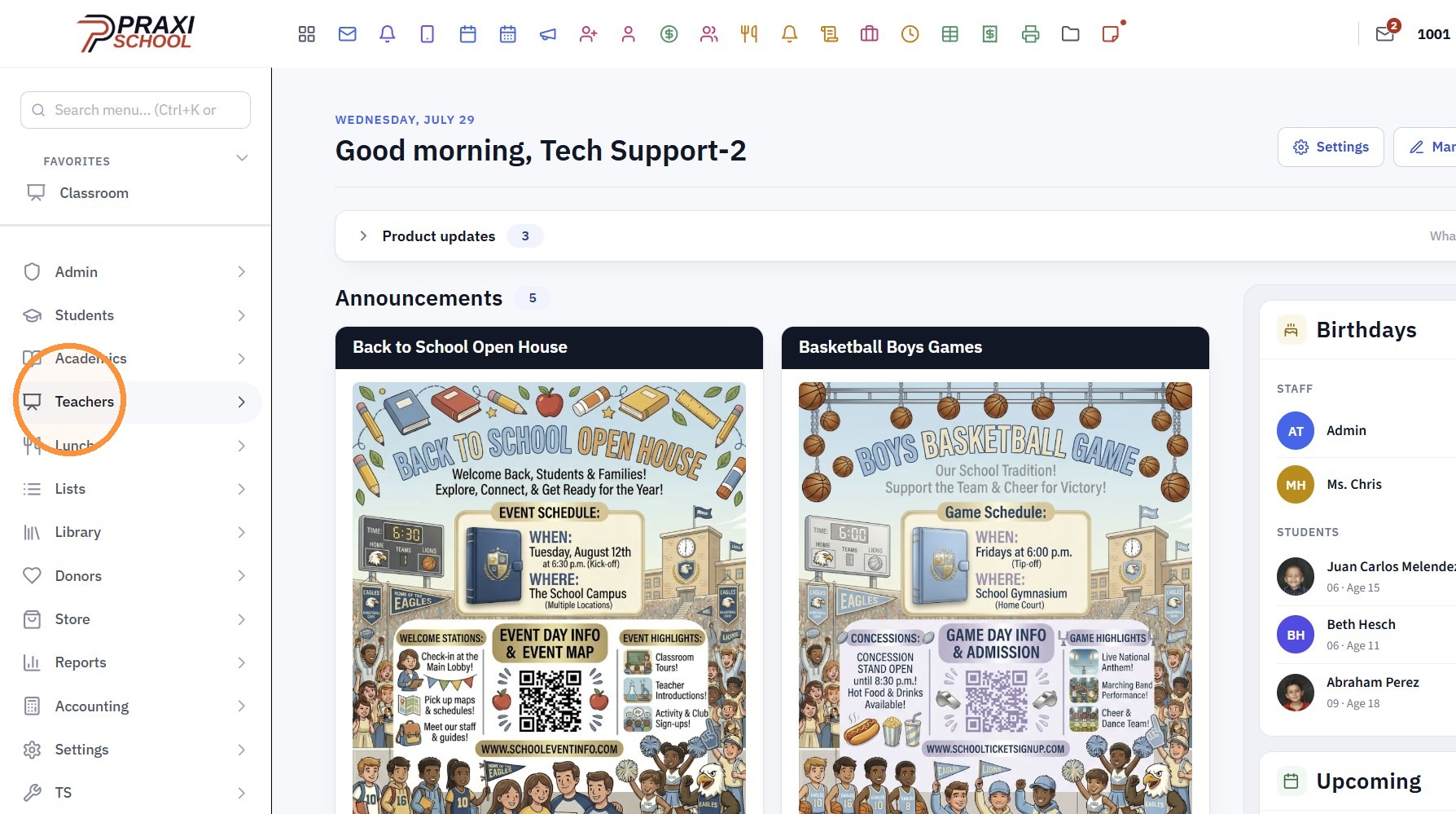
2. Click "Classroom"
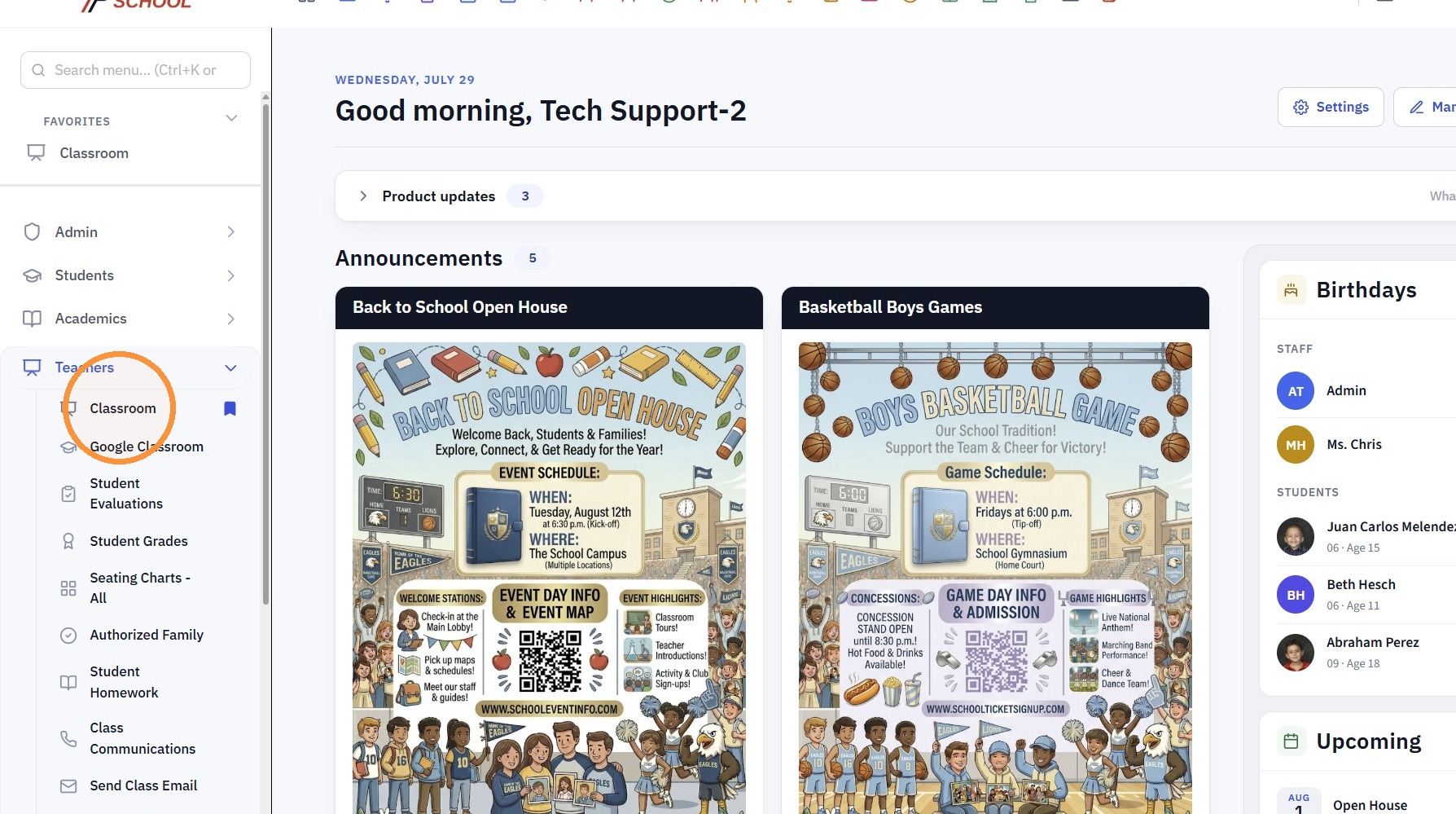
3. Select Class & Click "Open"
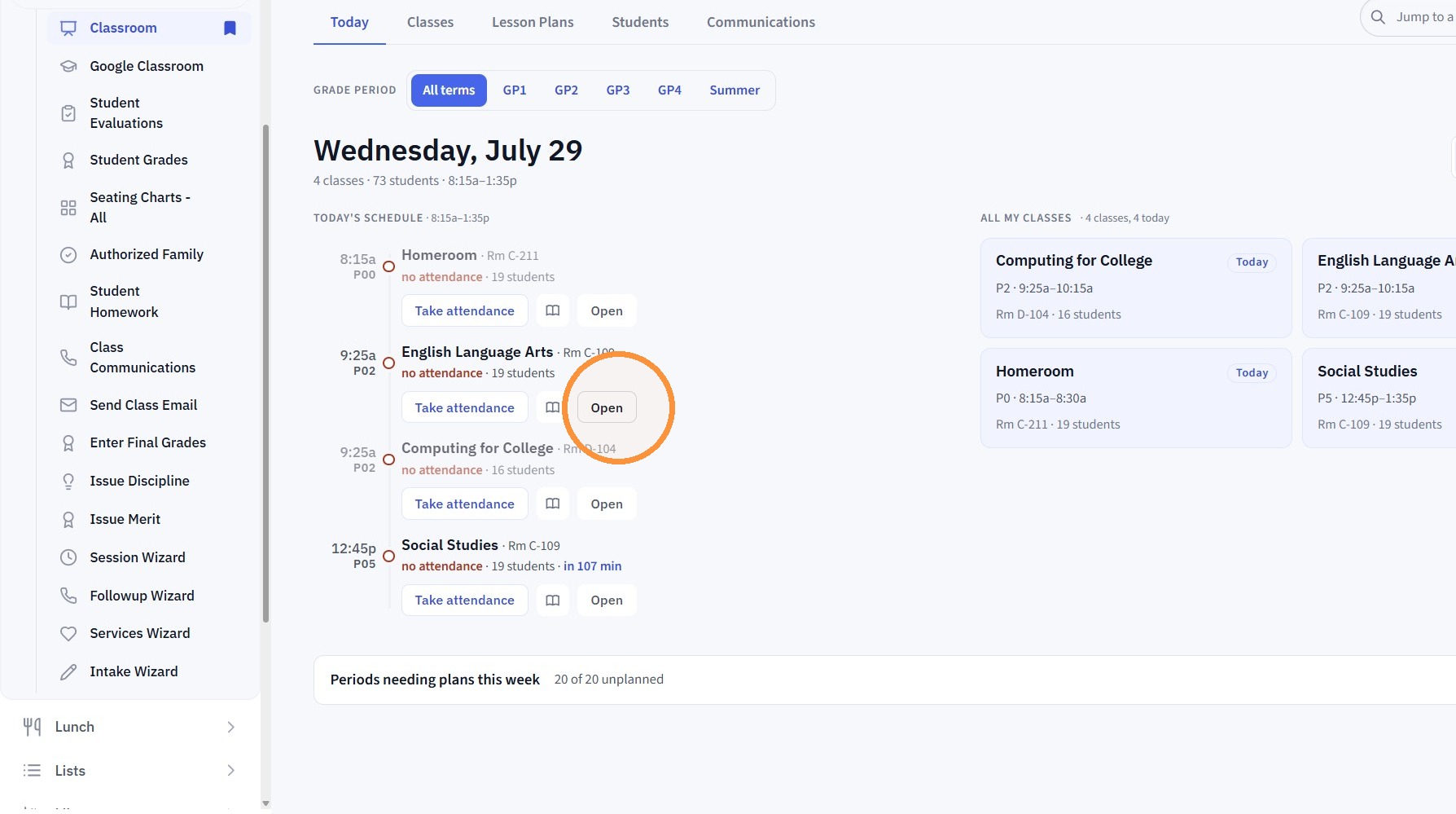
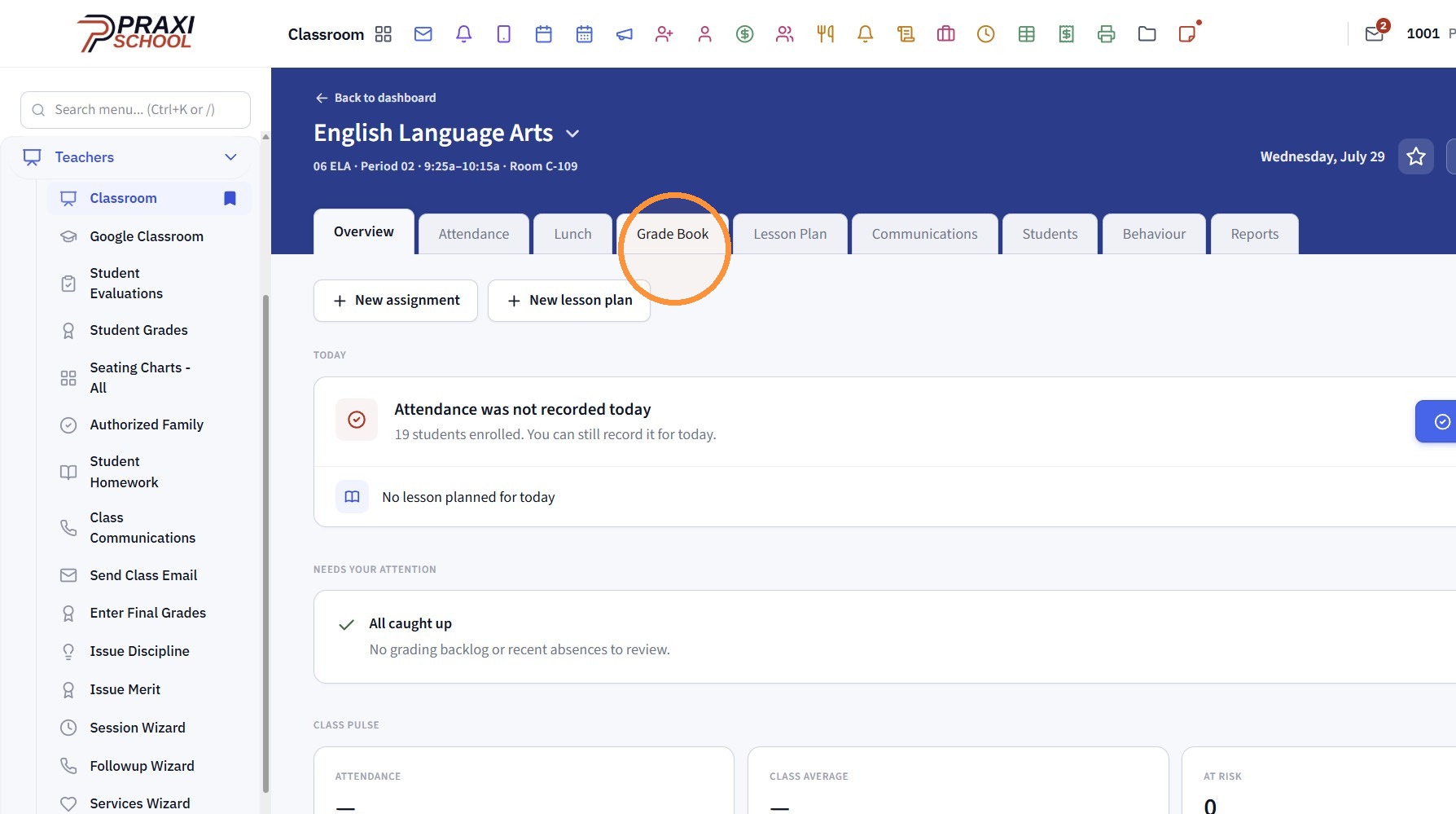
4. Click "Grade Book"
5. Click the 3 dots
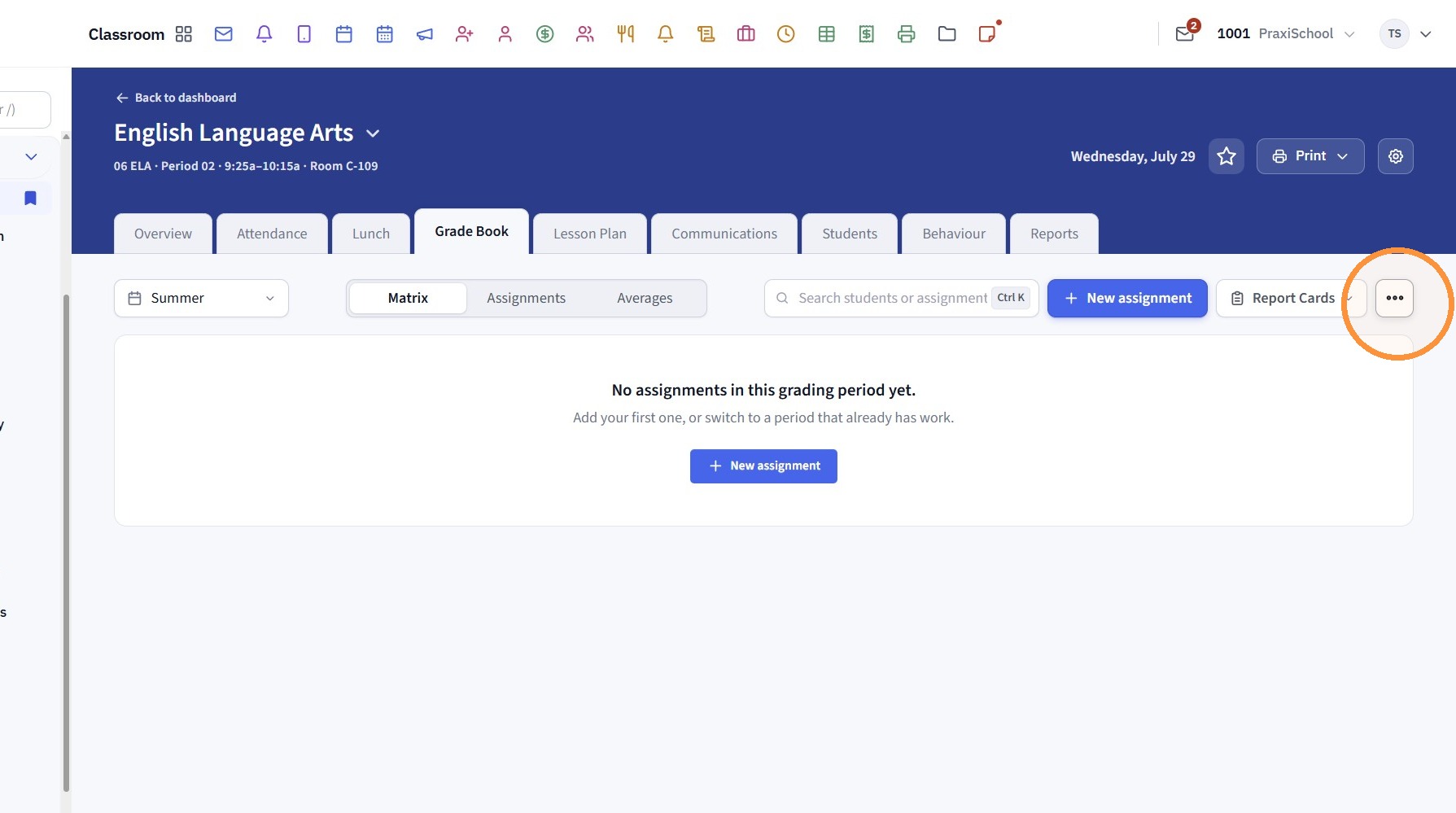
6. Click "Components & weights"
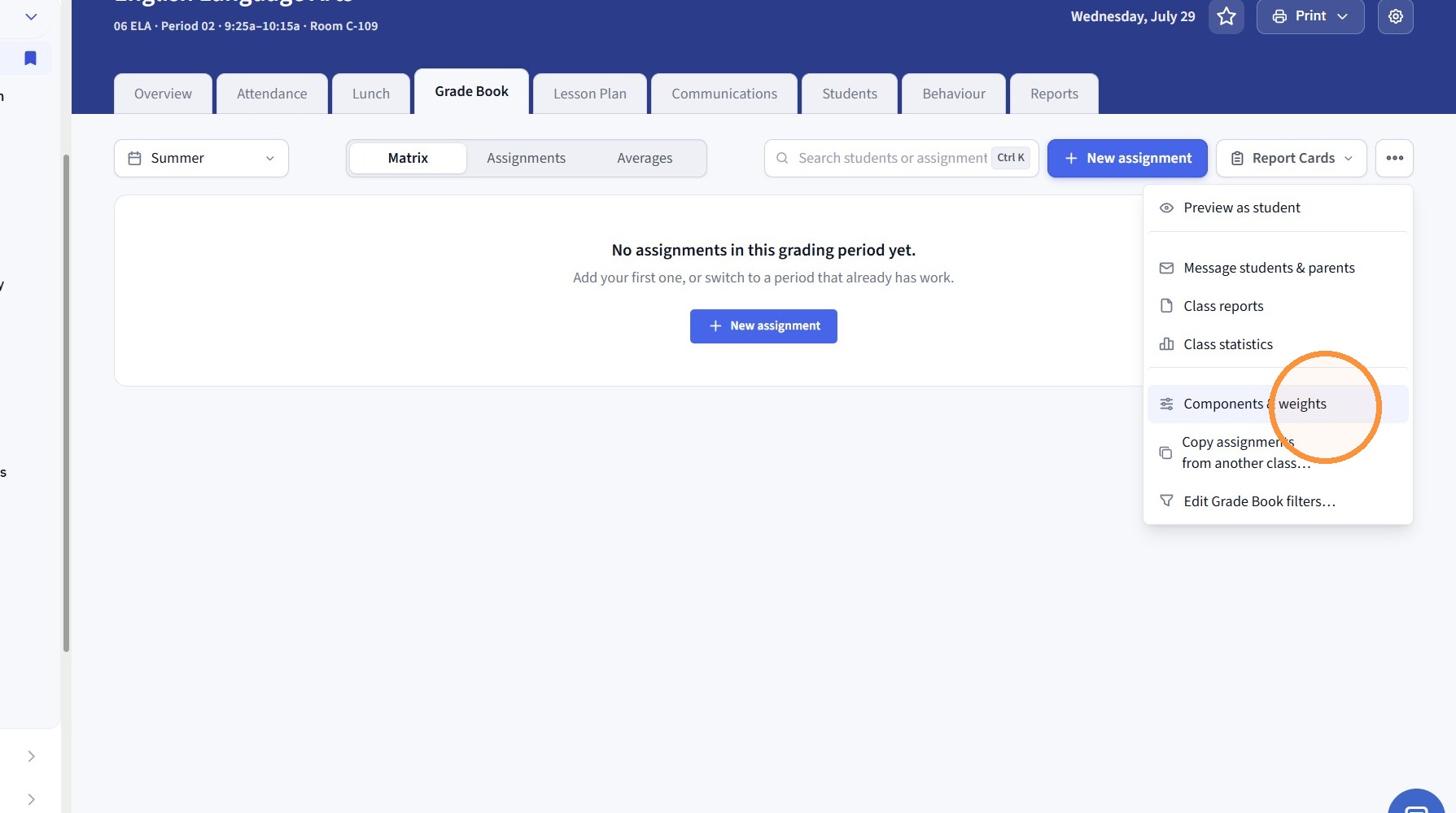
7. Click "Copy from another period or class, or apply a template"
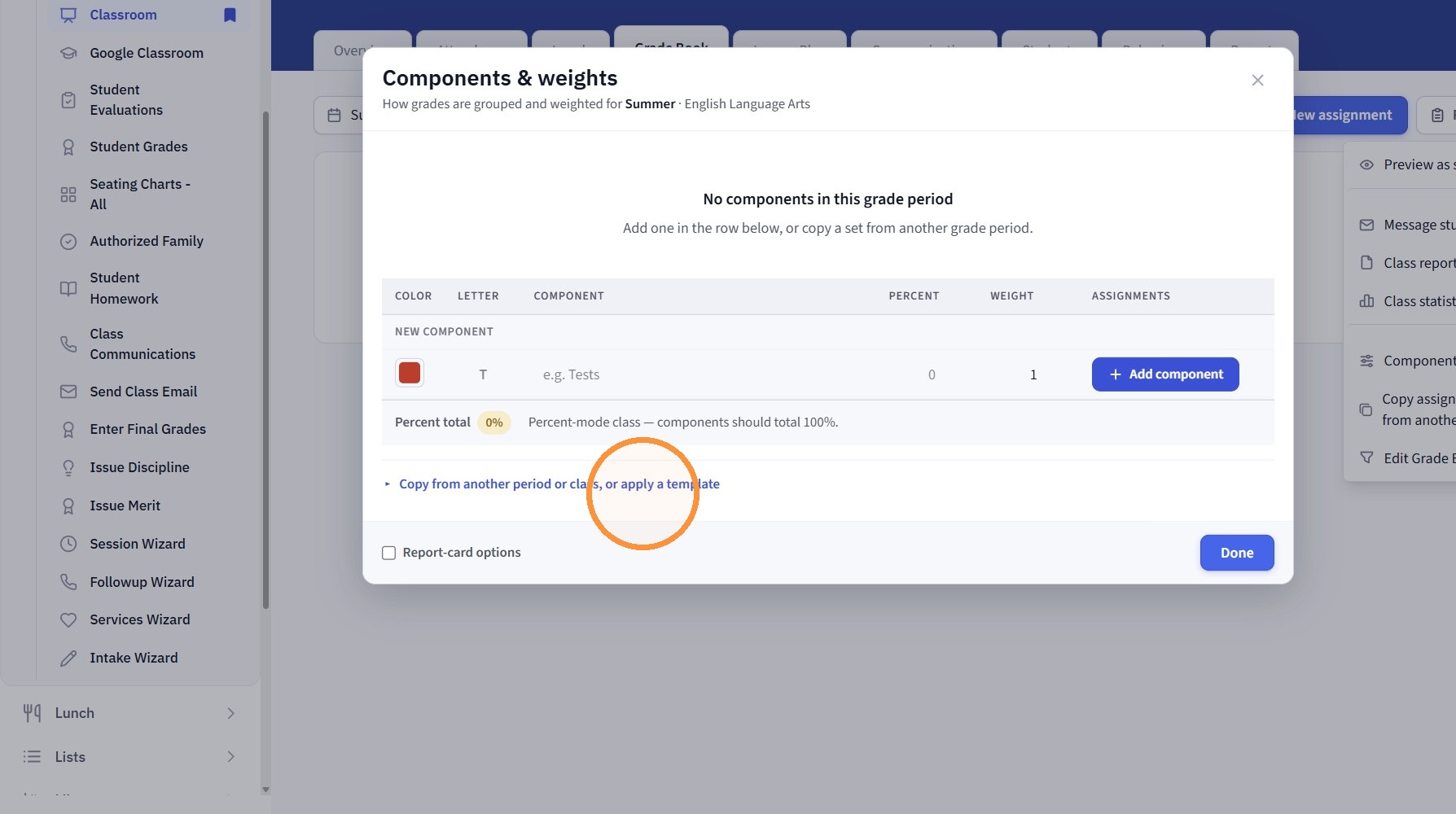
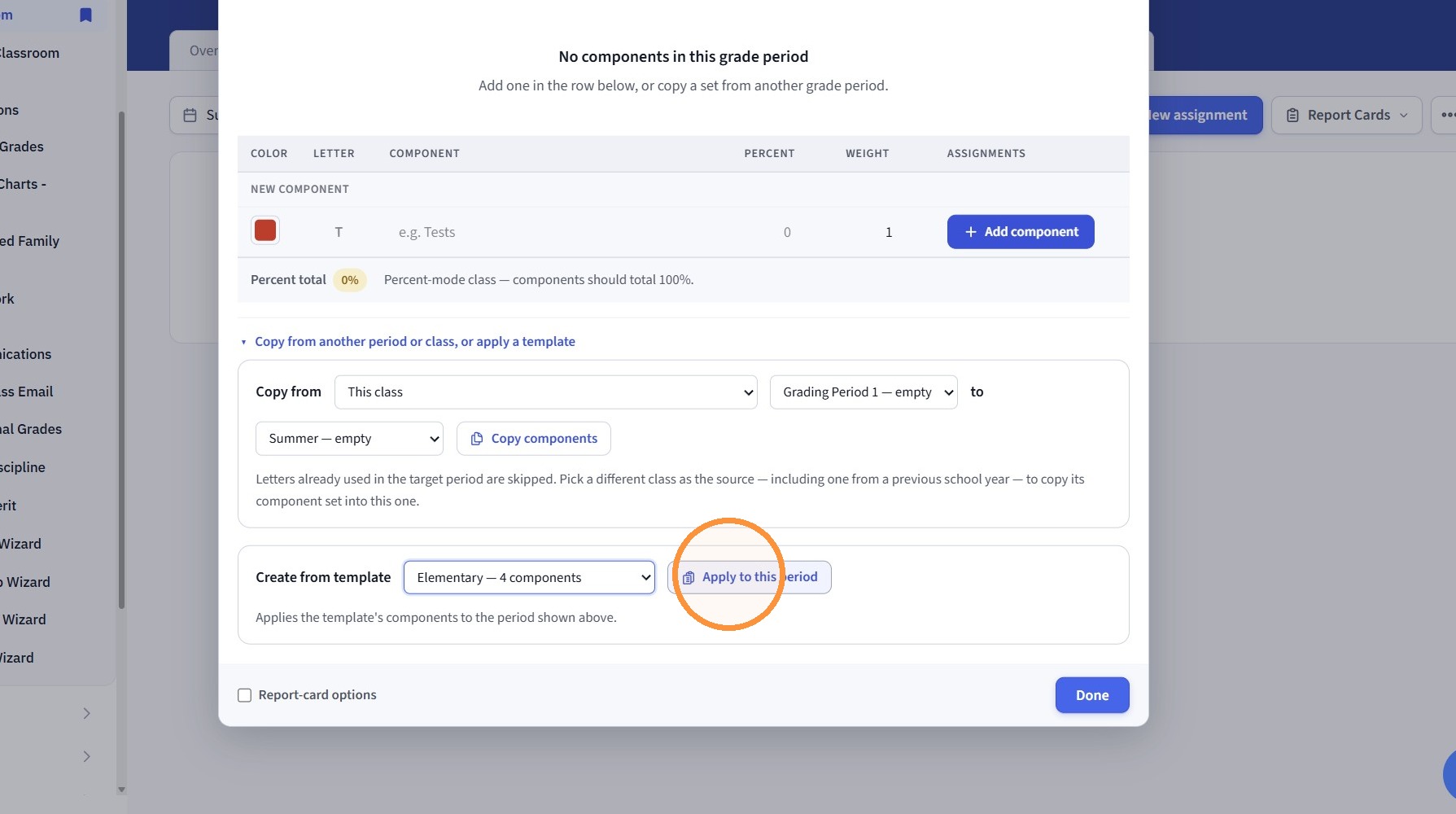
8. Select the Template
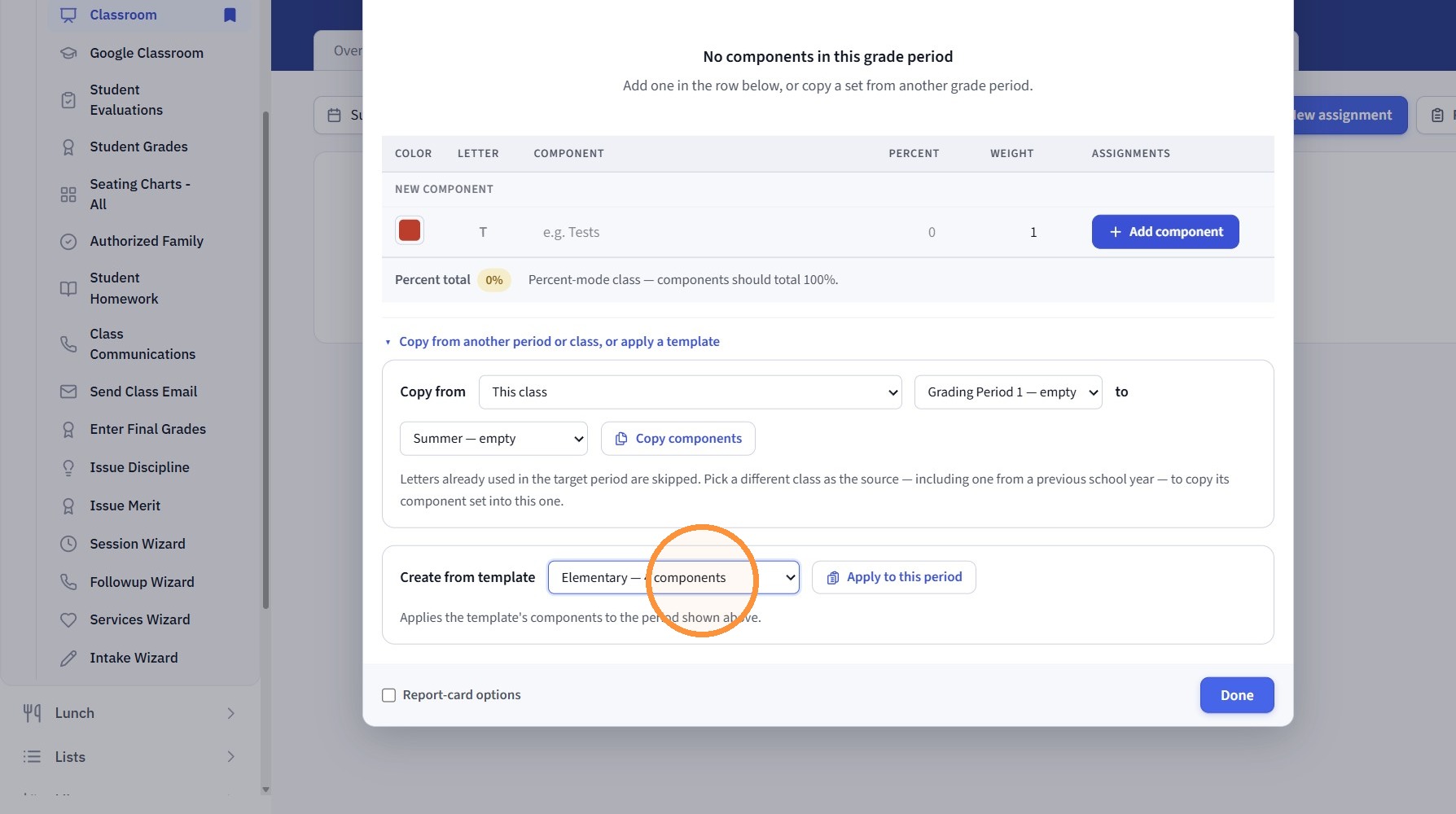
9. Click "Apply to this period"
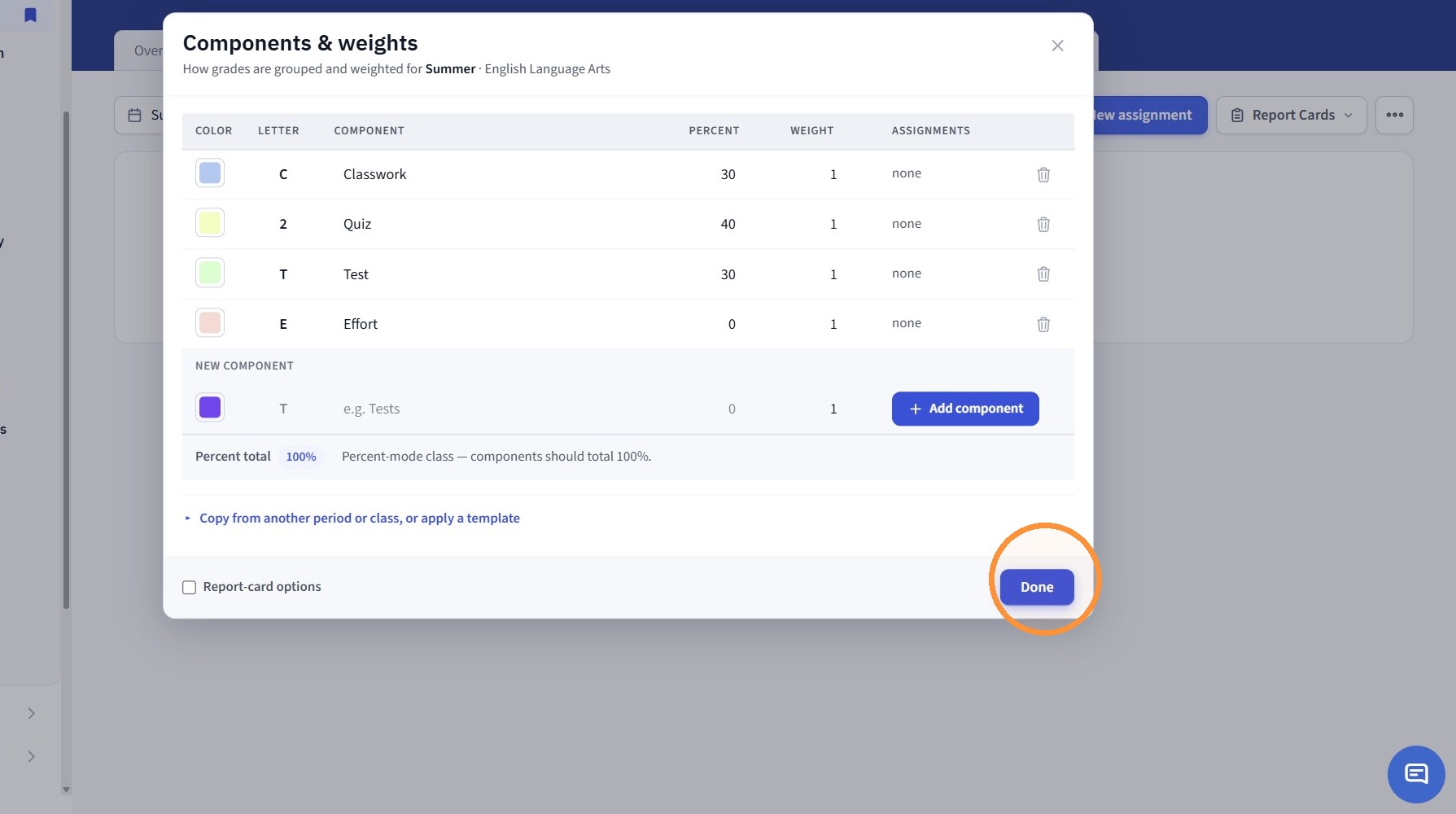
10. Click "Done"
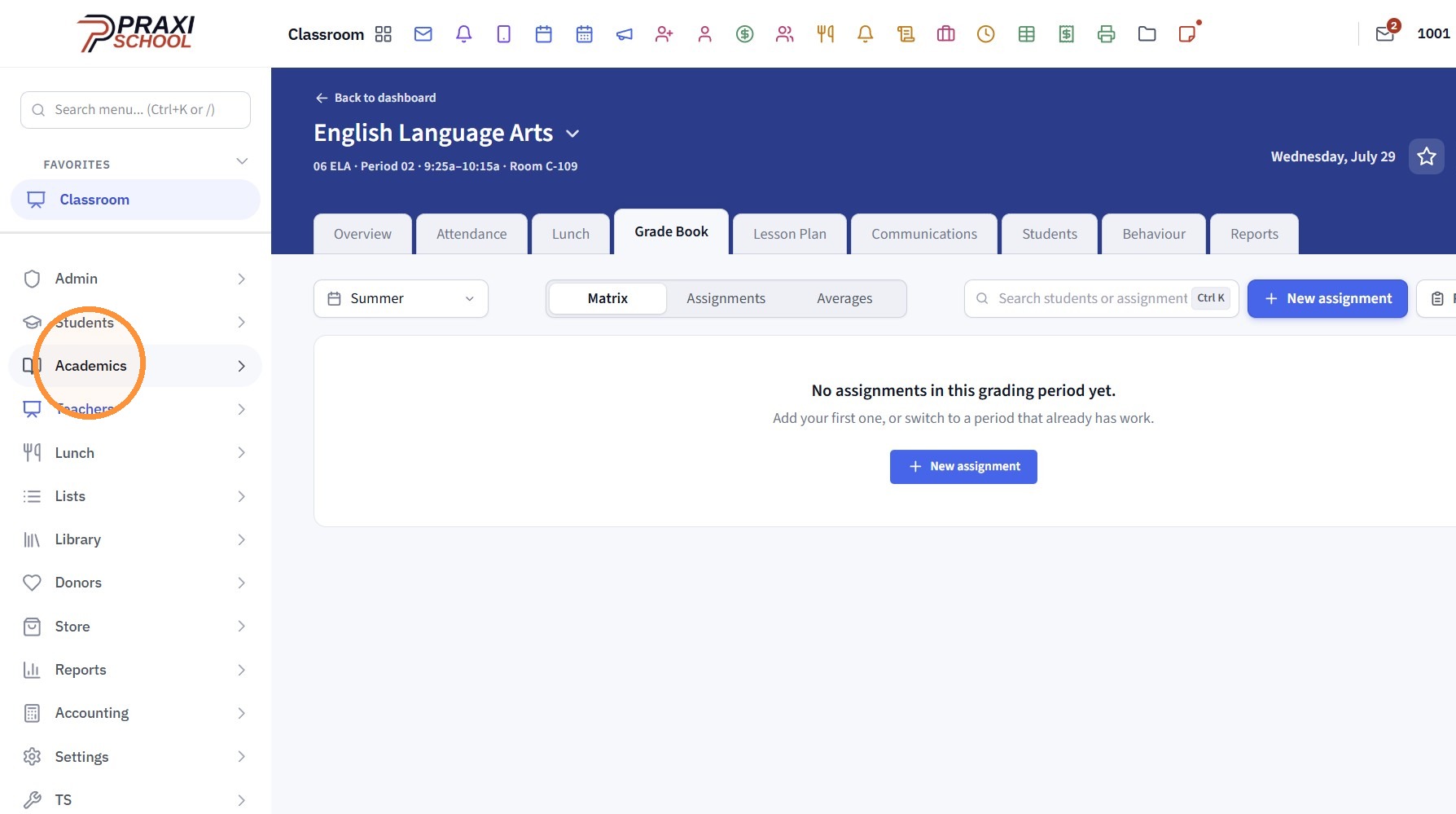
From Academics - Classes
11. Click "Academics"
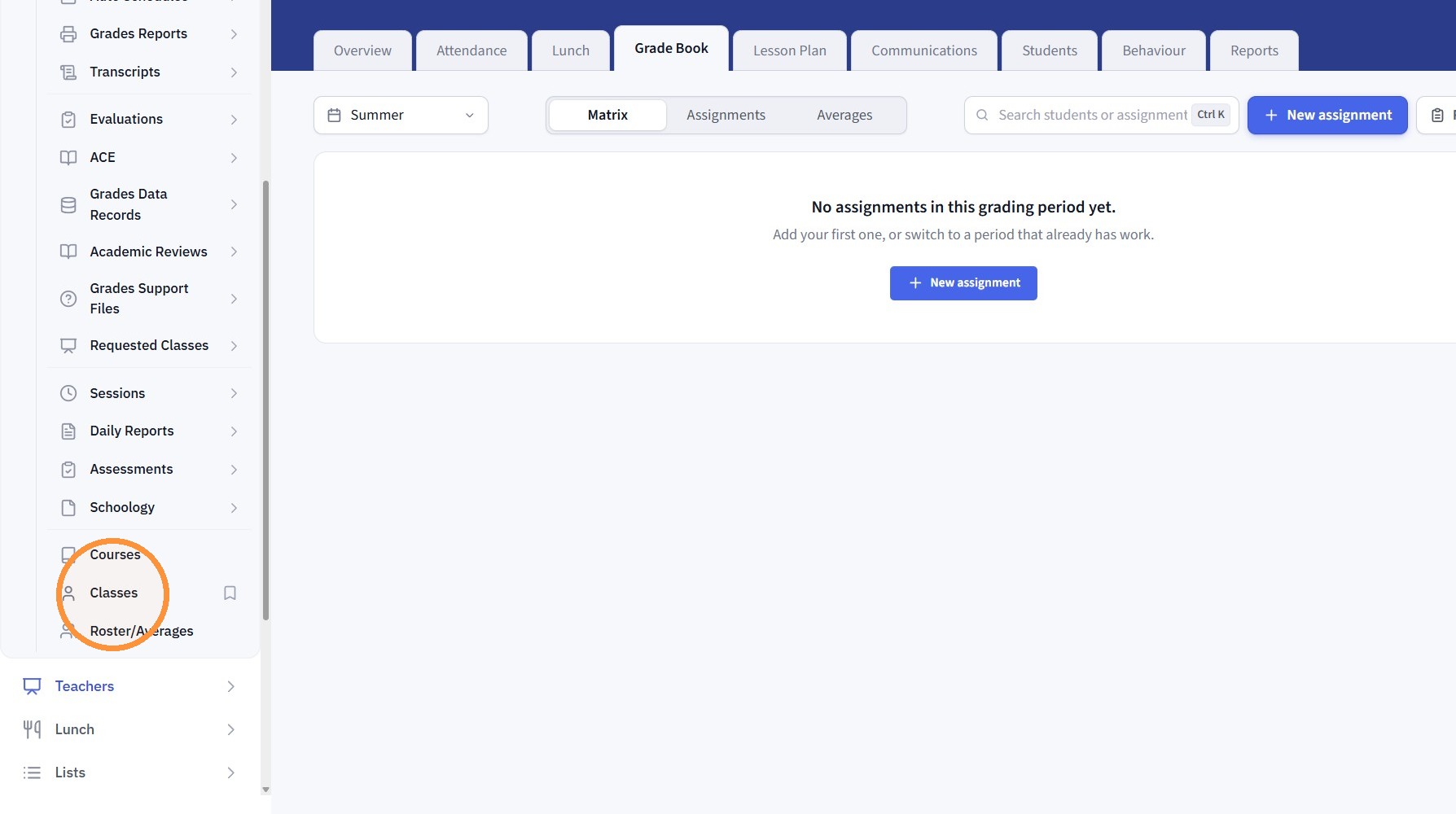
12. Click "Classes"
13. Click "Clear All Tags"
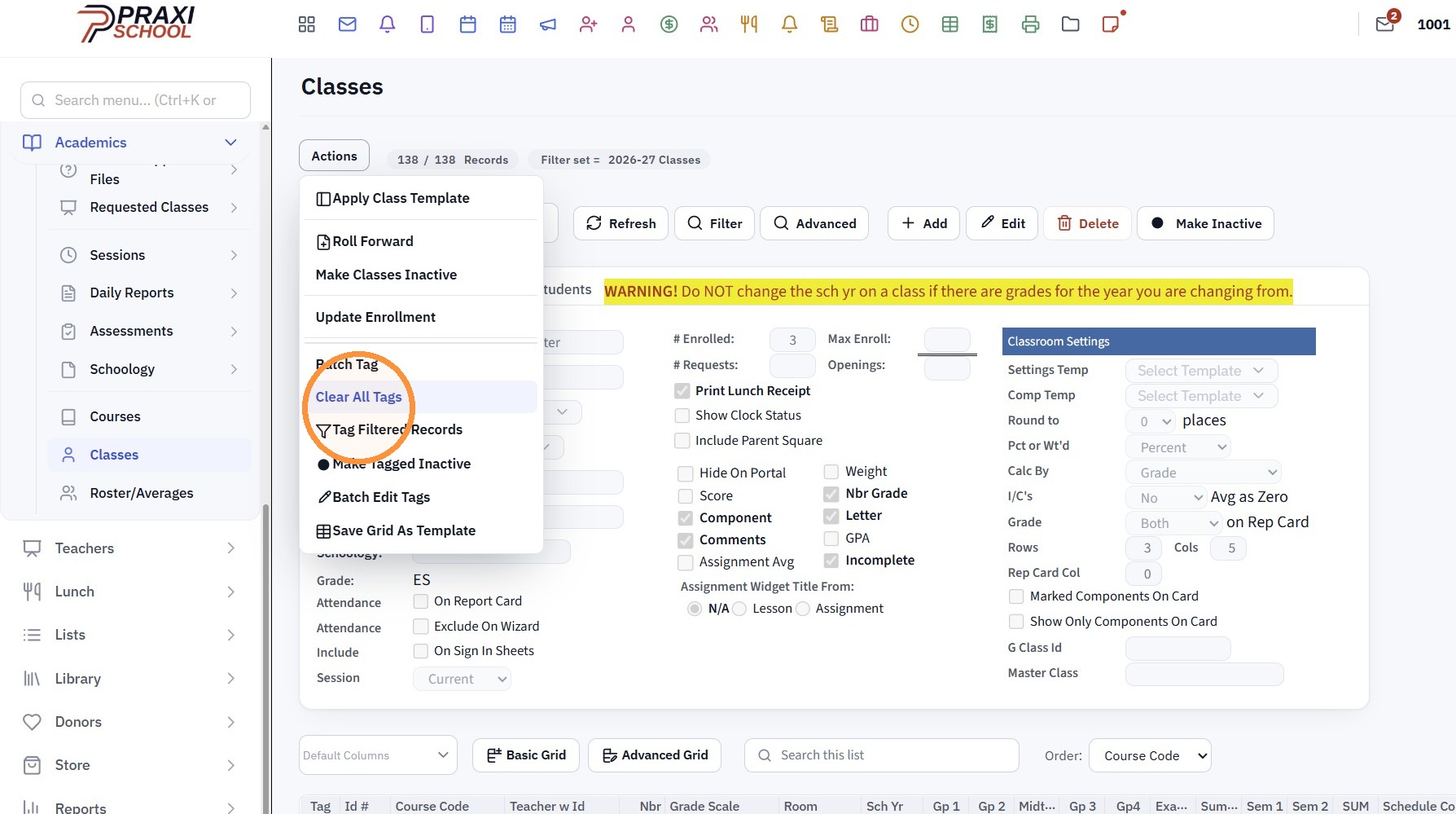
14. Tag Classes to Apply a Template
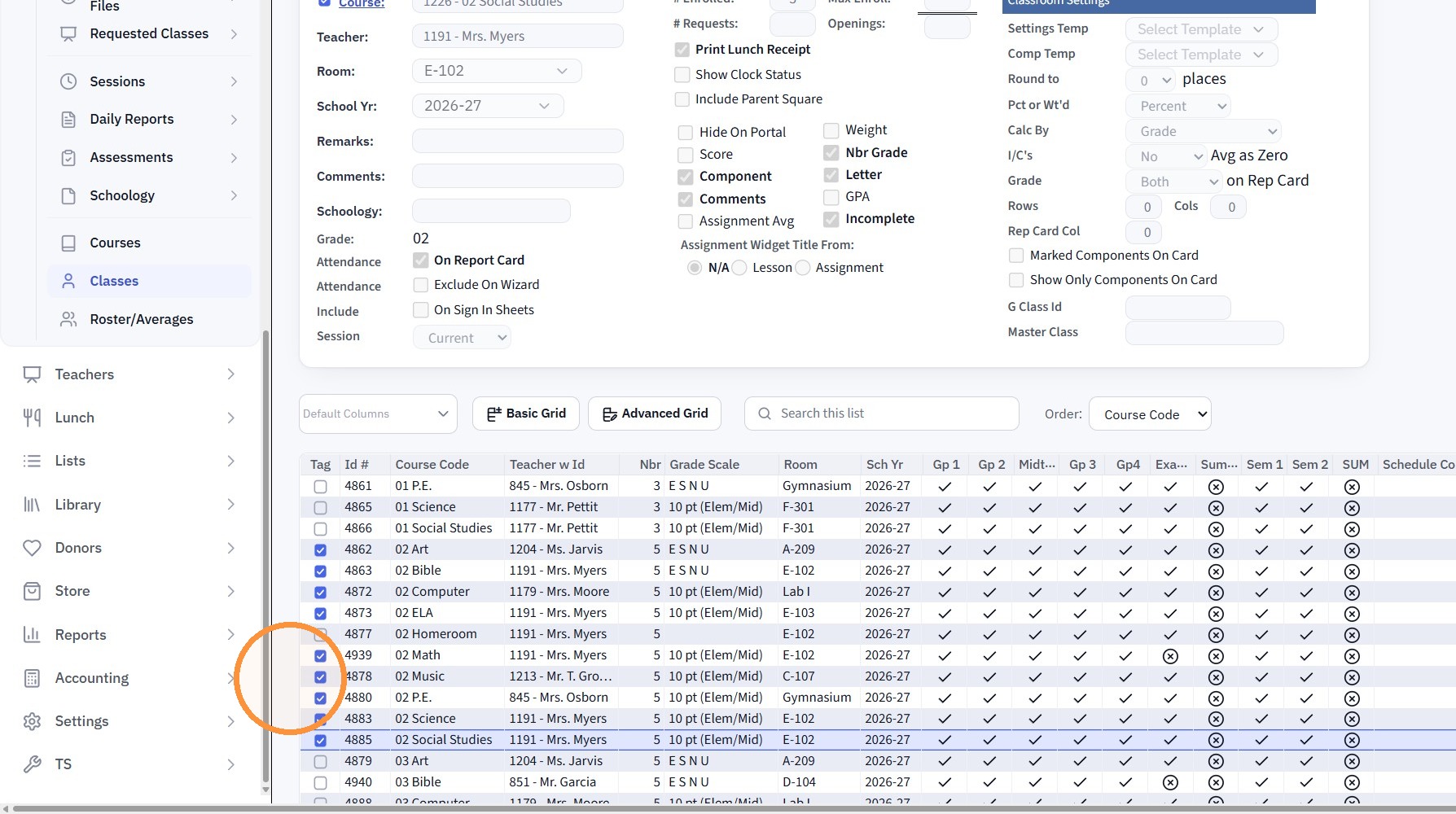
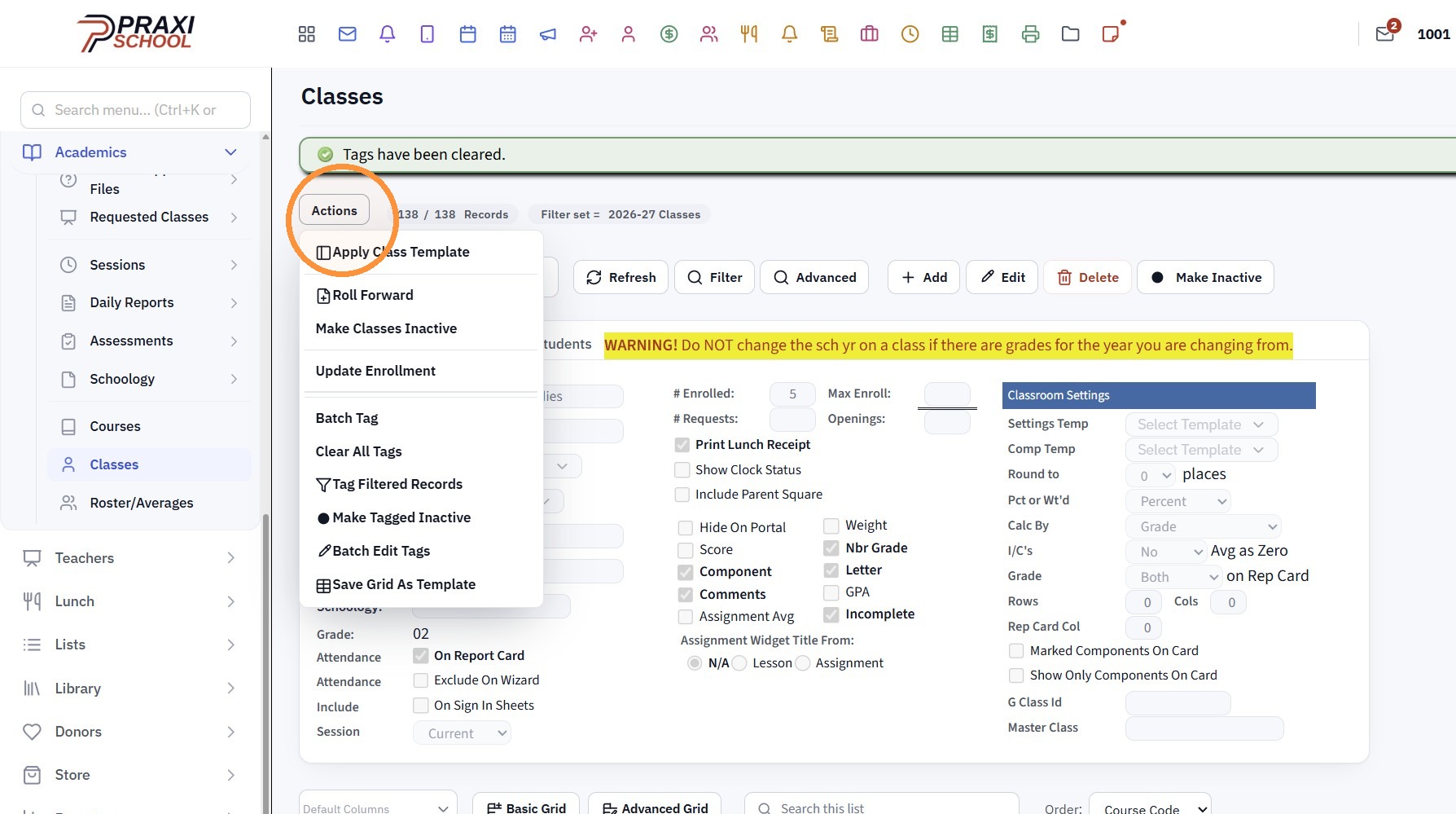
15. Click "Actions"
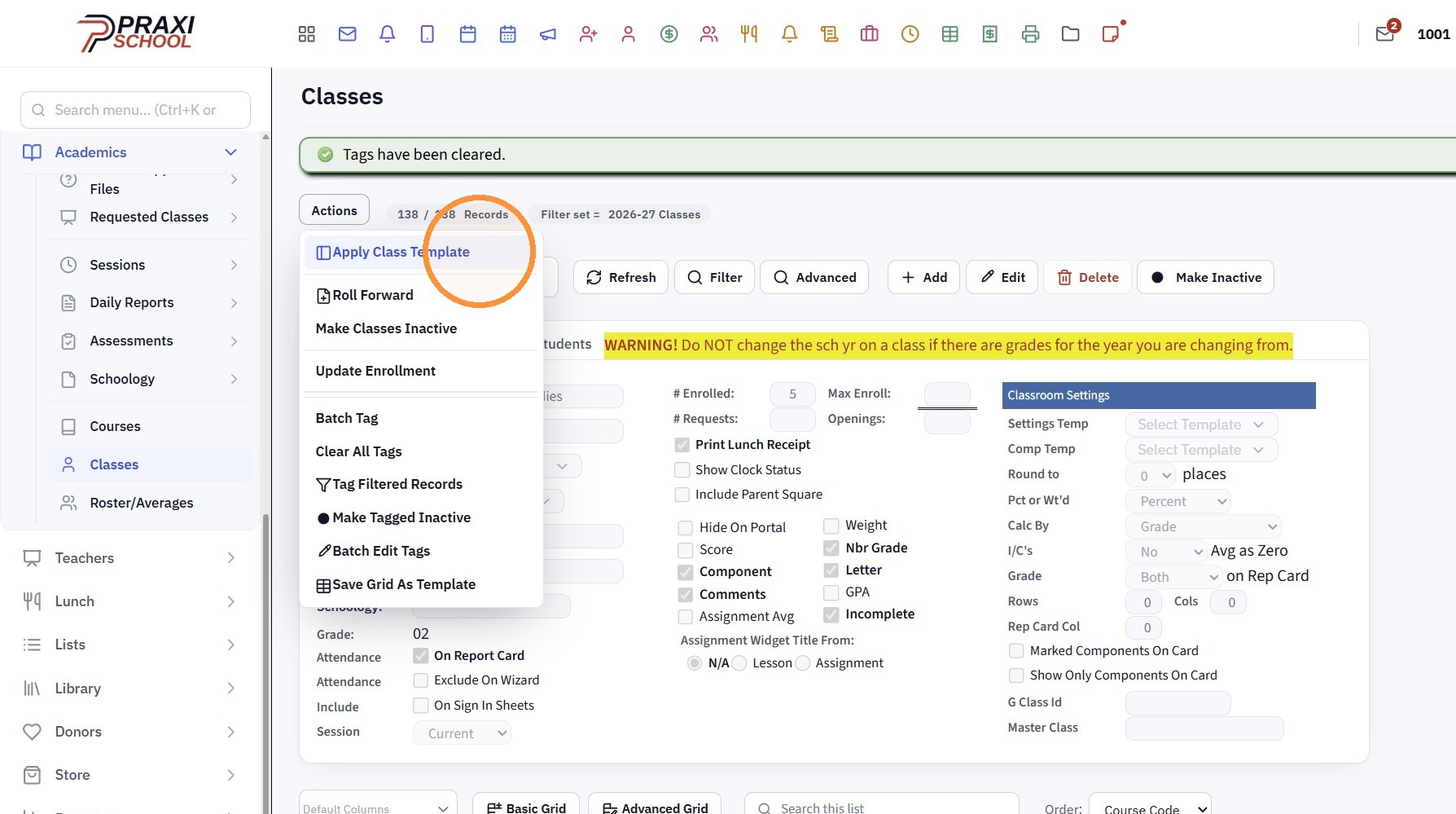
16. Click "Apply Class Template"
17. Click on "Components"
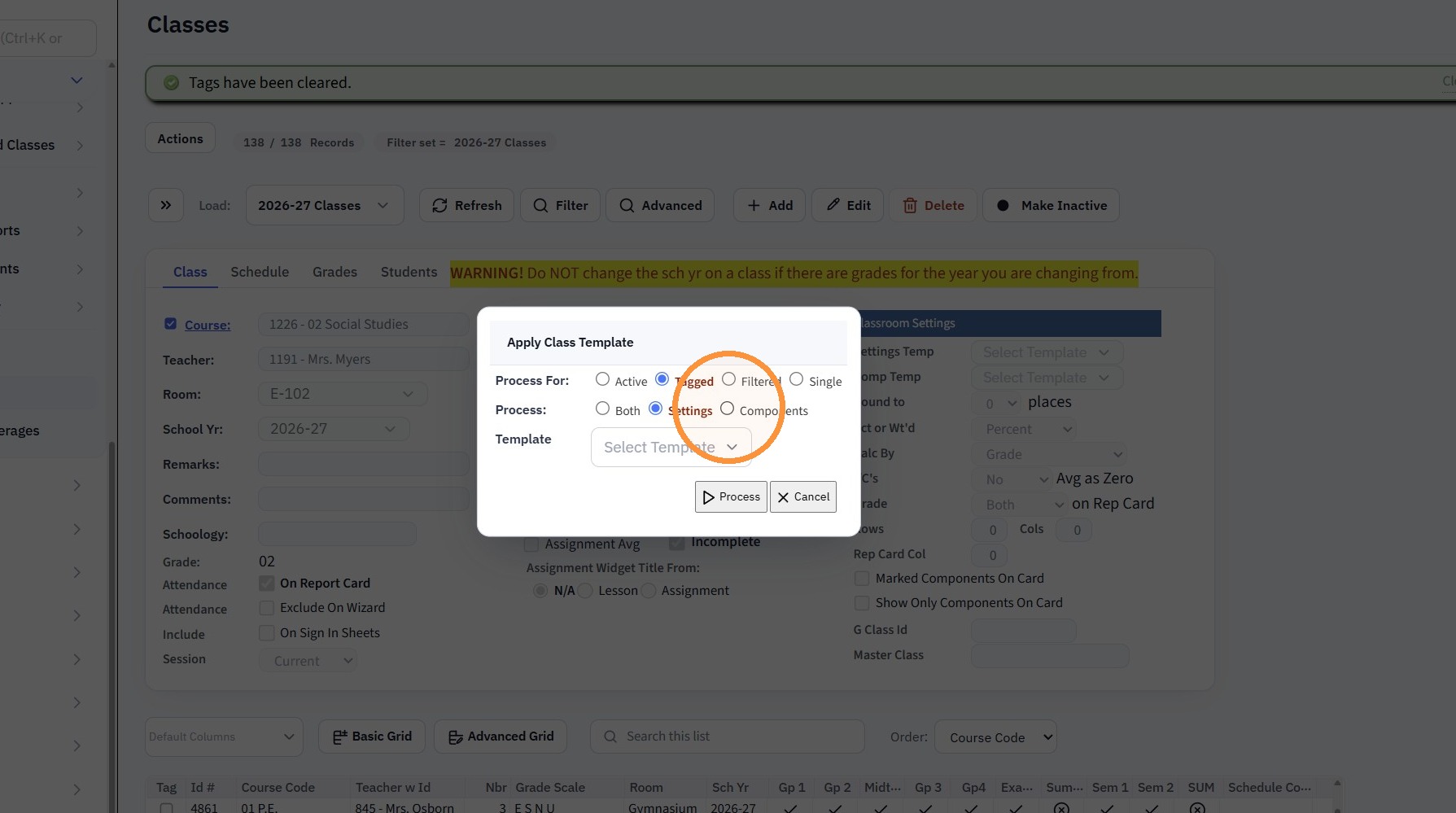
18. Select the Grade Periods to Apply Template to
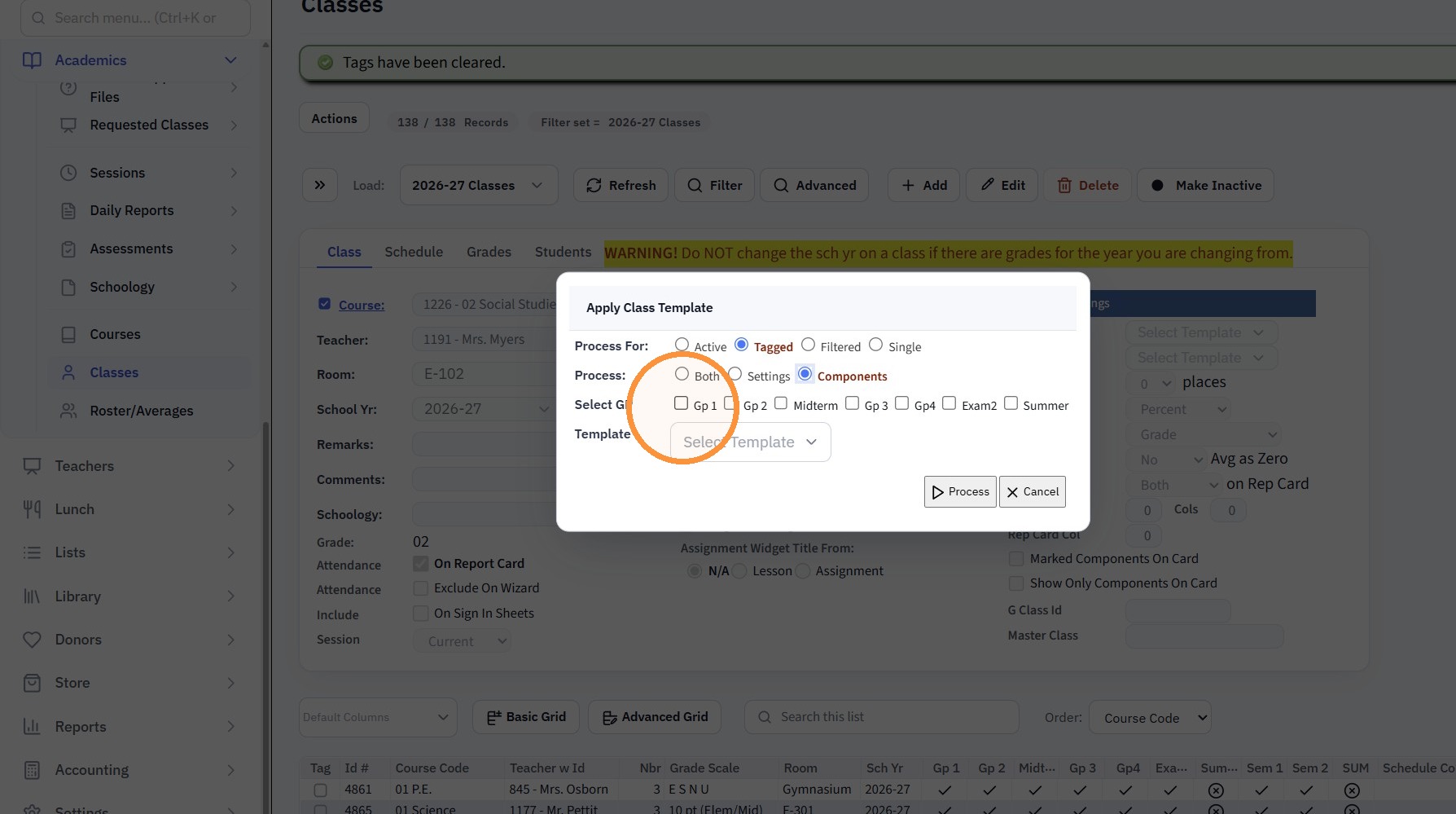
19. Select the Template
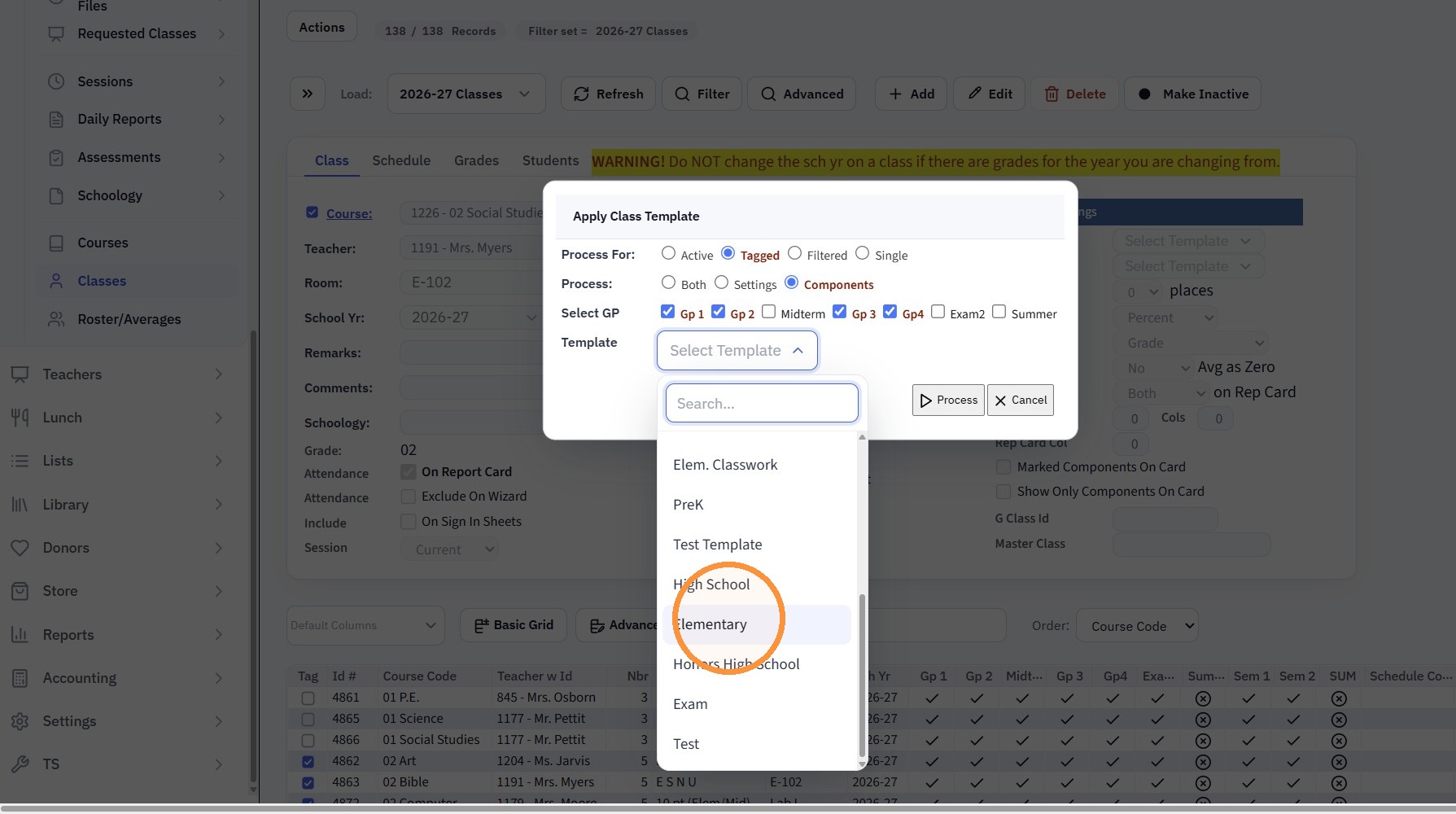
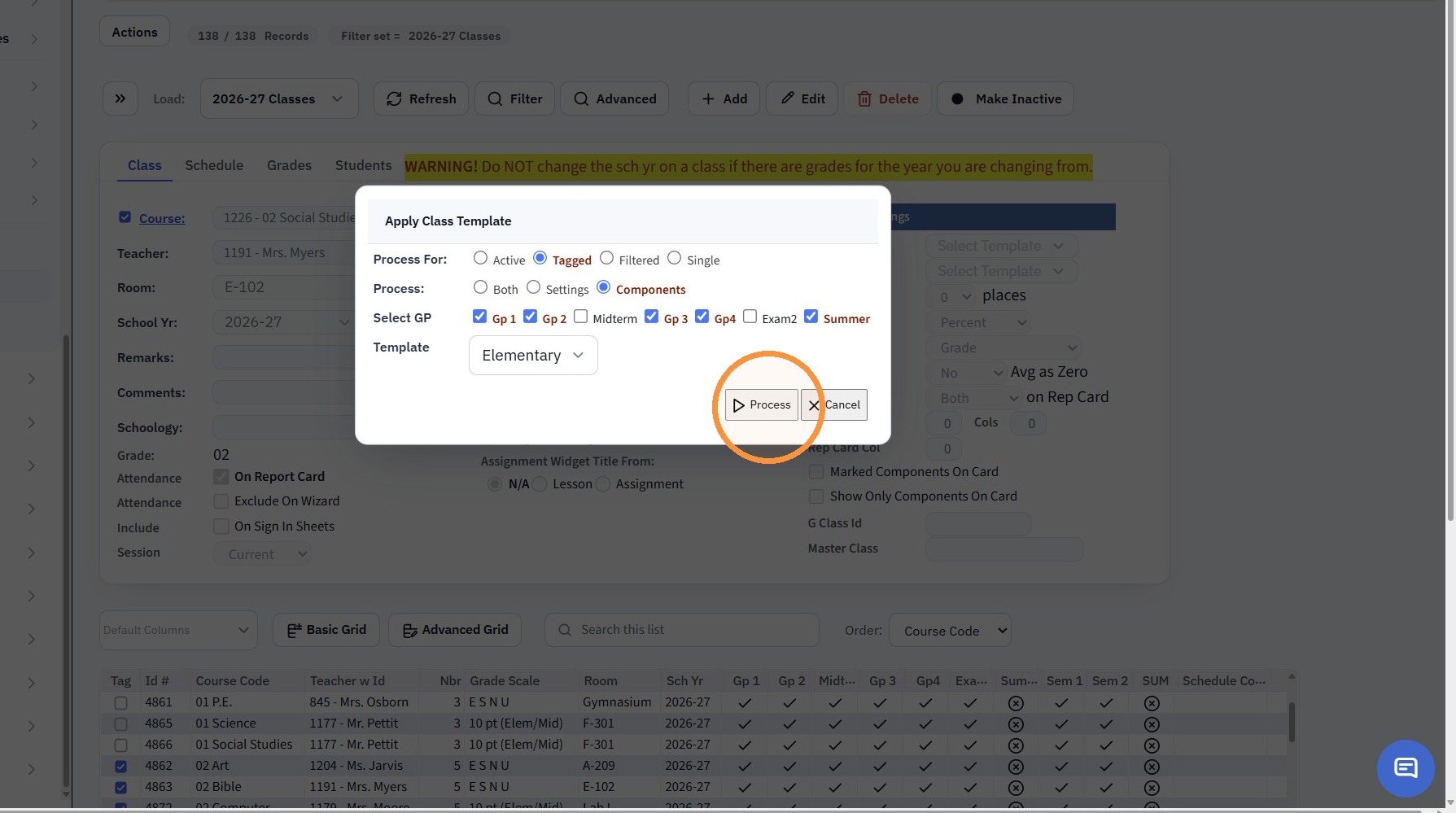
20. Click "Process"
Related Articles
Applying Class Templates
1. Click "Academics" 2. Click "Classes" 3. Tag Classes to Apply Template to 4. Click "Actions" 5. Click "Apply Class Template" 6. Click "Tagged" 7. Select to Apply Components 8. Select Grade Periods to Assign Template to 9. Select Template 10. Click ...Copying Components
Copying Components 1. Log into PraxiSchool 2. Click "Teachers" 3. Click "Classroom" 4. Select Class 5. Click "Assignments" 6. Click "Copy Components" 7. Select Class to Copy From 8. Select Grade Period to Copy From 9. Click "Save" 2500.1.25Creating Components
Creating Components 1. Log into PraxiSchool 2. Click "Teachers" 3. Click "Classroom" 4. Select Class 5. Click "Assignments" 6. Click "Add" 7. Enter 1 Letter Identifier (Ex. T - Test, H - Homework, C- Classwork, Q - Quiz) Enter Order (Optional) 8. ...Adding Components in the Classroom Gradebook
1. Go to the Classroom & Select the Class 2. Click "Open" 3. Click "Grade Book" 4. Click on the 3 dots 5. Select "Components & weights" 6. Enter the Component Name 7. Enter the Percentage for the Component 8. Click "Add component" to Add another ...Applying an Accounts Receivable Payment to Billed Charges
Applying an Accounts Receivable Payment to Billed Charges 1. Log into PraxiSchool 2. Click "Admin" 3. Click "Accounts Receivable" 4. Click on Open Apply Icon 5. Check Box Next to Payment First 6. Check Box Next to Charge(s) After Checking the Payment ...