Admin Desktop Reports: Attendance
1. Click "Admin"
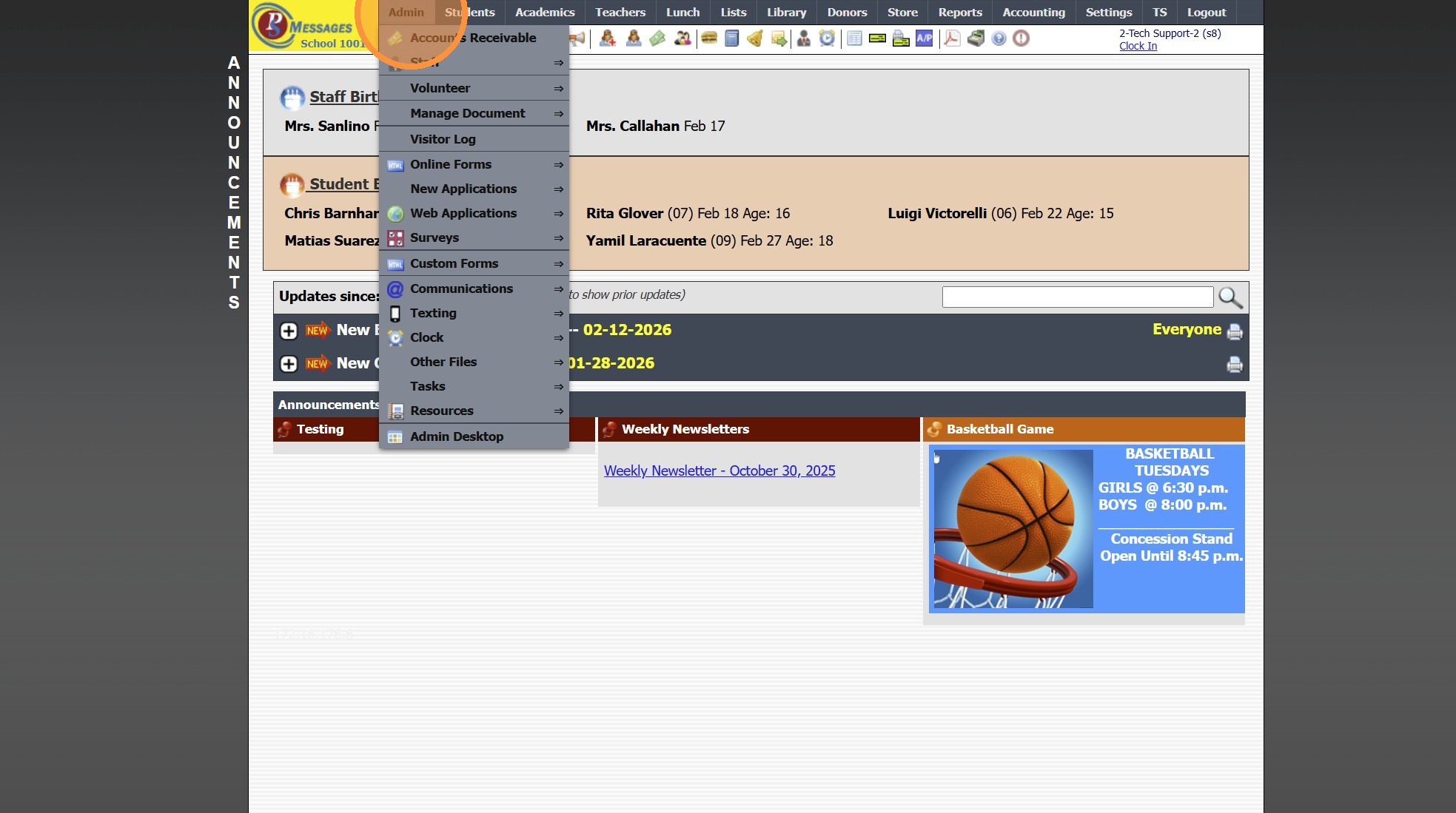
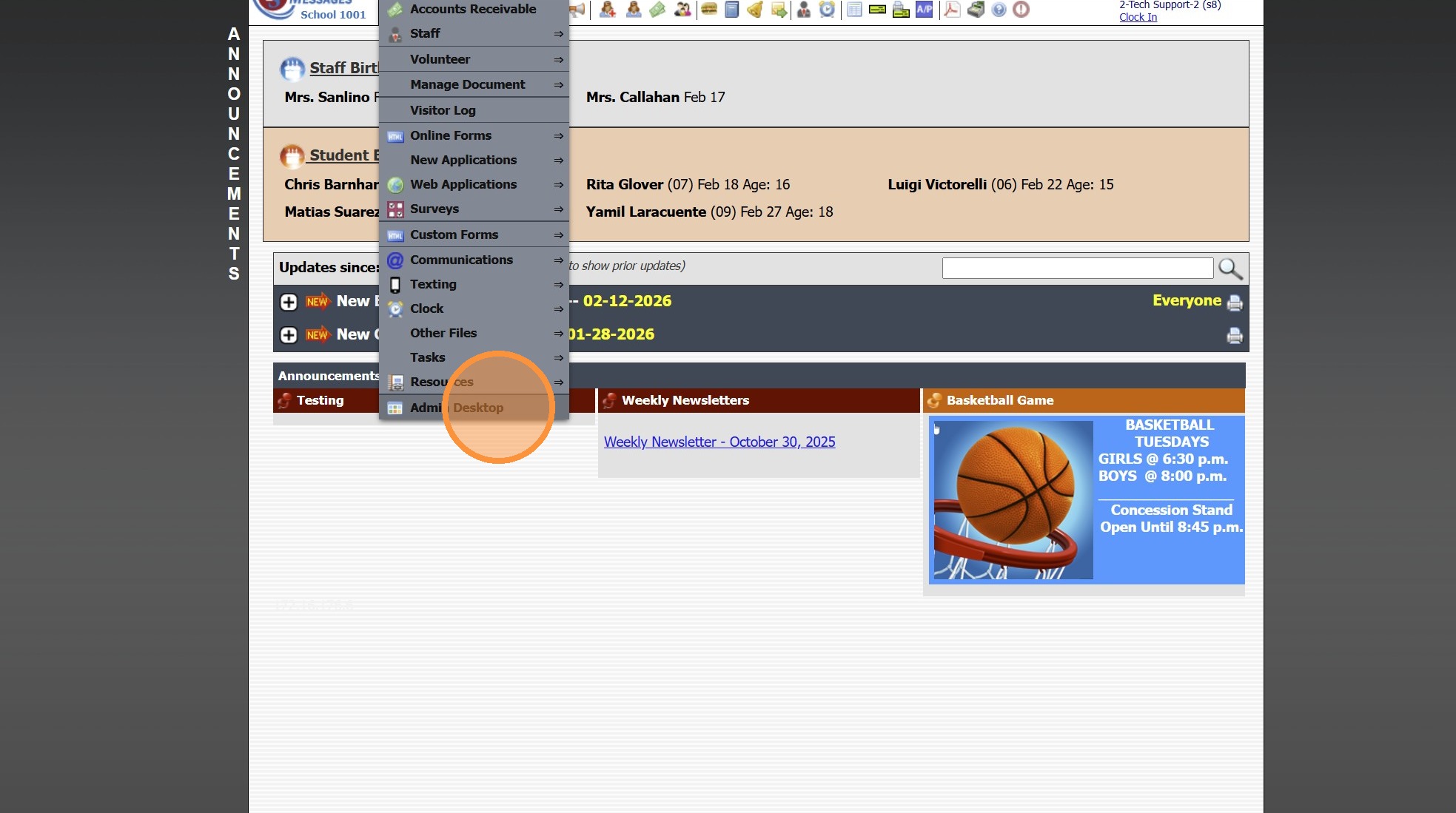
2. Click "Admin Desktop"
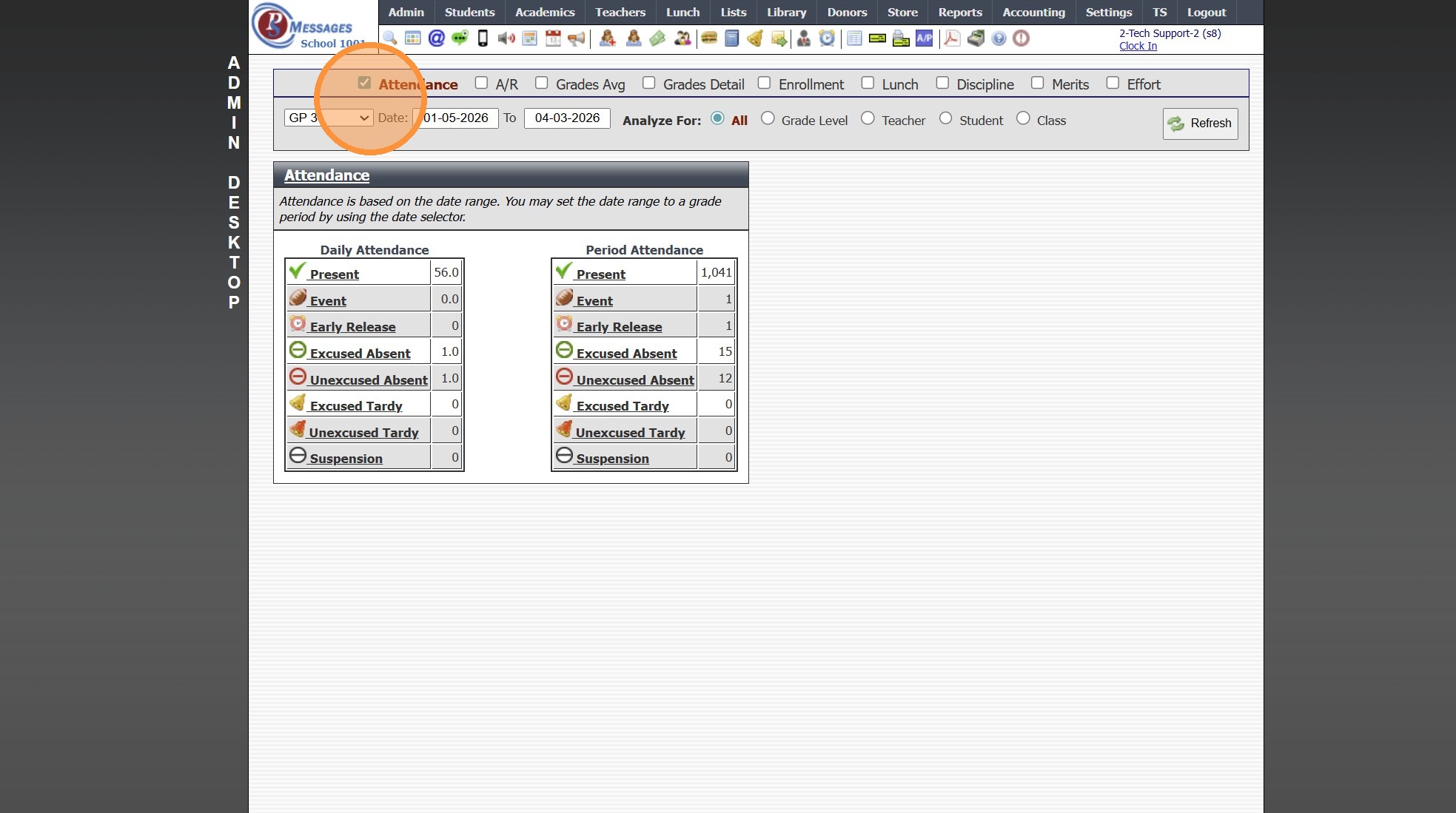
3. Select Attendance Option
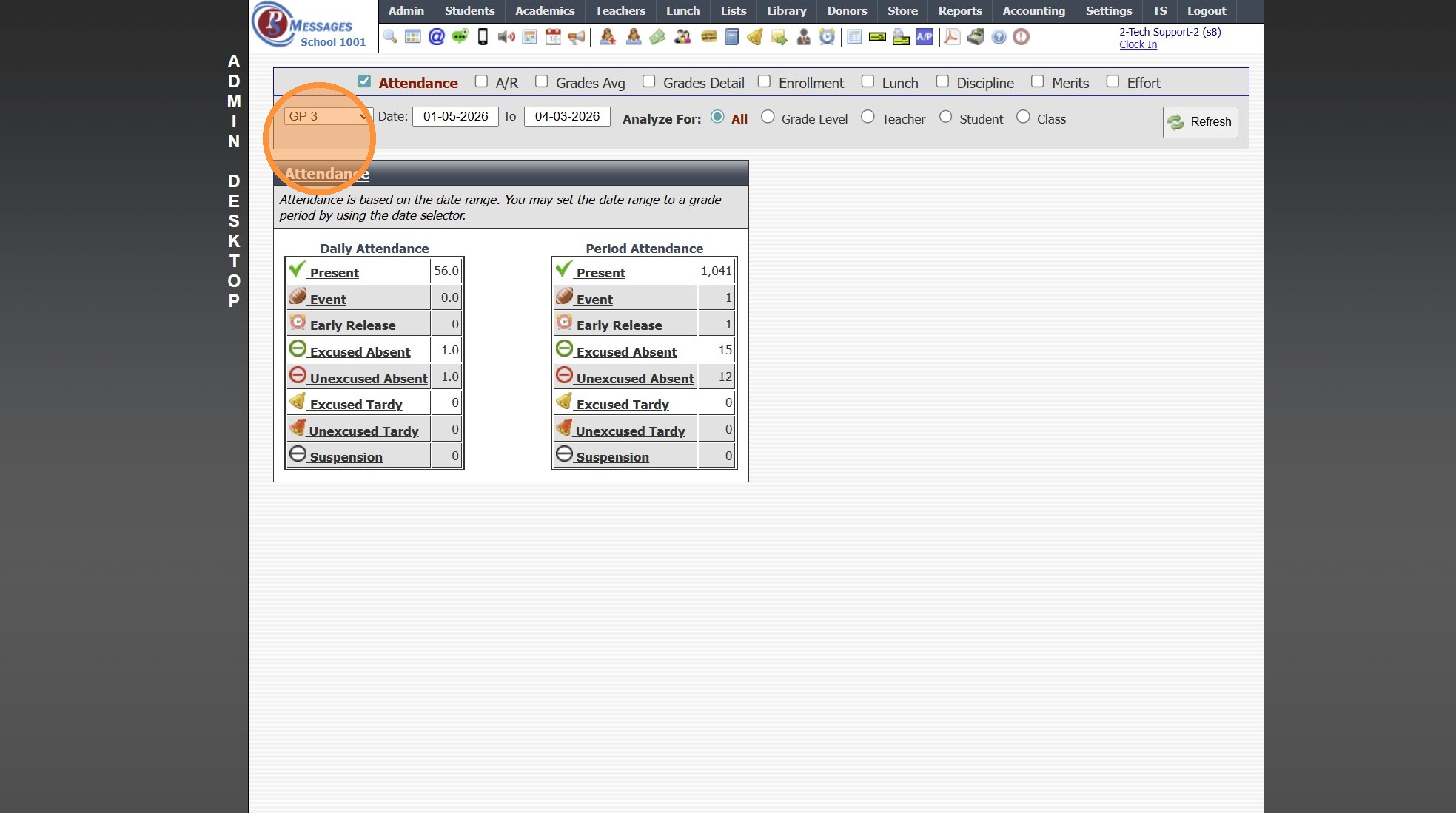
4. Select Grade Period or Date Range & Refresh
(If Date Range is Selected, enter Date From and Date To)
5. Select Analyze For Option
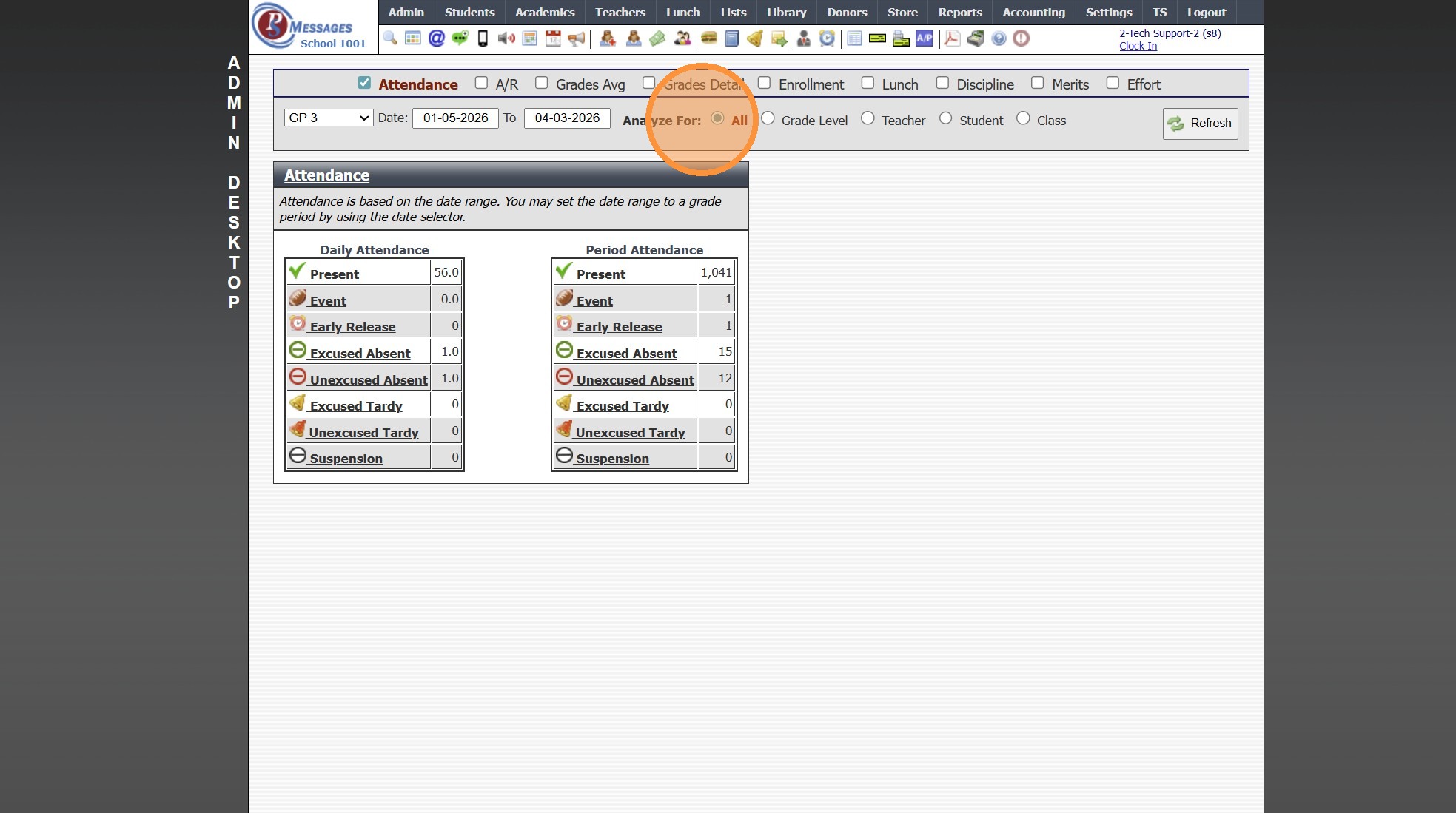
6. Attendance Reports for Daily Based Attendance
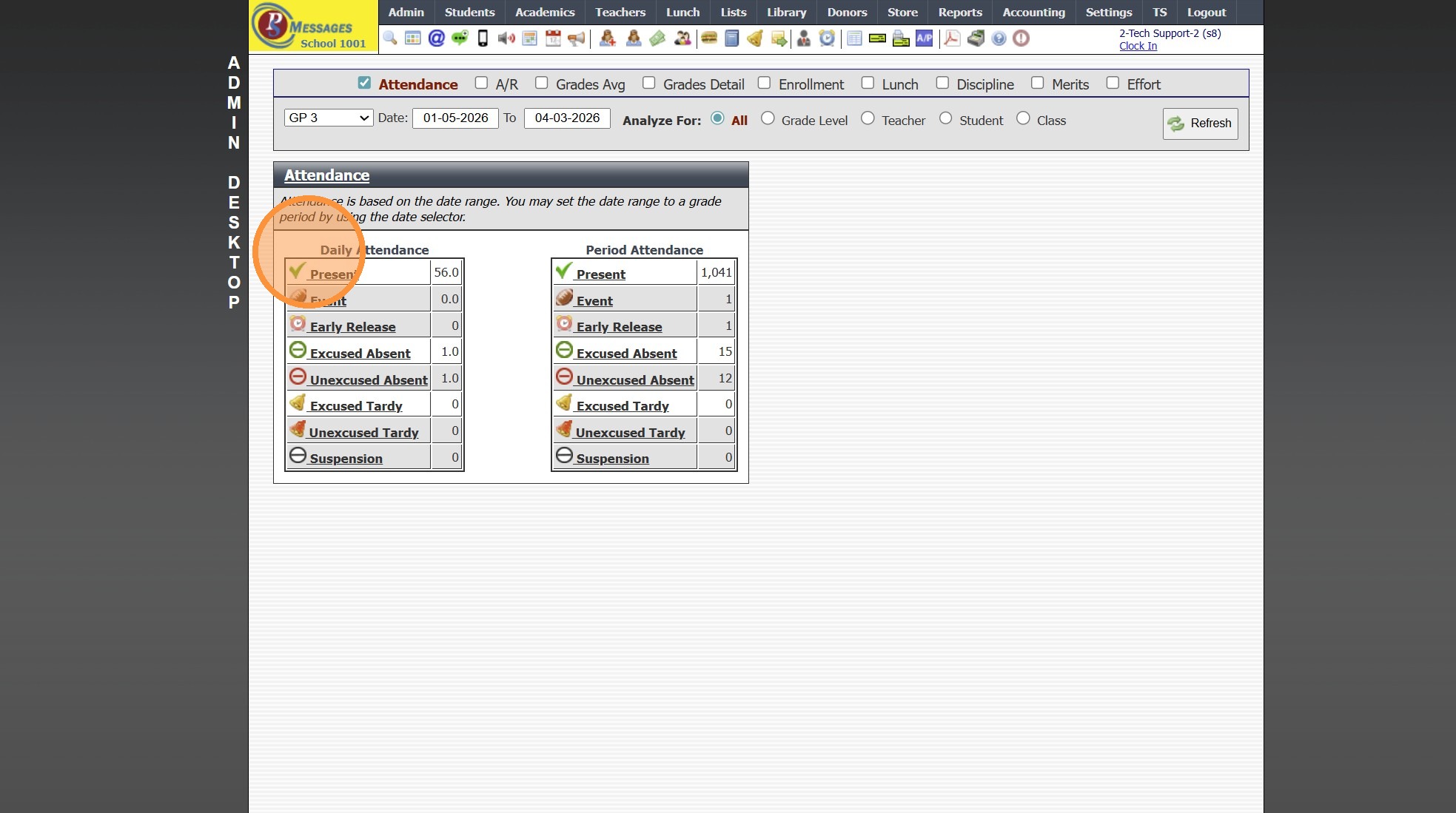
7. Select Attendance Type
(Ex. Present)
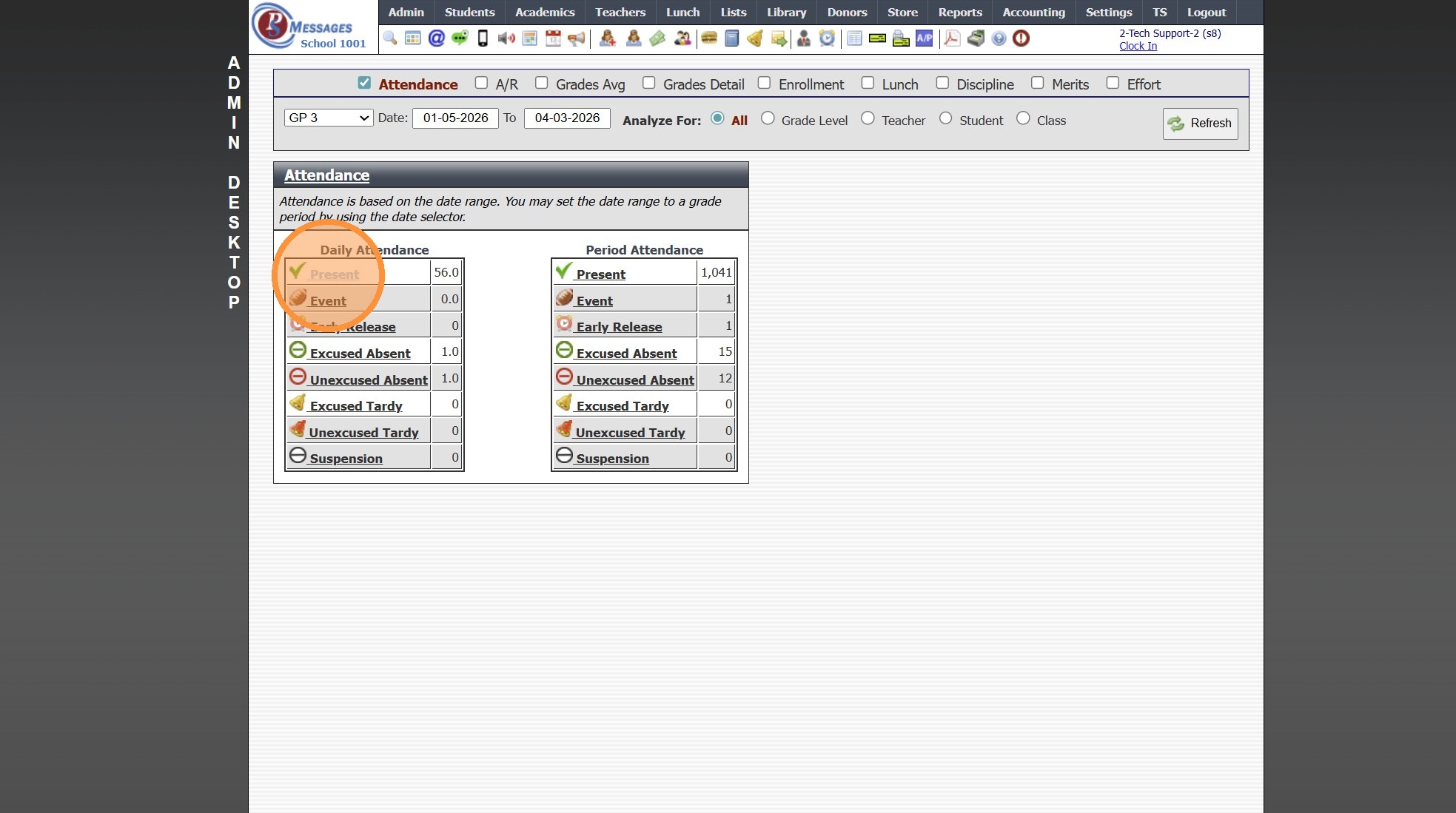
8. Daily Attendance for Selected Attendance Type Populates
(Attendance Report Shows each Student Marked for the Selected Attendance Type)
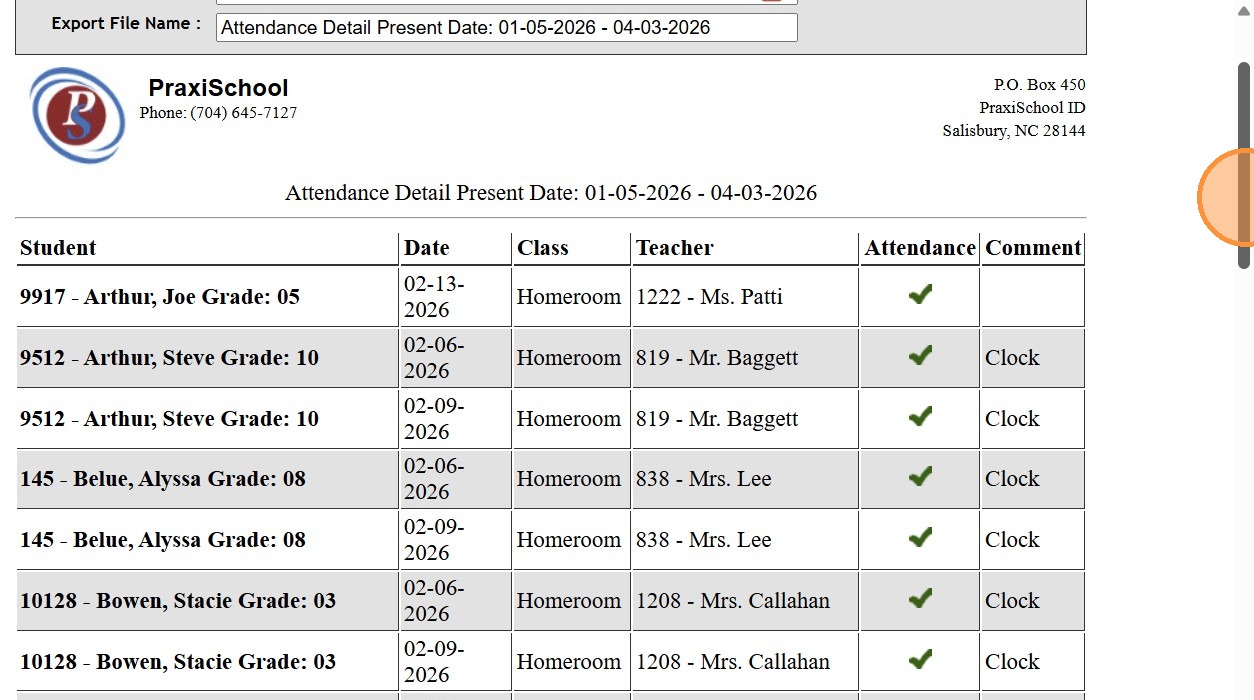
9. Attendance Reports for Period Based Attendance
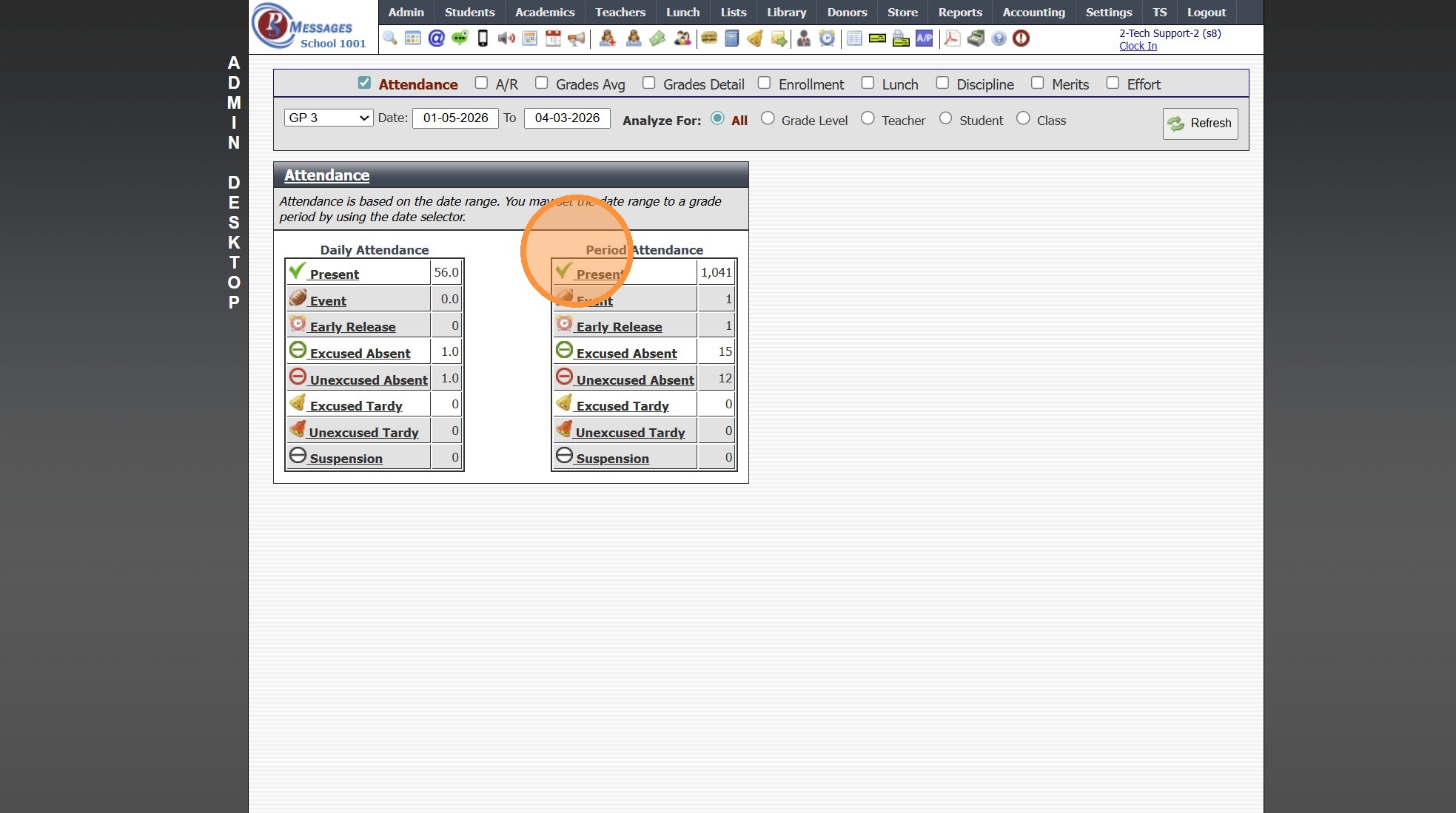
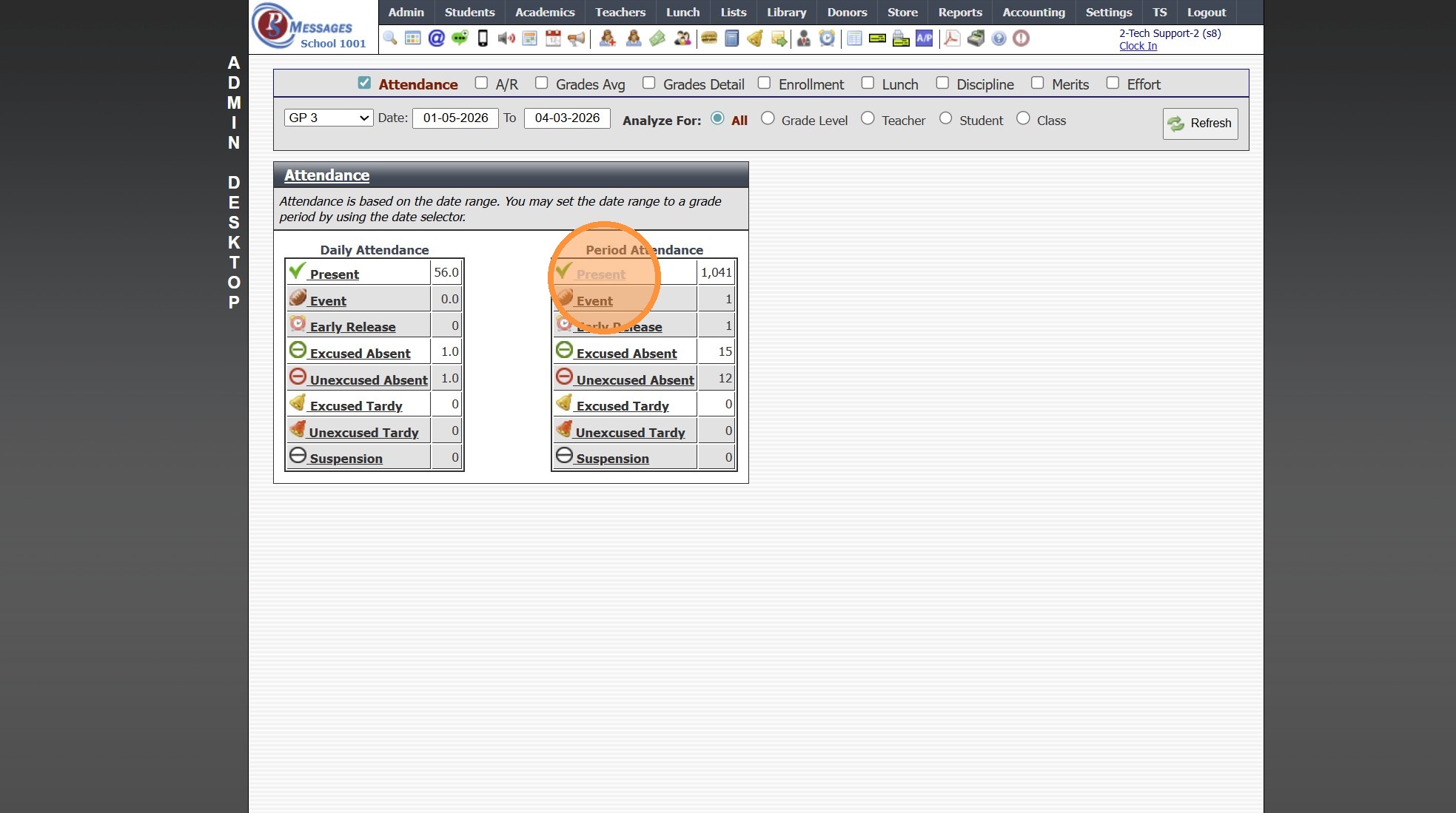
10. Select Attendance Type
(Ex. Present)
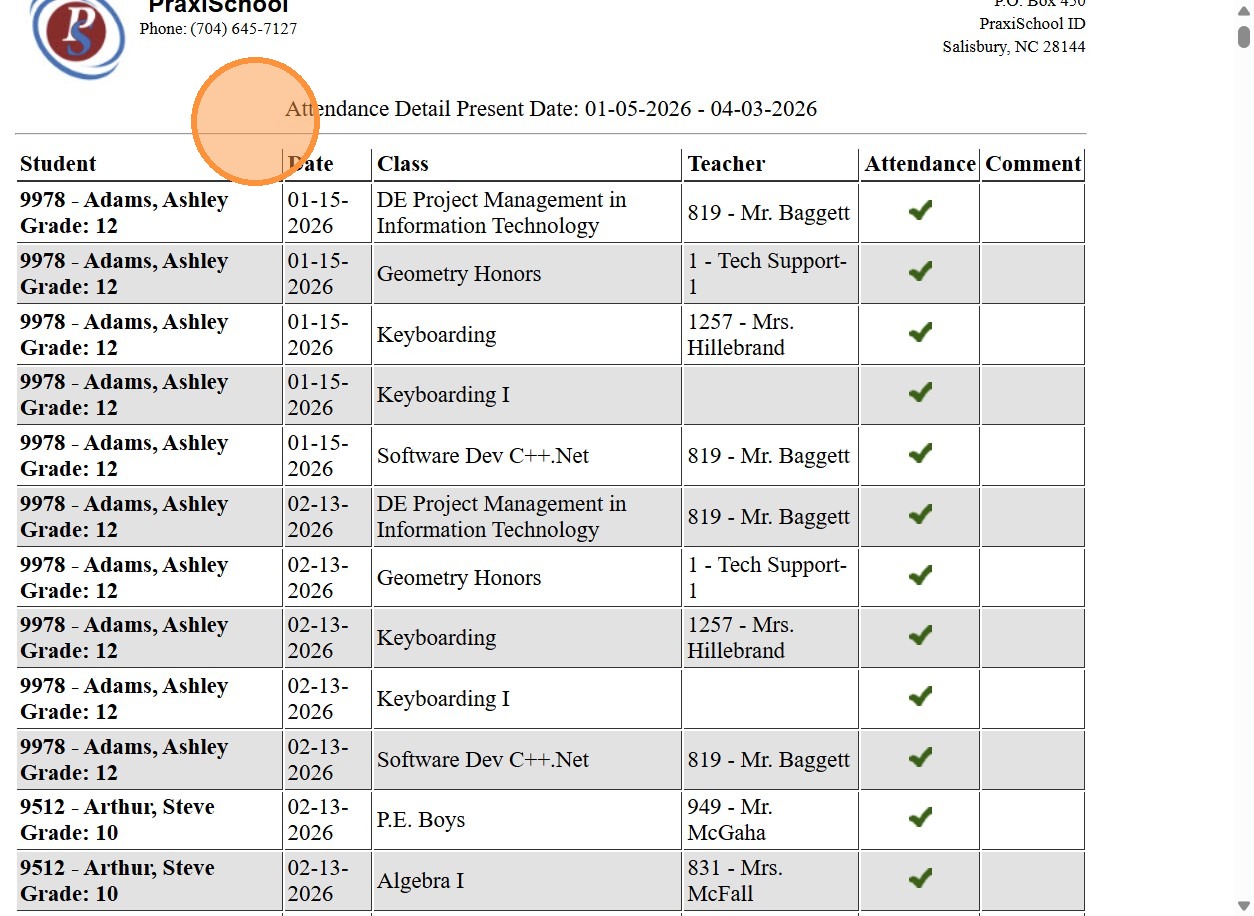
11. Period Attendance for Selected Attendance Type Populates
(Attendance Report Shows each Student Marked for the Selected Attendance Type)
1000.16.1
Related Articles
Staff Attendance Reports by Attendance Type
Staff Attendance Reports by Attendance Type 1. Click "Admin" 2. Click "Staff" 3. Click "Staff Attendance Wizard" 4. Select Date (Group can be selected to view Attendance for staff in a specific Staff Group) (Type can be selected to view a specific ...Viewing & Printing Staff Attendance Reports
Viewing & Printing Staff Attendance Reports 1. Click "Admin" 2. Click "Staff" 3. Click "Staff Attendance" 4. Select Date Range and Refresh to View Attendance 5. Select a Grid Report 6. Click Print & Select Print Option 1000.2.6Icon Toolbar - Admin Desktop Icon
Icon Toolbar - Admin Desktop Icon Click on the Admin Desktop Icon for Quick Access to the Admin Desktop 7500.1.2Attendance Report - Student Reports
Attendance Report - Student Reports 1. Click "Academics" 2. Click "Attendance Reports" 3. Click "Student Reports" 4. Set Date From and Date To 5. Click "Select All" 6. Click "Print" 7. Attendance Report will Generate to be Printed, Emailed of Saved ...Emailed Daily Attendance Reports
1. Click "Settings" 2. Click "School Settings" 3. Click "Scheduled - Tasks" 4. Scroll to the "Email Daily Attendance Reports" Section 5. Enter Run Time & Staff Id(s) to Receive Report 6. Select Report Preferences 7. Click "Save" 6500.2.55