1. Click "Admin" 2. Click "Online Forms" 3. Click "Forms" 4. Select Form 5. Click "Header HTML" 6. Click "Preview Form" 7. A Preview of the Form will Populate 1000.6.20
Example Re-Enrollment Form 1. Click "Admin" 2. Click "Online Forms" 3. Click "Build Forms" 4. Select Form 5. Click the "+" Icon to Add a Page 6. Enter the Order Number (Recommendation: Set Order Numbers in Increments of 5 or 10 to Allow Additional ...
Custom Fields create for Online Forms are for the purpose of Printing the Form Only, Custom Fields do NOT Save to the Student, AR nor Family Files. 1. Click "Admin" 2. Click "Online Forms" 3. Click "Custom Fields" 4. Click "Add" 5. Select or Add a ...
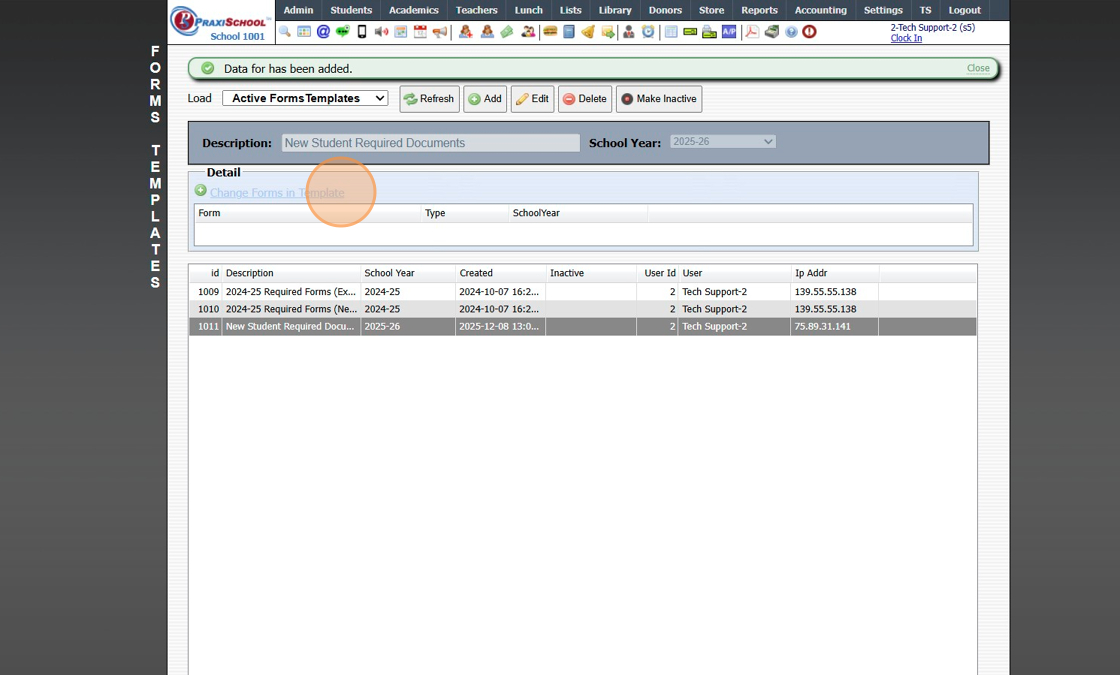
Adding Required Forms 1. Click "Lists" 2. Click "Enrollment" 3. Click "Forms" 4. Click "Add" 5. Enter Form Name & Type (Order, Abbreviation & Comment can be added) (Optional) 6. Click "Save" 3500.1.9
Sharing Email Templates 1. Login to PraxiSchool 2. Go to File where emailed is copied from 3. Click "Actions" 4. Click "Send Email" 5. Click "Source" 6. Select & Copy All Source Screen Data 7. Click "Finished" After Copying Source 8. Click "Send ...