Accessing Prior Grade Period Information in the Classroom
1. Click "Teachers"
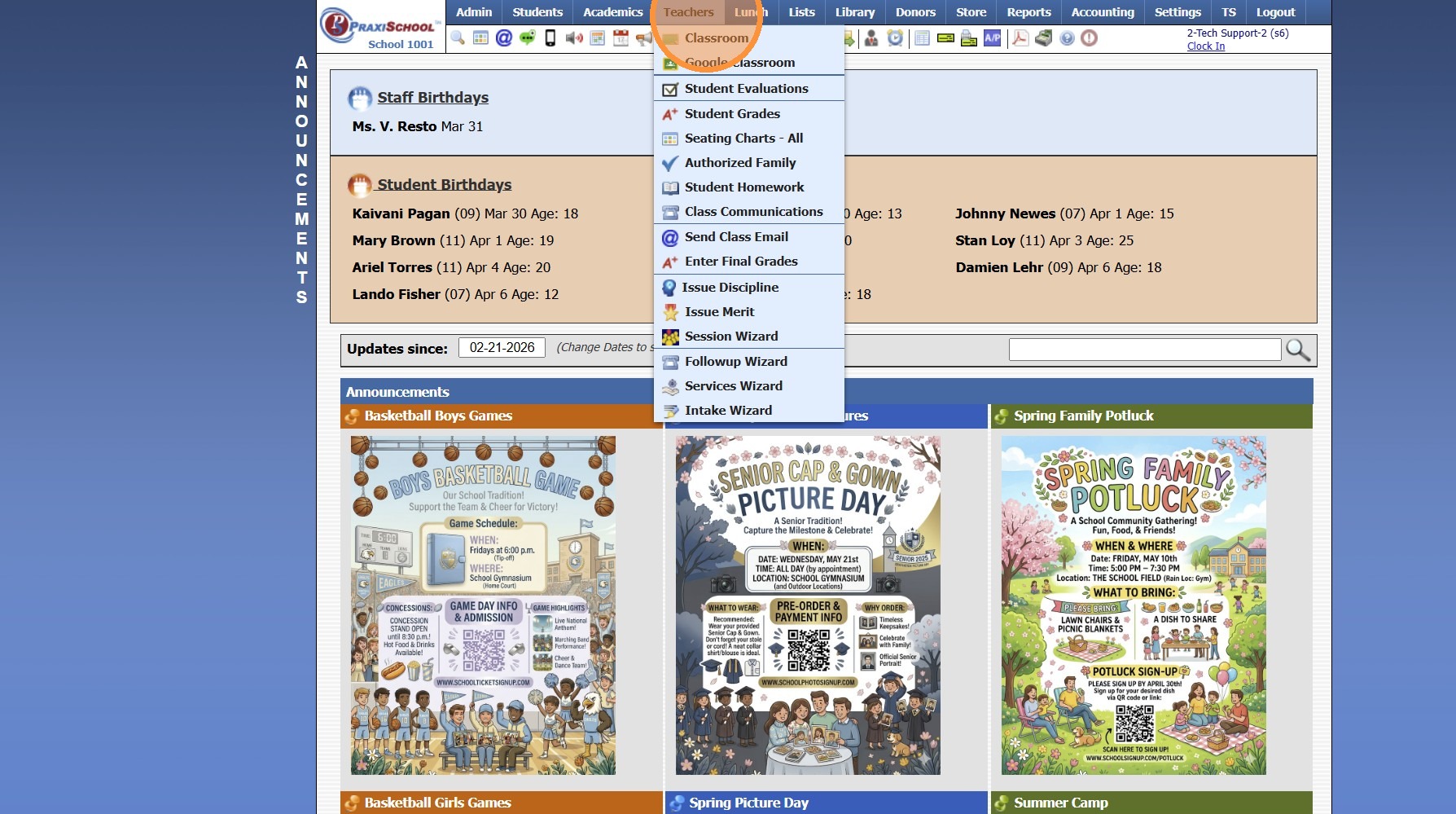
2. Click "Classroom"
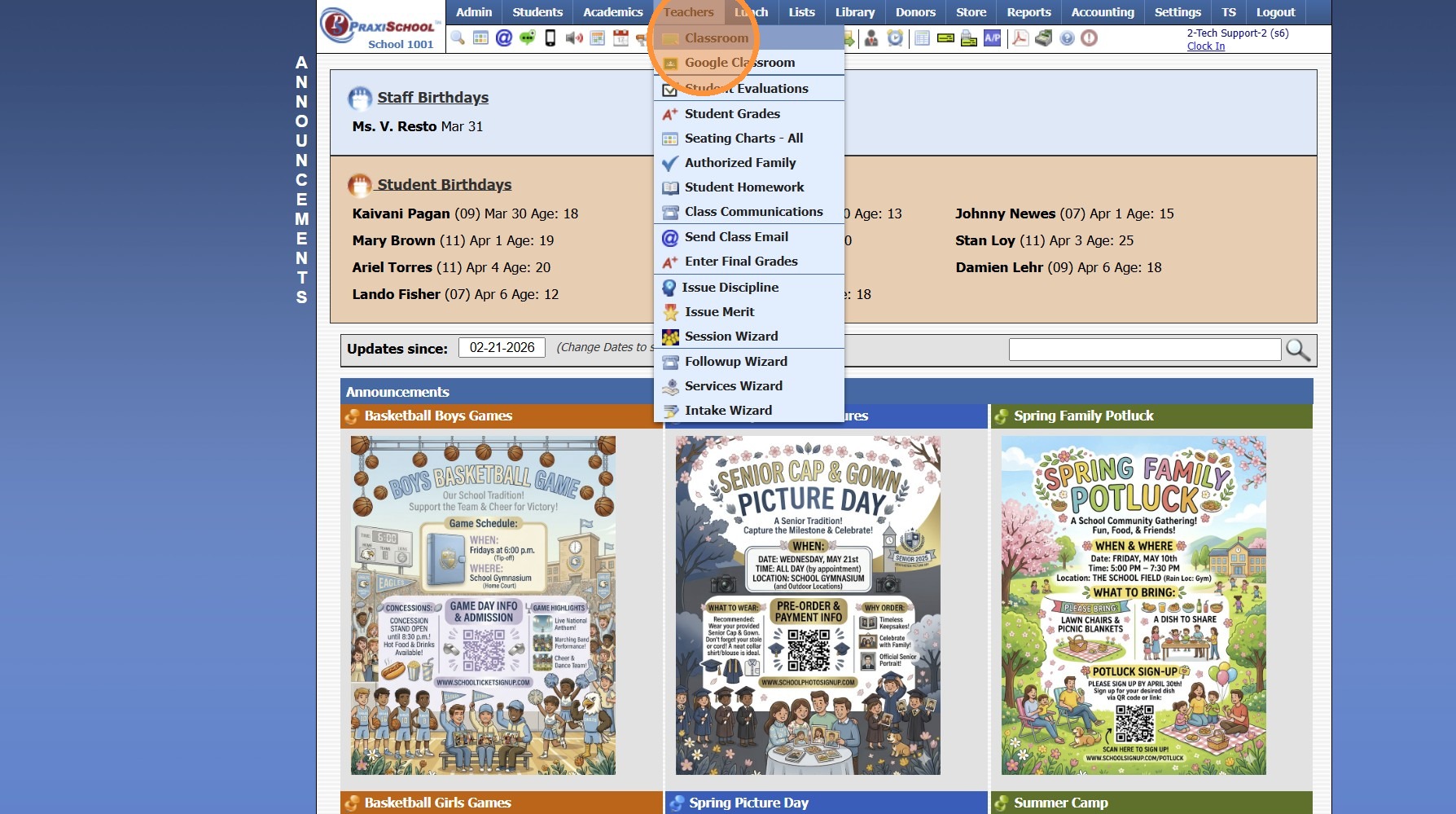
3. Click in the Date Field
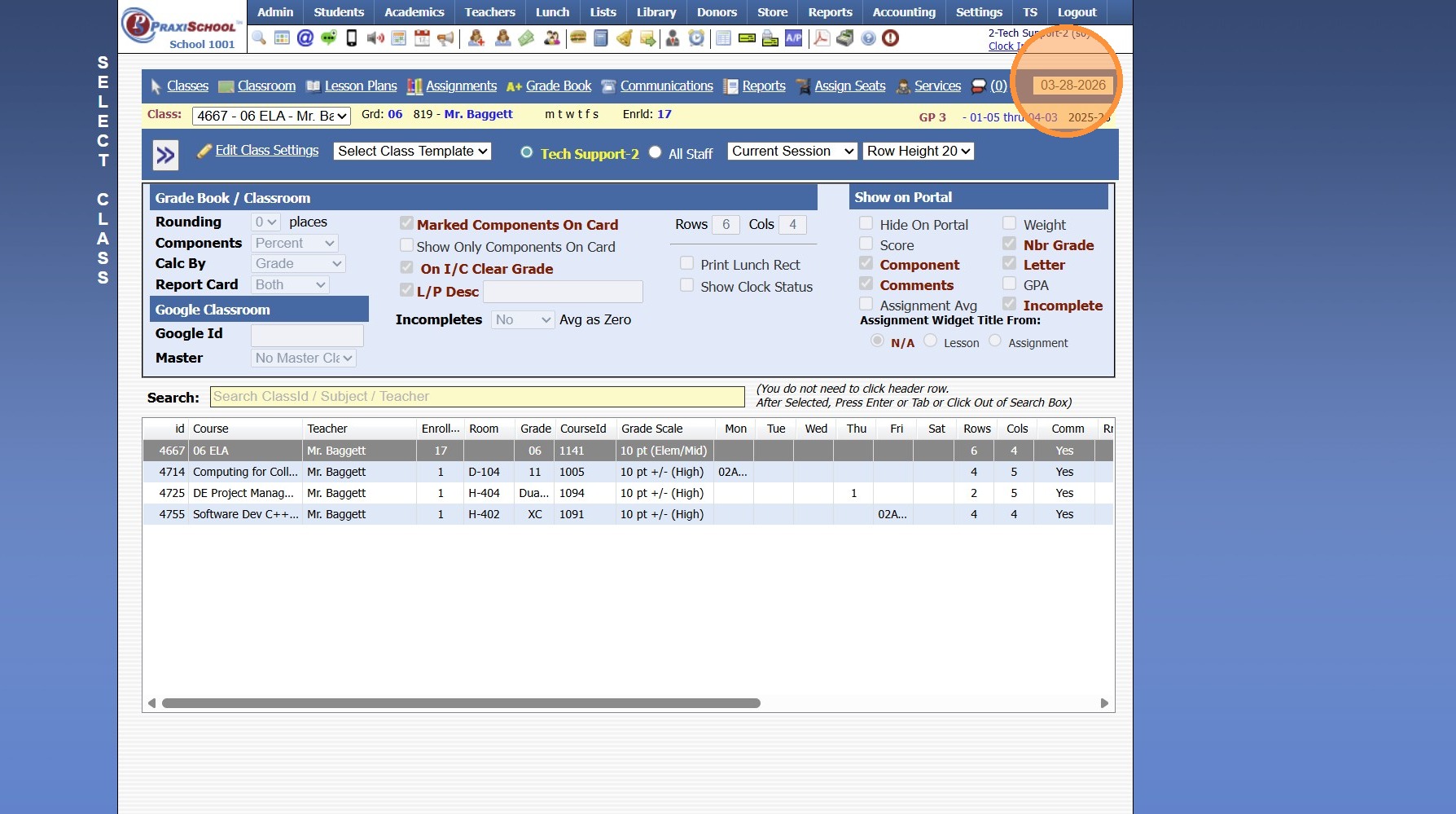
4. Change Date to a Date in the Desired Grade Period
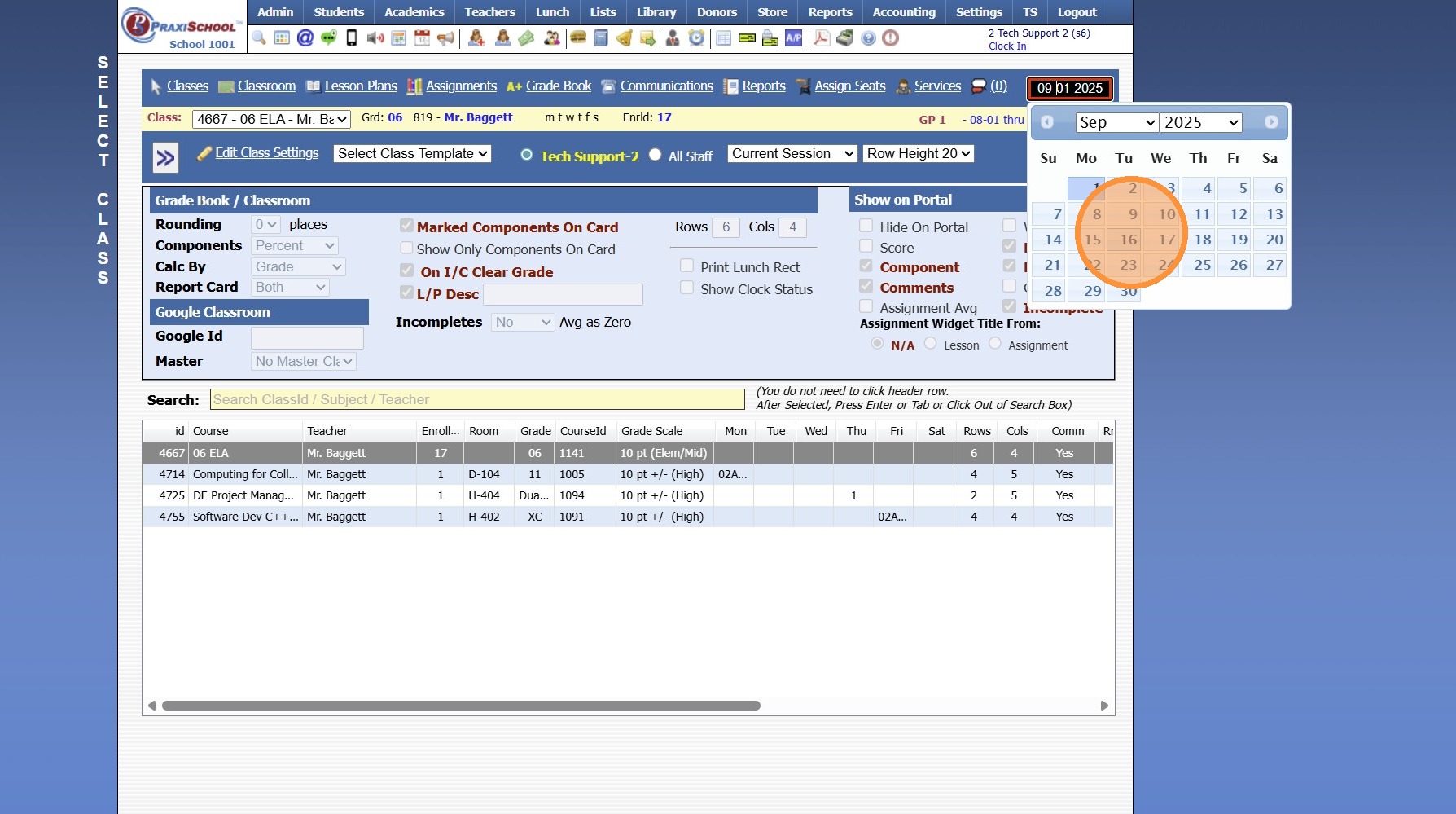
5. Once Date is Selected, Information for the Desired Grade Period is not Available
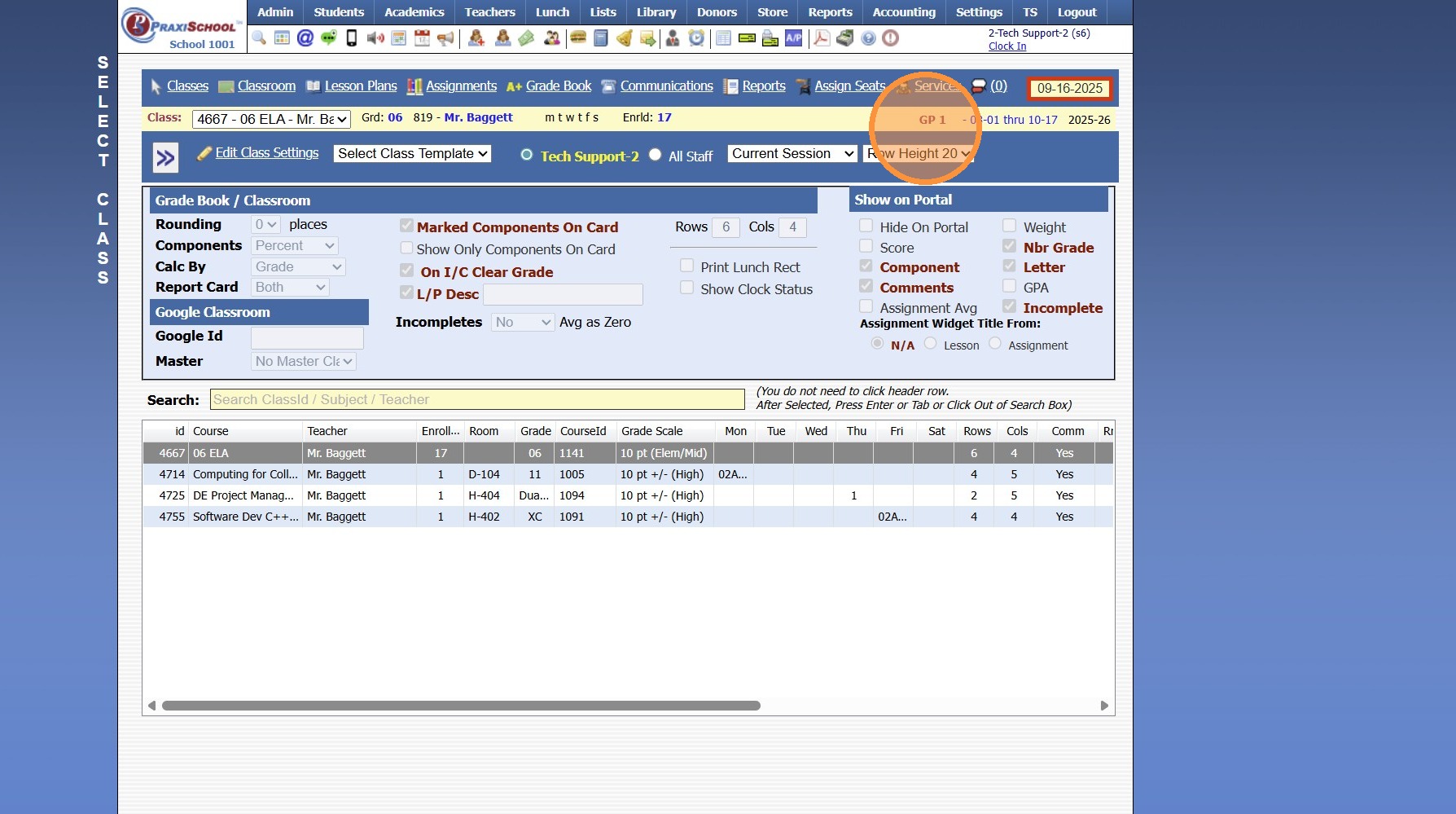
Accessing Student Comments
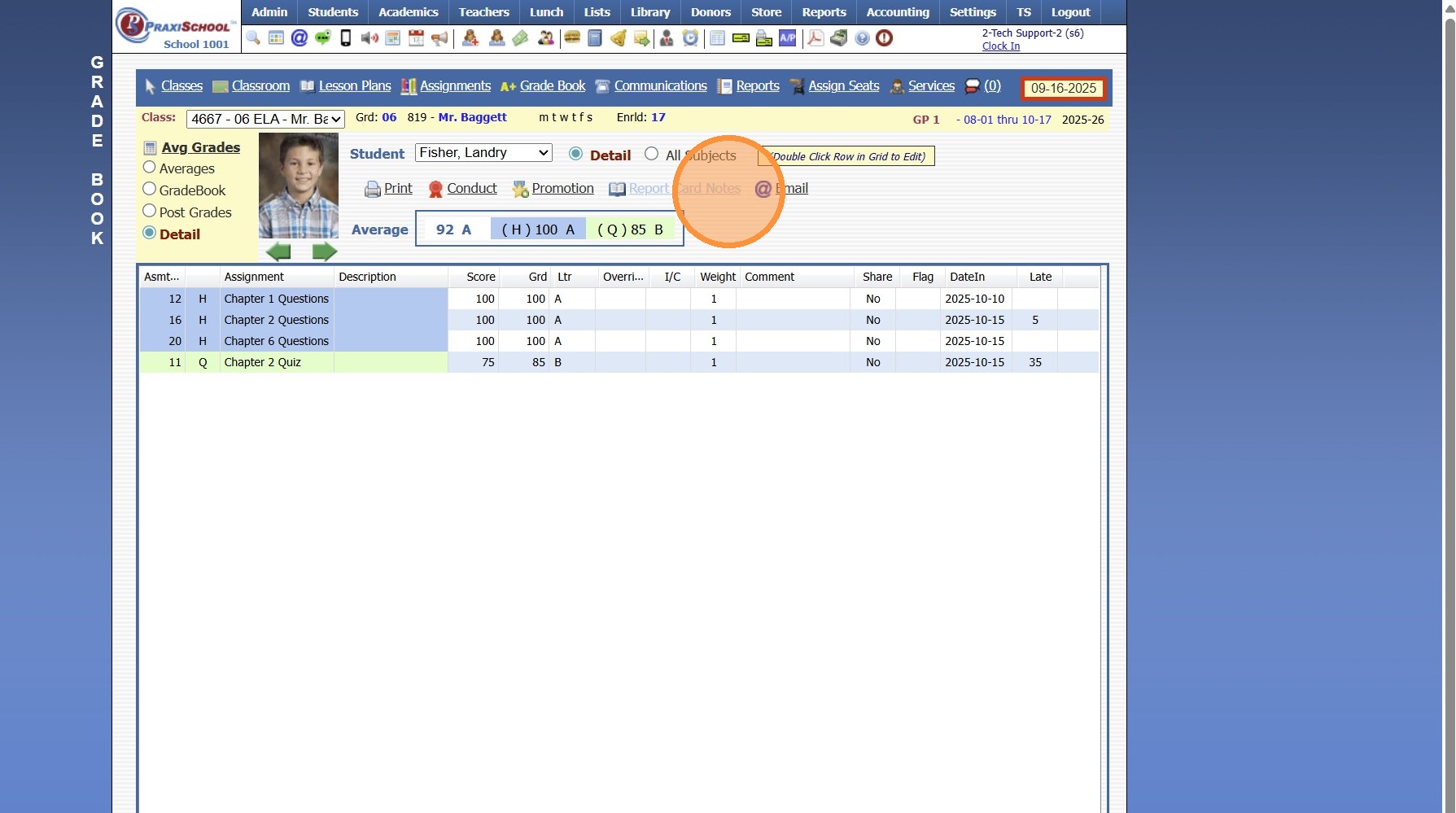
6. Click "Grade Book"
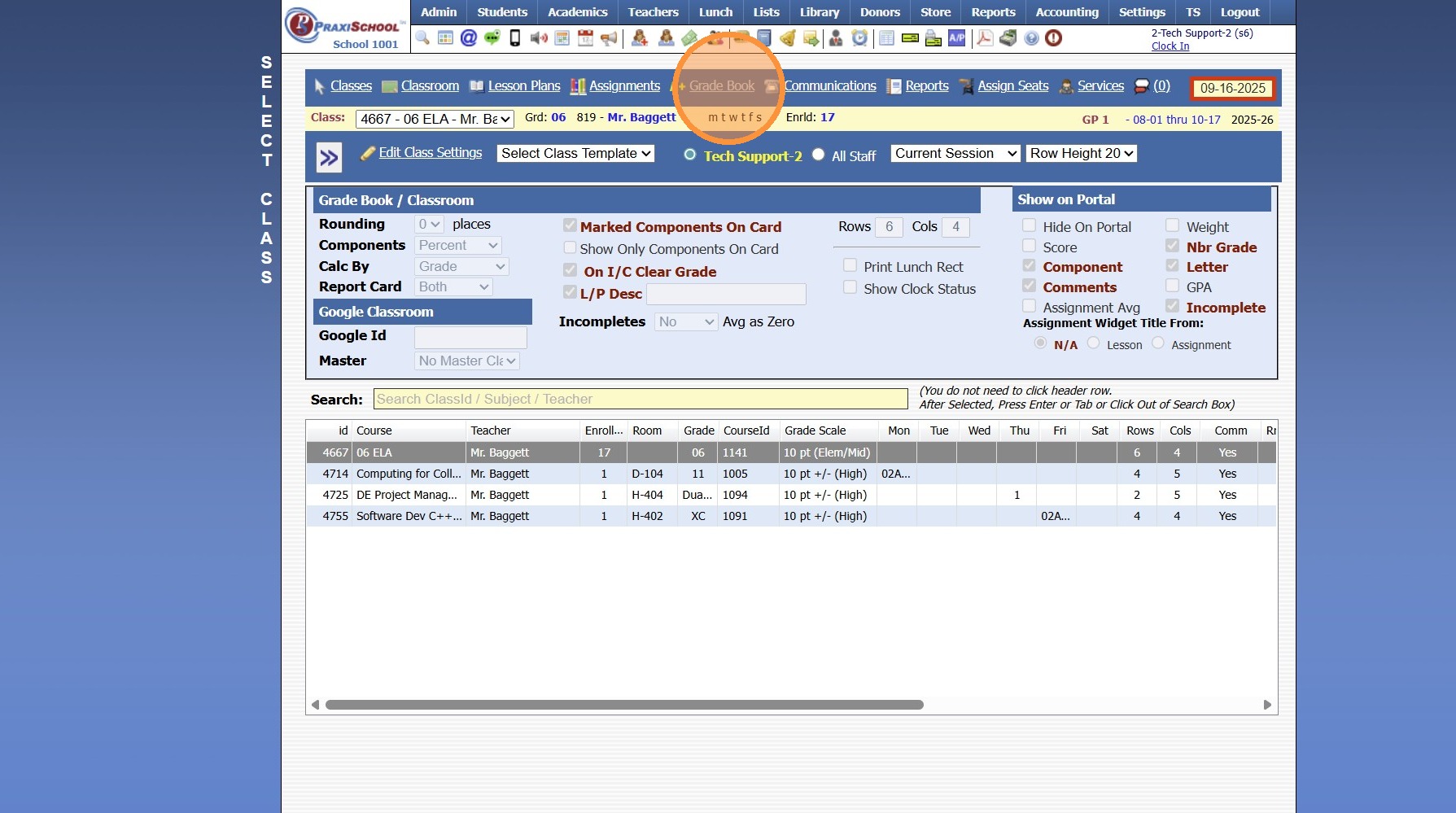
7. Select the "Detail" Toggle
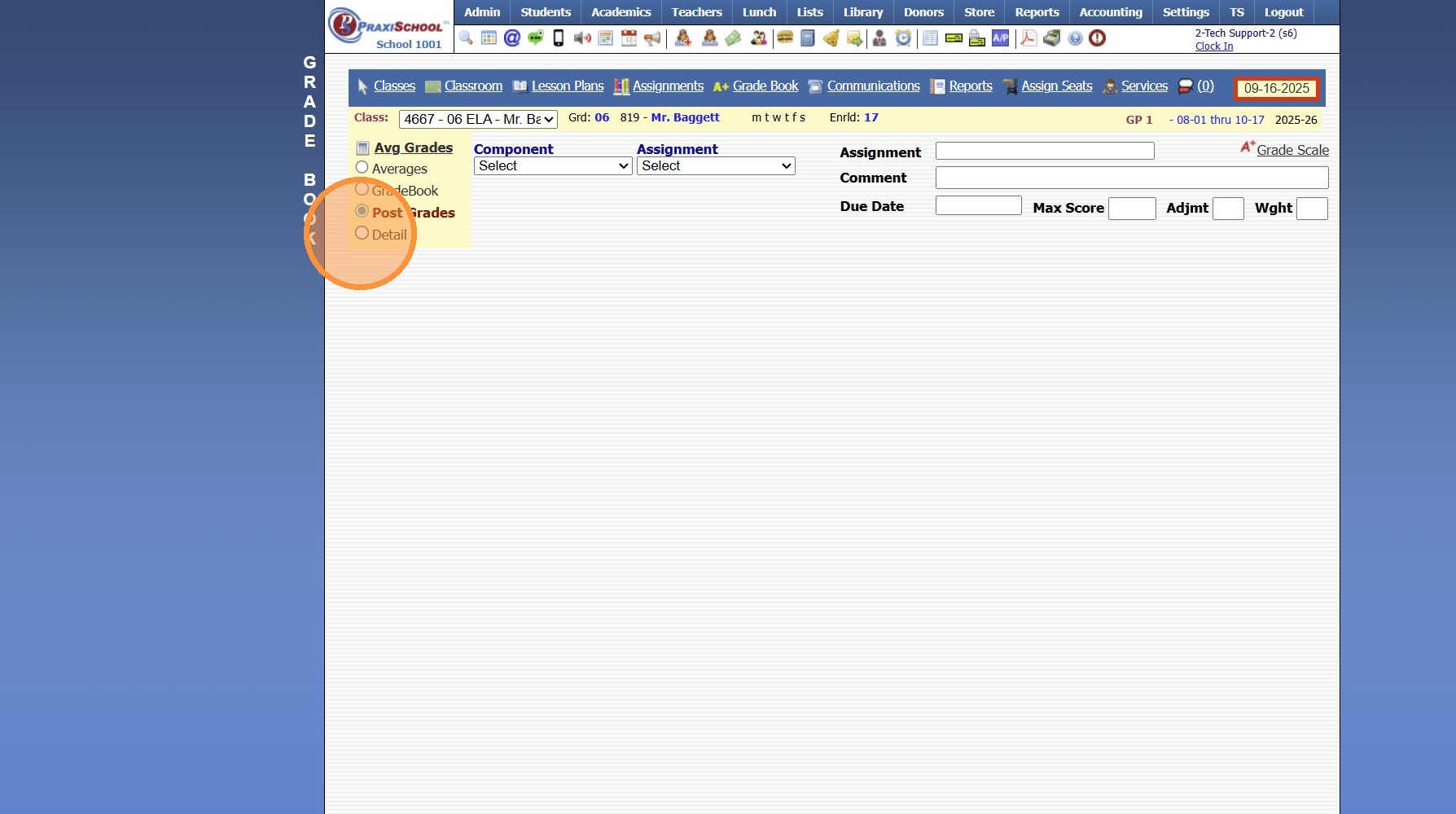
8. Select a Student
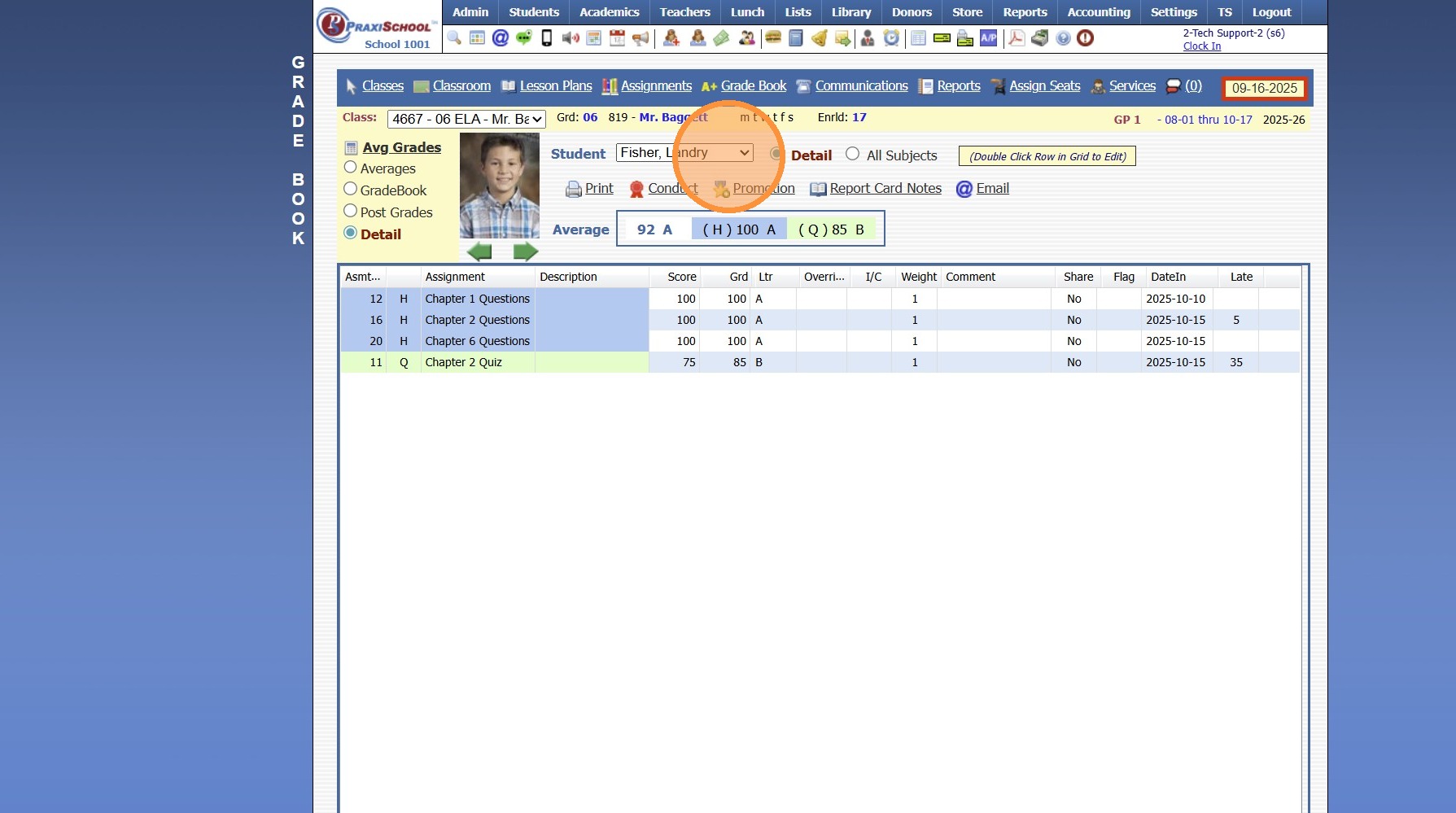
9. Click "Report Card Notes"
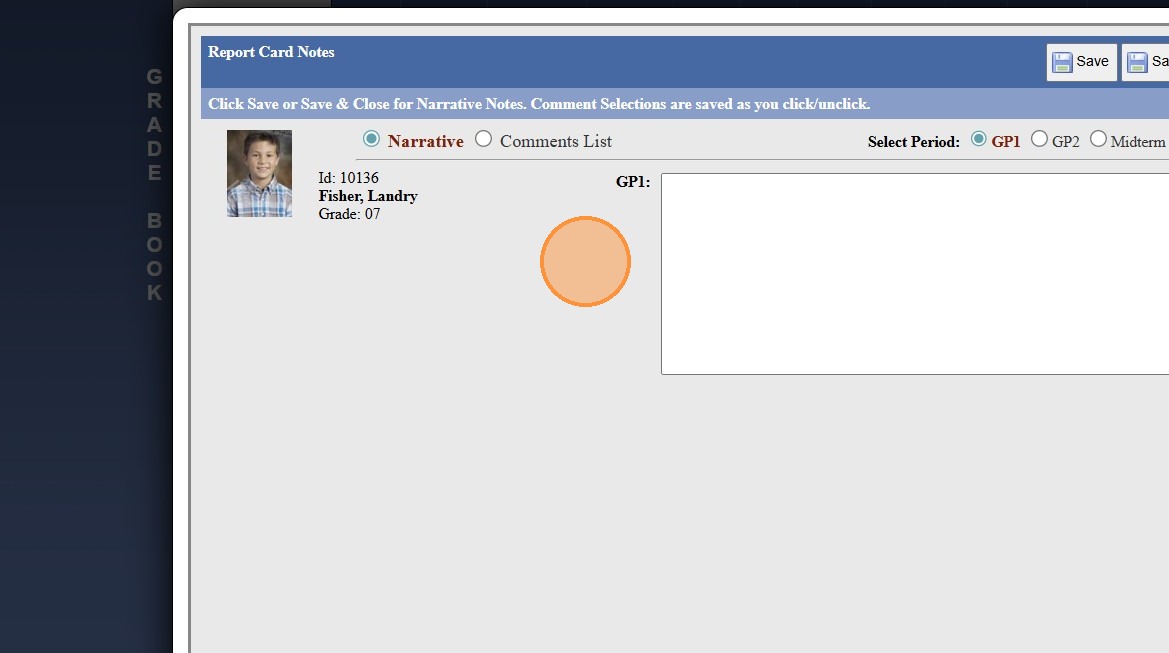
10. Grade Period Comments are Visible
2500.1.50
Related Articles
Closing a Grade Period
Closing a Grade Period Closing a Grade Period Prevents Grade Changes after Report Cards have been Processed. Teachers can Add/ Edit prior Grade Period Assignments. However, the Student's Overall Average will not Change. 1. Log into PraxiSchool 2. ...Selecting a Grade Period Date in the Classroom
Selecting a Grade Period Date in the Classroom 1. Click "Teachers" 2. Click "Classroom" 3. Click the Date Field and Select the Date in the Grade Period 2500.1.2Moving Assignments and Grades to Correct Grade Period
Moving Assignments and Grades to Correct Grade Period 1. Log into PraxiSchool 2. Click "Teachers" 3. Click "Classroom" 4. Select Class 5. Click "Assignments" 6. Select Component 7. Select Assignment 8. Click "Change Grade Period / Component" 9. ...Opening a Closed Grade Period
Opening a Closed Grade Period A Closed Grade Period can be Opened to Allow Updates to Student's Overall Averages. NOTE: Opening a Closed Grade Period will clear all Roster Grades that have been marked Override. 1. Log into PraxiSchool 2. Click ...Updating Grade Book Letter Grades for a Grade Period
1. Click "Settings" 2. Click "Utilities" 3. Select Grade Period 4. Click "Update GradeBook Letter Grades for Grade Period" 6500.12.4