Manually Adding Library Book Thumbnail to Library Catalog
Manually Adding Library Book Thumbnail to Library Catalog
1. Log into PraxiSchool

2. Click "Library"
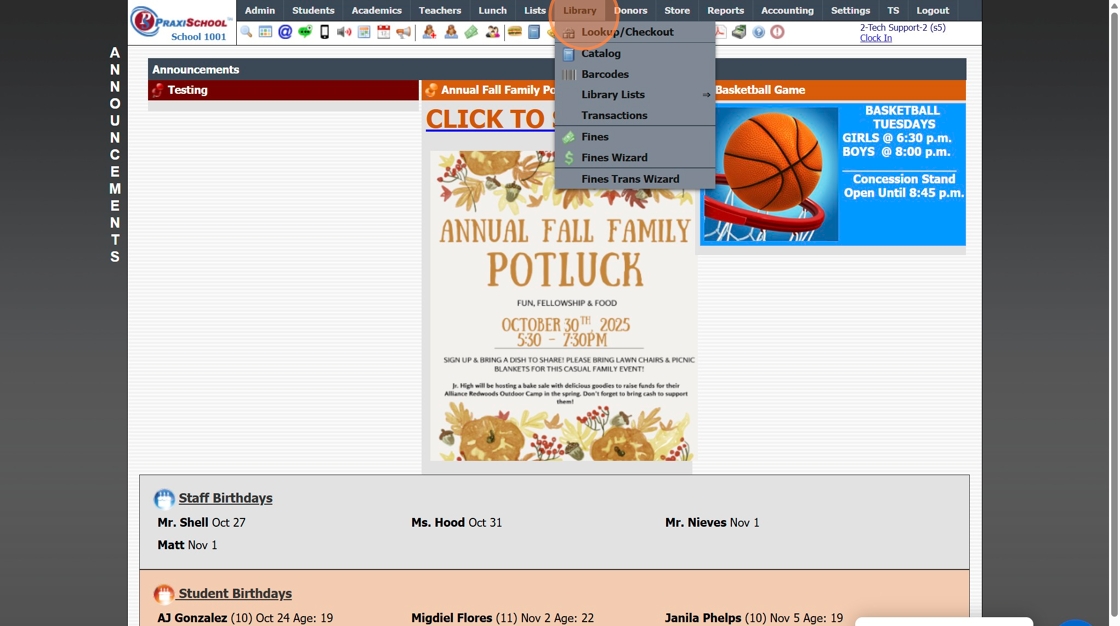
3. Click "Catalog"
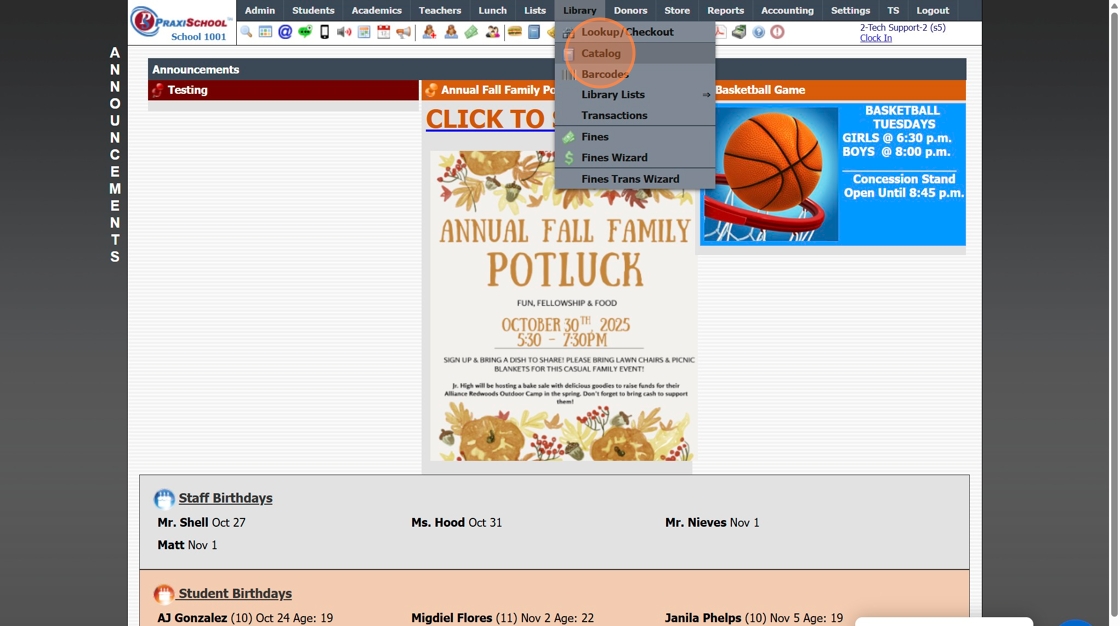
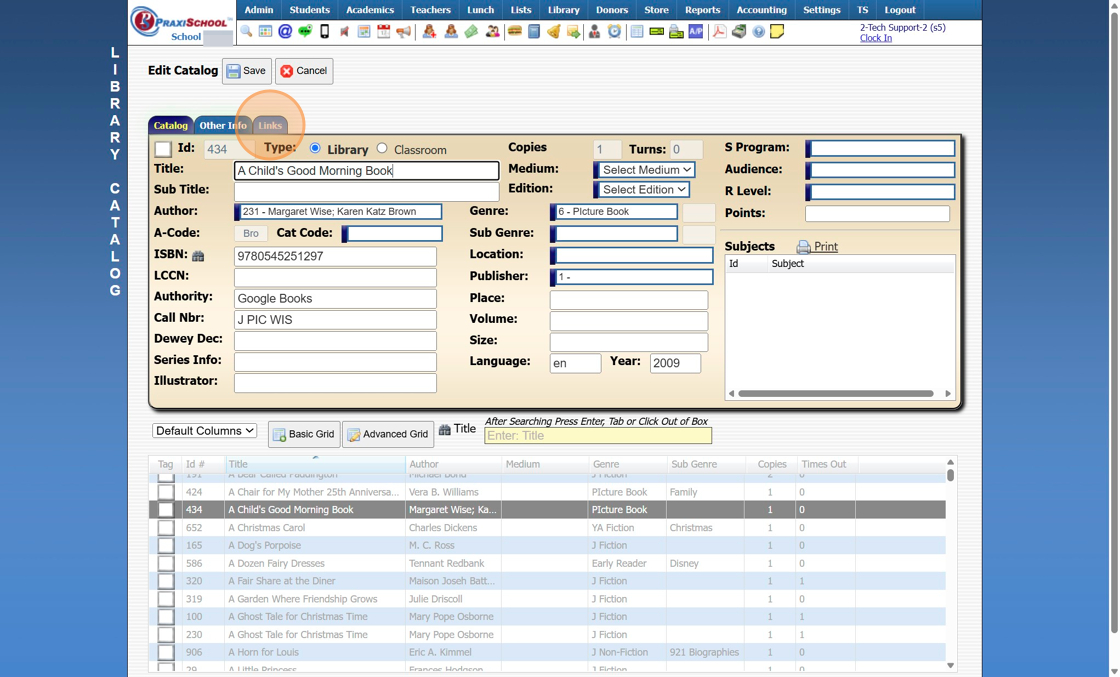
4. Select Book

5. Click "Edit"

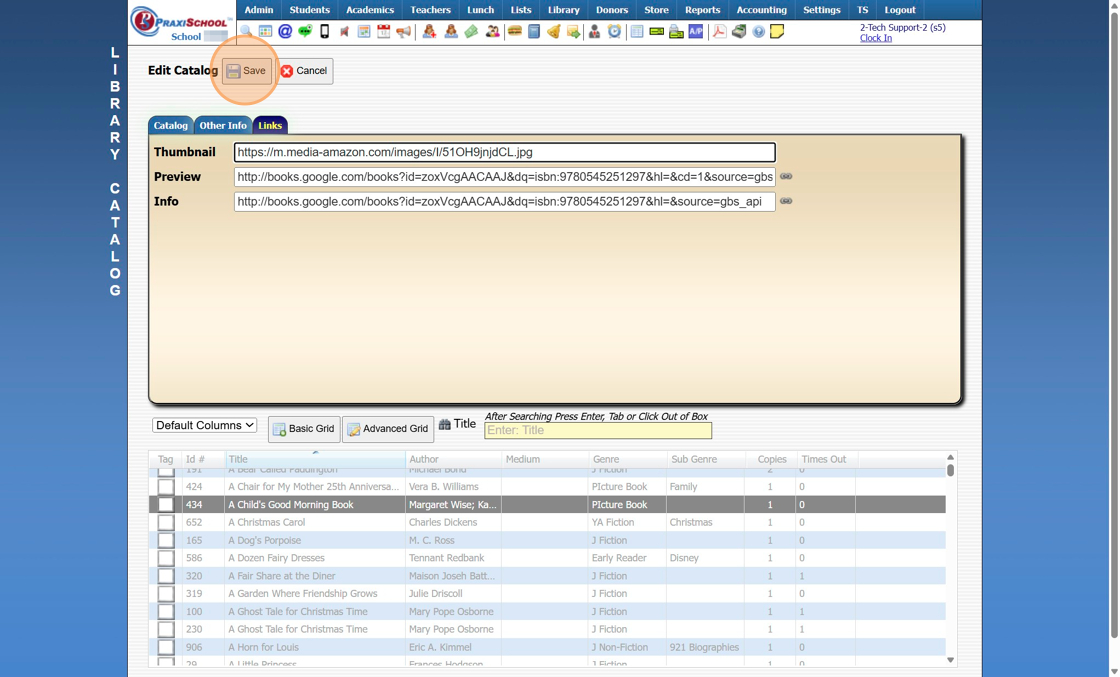
6. Click "Links"
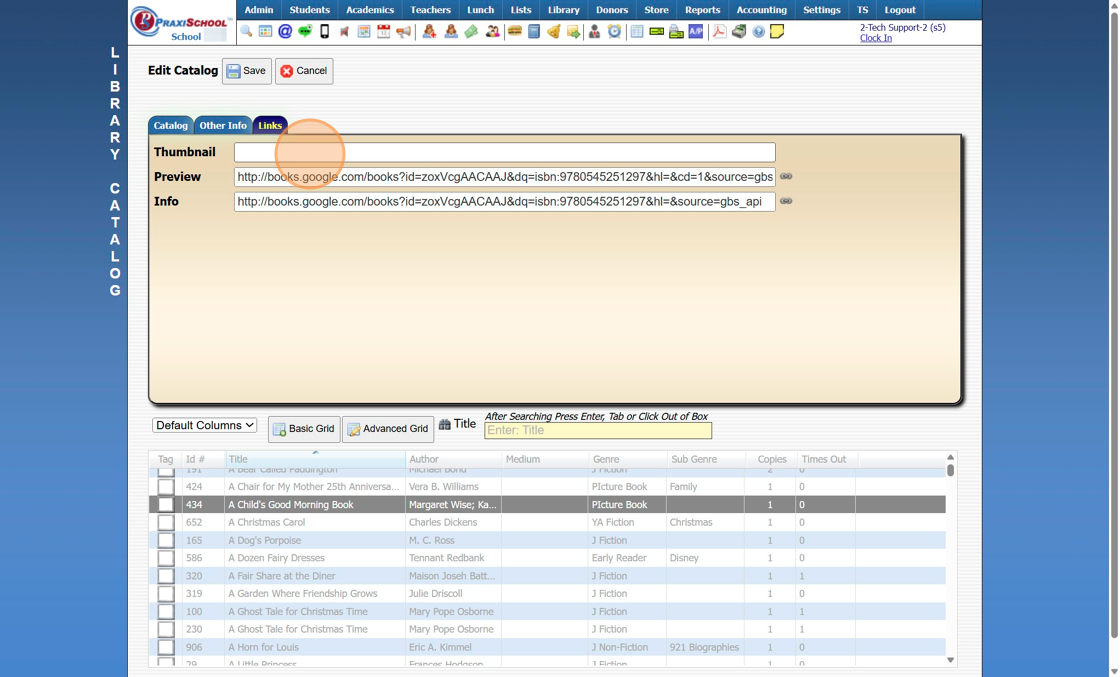
7. Enter Thumbnail Link
8. Click "Save"
Getting Thumbnail Link
9. Go to Google and Search Book Title

10. Click "Images"

11. Click on Image to go to Amazon Screen
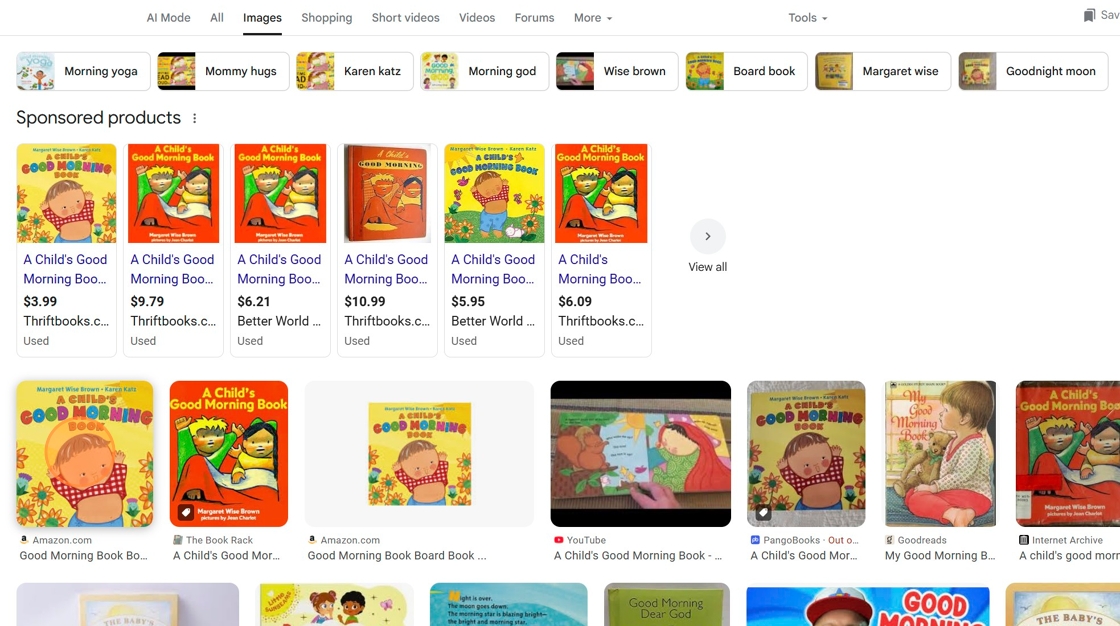
12. From Amazon Screen, click on Image

13. Right-click on Image and Select "Open in New Tab"
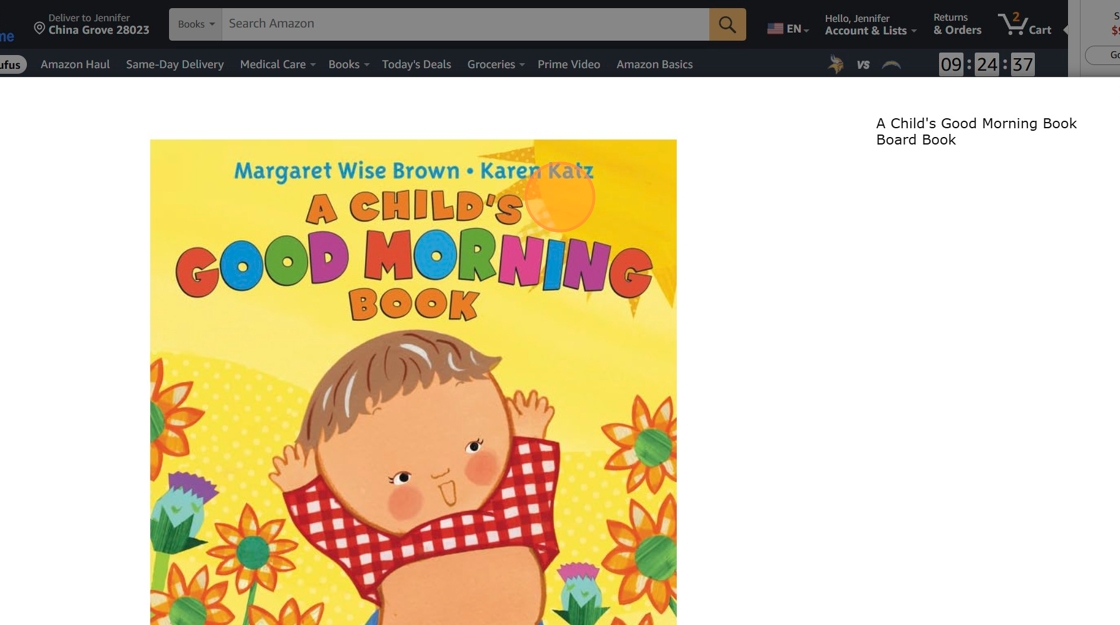
14. From New Tab, Copy Web Address Link

4000.2.2
Related Articles
Adding a New Book to the Library Catalog
Adding a New Book to the Library Catalog 1. Navigate to https://app.praxischool.com/settings_announcements.php 2. Click "Library" 3. Click "Catalog" 4. Click "Add" Adding a Book Manually 5. Enter Title, Select or Add the Author and ISBN (Add the ...Adding Additional Copies of a Book to the Library Catalog
Adding Additional Copies of a Book to the Library Catalog 1. From Library | Library Catalog 2. Select Book to Add Additional Copies 3. Click the "Status" tab 4. Click "Add Barcode" 5. Praxi will Generate the next Barcode Automatically (If using ...Library Overview and Training
Welcome to the PraxiSchool Library Overview and Training! Below you will find information about the Library features, an Overview video about the Library and the basic Library Training Videos. Please review each video before attempting to set up your ...Manually Adding Student Awards
1. Click "Academics" 2. Click "Transcripts" 3. Click "Student Awards" 4. Click "Add" 5. Select Student 6. Select Award Type 7. Select School Year & Date 8. Select Student's Grade Level 9. Select Grade Period (Student Awards can be added to the ...Adding Required Forms List to Students
Adding Required Forms List to Students 1. Click "Students" 2. Click "Students" 3. Select Student 4. Click "Forms" tab 5. Click "Add" 6. Select Form Template or Manually Tag Desired Forms 7. Click "Add Selected Forms" 1500.4.23