Viewing Scheduled Emails
1. Click "Admin"

2. Click "Communications ⇒"
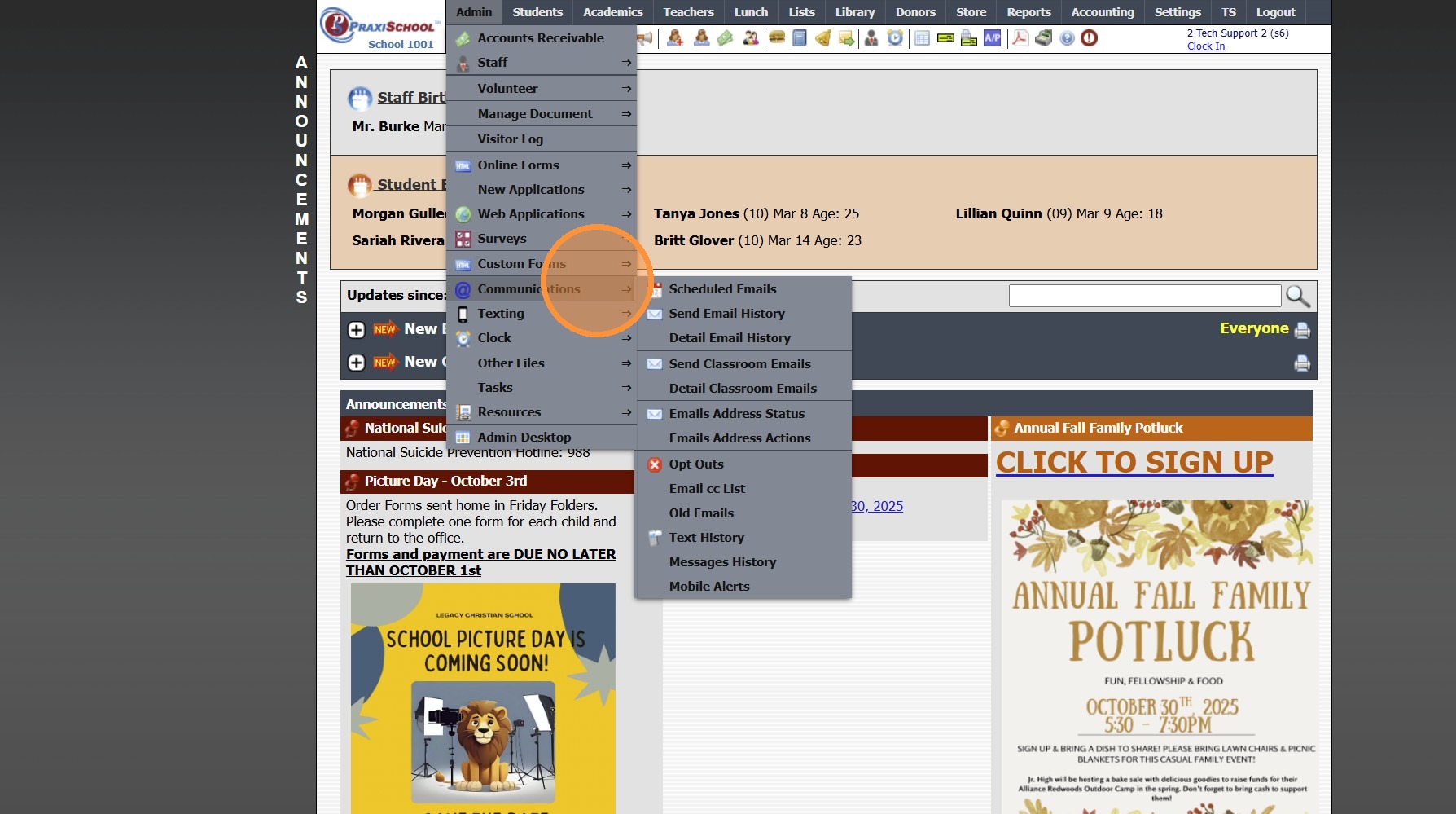
3. Click "Scheduled Emails"
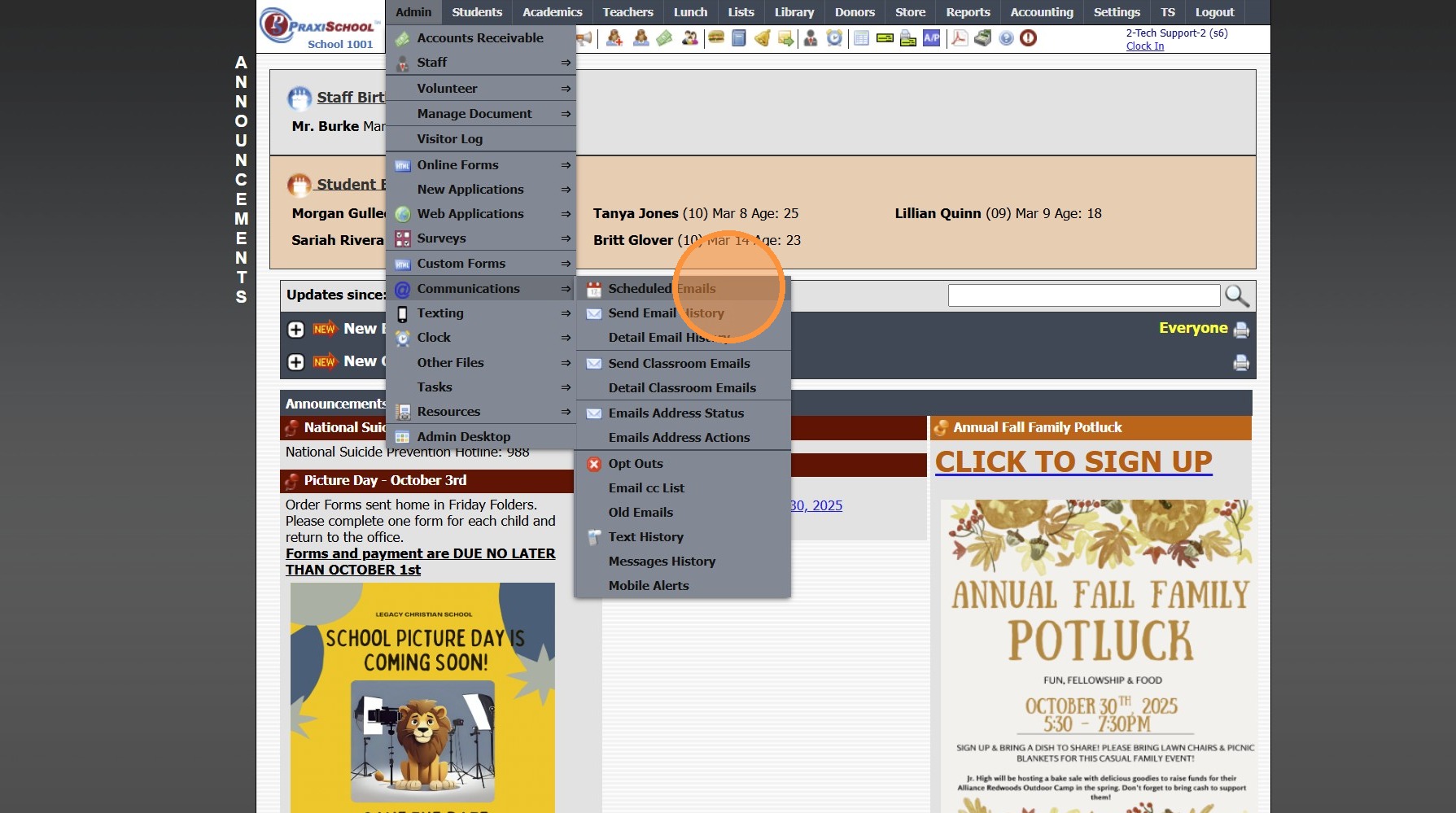
4. Select Scheduled Email

5. In the Options tab Selected Email Options are Visible
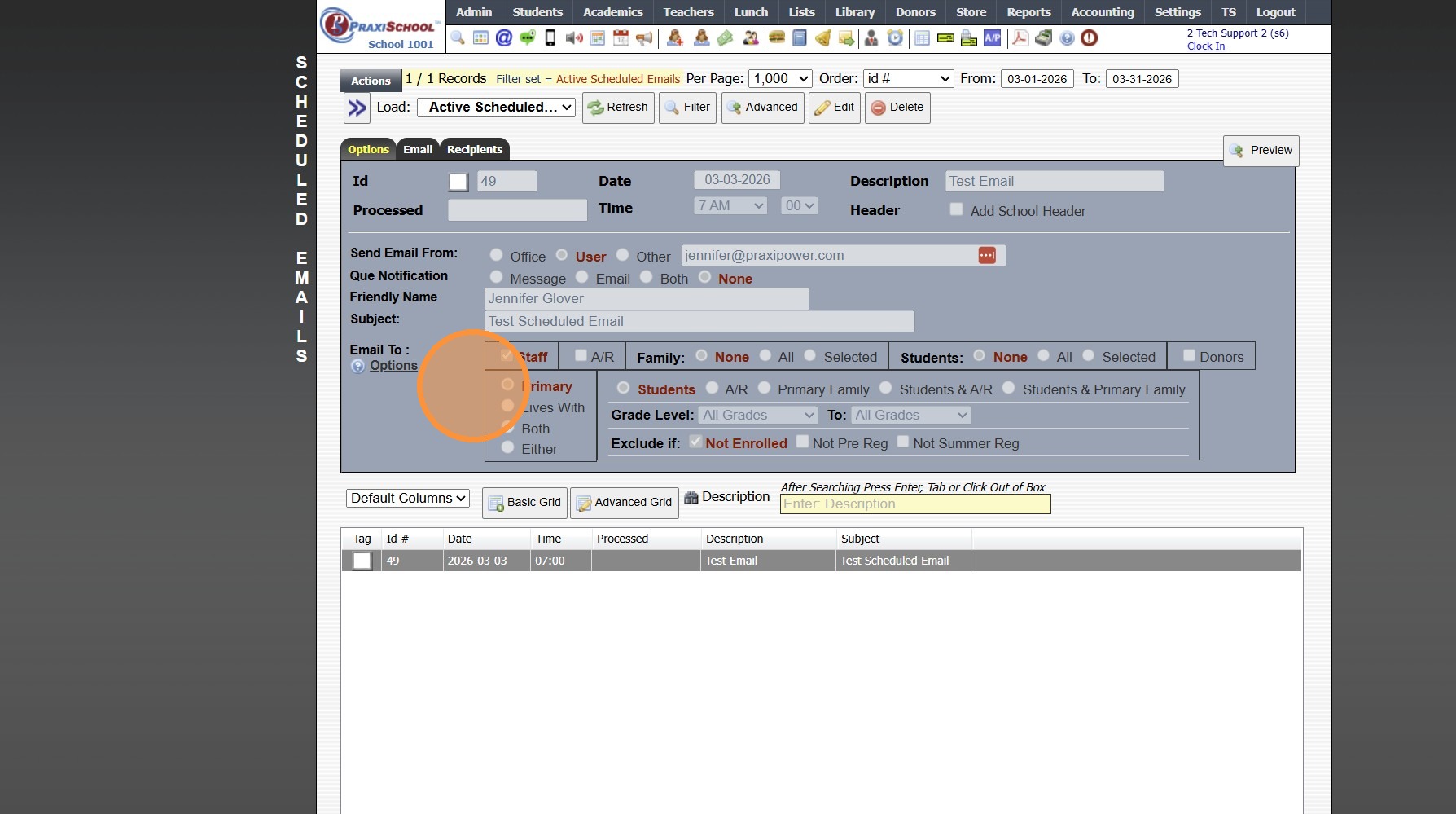
6. Click "Email" to View Email Verbiage

7. Click "Recipients" tab to View Selected Recipients

1000.10.1
Related Articles
Viewing Document Emails
1. Click "Admin" 2. Click "Manage Document" 3. Click "Document Emails" 4. Select Email 5. Click the "Recipients" Tab 6. Recipient(s) will Show with the Last Date & Time the Recipient Read the Email 1000.4.7Viewing Emails Sent from the Classroom
1. Click "Admin" 2. Click "Communications" 3. Click "Send Classroom Emails" 4. Select an Email 5. Click "Recipients" 6. Under the Recipients tab a list of All Recipients & the Date/Time the Recipient Read the Emails are Visible 1000.10.4Resending Un-Read Emails
1. Click "Admin" 2. Click "Communications" 3. Click "Detail Email History" 4. Tag Un-Read Emails 5. Click "Actions" 6. Click "Resend Emails" 7. Tagged Emails will Populate in Resend Screen 8. Click "Resend Emails" to Resend those Emails 1000.10.15Subscribing to PraxiSchool Updates Emails
Subscribing to PraxiSchool Updates Emails 1. Log into PraxiSchool 2. Click "Settings" 3. Click "Subscribe-Update Email" 4. Enter Email, First Name, Last Name, School Name and ID Number 5. Select Appropriate Group 6. Click "Submit" 7. Click "Submit" ...Viewing Student's Authorized Family
Viewing Student's Authorized Family 1. Click "Teachers" 2. Click "Authorized Family" 3. Select Student 4. Student's Contact List will Populate 2500.6.1