Support - How to Connect to Remote Access
1. Click "Share Now" in Chat Window


3. Click "Agree and Download"

4. Double click on download


8. Click the Message Icon to continue Chat with Support Representative
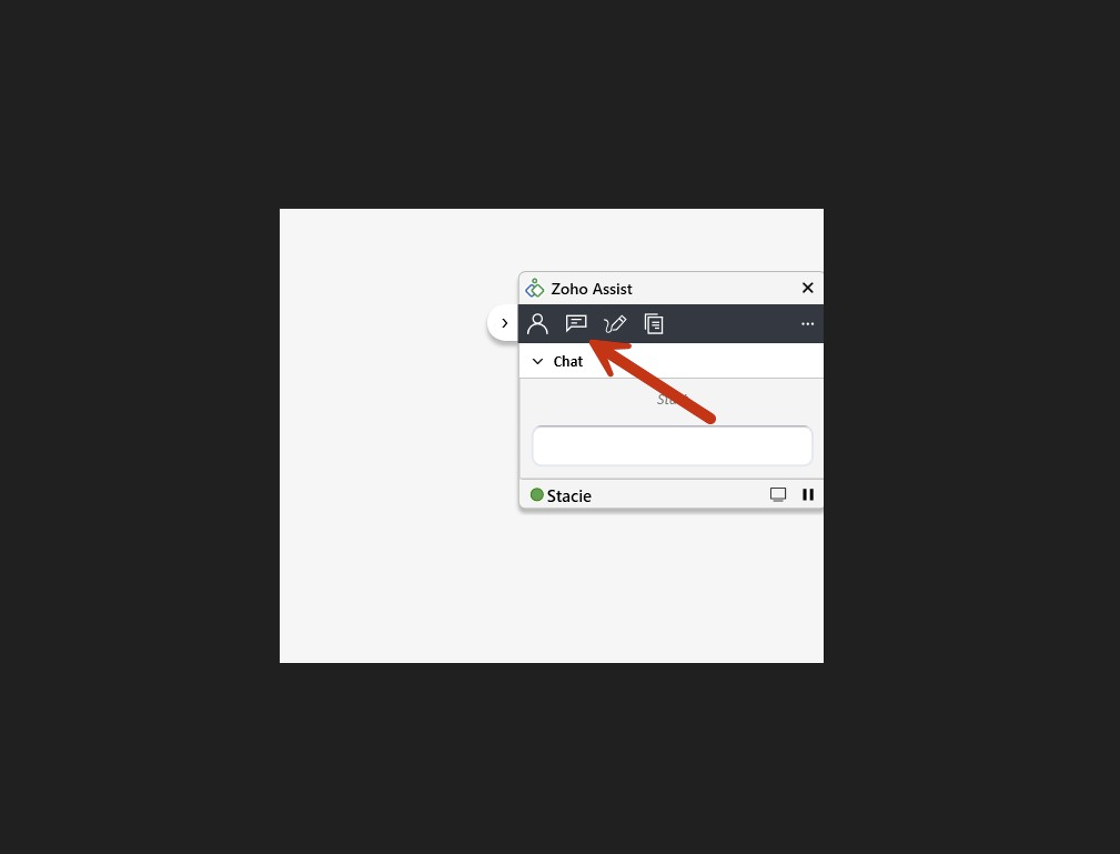
9. Type & Receive Messages in Chat box

10. Click the "X" & Click "Ok" to Close Support Session

Related Articles
Remote Support Access Instructions
Remote Support Access Instructions 1. Click "Chat Widget" to Open Chat Screen 2. Begin Chat with Tech Support 3. Click "Share Now" 4. Click "Join Session" 5. Click "Agree and Download" 6. Double Click on AZ_Connect.exe download 7. Click "Yes" 8. ...
Update Parent Portal and Mobile App Access in Batch
Update Parent Portal and Mobile App Access in Batch 1. Log into PraxiSchool 2. Click "Accounts Receivable" 3. Click "Actions" Assigning Parent Portal Access in Batch 4. Click "Update Portal Access" 5. Click the "Active" field. 6. Click the "Portal ...
Heartland Support
Contact Email: productopsbillingsolutions@e-hps.com Contact Phone Number: (866) 801-4757 6000.4.12
Connecting Google Account to PraxiSchool Teacher Account
How to connect Praxi with Google Classroom 1. Click "Teachers" 2. Click "Google Classroom" 3. Select the Google Account that is being used with the Google Classroom. 4. Click OK 5. Click Close on right, inside pink box, to close message. Alert: ...
Creating Accounts Receivable Accounts
Creating Accounts Receivable Accounts 1. Log into PraxiSchool 2. Typically Student AR Accounts are Created in the Student Wizard (T) 3. After Creating the Student File, the Primary AR Account is Created from the A/R Account Toggle 4. A Secondary AR ...