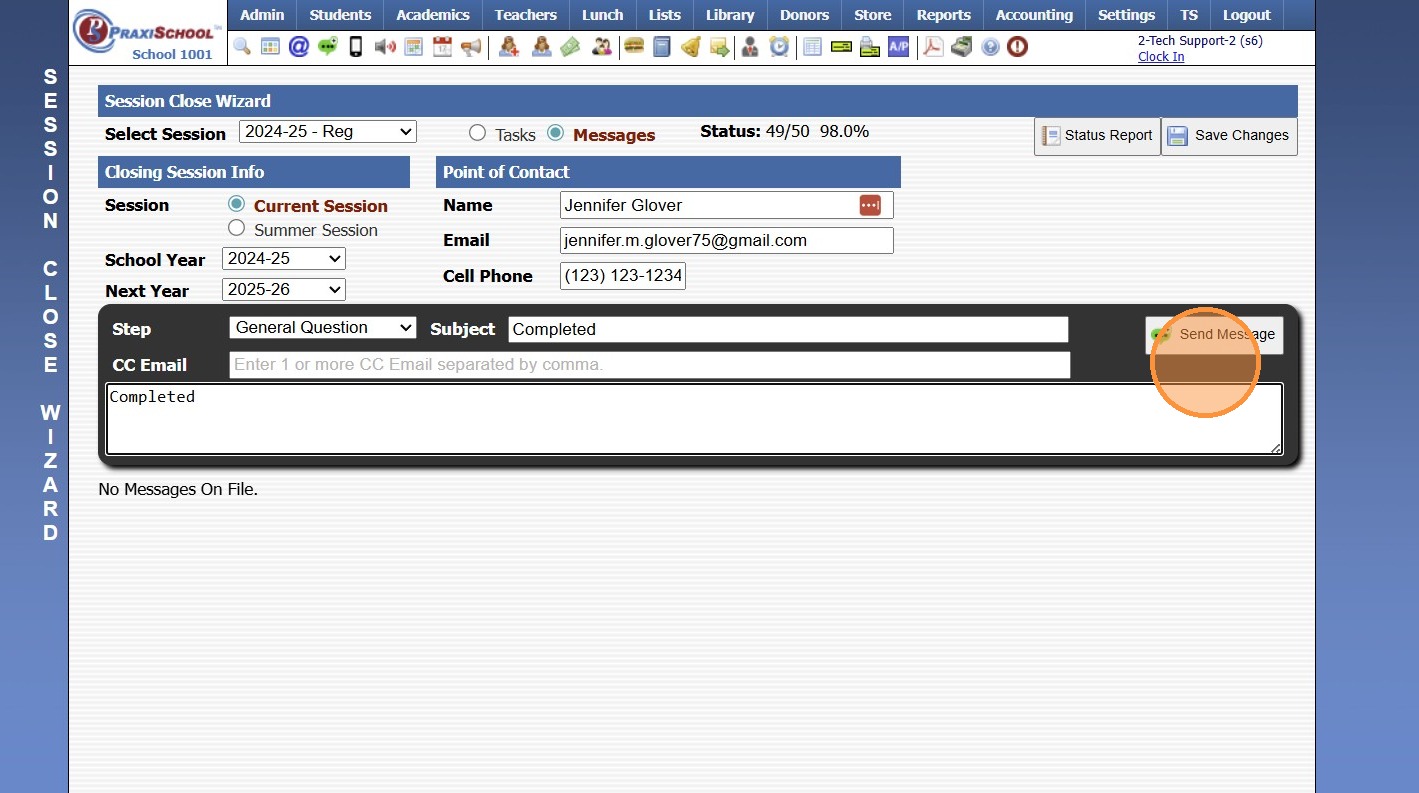
Session Close Prep Step IV: Completed Message
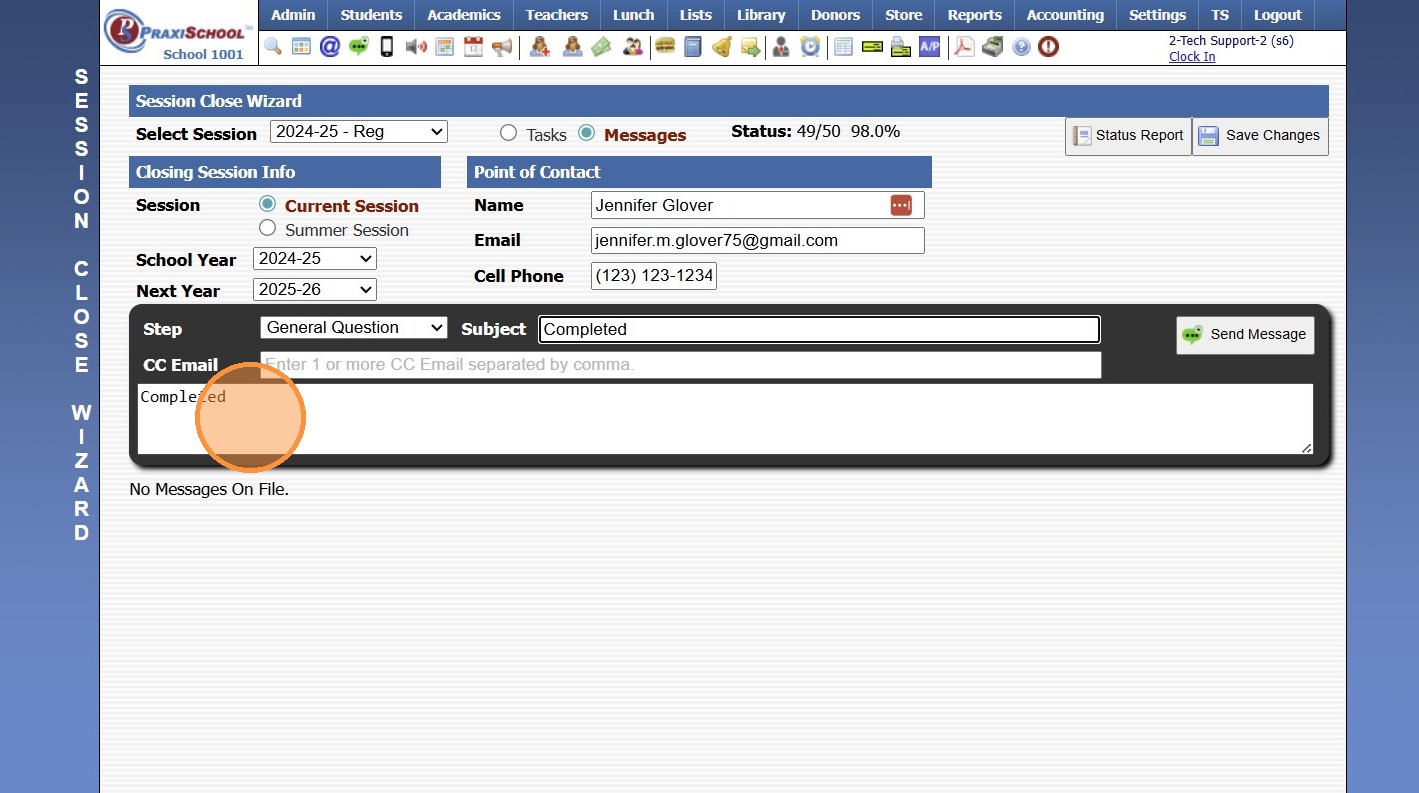
1. Verify all Steps/Tasks are Completed
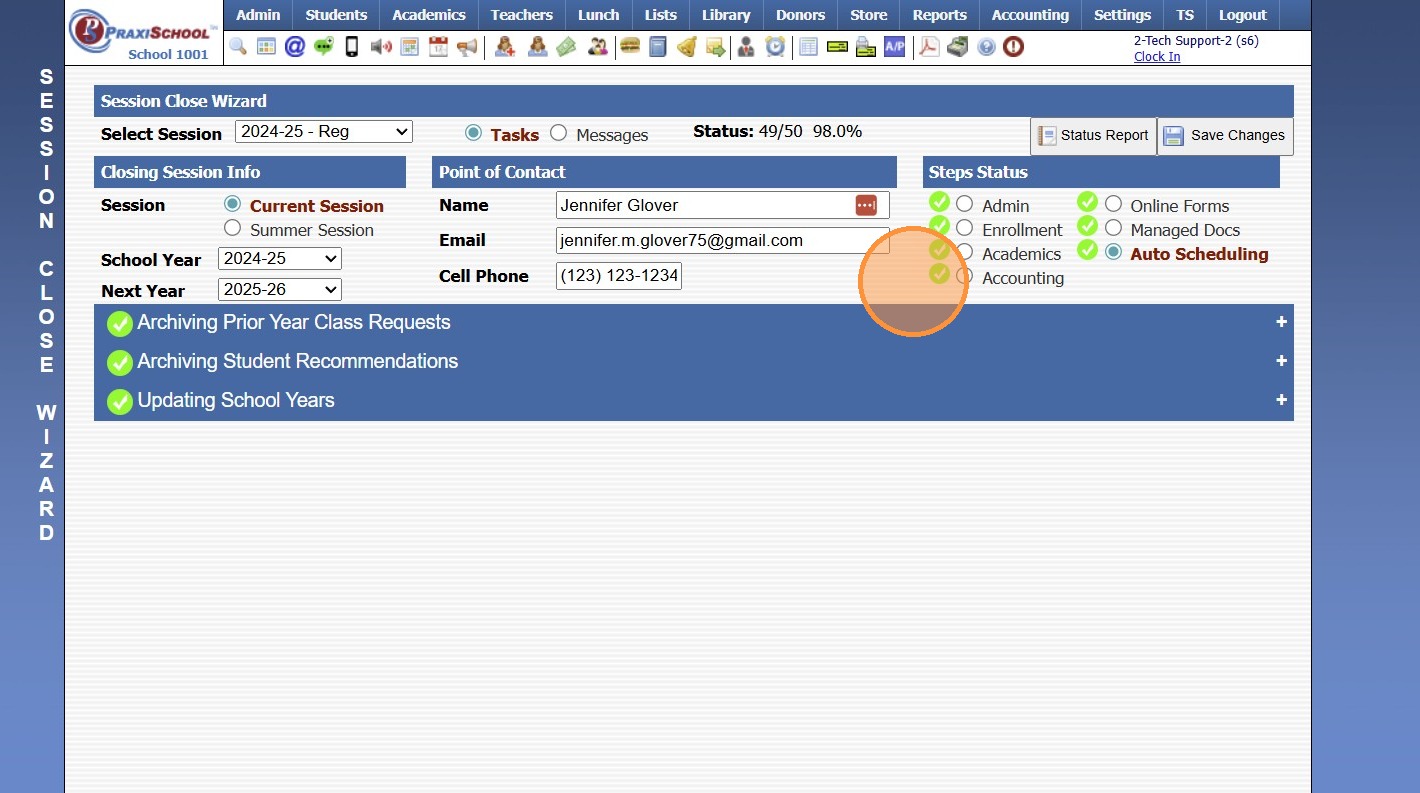
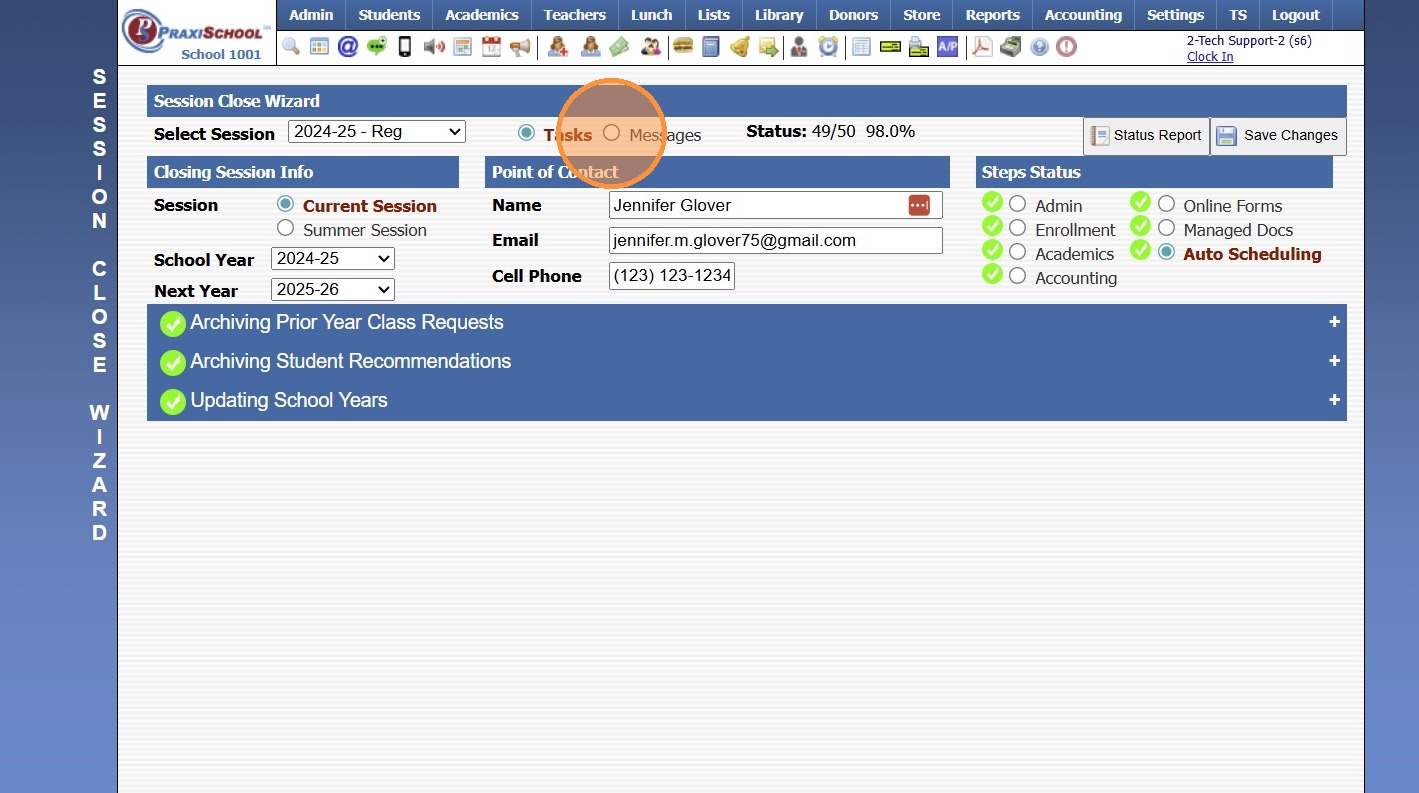
2. Click the "Messages" Toggle
3. Enter "Completed" in the Subject Field
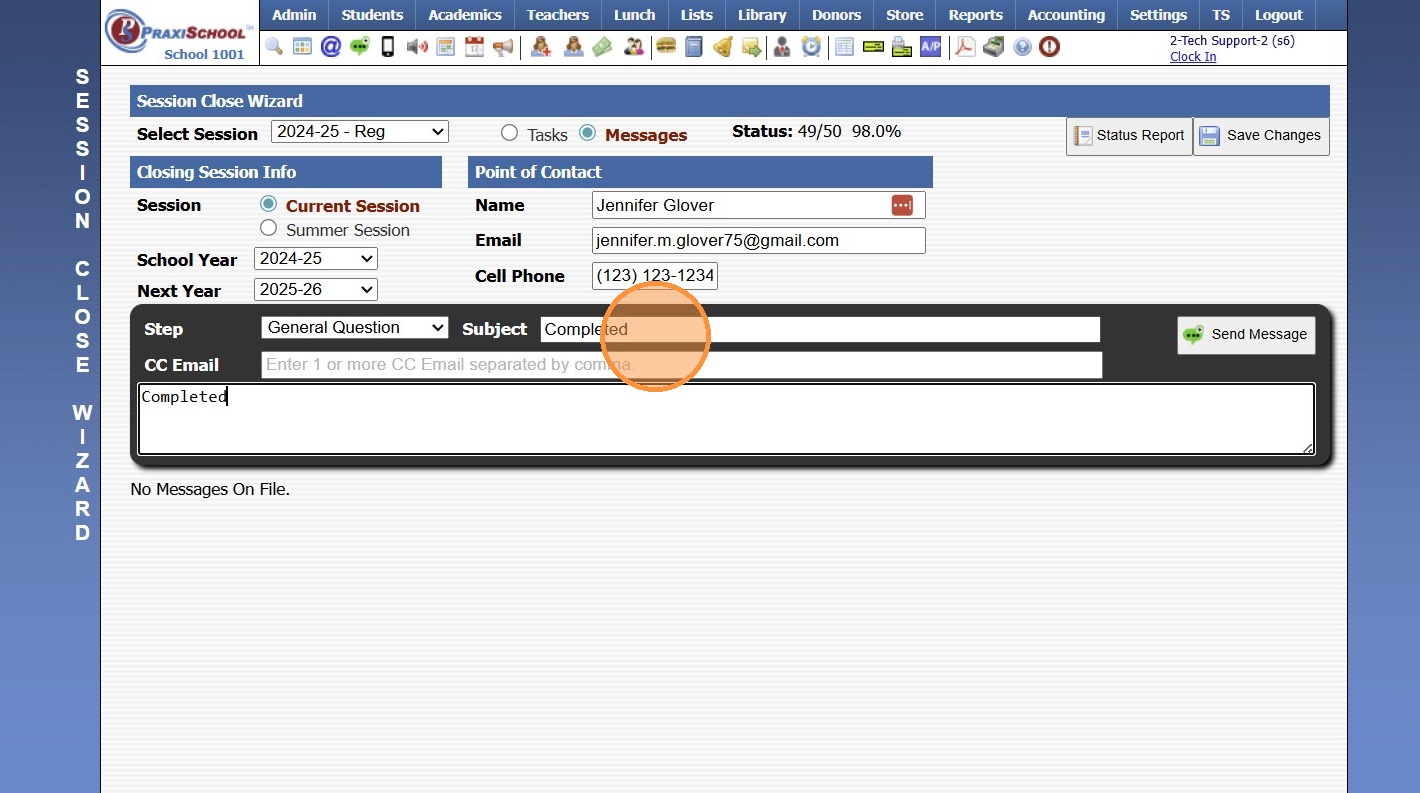
4. Enter "Completed" in the Message Field

Related Articles
Session Close Prep Step II: Creating Current School Year Session Close
1. Click "Admin" 2. Click "Tasks" 3. Click "Session Close Prep" 4. Select "Create New Closing" from dropdown 5. Select "Current Session" to Close Current School Year, Select "Summer Session" to Close a Summer Session 6. Select Current School Year 7. ...
Session Close Prep Step III: Completing Steps & Tasks
1. Select a Step 2. Select a Task to Expand 3. Mark the Task Yes, No or N/A 4. Enter Completing Staff Name 5. Enter Comments (Optional) 6. Click "Mark Completed" 7. Repeat for each Step & Task 8. Once all Tasks in a Step are Completed, a Green Check ...
Session Close Prep Step I: Creating the Next School Year
1. Click "Lists" 2. Click "Enrollment" 3. Click "School Years" 4. Click "Add" 5. Enter NEW School Year in YYYY-YY Format (Ex. 2026-27) 6. Enter Administrator's Name 7. Enter Date From & Date To (NOTE: The beginning & ending date MUST encompass 12 ...
Ending the School Year Procedures
Greetings from PraxiPower, Click to Watch Short Instructional Video As always, Ending your current school year is a key process youMUST do before moving to the next year. It is VERY IMPORTANT to close your current school year in Praxi and to “roll ...
Session Close Tasks - Enrollment: Pre-Registering Existing Student Using the Promote Students Wizard
1. Click "Academics" 2. Click "Grades Tasks" 3. Click "Promote Students" 4. Select the Effective Date 5. Select Grade Levels to Promote 6. Click "Next Session" to Pre-Register for Next Year 7. Click "Create Record in Enrollment History" to add the ...