Re-Enrollment Forms - Creating a Family Page
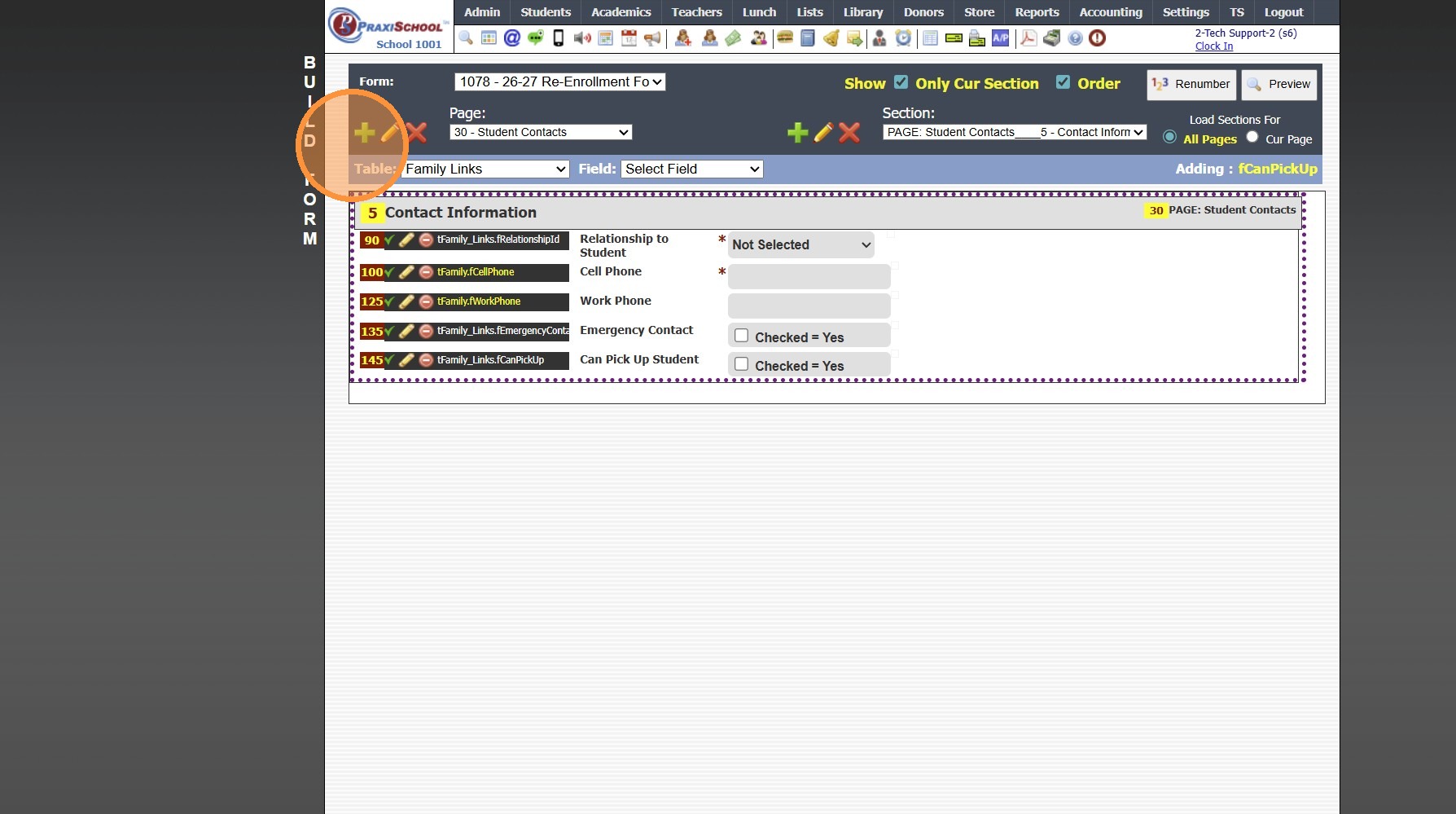
1. Click the "+" Icon to Add a Page
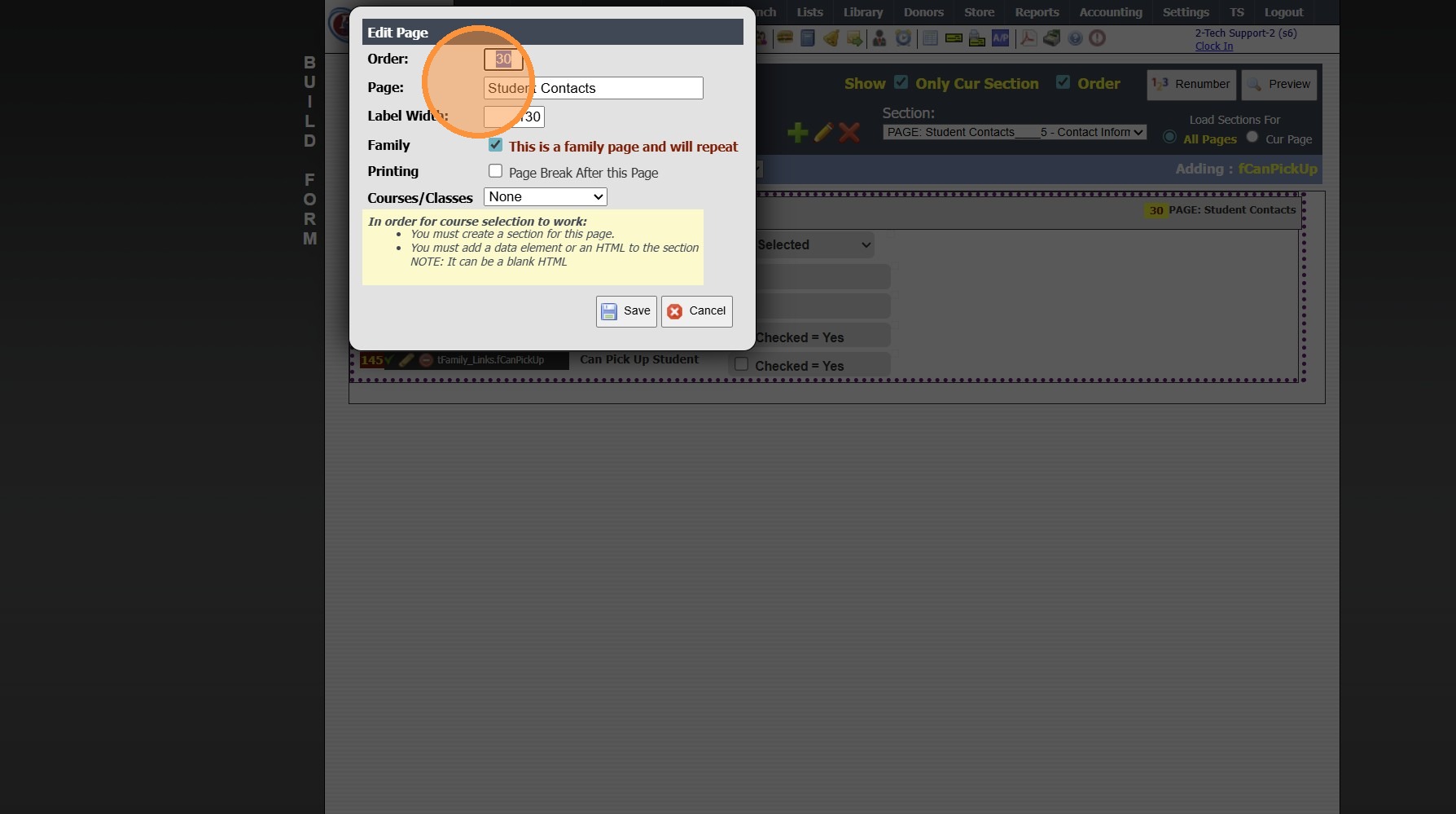
2. Enter the Order Number & Enter Page Name
(Recommendation: Set Order Numbers in Increments of 5 or 10 to Allow Additional Pages to be added in-between)
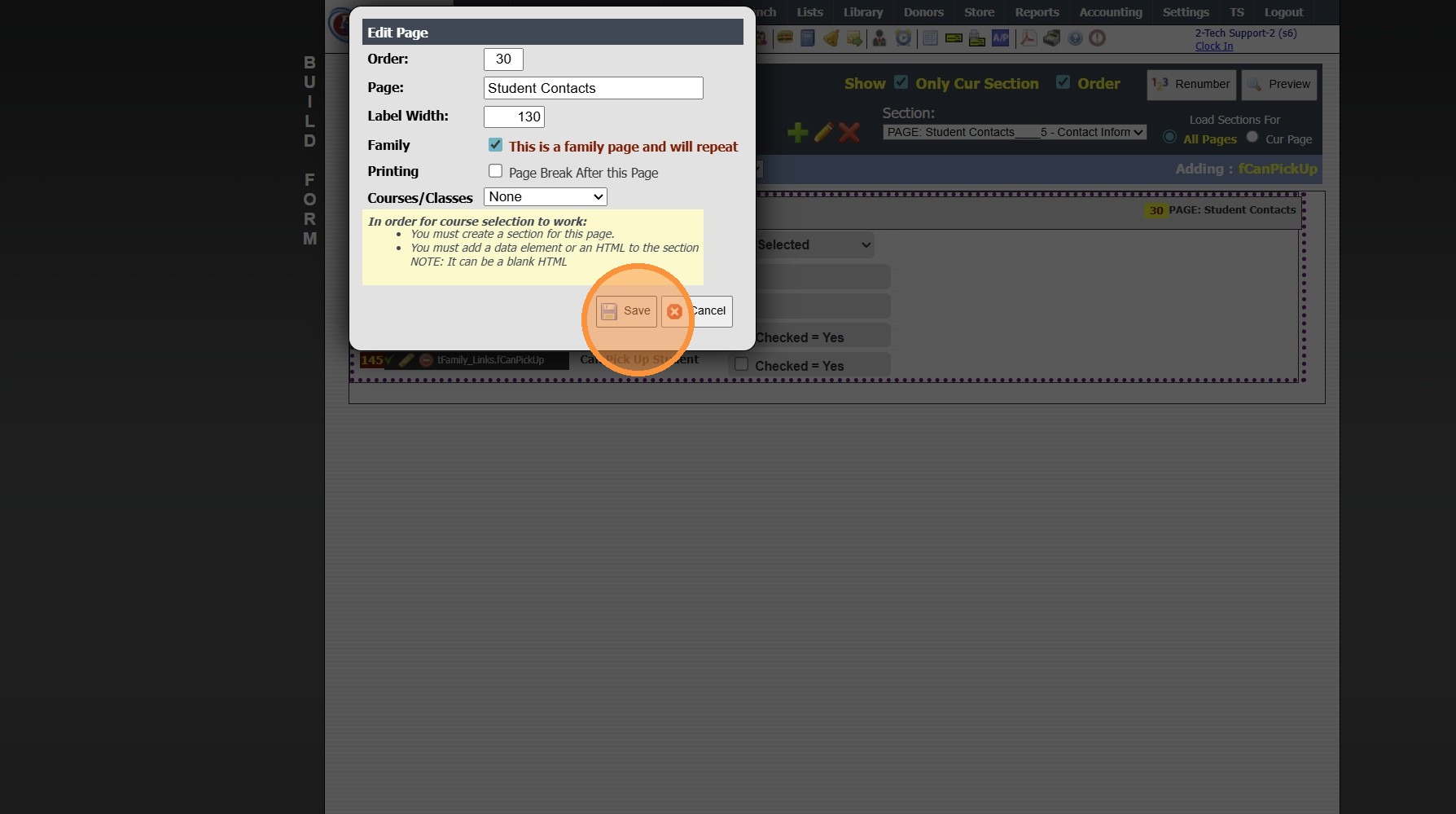
3. Click "This is a family page and will repeat"
(Checking this box allows this Page to Repeat for each Student Contact)

4. Click "Save"
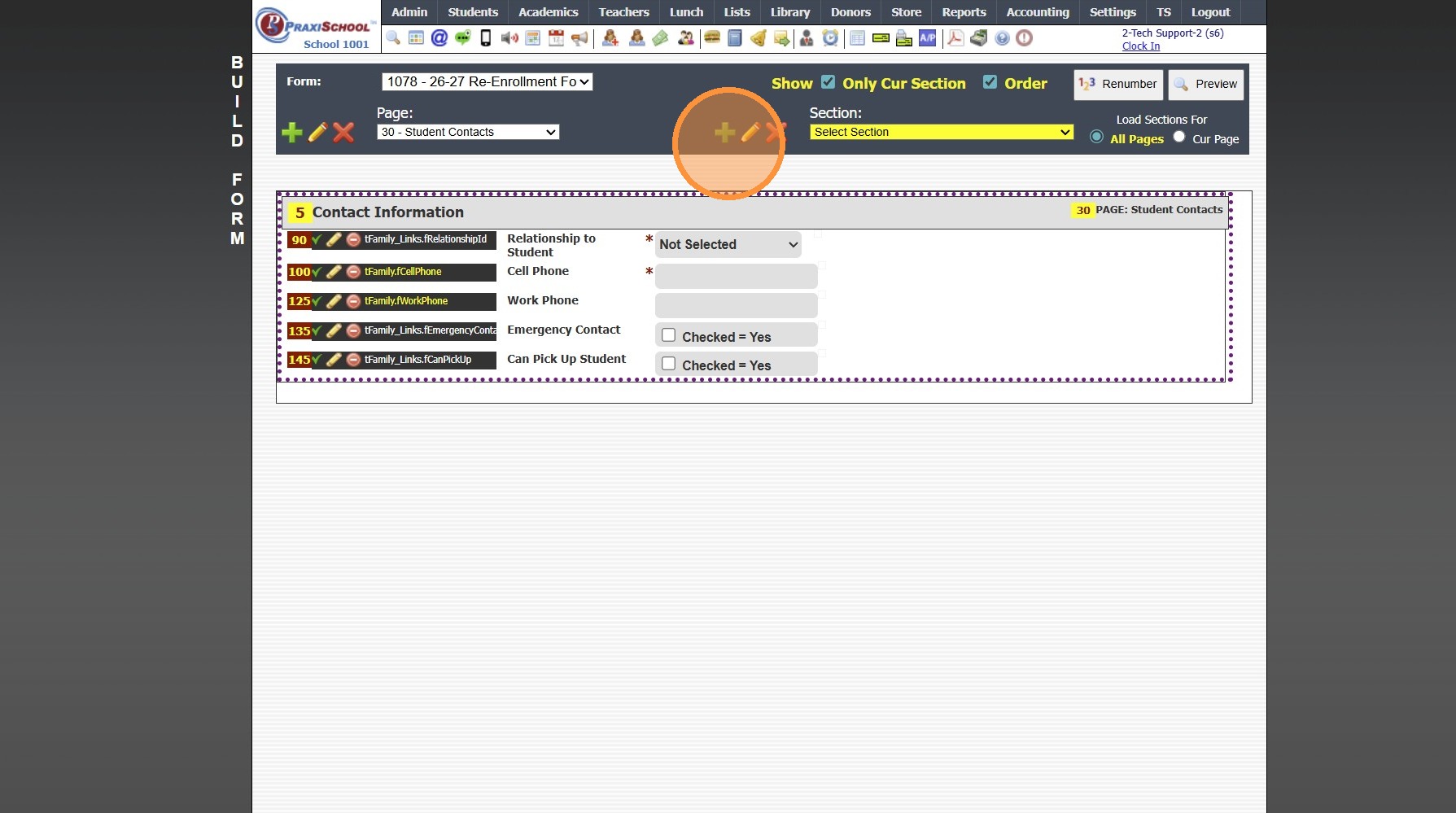
5. Click the "+" Icon to Add the Section
6. Enter the Order Number, Select Page & Enter Section Name
(Recommendation: Set Order Numbers in Increments of 5 or 10 to Allow Additional Pages to be added in-between)
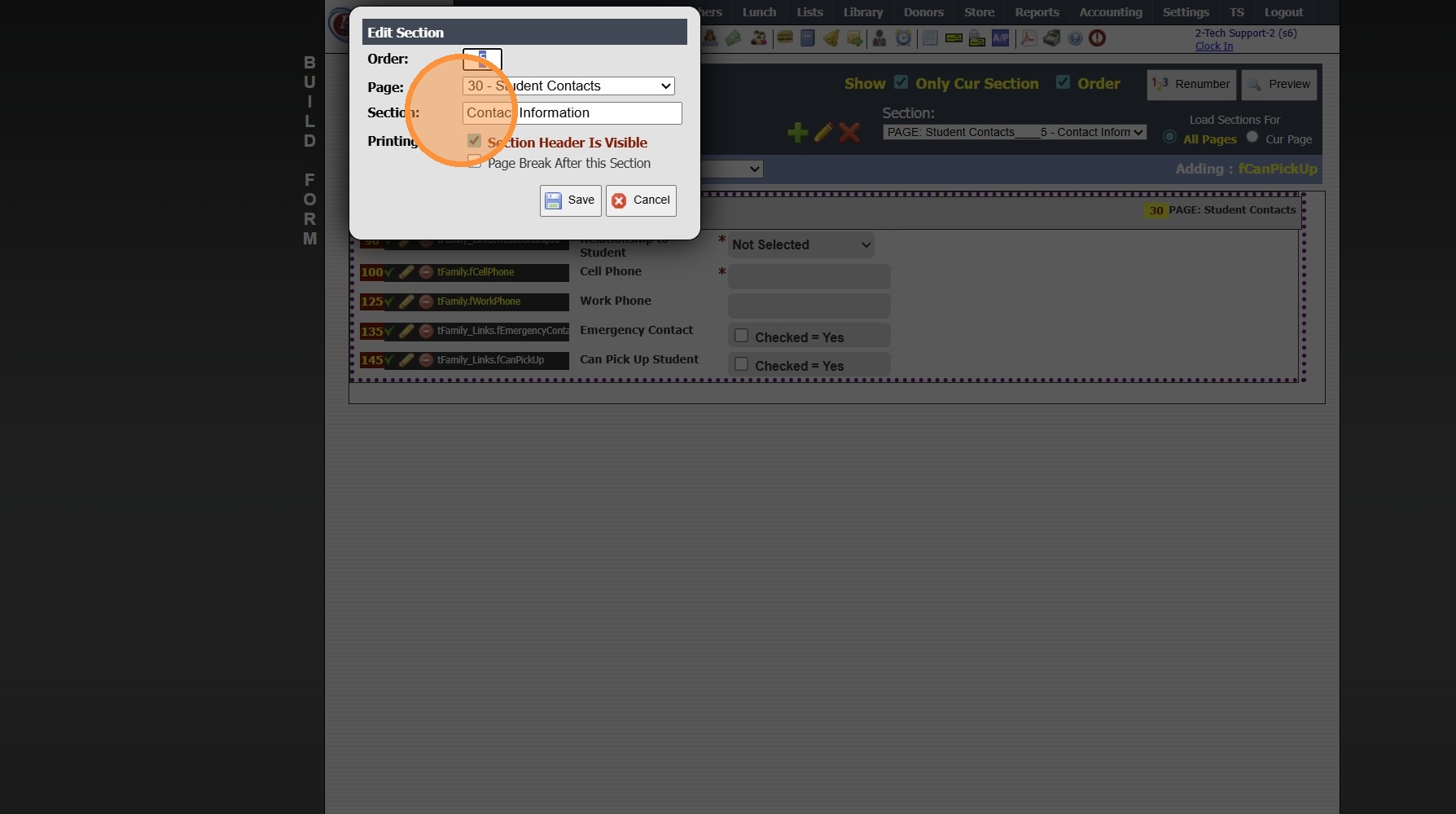
7. Click "Save"

8. Add Items to Family Page from Family & Family Links
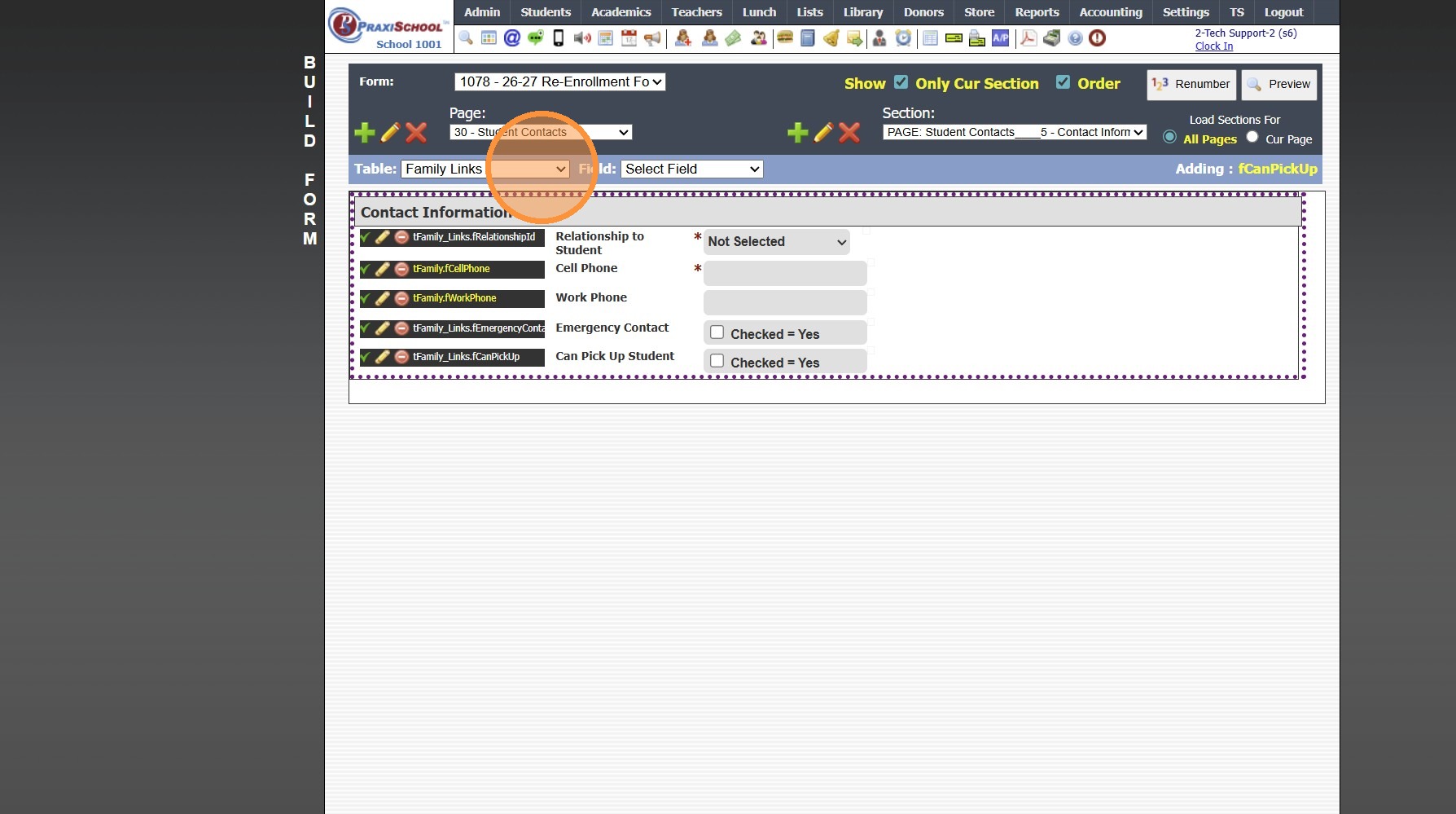
9. Add Contact Specific Fields EXCEPT Contact Name Fields
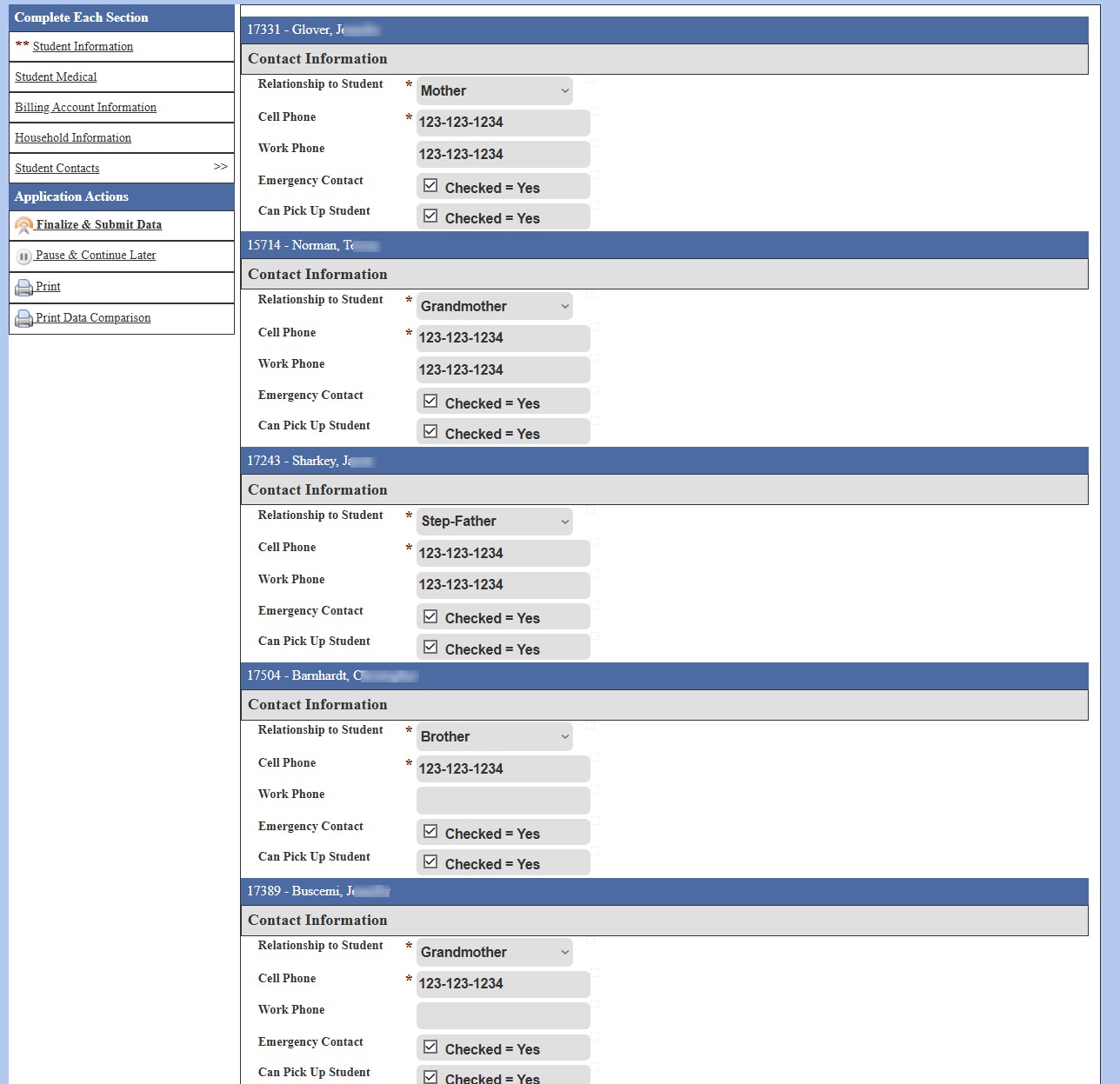
(This Page will Repeat for each Student Contact WITH the Contact's Name above the Section Name)

10. Example Family Page
Related Articles
Building a Standard AR Portal Form
Example Re-Enrollment Form 1. Click "Admin" 2. Click "Online Forms" 3. Click "Build Forms" 4. Select Form 5. Click the "+" Icon to Add a Page 6. Enter the Order Number (Recommendation: Set Order Numbers in Increments of 5 or 10 to Allow Additional ...Creating a Donor Page
1. Click "Donors" 2. Click "Donor Pages" 3. Click "Add" 4. Enter Donor Page Description & Title 5. Select the Campaign 6. Click "Save" 7. Click on the "Html" Tab 8. Click in the Box 9. Create Donor Page HTML 10. Click "Save & Exit" 11. Click on the ...Session Close Tasks - Enrollment: Archive Family
Tip: NOTE: Complete AFTER Non-Returning Students have been Graduated/Withdrawn & Made Inactive. 1. Click "Students" 2. Click "Family" 3. Click "Actions" 4. Click "Archive Family" 5. Click "Select All" 6. Click "Archive Checked Family" 9600.3.11Accessing Enrollment Forms from the Parent Portal
1. Log into the Parent Portal (Enter School ID, Parent ID & Password) 2. Select "Online Forms" from the Toolbar 3. If Online Forms is not on the Toolbar, Click to Expand the Menu 4. Select "Online Forms" 5. Select the Student 6. Select the Form 7. ...Creating a Report Card Cover Page
1. Click "Students" 2. Click "Students" 3. Click "Actions" 4. Click "Send Email" 5. Create Cover Page Layout 6. Click "Save Template" 7. Enter Template Name 8. Select Category or Add New Category 9. Click "Save As" 2000.2.12