Printing Report Cards

Printing Report Cards

Printing Report Cards


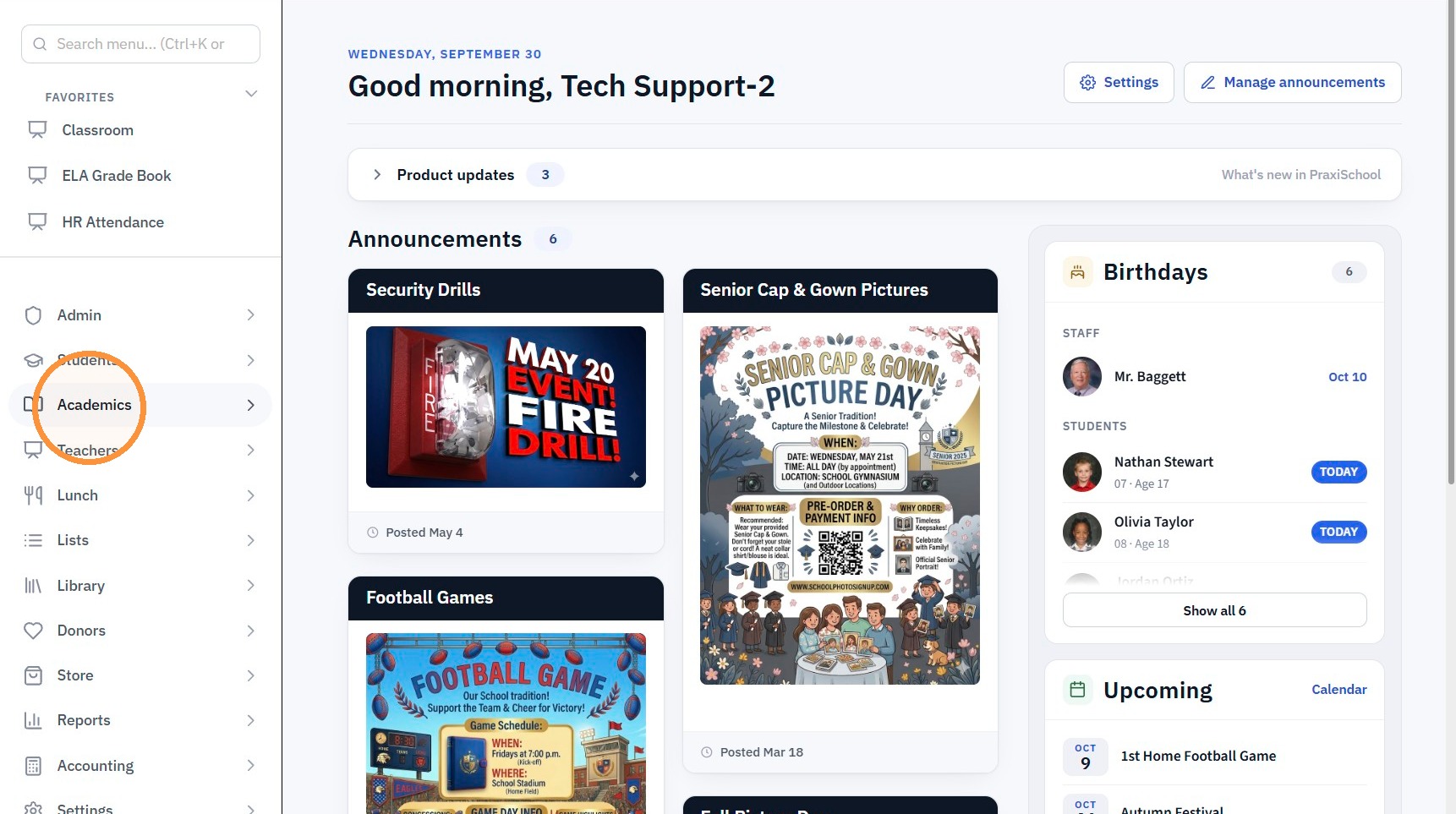
1. Log into PraxiSchool

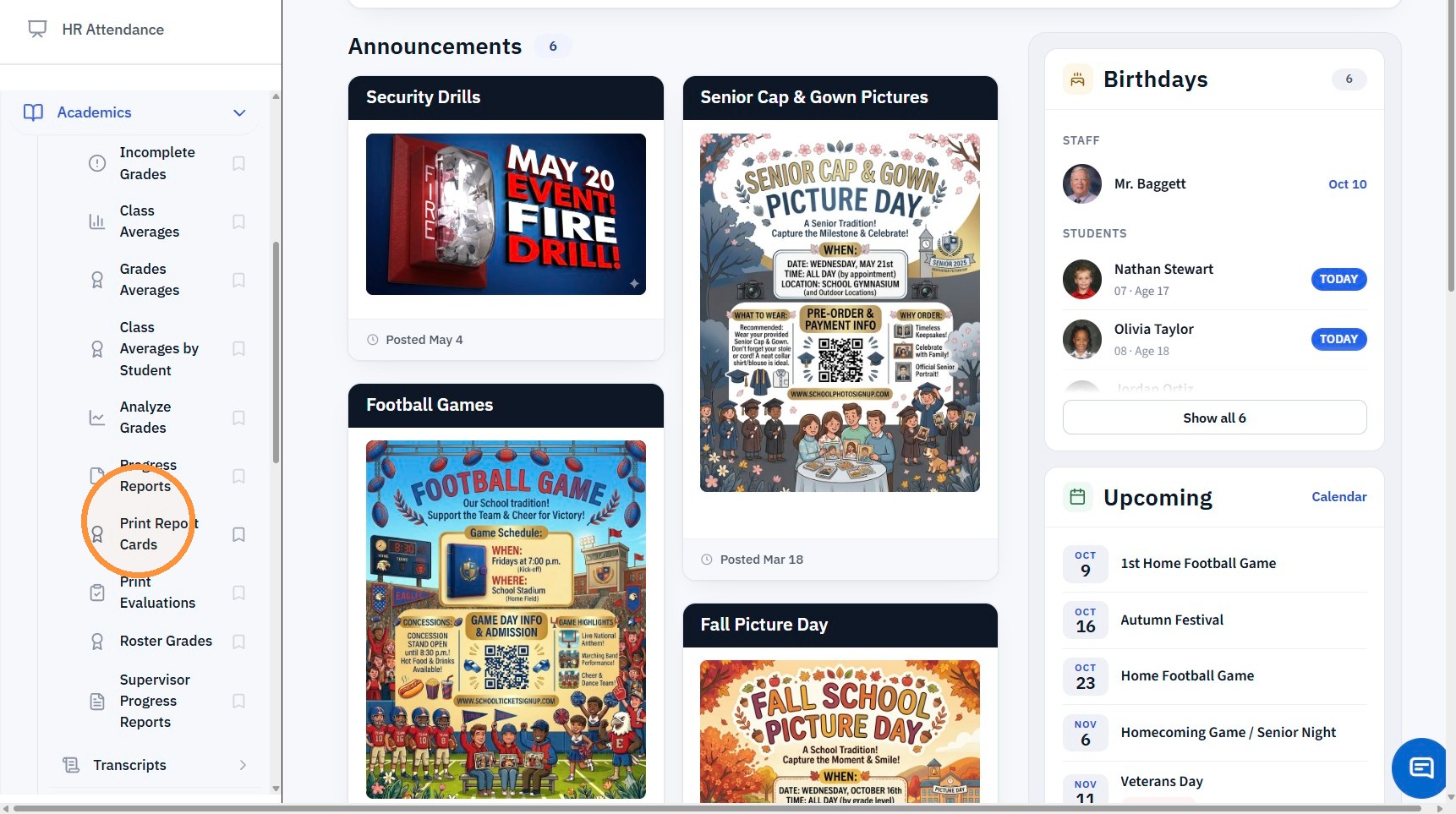
2. Click "Academics"

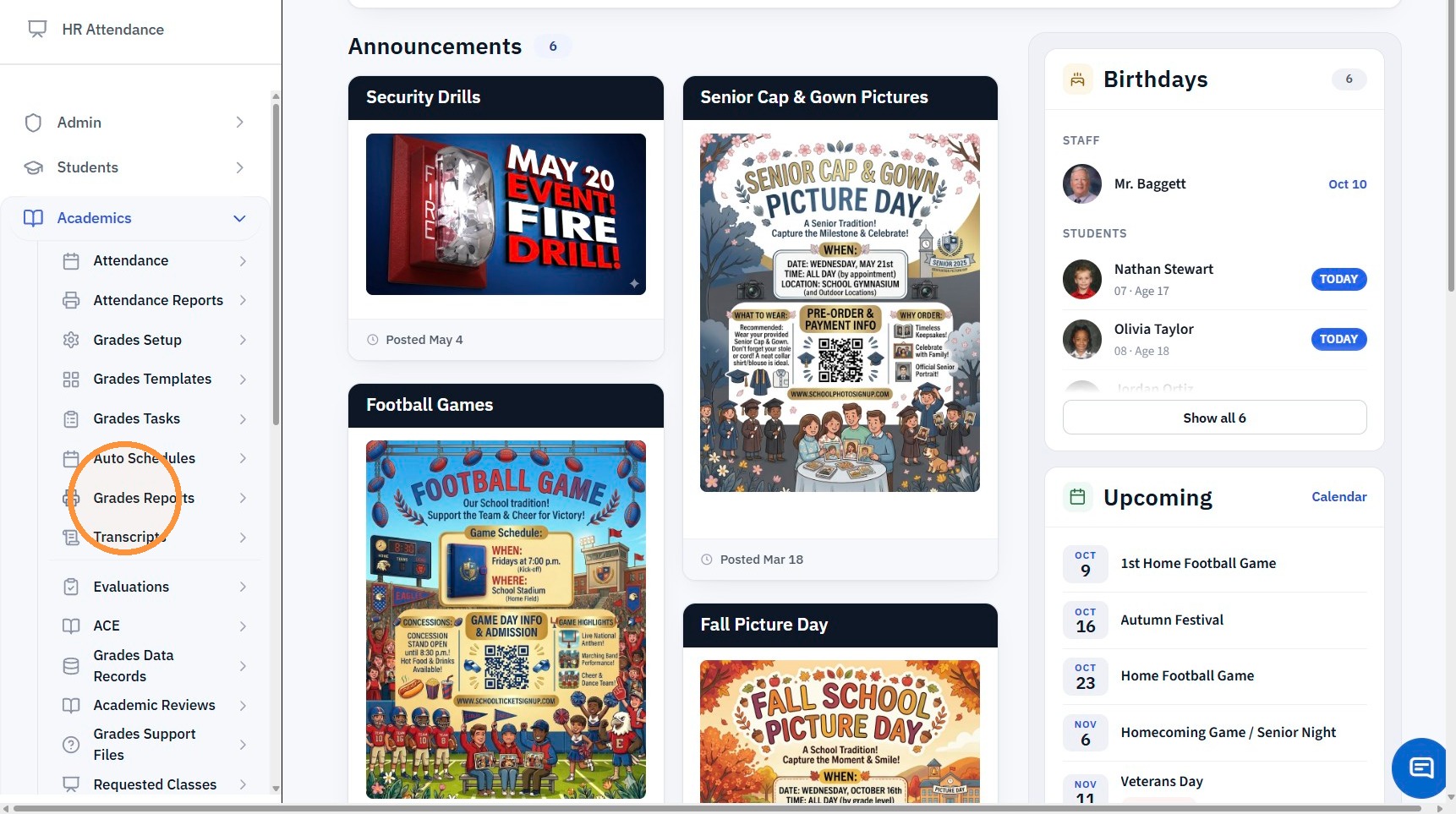
3. Click "Grades Reports"

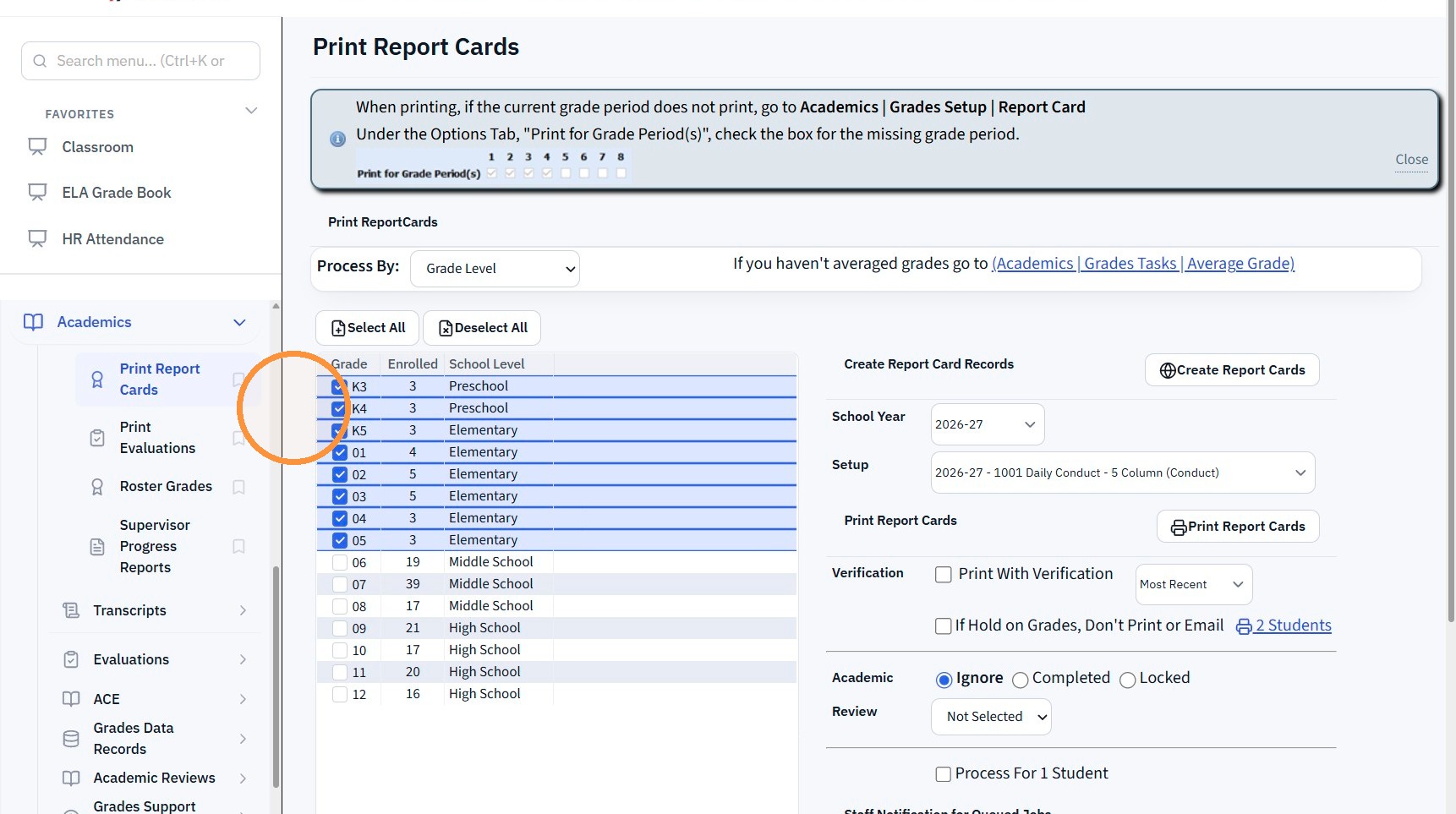
4. Click "Print Report Cards"

5. Select Grade Level(s)

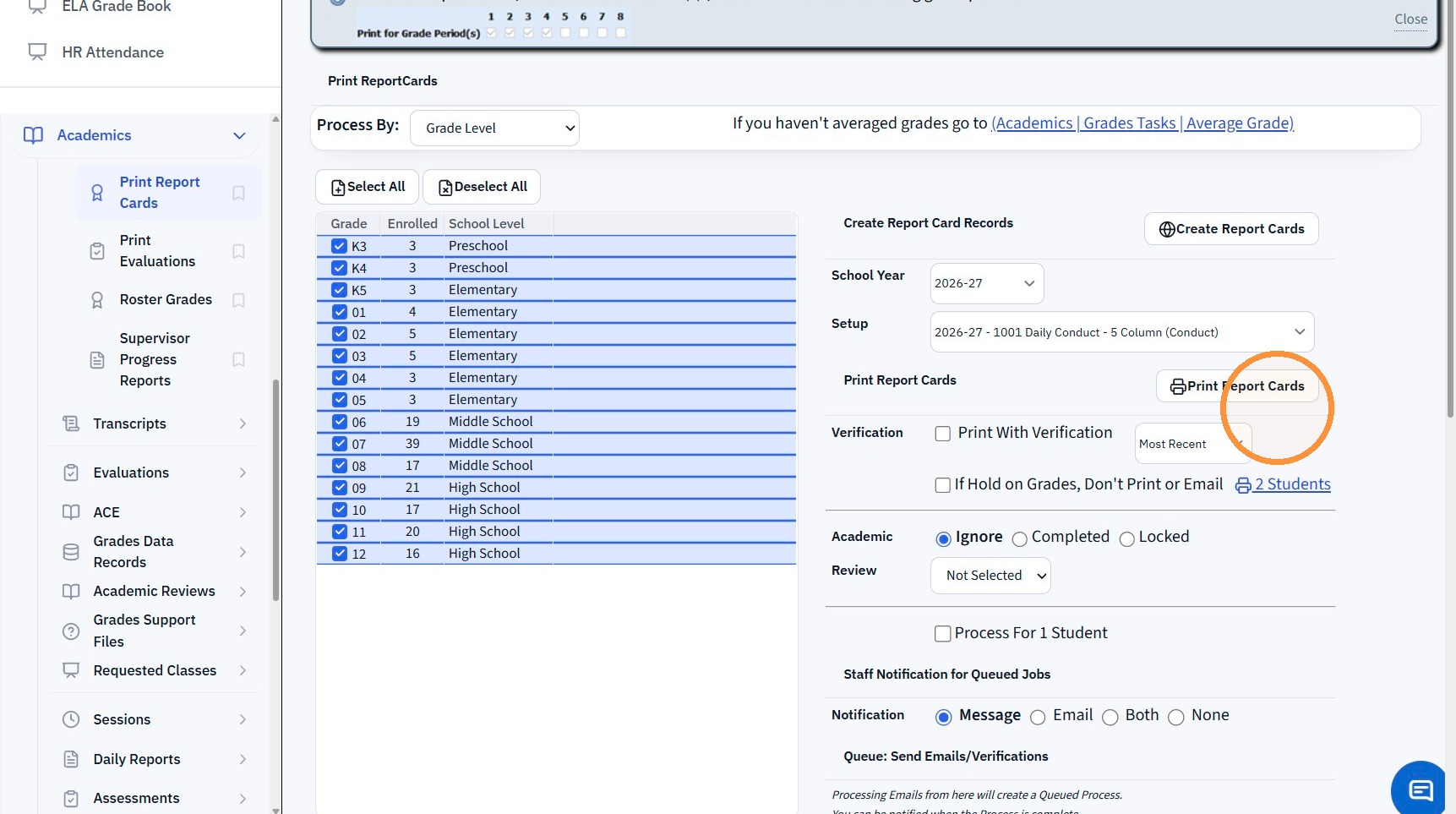
6. Click "Print Report Cards"

Queued Options

7. Report Cards Can be Emailed by Selecting the Queue: Send Emails/Verifications Options:
Select Email To Options
Enter Email Message (Optional)
Select Staff Notification Option

Click "Send Emails"


2000.6.8

    • Related Articles

    • Preparing to Print Report Cards

      Preparing to Print Report Cards Averaging Grades 1. Click "Academics" 2. Click "Grades Tasks" 3. Click "Average Grades" Averaging by Teacher 4. Click "Select All" 5. Verify "School Year" 6. Click "Grade Period(s)" 7. Click "Semester(s)" 8. Click ...
    • Creating Report Cards

      Creating Report Cards 1. Log into PraxiSchool 2. Click "Academics" 3. Click "Grades Reports" 4. Click "Print Report Cards" 5. Select Grade Levels 6. Select Report Card Template 7. Click "Create Report Cards" 2000.6.7
    • Emailing Report Cards in Batch

      Emailing Report Cards in Batch 1. Click "Academics" 2. Click "Grades Reports" 3. Click "Print Report Cards" 4. Click "Select All" or select by Grade / Homeroom Teacher 5. Select Email From Option 6. Select Email To Option(s) 7. Add Message (Optional) ...
    • Updating Homeroom Teacher on Report Cards

      Updating Homeroom Teacher on Report Cards 1. Click "Academics" 2. Click "Grades Reports" 3. Click "Print Report Cards" 4. Select Grade Levels 5. Select Report Card Setup for Selected Grade Levels 6. Click "Create Report Cards" 2000.6.14
    • Updating Student Pictures on Report Cards

      Updating Student Pictures on Report Cards Updating Student Pictures, if Student Pictures are added after Report Cards have already been created 1. Click "Academics" 2. Click "Grades Reports" 3. Click "Print Report Cards" 4. Select to Update by ...