Opening "Closed" Student Evaluations
Opening "Closed" Student Evaluations
1. Click "Teachers"
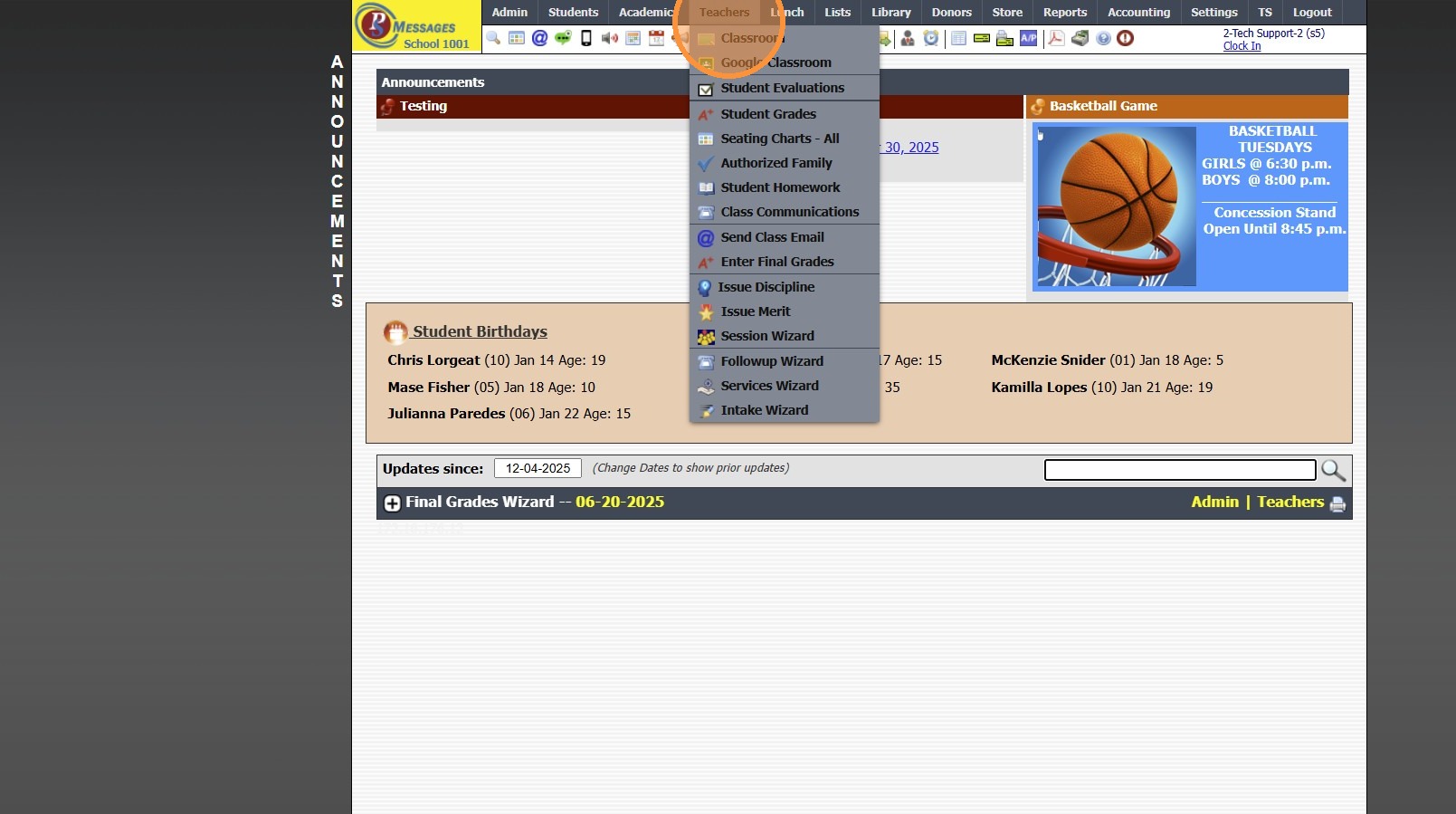
2. Click "Student Evaluations"
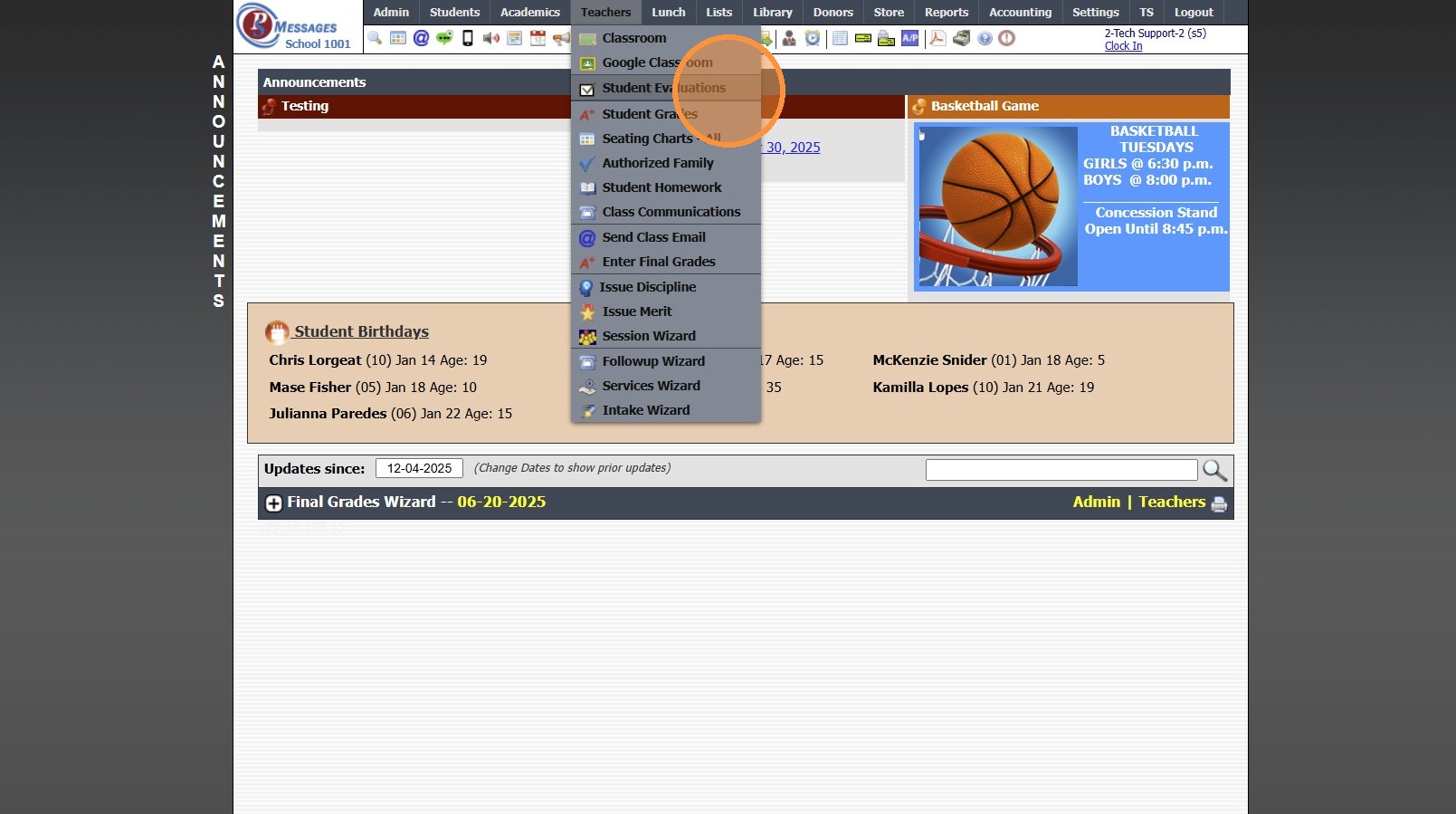
3. Select "Template"
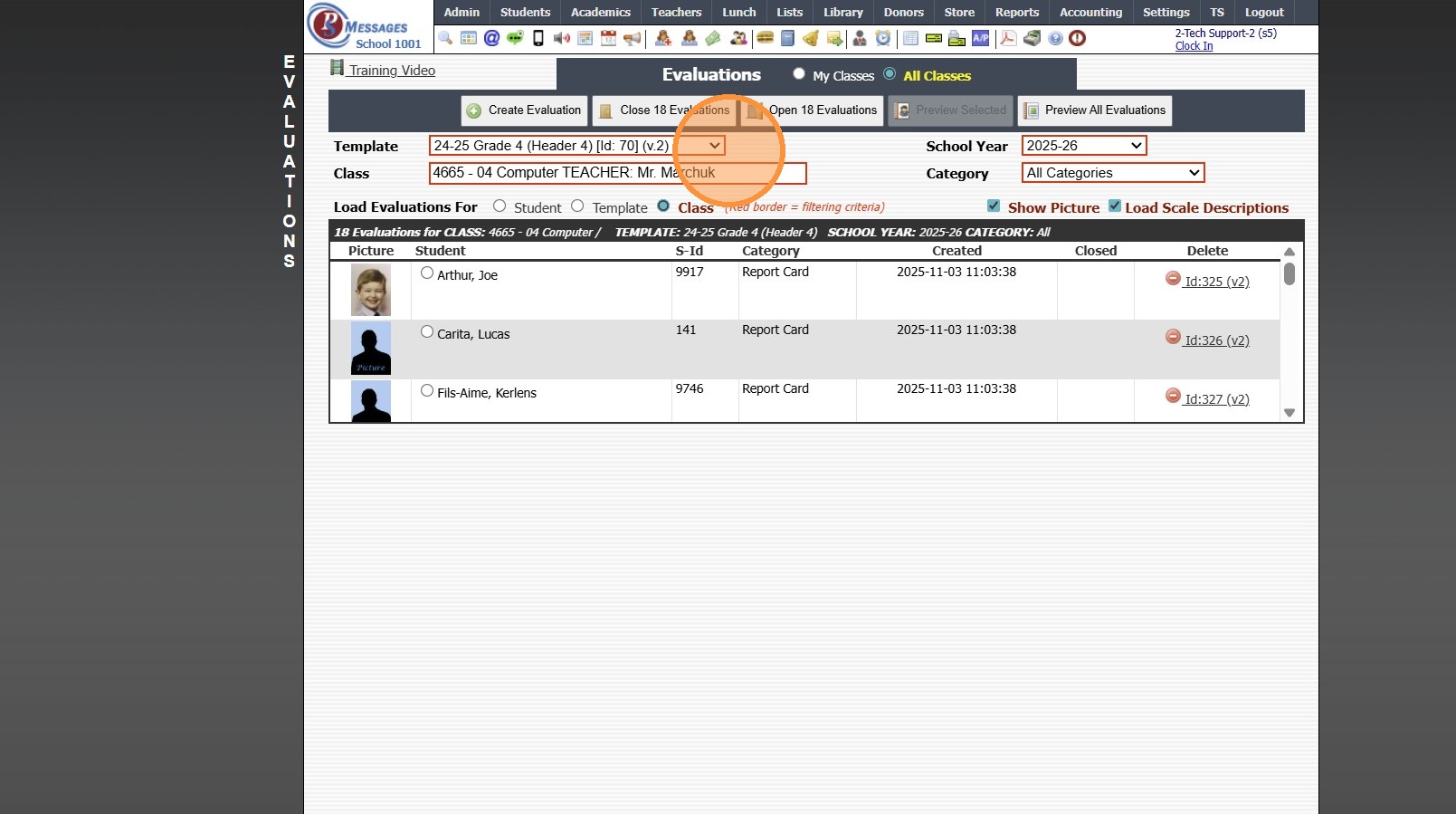
4. Select "Class"
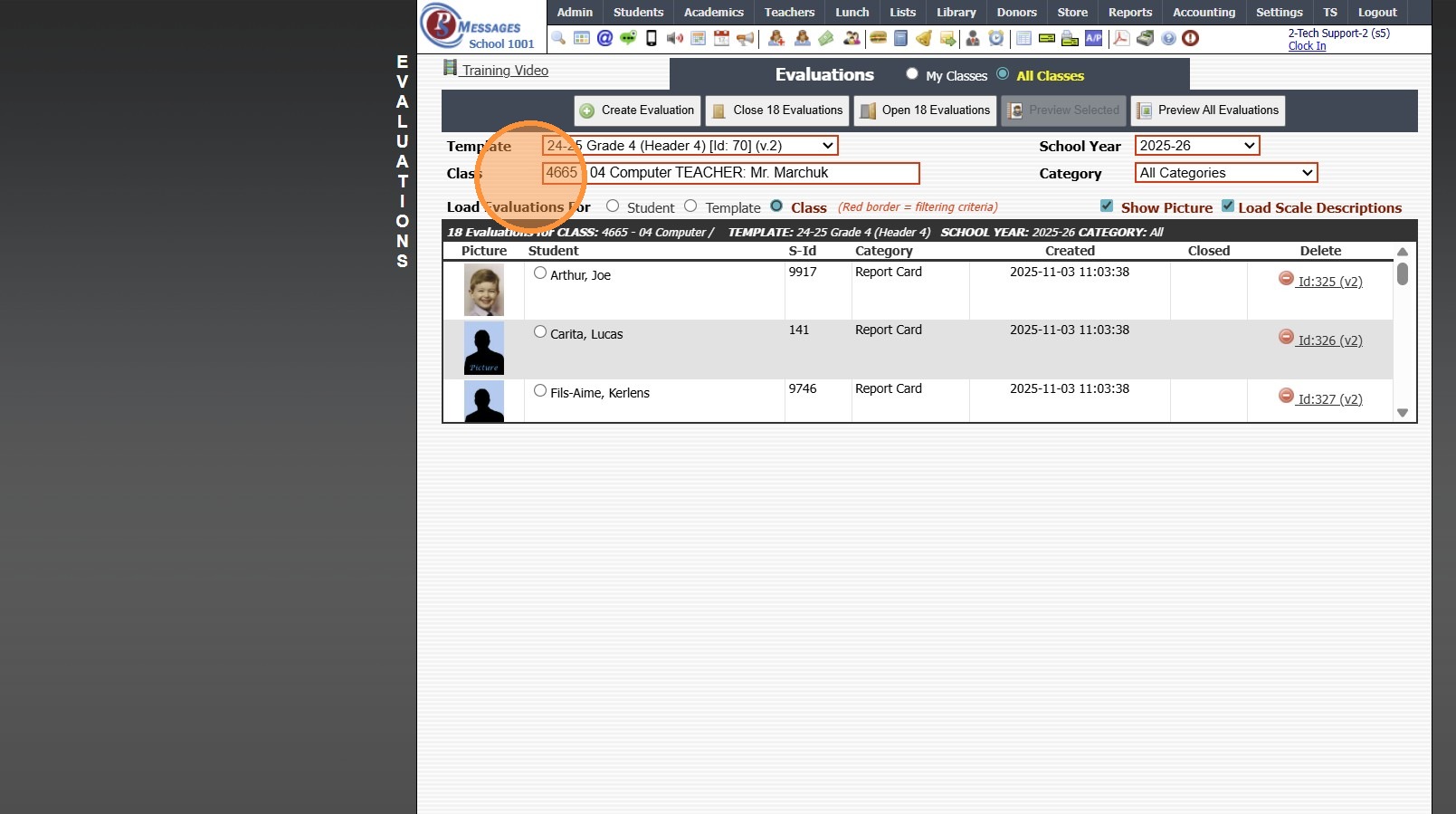
5. Select "Class"
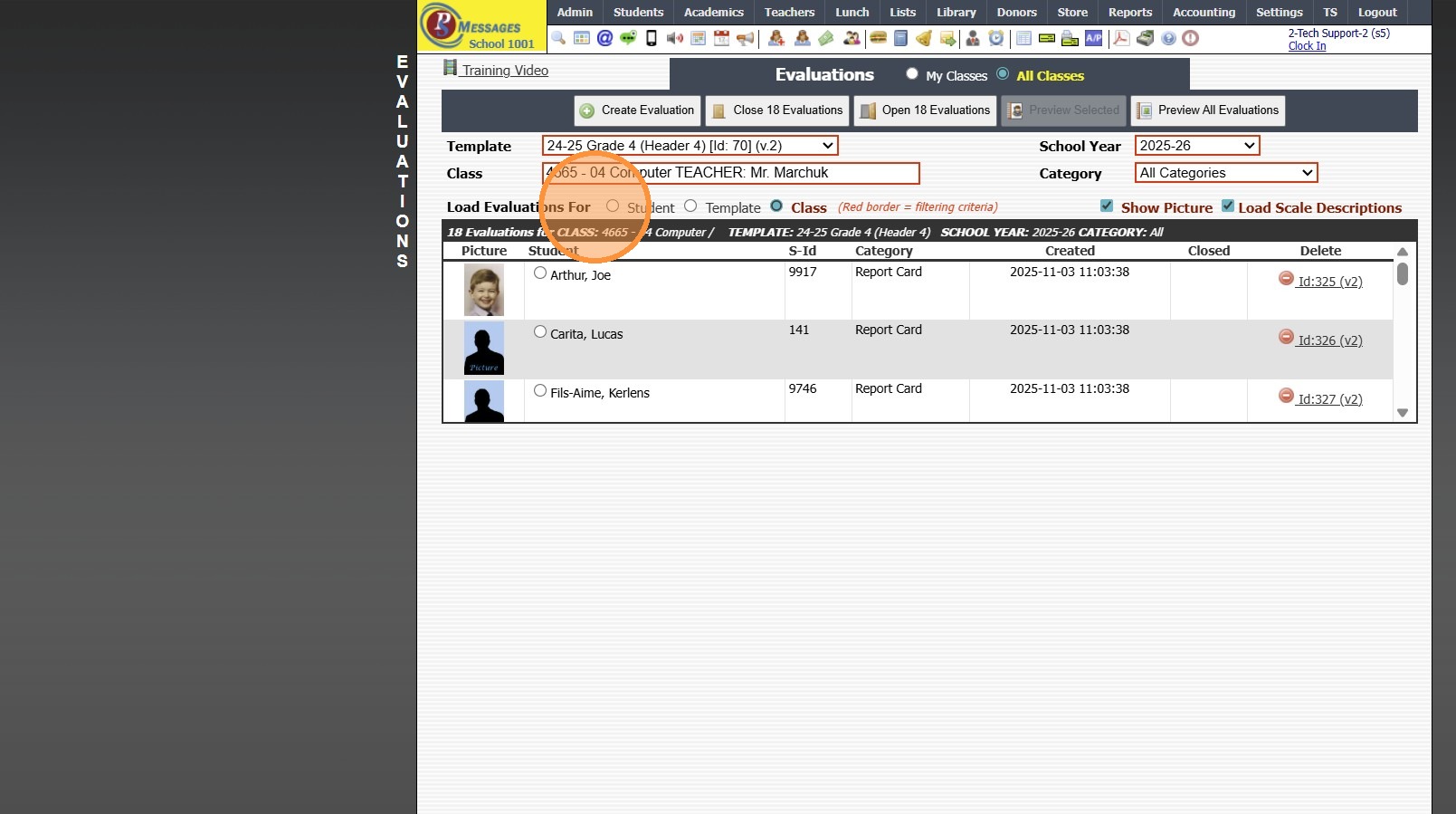
6. Click "Open "#" Evaluations"
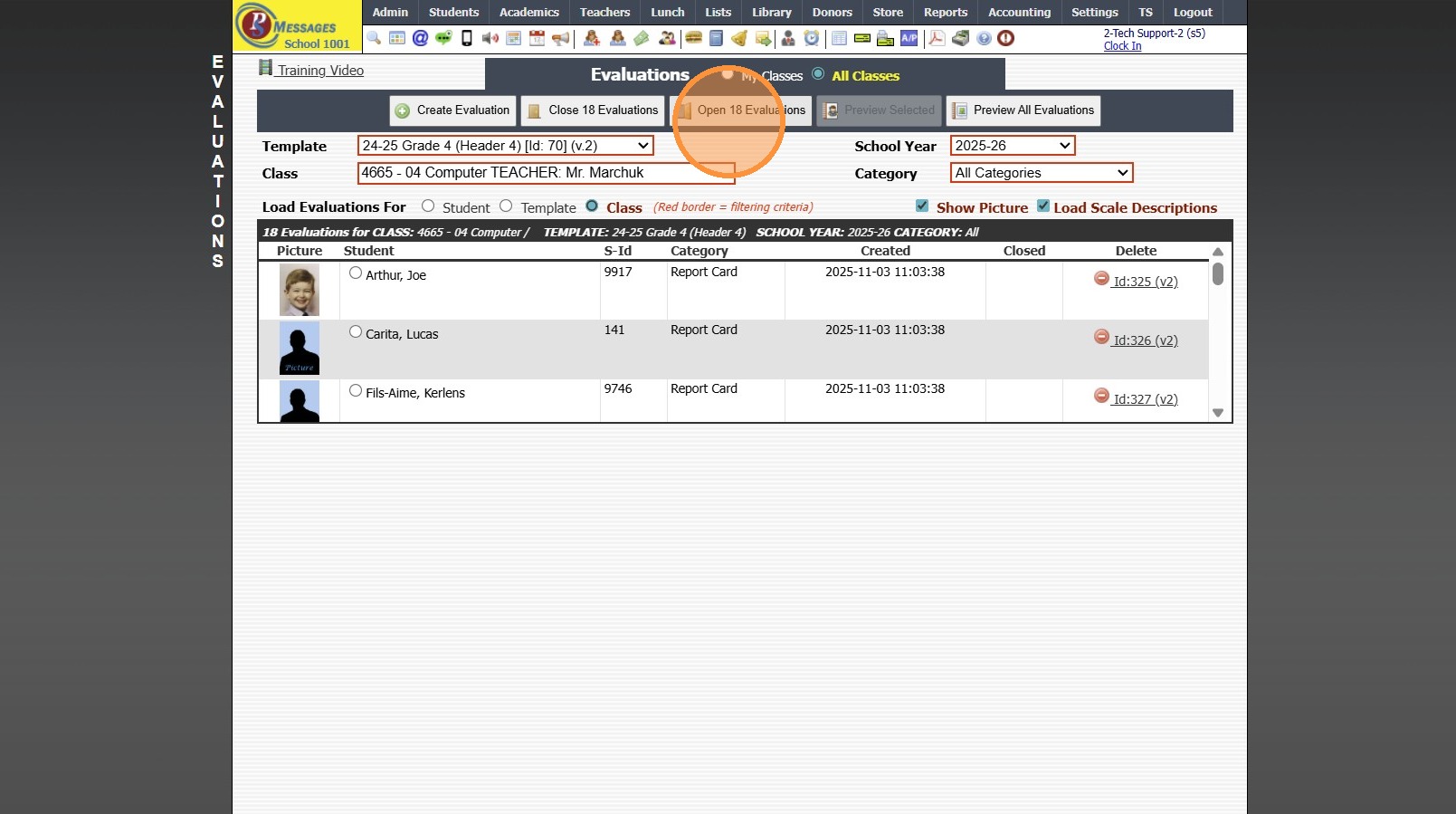
7. 2500.3.5
Related Articles
Opening a Closed Grade Period
Opening a Closed Grade Period A Closed Grade Period can be Opened to Allow Updates to Student's Overall Averages. NOTE: Opening a Closed Grade Period will clear all Roster Grades that have been marked Override. 1. Log into PraxiSchool 2. Click ...Closing Student Evaluations
Closing Student Evaluations 1. Click "Teachers" 2. Click "Student Evaluations" 3. Select "Template" 4. Select "Class" 5. Select "Class" 6. Click "Close "#" Evaluations" 7. 2500.3.4Printing Student Evaluations
Printing Student Evaluations 1. Click "Academics" 2. Click "Grades Reports" 3. Click "Print Evaluations" 4. Select Teacher or Grade Level & Select the Evaluation Template 5. Click "Select All" 6. Click "Print Evaluations" 7. Print Screen Evaluation ...Previewing Evaluations
Previewing Evaluations 1. Log into PraxiSchool 2. Click "Teachers" 3. Click "Student Evaluations" 4. Select Load Evaluations For Option (Student, Template or Class) (Search based on Load Option Selected) 5. Select Student Evaluation 6. Click "Preview ...Creating / Viewing Student Evaluations from Teachers
Creating / Viewing Student Evaluations from Teachers 1. Log into PraxiSchool 2. Click "Teachers" 3. Click "Student Evaluations" 4. Select School Year Creating/Viewing by Student 5. Click Load Evaluations For "Student", Select Student and Click ...