Enroll Students in ACE Courses and Assigning Paces
Enroll students in Courses and Assigning Paces
1. Click "Learning Center"

2. Click "Learning Center"

3. Select "Learning Center" Class and Click "Grade Book"

4. Click the student box and start typing the name

5. Select the name from the dropdown list

6. Click "Add Course"

7. Check the boxes of the Courses to assign

8. Click "AddCourse(s)"

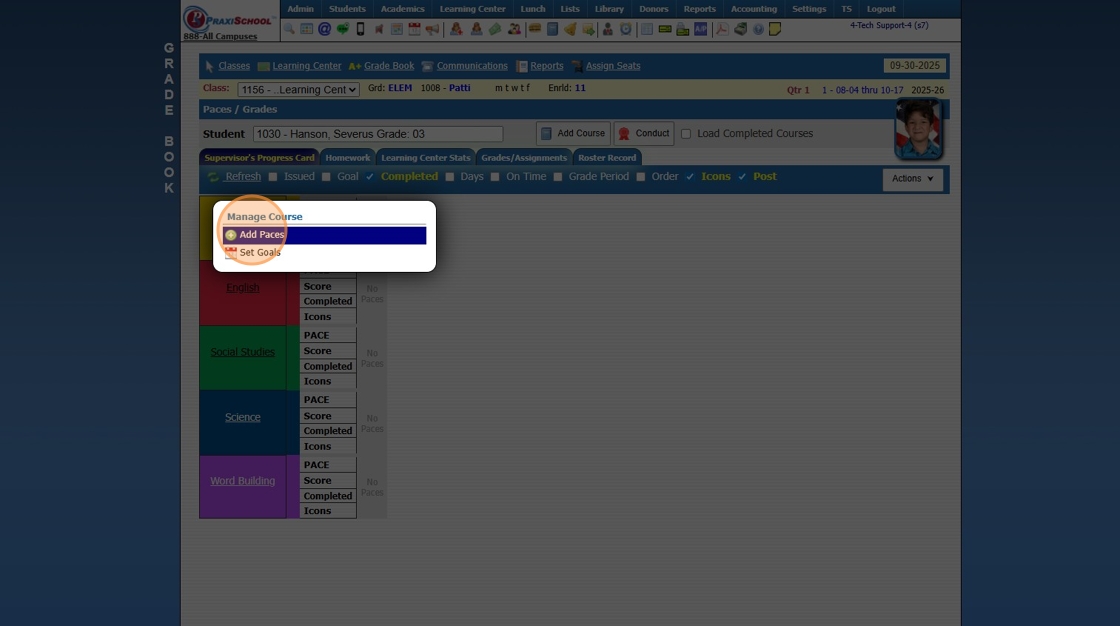
9. Click on the Course name to add Paces.

10. Click "Add Paces"
11. Click each Pace Nbr to be assigned
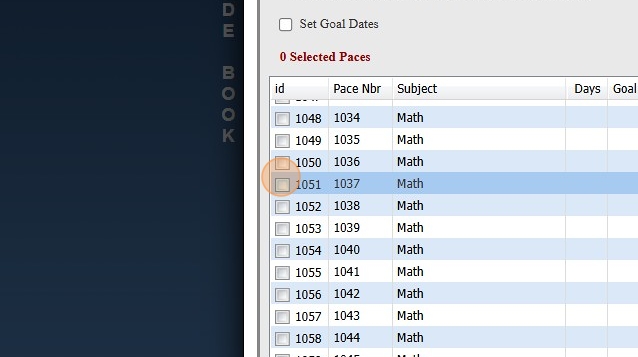
12. Click as many Pace Nbrs that you need for this course

13. Click "Save"

2500.17.1
2500.17.2
Related Articles
Add ACE Courses & PACES to Students in the Learning Center
Add ACE Courses & PACES to Students in the Learning Center 1. Click "Teachers" 2. Click "Classroom" 3. Select Learning Center Course in Grid 4. Click "Grade Book" 5. Search Student 6. Click "Add Course" 7. Select ACE Courses for Student 8. Click ...Adding / Removing PACES to ACE Courses
Adding / Removing PACES to ACE Courses 1. Click "Academics" 2. Click "Courses" 3. Click "Actions" 4. Click "Manage Paces" 5. Search the Course 6. Click "Create Paces" to Add New Paces or Select a Pace and Click "Delete Pace" to remove a Pace 7. If ...Adding New ACE Courses or Setting Up ACE Courses
Adding New ACE Courses or Setting Up ACE Courses 1. Click "Academics" 2. Click "Courses" Tip: ACE Courses are Pre-Loaded into the Course File. Additional Courses or Conventional Courses can be added if necessary. 3. Select a Course 4. Click "Edit" 5. ...Assigning Lockers
Assigning Lockers from Lockers 1. Click "Lists" 2. Click "Misc Lists - Students" 3. Click "Lockers" 4. Click "Edit" 5. Select Student 6. Click "Save" Assigning Lockers from Students 7. Click "Students" 8. Click "Students" 9. Select Student 10. Click ...Adding PACES to Students in the Learning Center
Adding PACES to Students in the Learning Center 1. Click "Teachers" 2. Click "Classroom" 3. Select Learning Center Course in Grid 4. Click "Grade Book" 5. Search Student 6. Click on Class 7. Click "Add Paces" 8. Select PACES to Assign to Student 9. ...