Creating Class Period Schedules (Same Period Schedule each Day)
1. Click "Lists"
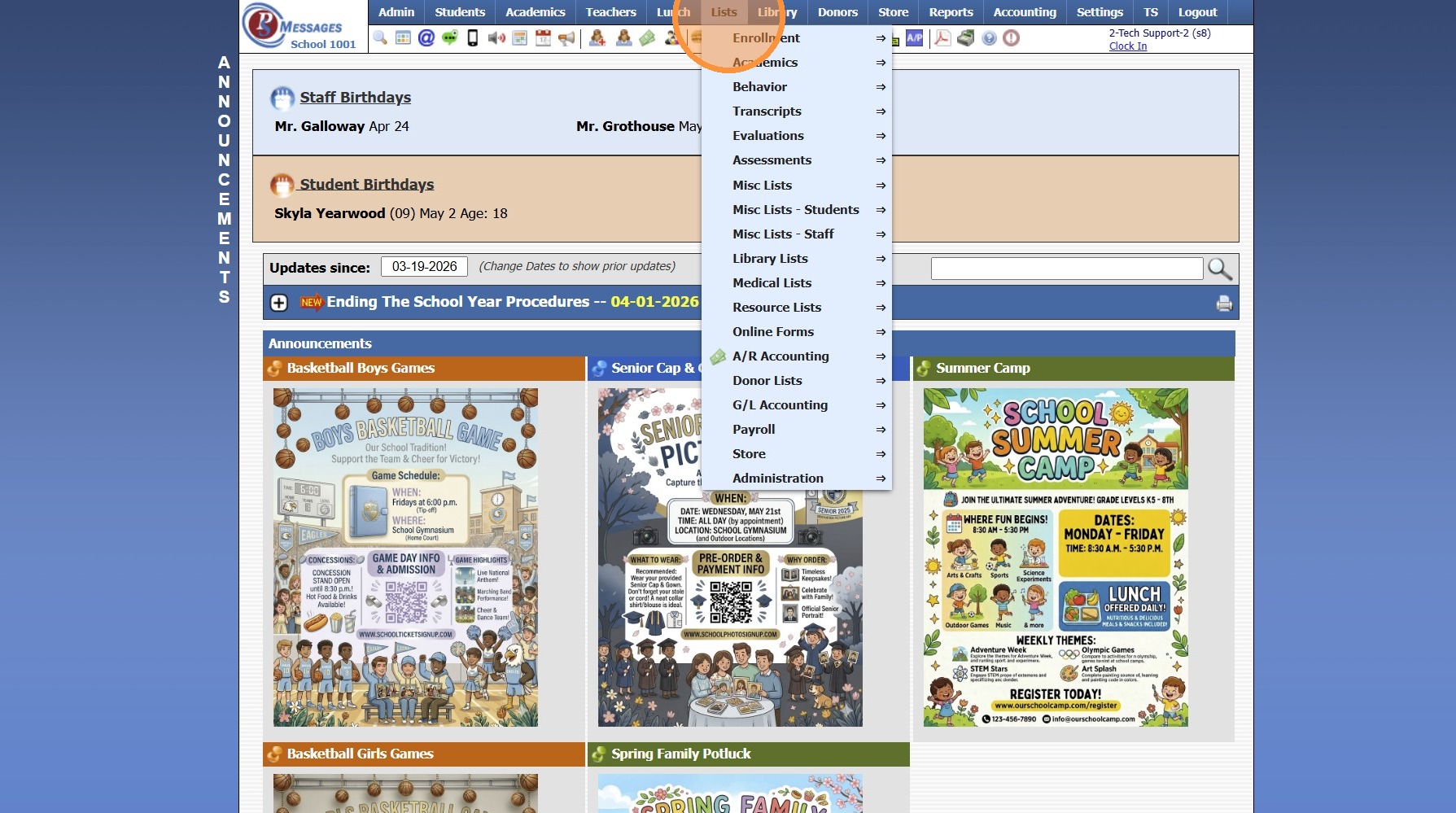
2. Click "Academics"
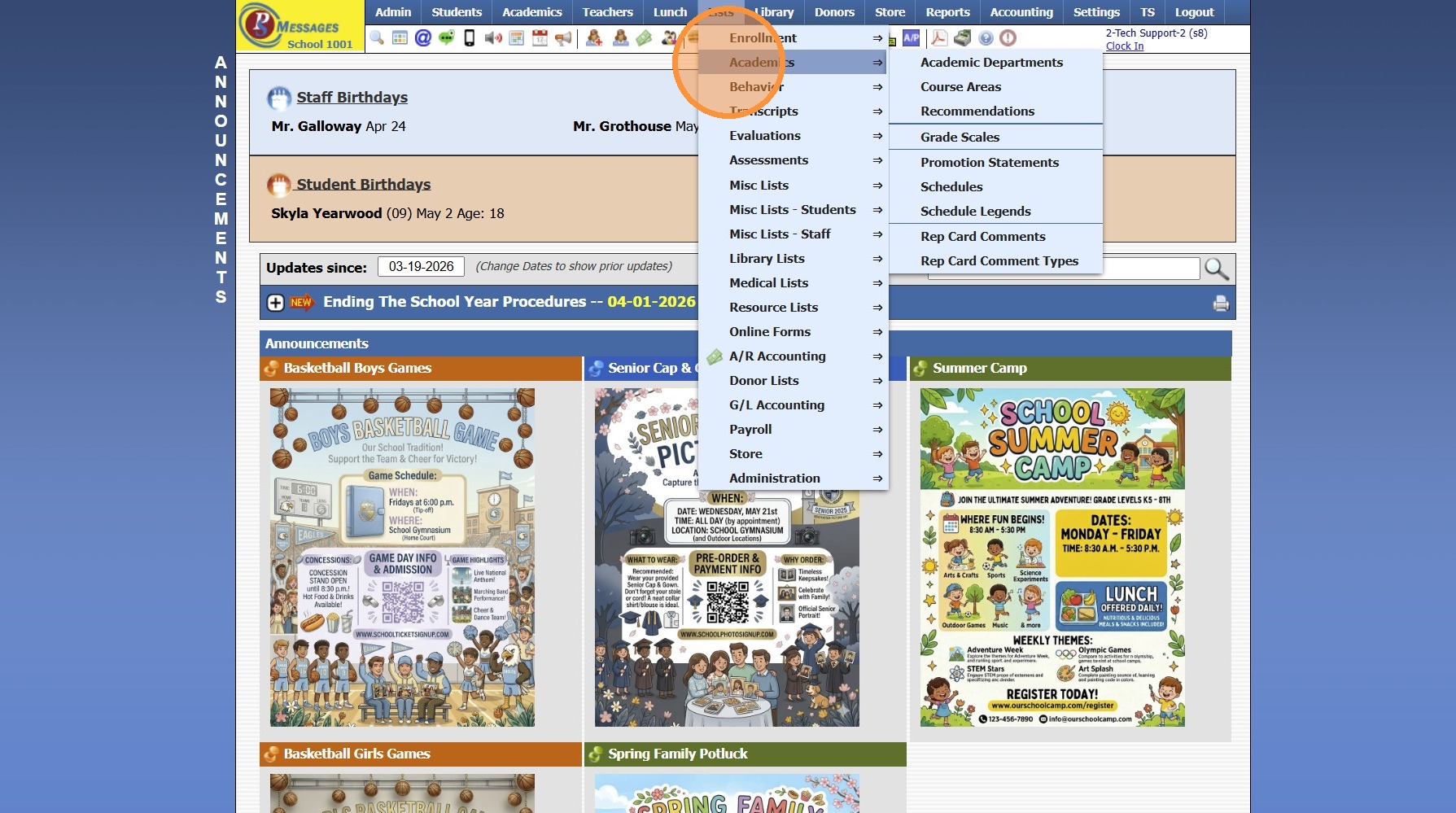
3. Click "Schedules"
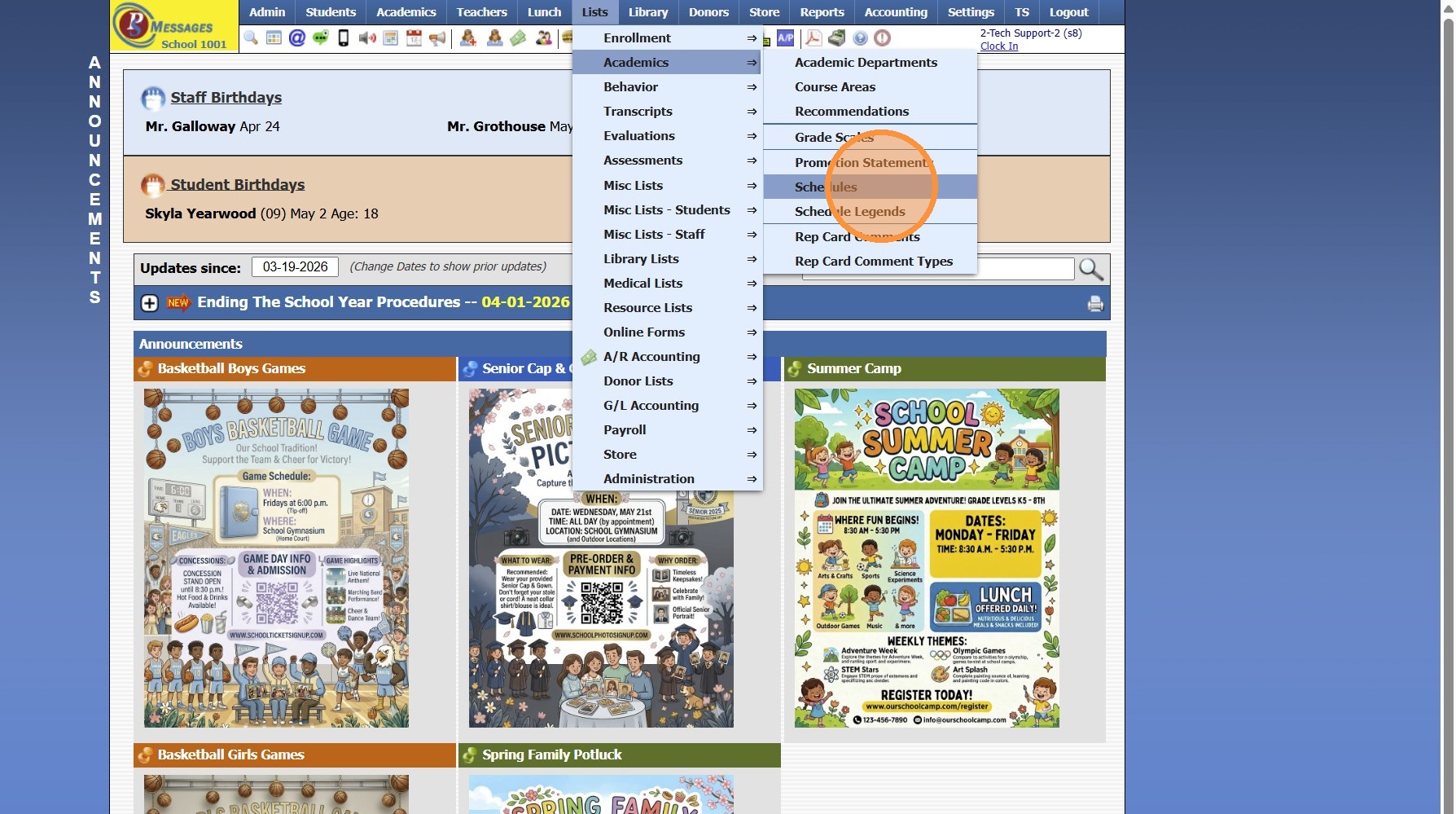
4. Click "Add"
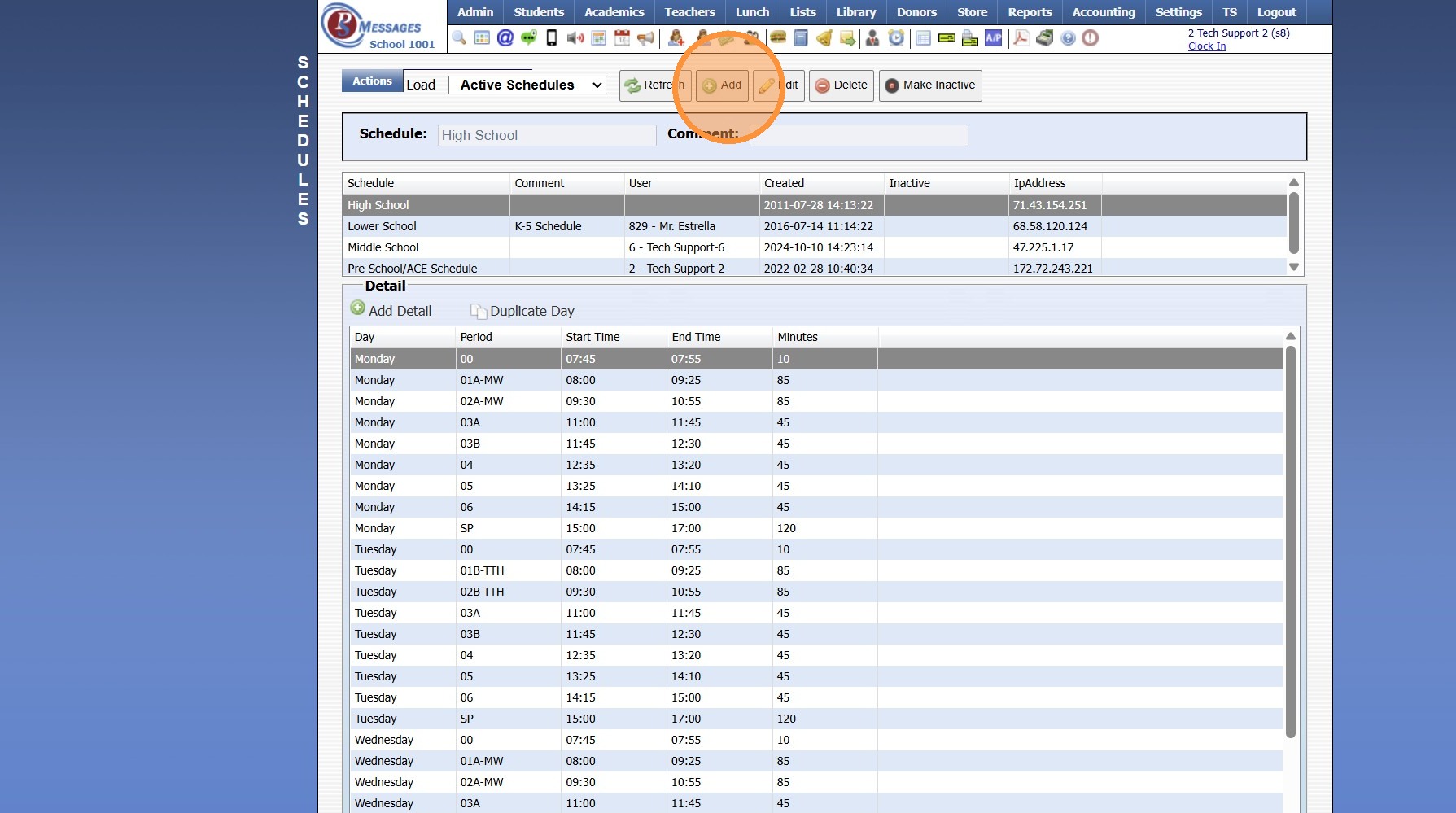
5. Enter Schedule Name
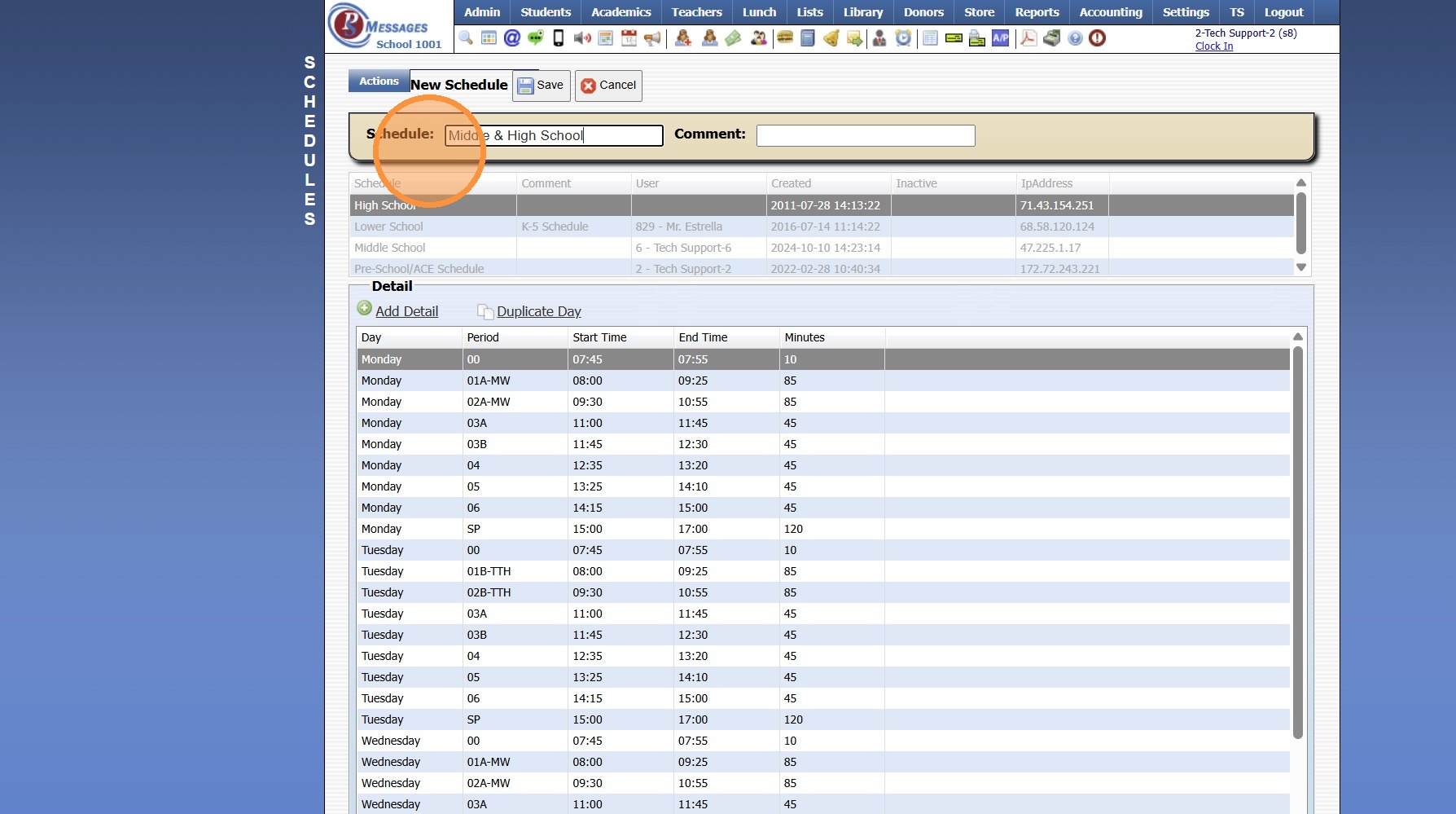
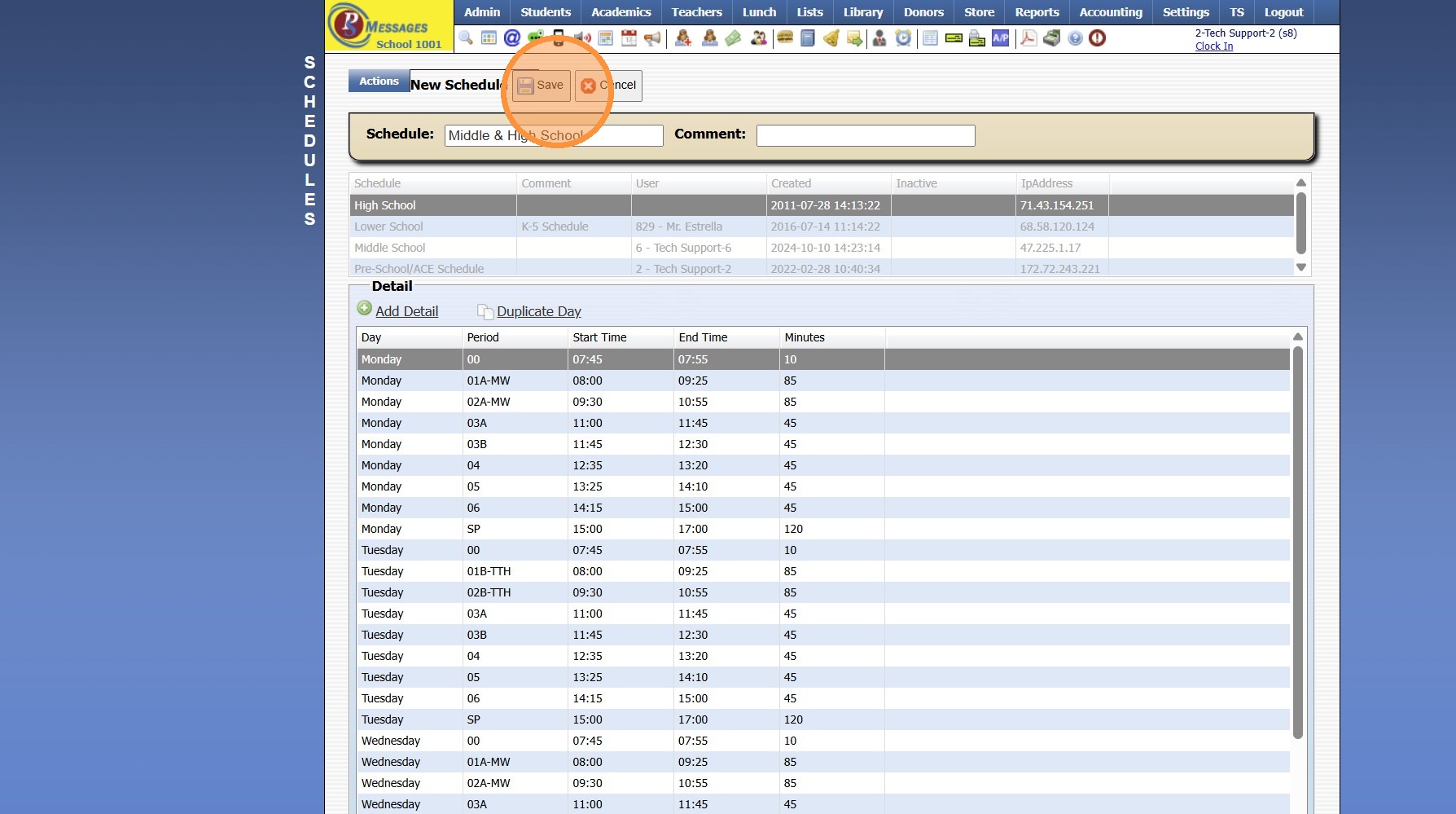
6. Click "Save"
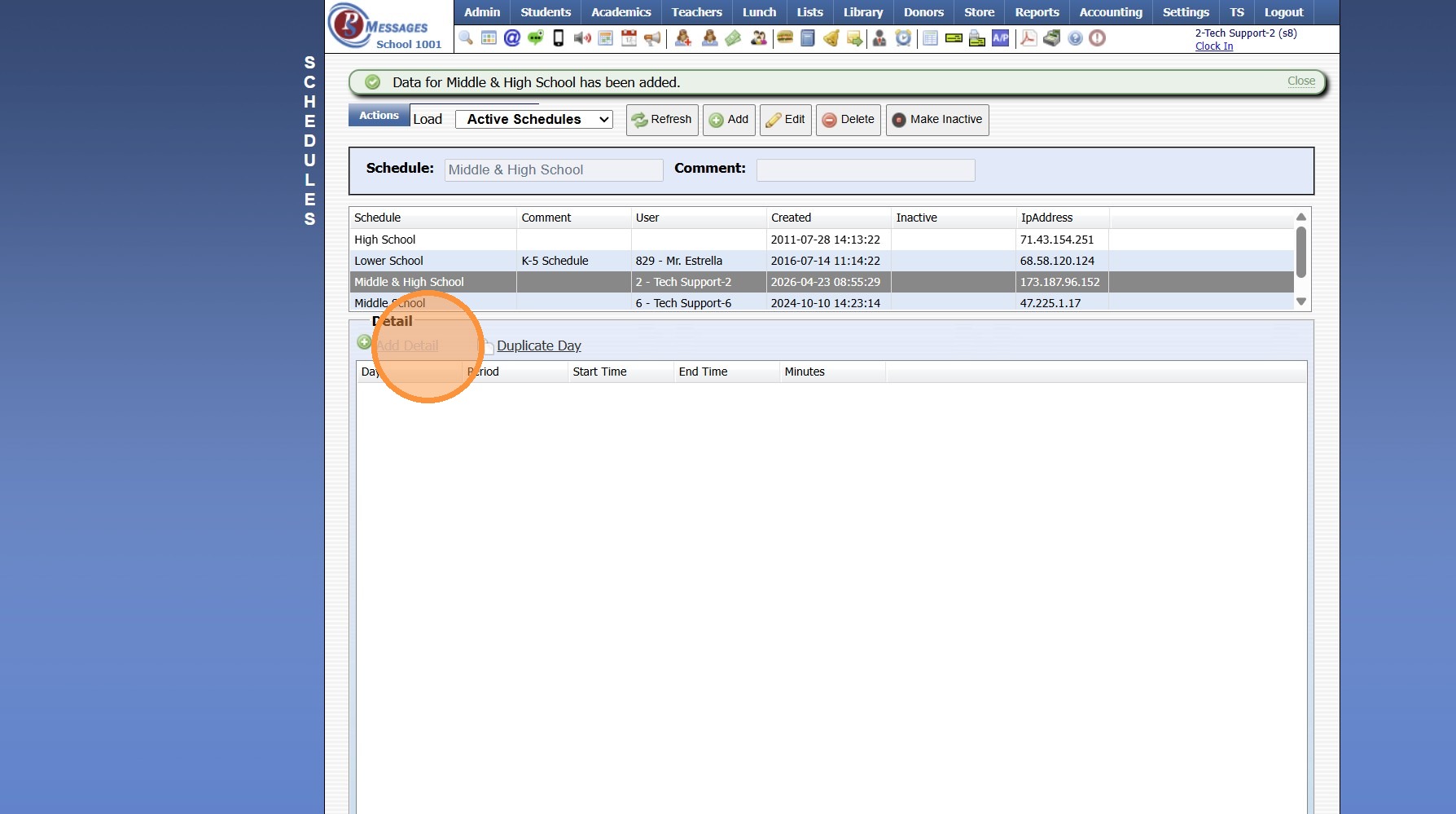
7. Click "Add Detail"
8. Select Day of Week & Enter Period
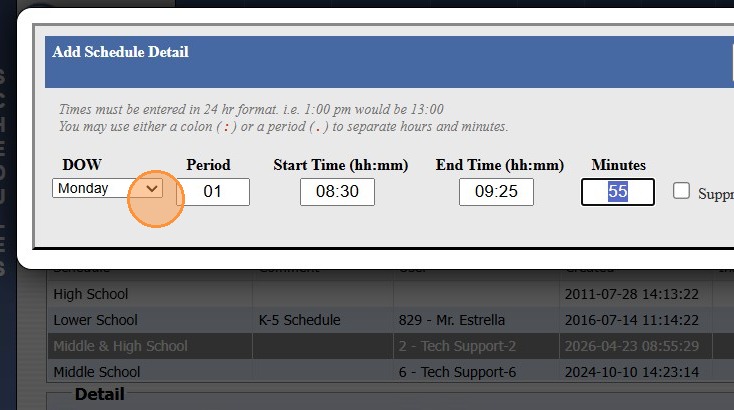
9. Enter Period Start & End Time
(Schedule Times Must be Entered in Military Time)
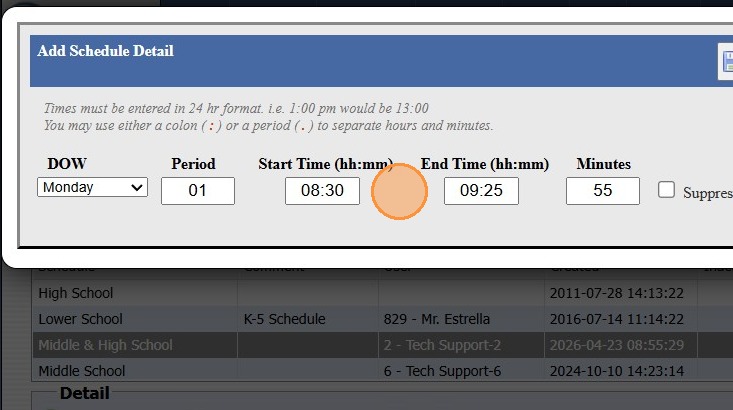
10. Click "Save New"
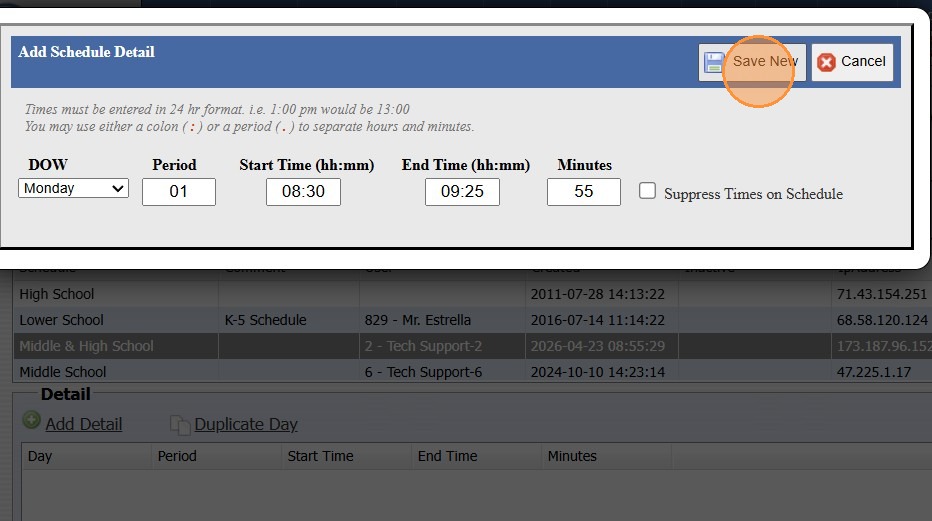
11. Repeat Steps 7 - 10 for Each Period of that Day
12. Click "Duplicate Day" to Duplicate Periods to the Next Day of the Week
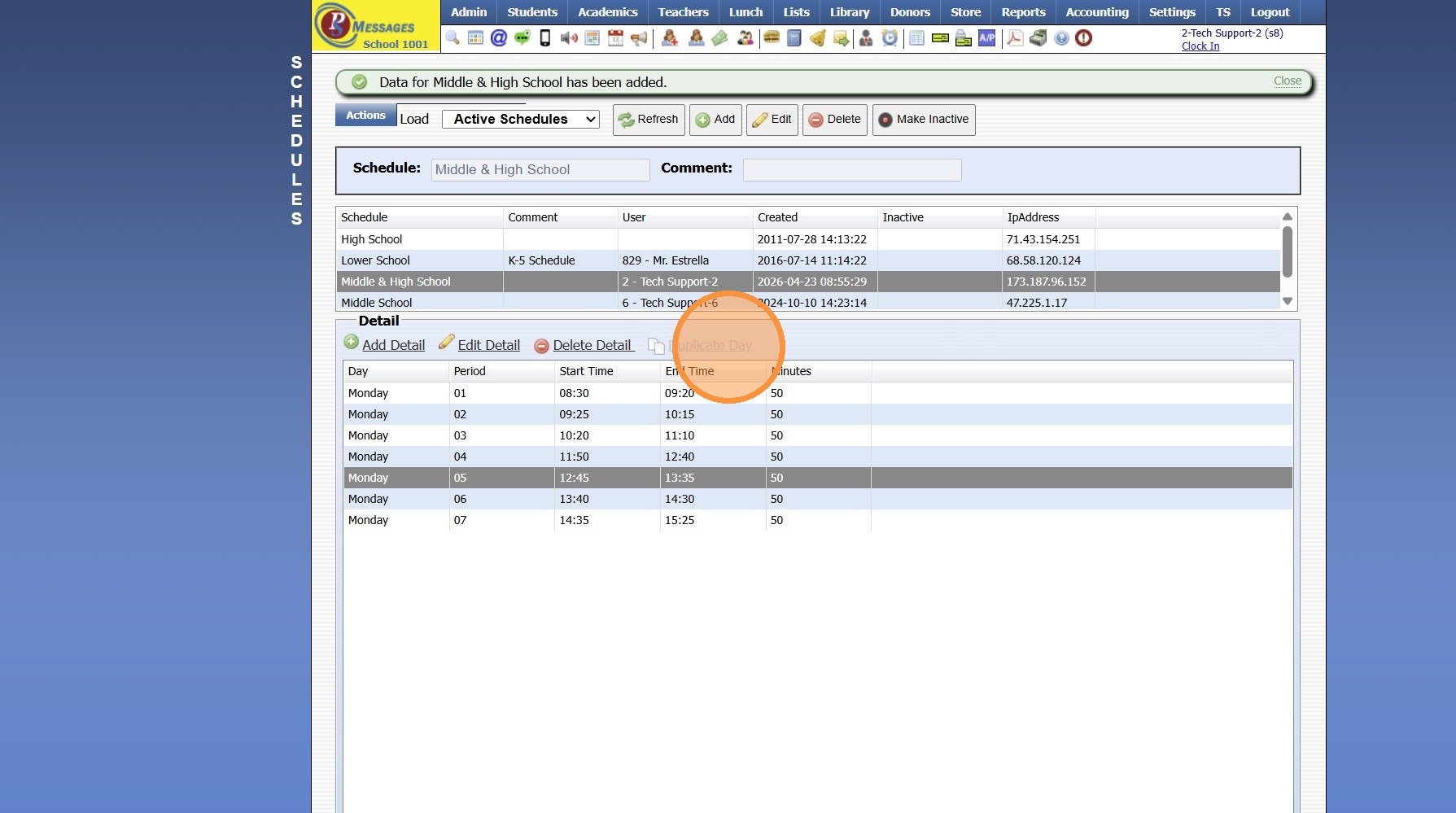
13. Select Created Schedule to Copy From
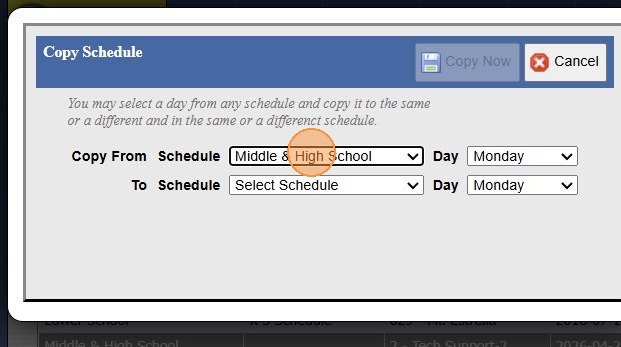
14. Select Created Schedule to Copy To
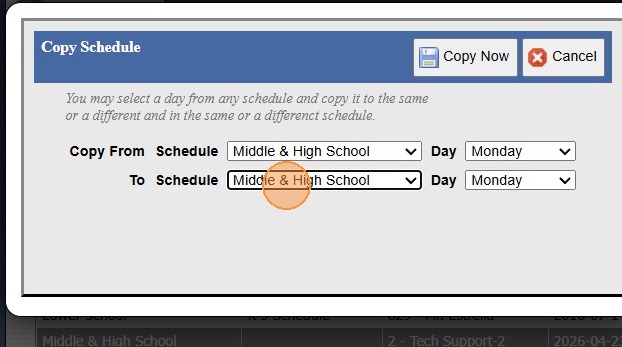
15. Select Day of Week to Copy From
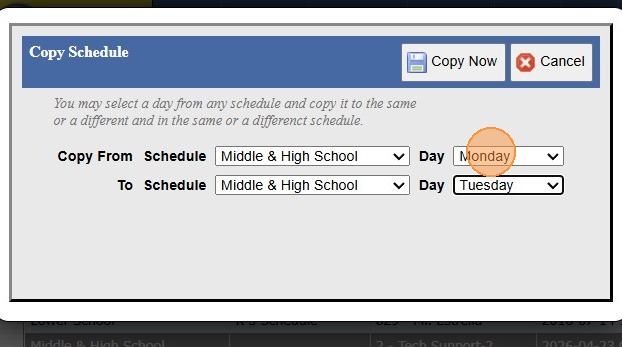
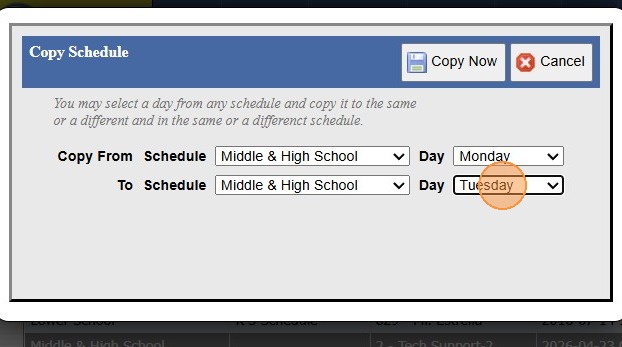
16. Select Day of Week to Copy To
17. Click "Copy Now"
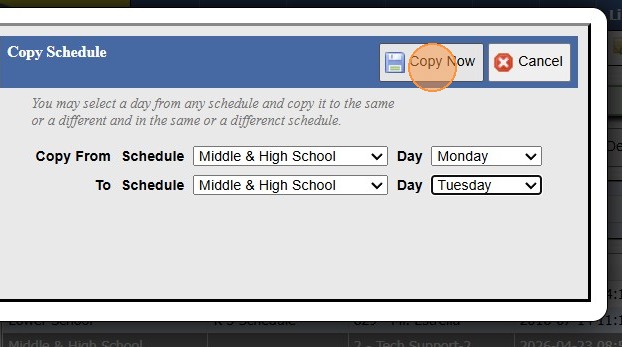
18. Repeat Steps 12 - 17 for each Day of the Week
3500.2.5
Related Articles
Creating Class Period Schedules (Different Period Schedule for Days of the Week)
1. Click "Lists" 2. Click "Academics" 3. Click "Schedules" 4. Click "Add" 5. Enter Schedule Name 6. Click "Save" 7. Click "Add Detail" 8. Select Day of Week & Enter Period 9. Enter Period Start & End Time (Schedule Times Must be Entered in Military ...Printing My Schedule (By Class Period)
Printing My Schedule (By Class Period) 1. Click "Settings" 2. Click "User Settings" 3. Click "My Schedule (Period)" 4. Schedule can be Printed, Emailed or Saved to a PDF 6500.4.3Viewing Student Schedules in the Classroom
Viewing Student Schedules in the Classroom 1. Log into PraxiSchool 2. Click "Teachers" 3. Click "Classroom" 4. Select Class 5. Click "Classroom" 6. Click the "Class Info" field 7. Left Click the Student Profile 8. Click "Schedule" 9. Schedules for ...Adding a Class
A Course must be Created before the Class can be Added. 1. Click "Academics" 2. Click "Classes" 3. Click "Add" 4. Search Course Name 5. Select Teacher 6. Select Classroom (Optional) 7. Verify the Correct School Year is Set (Current School Year is the ...Printing a Student Schedule from the Student File
1. Click "Students" 2. Click "Students" 3. Select the Student 4. Click the "Classes" Tab 5. Click "Print" Printing the Student Schedule by Class Period 6. Click "Schedule/Period" 7. The Student's Schedule will Print based on the Period & Day of the ...