Adding Transcript Grades (Final Grades Only)
1. Click "Academics"
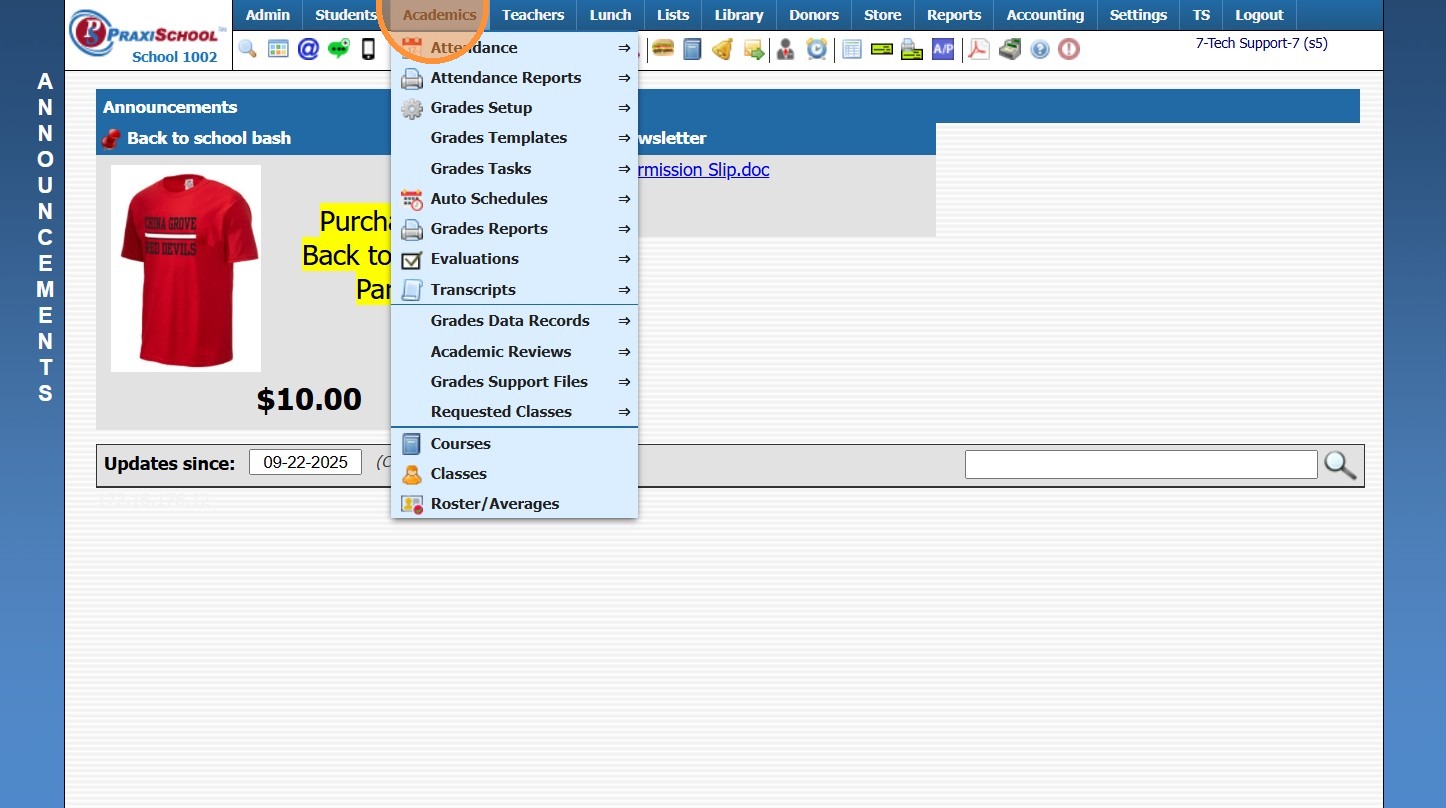
2. Click "Transcripts"
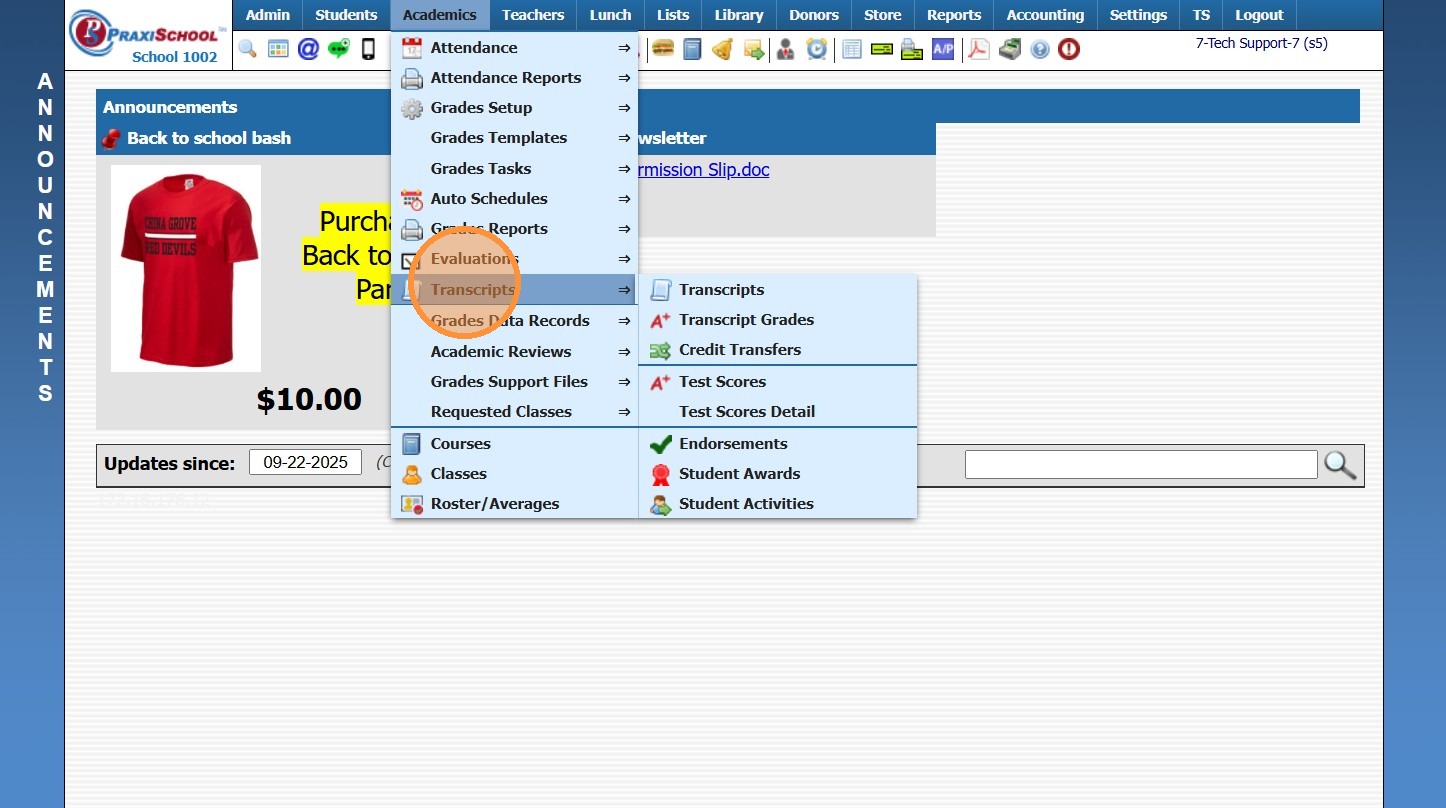
3. Click "Transcripts"
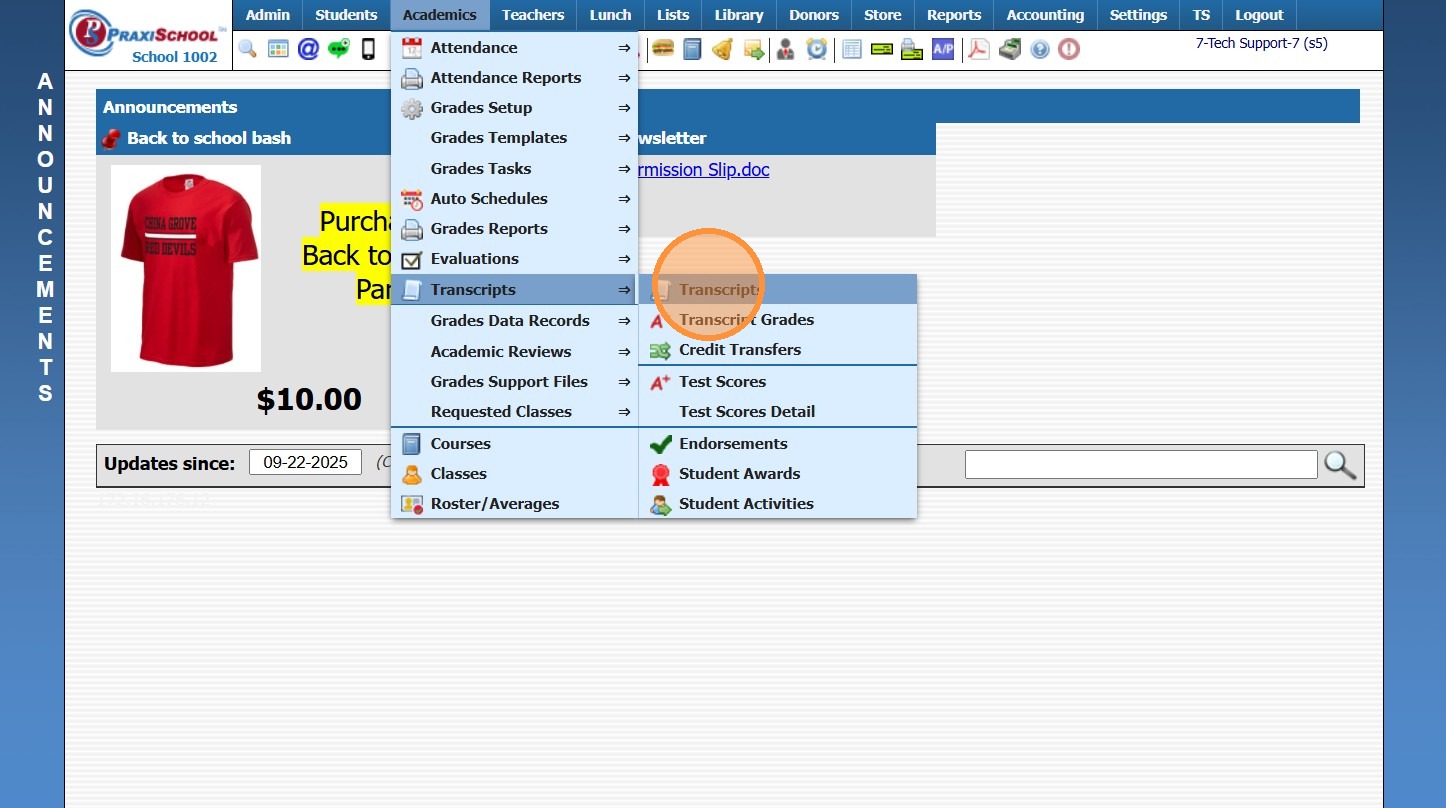
4. Highlight Student Transcript, making sure to select proper level: Middle School, High School etc.
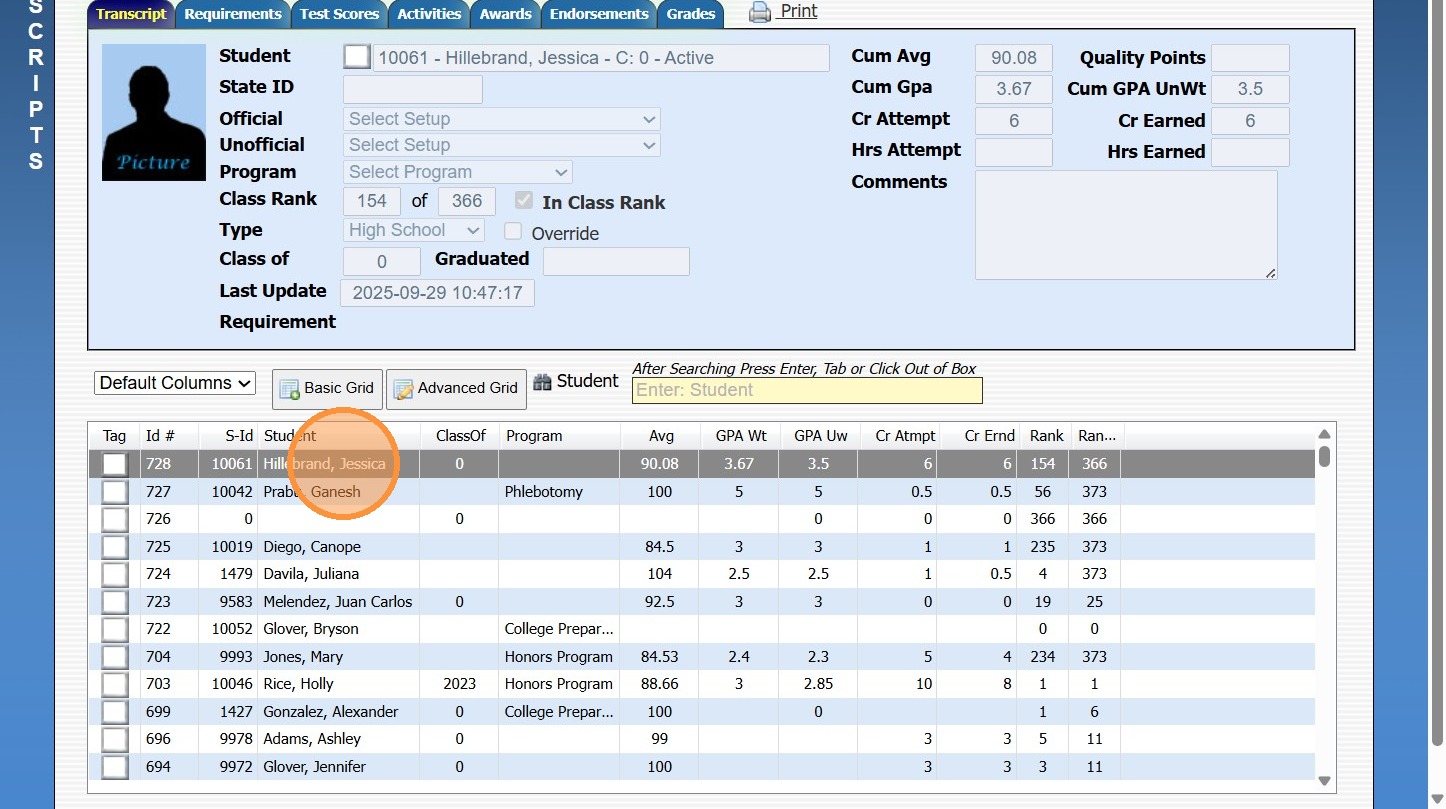
5. Click "Actions"
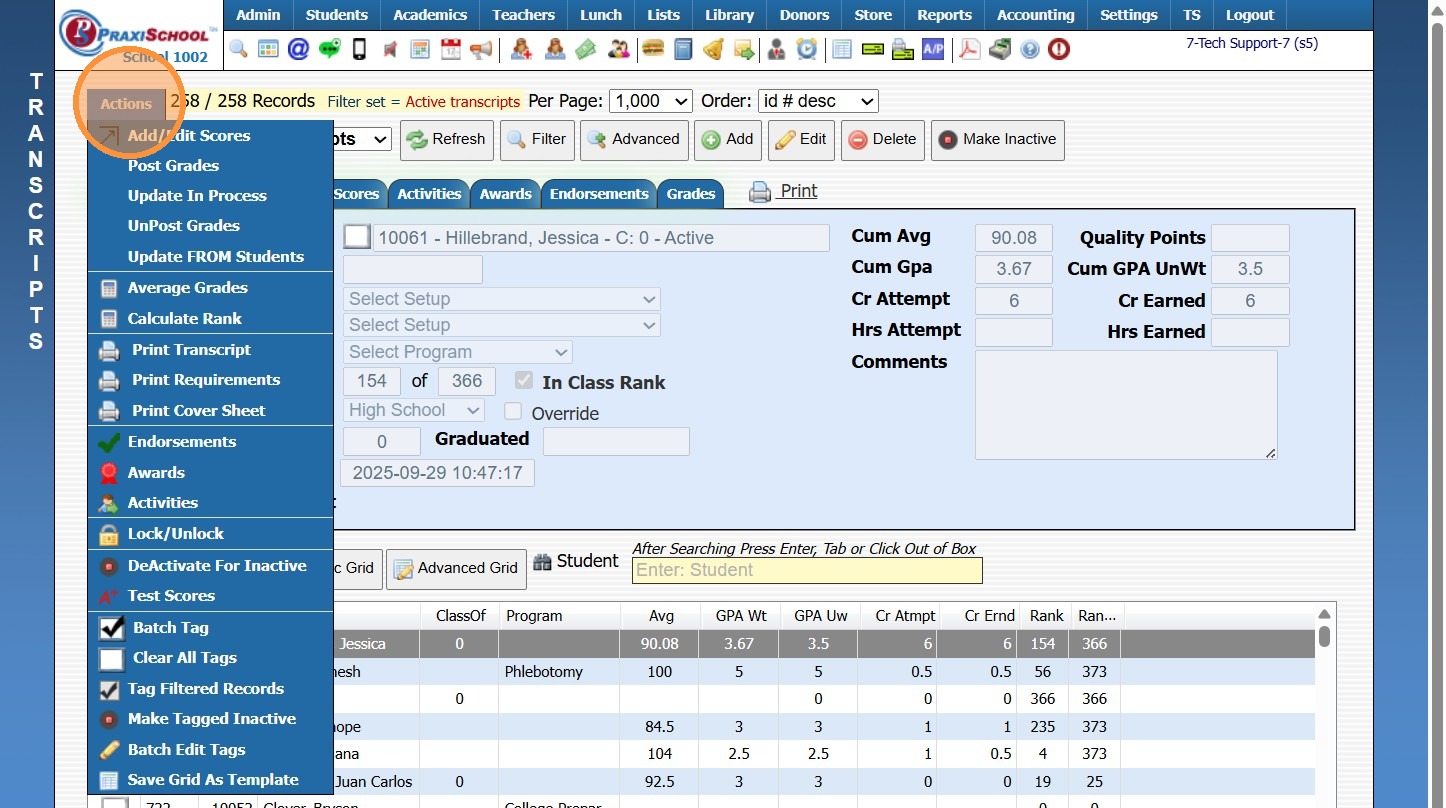
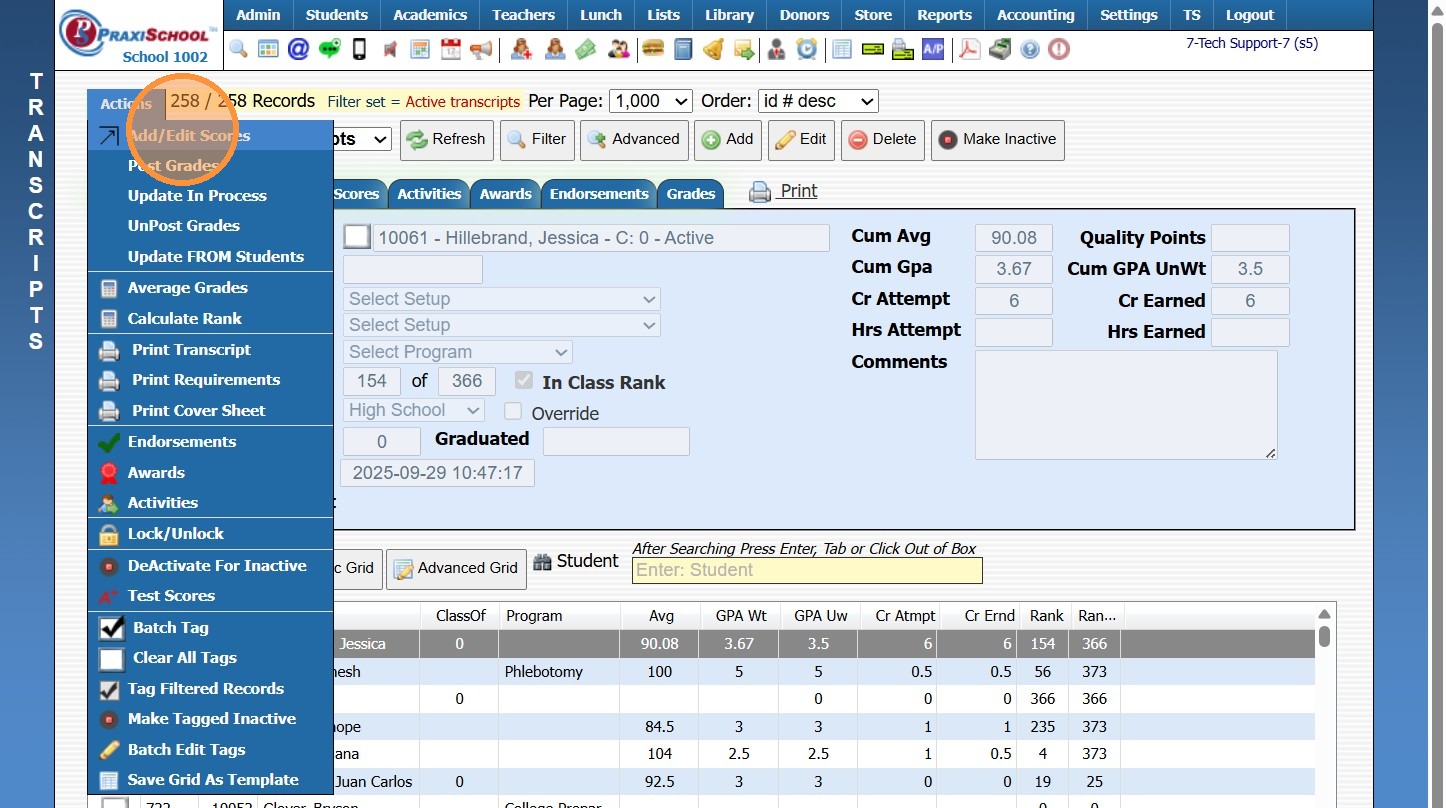
6. Click "Add/Edit Scores"
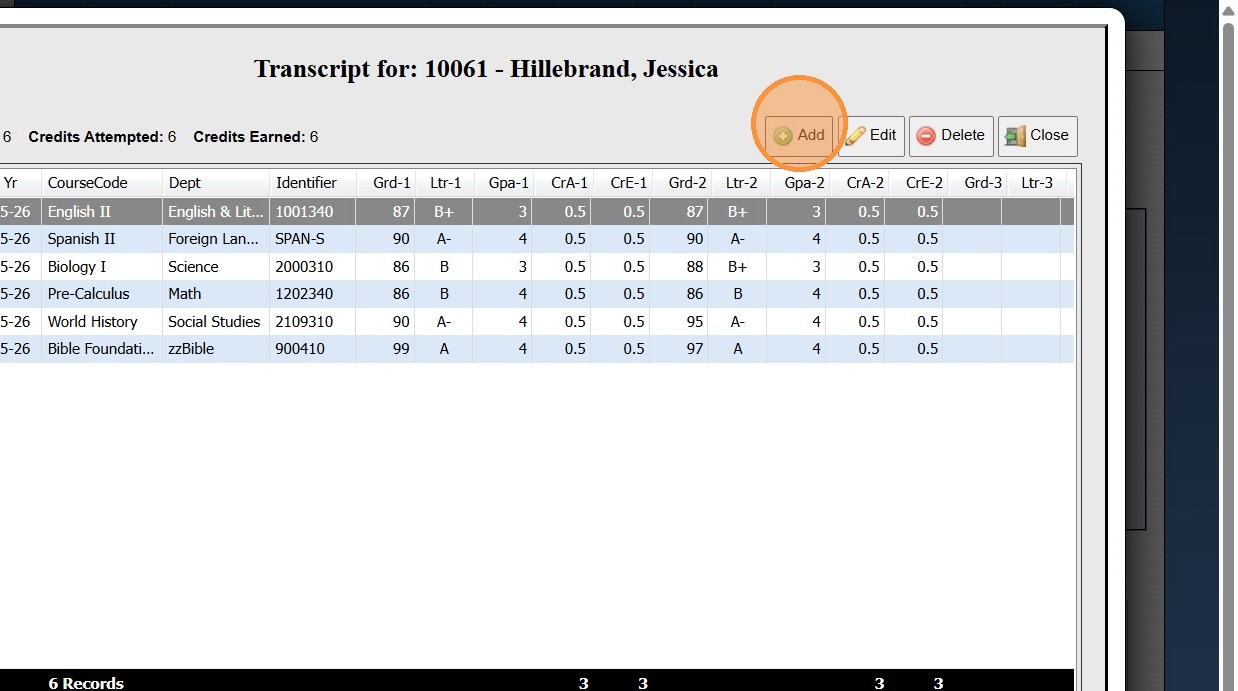
7. Click "Add"
8. Enter Course Title and Identifier (Optional)
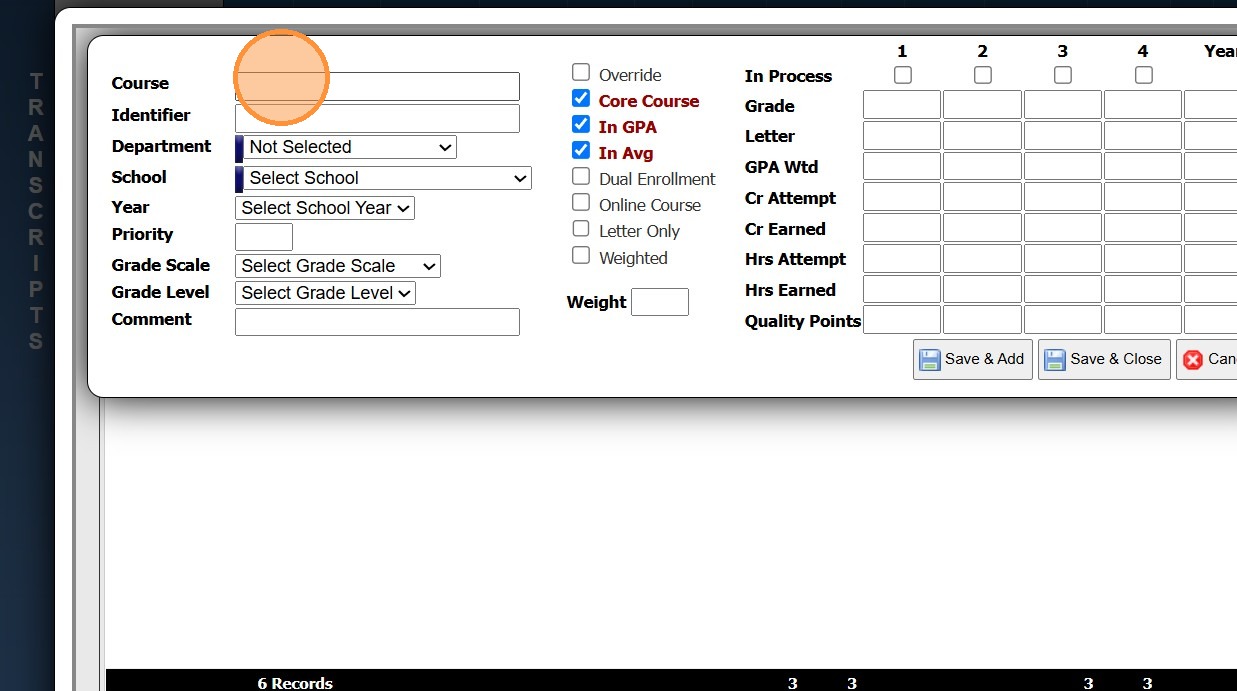
9. Select Department for Requirements Section. Select Dark Blue Box to add a department that is not listed.
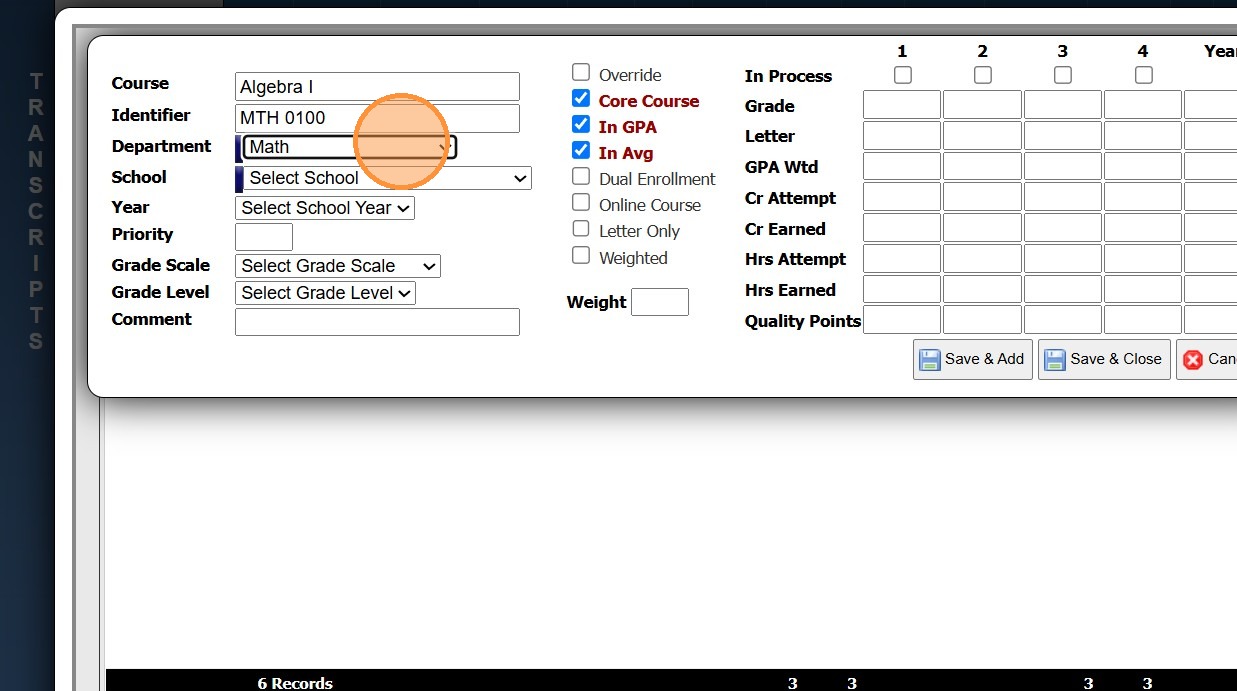
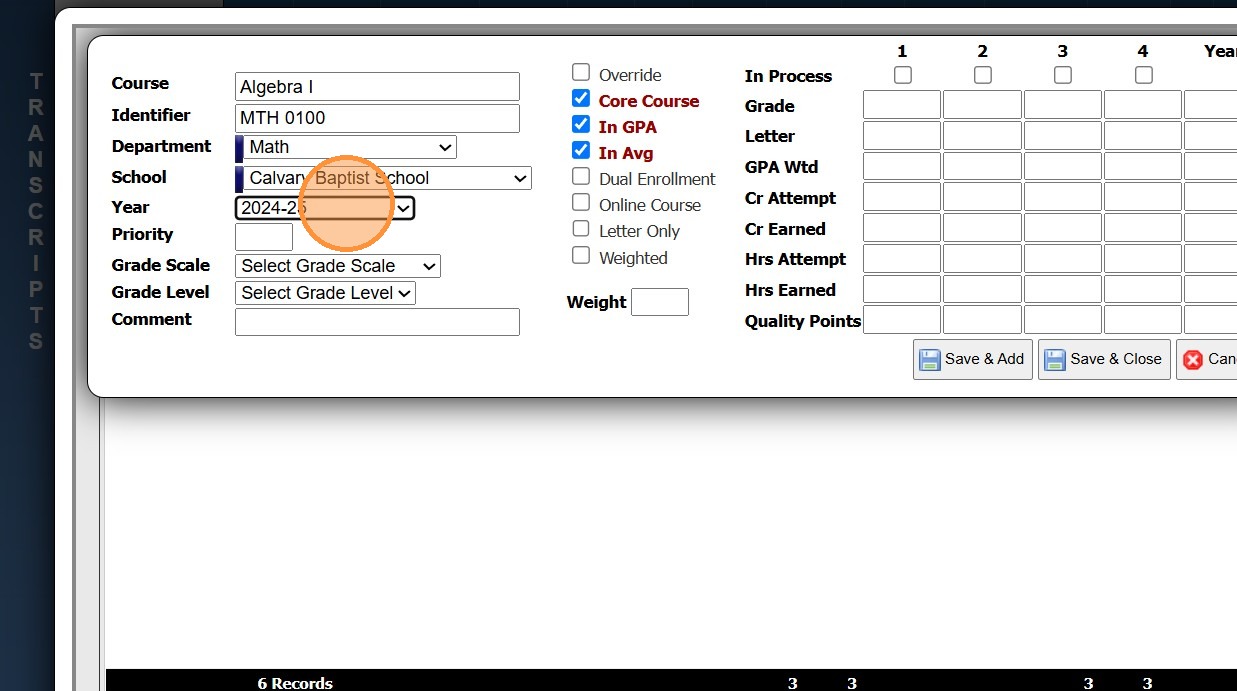
10. Select the school year class was taken
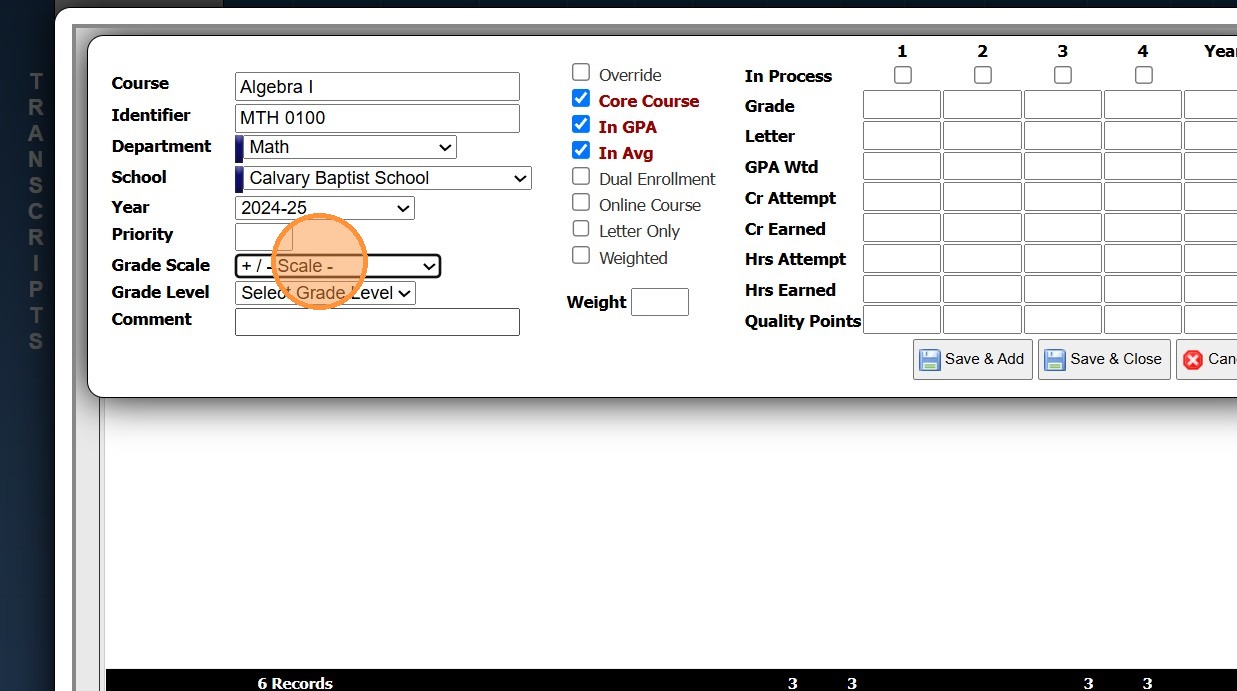
11. Select the Grade Scale for this class
12. Select Grade Level student was in when class was taken.
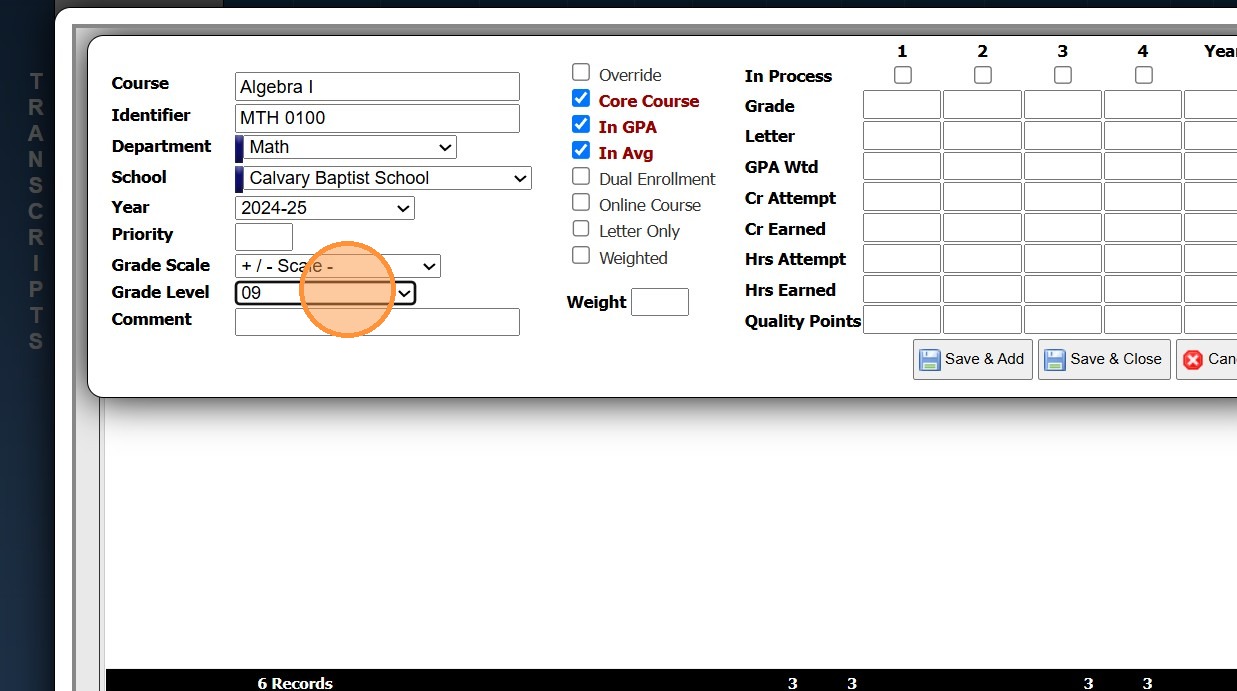
13. Check the boxes that you want to utilize:
Override: Once grades are entered this will prevent any changes
Core Course: Include this course data when calculated Core Course information
In GPA: Includes within cumulative GPA
In Avg: Includes within cumulative average
Dual Enrollment: Indicates Dual Enrollment Course
Online Course: Indicates course was taken online
Letter Only: Will only enter Letter on Transcript
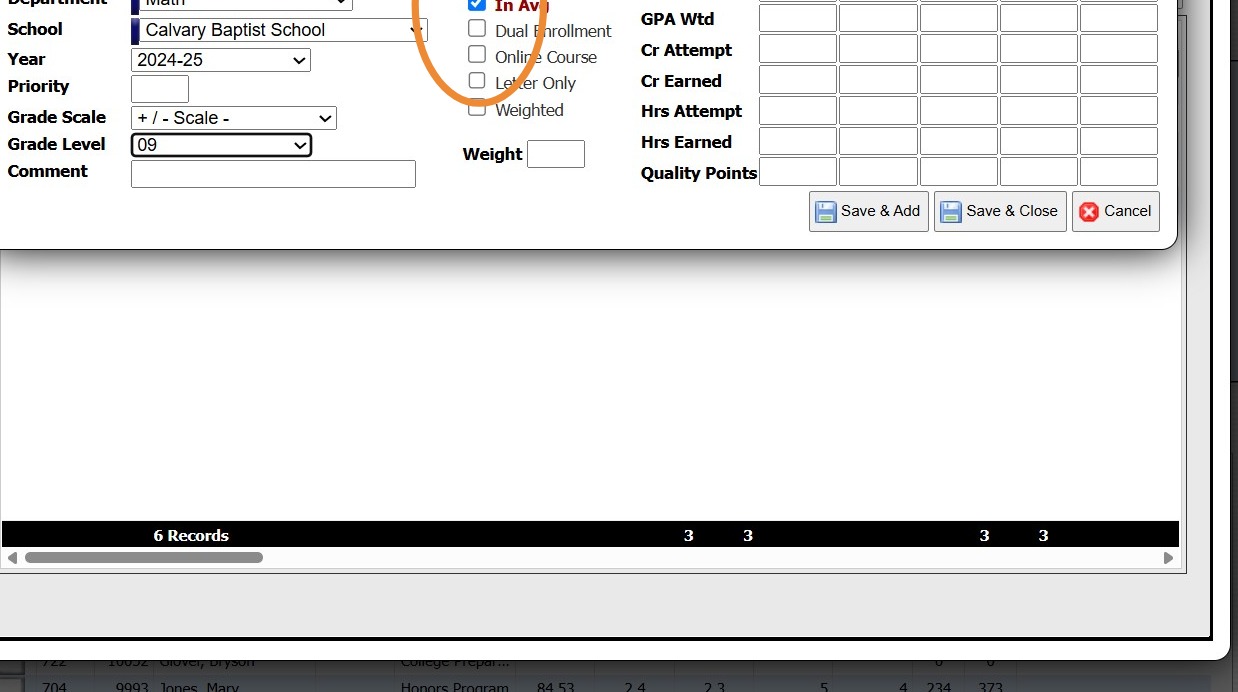
14. Column 1 is Semester 1. Check the box In Process if course is being taken currently.
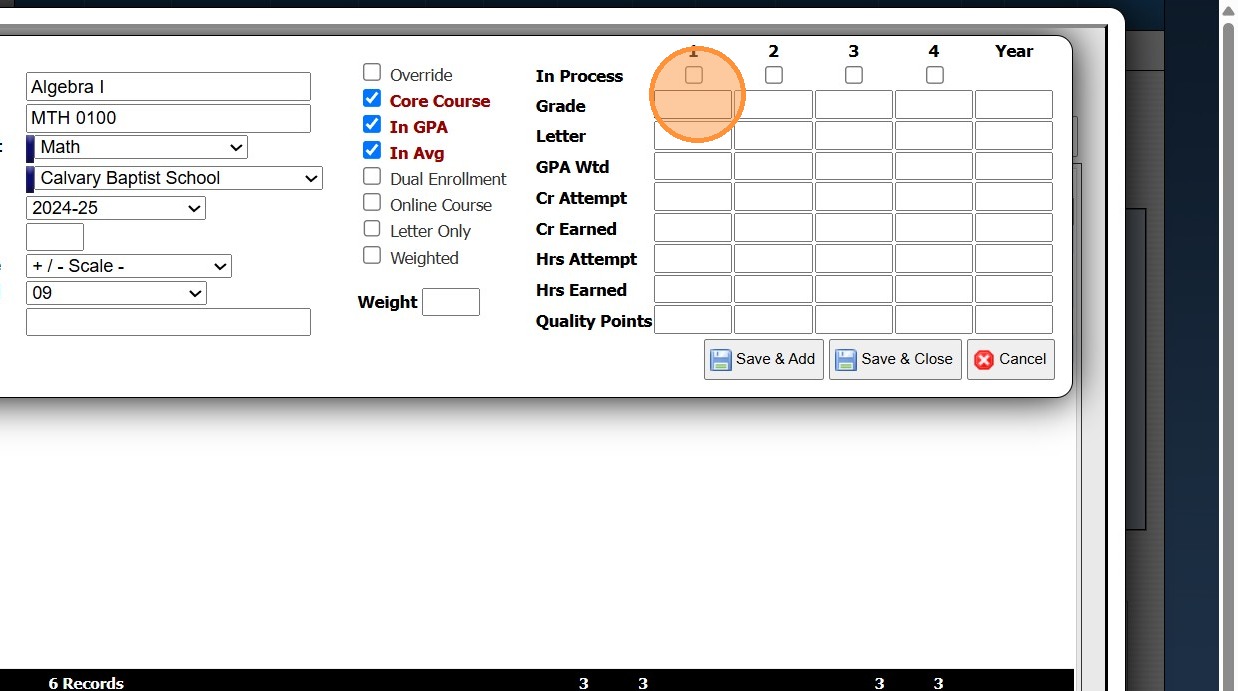
Alert: Alert! If you do not have semester data but rather annual data, you can enter the data in the Year column only. It will depend on the type of transcript you are printing. If you print semester then you will enter data into semester. If you are printing annual, you can use semester data to produce annual data.
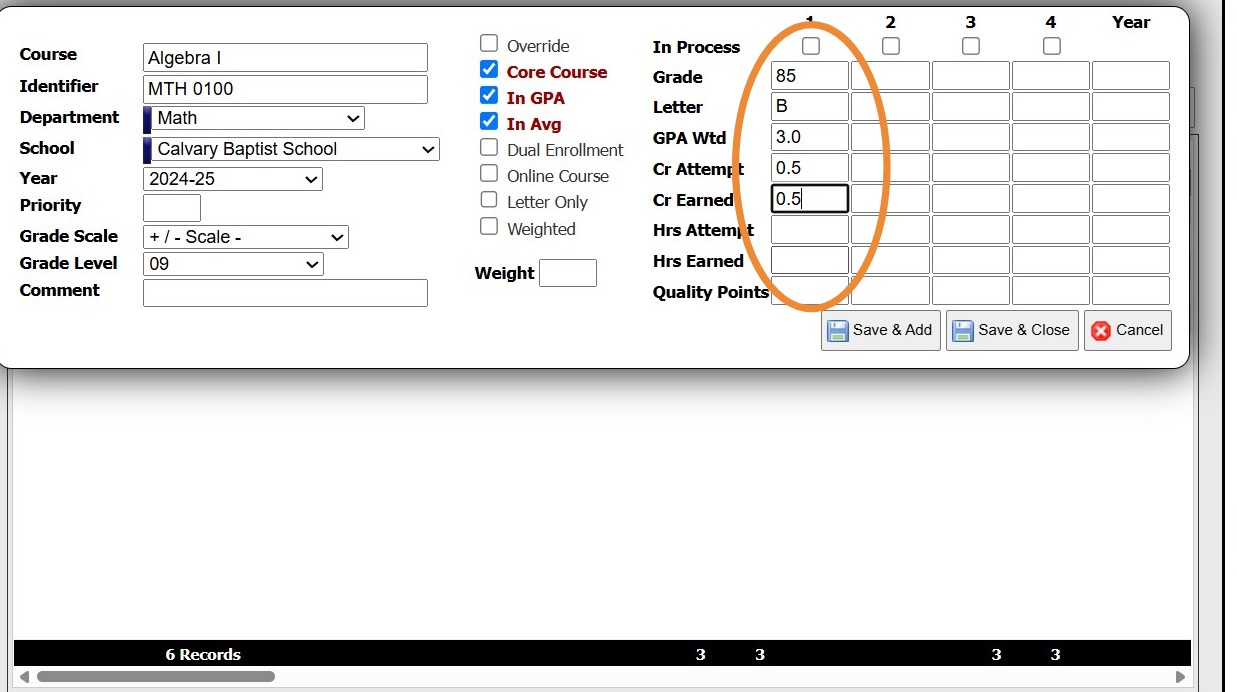
15. Enter the semester data.
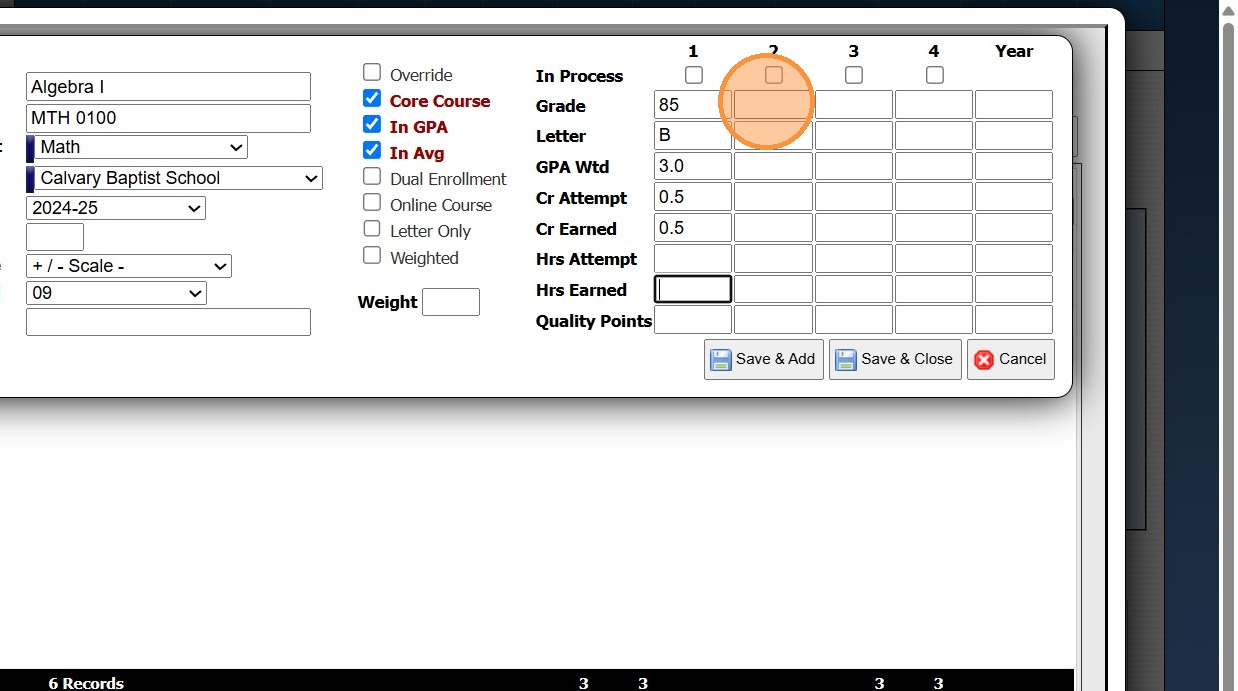
16. Enter second semester data in column 2.
17. If course is weighted, check the weighted box and enter how much is added to GPA.
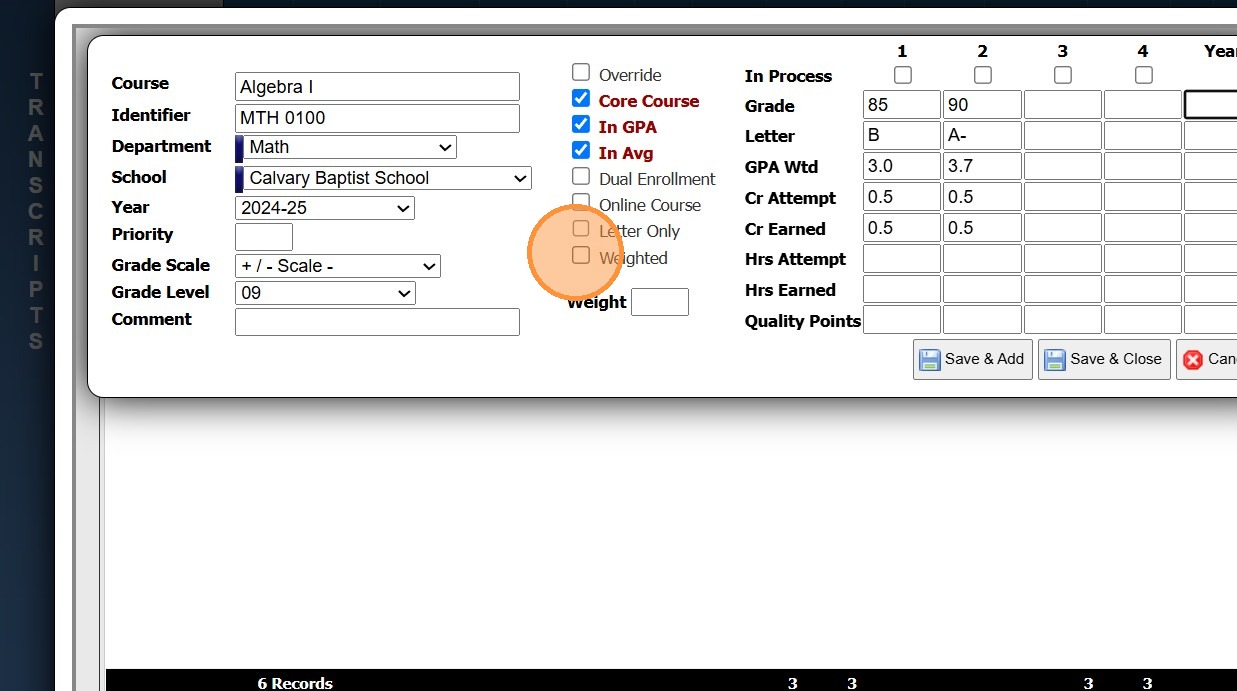
Alert: Alert! The GPA entered is WITH the additional weight.
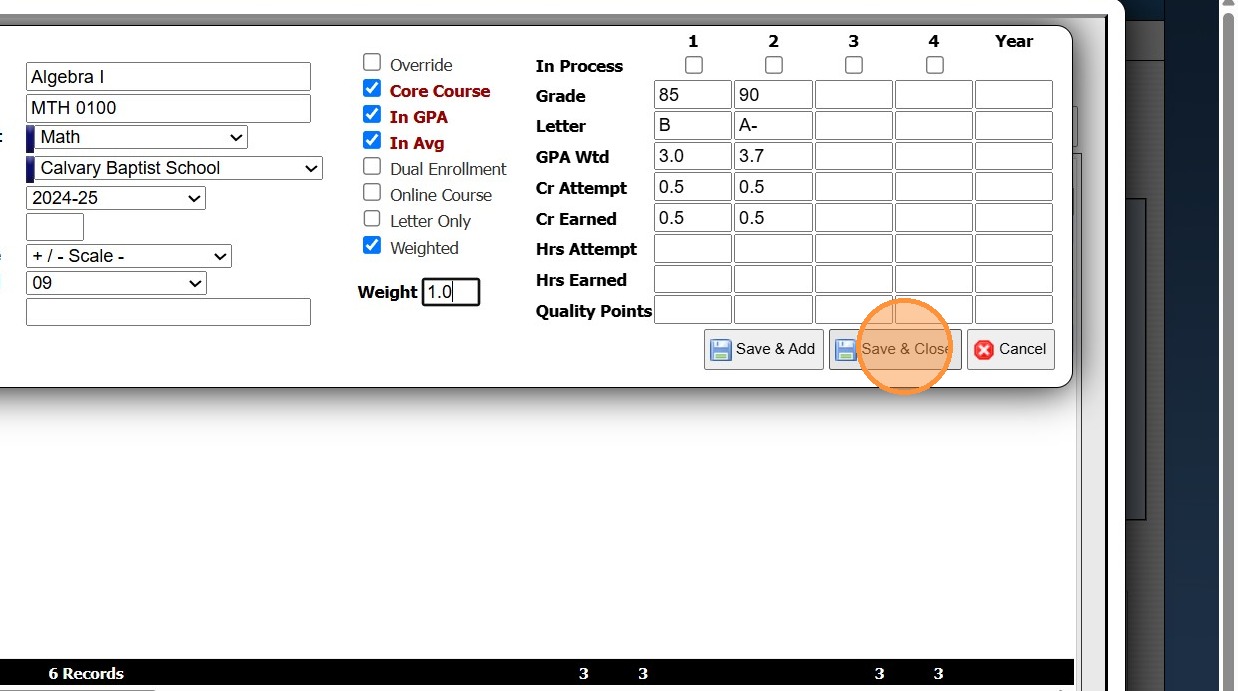
18. Click "Save & Close" or "Save & Add" if you have more courses to add.
19. Click "Close"
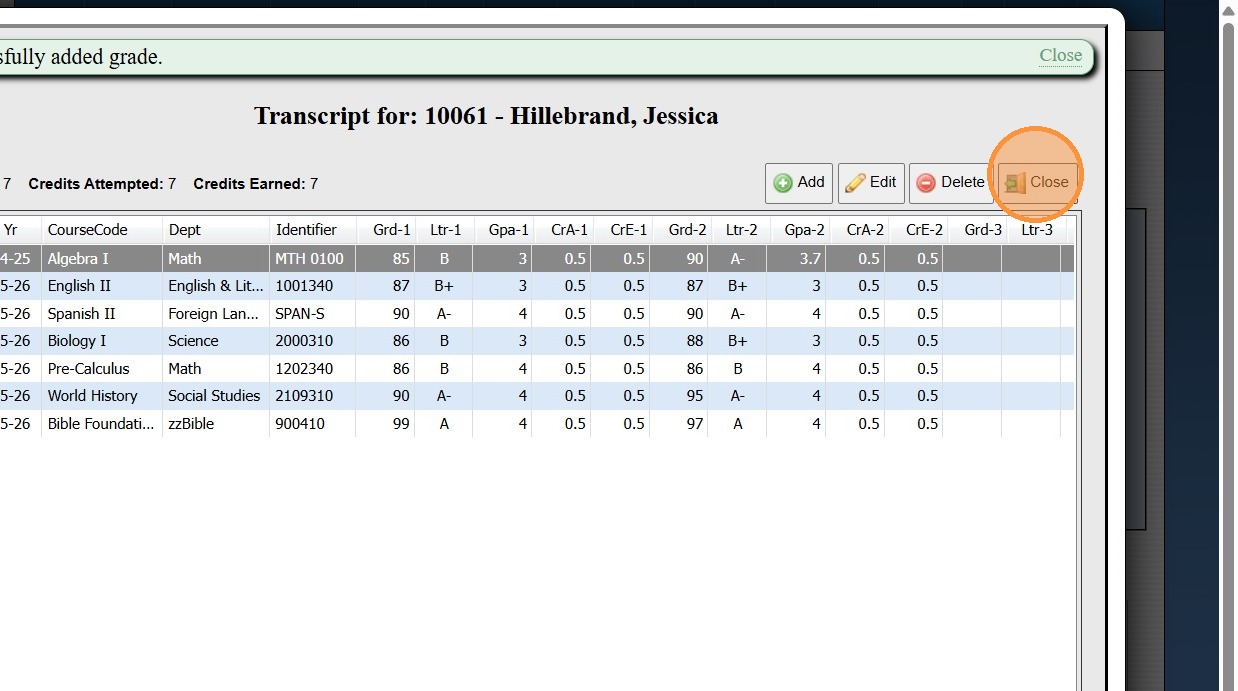
Alert: Alert! Once all classes have been added the cumulative average MUST be re-calculated to incorporate the new classes added.
20. Click "Actions"
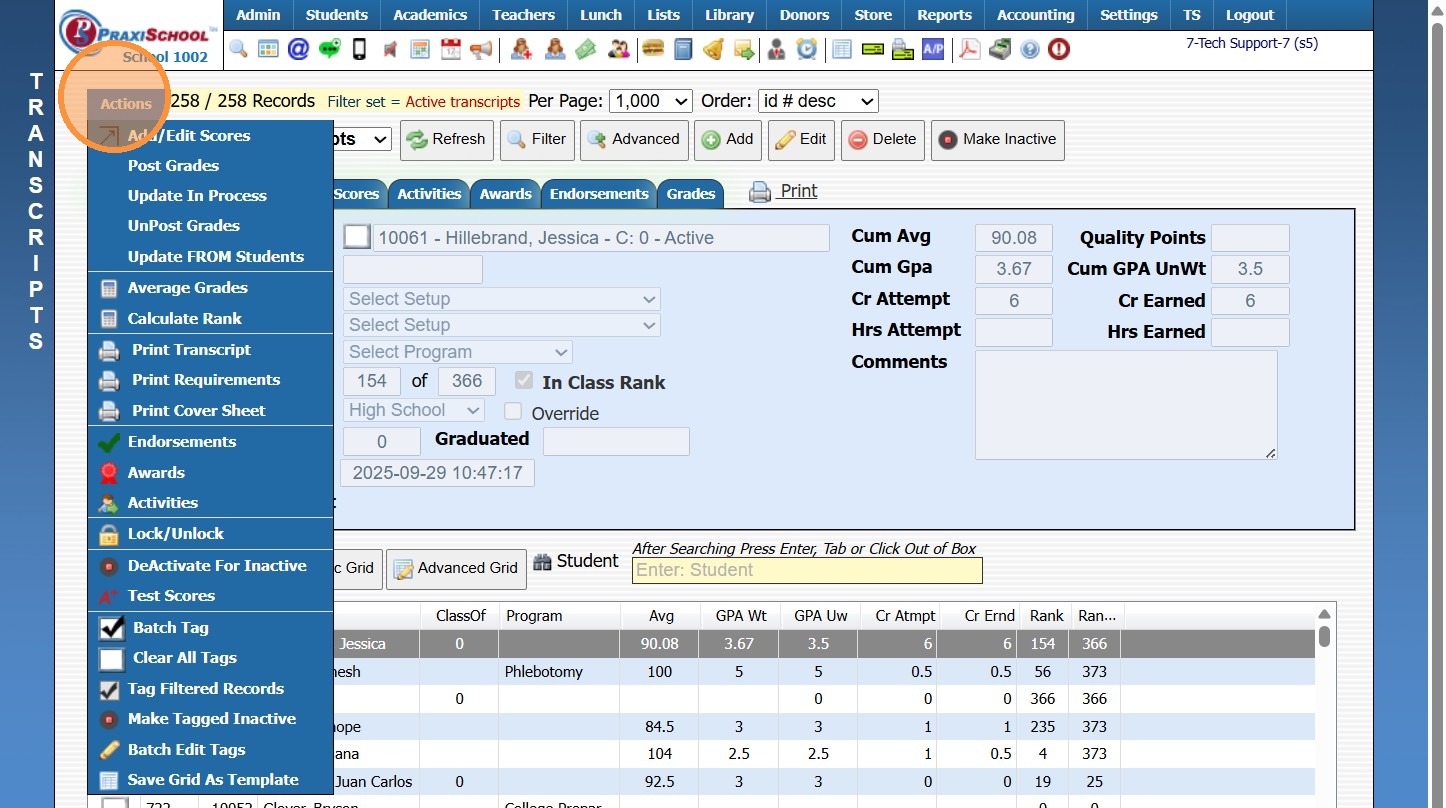
21. Click "Average Grades"
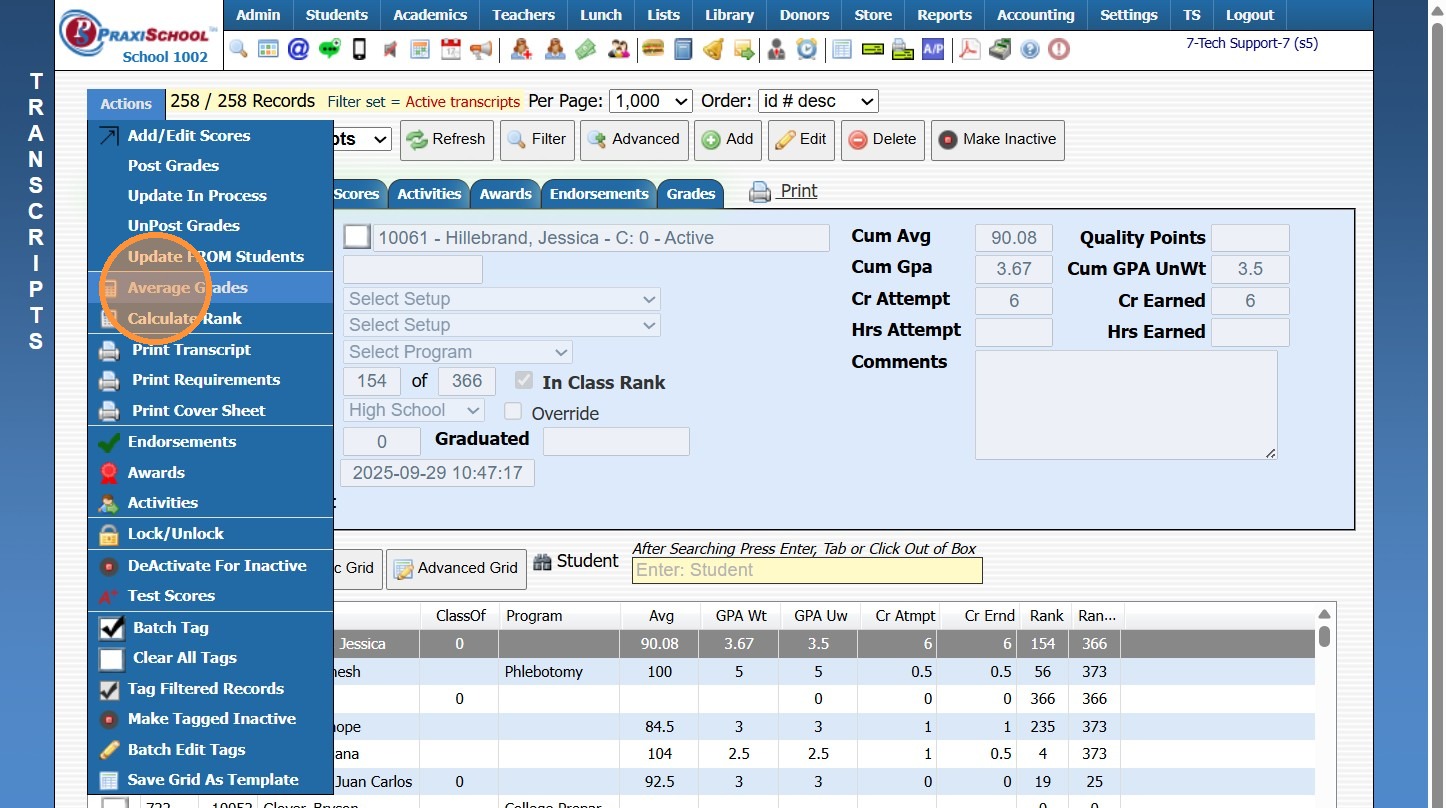
22. Calculate for both the Semester field and do it again for Annual field.
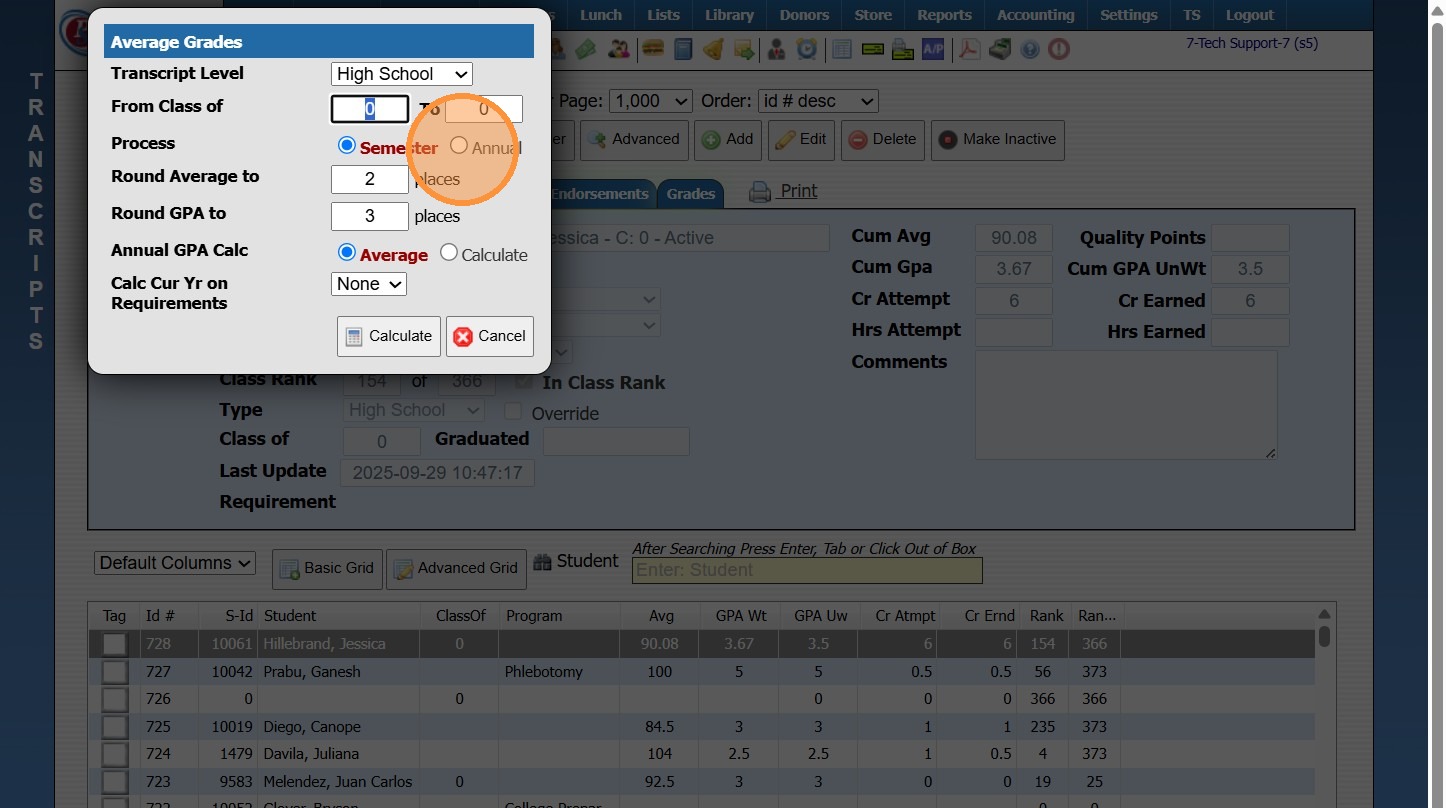
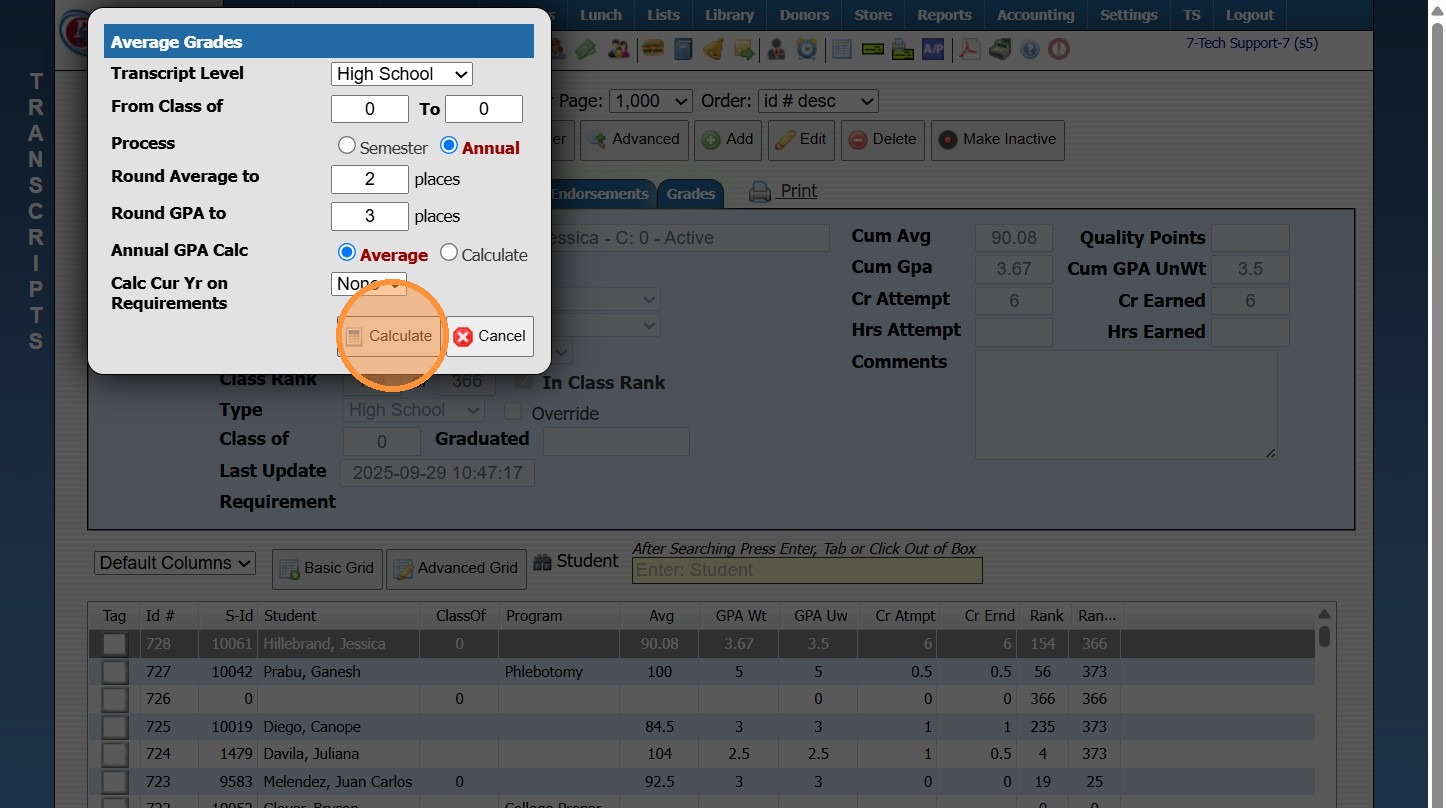
23. Click "Calculate". Repeat process for Annual.
Related Articles
Adding Transcript Grades from Prior School
1. Click "Academics" 2. Click "Transcripts " 3. Click "Transcripts" 4. Highlight Student Transcript, making sure to select proper level: Middle School, High School etc. 5. Click "Actions" 6. Click "Add/Edit Scores" 7. Click "Add" 8. Enter Course ...Entering Final Grade Period OR Semester Grades
Entering Final Grade Period OR Semester Grades 1. Click "Teachers" 2. Click "Enter Final Grades" 3. Select Class 4. Select Grade Period / Semester 5. Click "Refresh" 6. Enter Numeric Grade for each Enrolled Student 2500.10.1UnPosting Transcript Grades
UnPosting Transcript Grades 1. Click "Academics" 2. Click "Transcripts" 3. Click "Transcripts" 4. Click "Actions" 5. Click "UnPost Grades" 6. Select School Year & Semester 7. Click "Save Changes" 8. 2000.8.15Averaging Transcript Grades
Averaging Transcript Grades 1. Click "Academics" 2. Click "Transcripts" 3. Click "Transcripts" 4. Click "Actions" 5. Click "Average Grades" 6. Select Transcript Level and Enter Class of From Year and Class of To Year 7. Make Sure to Process for ...Moving Transcript Grades from One Transcript to Another
1. Click "Academics" 2. Click "Transcripts" 3. Click "Transcripts" 4. Select Both Transcript ID's 5. Click "Academics" 6. Click "Transcripts" 7. Click "Transcript Grades" 8. Click "Actions" 9. Click "Transfer Grades" 10. Select the Transcript ID to ...